

About Cloning a Website
Cloning a website means creating an exact copy of existing web pages. This could be for offline browsing, redesign inspiration, a safe playground to experiment without breaking anything live, or backing up your content. Whatever the reason, learning how to clone a website for free is a great skill. But hold your horses: cloning someone else's work to pass it off as your own is a big no-no legally and ethically.
In this guide, we'll walk through everything from simple browser tricks to full-site mirroring. You'll discover how to copy a website for free using easy tools.

What Does It Mean When Cloning A Website?
When you clone a website, you're typically grabbing HTML files, CSS stylesheets, JavaScript, images, and sometimes even the database structure. It's like taking a snapshot of everything that makes that site tick.
Website Cloning vs Copying vs Mirroring
These terms get tossed around like salad, but they mean different things.
- Copying usually refers to grabbing visible content—text and images.
- Mirroring, on the other hand, is creating an exact duplicate of an entire site, folder structure, and all, often for backup or redundancy.
- Cloning sits somewhere in the middle; it's about replicating the look, feel, and functionality, though dynamic parts (like login systems) might not work perfectly offline.
When people search for how to clone any website for free, most actually want to mirror static content. Dynamic sites with databases and server-side scripts are trickier—you'd need the backend code too, which you typically can't access.
Best Free Way to Clone a Website | 5 Steps
Fortunately, here comes the all-in-one multiple cloud storage manager, MultCloud, to help. It might be the easiest way to clone a website, including your files and database, in one click.
- Key Advantages of MultCloud Website Cloning:
- Direct Server-to-Server Transfer. The main advantage is that MultCloud transfers files directly between your old and new hosting providers' servers without downloading and re-uploading.
- User-Friendly, No Software Installation. As a web-based service, it requires no software installation. You simply log in, connect your FTP and database accounts, and clone with one click.
- Scheduled and Automated Transfers. For large websites, you can schedule the transfer task. The process runs on MultCloud's servers, allowing it to continue even after you close your browser or turn off your computer.
- Minimal Downtime. The direct transfer method helps you migrate a website to a new host to minimize downtime.
- Strong Security Measures. The service uses 256-bit AES encryption for SSL during data transmission to protect your files and login credentials.
- Wide Platform Support. MultCloud supports over 40 cloud services, including Google Drive, Dropbox, and OneDrive, WebDAV, FTP/SFTP, MySQL, etc.
Here we will demonstrate how to clone a website for free with MultCloud:
1. Please sign up for a MultCloud account, then log in.
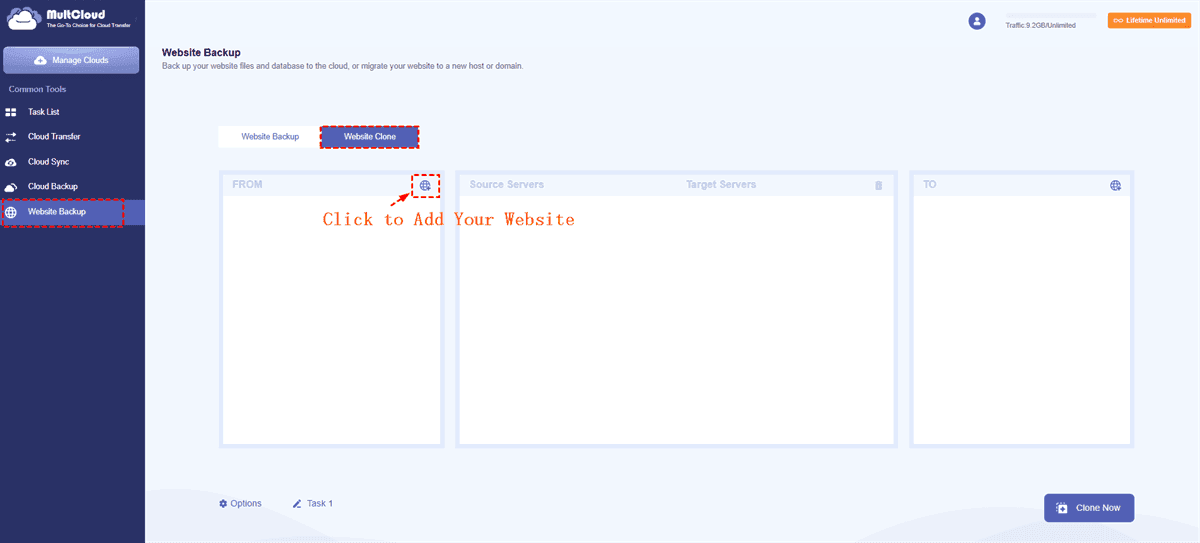
2. Click Website Backup > Website Clone, click the add website icon to input your website FTP server and database credentials, and hit Add Website. Repeat the process to add another website.
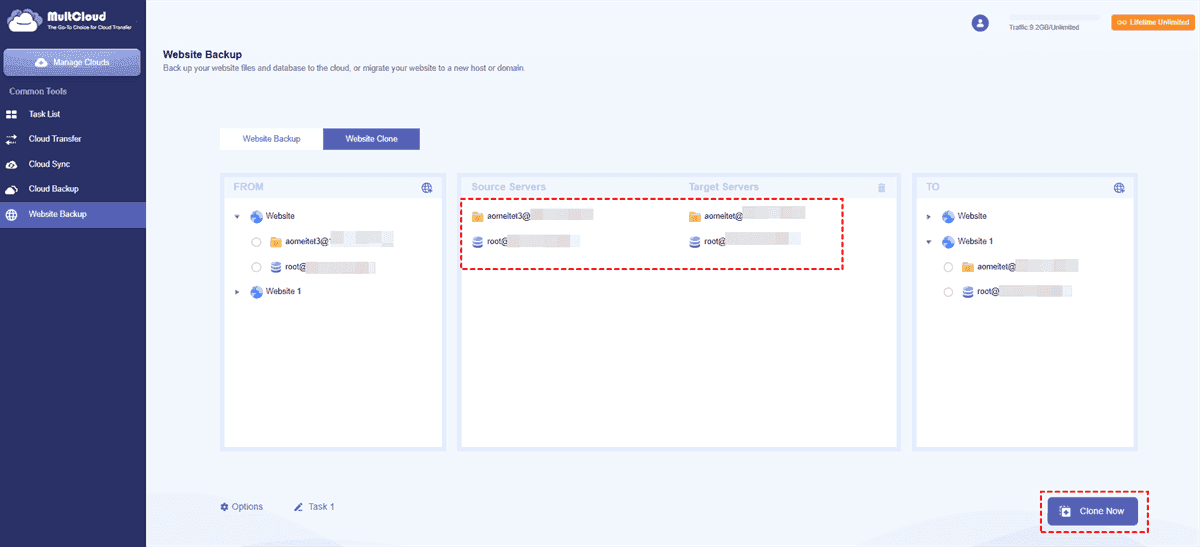
4. Expand the source website in the FROM section, click the FTP server to put it on the source server, and expand the target website in the TO section, click the destination FTP server to put it on the target server. Do the same for the database on both servers.
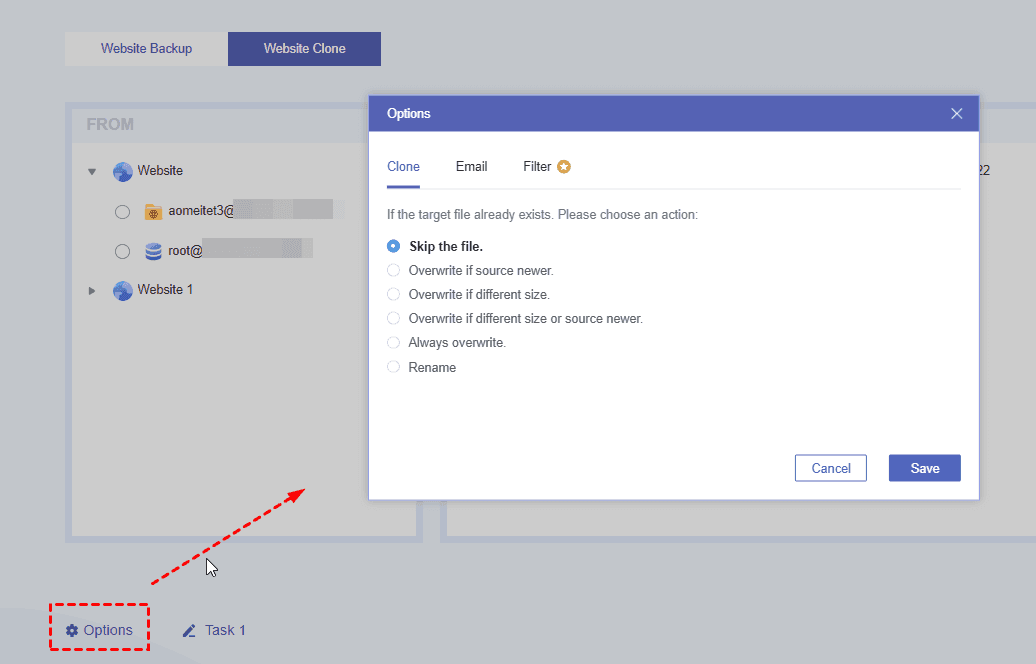
5. Configure settings in Options and hit Clone Now to clone a website for free.
- Notes:✎...
- You can set up clone settings, email, and filter in Options. A Filter is especially useful to clone the files you need instead of everything if required.
- Once completed, check the clone task in the Task List.
- Besides, if you need to clone unlimited files and databases, it’s highly recommended to upgrade to a MultCloud advanced plan to enjoy all other premium features.
Besides, you can also transfer files between FTP servers and migrate your database separately according to your demands.

- Smart Share: Share cloud files via public, private, or source mode.
- One-key Move: Quick data transfer, sync, and backup among clouds.
- Email Archive: Protect emails to other clouds or local disks.
- Remote upload: Effectively save web files to clouds via URL.
- Safe: Full-time 256-bit AES and OAuth authorization protections.
- Easy: Access and manage all clouds in one place with one login.
- Extensive: 30+ clouds and on-premise services are supported.
3 Other Tools to Clone a Website for Free
You don't need to be a developer to clone a site. Plenty of free tools do the heavy lifting. Some run on your computer, others live in your browser, and a few work entirely online.
Tool 1: HTTrack
You can try HTTrack to copy a whole website for free. HTTrack is the undisputed king of offline browsers. This free, open-source tool downloads a website to your local drive, recursively building all directories, images, and HTML files.
Here is how to clone a website for free:
1. Download and install HTTrack from their official website.
Tip: First-timers often get overwhelmed by HTTrack's options. Don't be. The default settings work fine for 90% of sites.
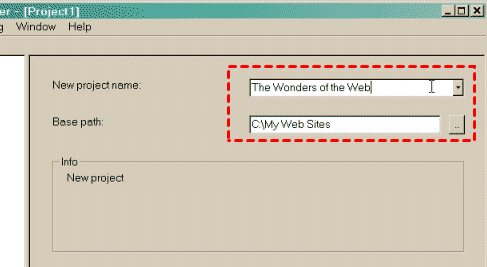
2. Launch it and click "Next" to create a new project, rename your project, and specify your destination folder on your computer.
3. Choose Download web site(s) in the Action section, and input the website URL you want to clone.
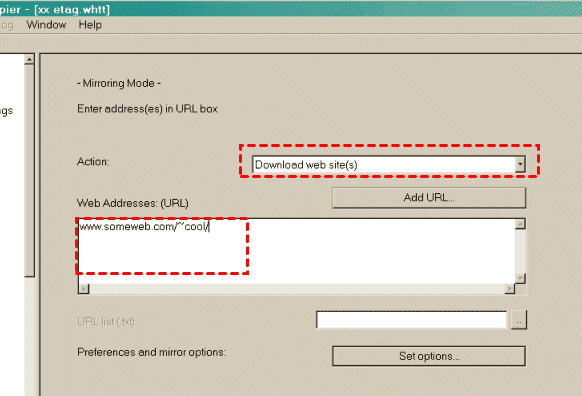
5. Adjust your connection settings, hit "Next" and then "Finish" to start the download.
That's it. When it's done, open the folder and double-click any HTML file. You're now browsing a local copy.
You can browse the cloned site offline, link by link, just like you're online. It's perfect for archiving documentation, saving portfolios, or creating local backups.
- Limitations:✎...
- HTTrack can't clone server-side scripts like PHP or databases.
- Some sites use robots.txt to block crawlers. HTTrack can ignore this, but you shouldn't. Respect a site's rules.
Tool 2. Browser Extensions - SingleFile or Save Page WE
If installing software feels like overkill, browser extensions are your best bet. Browser extensions like:
- SingleFile (for Chrome/Firefox) saves an entire webpage into a single HTML file—images, CSS, and all.
- Save Page WE does something similar. These won't clone an entire multi-page site in one go, but they're great for grabbing individual pages quickly.
Tool 3. Online Crawlers for Quick and Easy Cloning
Prefer not to install anything? Online services like WebCopy or SiteSucker (Mac) have web-based counterparts, though most free tiers limit how many pages you can crawl. Some SEO tools also offer site crawling, but they're usually paid. For a truly free, no-install option, your best bet is still HTTrack or a browser extension.
How to Clone a Website and Make It Your Own for Free
Cloning for learning is one thing; transforming a clone into your own creation is another. Let's be crystal clear: you cannot legally take someone's design and call it your own. But you can use a clone as a learning tool, then rebuild from scratch.
Edit Local Files to Change Design and Content
Once you've cloned a site, all the HTML, CSS, and images live on your computer. Open those files in any code editor (VS Code, Notepad++, or even plain Notepad). Change colors, fonts, layouts, and text.
This is a fantastic way to learn front-end development. You see how a professional site is structured, then tweak it to understand what each line does.
Replace Images and Text to Avoid Copyright Issues
If you plan to put your modified clone online, swap every image and piece of text with your own original content. Use free stock photo sites like Unsplash or Pexels. Rewrite the copy completely.
Use Cloned Templates for Local Development and Learning
The safest and smartest use of cloned sites? Offline learning. Create a "sandbox" folder on your computer filled with clones of interesting designs. Tinker with them, break them, fix them. You'll learn more about web development in a week than in months of theory.
FAQs About Cloning A Website
Is it legal to clone a website for personal use?
A: Yes, for personal offline learning or archiving—a legal gray area but rarely prosecuted. Redistributing or claiming as your own violates copyright. Check the terms of service.
What is the easiest way to clone a website for free without software?
A: Browser's "Save Page As" > "Webpage, Complete". Saves HTML + assets. Downside? One page at a time. For entire sites, use HTTrack.
Can I clone a WordPress site for free?
A: Front-end only (no database, posts, or settings). For a full clone, use plugins like All-in-One WP Migration or Duplicator with admin access. Or you can try MultCloud to backup entire site.
How do I clone a website and change its content?
A: Clone with HTTrack, edit HTML/CSS in VS Code or Notepad++, swap images/text. Fine for learning. Publishing without permission = copyright infringement.
What's the difference between cloning and scraping a website?
A: Scraping = extracting specific data (prices, emails) into CSV/JSON. Cloning = creating a browsable copy of the entire page structure. Different purposes.
Why did my cloned website look broken or have missing images?
A: External resources not downloaded, dynamic JavaScript content, or crawler blocks. Fix: Use HTTrack with "external links" enabled.
How to clone a website and make it your own for free?
The answer is: you don't, unless you strip out all original content and rebuild with your own. Even then, the underlying code structure might still be protected. Play nice.
MultCloud Supports Clouds
-
Google Drive
-
Google Workspace
-
OneDrive
-
OneDrive for Business
-
SharePoint
-
Dropbox
-
Dropbox Business
-
MEGA
-
Google Photos
-
iCloud Photos
-
FTP
-
box
-
box for Business
-
pCloud
-
Baidu
-
Flickr
-
HiDrive
-
Yandex
-
NAS
-
WebDAV
-
MediaFire
-
iCloud Drive
-
WEB.DE
-
Evernote
-
Amazon S3
-
Wasabi
-
ownCloud
-
MySQL
-
Egnyte
-
Putio
-
ADrive
-
SugarSync
-
Backblaze
-
CloudMe
-
MyDrive
-
Cubby


Stay Updated With Our
Latest Tips
Add us as a preferred source on Google to never miss helpful guides.
 Add as preferred source >>