Transfer Google Drive to Another Account Without Download


Whether you’re changing accounts, managing team storage, or organizing scattered files, transferring data between Google Drive accounts is a common need. MultCloud helps you move everything directly in the cloud—fast, secure, and without downloading files locally.
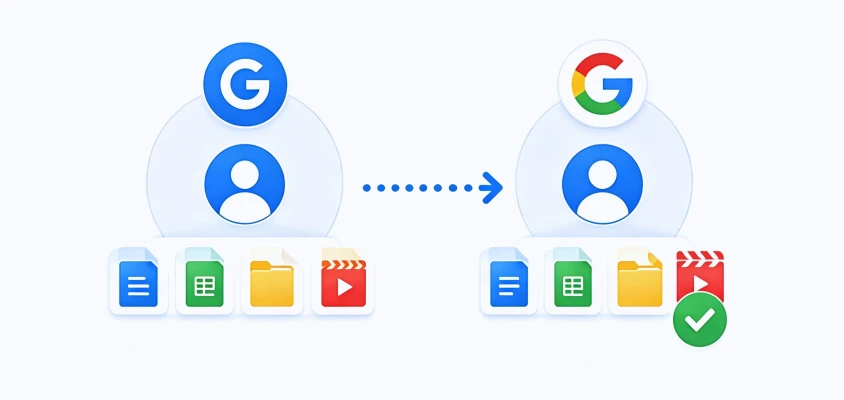
Dread the 48-hour download-and-reupload loop for your heavy media libraries? Moving to a new Google Workspace shouldn't tie up your local internet for days. MultCloud safely clones terabytes of files and folders directly in the cloud—while your PC is completely turned off.
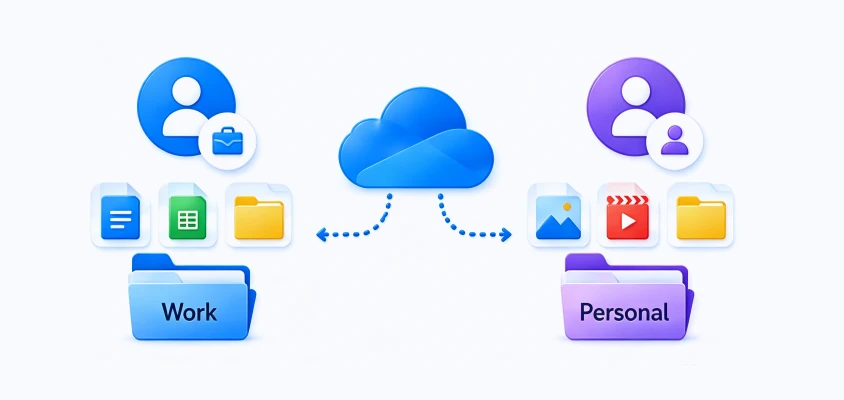
Stop mixing corporate assets with your private memories! Keep work projects and personal data organized by migrating business documents to a dedicated Google Workspace account while maintaining folder structures and access efficiency.
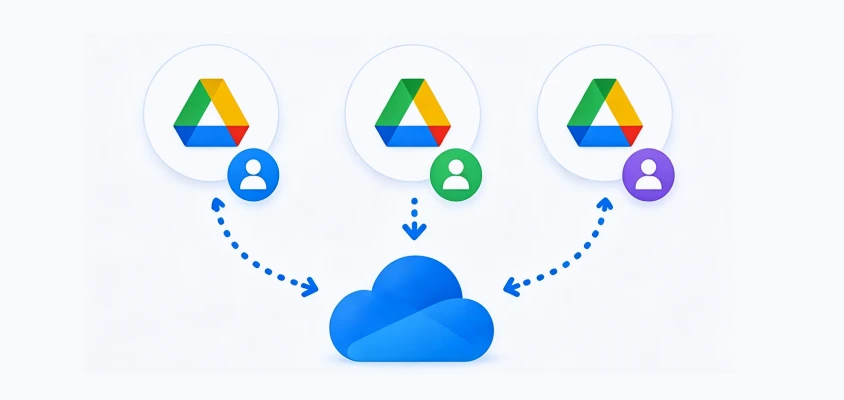
Tired of constantly logging in and out of scattered Google accounts just to find one file? Consolidate multiple Google Drive accounts and bring all your scattered storage pools into one centralized home with a single click, risk-free.
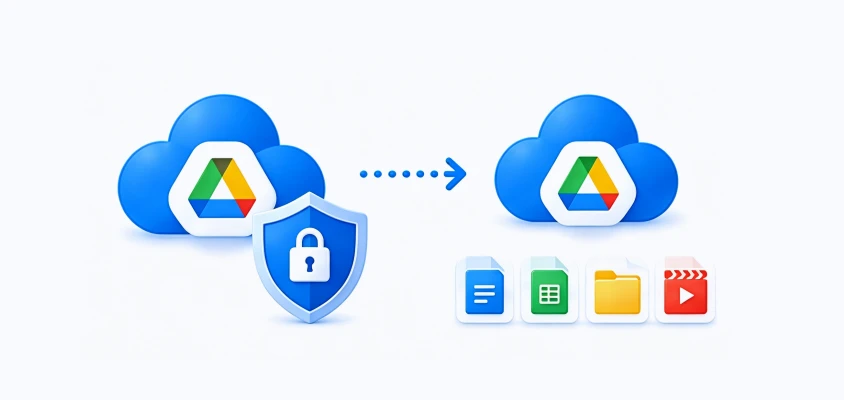
What happens if your primary Google account gets locked out or corrupted by ransomware tomorrow? Relying on a single cloud leaves your data exposed. Instantly copy important Google Drive files to another account to build a server-to-server shield against accidental deletion or sudden restrictions.
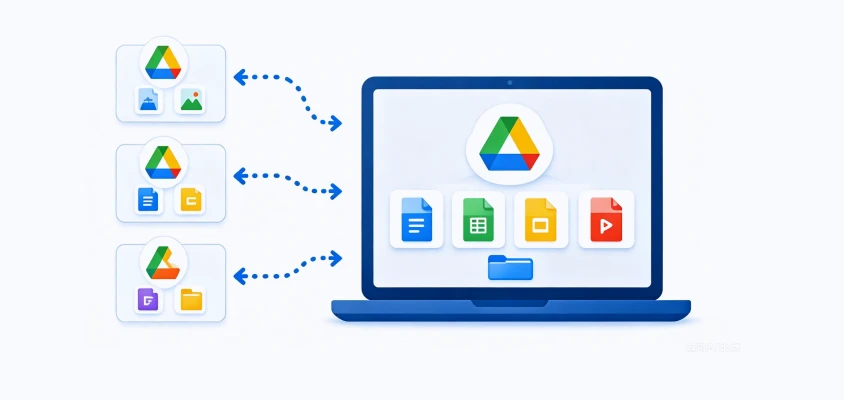
Are vital team assets buried in your "Shared with Me" tab and at risk of being deleted by the owner? Stop cross-checking multiple accounts. MultCloud brings together shared documents and spreadsheets into a single Google account under your absolute control.
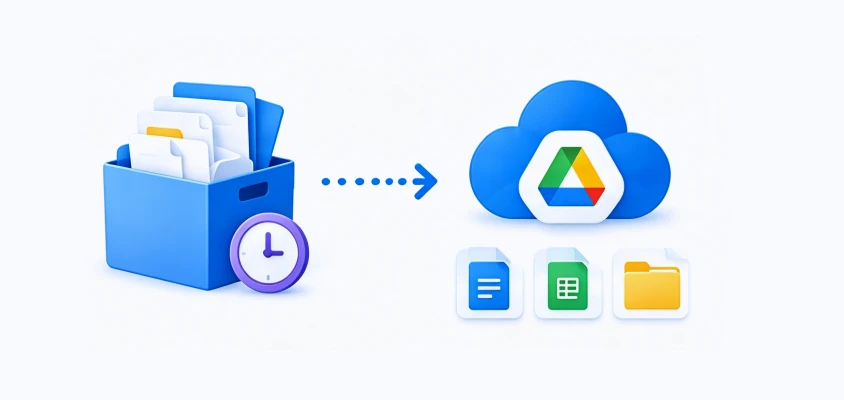
Is your primary Google Drive choked by years of inactive, heavy archives, triggering expensive monthly storage bills? Offload gigabytes of cold data to a secondary, long-term archive account to free up your active storage, keeping your primary drive lean, fast, and completely clutter-free.

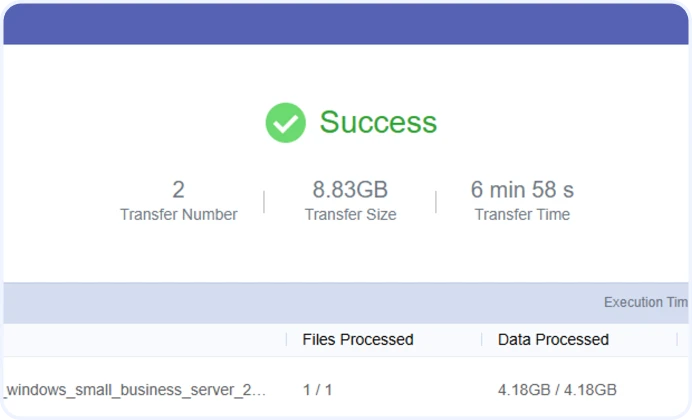
Hit a blistering 21.61 MB/s in Test B. Moving two 4GB+ ISO images took just ~3.5 minutes each. A 4K movie or huge backup transfers in the blink of an eye.
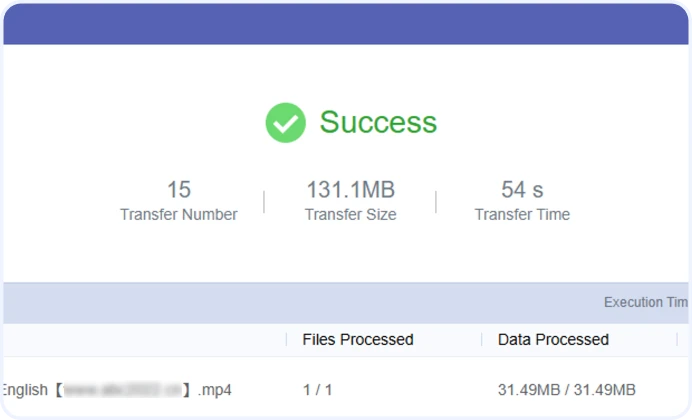
Crushed 15 fragmented files in Test A in just 54 seconds (2–6s per file). Say goodbye to the endless loading and "stuck-in-queue" headaches of traditional web transfers.
Achieved a flawless 100% Success Rate. Since it's a direct cloud-to-cloud pipeline, it uses 0% of your local internet or RAM. Set it, close your laptop, and let our servers do the work.

(High-Efficiency Queue)

Dataset Profile: 15 items in total, featuring a highly volatile mix of MP4 high-definition video materials, heavy .docx editorial manuscripts, and more.
 Total Size:
131.10 MB
Total Size:
131.10 MB
 Duration:
54 seconds
Duration:
54 seconds

Average Cloud Speed: 2.43 MB/s (Sustained 19.44 Mbps server-side throughput)

(Maximum Peak Bandwidth)
Dataset Profile: 2 monolithic, enterprise-grade operating system image files (including a Windows Server installation disc and a Windows 10 x64 ISO archive).
Total Size: 8.83 GB
Duration: 6 min 58 sec
Average Cloud Speed: 21.61 MB/s (Sustained 172.88 Mbps server-side throughput)
(Ensure a 100% seamless, zero-loss cloud transfer )


All Checked? Start Transferring Google Drive Files to Another Account Fast Now!
Get Started for free
Create your free MultCloud account to manage, sync, and transfer files across multiple clouds from a single platform. You can get instant, secure access with Google, Apple, or Facebook integration.
Click "Add Cloud" to securely authorize both your source and target Google Drive accounts. Once connected, they will appear in your centralized dashboard.
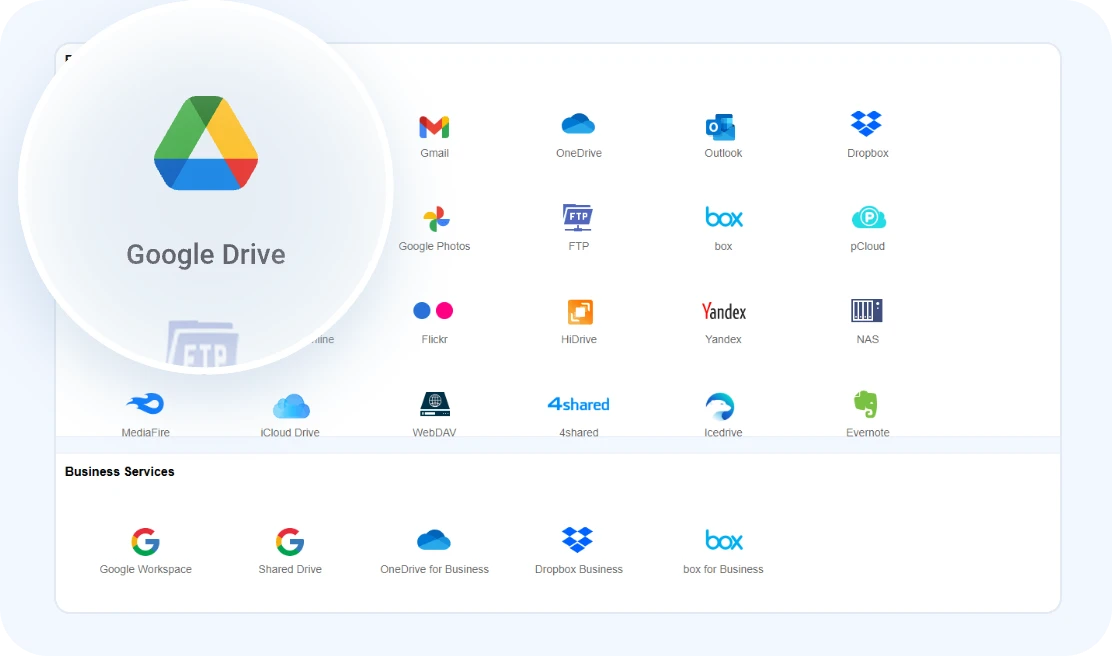
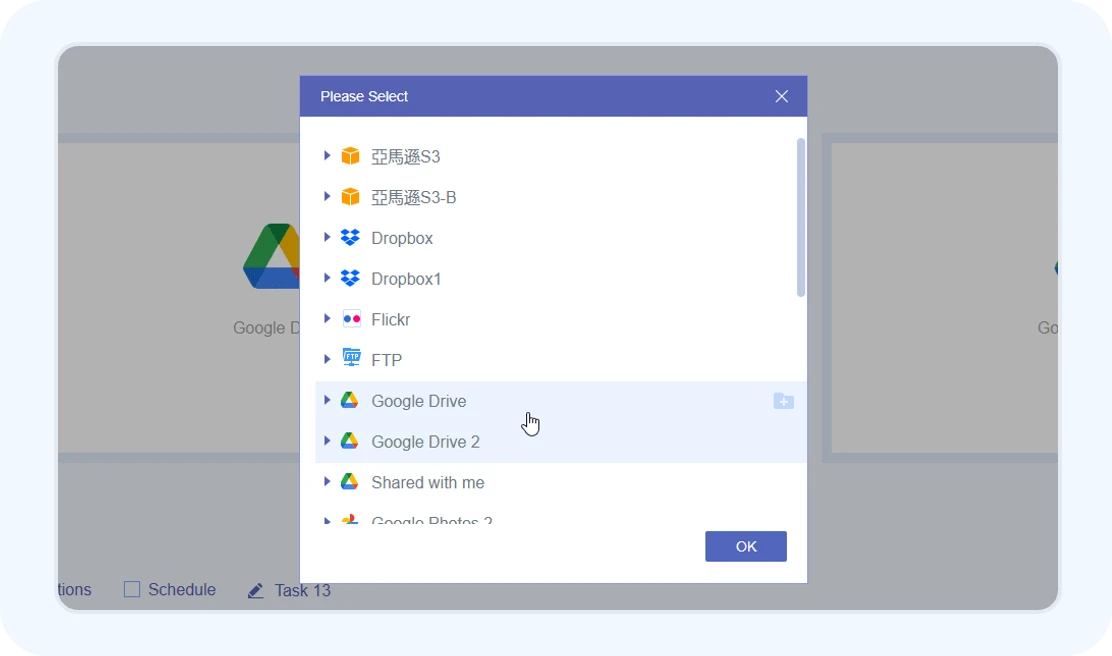
Navigate to "Cloud Transfer", then set your source Google Drive as the origin and your target Google Drive as the destination. You have full flexibility to select specific folders, filtered file types, or migrate the entire drive at once.
Click "Transfer Now" to ignite the engine. MultCloud executes the entire migration directly server-to-server. There is absolutely no manual downloading or re-uploading required.
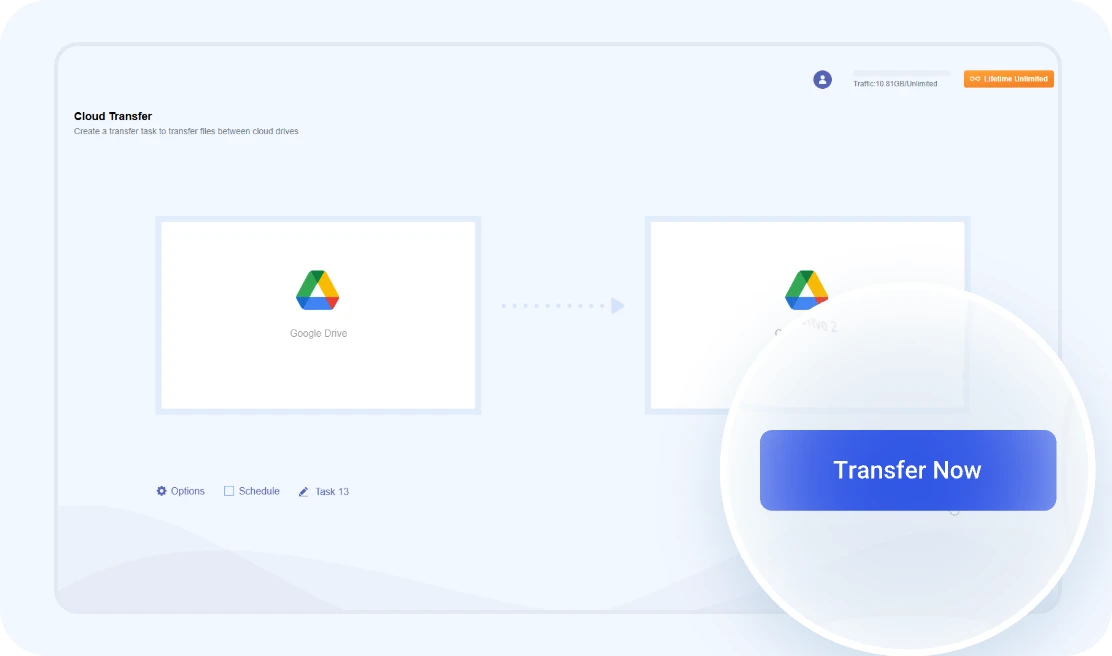
 The transfer runs entirely in the background. You can close your
browser, shut down your laptop, or go to sleep—our servers will finish
the job independently and notify you when it's done.
The transfer runs entirely in the background. You can close your
browser, shut down your laptop, or go to sleep—our servers will finish
the job independently and notify you when it's done.
Move any file, folder, or root directory between Google accounts
with a single click.
0% local RAM usage, 100% success rate,
100%
automated.
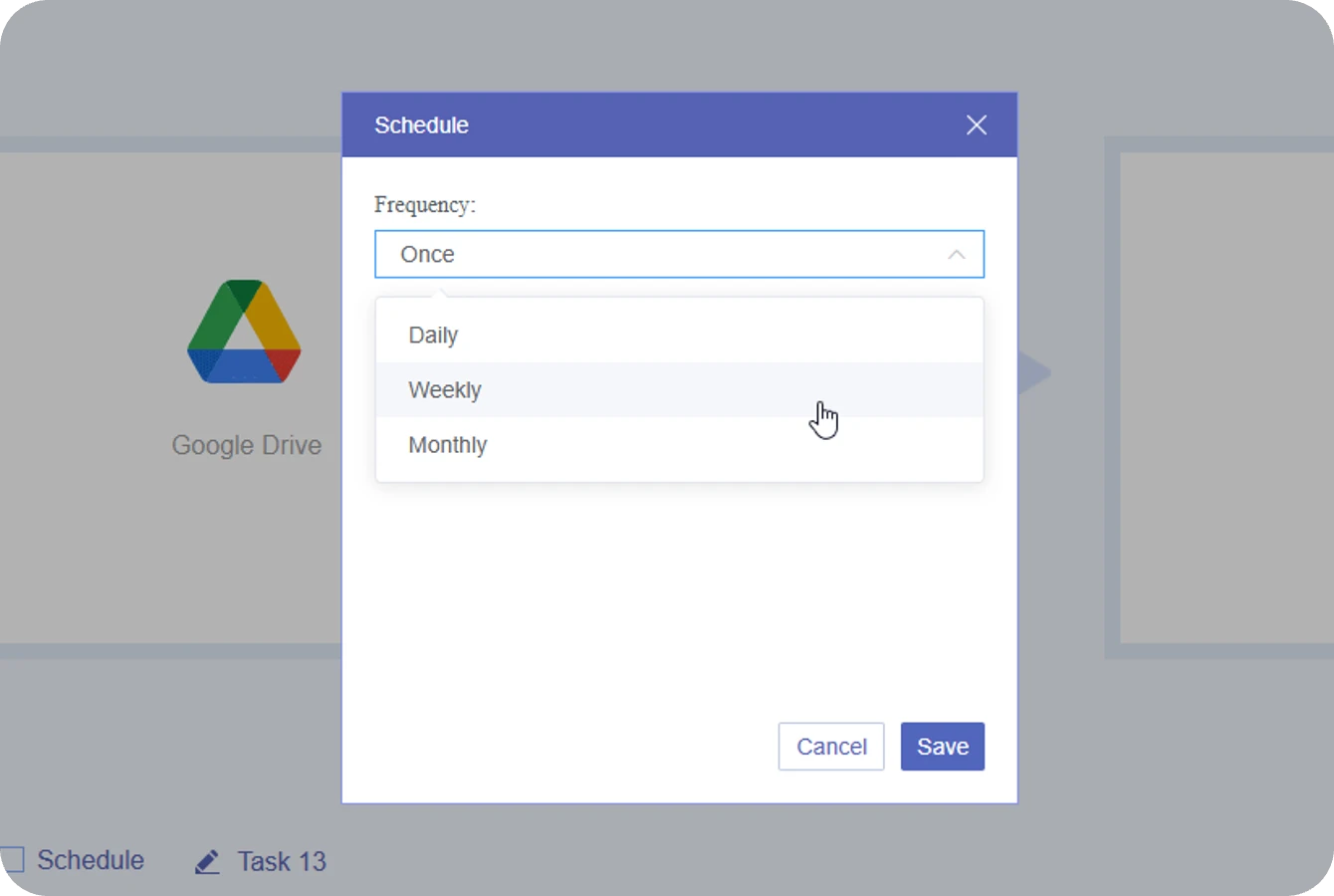
The Reality: Manually syncing heavy Google Drive assets during office hours chokes your internet speed, or freezes your browser tabs. Sitting at your desk just to monitor a slow, unstable upload wheel is a massive waste of your time.
The Fix: Let MultCloud take full ownership of your transfer schedule.
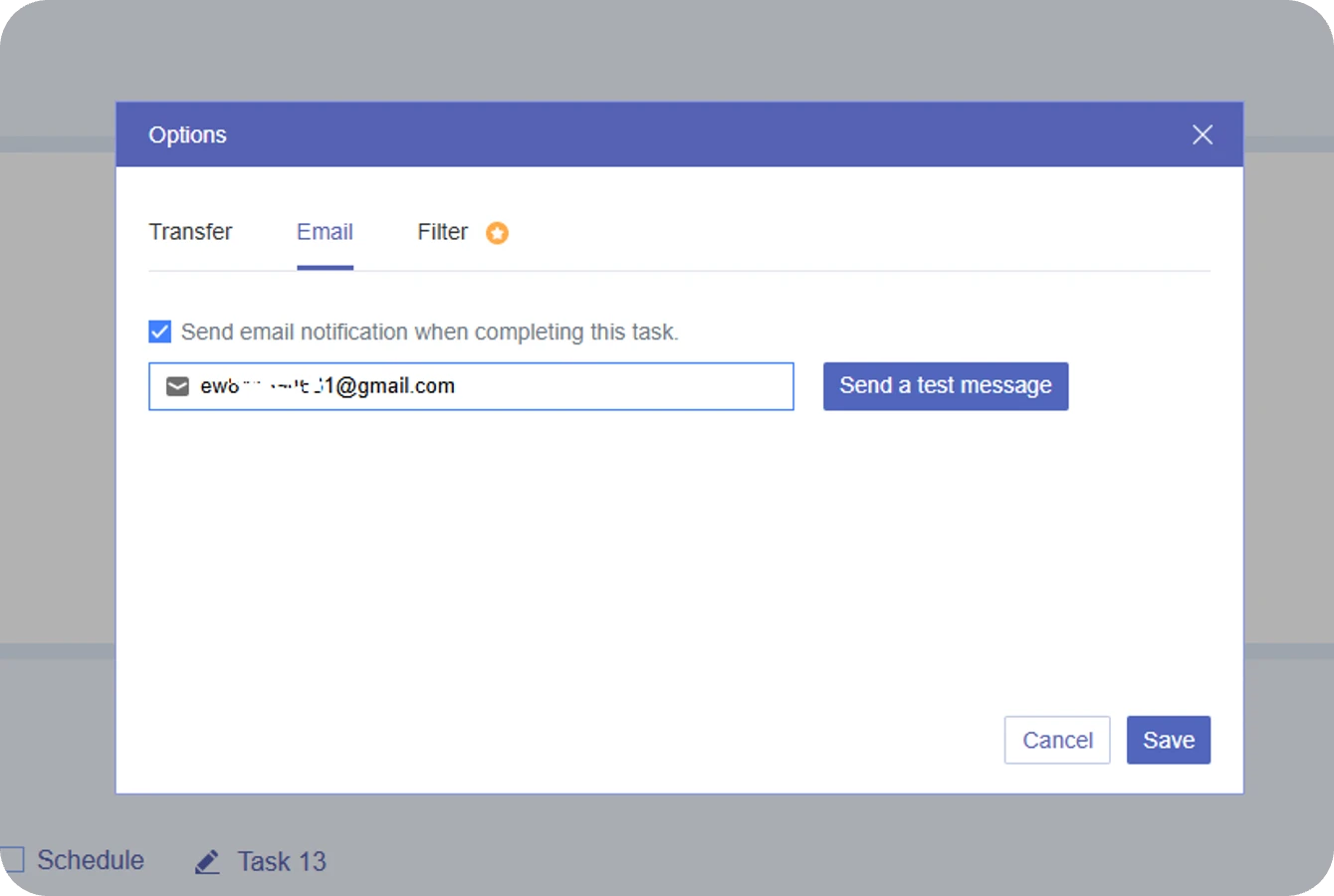
The Reality : When migrating large Google Drive directories, you can't waste hours babysitting a loading screen. Worse, you don't want to manually cross-check thousands of subfolders later, guessing if a critical file was quietly skipped due to Google API limits or network blips.
The Fix : Get complete visibility delivered straight to your inbox.
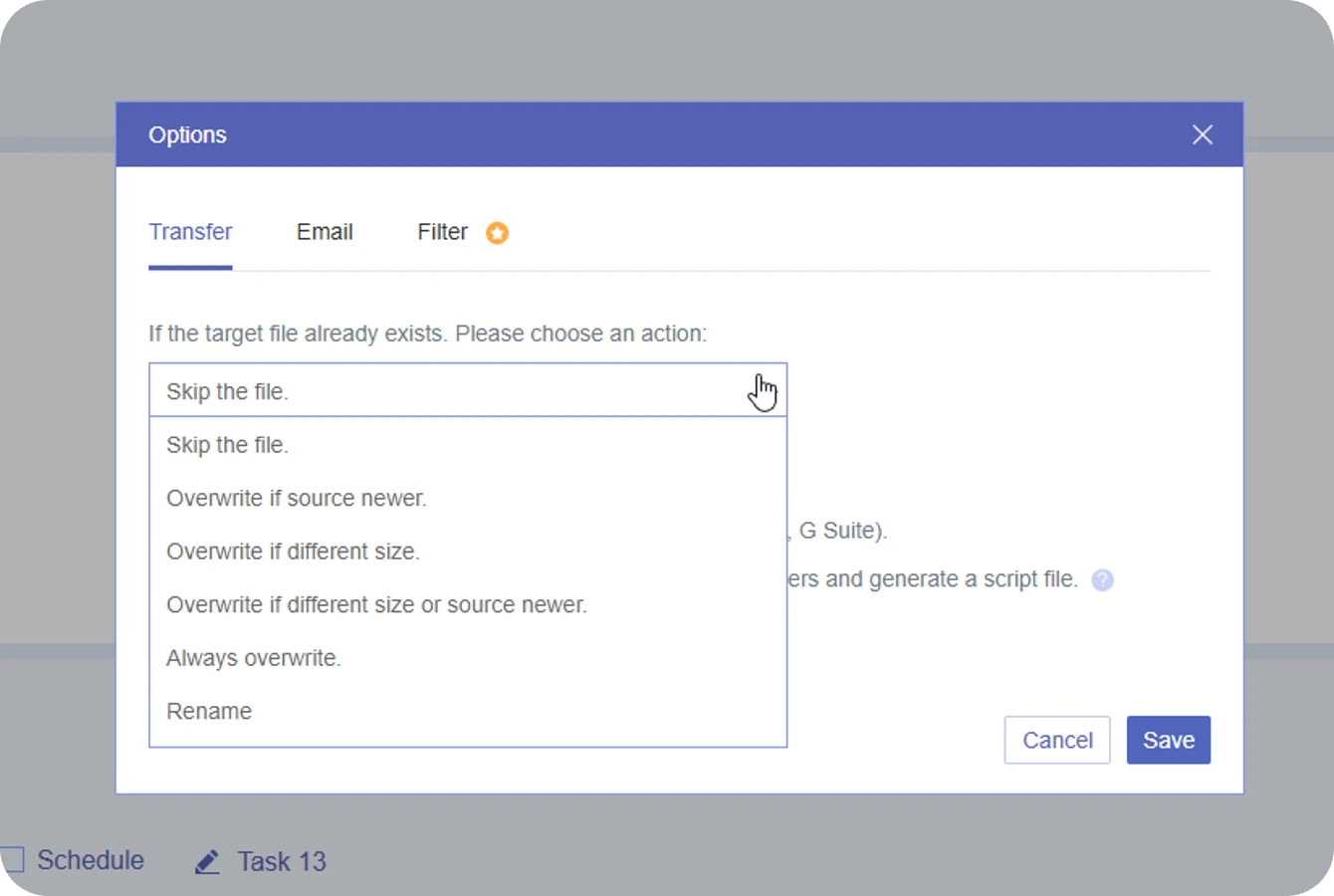
The Reality : Running recurring syncs or incremental backups between Google Drive accounts carries a massive hidden risk. Without strict rules, you will either accidentally overwrite a newly updated file with an older version, or end up with thousands of messy, duplicate entries cluttering your target drive.
The Fix : MultCloud hands you the ultimate control panel to dictate exactly how existing or duplicate files are handled in your destination Google Drive:
The Reality : Over time, your Google Drive is likely choked with platform-specific digital debris—duplicate versions labeled with (1) or "Copy of", broken shortcuts, orphaned third-party app caches, and unlinked temporary data. These unnecessary files will significantly reduce migration efficiency—especially when transferring millions of small files between cloud accounts..
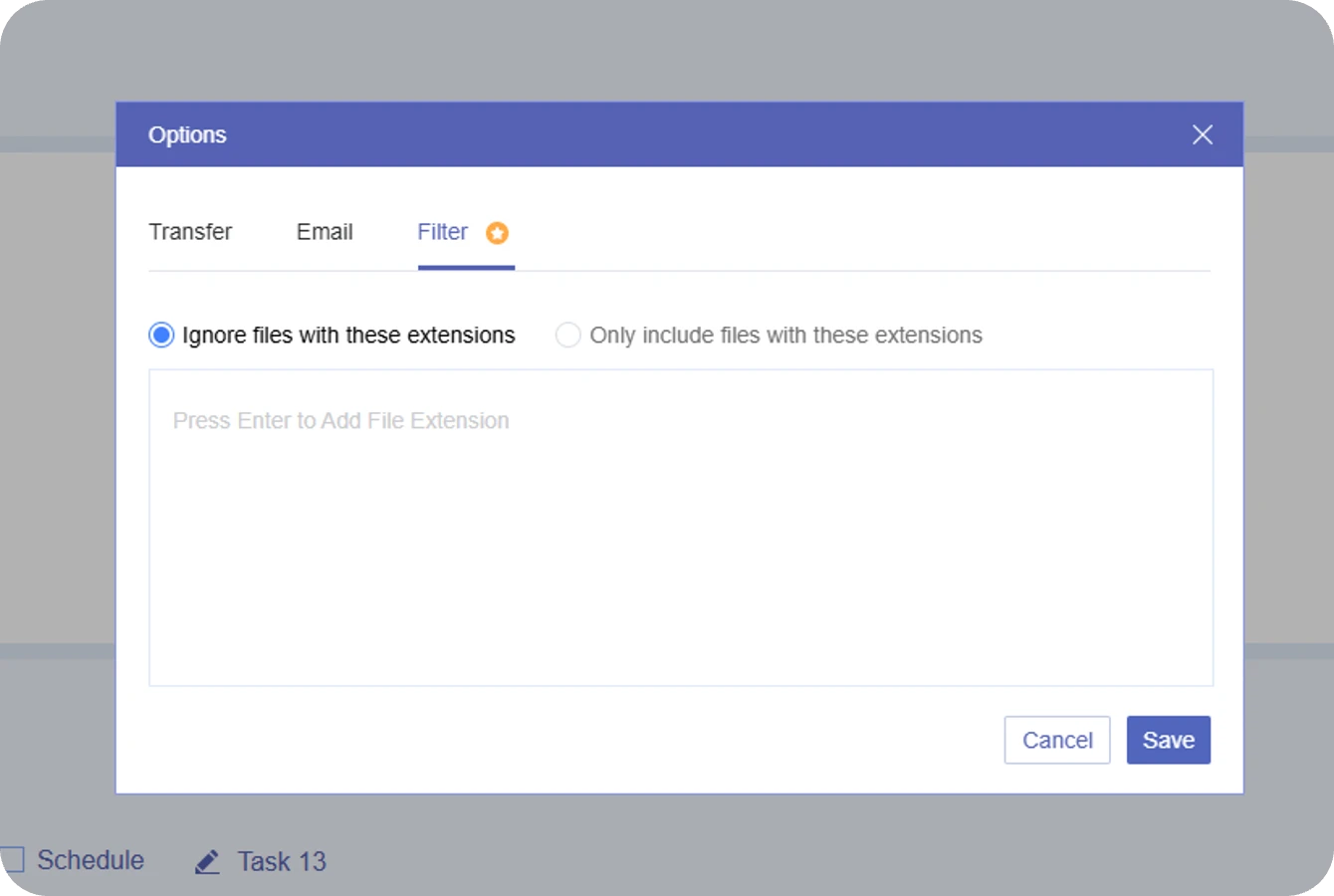
The Fix : Use a smart filter into your migration pipeline to trim the fat.
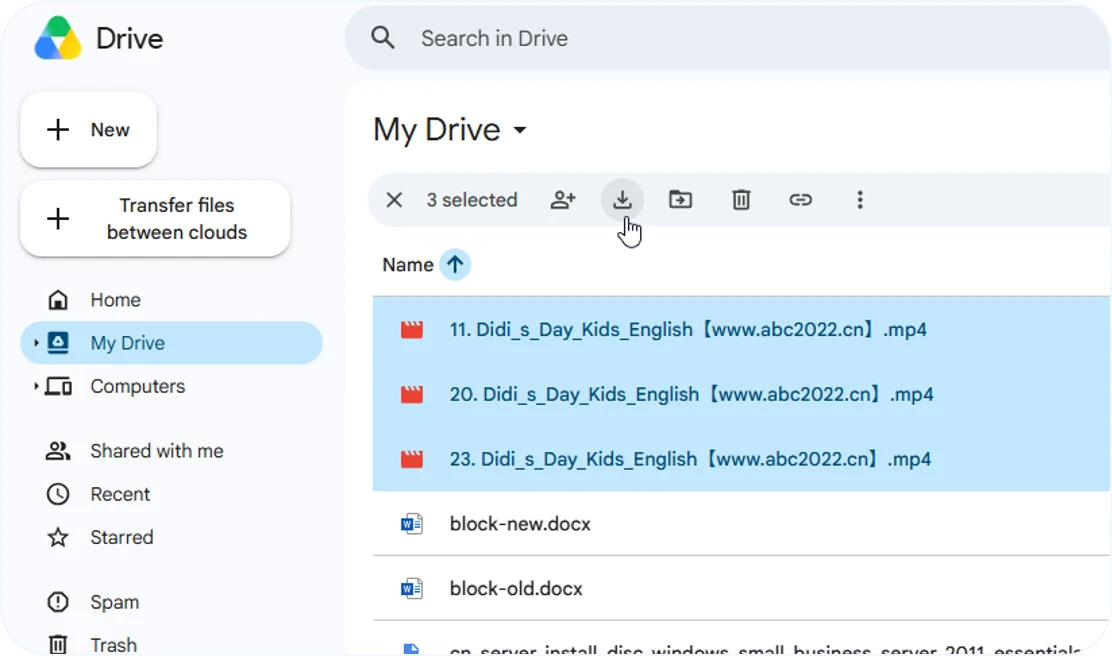
Step 1. Log in to your source Google Drive account, select the files or folders you want to move, right-click, and select Download.
Step 2. For larger folders, wait for Google Drive to finish archiving them into ZIP files, then extract the downloaded packages on your local computer.
Step 3. Log in to your target Google Drive account, click the New button in the top left, and select File upload or Folder upload to import your data.
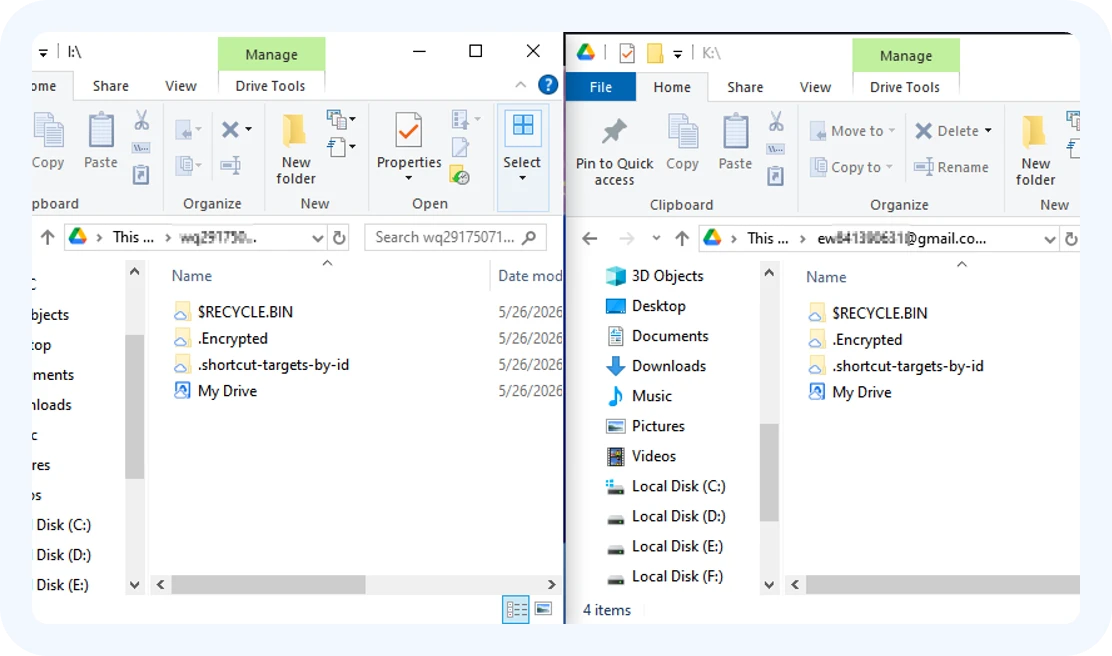
Step 1. Install the Google Drive for Desktop app on your computer.
Step 2. Add and sign in to both your source and target Google accounts within the app settings.
Step 3. Open File Explorer (Windows) or Finder (Mac), and simply drag and drop files from the source Google Drive virtual disk to the target one.
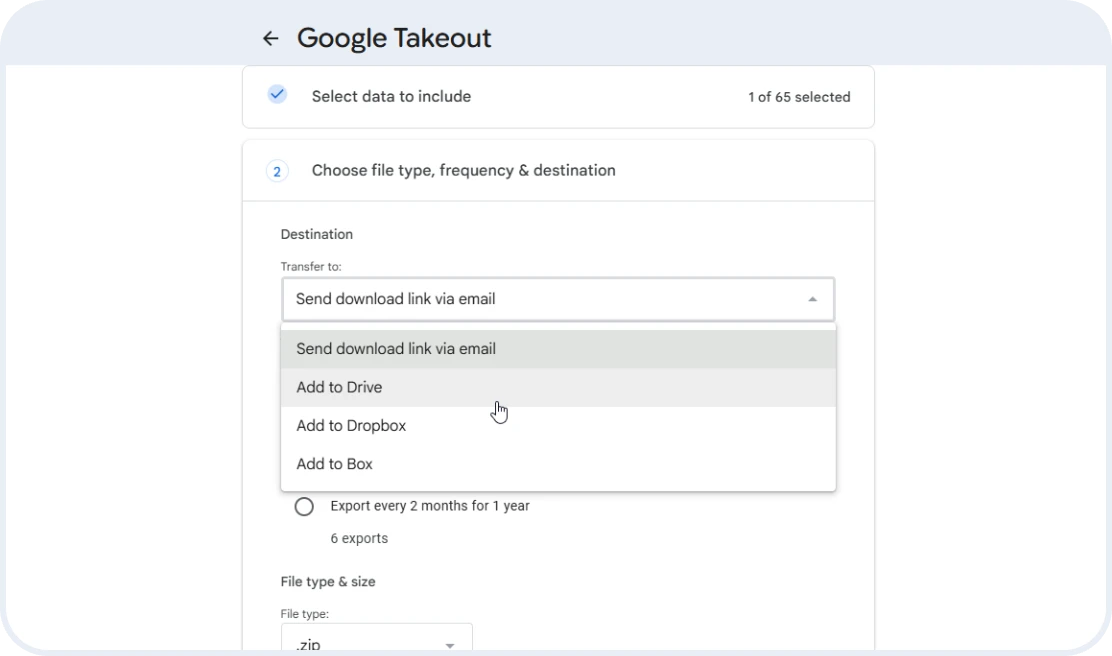
Step 1. Go to Google Takeout, uncheck everything except Drive, and click next step.
Step 2. Under Delivery method, choose "Send download link via email" and click "Create export".
Step 3. Files will be downloaded to your computer as a zip file. Unzip them, log in to another Google Drive account and upload files.
 Test Specs: 1×5GB File
 Asus, Samsung SSD
 50Mbps Down / 20Mbps Up Ethernet
 Sync Logs: May,26 2026
| Method | Actual Transfer Time | Speed (MB/S) | Local Storage Dependency | Transfer Risk & Data Integrity |
|---|---|---|---|---|
| Download & Re-upload |
62 min 15 sec (download: 15mins, upload: 45mins) |
1.37 MB/s 5120 MB / (62 * 60 + 15 )s |
Heavy
Requires 5GB of free local disk space to hold the file. Your computer must remain powered on and connected to the internet the entire time. |
Medium
Any Wi-Fi drop out mid-way through the upload forces a complete manual restart. |
| Drag & Drop (Desktop App) |
32 min 23 sec |
2.63 MB/s 5120 MB / (32* 60 + 23) s |
Medium
The app copies the 5GB file into its local hidden system cache directory first before slowly uploading it to the target cloud. |
Low-Medium
Safer than browser uploads due to block-level auto-resume, but the sync queue can occasionally freeze or deadlock. |
| Google Takeout |
121 min 12 sec |
0.70 MB/s 5120 MB/ (121*60 + 12) s |
Medium
Google Takeout runs on Google’s servers, so your PC can be turned off during export, but you still need to download the files and upload them to the target account manually afterward. |
Messy Archive
The target Drive receives a raw ZIP file containing the 5GB file alongside unwanted .json metadata logs that require manual cleanup. |

|
4 min 37 sec |
18.48 MB/s |
Zero Dependency
No local disk space needed. The transfer executes entirely in the background on isolated cloud servers. |
None
Features automated multi-thread server-side verification to guarantee 100 percent file integrity. |

Files move directly between clouds without downloading or uploading, saving your time, bandwidth, and local storage.

No fractured formats. Unlike Takeout, MultCloud transfers Google Docs as native cloud assets, preserving perfect formatting and layout.

Cloud-to-cloud transfer saves your time and bandwidth, with 10 threads running simultaneously to maximize speed and efficiency.

256-bit AES encrypts data transfer to prevent theft, OAuth authorizes cloud access without storing passwords, and GDPR ensures personal data privacy and legal compliance.

Run transfers immediately as a one-time task or set up automated recurring transfers based on your preferred schedule—daily, weekly, or monthly at a specific time.
Since Google decoupled Drive and Photos on July 10, 2019, syncing them is a puzzle. MultCloud allows you to check both your Google Drive and Google Photos simultaneously, migrating your entire Google ecosystem in one clean single task.
 Google Drive
 Google Workspace
 OneDrive
 OneDrive for Business
 SharePoint
 Dropbox
 Dropbox Business
 MEGA
MEGA
 Google Photos
 iCloud Photos
 FTP
FTP
 box
box
 box for Business
 pCloud
 Baidu
Baidu
 Flickr
 HiDrive
 Yandex
 NAS
NAS
 WebDAV
 MediaFire
 iCloud Drive
 WEB.DE
 Evernote
 More Clouds
Apart from cloud-to-cloud transfer, MultCloud also provides other high-demand cloud management solutions.