3-2-1 Data Redundancy
Don't keep all your eggs in one basket. Backup critical OneDrive files to Google Drive automatically to prevent data loss from accidental deletion, ransomware, or account lockouts.

Seamlessly back up OneDrive files and folders to Google Drive directly in the cloud without taking up local storage!No Downloads. No Uploads. Just Cloud-to-Cloud
Go to app to transfer across 30+ cloud services


Don't keep all your eggs in one basket. Backup critical OneDrive files to Google Drive automatically to prevent data loss from accidental deletion, ransomware, or account lockouts.

Working with teams that prefer Google Docs and Sheets? Automatically mirror your OneDrive folders to Google Drive for frictionless sharing and live collaboration.

Running out of space on OneDrive's 5GB free tier? Leverage Google Drive's generous 15GB free storage by moving long-term archive files directly in the cloud.
Not all cloud backup tools are built equal. Look for these core features that separate a reliable cloud backup from a basic file mover.
Scroll over the card or use the arrow keys to see more backup features.
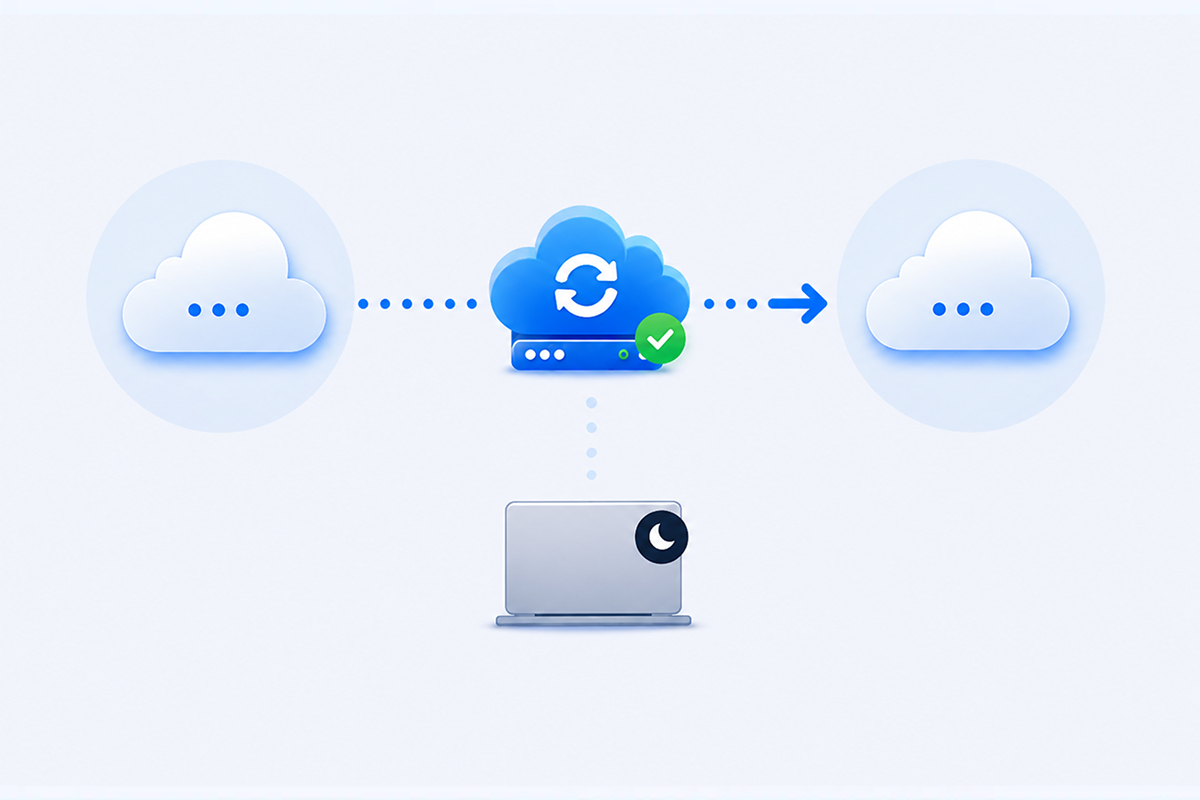
A reliable backup solution should never depend on your local device's bandwidth or hard drive space, nor should it require keeping your PC powered on during large data transfers.
 MultCloud: Executes all transfers directly between cloud servers. Once a task is initiated, you can close your browser or shut down your PC—the backup runs seamlessly in the background on high-speed servers.
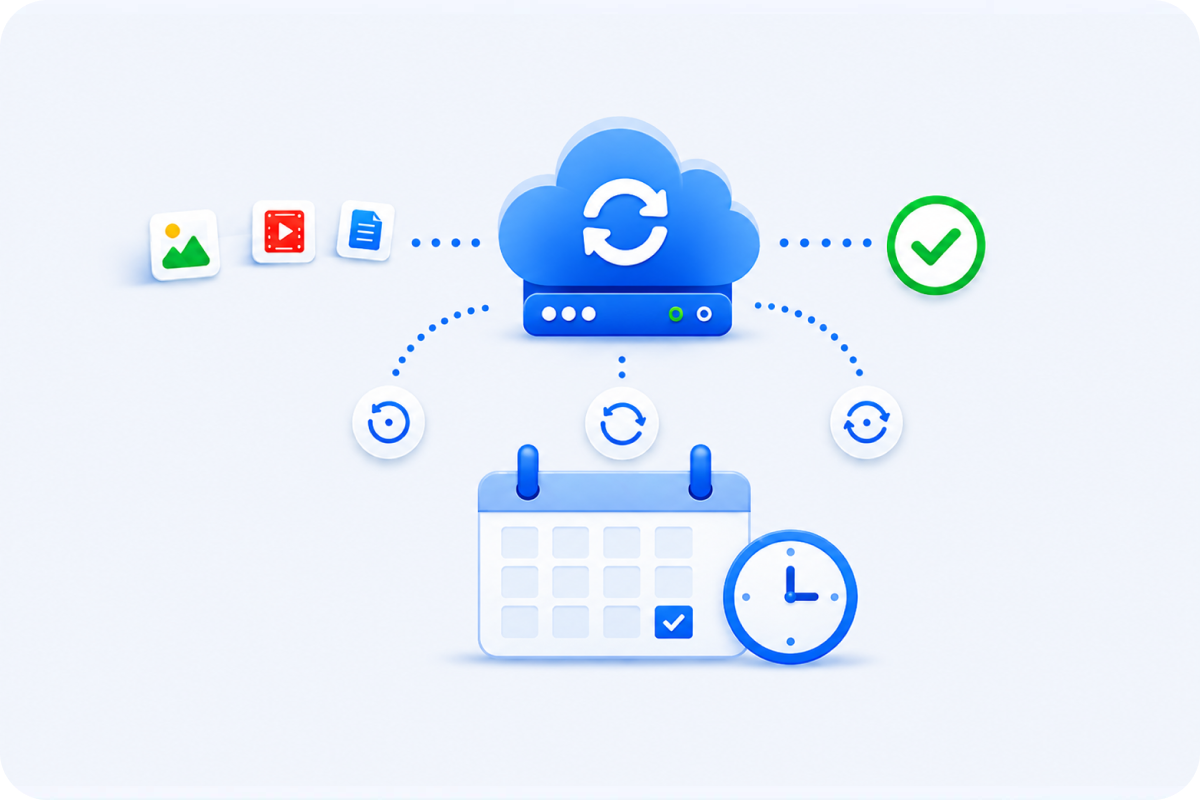
Manual backups are easy to forget and time-consuming. A reliable backup solution must offer automated, customizable scheduling to keep your data protected without manual intervention.
MultCloud: Set up flexible automated backup schedules on a daily, weekly, or monthly basis. MultCloud runs your tasks seamlessly in the background—even when your browser or PC is turned off.
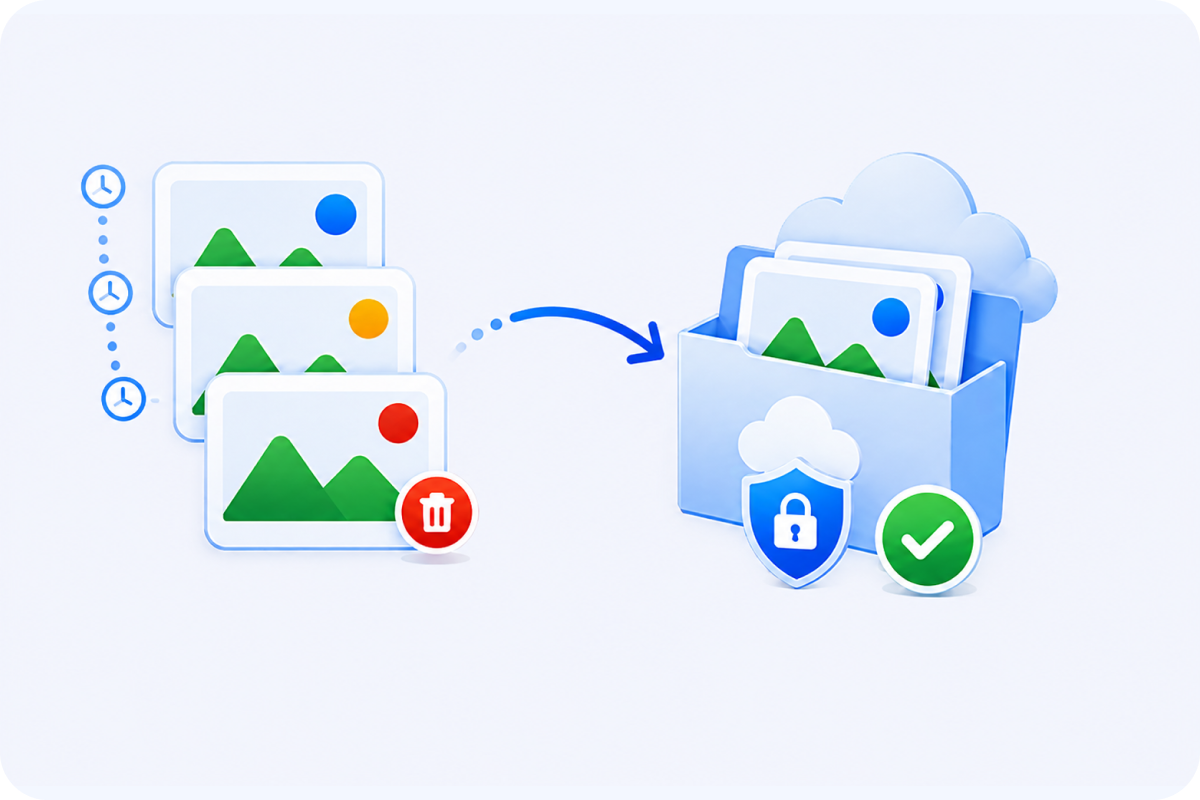
A backup is meaningless if you cannot restore your files quickly and accurately when disaster strikes. A true backup tool must maintain historical versions to protect against ransomware or accidental deletion.
MultCloud: Records every backup version, allowing you to restore files to any previous state with a single click—if your original data gets corrupted or deleted.
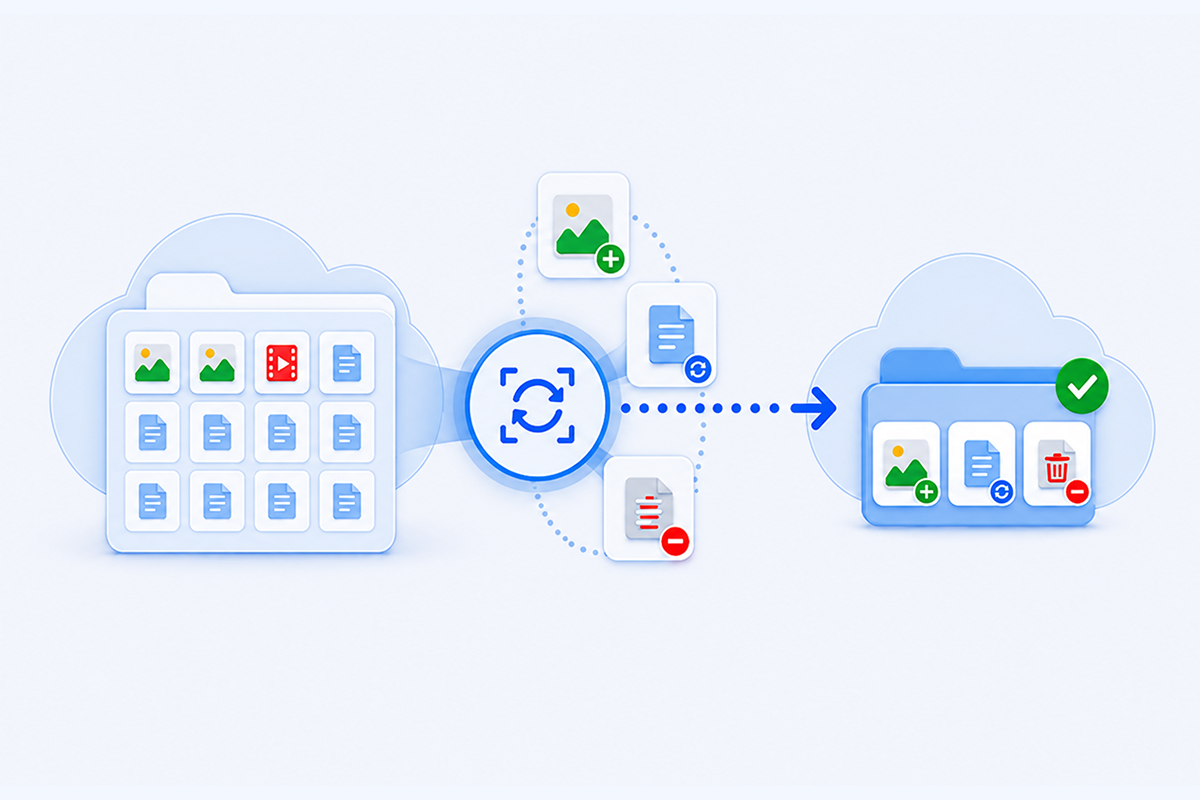
Re-uploading entire cloud libraries wastes immense bandwidth and time. The tool should intelligently detect changes and only process updated files.
MultCloud: Powered by advanced incremental backup technology, MultCloud automatically detects new, modified, or deleted files since the last backup. It only transfers changed data, drastically saving transfer time and cloud storage space.
Instead of downloading gigabytes of files to your local hard drive and re-uploading them, MultCloud gives you 2 hassle-free ways to back up OneDrive directly to Google Drive.


Cloud-to-cloud backup task · August 11, 2026


Task completed successfully

97.2 Mbps (12.15MB/s)

No (0 Bytes Local Storage Used)

OneDrive

Google Drive › MultCloud Cloud Backup › Task ID › OneDrive

Special symbols (#, %, &, +) & non-Latin scripts preserved

Modified time aligned with backup time

100% Original names & extensions preserved

Nested subfolders & long paths fully intact
One unified platform to move, sync, back up, and manage all your files across multiple cloud drives—without tying up your computer or bandwidth.
Move and mirror files across personal and business clouds.

Move files directly from one cloud provider to another. The entire transfer happens on our servers, so you don't have to download or re-upload anything locally.
Learn More >>
Keep folders perfectly matched across different cloud accounts. Any change you make in one drive is automatically updated everywhere else.
Learn More >>
Easily migrate entire company cloud setups. Automatically map user accounts and bulk-transfer employee directories while keeping original folder structures intact.
Learn More >>Protect your files, emails, and website data.

Set up automated backups between cloud accounts. Keep a history of past versions so you can instantly restore deleted or overwritten files.
Learn More >>
Save complete Gmail or Outlook inboxes straight to your cloud storage. We automatically turn emails and attachments into organized, easy-to-read PDFs.
Learn More >>
Connect your FTP/SFTP and MySQL databases to schedule complete, automatic backups of your website files and live data directly to the cloud.
Learn More >>Manage multiple drives and download remote files.

Paste a web link, magnet link, or torrent file, and we’ll download it straight to your cloud drive. Start the task and turn off your PC.
Learn More >>
Access all your cloud accounts with a single login. Upload, share, or rename files across drives, and use one search bar to find exactly what you need, no matter where it's stored.
Learn More >>Security is non-negotiable when connecting your personal or business clouds. A trusted tool must safeguard your credentials and never expose your files to unauthorized access.

Uses bank-grade 256-bit AES encryption and SSL during transfer to effectively protect your data from interception, tampering, and unauthorized access.

Connects via standard OAuth authorization—MultCloud never sees or stores your cloud passwords. You can revoke access at any time directly from your cloud provider.

Fully compliant with GDPR and international privacy standards. We only process necessary metadata and enforce Standard Contractual Clauses (SCCs) to protect your rights.

MultCloud never stores your files. Any temporary cache required during transmission is immediately purged from our servers as soon as the task completes.

You hold 100% ownership of your account. Closing your account instantly and permanently wipes all your personal credentials and settings from our database.
 Method 1. Download OneDrive Files and
Upload Them to Google Drive
Method 1. Download OneDrive Files and
Upload Them to Google DriveThe most straightforward way to back up OneDrive to Google Drive is to download the files to your computer first and then upload them to Google Drive. It requires no additional software and works well when you only have a small number of files to back up.
Select the files or folders and click Download. Wait until the download is complete. When downloading multiple files or folders, OneDrive may package them into a ZIP file.
If necessary, extract the downloaded ZIP file on your computer before uploading the files to Google Drive.
Sign in to Google Drive and click New > File upload or Folder upload.
Select the downloaded OneDrive files or folders and wait for them to finish uploading. Open several files afterward to make sure the backup was completed successfully.
 Completely freeNo extra software requiredFull control over selected files
 Requires local storageSlow for large backupsNo automatic backupsMethod 2. Back Up OneDrive to Google Drive
Using Desktop Apps
Requires local storageSlow for large backupsNo automatic backupsMethod 2. Back Up OneDrive to Google Drive
Using Desktop AppsIf you already use OneDrive and Google Drive on your computer, their desktop apps provide another way to copy files between the two services. Instead of manually downloading files through a browser, you can work with OneDrive and Google Drive from File Explorer or Finder.
Windows restricts file paths to 260 characters (MAX_PATH), which can cause deeply nested OneDrive folders to fail during copy, so shorten folder names when necessary .
Install and sign in to the OneDrive desktop app and Google Drive for desktop on your computer.
Open your OneDrive folder in File Explorer or Finder and locate the files you want to back up.
Make sure the required OneDrive files are available locally when necessary. Files stored only in the cloud may need to be downloaded before they can be copied.
Open the Google Drive location available through Google Drive for desktop.
Copy the selected files or folders from OneDrive to the appropriate Google Drive location.
Keep the computer connected while Google Drive uploads the copied files. Once the process is complete, check Google Drive on the web to verify that the files are available.
Easy copy-and-paste workflow
Convenient for desktop users
No browser downloads required
Relies on your computerMay consume local storageInefficient for large backups
No dedicated backup management
For a large OneDrive library or recurring backups, downloading files to a computer first adds an unnecessary middle step. MultCloud provides a cloud-to-cloud approach that lets you create a backup task between OneDrive and Google Drive without manually downloading and re-uploading the files.
Start Transfer Now >>Before choosing a workflow, understand how backup, transfer, and sync handle your files differently—and what may happen to changes, deletions, permissions, and file history.

A backup creates an additional copy of your OneDrive data so the original files can remain available in OneDrive. Moving files focuses on changing their storage location and may eventually involve removing the original copy after the migration is verified.

Migration is typically a one-time process for moving or copying data from OneDrive to Google Drive, such as when switching cloud platforms. Sync is ongoing and continues to reflect new files or changes according to the sync rules you set.

If Google Drive is meant to be a backup of OneDrive, continuous two-way sync is usually unnecessary. Changes, renames, or deletions on one side may be reflected on the other, making it harder to maintain an independent backup copy.

Files and folder structures can generally be copied between cloud services, but cloud-specific information may not transfer in the same way. Sharing permissions, shared links, ownership, version history, and certain metadata may need to be checked or recreated in Google Drive.
 Tip: Backing up important business data? Test a small
folder first and verify the files, structure, permissions, and version history in Google Drive
before running a full backup.
Tip: Backing up important business data? Test a small
folder first and verify the files, structure, permissions, and version history in Google Drive
before running a full backup.
Not every OneDrive–Google Drive workflow is a backup. Choose your goal below to find the MultCloud feature that best fits what you want to accomplish.

Scenario: Switching accounts, offboarding from a school/work Office 365 account, or performing a single full-data transfer.
Solution: MultCloud Cloud Transfer
Seamlessly transfers your chosen OneDrive folders or entire library directly to Google Drive in a single, high-speed background execution — no downloading required.
Start Migration Now >>Scenario: You keep using OneDrive as your main working cloud, but want a secondary, isolated copy in Google Drive for redundancy.
Solution: MultCloud Cloud Backup
Creates structured, versioned snapshot backups on a daily, weekly, or monthly schedule. Easily restore any file to an earlier version with one click if data in OneDrive gets corrupted or deleted.
Set up Auto Backup >>

Scenario: Collaborating with teams on Google Workspace while using Microsoft 365, requiring files in both clouds to stay in sync.
Solution: MultCloud Cloud Sync
Offers Real-Time Sync, Two-Way Sync, and Mirror
Sync modes to automatically reflect any changes made in OneDrive straight into Google
Drive immediately.
Need to move multiple employee accounts? Try MultCloud "Team Transfer" instead of Cloud Backup.
Log into MultCloud, click Add Cloud, and add both OneDrive for Business and your target destination (e.g., Google Workspace) using your administrative credentials.

Go to Team Transfer, set your source and target clouds, and use Auto-Match (or upload a CSV) to pair user accounts.

Adjust transfer options (such as overwrite rules or file filters), then click Transfer Now to start the bulk migration task across all mapped accounts.


Migrate hundreds of employee accounts simultaneously in one task.
Auto-match accounts between clouds or upload a CSV file.
MultCloud supports over 30 cloud services (nearly 40 integrations), allowing you to connect, manage, and transfer files across all your cloud accounts from a single platform.
 US
US
So glad I found MultCloud! The initial free data allowance made it super easy to test out, and transferring my data from OneDrive to Google Drive went smoothly without a single glitch. It’s easily the smartest solution for moving files between cloud drives without burning through your local internet data.
 Useful
 Share
Share US
USEverything worked smoothly transferring all our data from OneDrive to Google Drive. Couldn't be happier with the results. Also, with the few issues I did have, support was quick to assist in resolving them! Special thanks to Lanry Lucky and his support! --Timothy McCormick
UsefulShare
GBMoved 90GB of photos from OneDrive to Google Photos seamlessly in the background. Excellent product, and Lanry Lucky from customer support provided exceptional help! — Joe
UsefulShare
USI changed email addresses and needed to moving one cloud data to another cloud and Multcloud site helped me do this. My daughter who is a schoolteacher uses your Multcloud all the time. She guided me through the steps and we were successful. Thank you Excellent and easy to use. I’ll leave similar 5 star on Google to recommend you to others.
UsefulShare
USThe straightforward experience.Doesnt require much configuration, options menu is well organized and non confusing.
Technically efficient. It doesnt lag, it copies well files, with its directory and subdirectory structure.
All of the options and buttons are placed in order through the screen and accessible.
UsefulShare
USMultCloud is hands down an exceptional tool that delivers exactly on its promises. I was completely dreading the prospect of migrating terabytes of data from OneDrive for Business to Google Workspace, but MultCloud turned what could have been a painful process into a seamless, automated task. On top of that, their customer support is truly second to none. Outstanding service all around! — Miles Grant
UsefulShare
Yes, it is entirely possible. While Microsoft and Google do not provide a direct built-in feature to connect their clouds, you can easily set up continuous synchronization using MultCloud. It helps create a secure cloud-to-cloud connection, allowing files to sync automatically between OneDrive and Google Drive in real time or on a customized schedule—without requiring your computer to stay powered on.
To empty your entire OneDrive storage, you can either download all your files locally using the desktop application or transfer them straight to another cloud platform like Google Drive using an automated cloud transfer tool. Using MultCloud is the most efficient method because it processes the move server-to-server, saving local disk space and bypassing bandwidth restrictions caused by downloading and re-uploading massive directory structures manually.
You can achieve direct transfer through MultCloud. By authorizing both your OneDrive and Google Drive accounts within a cloud manager, files move directly between Microsoft and Google servers over encrypted connections. This eliminates the need to download GBs or TBs of data to your local hard drive, saves significant processing time, protects local system resources, and works in the background even after you close your web browser.
Your folder hierarchies will stay intact, but file modified times will update to the backup time. When files are backed up to Google Drive, the destination system creates new file entries, which updates their "Modified" timestamp to the date and time the backup occurred. However, your complete folder structures and file names will be preserved perfectly, allowing you to navigate your backed-up data just as you did in OneDrive. Sharing links and permissions will need to be re-configured in Google Drive.
You do not strictly need both, but keeping both offers distinct advantages. Using both allows you to split storage workloads, isolate business data from personal files, or maintain a redundant cloud backup strategy to prevent accidental data loss. However, if you prefer a single ecosystem or want to save on subscription costs, backing up your OneDrive files to Google Drive lets you consolidate your workflow into one unified platform seamlessly.
No, your original OneDrive files will remain completely untouched. A cloud backup is a one-way copying process that creates a duplicate set of your files in Google Drive while keeping the source data safe in OneDrive. Unless you manually delete your OneDrive files or configure a specific one-way deletion rule after verifying the backup, nothing will be deleted from your Microsoft account during or after the backup task.
No, your files will not be altered or force-converted. During the backup process, all Microsoft Office documents (including .docx, .xlsx, and .pptx) are preserved in their native binary formats rather than converted into Google Workspace formats (Docs/Sheets/Slides). Original file extensions, MIME types, and internal layout formatting remain intact, allowing you to seamlessly preview, download, or edit them on Google Drive whenever needed.

The Go-to Choice for Cloud-to-Cloud Backup, Transfer or Sync Files Across Clouds.
Get Started for Free >>