Cloud-to-cloud
backup creates a separate, independent
copy of your data on a different platform. Unlike sync or transfer, a true backup preserves
version history and allows point-in-time recovery. The widely adopted 3-2-1 Backup Rule
recommends keeping multiple copies of your data across different media and locations to minimize
the risk of data loss.
OneDrive maintains an independent copy on Microsoft's servers. Restore
quickly without disrupting your daily work.
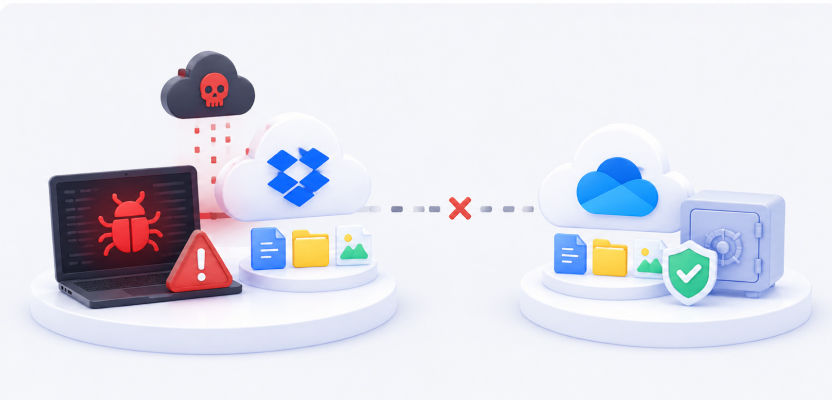
Ransomware or Malware Attack
Scenario: Important files stored only on Dropbox are vulnerable to a
single point of failure — account compromise, service outages, or policy changes.
Dropbox and OneDrive are operated by separate companies. Backing up
creates a redundant copy on a different platform.
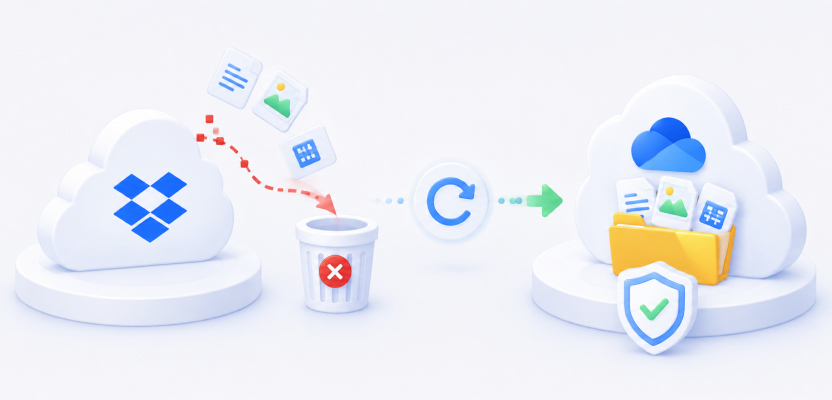
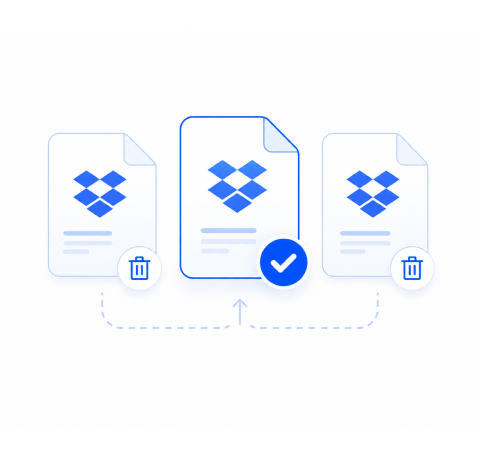
Accidental Mass Deletion
Scenario: An employee accidentally deletes a critical project folder on
Dropbox. Files are permanently lost after 30 days— months of work gone in seconds.
MultCloud automatically backs up Dropbox to OneDrive. Your backup files
remain unaffected by deletions on Dropbox for instant recovery.
What Makes MultCloud a Better Fit for Real Cloud Backup?
Real cloud backup is more than copying
files from one cloud
to another. It should help you keep a separate copy, automate repeated backups, preserve
previous backup versions, and restore data when you need it. MultCloud brings these capabilities
together in one cloud-to-cloud backup workflow.
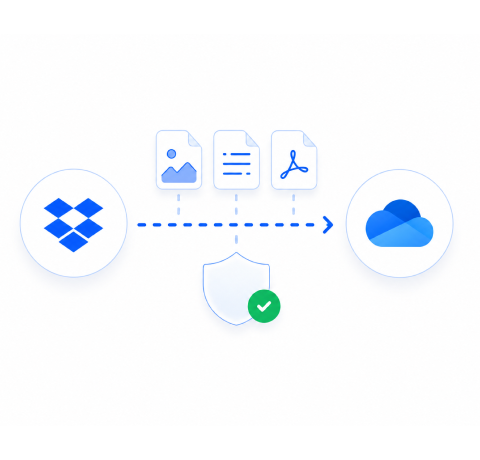
Direct Cloud-to-Cloud Backup
Back up files directly between cloud services without downloading them to your computer
first. No local storage or repetitive download-and-upload process is required.
Scheduled Backup
Turn a one-time backup into ongoing protection. Schedule
backup tasks
to run daily, weekly, or monthly, so you don't have to restart the same process manually.
Incremental Backup
After the initial full backup, MultCloud can back up only newly added or modified files,
reducing unnecessary repeated transfers and making ongoing backups more efficient.
Multiple Backup Versions
Keep previous backup versions instead of relying on only the latest copy. If a file changes
later, you still have the option to return to an earlier backed-up state.
Flexible File Recovery
When files are accidentally deleted, changed, or otherwise need to be recovered, select a
backup version and restore the files you need rather than rebuilding your data manually.
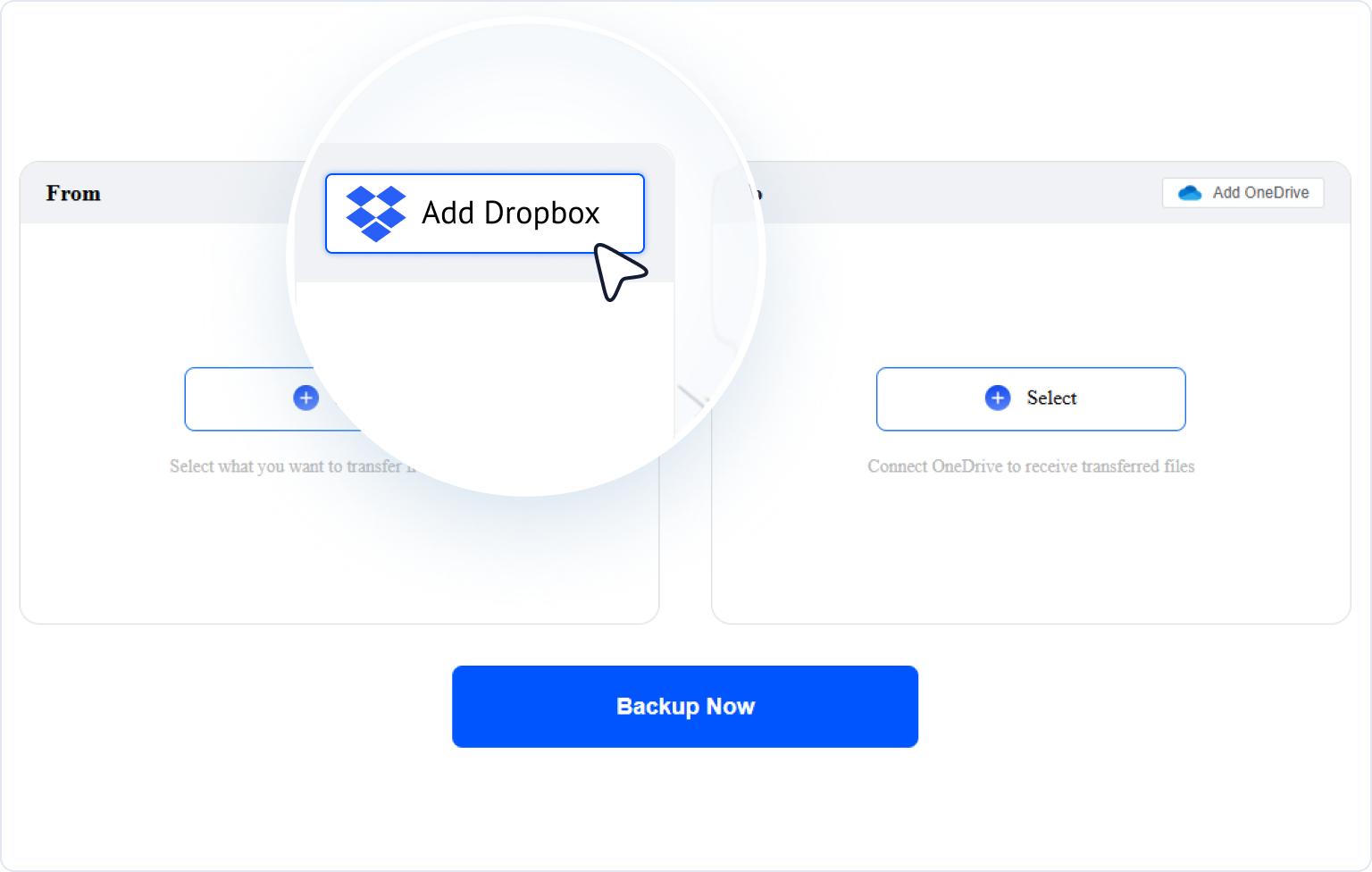
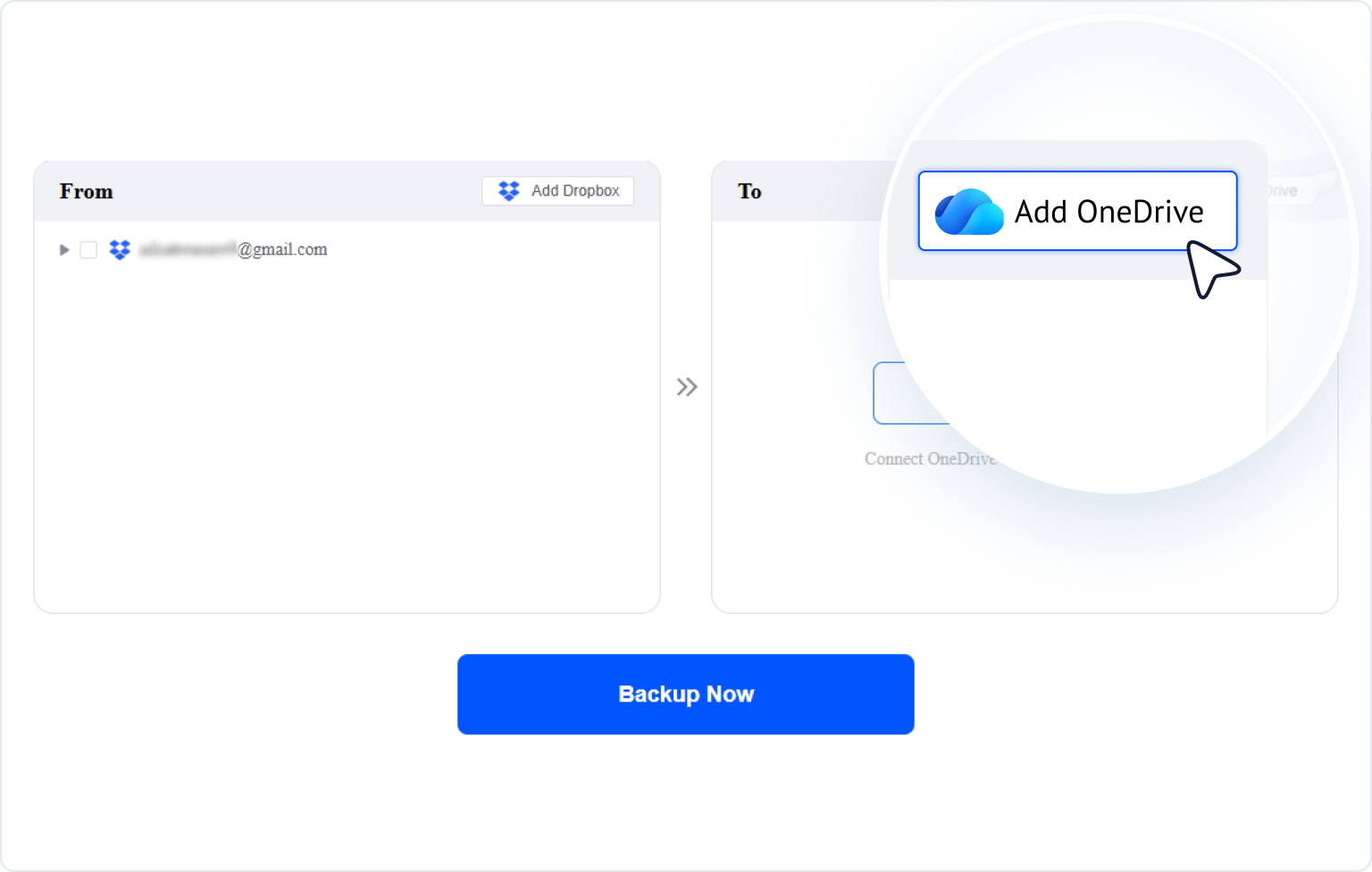
No Commands or Complicated Setup
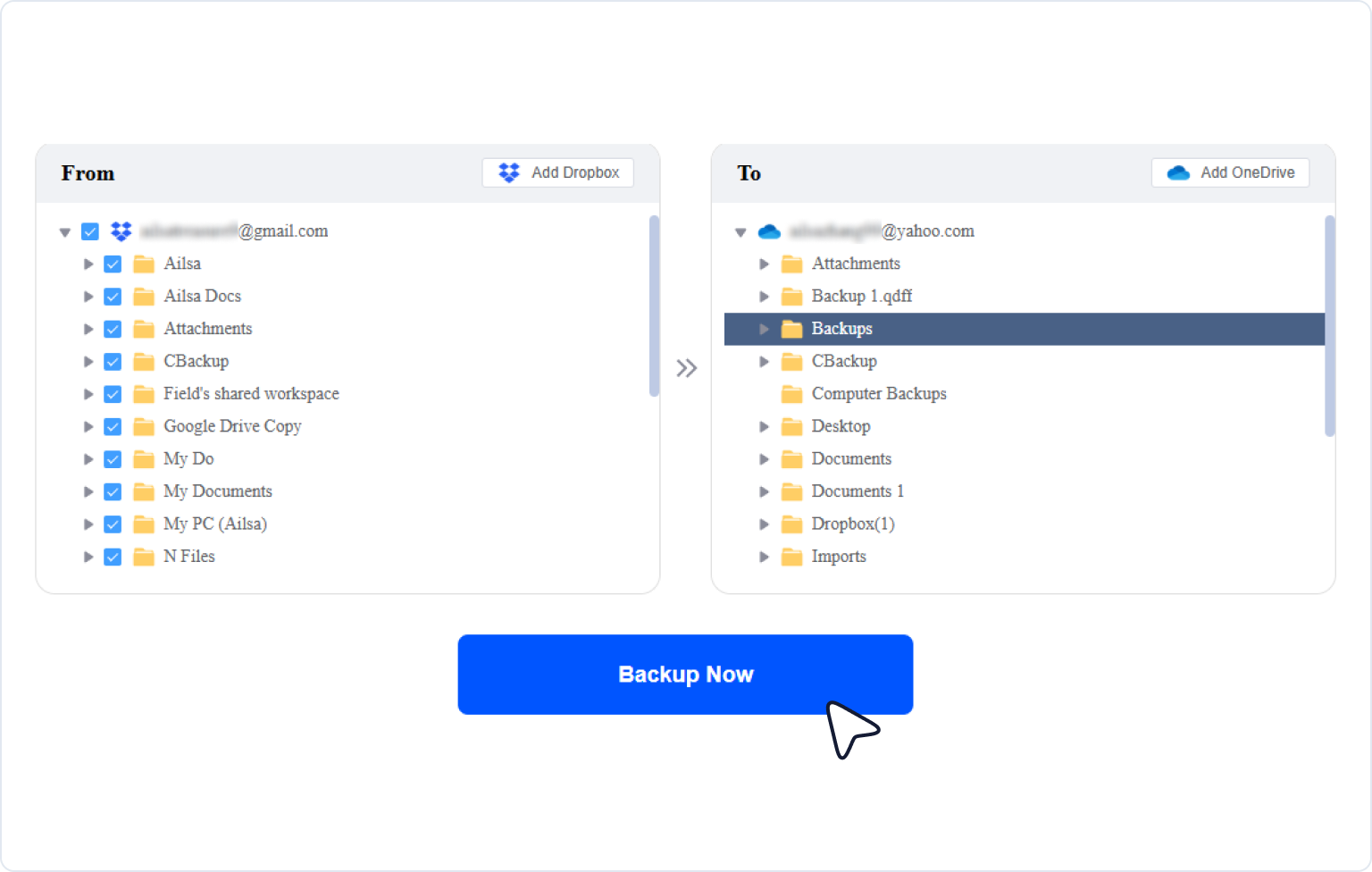
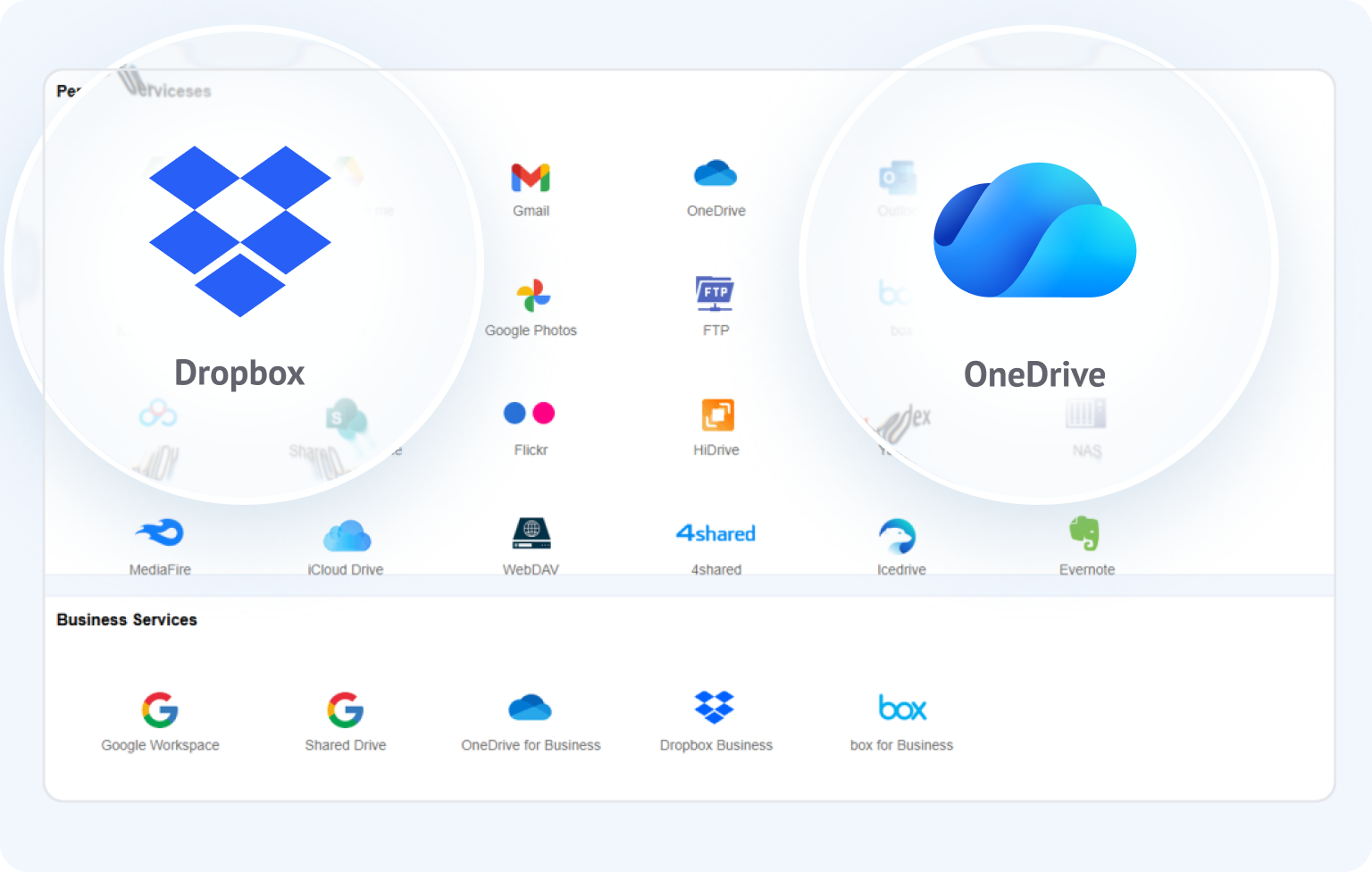
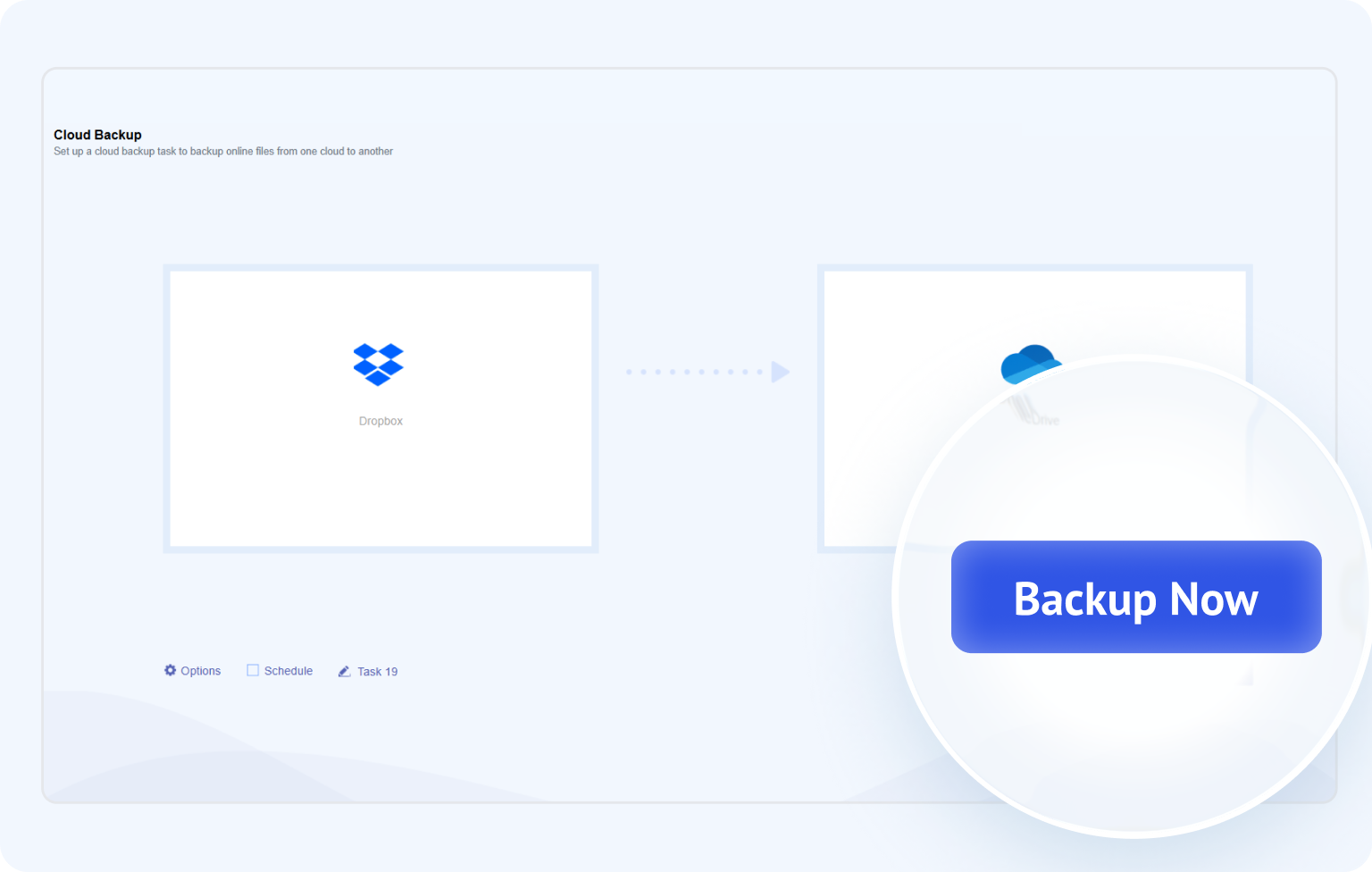
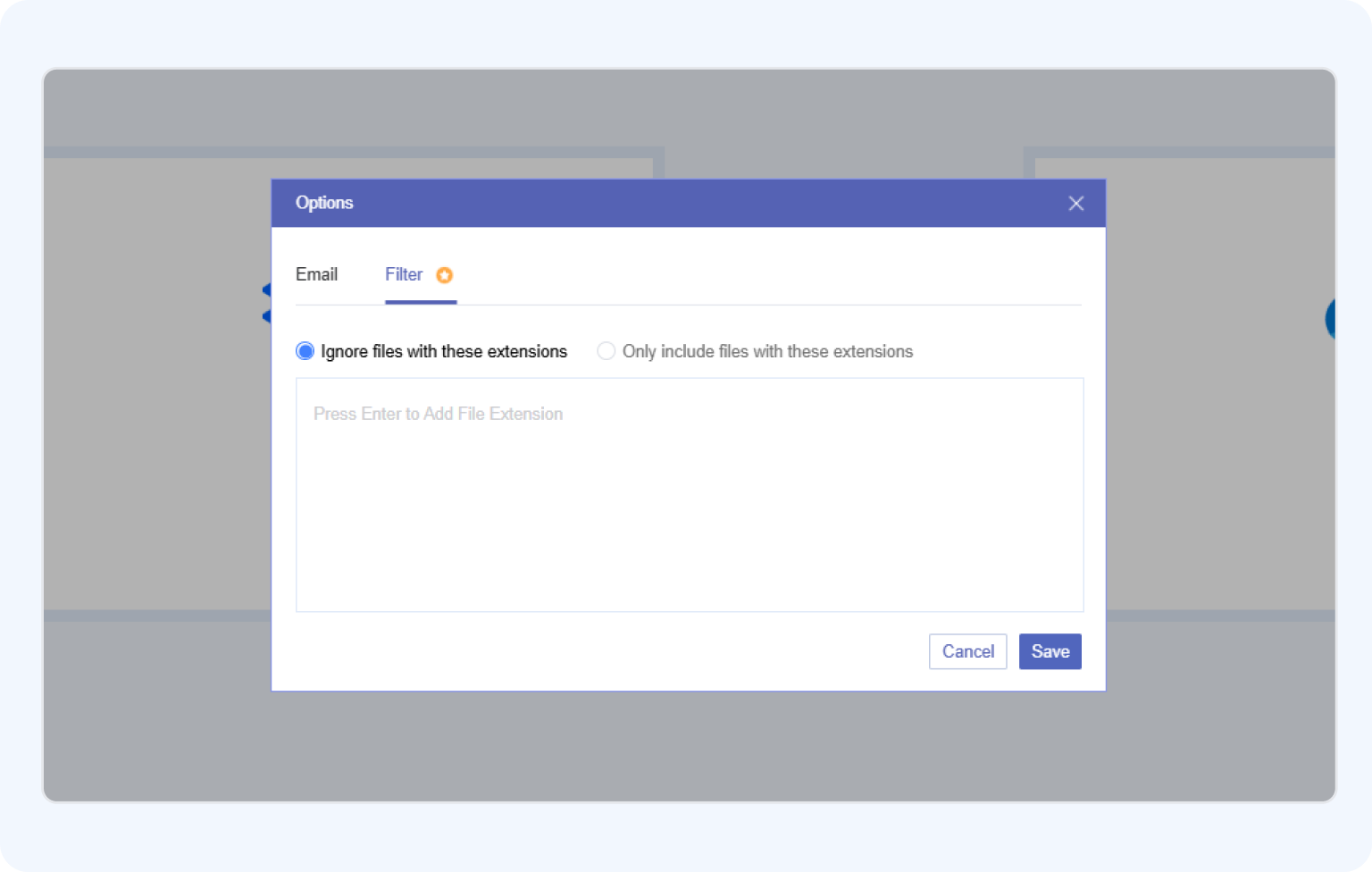
Add Dropbox and OneDrive to MultCloud, choose your source and destination, configure the
backup options, and start the task from a graphical interface.
Your PC Can Be Off
Since MultCloud operates entirely in the cloud, the transfer doesn't rely on your local
machine. You can turn off your PC, switch networks, or close your browser—the backup
continues uninterrupted.
One Place for 30+ Clouds
Manage backup tasks across supported cloud services from one interface, making it easier to
protect data stored across different cloud platforms without juggling multiple apps or
complicated scripts.
Before Backing Up Dropbox to OneDrive
Complete these checks before creating the Dropbox to OneDrive backup task so the result is
recoverable, appropriately scoped, and aligned with your organization's data policy.
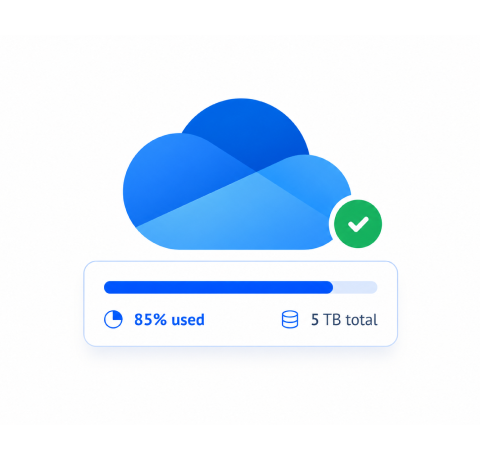
Check OneDrive Capacity
Check your OneDrive's remaining storage space to ensure it's larger than the total size
of the files to be backed up in Dropbox (At least 1.2 times). Insufficient
space will
cause the transfer to fail.
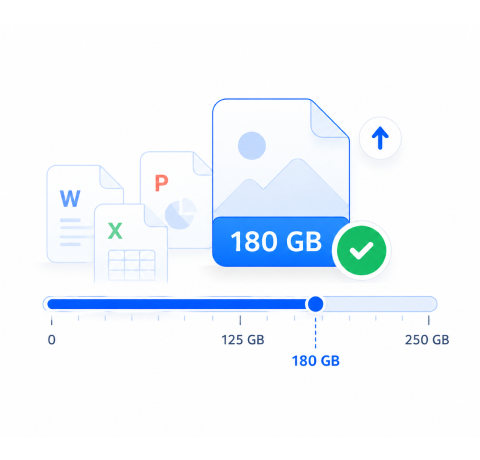
Check OneDrive File Size Limit
Before backing up, please ensure that your file size meets OneDrive's upload limits (up
to 250GB per file); otherwise, large files will not be able to be transferred
successfully.
Tidy Up Dropbox Files
Clean
up any Dropbox files
that don't need to be transferred to save your cloud backup data traffic and cloud
storage space.
Test with A Small Batch First
Before backing up everything, run a test with a few dummy files. Verify they appear
correctly in OneDrive and that the sync mode behaves as expected.
How to Backup Dropbox to OneDrive Automatically
Try a quick trial or sign in to MultCloud for a reusable task with task history, options,
schedules, versions, and restore controls.
Note: Schedule, file filters, traffic, speed, and other advanced options can vary by
plan and product version. You can also unlock them all by upgrading.
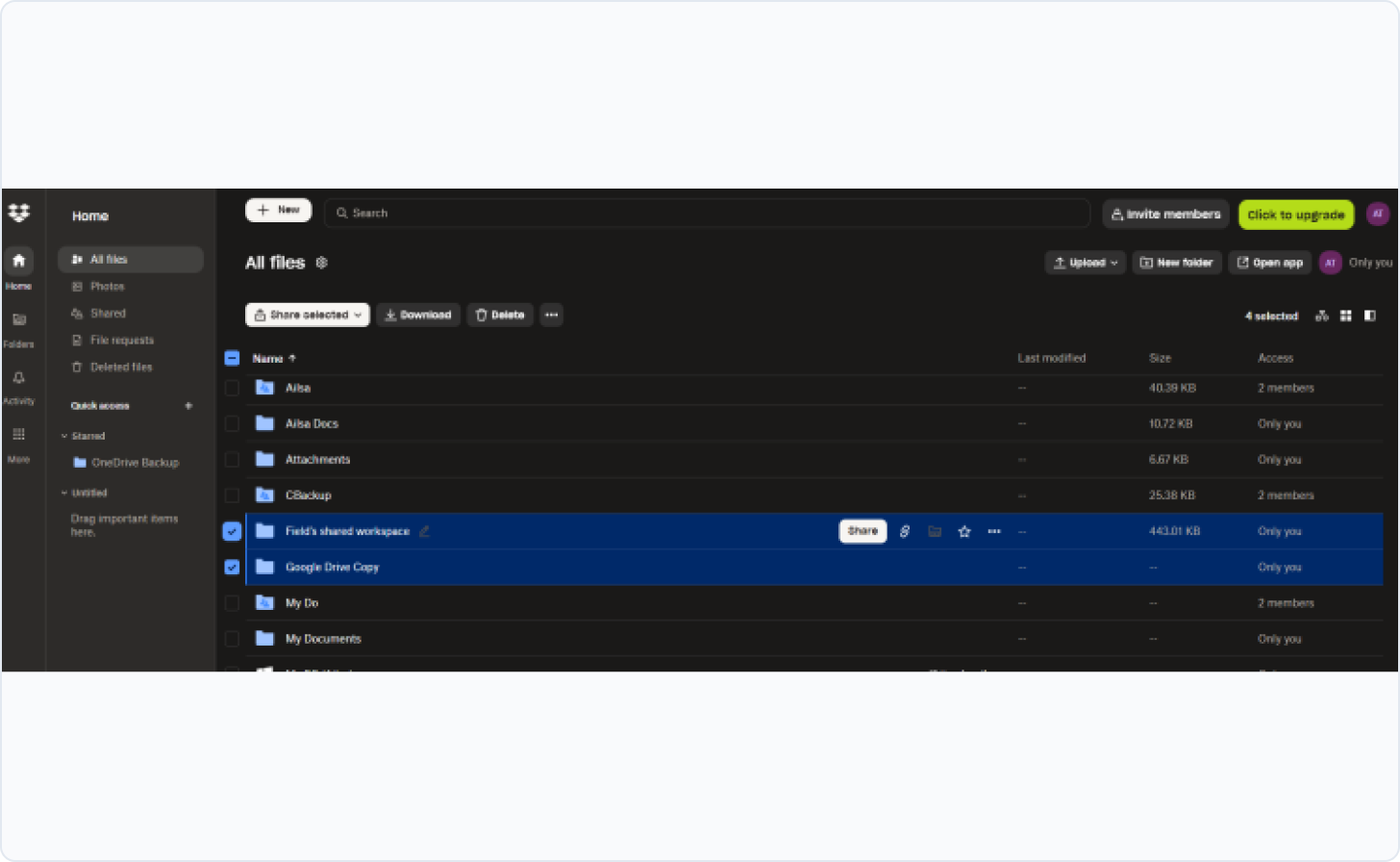
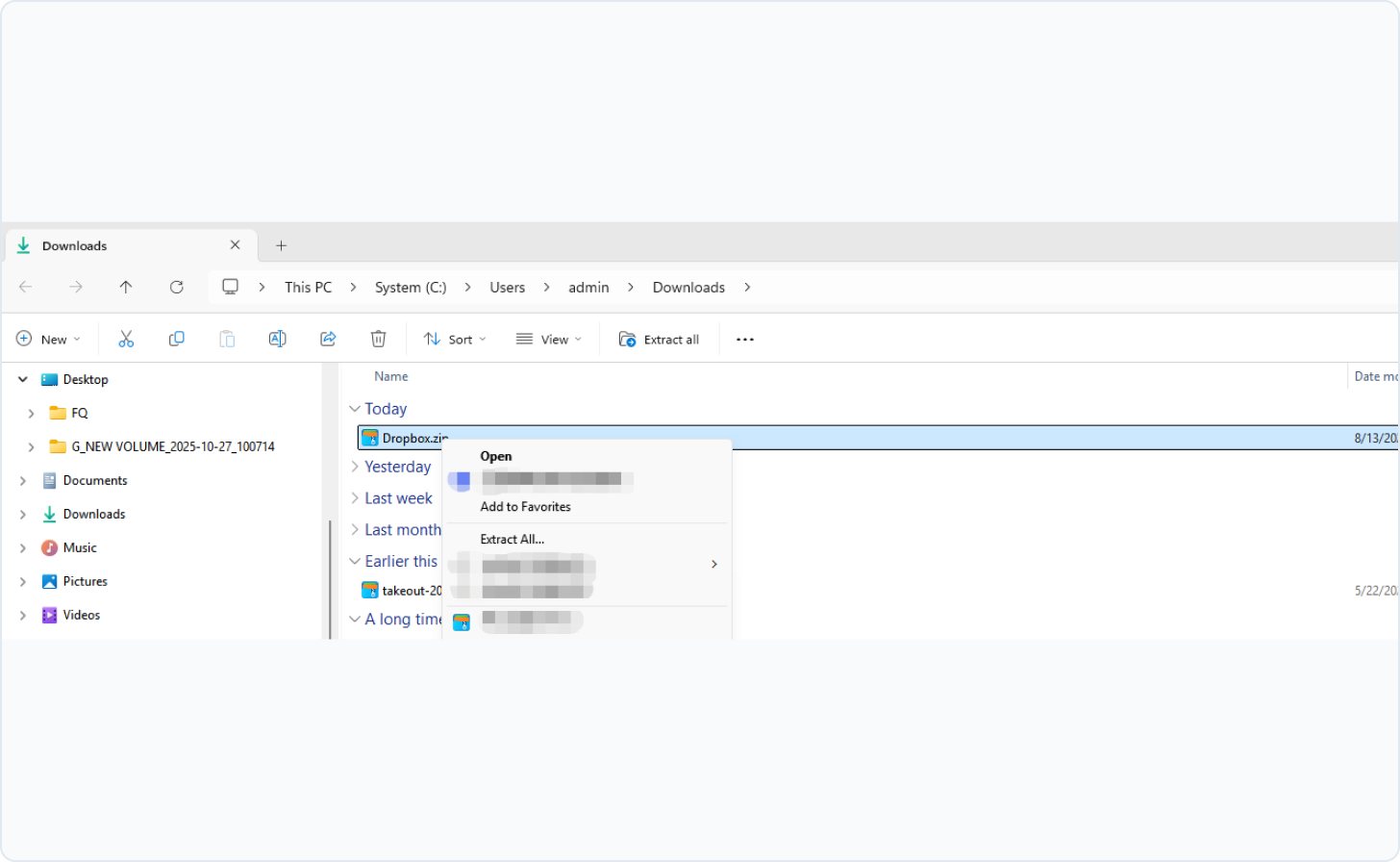
Way 1. Manual Download from Dropbox & Upload to OneDrive
⚠️ Note:
This process can be very slow, especially for large amounts of data.
You will be using your internet bandwidth for both the download and the upload.
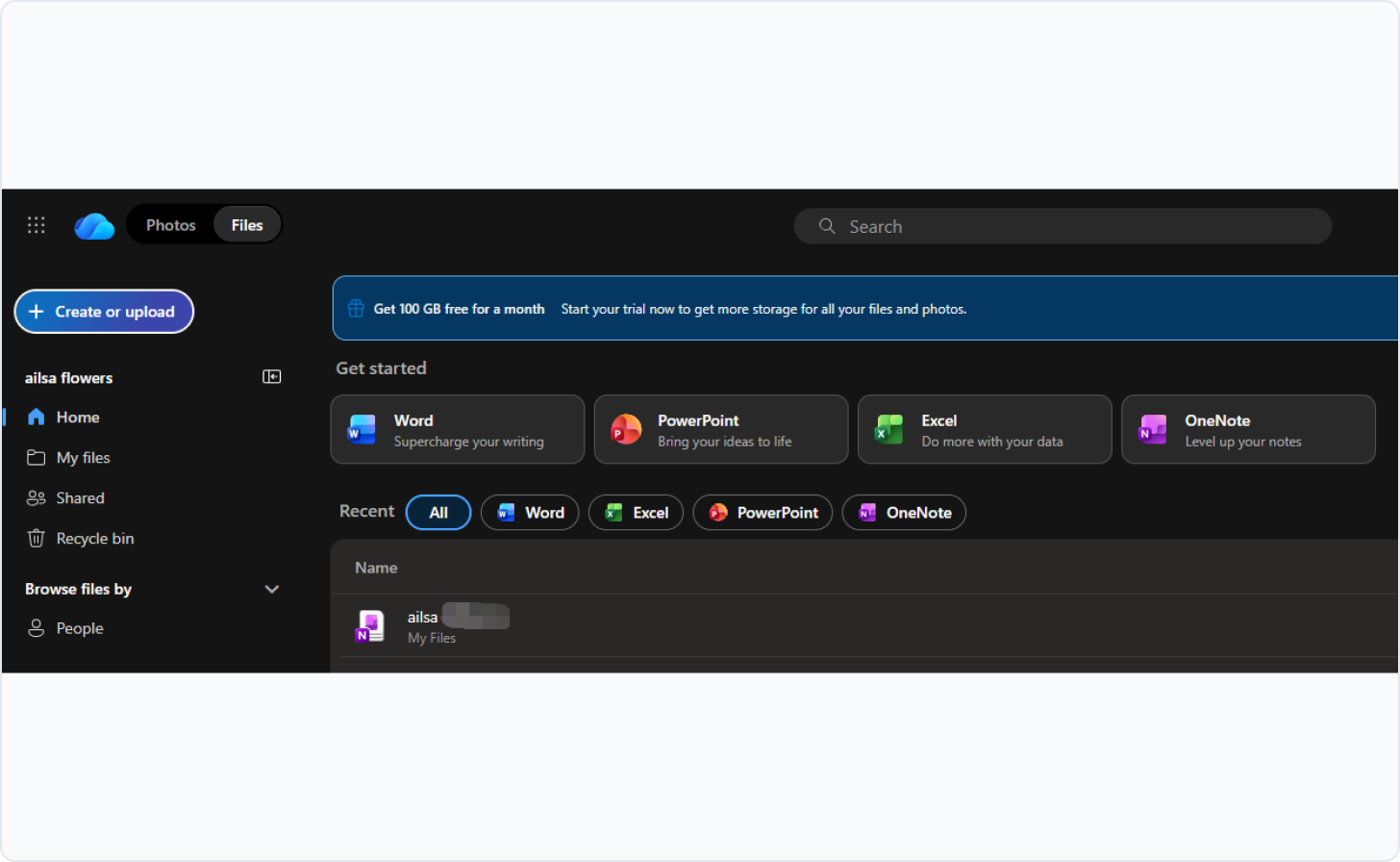
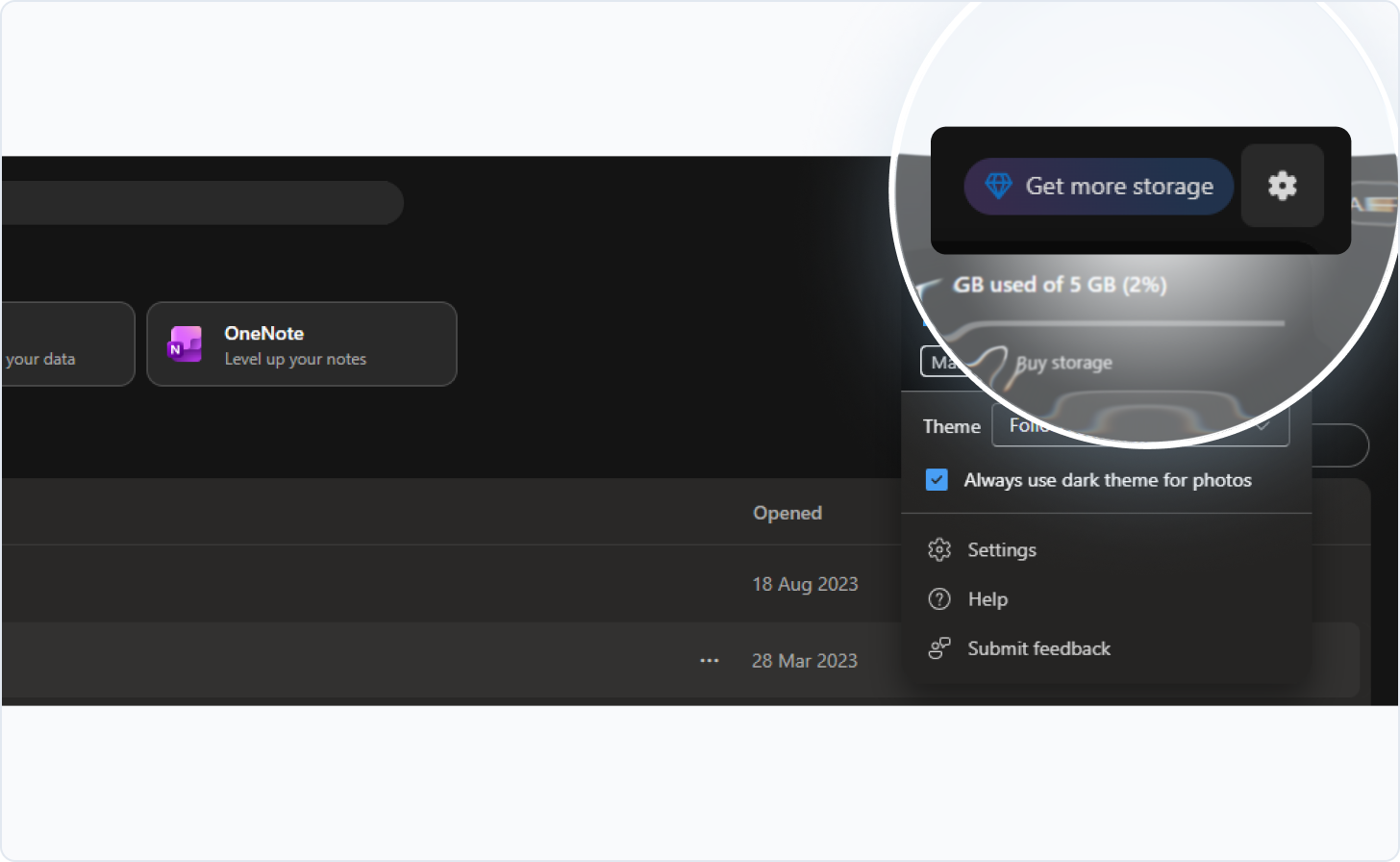
Use the OneDrive desktop app (supports 250GB per file; work/school accounts are
capped at 15GB) instead of the website—it's better for large or bulk transfers.
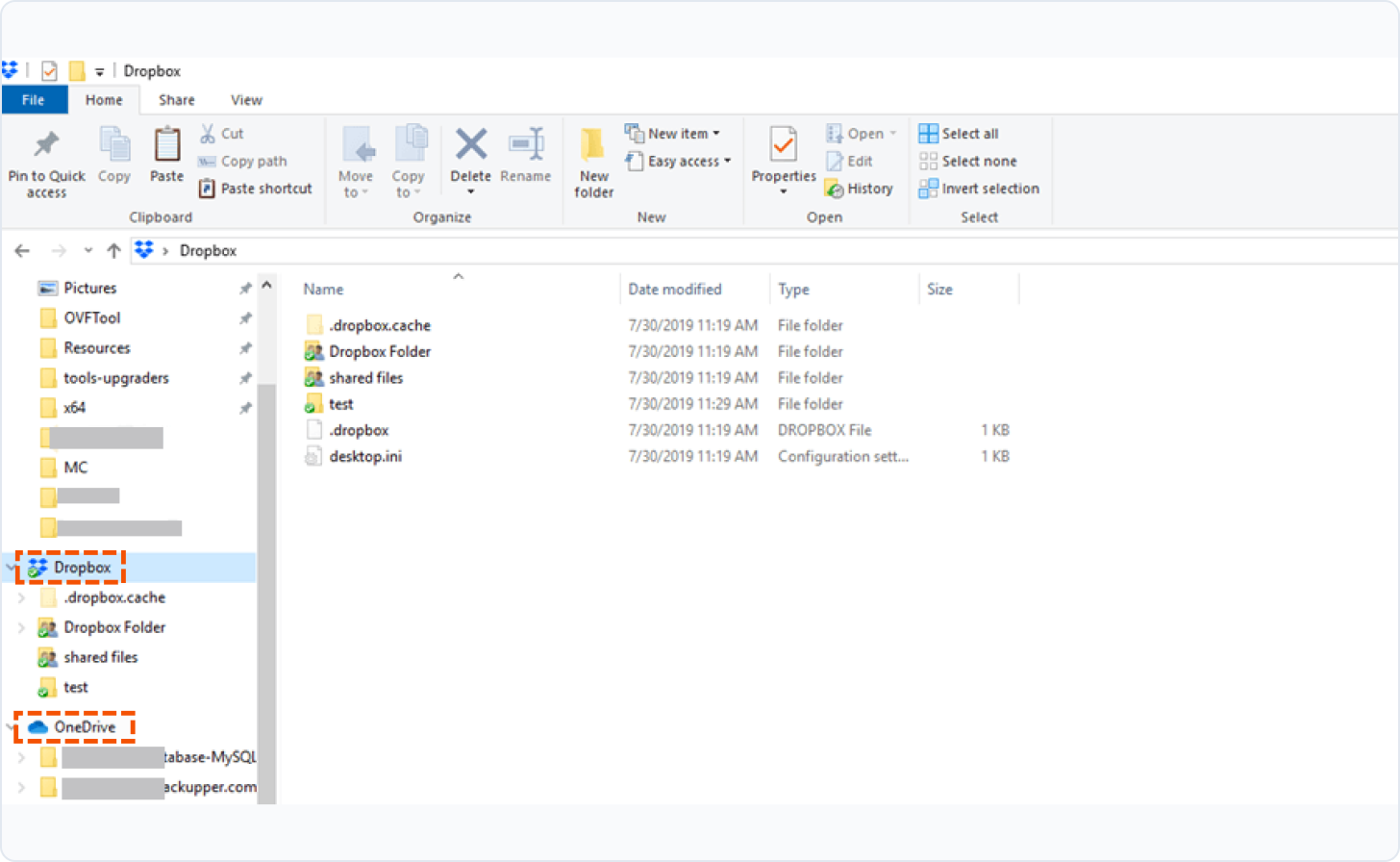
Way 2. Copy Between Desktop Apps (Drag & Drop)
Prerequisite: Both Dropbox and OneDrive
desktop apps must be installed and fully synced.
⚠️ Notes:
File Conflicts: Be aware of invalid characters in file names.
OneDrive restricts characters like " * : < > ? / \ | and leading/trailing
spaces, which can cause sync errors.
Large Transfers: For a very large number of files, consider
transferring in smaller batches to prevent your system from slowing
down or encountering errors.
This is a Copy, Not a Move: Your original Dropbox files remain
intact. You can delete them from Dropbox only after you've verified the backup in
OneDrive is complete and successful.
One-Time Import, Not Scheduled: Any changes in Dropbox can't be
imported to OneDrive unless you perform another import and delete the previously
imported version.
Bulk
Uploads: Migrating a very large number of files in a single go
can be problematic. The OneDrive web interface can have practical limits on how many
items are copied at once, and the sync client can struggle with libraries containing
over 300,000 files.
Authentication Timeouts: For very large imports that take a long
time, there is a risk that the authentication token used for the import may expire
before the process is complete. If this happens, the import job may fail, requiring
you to restart the process.
Transfer vs. Copy vs. Backup: What's the Difference?
Manual methods move or duplicate your files, but they don't provide true backup protection.
Here's what each approach actually does.
Capability
Manual Download & Upload
Copy Between Desktop Apps
Version History
No versions kept
Only latest copy
Multiple backup versions
Automated Scheduling
Fully manual
Fully manual
Daily / Weekly / Monthly
Incremental Updates
Repeats entire transfer
Repeats entire transfer
Only changed files
Local Storage Required
Uses your disk space
Uses your disk space
Cloud-to-cloud only
Local Bandwidth Used
Download + Upload
Syncs through your PC
Runs on MultCloud servers
Restore Specific Files
Must re-download everything
Limited by sync conflicts
Selective restore
Recovery After Deletion
Deleted from both sides
Syncs deletion automatically
Restore from backup version
Computer Can Be Off
Required during transfer
Required during sync
Runs in background
Connect and Manage 30+ Cloud Drives in One Place
MultCloud supports over 30 cloud services (nearly 40 integrations), allowing
you to connect, manage, and sync files across all your cloud accounts from a single platform.
We understand that trust is earned, and we've built MultCloud with enterprise-grade security to
protect your data at every step.
Your Data Belongs to You
MultCloud is only a secure transmission channel. We never permanently store your files on our
servers—any temporary cache is immediately deleted once your task is complete. You remain
the sole owner of your data.
Zero Password Exposure
We use the industry-standard OAuth authorization system, meaning MultCloud never sees or
saves your cloud account passwords. You grant access securely, and you can revoke it
anytime.
Bank-Grade Encryption
All data transfers are protected with 256-bit AES encryption for SSL—one of the most secure
encryption technologies available today. This ensures your files cannot be tampered with,
intercepted, or cracked during transmission.
Full Control & Transparency
You can revoke cloud access instantly, permanently delete your account and data on demand,
and count on our full GDPR
compliance, which ensures we only process what's strictly necessary for your tasks
and nothing else.
What Our Users Are Saying
GC
GeniuxCode1
reviewID
Generous 50GB quota for newcomer
After signing up, they gave me 50GB of storage, which is great. Transferring
photos and videos from Google Photos to another cloud was very smooth and
worked well.
I am glad services like MultCloud exist. For people living in poor country
where mobile data is expensive, MultCloud is a smart solution for moving
files from one cloud to another.
April 19, 2026Unprompted review
Useful
Share
TM
Timothy McCormick2 reviewUS
Worked smoothly, happy with the results
Everything worked smoothly transferring all our data from Dropbox to
SharePoint. Couldn't be happier with the results. Also, with the few issues
I did have, support was quick to assist in resolving them! Special thanks to
Lanry Lucky and his support!
April 8, 2026Unprompted review
Useful
Share
JP
Joe Price1
reviewGB
Great product and exceptional customer service
Great product and allowed me to move all my photos from OneDrive over to
Google Photos! I had 90GB of data and just left it running.
Also I had fantastic interaction with customer service with Lanry Lucky who
was exceptional.
April 19, 2026Unprompted review
Useful
Share
R
Richard1
reviewUS
MultCloud Easy to Use Migration
I changed email addresses and needed to moving one cloud data to another
cloud and Multcloud site helped me do this. My daughter who is a
schoolteacher uses your Multcloud all the time. She guided me through the
steps and we were successful. Thank you Excellent and easy to use. I’ll
leave similar 5 star on Google to recommend you to others.
April 19, 2026Unprompted review
Useful
Share
GG
Guillaume Guthrie1 reviewFR
Minimalistic and well designed GUI.
The straightforward experience.Doesnt require much configuration, options
menu is well organized and non confusing. Technically efficient. It doesnt
lag, it copies well files, with its directory and subdirectory structure.
All of the options and buttons are placed in order through the screen and
accessible.
April 19, 2026Unprompted review
Useful
Share
MG
Mike G1
reviewUK
Outstanding product and support
The MultCloud product is really outstanding and really does do exactly what
it says "on the tin"... I have been dreading migrating TBs of data from
Dropbox Business to Google Workspace and MultCloud made it super easy and
painless. It even enabled me to preserve file "created on" and "modified on"
dates...AND - their support is second to none. Really outstanding. Thank
you.
April 19, 2026Unprompted review
Useful
Share
FAQs About Backing Up Dropbox to OneDrive
Manually download Dropbox files and upload them to OneDrive, or use MultCloud Cloud Backup
for a direct cloud-to-cloud backup workflow with task options, scheduling, versions, and
restore controls.
No. Sync keeps locations aligned and may propagate changes depending on the mode. Cloud
Backup is intended for recoverable versions and restoration.
No, deleting the original file in Dropbox will not delete the copy you already transferred
to OneDrive. Once the file is copied over, it exists independently in the new location. If
your backup tool or OneDrive retains previous versions of files, you can use the task's
version-management controls or OneDrive's built-in file history to restore an older copy.
Use the providers’ OAuth-style authorization pages. Do not share passwords with MultCloud
content authors, agencies, or support screenshots.
Check authorization, source availability, destination capacity, unsupported names, filters,
traffic/plan limits, and task details. Retry with a small demo folder before escalating. Or
contact support via support@multcloud.com for help.
This is a very common “Known Folder Move” (KFM) failure. If your Dropbox folder is located
inside your Documents, Desktop, or Pictures folders, OneDrive will detect this
conflict and block the backup to prevent sync loops. The solution is to keep your
Dropbox folder separate, for example, directly in C:\Users\YourName\Dropbox, not inside a
folder that OneDrive is trying to back up.
It depends on your needs. For small, one-time transfers, the manual “download and upload”
method works. For larger or more complex migrations, people often turn to third-party tools,
like MultCloud, etc.
Yes. The official Microsoft Migration Manager has a per-file size limit. Many sources cite
a 15GB limit for individual files when using this specific tool. Additionally, while Dropbox
supports files up to 2TB via its desktop app, OneDrive has a general per-file limit of
250GB, which is important to keep in mind for very large files.
If you see an orange Dropbox icon on a file but it's causing problems, it could indicate a
conflict where Dropbox is trying to sync a file that OneDrive is also managing. The primary
fix is to ensure Dropbox
is not syncing files from within a OneDrive folder structure.
For very large, enterprise-scale migrations, manual methods or even the built-in Microsoft
tool might be insufficient. Dedicated migration providers are recommended for high-volume
transfers as they offer better performance, handle complex metadata, and provide support
throughout the process.
No. Dropbox Paper files are stored as online documents, not as traditional files in your
Dropbox storage. MultCloud currently does not support backing up, syncing, or transferring
Dropbox Paper files directly. To preserve them, you'll need to manually export Paper
documents as .docx or other compatible formats before using MultCloud for backup.
Backup Dropbox to OneDrive with MultCloud Now!
The Go-to Choice for Cloud-to-Cloud Backup, Transfer or Sync Files Across Clouds.



 OneDrive maintains an independent copy on Microsoft's servers. Restore
quickly without disrupting your daily work.
OneDrive maintains an independent copy on Microsoft's servers. Restore
quickly without disrupting your daily work.