Fast Sync Google Drive with Dropbox

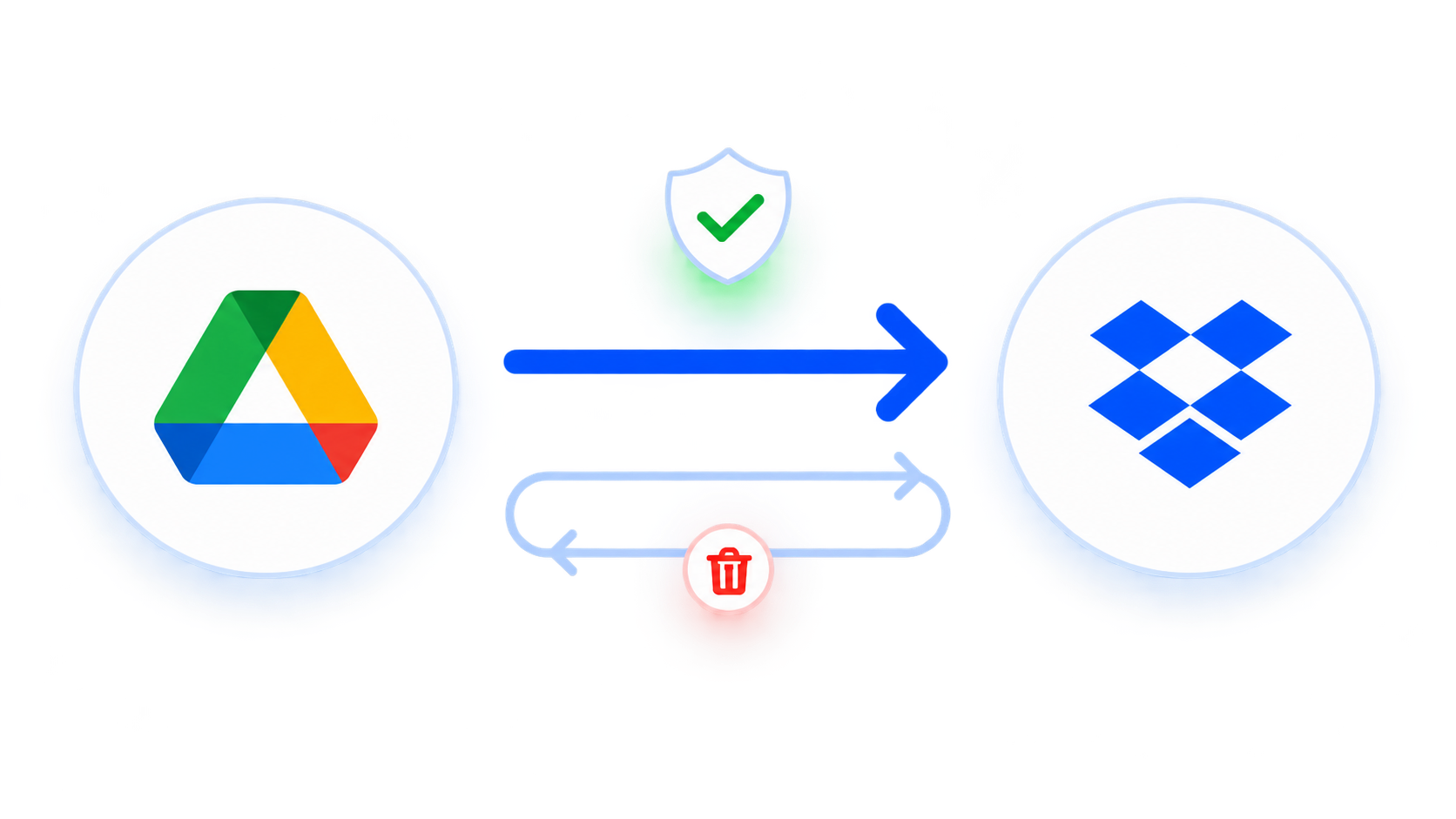
Keep your files, folders and new changes in sync between Google Drive and Dropbox right in your browser.No Downloads. No Uploads. No Sign Up. Just Cloud-to-Cloud

Go to app to sync across 30+ cloud services

LifewireCNETTECH ADVISORtechradar.SOFTPEDIA

MultCloud: Sync Google Drive to Dropbox without the Pain

Many people use Google Drive for work and Dropbox for shared files, but Google and Dropbox don’t talk to each other. A Google Drive to Dropbox sync keeps both clouds aligned automatically—ideal when you collaborate across teams, archive important docs, or simply want one source of truth. MultCloud makes this simple.

Stop Wasting Hours on Manual Copies

Dragging files from Google Drive to your desktop and re-uploading to Dropbox is slow and error-prone, especially for large folders. Syncing Google Drive with Dropbox through MultCloud moves data server-to-server, so you skip the download-and-upload loop entirely.


Avoid Version Confusion Across Two Clouds

When the same document lives in two places, edits drift apart fast. By syncing between Dropbox and Google Drive, the latest version lands in both clouds on a schedule—no more “which file is current?” guesswork.

Break Free from Single-Cloud Lock-in

Relying on one provider leaves you exposed to storage-limit changes, account locks, or price hikes. Mirroring key folders to a second cloud gives you redundancy and true data control.

No Commands or Complicated Setup

Scripts and command-line tools can automate cross-cloud sync, but they are hard for users who just want their clouds aligned. MultCloud simplifies the process of syncing Google Drive with Dropbox in a few clicks.

Sync Without Keeping Your Computer Running

Traditional download-and-upload workflows depend on your computer and local network, which is inconvenient for large or long syncs. MultCloud allows you to set it and forget it. Once set up, you can turn off your computer because it runs on MultCloud’s servers.

Google Drive vs Dropbox: Why Sync Both?

Google Drive is built for collaborative docs and tight Google Workspace integration; Dropbox shines at reliable file sync and sharing. Syncing them lets you keep the strengths of both while protecting your files.

FeatureGoogle DriveDropbox
Primary PurposeDocs, sheets & Workspace collaborationFile sync, sharing & storage
Free Storage15 GB (shared with Gmail/Photos)2 GB
Pricing & PlansBasic 100GB: $16.99 the first year, then $19.99 /year
Google AI Plus 400GB: $37.99 the first year, then $49.99 /year
Google AI Plus 2TB: $84.99 the first year, then $99.99 /year
Google AI Pro 5TB: $149.99 the first year, then $199.99 /year
Plus: $9.99 / month for 2TB ($119.88/year);
Standard: $ 15 / user / month for minimal 3TB ($180/user/year);
Advanced: $ 24 / user / month for minimal 5TB ($288/user/year);
File SyncGoodExcellent
Real-Time CollaborationStrongBasic
File SharingGoodStrong
Version History30 days or 100 versions for non-native files; no limit for native files.30, 180 or 365 days depends on your plan.
Offline AccessYesYes
Cross-PlatformYesYes
Good as a Mirror Copy--Yes
Best UseCreate & collaborateStore, sync & share
Tips:You don’t have to choose. Use Google Drive for daily work and sync a Google Drive folder with Dropbox as a safe, always-updated copy.

Before Syncing Google Drive with Dropbox

Do the following before syncing so the Google Drive to Dropbox sync task runs the way you want.

Choose sync direction

Choose Your Sync Direction

The first decision is whether you need one-way or two-way sync. One-way (safer) – changes flow from Google Drive to Dropbox only. Two-way (riskier) – changes mirror both ways; deleting in one could delete in the other.

Choose files

Decide What You Actually Need to Back Up

If your Google Photos library is huge, don’t blindly back up everything. Focus on what’s truly important—milestones, memories, or creative work—and skip the clutter like old archives, duplicates, junk, screenshots or blurry shots. This saves time and storage.

Shared files

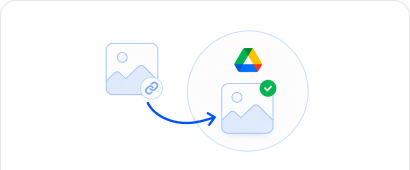
Address "Shared with Me" Files

Files shared with you in Google Drive (in the "Shared with me" section) are usually not considered "your" files and will be excluded from the sync. Before starting, add these files to your own Drive by "Make a copy" so the sync tool can see them.

Filename issues

Avoid Filename Issues

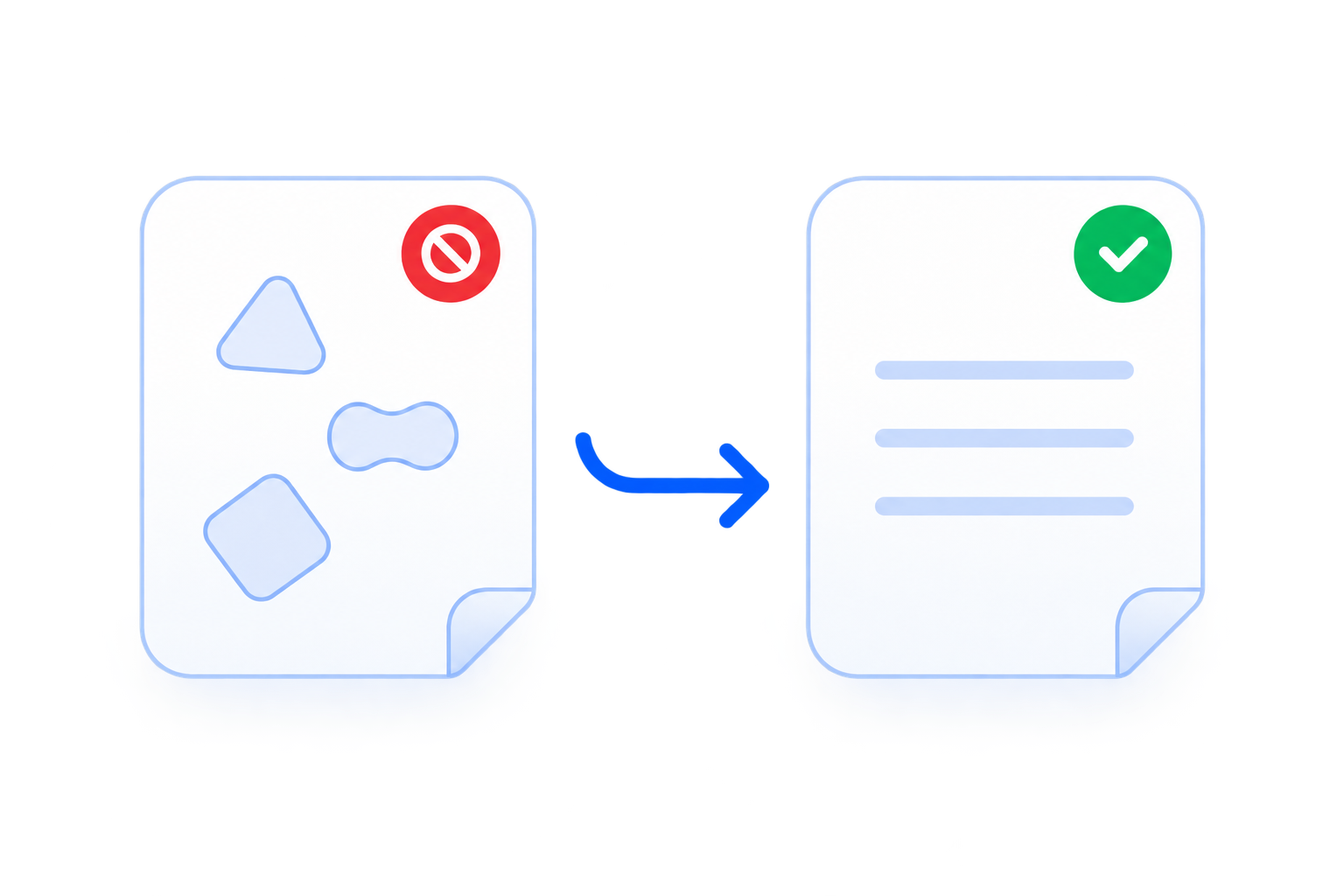
Both Google Drive and Dropbox have naming restrictions. So, avoid symbols like \ / * : ? < > | " ~ $ , in filenames and ensure filenames within 240 characters before syncing. Or the sync process will be stopped due to the limitation.

Dropbox storage

Check Dropbox Available Storage

Please ensure your Dropbox have enough available cloud space to save all the data from Google Drive, or it will fail. It’s wise to free up Dropbox space before syncing.

How to Sync Google Drive to Dropbox in 3 Easy Steps

Learn how to sync Google Drive with Dropbox easily with the help of MultCloud, add Google Drive and Dropbox, then sync with one click.

40+ Clouds

Step 1. Authorize and Select Your Source Google Drive

Create a free MultCloud account, then go to "Manage Clouds and Emails" to securely authorize both Google Drive and Dropbox.

Step 2. Create the Google Drive to Dropbox Sync Task

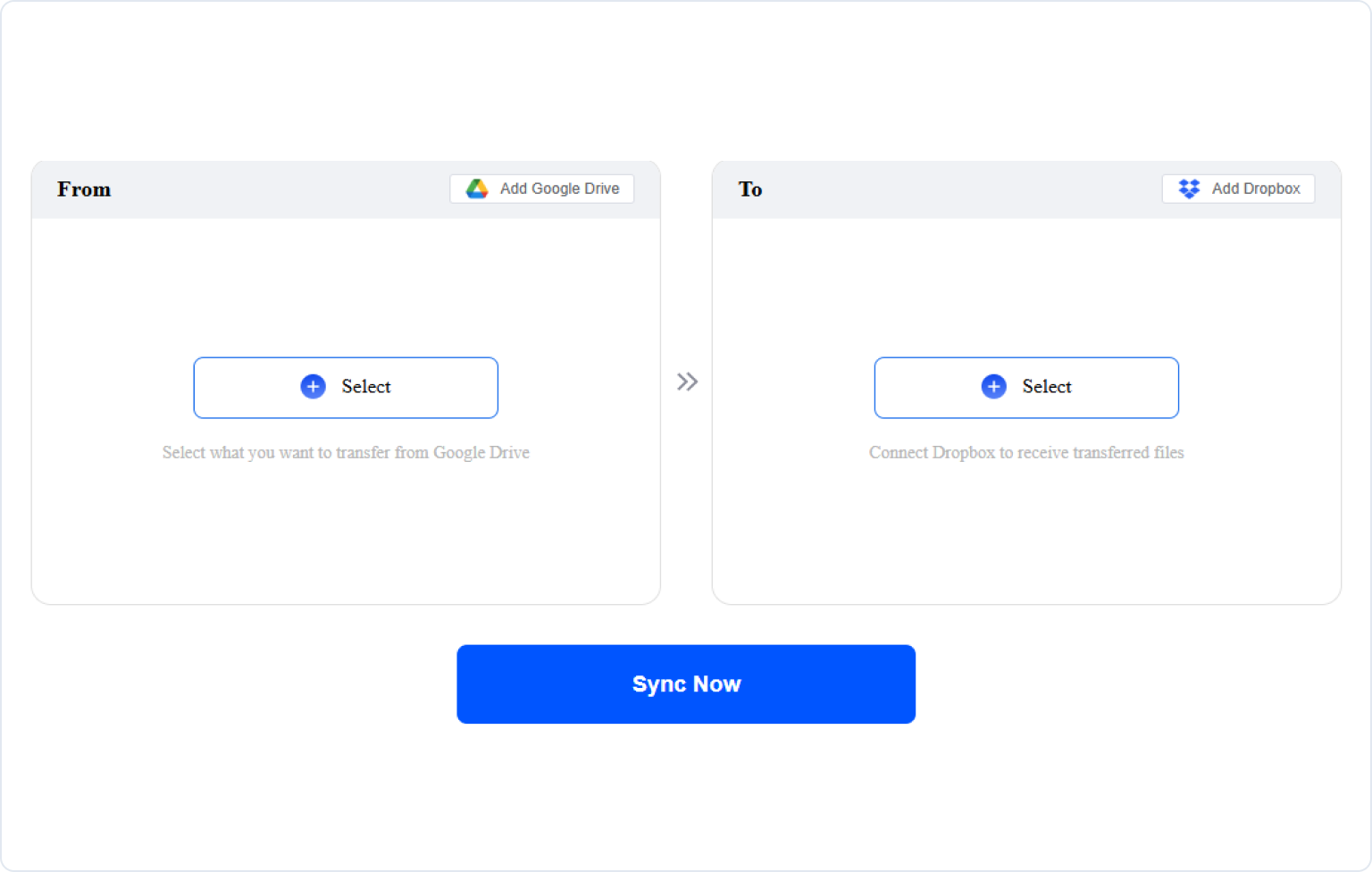
Click "Cloud Sync", Hit FROM to select your source Google Drive files and click TO to choose a Dropbox folder.

Step 3. Start Syncing Google Drive to Dropbox

Configure Options and Schedule, then hit "Sync Now" to sync Google Drive to Dropbox automatically.

Sync step screenshot
Start My Google Drive to Dropbox Sync

What Happens to Your Files During Sync?

Connecting Google Drive and Dropbox to a third party naturally raises questions about access and privacy. Here is how MultCloud handles sync from connection to destination.

Your source Google DriveYour Source
Access authorizationYou Grant Access
MultCloud sync taskYour Sync Task Runs
Access authorizationYou Grant Access
Your sync destination DropboxYour Sync Destination

No Password Required

MultCloud connects through each provider's OAuth, so you never share your Google or Dropbox password.

Controlled Permission

MultCloud only acts within the permissions you grant; connecting an account isn't handing over full control.

Revoke Anytime

Remove the cloud connection in MultCloud or revoke app access in your Google/Source account settings.

256-bit Encryption in Transit|OAuth Authorization|No Password Stored|GDPR Compliant|24/7 Monitoring

Manual Transfer vs. MultCloud Cloud Sync

To see exactly how much time and hassle MultCloud saves, our engineering team benchmarked a traditional manual download/upload workflow against MultCloud's server-to-server sync engine on a standard 100 Mbps home broadband connection.

15×Faster on photos & small-file libraries
100%Success rate on a large 4K video (no drop)
0Local CPU/RAM load during cloud sync
Data ScenarioFile Type & VolumeManual Download & Re-uploadMultCloudEfficiency Gain & Advantage
Media Library1,000 High-Res Photos
(5 GB total)
45 mins 11 secs
Heavy local storage lag & browser memory limits
3 mins 57 secs
0 Local CPU/RAM Load
Transfers entirely in background; zero local CPU/RAM load.
Large Video Archive1 Single 4K Video File
(20 GB)
2 hrs 30 mins 33 secs
High risk of ISP connection drop; requires restart
12 mins 16 secs
100% Success Rate
Enterprise chunking & automatic retry logic handle network spikes smoothly.
Deep Project Folderse50,000 Small Text/Code Files
(2 GB total)
1 hrs 32 mins 20 secs
Extreme overhead from OS file-system reading
6 mins 31 secs
15× Faster
Parallel API calls skip local file system I/O bottlenecks.

Your Data Security Is Our Priority

We understand that trust is earned, and we've built MultCloud with enterprise-grade security to protect your data at every step.

Your Data Belongs to You

MultCloud is only a secure transmission channel. We never permanently store your files on our servers—any temporary cache is immediately deleted once your task is complete. You remain the sole owner of your data.

Zero Password Exposure

We use the industry-standard OAuth authorization system, meaning MultCloud never sees or saves your cloud account passwords. You grant access securely, and you can revoke it anytime.

Bank-Grade Encryption

All data transfers are protected with 256-bit AES encryption for SSL—one of the most secure encryption technologies available today. This ensures your files cannot be tampered with, intercepted, or cracked during transmission.

Full Control & Transparency

You can revoke cloud access instantly, permanently delete your account and data on demand, and count on our full GDPR compliance, which ensures we only process what's strictly necessary for your tasks and nothing else.

What Our Users Are Saying

GC
GeniuxCode1 reviewID

Generous 50GB quota for newcomer

After signing up, they gave me 5GB of storage, which is great. Transferring photos and videos from Google Photos to another cloud was very smooth and worked well. I am glad services like MultCloud exist. For people living in poor country where mobile data is expensive, MultCloud is a smart solution for moving files from one cloud to another.

April 19, 2026Unprompted review
Useful
Share
TM
Timothy McCormick2 reviewUS

Worked smoothly, happy with the results

Everything worked smoothly transferring all our data from Dropbox to SharePoint. Couldn't be happier with the results. Also, with the few issues I did have, support was quick to assist in resolving them! Special thanks to Lanry Lucky and his support!

April 8, 2026Unprompted review
Useful
Share
JP
Joe Price1 reviewGB

Great product and exceptional customer service

Great product and allowed me to move all my photos from OneDrive over to Google Photos! I had 90GB of data and just left it running.Also I had fantastic interaction with customer service with Lanry Lucky who was exceptional.

April 19, 2026Unprompted review
Useful
Share
R
Richard1 reviewUS

MultCloud Easy to Use Migration

I changed email addresses and needed to moving one cloud data to another cloud and Multcloud site helped me do this. My daughter who is a schoolteacher uses your Multcloud all the time. She guided me through the steps and we were successful. Thank you Excellent and easy to use. I’ll leave similar 5 star on Google to recommend you to others.

April 19, 2026Unprompted review
Useful
Share
GG
Guillaume Guthrie1 reviewFR

Minimalistic and well designed GUI.

The straightforward experience.Doesnt require much configuration, options menu is well organized and non confusing. Technically efficient. It doesnt lag, it copies well files, with its directory and subdirectory structure. All of the options and buttons are placed in order through the screen and accessible.

April 19, 2026Unprompted review
Useful
Share
MG
Mike G1 reviewUK

Outstanding product and support

The MultCloud product is really outstanding and really does do exactly what it says "on the tin"... I have been dreading migrating TBs of data from Dropbox Business to Google Workspace and MultCloud made it super easy and painless. It even enabled me to preserve file "created on" and "modified on" dates...AND - their support is second to none. Really outstanding. Thank you.

April 19, 2026Unprompted review
Useful
Share

FAQs About Syncing Google Drive with Dropbox

Google Drive and Dropbox lack built-in two-way sync. You can: (1) manually import files via Dropbox's web interface (one-time only), or (2) rely on third-party sync services like MultCloud for continuous scheduling.
One-Way Sync: Copies changes from source (e.g., Google Drive) to destination (e.g., Dropbox) only. Safer—protects your primary data from accidental changes on the other side.

Two-Way Sync: Mirrors everything in real-time—adds, edits, and deletions go both ways. Risk: deleting a folder in Dropbox could also delete it in Google Drive, causing potential data loss.
No, sync is not backup. Sync mirrors the same state everywhere—so mistakes, deletions, or corruption propagate instantly. Google and Dropbox protect their infrastructure, but you're responsible for your data. Version history helps short-term but is usually time-limited. For real protection, you need independent backups.
Sync issues are common and often stem from specific causes:
  • Check the web app: If a file or folder is missing online too, the issue is deletion or permission changes, not sync failure.
  • Check selective sync settings: You might have accidentally excluded a folder to save space.
  • Check sharing permissions: A shared folder might not appear if access has been revoked or changed.
  • Check for renamed or moved folders: Moved parent folders can confuse local sync mappings.
  • Check file names: Files with non-printable characters or invalid names can cause sync failures.
Google Docs conversion is a major gotcha. Moving them out of Google Drive converts them to Office formats (e.g., .docx), causing issues:
  • Versioning: Dropbox won't track Google Drive's version history.
  • Ownership: Editing the converted file in Dropbox and syncing back creates two separate, disconnected versions.
Keep active Google files in Google Drive. Use Dropbox's Google Workspace integration to edit via shortcuts—avoid moving or converting them.
Files in Google Drive's "Shared with me" section are not stored in your own Drive storage and are often excluded from syncs. To sync them, you must first add them to your “My Drive” by using "Make a copy".
Moving or copying files from Google Drive to Dropbox will free up space in your Google Drive account but will consume storage capacity in your Dropbox account.
When you move files and choose to apply the same permissions, group permissions are typically retained. You can also choose whether to keep the original folder structure when importing. Keep in mind, however, that once files are converted to Microsoft formats, they will behave differently than native Google Workspace files. Deleting a folder from Dropbox may affect synced data.
MultCloud

Sync Google Drive to Dropbox with MultCloud Now!

The Go-to Choice for Cloud-to Cloud Transfer, Sync & Backup Files Across Clouds.

Get Started for free >>
Sync Google Drive to Dropbox with MultCloud