

Quick Navigation:
About WordPress Site
A WordPress site is a content management system (CMS) that powers over 40% of all websites on the internet. It comes in two flavors:
- WordPress.com (a hosted platform with limitations)
- WordPress.org (self-hosted, giving you full control)
A typical WordPress site consists of two main components:
- The files (core WordPress software, themes, plugins, uploads like images and PDFs)
- The database (a MySQL collection of tables storing posts, pages, comments, user profiles, settings, and plugin data)
When you install WordPress on a hosting server, these two parts work together dynamically—the PHP files call upon the database to display your content every time a visitor lands on your site. However, everything is interconnected; a single corrupted plugin, a failed theme update, or a hacker's malicious code can instantly break the entire system. Thus, this guide walks you through every reliable method, from one-click plugins to manual exports and backing up a WordPress site. Let’s get started.

Why Backup WordPress Site?
Most of us ignore backups until something breaks. Then they panic, scramble, and often end up paying a developer to fix a mess that could’ve been avoided.
There are multiple reasons to take a backup of your WordPress site:
- Plugin failures.
- Theme conflicts.
- Hacking attempts.
- Server crashes.
So, backups aren’t optional. They’re your lifesaver. Now let’s dig into the actual how-to.
Way 1. Backup WordPress Site and Database via MultCloud
How to take a backup of a WordPress site easily? Here we will show you the best way to backup WordPress site and database altogether. The all-in-one multiple cloud storage manager MultCloud. It not only allows you to manage all clouds in one platform but also protects the files and database on your WordPress site.
- It supports 40+ clouds, including OneDrive, Dropbox, Google Drive, iCloud Drive, iCloud Photos, MEGA, Amazon S3, Google Workspace, OneDrive for Business, MySQL, FTP/SFTP, WebDAV, and more.
- Its Website Backup feature allows you to back up one WordPress site to a cloud platform or another server or domain, seamlessly, to reduce downtime.
- Besides, you can clone your WordPress site to another server to improve the website's performance.
- It keeps the original folder structure to make it easy to manage website files.
So, it’s easy to backup WordPress site and database to Dropbox with MultCloud. Check the simple steps below:
1. Please sign up for a MultCloud account for free and log in.
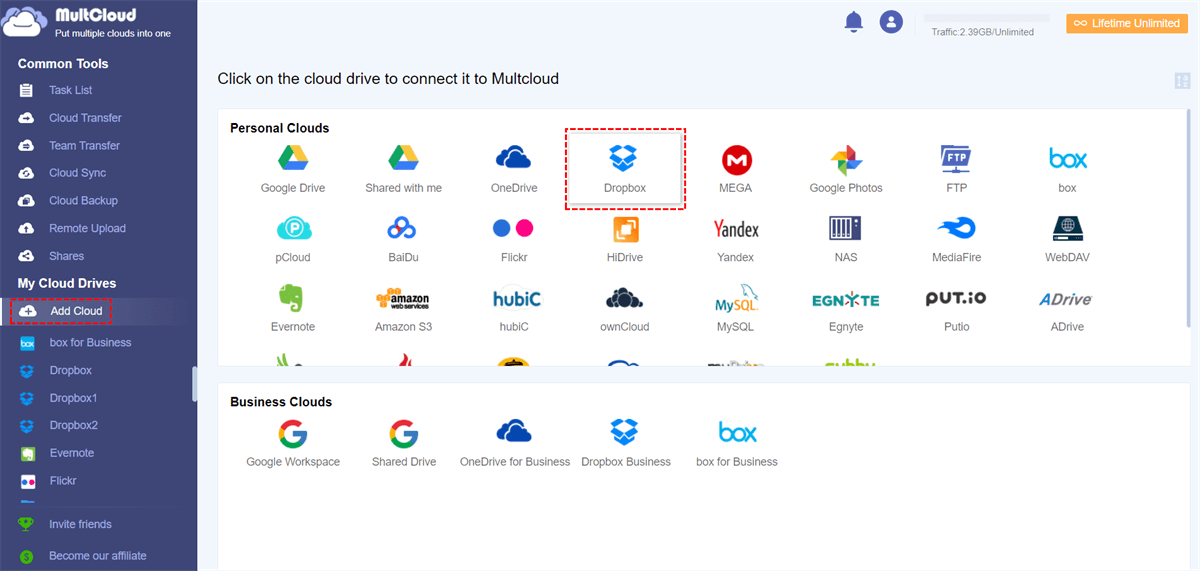
2. Click Add Cloud on the top of the left panel, then choose Dropbox to add.
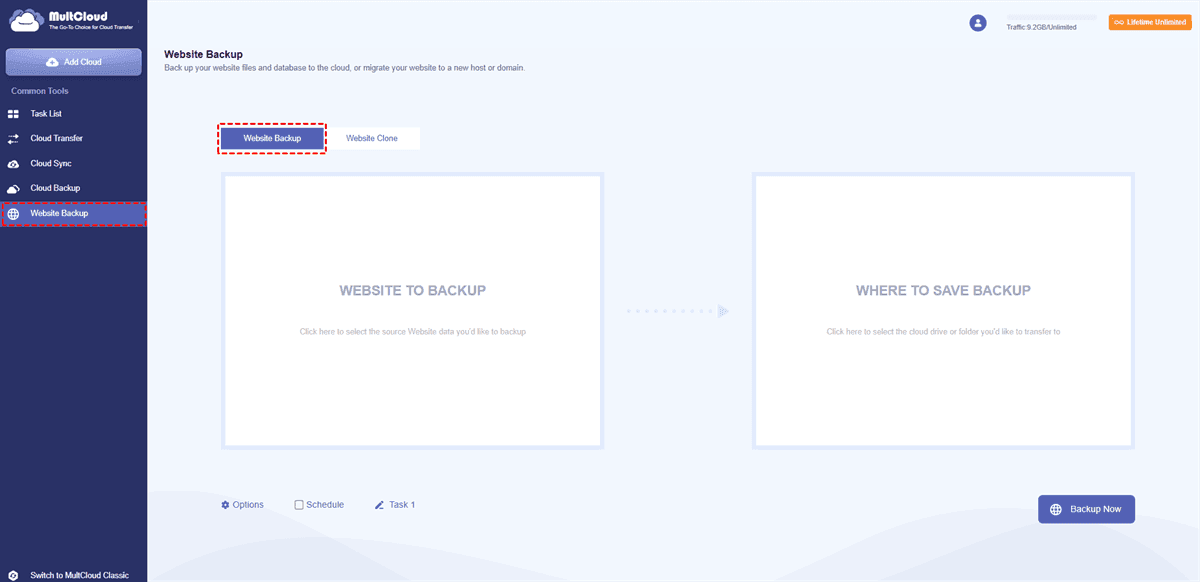
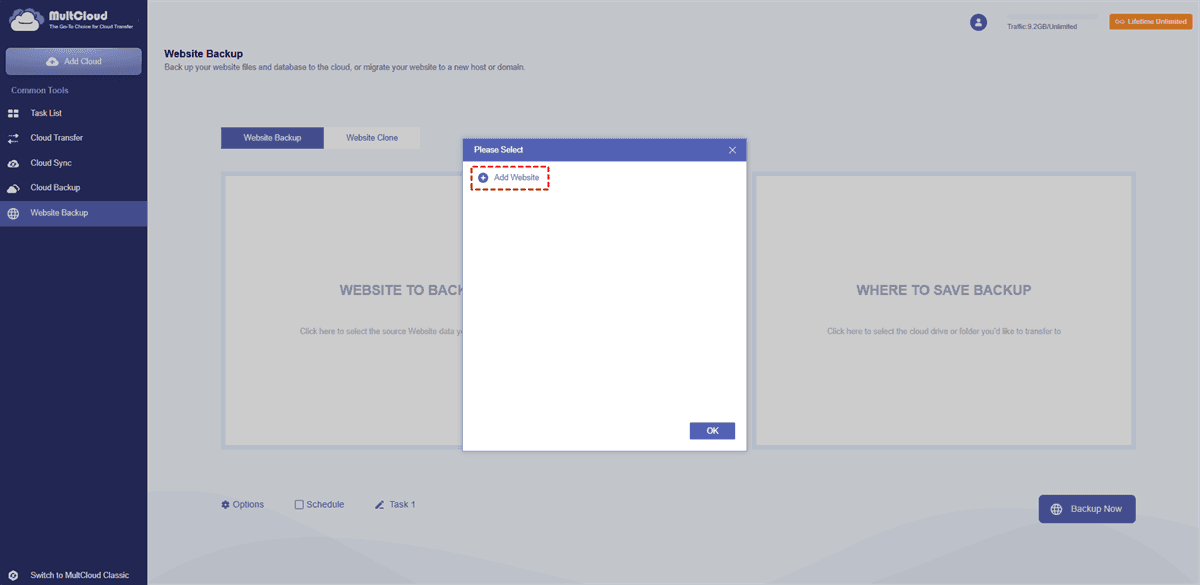
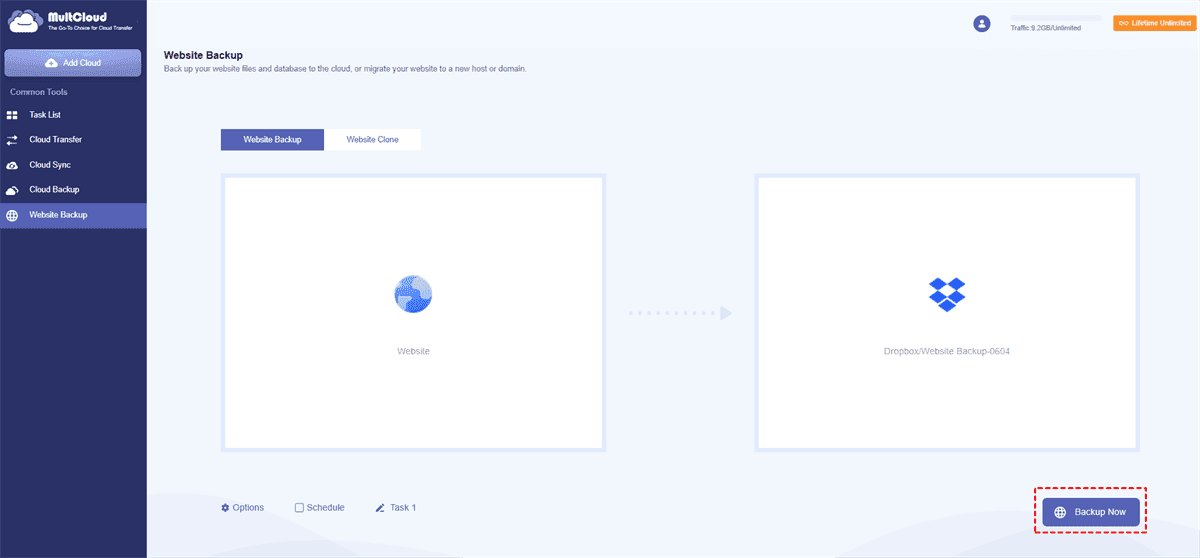
3. Tap Website Backup on the left side, then choose it again. Tap WEBSITE TO BACKUP to add and choose your WordPress site and database, click WHERE TO SAVE BACKUP to choose Dropbox to save WordPress backups.
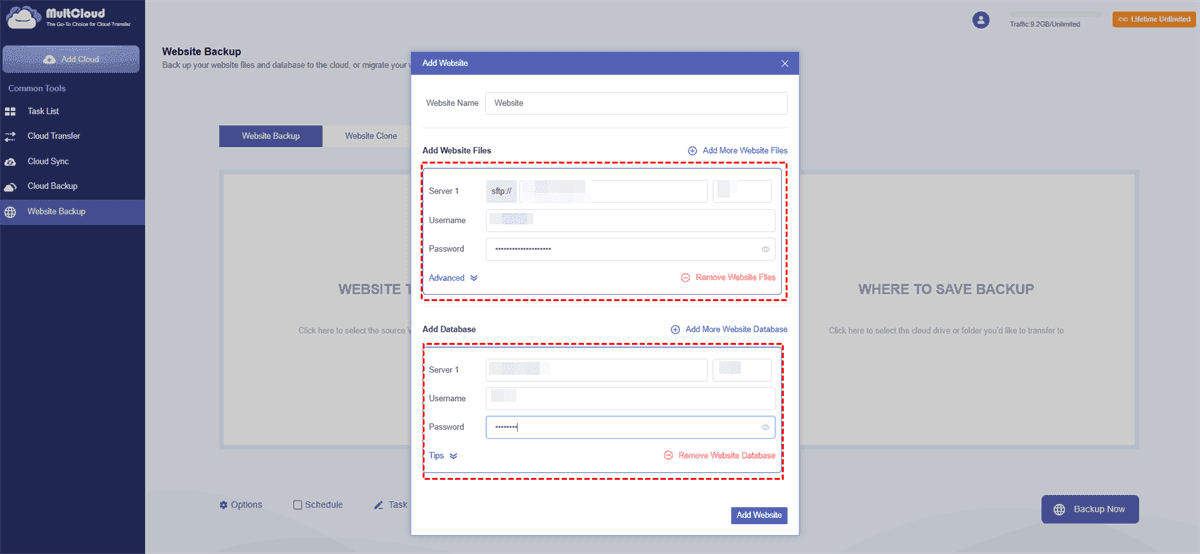
4. Set up settings in Options and Schedule, then click Backup Now to backup WordPress site to Dropbox.
- Notes:✎...
- In Options, set up Email and Filter to run the task smarter.
- Schedule allows you to run the task once, daily, weekly, or monthly.
- Upgrade to MultCloud advanced plans to enjoy premium features, including scheduling, filtering, more data transfer, etc.
You can backup WordPress site to another server or cloud space according to your situation. So, it’s easy to backup WordPress site to Google Drive, OneDrive, Box, etc.

- Smart Share: Share cloud files via public, private, or source mode.
- One-key Move: Quick data transfer, sync, and backup among clouds.
- Email Archive: Protect emails to other clouds or local disks.
- Remote upload: Effectively save web files to clouds via URL.
- Instagram Downloader: Download all videos and images from Instagram.
- Save Webpage as PNG/JPG: Save entire webpage as images for archiving.
- Safe: Full-time 256-bit AES and OAuth authorization protections.
- Easy: Access and manage all clouds in one place with one login.
- Extensive: 30+ clouds and on-premise services are supported.
Way 2. Take backup of WordPress Site with the UpdraftPlus Plugin
How to take backup of WordPress site with plugins? You can try to use the UpdraftPlus plugin to back up your WordPress site.
Here is how to backup WordPress site with the UpdraftPlus plugin:
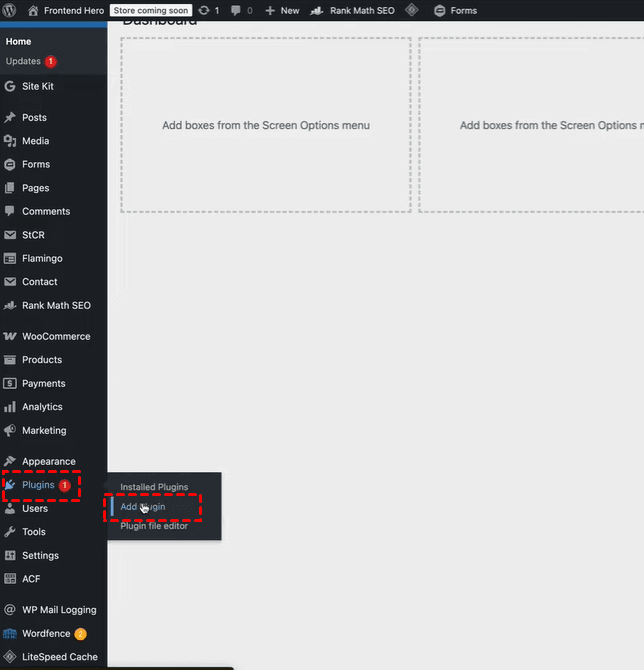
1. Go to your WordPress dashboard, click Plugins > Add Plugin.
2. Search for “UpdraftPlus”, install and activate the plugin named UpdraftPlus: WP Backup & Migration Plugin.
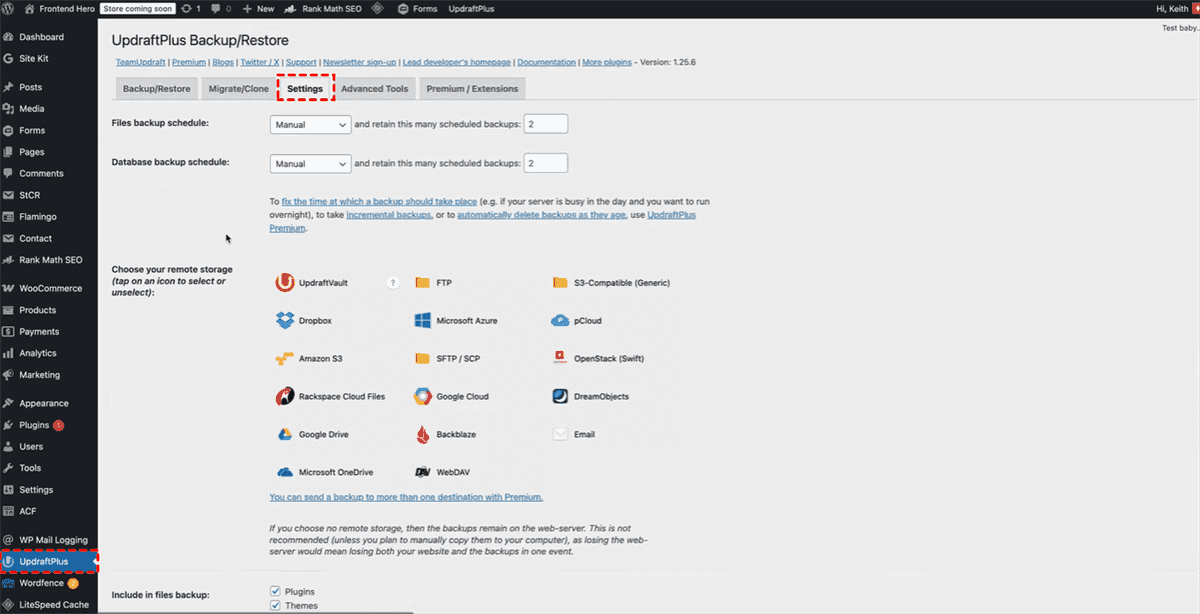
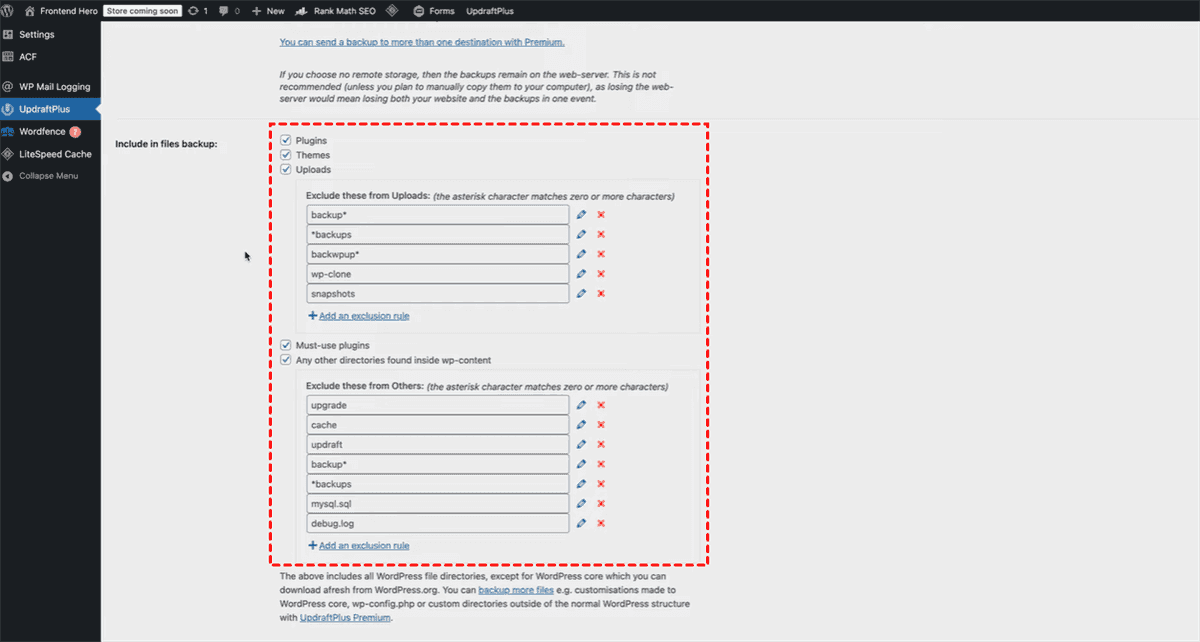
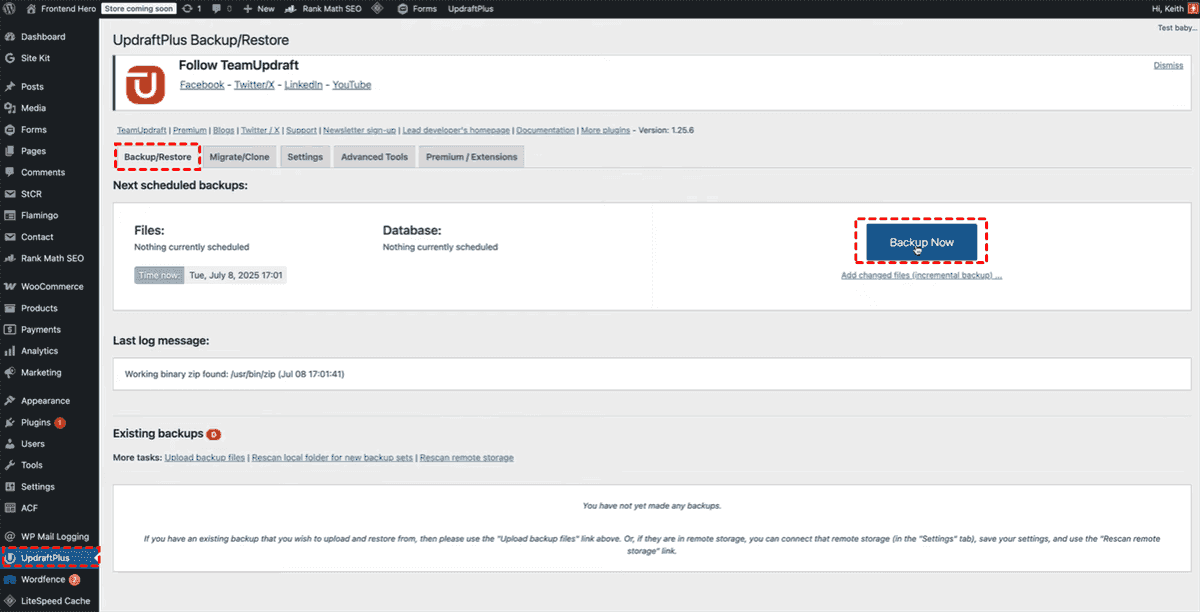
3. Once active, click UpdraftPlus at the bottom left corner, go to Settings, ensure plugins, themes, uploads, Must-use plugins, and any other directories found inside wp-content are ticked, check the export settings, then save them.
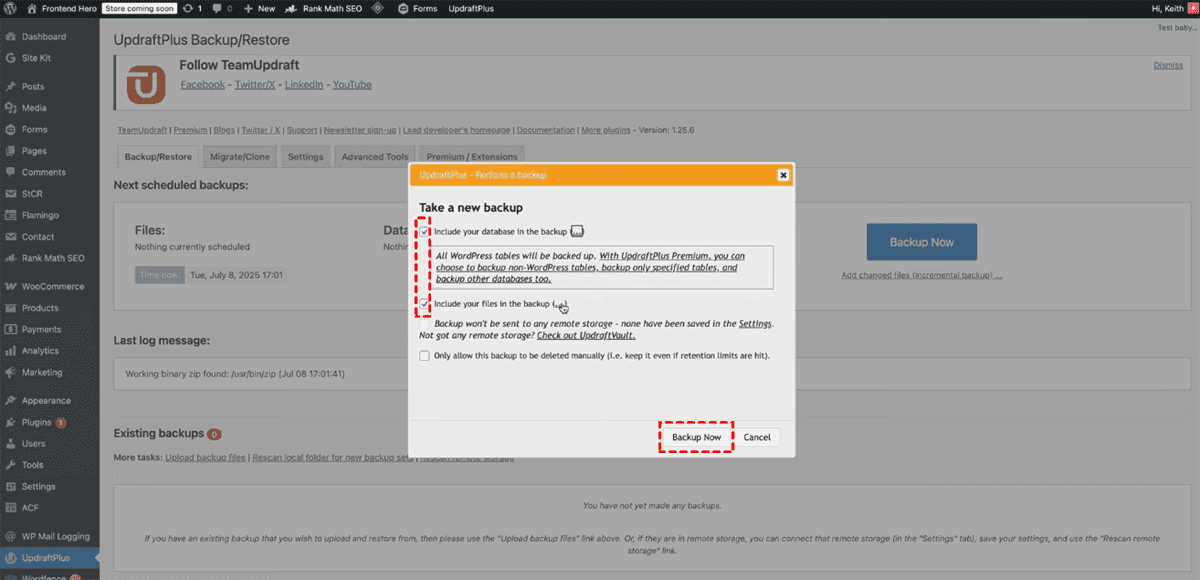
4. Then tap Backup/Restore, click Backup Now, ensure your database and files are in the backup, and hit Backup Now.
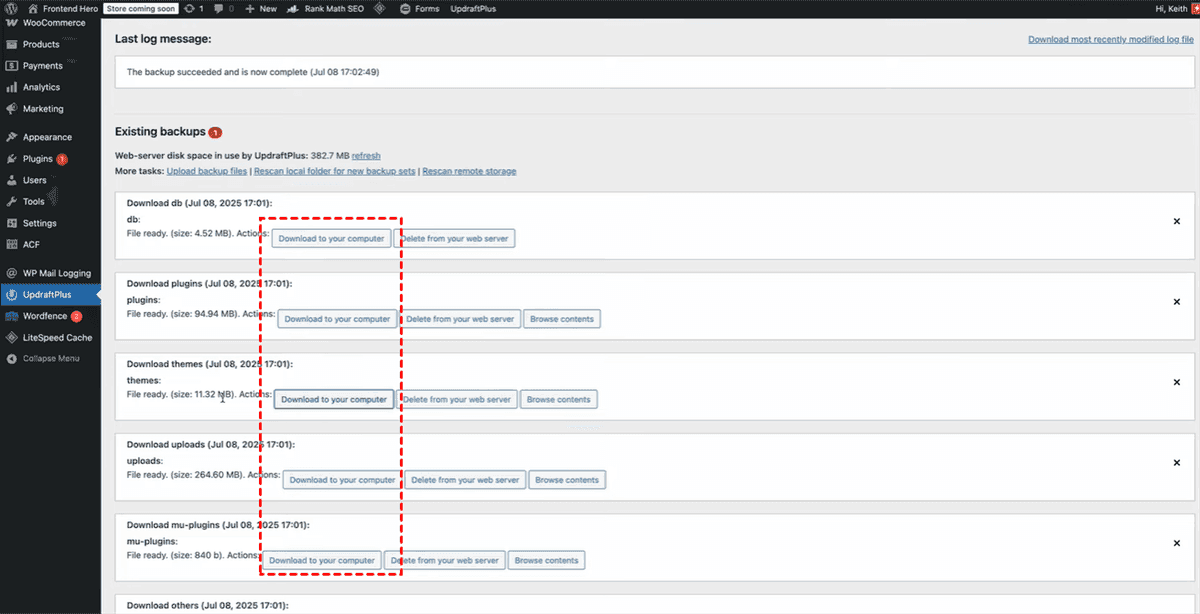
5. When it’s done, download all the backup files (ZIP files) from WordPress site to your computer locally.
Way 3. Backup WordPress Site from cPanel Manually
Download Website Files from the File Manager:
The 'public_html' folder (or www, or the website itself folder) is a pivotal element within the structure of a web hosting environment. It serves as the designated directory where website files intended for public access are stored.
1. Log in to your cPanel account.
2. Click File > File Manager.
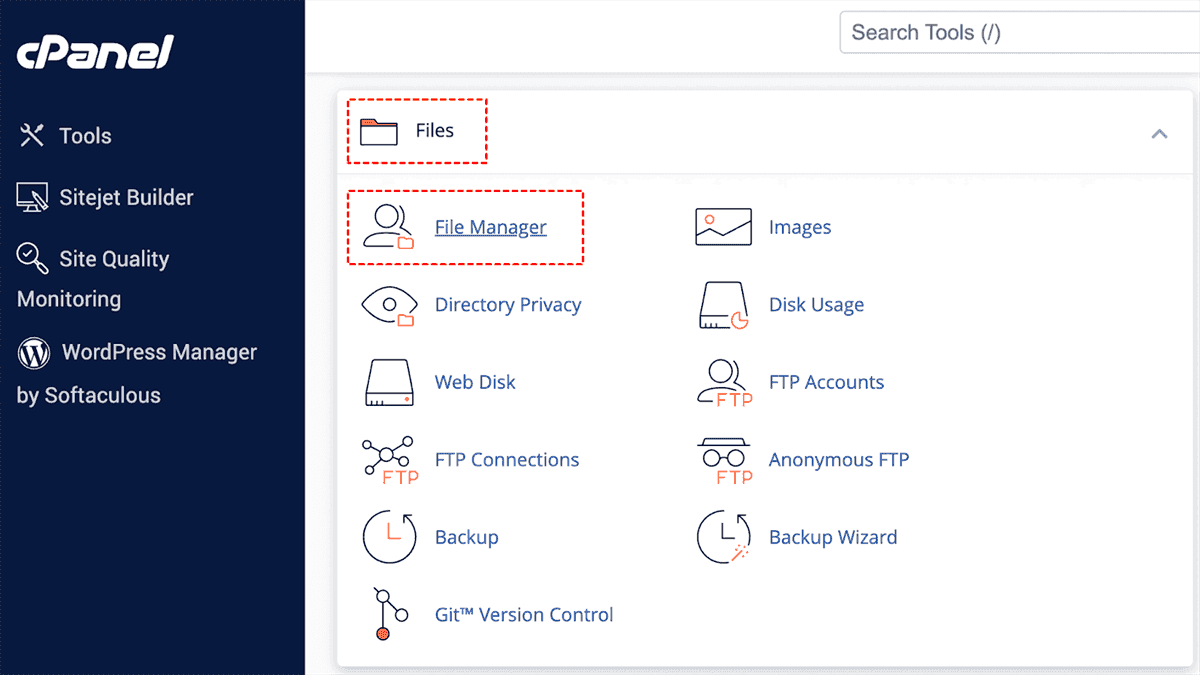
3. Navigate to the public_html, www, or the website itself folder—that’s where your WordPress core files live. It contains several recognizable WordPress files and folders inside, including wp-admin, wp-content, and wp-includes.
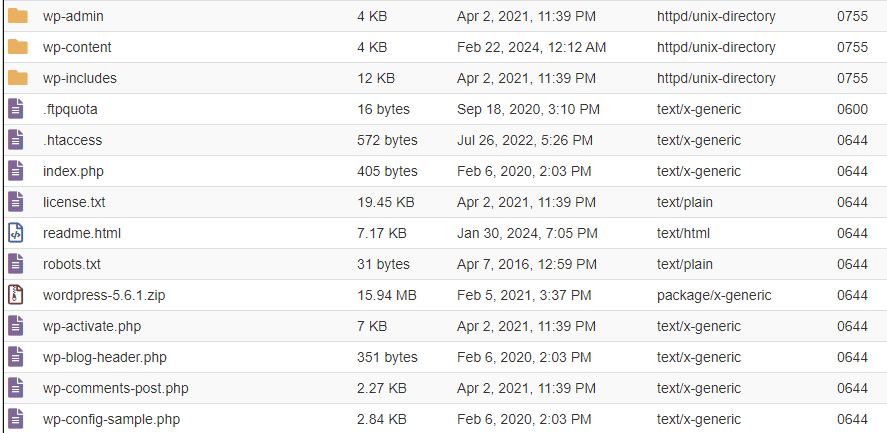
4. Select the entire root folder, right-click, and choose “Compress” to create a zip file.
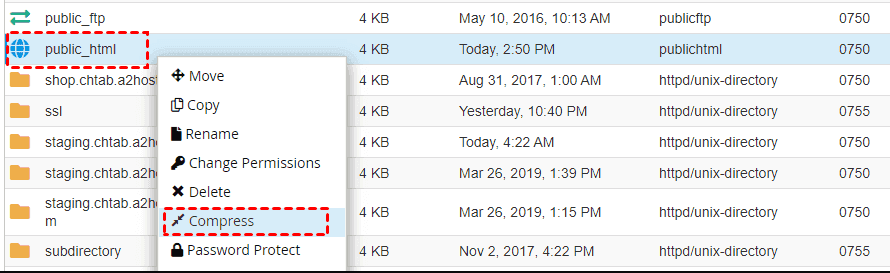
5. Download that zip to your computer.
Congratulations, you just learned how to backup WordPress site from cPanel for the file portion.
Backup WordPress Database via phpMyAdmin
Your database holds all your content.
1. Still inside cPanel, find “phpMyAdmin”.
2. Select your WordPress database from the left sidebar.
3. Click the “Export” tab.
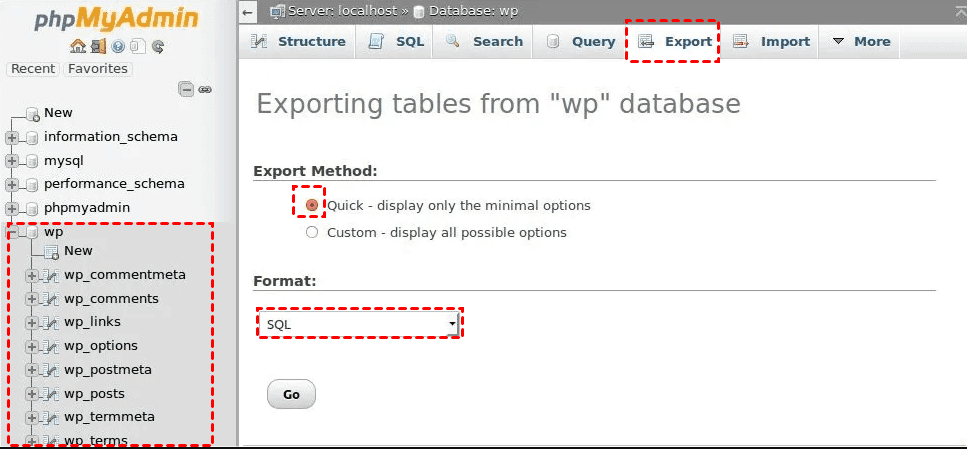
4. Leave the default settings as “Quick” and “SQL”, then hit “Go” to download the SQL file.
Now you’ve successfully performed a backup of the WordPress site and database manually. Keep both the zip and SQL files somewhere safe- an external drive or cloud folder works great.
Way 4. Backup WordPress Site without Plugin
You can also try the manual way to backup WordPress site without a plugin.
Exporting SQL Files via phpMyAdmin Step by Step
Even without cPanel, many hosts provide a direct phpMyAdmin link.
1. Log in using your database username and password.
2. Select the correct database and click “Export”.
3. Choose “Custom” if you want table-specific options, then hit “Go”.
This method is pure gold when you need how to backup WordPress database manually for just the content—ignoring themes and plugins that you can reinstall later.
Downloading via FTP to Save WordPress Core Files
For the files, fire up an FTP client like FileZilla.
1. Connect to your server using credentials from your host via FileZilla.
2. Navigate to the root folder (usually `public_html`, `www`, or the website itself).
3. Drag every folder and file to your local computer.
This takes longer than cPanel’s zip method, but it gives you granular control.
Restore Your WordPress Site from a Backup Without Losing Data
A backup you can’t restore is useless. Here’s how to turn those files into a living website again.
Restore WordPress Files and Database via MultCloud
If you used MultCloud, here is how to restore your WordPress site:
1. Tap Task List on the MultCloud to find your WordPress website backup task.
2. Click the three-dot icon and choose Restore.
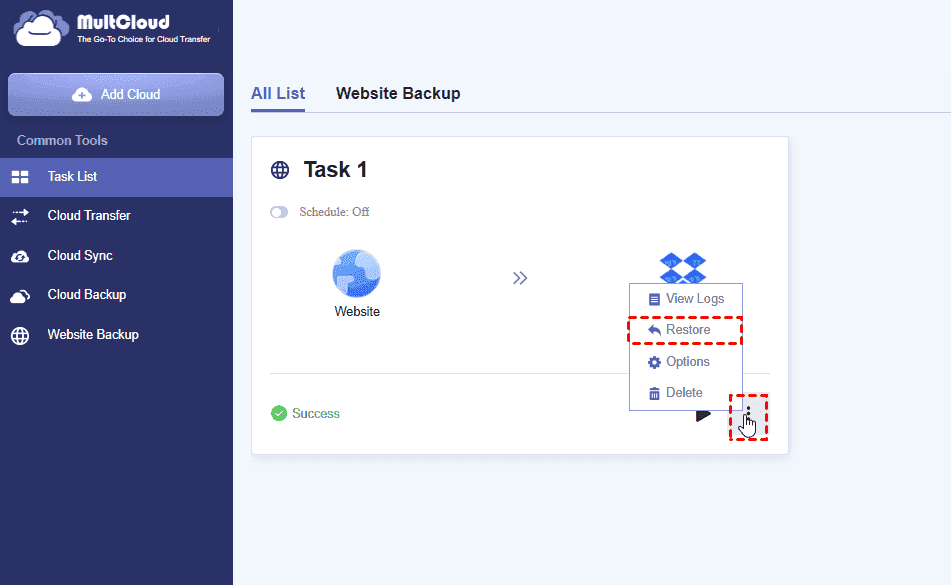
3. Select the backup version and restore options, and choose Restore to original location or new location according to your demands.
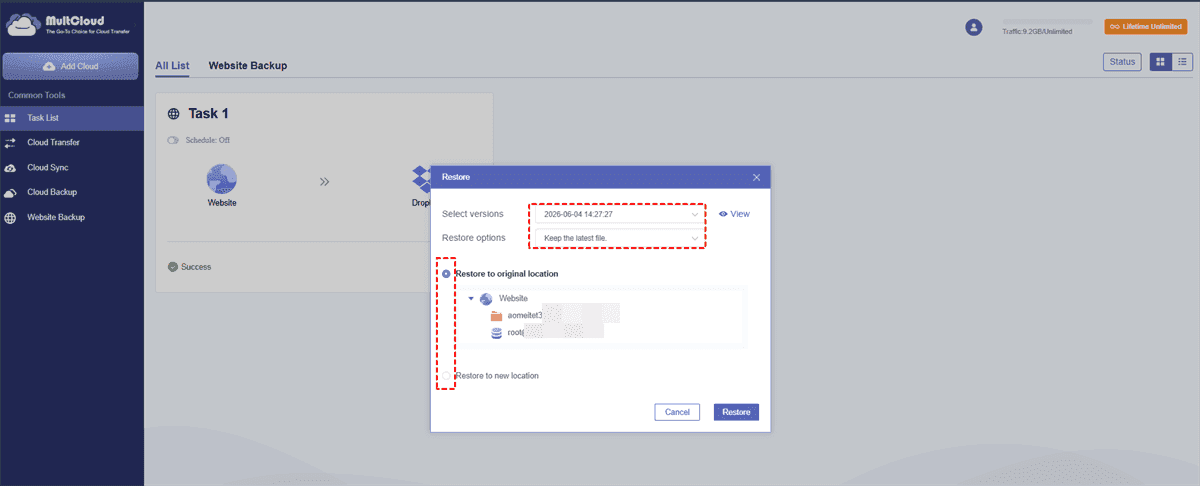
4. Hit Restore.
Restore via UpdraftPlus from Backup Files
1. If you used UpdraftPlus, go to Settings > Backup/Restore.
2. Click the “Existing Backups” tab, then tap Upload backup files.
3. Choose your backup files and hit “Restore”.
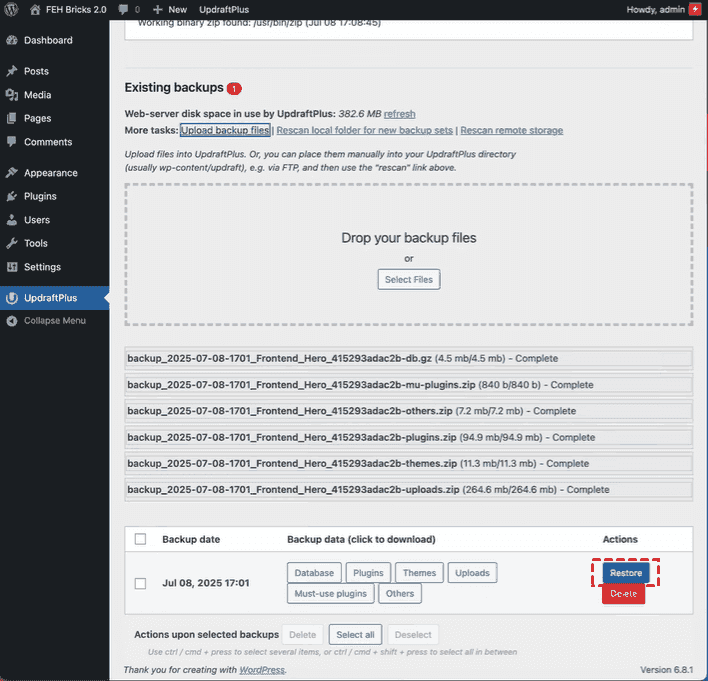
4. Choose what to restore (themes, plugins, database, etc.) and confirm.
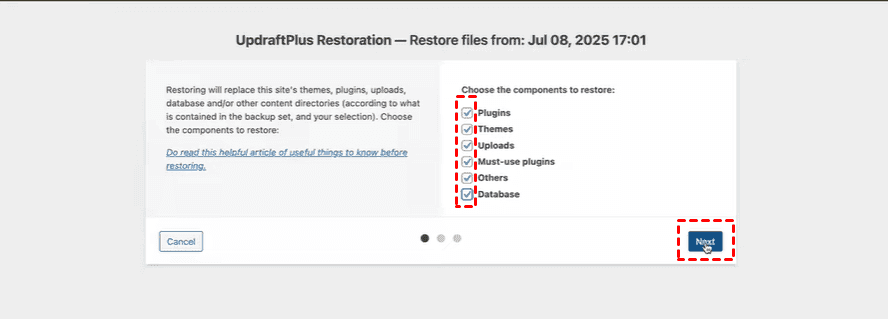
5. Hit Restore to start.
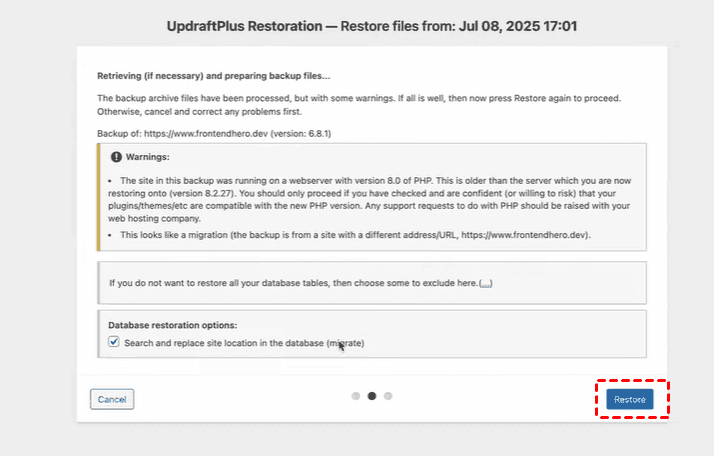
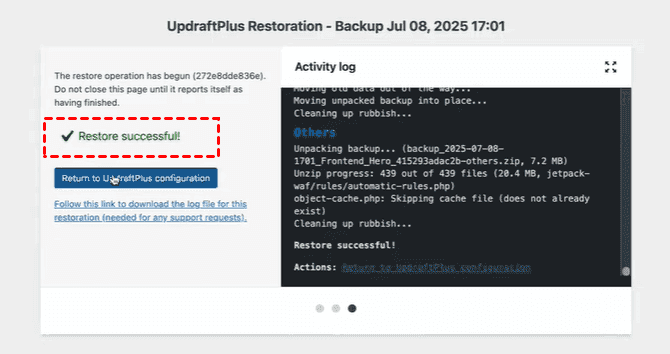
The plugin handles everything automatically. Seriously, it’s that simple.
Restore via cPanel by Replacing Files and Importing Database
For manual backups:
Upload your `public_html` zip back into File Manager and extract it, overwriting existing files.
Then go to phpMyAdmin, drop all existing tables, and import your saved SQL file using the “Import” tab. This replaces the old database with your backup. If you’ve been wondering how to backup WordPress site for both storage and recovery, this two-step restoration completes the circle.
FAQs About Backing Up WordPress Site
How often should I backup my WordPress site?
A: For most sites, weekly is the sweet spot. If you run an online store or a high-traffic blog, daily backups are smarter. After any major update—like changing themes or adding plugins—run a manual backup immediately.
Can I backup my WordPress site for free?
A: Absolutely. Free plugins like UpdraftPlus and cPanel offer full functionality. So, you can back up your WordPress site for free as long as you don’t exceed the free limits.
What’s the difference between backing up files and the database?
A: Files include your themes, plugins, uploads (images, PDFs), and core WordPress code. The database holds posts, pages, comments, user info, and settings. You need both for a full backup.
How do I backup my WordPress site before switching themes?
A: A quick plugin backup via UpdraftPlus is worth trying before switching themes. Or go the manual route: manually download the HTML via FTP and export your database from phpMyAdmin.
Is it safe to backup WordPress database manually via phpMyAdmin?
A: Yes, when done carefully. Always export as SQL and avoid editing the file unless you know what you’re doing. Store it in a secure folder.
What should I do if my backup file is too large to download?
A: Split into chunks (e.g., compress wp-content separately). Use phpMyAdmin’s “Custom” export with “Add DROP TABLE”. Or send directly to cloud storage via plugin.
How do I automate backups without a plugin?
A: Use cPanel’s backup scheduler or set up a cron job. Besides, you can also try MultCloud to automatically backup WordPress site.
Can I restore a backup from one host to another?
A: Yes. Download both files and the database from the old host using cPanel or FTP. On the new host, upload the files via FTP or File Manager, then import the database (SQL format)via phpMyAdmin. Update wp-config.php and fix URLs with a search/replace tool.
MultCloud Supports Clouds
-
Google Drive
-
Google Workspace
-
OneDrive
-
OneDrive for Business
-
SharePoint
-
Dropbox
-
Dropbox Business
-
MEGA
-
Google Photos
-
iCloud Photos
-
FTP
-
box
-
box for Business
-
pCloud
-
Baidu
-
Flickr
-
HiDrive
-
Yandex
-
NAS
-
WebDAV
-
MediaFire
-
iCloud Drive
-
WEB.DE
-
Evernote
-
Amazon S3
-
Wasabi
-
ownCloud
-
MySQL
-
Egnyte
-
Putio
-
ADrive
-
SugarSync
-
Backblaze
-
CloudMe
-
MyDrive
-
Cubby


Stay Updated With Our
Latest Tips
Add us as a preferred source on Google to never miss helpful guides.
 Add as preferred source >>