Server-Side Transfer
Zero local disk or bandwidth required. MultCloud transfers data directly between cloud servers. Start a backup, close your browser and the task keeps running in the background until it's done.

Easily back up all files or folders from Dropbox to a Google Drive folder automatically in clicks!No Sign up. No Downloads. No Uploads. Just Cloud-to-Cloud
Go to app to transfer across 30+ cloud services


Direct Cloud-to-Cloud Backup. Zero Local Burden.
Zero local disk or bandwidth required. MultCloud transfers data directly between cloud servers. Start a backup, close your browser and the task keeps running in the background until it's done.

Set it once, run it forever. Configure daily, weekly, or monthly cycles for your Dropbox to Google Drive backup. The system archives your data on schedule,no manual triggers, no forgotten backups.
Every snapshot, preserved. The system records each backup run as a restorable version. Browse historical file states and recover earlier editions if newer ones get overwritten.

Roll back to any point in time. Pick a version from the backup history and restore files to the original cloud drive or a custom location, one click, precision recovery.

Back up what matters, skip the rest. Customize what you backup from Dropbox to Google Drive by filtering file extensions, include only .pdf, .docx, exclude .tmp, .cache.

No credit card, no commitment. Every account gets 5 GB of free data transfer per month — enough to backup Dropbox to Google Drive for your critical documents, contracts, and photos on a regular schedule.
Sign up for MultCloud to unlock advanced backups across 40+ cloud drives.
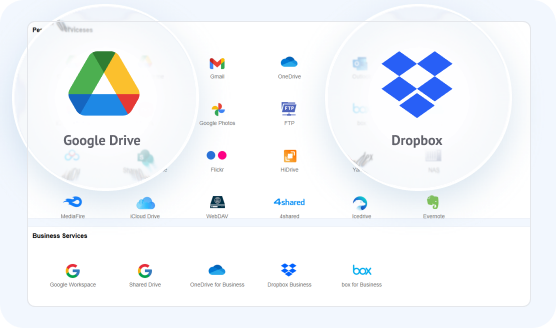
Log in to your MultCloud dashboard and click "Add Cloud" on the left side menu. Select Dropbox and follow the OAuth prompt to authorize access. Repeat the same process to add Google Drive.
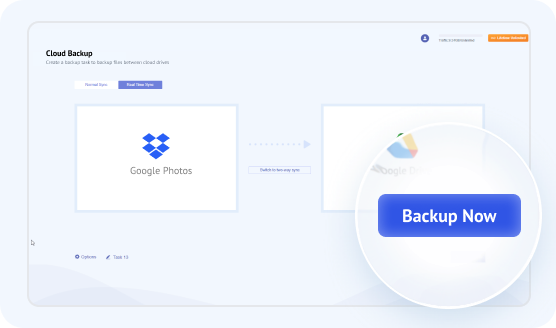
Click "Cloud Backup" on the left menu bar. Click the left box to select your entire Dropbox directory as the Source. Click the right box to select your target Google Drive folder as the Destination. Click "Backup Now" to start the automatic transfer.
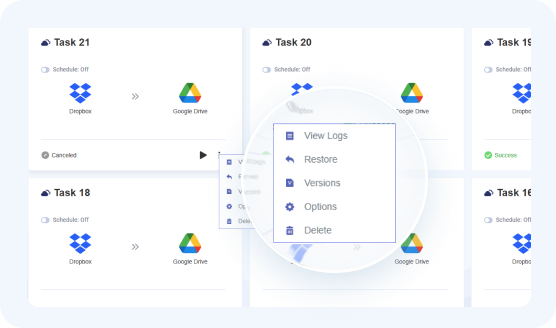
If you need to recover lost or corrupted data, navigate to "Task List" and locate your backup task. Click the three-line options icon next to the task and select "Restore". Choose the specific file version or snapshot you wish to recover, select your target Dropbox folder as the restoration location, and click "Next" to begin restoring your files seamlessly.
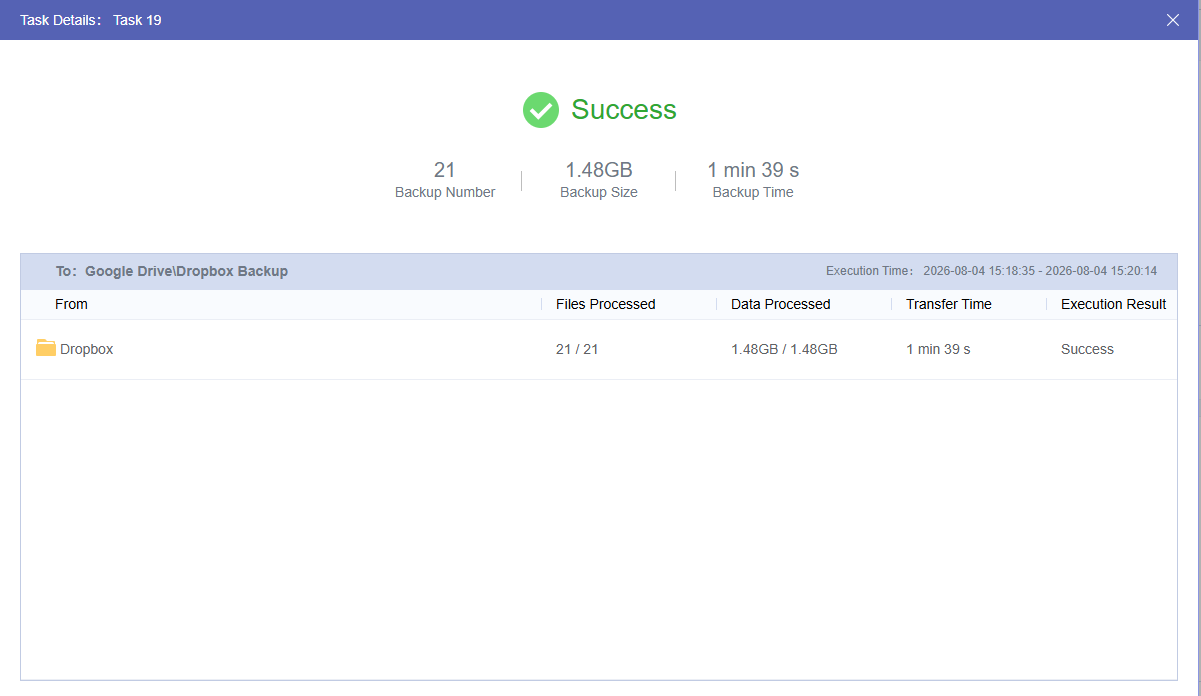
Conducted August 4, 2026

(Videos, Installers, Compressed Archives)

 Total Files: 21
 Successfully Transferred: 21
 Success Rate: 100%
 Total Data Volume: 1.48GB
 Total Sync Time: 1 min 39 s
 Average Sync Speed: ~15.31 MB/s (122.47 Mbps)
Reminder: Actual transfer performance may vary based on file sizes, file counts, and API rate limits imposed by individual cloud storage providers.
| Comparison |  Dropbox Dropbox |  Google Drive Google Drive | Actual Value in Dropbox to Google Drive Backup |
|---|---|---|---|
| Free Storage | 2 GB | 15 GB | 7.5× More Free Space Backing up to Google Drive instantly gives you 7.5 times the free storage of Dropbox, making it easy to store more documents and photos. |
| Device Connection Limits | Up to 3 devices (Free plan) | No device limit | Access from Any Device Dropbox's free plan strictly limits connected devices. Once backed up to Google Drive, you can view and download your files from unlimited phones, computers, and tablets. |
| Paid Storage Plan | 2 TB starting ($9.99/mo) | 100 GB / 200 GB / 2 TB tiers available | More Flexible Plans Dropbox lacks affordable small-capacity options. Google Drive offers cheaper entry-level plans like 100 GB / 200 GB (as low as $1.99/mo). |
| Online Collaboration & Ecosystem | Pure file sync & storage | Deeply integrated with Google Workspace (Docs / Sheets / Forms) | From Static Storage to Dynamic Collaboration Once backed up Dropbox files to Google Drive, they can be edited and collaborated on in real time using Google Workspace apps without downloading. |
| Sync Technology | Block-level incremental sync | File-level sync | Local Sync Speed Difference Dropbox only syncs modified blocks of large files (faster for local sync). However, when using MultCloud for cloud-to-cloud backup, full files are transferred regardless. |

Log in to your Dropbox account, select the files or folders you want to back up, and click Download. Dropbox will save them to your local computer as a ZIP file or as individual files.
Find the downloaded files on your computer and extract them if they were saved as a ZIP file.
Log in to Google Drive, click + New in the top-left corner, and choose File upload or Folder upload. Then select the extracted Dropbox files and upload them to Google Drive as your backup copy.
 No need to install any softwarePerfect for small data transfer
 Large files = double the transfer timeDouble local storage needed (download + unzip)Bottlenecked by local upload/download speeds
Download and install both Dropbox for Desktop and Google Drive for Desktop on your computer.
Log in to both apps so they appear as virtual drives or folders in File Explorer, then open the two windows side by side.
Select the files or folders in your Dropbox window, then drag and drop them into your backup folder in Google Drive.
No browser required for manual backupsQuick for small-scale file backupsHigh RAM/CPU drain during large syncsNetwork drops risk interrupted backupsTemp cache eats local disk spaceMay crash with large/bulk file batchesInstall and open RcloneView. Go to the Remote menu, click + New Remote, then search for and authorize both Dropbox and Google Drive.
Switch to the Browse tab. Click the + button in the left pane to load Dropbox, then click the + button in the right pane to load Google Drive.
Pick the workflow that best fits your needs:
Visual drag-and-drop & folder compare—no codingAutomated scheduling and sync optionsFull visibility with real-time transfer trackingLocal Dependent: PC must stay on and connectedAPI Limits: Subject to daily cloud upload capsManual Setup: Requires initial account authorizationTwo core features, two different goals. See how data moves between the those two approaches.

One-Time "Moving Service" — Move your files to a new cloud, fast and complete

A one-time migration of files from Source Cloud A to Destination Cloud B, like hiring movers: once the move is done, the old place is empty.

A → B (one-way). The transfer ends once all files are delivered.

Optionally deleted — frees up storage on the original cloud

No version history retained — the transfer is the final state.

Continuous "Insurance Policy" — Keep your data safe with redundant copies across clouds

Continuously replicate files to a target cloud while keeping the source active, like buying insurance: your originals stay untouched, but you always have a backup to restore from

A → B (ongoing). Changes and new files on the source are backed up via scheduled snapshots.

Always preserved — never modified or deleted

Tracks file versions — recover overwritten or deleted historical files at any time
 Test Specs: 1.48GB Files
 Asus, Samsung SSD
 37.2Mbps Down / 5.20Mbps Up Ethernet
  Sync Logs: August 4, 2026
| Dimensions | MultCloud Cloud Sync | Download & Re-upload | Drag & Drop (Desktop App) | RcloneView |
|---|---|---|---|---|
| Transfer Time | 1 min 39 sec | 1 hr 5 min 18 sec (Download: 3m30s / Unzip: 35s / Upload: 1h1m13s) |
6 min 26 sec | 5 min 52sec |
| Average Speed | 15.31 MB/s (122.47 Mbps) |
0.39 MB/s (3.12 Mbps) |
3.93 MB/s (31.44 Mbps) |
4.20 MB/s 34.44 Mbps |
| Local Storage Dependency | Zero (0 GB) (Transfers directly in the cloud, uses zero local space) |
Very High (Requires double disk space: ZIP package + unzipped files) |
High (Uses local disk space as temporary caching) |
Very Low (Uses minimal RAM cache, no disk storage needed) |
| Device Dependency | No Device Needed (Offline Execution) (Can turn off PC after starting; runs automatically on cloud servers) |
Must Stay On (PC cannot sleep or disconnect; requires full manual oversight) |
Must Stay On (PC cannot sleep or disconnect; exiting app halts transfer) |
Must Stay On (Requires local device and CLI/GUI process to remain active) |
| Automated Scheduling | Advanced (Built-in scheduled backup engine supporting daily/weekly/monthly tasks) |
Not Supported (100% manual) |
Real-Time Sync Only (No custom schedule planning control) |
Supported (Configurable via Job Manager or system Cron jobs) |
| Core Nature & Restoration | Dedicated Cloud Backup & Restore (Supports backup versions selection, and one-click restore) |
One-time Manual Copy (No one-click restore capability) |
Local Drive File Copy (No one-click restore capability) |
Local-Relayed Sync Tool (No one-click disaster recovery restore) |

13 Years of Mastery, Industry-Leading Stability. Transfer and Manage across 30+ clouds,
scheduled & automation transfers, sync &backup.

Web-based, no install needed,Runs transfers on its own servers (no local bandwidth), just copy and paste all your files between clouds.

Privacy-focused, full GDPR compliance built-in. Protects transfers with 256-bit AES SSL encryption, ensuring interception-free data security across all migration scenarios.

Engineered with a robust 10-thread parallel processing engine, the platform splits the workload to maximize throughput within cloud throttling limits, significantly reducing total migration time.
Google Drive
 Google Workspace
 OneDrive
 OneDrive for Business
 SharePoint
Dropbox
SharePoint
Dropbox
 Dropbox Business
 MEGA
MEGA
 Google Photos
 iCloud Photos
 FTP
FTP
 box
box
 box for Business
 pCloud
 Baidu
Baidu
 Flickr
 HiDrive
 Yandex
 NAS
NAS
 WebDAV
 MediaFire
 iCloud Drive
 WEB.DE
 Evernote
 More Clouds
Beyond basic cloud to cloud backup, MultCloud offers a complete suite of powerful cloud management tools to streamline your multi-cloud workflow.

Seamlessly transfer files directly between cloud drives. Move massive data or entire folders across different cloud services automatically—no local downloading or uploading required.
Learn More >>
Keep files consistent across multiple cloud storage platforms in real time or scheduled intervals. Any updates made in one cloud can be automatically reflected in another.
Learn More >>
Easily migrate email attachments and data directly into your cloud storage. Save important emails and attachments from Gmail & Outlook to OneDrive, Google Drive, or other clouds.
Learn More >> ID
ID

After signing up, they gave me 50GB of storage, which is greatTransferring photos and videos from Google Photos to anothercloud was very smooth and worked well.
I am glad services like MultCloud exist. For people living in poorcountry where mobile data is expensive, MultCloud is a smartsolution for moving files from one cloud to another.
 Useful
 Share
Share US
USEverything worked smoothly transferring all our data from Dropbox to SharePoint. Couldn't be happier with the results. Also, with the few issues I did have, support was quick to assist in resolving them! Special thanks to Lanry Lucky and his support!
UsefulShareGBGreat product and allowed me to move all my photos fromOneDrive over to Google Photos!I had 90GB of data and just leftit running
Also I had fantastic interaction with customer service with LanryLucky who was exceptional
UsefulShareUSI changed email addresses and needed to moving one cloud datato another cloud and Multcloud site helped me do this. Mydaughter who is a schoolteacher uses your Multcloud all the time.She guided me through the steps and we were successful. Thankyou Excellent and easy to use. I'll leave similar 5 star on Googleto recommend you to others.
UsefulShareMXThe straightforward experienceDoesnt require much configuration, options menu is wellorganized and non confusing.
Technically efficient. It doesnt lag, it copies well files, with itsdirectory and subdirectory structure.
Effective GUl.All of the options and buttons are placed in order through thescreen and accessible
UsefulShareGBThe MultCloud product is really outstanding and really does doexactly what it says "on the tin"... I have been dreading migratingTBs of data from Dropbox Business to Google Workspace andMultCloud made it super easy and painless. It even enabled me topreserve file "created on" and "modified on" dates...
AND - their support is second to none. Really outstandingThank you.
UsefulShareYes, using MultCloud is the most efficient and straightforward way to set up direct cloud-to-cloud synchronization between Dropbox and Google Drive. Since neither platform offers built-in integration, MultCloud handles the sync completely on server-side cloud infrastructure, meaning:

The Go-to Choice for Cloud-to-Cloud Backup, Transfer or Sync Files Across Clouds.
Get Started for free >>