Backup Google Photos to Dropbox Without Downloading Everything

Move photos, videos, or selected albums directly from Google Photos to Dropbox. MultCloud runs the backup online without local resource consumption.
No Downloads. No Uploads. No Sign Up. Just Cloud-to-Cloud

Go to app to transfer across 30+ cloud services

Lifewire CNET Tech Advisor TechRadar Softpedia

Your Google Photos Deserve More Than One Copy

Google Photos makes it convenient to store and access years of photos and videos, but keeping your entire photo library in one account is not enough. A Google Photos to Dropbox backup gives important photos and videos another place to live—especially useful when reorganizing storage, cleaning up Google Photos, or wanting more backup control. Fortunately, MultCloud can do this easily.

Prevent Your Gmail and Drive from Bouncing Emails

Google’s 15 GB free storage is shared across Photos, Gmail, and Google Drive. When your photo library gets full, you suddenly can’t receive important emails. Backing up photos to Dropbox lets you clear space in Google Photos without losing memories or hitting a hard storage wall.
Safely Clean Up Google Storage Without Permanent Loss

Aggressively deleting photos to free up Google account storage often leads to tragic misclicks. By maintaining an independent, automated copy on Dropbox first, you can clean up Google Photos with absolute confidence—knowing your secondary archive is safe and intact.

Break Free from Single-Cloud Ecosystem Lock-in

Relying entirely on a single account leaves your photos vulnerable to account locks, sudden policy updates, or unexpected storage price hikes. Mirroring your important albums to Dropbox gives you dual-cloud redundancy and true data sovereignty.

MultCloud: The Smart Way to Back Up Google Photos to Dropbox

Google Photos gives 15 GB shared with Drive and Gmail; Dropbox offers 2 GB free or 2 TB paid. A Google Photos to Dropbox backup guards against deletion, hacks, or Google storage limits. MultCloud enables seamless server-side transfers via OAuth, preserving quality, metadata, and folders without using your local device.

Direct Cloud-to-Cloud Backup

Back up Google Photos to Dropbox without storing the entire photo library on your computer first. This is especially useful for large photo and video collections.

Scheduled Photo Backup

Set up scheduled backups from Google Photos to Dropbox — new photos, videos, and albums are automatically copied to your chosen Dropbox folder at regular intervals (once, daily, weekly, or monthly).

Selective Backup

MultCloud lets you choose exactly which photos or albums to back up — no need to transfer your entire Google Photos library. Select specific folders, apply file type filters, or exclude unwanted screenshots and duplicates. Back up only what matters and save valuable Dropbox storage space.

Incremental Backup

Incremental backup only copies new or changed files since the last backup run. MultCloud tracks file-level differences between your Google Photos and Dropbox, so each subsequent backup is dramatically faster and consumes far less data traffic.

Backup Version Management

Keep track of available backup versions from your task list, making your Dropbox copy more useful than a simple one-time transfer.

One-Click Restore

If you need photos from an earlier backup, MultCloud's Cloud Backup workflow allows you to manage backup versions and restore backed-up data.

Google Photos vs Dropbox: Why Use Both?

Google Photos is designed around viewing, organizing, and searching a photo library, while Dropbox behaves more like traditional cloud file storage. Use Google Photos and Dropbox can maximizes your cloud data safety.

FeatureGoogle PhotosDropbox
Primary PurposePhoto and video managementGeneral cloud file storage
Photo OrganizationExcellentBasic
Free Cloud Space15GB, shared with Gmail and Google Drive2GB
Photo SearchStrong visual searchMore file-oriented
AlbumsYesFolder-based organization
File ManagementLimited compared with traditional storageStrong
Cross-Device AccessYesYes
RAW Format PreviewDNG, CR2, NEF, ARWCR2, DCR, DNG, ARW, and NEF
Good as a Second CopyYes
Best UseBrowse, search, organize photosStore and manage another copy

Tips:Google Photos is designed around viewing, organizing, and searching a photo library, while Dropbox behaves more like traditional cloud file storage. Use Google Photos and Dropbox can maximizes your cloud data safety.

Before Backing Up Google Photos to Dropbox

Please do the following before backing up Google Photos to Dropbox to ensure it can be performed as you want.

Check Your Dropbox Storage

Ensure Dropbox has enough available storage (at least 1.2 times the space of Google Photos) for the Google Photos content you plan to protect. Or free up Dropbox space if needed.

Decide What You Actually Need to Back Up

If your photo library is extremely large, consider whether you need everything or only important collections.

Test Important Photos First

For irreplaceable photos or a complex library, run a smaller backup first and inspect the results before starting a much larger task.

Don't Delete the Source Immediately

After backup, verify that the content you need is accessible in Dropbox before cleaning up or deleting anything from Google Photos.

How to Backup Google Photos to Dropbox Automatically

No local downloads • Versioned cloud backup • Scheduled protection • Restore when needed

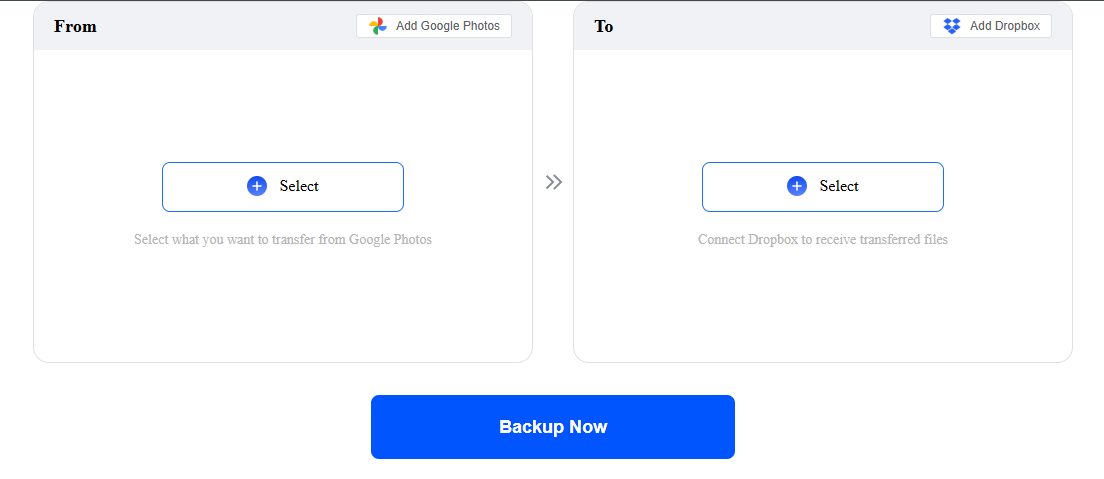
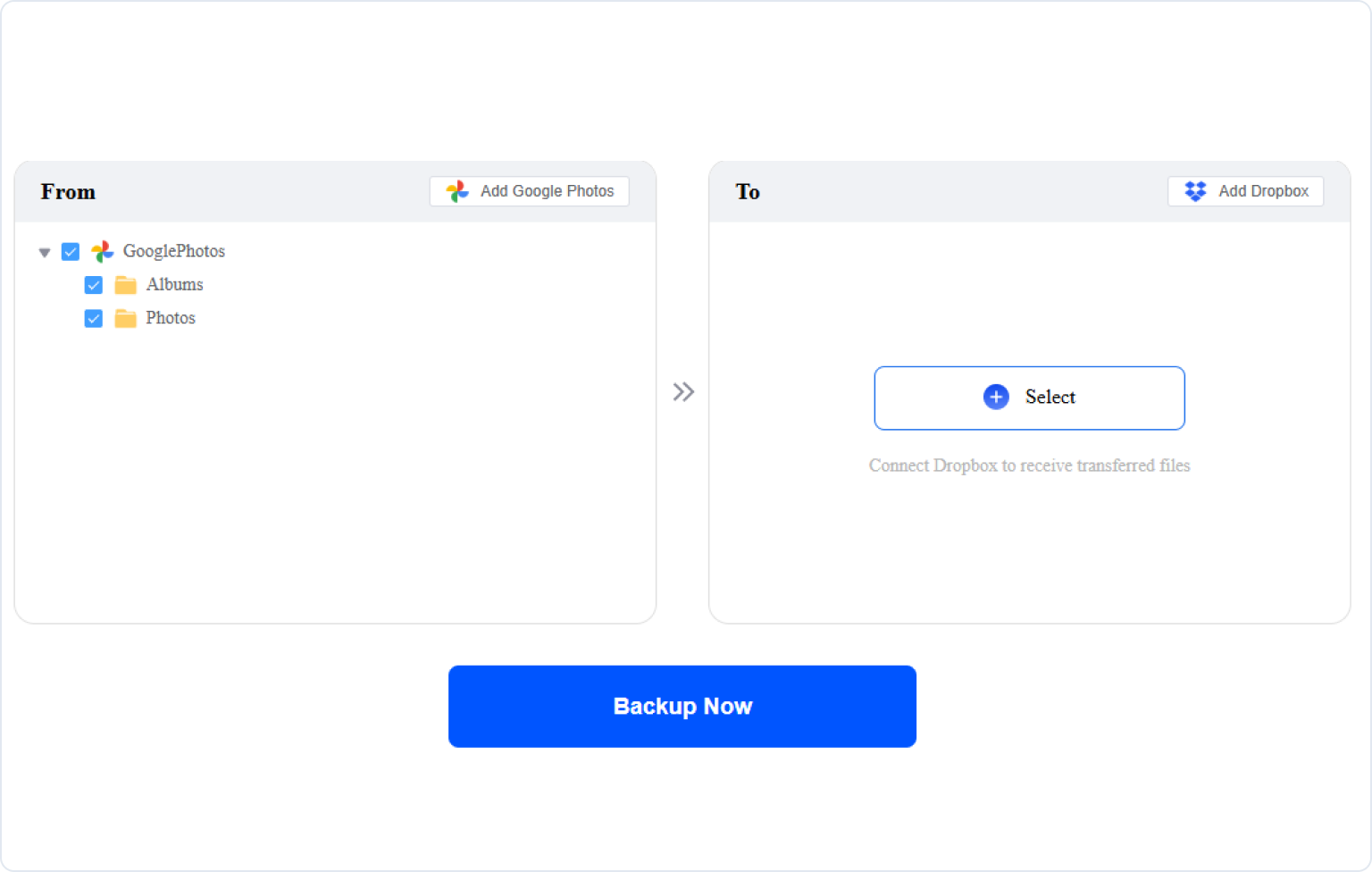
Step 1. Authorize and Select Your Source Google Photos

Tap Select or Add Google Photos in the From section to grant access to MultCloud. Then choose the photos, videos, or other files to back up.

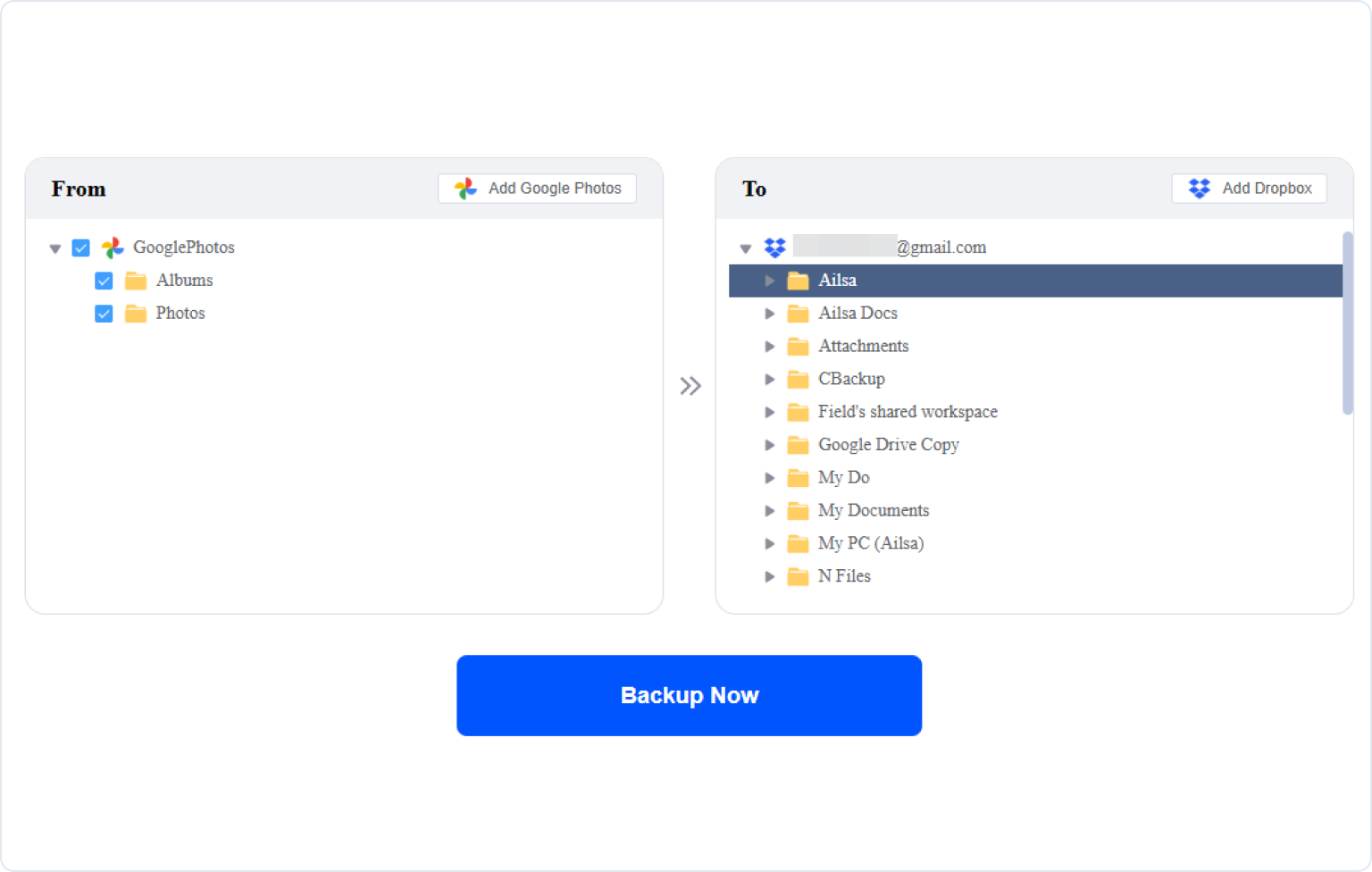
Step 2. Authorize and Choose The Target Dropbox

Tap Select or Add Dropbox in the To section to authorize Dropbox with MultCloud, then choose a Dropbox folder as the target.

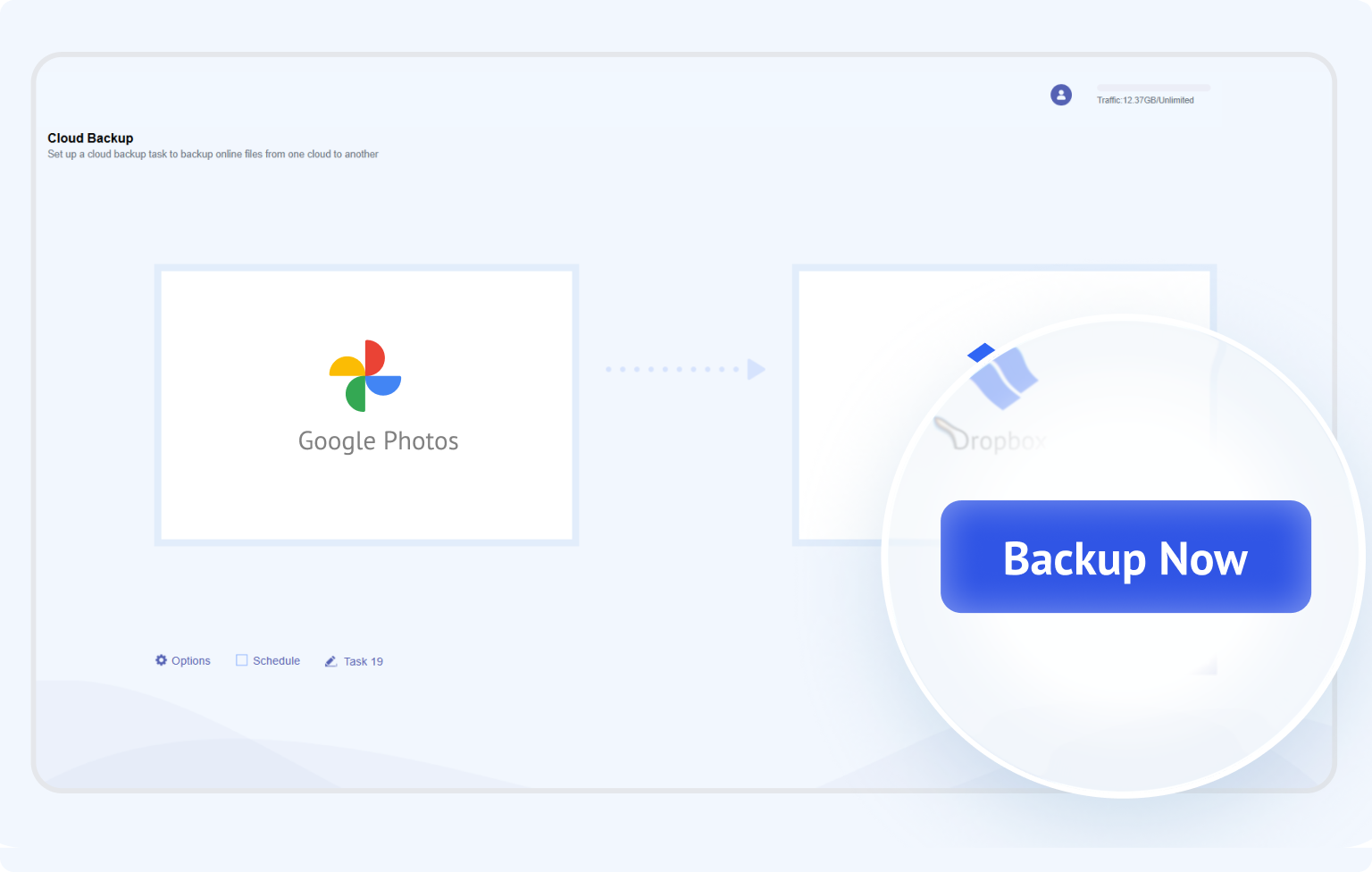
Step 3. Start Backing Up Google Photos to Dropbox

Once configured, click the Backup Now button to start the Google Photos-to-Dropbox backup. Enjoy the smooth backup.

Note: Due to API limitations, geo-location, original date metadata, and albums may not be preserved, and transferred photos may be high-quality compressed copies rather than original full-resolution files.

Start My Google Photos to Dropbox Backup

What Happens to Your Photos During Backup?

Connecting your Google Photos and Dropbox accounts to a third-party service can naturally raise questions about access, privacy, and where your photos actually go. Here is how MultCloud handles the backup process from connection to destination.

Your Source
You Grant Access
Your Backup Task Runs
Your Backup Destination

You Stay in Control of Your Cloud Connections

No Google or Dropbox Password Required

MultCloud connects to each supported cloud through its authorization process, so you don't need to provide your account password to MultCloud.

Access Is Based on Granted Permissions

MultCloud can perform cloud operations according to the permissions you authorize. Connecting an account does not mean handing over unrestricted control of your entire cloud account.

Not Permanent Photo Storage

MultCloud is designed to manage and transfer data between your connected cloud services rather than serve as another permanent photo-storage destination.

Revoke Access Anytime

If you no longer want MultCloud connected to a cloud account, you can remove the cloud connection and manage or revoke authorized third-party access through the corresponding cloud provider.

Tips:
  • MultCloud is designed to perform cloud-to-cloud management tasks rather than act as permanent storage for your photos. Your backup is saved to the destination cloud account you choose—in this case, Dropbox.
  • Due to Google Photos API limitations, MultCloud preserves EXIF data (e.g., camera brand/model, aperture, shutter speed, ISO, focal length) and live photos but does not retain albums, capture time, GPS location or geotagging after backing up; and transferred photos may be high-quality compressed copies rather than original full-resolution files.
  • If these details matter to you, test a small set of representative files before backing up your full library.

Try More Than Google Photos to Dropbox Backup

Except for cloud-to-cloud backup, MultCloud also provides cloud-to-cloud transfer and sync features. Find the differences between them to choose the right way to back up Google Photos to Dropbox.

Cloud Transfer

Best for: One-time migration

Key benefit: Direct cloud-to-cloud move/copy

Choose Cloud Transfer if migration is your priority.

If your goal is simply to move Google Photos to Dropbox and then stop using the original location, Cloud Transfer is more straightforward.

Cloud Sync

Best for: Ongoing alignment

Key benefit: Can automate continuing changes

Choose Cloud Sync if continuity is your priority.

If you want changes or newly added content to continue flowing between cloud services, Cloud Sync is designed for that type of workflow.

Connect and Manage 30+ Cloud Drives in One Place
MultCloud supports over 30 cloud services (nearly 40 integrations), allowing you to connect, manage, and sync files across all your cloud accounts from a single platform.
More Clouds

What Our Users Are Saying

GC
GeniuxCode1 reviewID

Generous 50GB quota for newcomer

After signing up, they gave me 5GB of storage, which is great. Transferring photos and videos from Google Photos to another cloud was very smooth and worked well.

I am glad services like MultCloud exist. For people living in poor country where mobile data is expensive, MultCloud is a smart solution for moving files from one cloud to another.

April 19, 2026Unprompted review
Useful
Share
TM
Timothy McCormick2 reviewUS

Worked smoothly, happy with the results

Everything worked smoothly transferring all our data from Dropbox to SharePoint. Couldn't be happier with the results. Also, with the few issues I did have, support was quick to assist in resolving them! Special thanks to Lanry Lucky and his support!

April 8, 2026Unprompted review
Useful
Share
JP
Joe Price1 reviewGB

Great product and exceptional customer service

Great product and allowed me to move all my photos from OneDrive over to Google Photos! I had 90GB of data and just left it running.

Also I had fantastic interaction with customer service with Lanry Lucky who was exceptional.

April 19, 2026Unprompted review
Useful
Share
R
Richard1 reviewUS

MultCloud Easy to Use Migration

I changed email addresses and needed to moving one cloud data to another cloud and Multcloud site helped me do this. My daughter who is a schoolteacher uses your Multcloud all the time. She guided me through the steps and we were successful. Thank you Excellent and easy to use. I’ll leave similar 5 star on Google to recommend you to others.

April 19, 2026Unprompted review
Useful
Share
GG
Guillaume Guthrie1 reviewFR

Minimalistic and well designed GUI.

The straightforward experience.Doesnt require much configuration, options menu is well organized and non confusing. Technically efficient. It doesnt lag, it copies well files, with its directory and subdirectory structure. All of the options and buttons are placed in order through the screen and accessible.

April 19, 2026Unprompted review
Useful
Share
MG
Mike G1 reviewUK

Outstanding product and support

The MultCloud product is really outstanding and really does do exactly what it says "on the tin"... I have been dreading migrating TBs of data from Dropbox Business to Google Workspace and MultCloud made it super easy and painless. It even enabled me to preserve file "created on" and "modified on" dates...AND - their support is second to none. Really outstanding. Thank you.

April 19, 2026Unprompted review
Useful
Share

FAQs About Backing Up Google Photos to Dropbox

You can backup Google Photos to Dropbox by downloading photos from Google Photos to your computer and then uploading them to Dropbox, or by using a cloud-to-cloud backup service like MultCloud to backup your Google Photos library to Dropbox without downloading them first.
Yes, MultCloud lets you schedule automatic backups from Google Photos to Dropbox at hourly, daily, weekly, or monthly intervals. Once configured, MultCloud's servers handle everything — new photos and videos are copied to your Dropbox folder on schedule without any manual intervention.
Yes, MultCloud supports incremental backup, which only copies new or changed files since the last backup. This means after the initial full backup, subsequent runs are dramatically faster and consume far less data traffic — perfect for users who add photos daily.
If a backup fails, MultCloud will send you an email notification with a detailed error report. You can restart the task or contact support via support@multcloud.com for help. Some failures may be caused by Google API rate limits, network timeouts, or unsupported file types. In those cases, you may need to adjust file filters or split the task into smaller batches.
No. Cloud Backup creates a one-way copy. Deleting a photo from Google Photos after the backup does not remove the copy in Dropbox. This is a key safety advantage of backup over sync — your Dropbox copy remains as a secure, independent archive.
You can't see your Google Photos in MultCloud due to Google's API policy change (effective March 2025). The new API no longer allows third-party apps to list albums or access your full library. After adding Google Photos to MultCloud, click Add More Photos to grant MultCloud access to the images from Google Photos you want to backup.
Your backup task will fail if your Google Photos library is larger than Dropbox storage. The destination account needs enough available storage. Check Dropbox capacity before a large task and delete unnecessary files from Google Photos if space is limited.
Yes. Remove the cloud from MultCloud and revoke the app's authorization in your Google Account security settings when you no longer need the connection.
MultCloud

Backup Google Photos to Dropbox with MultCloud Now!

The Go-to Choice for Cloud-to Cloud Transfer, Sync & Backup Files Across Clouds.

Get Started for Free >>
Cloud backup