Fast Sync Google Photos to Google Drive Without Downloading

Move photos, videos, or selected albums directly from Google Photos to Google Drive. MultCloud runs the sync online, so you can start the task, close the browser, and come back when it is done.
No Downloads. No Uploads. Just Cloud-to-Cloud

Go to app to sync across 30+ cloud services

G2CNETTechRadarPCWorldTrustpilot

MultCloud: Simplify the Google Photos to Google Drive Sync

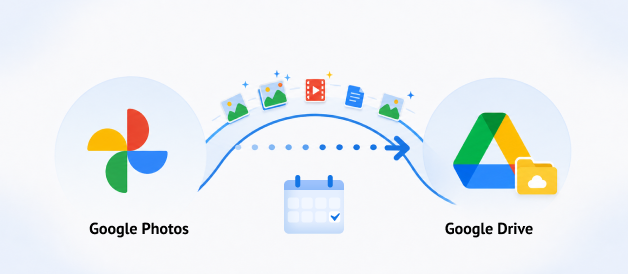
Since Google removed the automatic sync link between Google Photos and Google Drive on July 10, 2019, keeping your photo library consistent across both services has become a manual, error-prone chore. Fortunately, MultCloud simplify the Google Photos to Google Drive sync process. It connects both services and sync directly without downloading and re-uploading.

Scheduled Google Photos to Google Drive sync

Scheduled Photo Sync

Set up scheduled syncs from Google Photos to Google Drive — new photos, videos, and albums are automatically copied to your chosen Drive folder at regular intervals (once, daily, weekly, or monthly). No manual work, no duplicates — just timed, reliable transfers that keep your Drive current.

Real-time Google Photos to Google Drive sync

Real-Time Photo Sync

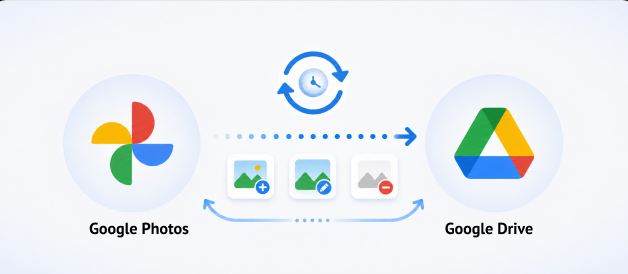
Real-time sync creates an exact, updated replica of your Google Photos in Google Drive. Every new file, edit, and deletion reflects in real time. Zero manual effort, zero local storage needed — MultCloud's servers handle everything.

Photos transferred as original files

Move Photos, Not Archives

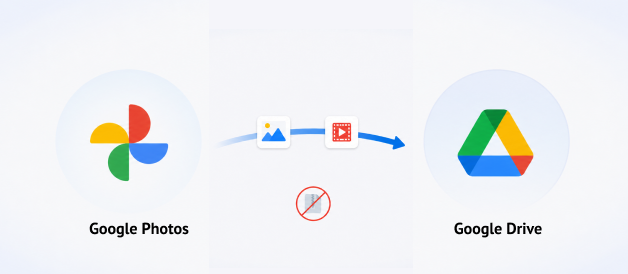
MultCloud transfers photos as individual files — preserving original quality, metadata, and folder structure. No ZIP archives, no extraction, no re-upload. Your photos appear in Drive exactly as they exist in Google Photos, ready to preview and share.

Cloud-based Google Photos sync

100% Cloud-Based Sync

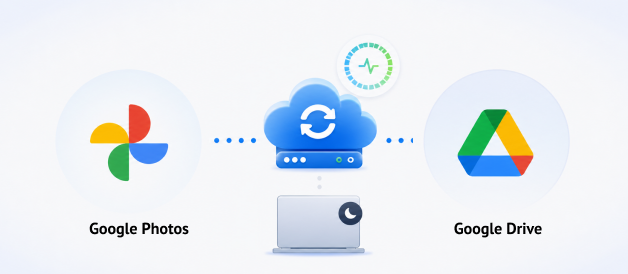
Runs entirely on MultCloud's cloud servers. Your RAM stays untouched, bandwidth stays free, and you can even shut down your machine — sync keeps running. No desktop app conflicts, no cache corruption, no sync bugs. 100% server-side processing.

How to Sync Google Photos to Google Drive Smoothly

Google Photos to Google Drive sync is very easy to configure, only 3 steps.
0% local RAM usage, 100% success rate, 100% automated.

Step 1. Sign Up for MultCloud

Create a free MultCloud account in seconds. Or use your Google, Facebook, or Apple ID to sign in instantly. Then manage all clouds from one dashboard.

Pro Tip: Around 80% of users choose Google Sign-In due to its simplicity and fast, one-click access experience.

Step 2. Add Google Photos & Google Drive to MultCloud

Go to "Manage Clouds and Emails" and securely authorize both accounts via OAuth. Access both Google Photos and Google Drive from one dashboard — no passwords shared, no data stored.

Pro Tip: When authorizing Google Photos, ensure you select "Select all" (or at least "See selected photos and videos from Google Photos"). Without this read access, MultCloud cannot scan your library or load albums for sync.

Step 3. Create & Start the Google Photos to Google Drive Sync Task

Click "Cloud Sync", select your source Google Photos and target Google Drive, then set up sync modes, schedule, and filter to sync smoothly. Hit "Sync Now" to start.

Pro Tip: After syncing, MultCloud preserves EXIF data (e.g., capture time, camera brand/model, aperture, shutter speed, ISO, focal length) but does not retain GPS location or geotagging.

Sync Google Photos to Google Drive Smarter

Maximize sync efficiency with MultCloud's advanced automation settings, featuring off-peak scheduling, 10 sync modes, smart file filtering, and real-time alerts for a hands-off, worry-free synchronization experience.

Schedule Syncs to Run Automatically

MultCloud lets you schedule large Google Photos syncs outside work hours, so internet stays fast and the computer runs smoothly. Choose hourly, daily, weekly, or monthly sync schedules to match your workflow rhythm.

Choose From 10 Professional Sync Modes

MultCloud offers 10 specialized sync modes — from Real-Time and Two-Way to Mirror and Incremental — so you can match the exact strategy to your workflow, whether you need instant photo updates, one-way backups, permanent migrations, or deletion-free cumulative syncs.

Receive Email Notifications After Sync

MultCloud sends a comprehensive sync report with error-log isolation, so you instantly know exactly what transferred — and can quickly pinpoint any failed files due to permission locks, rate limits, or quota issues.

Filter Files During Synchronization

MultCloud lets you filter out unwanted files like temporary caches and system artifacts before syncing — so you avoid API rate limits, boost speed by up to 15%, and never waste time transferring useless clutter.

MultCloud Google Photos to Google Drive Sync Performance Report

(Conducted July, 2026, 100% Real-World Operational Test Log)

Test A: Small Files Sync

(Photos, etc.)

VERIFIED
  • Total Files: 206
  • Successfully Synced: 206
  • Success Rate: 100%
  • Total Data Volume: 912 MB
  • Total Sync Time: 1 min 33 sec
  • Average Sync Speed: ~9.76 MB/s (78.08 Mbps)

Test B: Large Files Sync

(Videos, Audio, Compressed Archives)

VERIFIED
  • Total Files: 197
  • Successfully Synced: 197
  • Success Rate: 100%
  • Total Data Volume: 9.83 GB
  • Total Sync Time: 6 min 57 sec
  • Average Sync Speed: ~24.15 MB/s (193.20 Mbps)

Compare All Sync Methods of Google Photos to Google Drive Sync

Check the below chart to find the best easiest way to sync Google Photos to Google Drive smoothly.

FeaturesMultCloudDrive for Desktop AppGoogle TakeoutManual Download + Upload
Transfer methodServer-side cloud-to-cloud syncGoogle's desktop sync toolExport directlyDownload then upload
Sync direction10 sync modes, including two-way, one-way, real-time syncOne-way sync onlyOne-way export onlyOne-way, manual
Cross-cloud support30+ clouds
(Google Drive, Dropbox, Box, iCloud Photos, iCloud Drive, Flickr, OneDrive, and more)
No
(Google ecosystem only)
Limited
(Google Drive, Dropbox, Box, iCloud Photos, Flickr, OneDrive, SmugMug)
Theoretically yes, but fully manual
PC can be offYes
(runs on MultCloud's servers)
No
(must stay on and connected)
No
(for download & re-upload)
No
(computer must stay on the whole time)
Local bandwidth~ZeroHigh
(desktop app consumes bandwidth)
~ZeroHigh
(every GB travels twice)
Local storageNone
(move 1 TB on a 128 GB laptop)
Occupies diskNoneOccupies disk
Preserves folder structure?YesYesYesDepend on your choice
Real-time syncYes
(instant on any source change)
Yes
(Frequent sync bugs — "Everything up to date" but files missing)
NoNo
Scheduled syncYesNoNoNo
Auto-resume on failureYesNoNoNo
Large data (TB-scale)Multi-threaded server transfer, handles TB-scaleHogs RAM and CPU on large photo librariesPractically infeasiblePractically infeasible
Sync speedFast
(9.83GB in 6 mins 57 secs)
Slow
(9.83GB in 1 hrs 28 mins 9 secs)
Slow
(9.83GB in 16 hrs 41 mins 2 secs)
Slow
(9.83GB in 2 hrs 45 mins)
File formatOriginal files preservedOriginal files preservedZIP archives
(need extraction — can't preview directly in Drive)
Original files preserved
AutomationReal time sync + schedulingNo schedulingNo automation & schedulingNo automation & scheduling

MultCloud Supports 30+ Cloud Services

MultCloud supports over 30 cloud services (nearly 40 integrations), allowing you to connect, manage, and sync files across all your cloud accounts from a single platform.

FAQs About Syncing Google Photos to Google Drive

You can sync Google Photos to Google Drive by downloading photos from Google Photos to your computer and then uploading them to Google Drive, or by using a cloud-to-cloud sync service like MultCloud to sync your Google Photos library to Google Drive without downloading them first.
Yes, MultCloud offers Real-Time Sync mode, which detects any changes in your Google Photos — new uploads, edits, or deletions — and instantly replicates them to your Google Drive folder. This keeps both services perfectly in sync without any manual intervention.
Yes, MultCloud offers two-way sync, which keeps both Google Photos and Google Drive folders identical in real-time. However, please note that Google Photos API has certain rate limits. For very large photo libraries, consider using one-way sync or splitting your data into smaller tasks to avoid hitting API rate limits.
If a sync fails, MultCloud will send you an email notification with a detailed error report. You can restart the task or contact support via support@multcloud.com for help. Some failures may be caused by Google API rate limits, network timeouts, or unsupported file types. In those cases, you may need to retry or adjust your task settings.
That depends on the sync mode. Some modes preserve destination copies, while mirror or deletion-propagating behavior can remove destination items. Review the mode description and test with a small folder first.
You can't see your Google Photos in MultCloud due to Google's API policy change (effective March 2025). The new API no longer allows third-party apps to list albums or access your full library. After adding Google Photos to MultCloud, click Add More Photos to grant MultCloud access to the images from Google Photos you wish to transfer.
A Free plan is available and currently lists 5 GB of data traffic per month with basic sync capabilities. Larger or recurring jobs may require a paid plan.
Your sync task will fail if your Google Photos library is larger than Google Drive storage. The destination account needs enough available storage. Check Drive capacity before a large task and delete unnecessary files from Google Photos if space is limited.
Yes. Remove the cloud from MultCloud and revoke the app's authorization in your Google Account security settings when you no longer need the connection.

Sync Google Photos to Google Drive with MultCloud Now!

The Go-to Choice for Cloud-to-Cloud Transfer, Sync & Backup Files Across Clouds.

Started for free >>
Sync Google Photos to Google Drive with MultCloud