When Do You Need to Move Files from Dropbox to Google Drive?

Struggling with messy file conflicts, duplicate storage bills, or strict sharing limits in Dropbox? Moving to Google Drive is one effective solution. MultCloud, the best Dropbox to Google Drive migration tool, helps you transfer your files directly in the cloud—web-based, no install needed, runs transfers on its own servers (no local bandwidth).

Say Goodbye to "Conflicted Copies" Forever

Tired of messy file versions and endless "Conflicted Copies" popping up in Dropbox whenever two people edit at the same time? Google Drive turns static files into live, interactive workspaces. Switch to native Google Docs, Sheets, and Slides, where your team can co-author and comment simultaneously in real time.
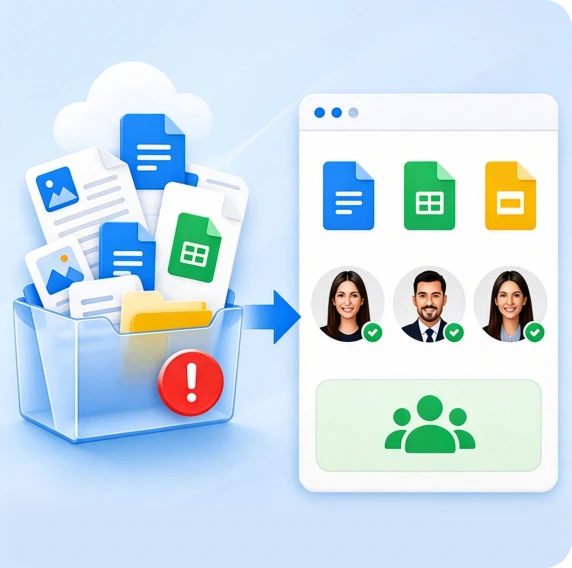
Dropbox conflicted copies replaced by Google Drive collaboration

Stop Paying the "SaaS Tax" on Duplicate Storage

Already paying for Google Workspace for business Gmail and Meet? Maintaining a separate Dropbox subscription means you are wasting budget on redundant software. Transferring files from Dropbox to Google Drive allows you to consolidate your SaaS stack, save the money.
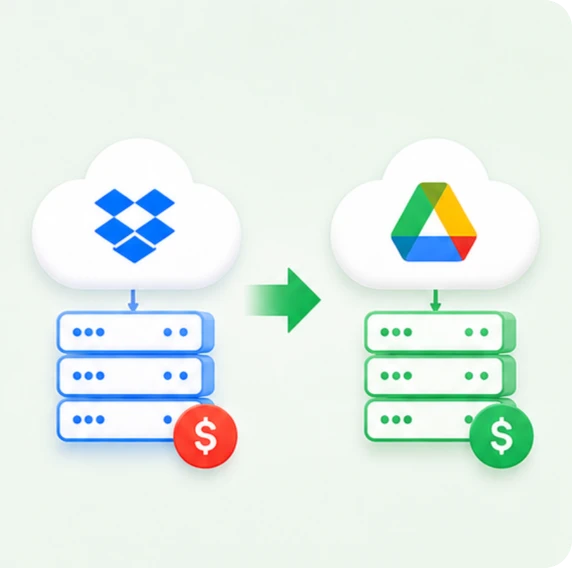
Dropbox subscription cost consolidated into Google Drive

Ditch Heavy Desktop Installers for Web-First Speed

Dropbox relies on background desktop syncing that can hog CPU and freeze lighter laptops or Chromebooks. In contrast, Google Drive delivers a flawless web-first experience. By migrating, your team gains instant access to every file through any browser—no bloated software to install and no syncing delays.
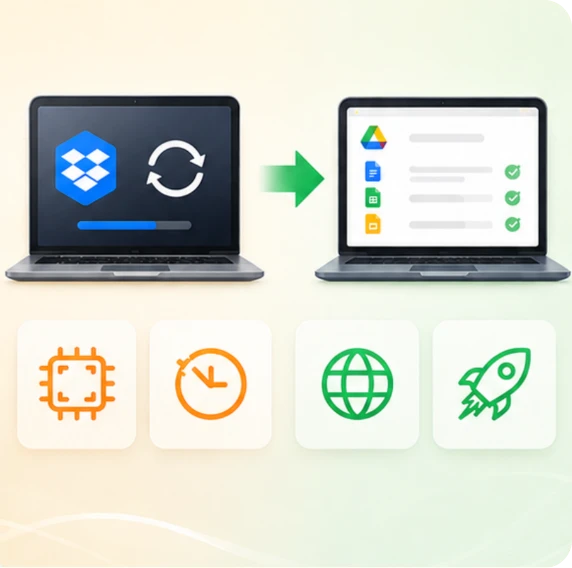
Web-first access to Dropbox files through Google Drive

Share Without the 2GB Cap

Dropbox’s stingy 2GB free tier means that when you send a large folder link to others, they are often blocked by a "Storage Full" error unless they pay up. Google Drive grants 15GB free to every standard user. Moving Dropbox data to Google Drive ensures recipients can open, view, and download deliverables instantly on any device.
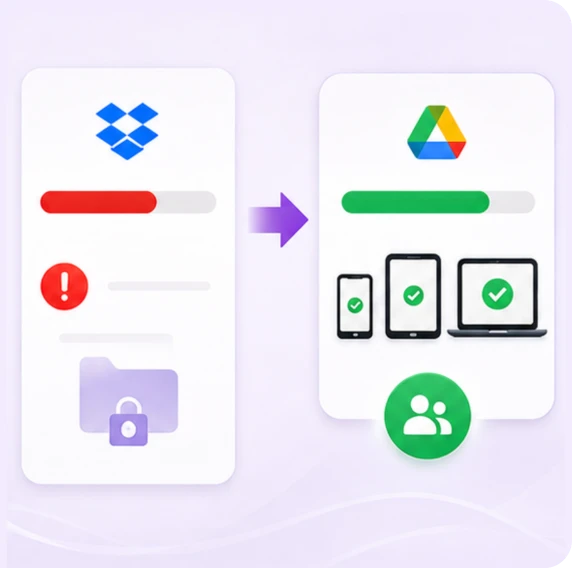
More free Google Drive storage for Dropbox files

Official Live Dropbox to Google Drive Migration Report

Conducted June 10, 2026, 100% Real-World Operational Test Log
Small files transfer test

Test A: Small Files Transfer

(Images, Excel, Word, PDF, etc)

Total files

Total Files: 65

Successfully transferred Successfully Transferred: 65
Success rate Success Rate: 100%
Total data volume

Total Data Volume: 277.31 MB

Total transfer time

Total Transfer Time: 38 Seconds

Average transfer speed

Average Transfer Speed: ~7.30 MB/s (58.4 Mbps)
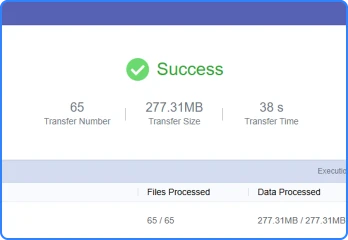
Small files transfer test result
Large files transfer test

Test B: Large Files Transfer

(Videos, Installers, Compressed Archives)

Total files

Total Files: 23

Successfully transferred

Successfully Transferred: 23

Success rate

Success Rate: 100%

Total data volume

Total Data Volume: 1.48GB

Total transfer time

Total Transfer Time: 52 Seconds

Average transfer speed

Average Transfer Speed: ~29.14 MB/s (227.69 Mbps)
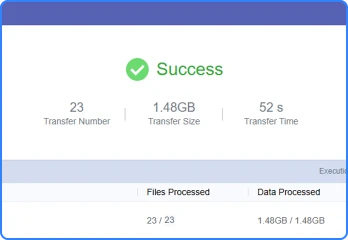
Large files transfer test result

How to Transfer Files from Dropbox to Google Drive without Downloading

0% local RAM usage, 100% success rate, 100% automated.

Proven by Test: 1.48 GB fully migrated in just 52 seconds, bypassing 1+ hour of local upload choking.
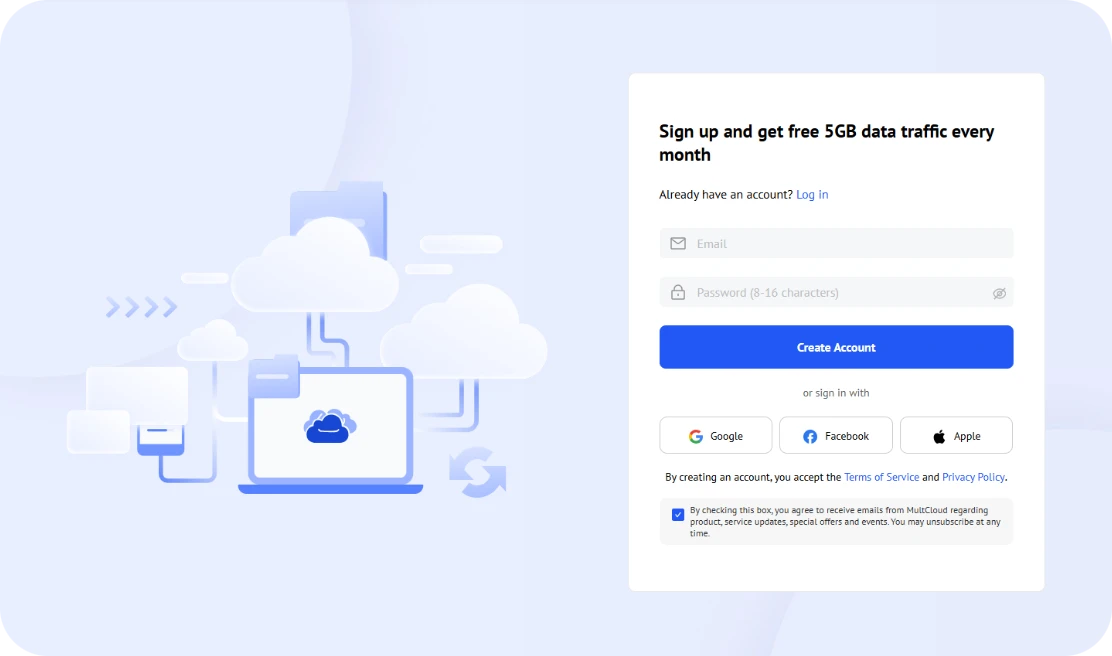
Sign in to MultCloud

Step 1. Sign Up MultCloud Account

Sign up for a MultCloud account and log in to manage, sync, and migrate all your cloud files in one place. You can perform a quick sign-in with Google, Facebook, and Apple accounts.

Around 80% of users choose Google Sign-In due to its simplicity and fast, one-click access experience.

Step 2. Add Your Dropbox and Google Drive Accounts

Navigate to the “Add Cloud” section on the sidebar to securely add your source Dropbox and destination Google Drive accounts. Once the secure OAuth authorization is complete, you can access these two cloud services in the only one platform.
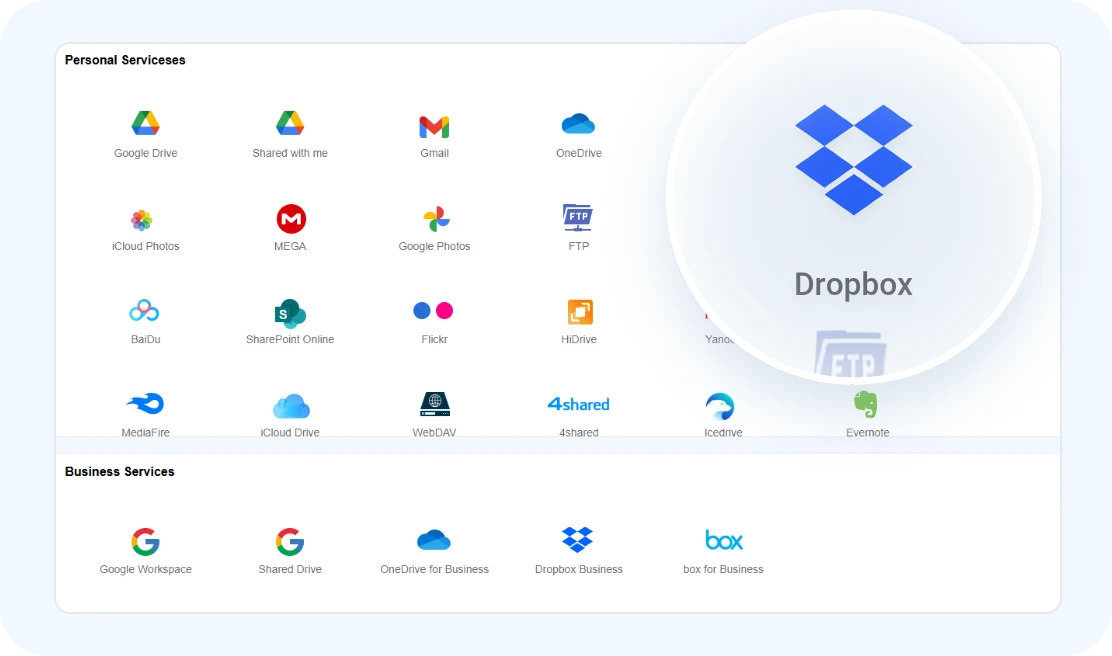
Add Dropbox and Google Drive accounts
Create a Dropbox to Google Drive transfer task

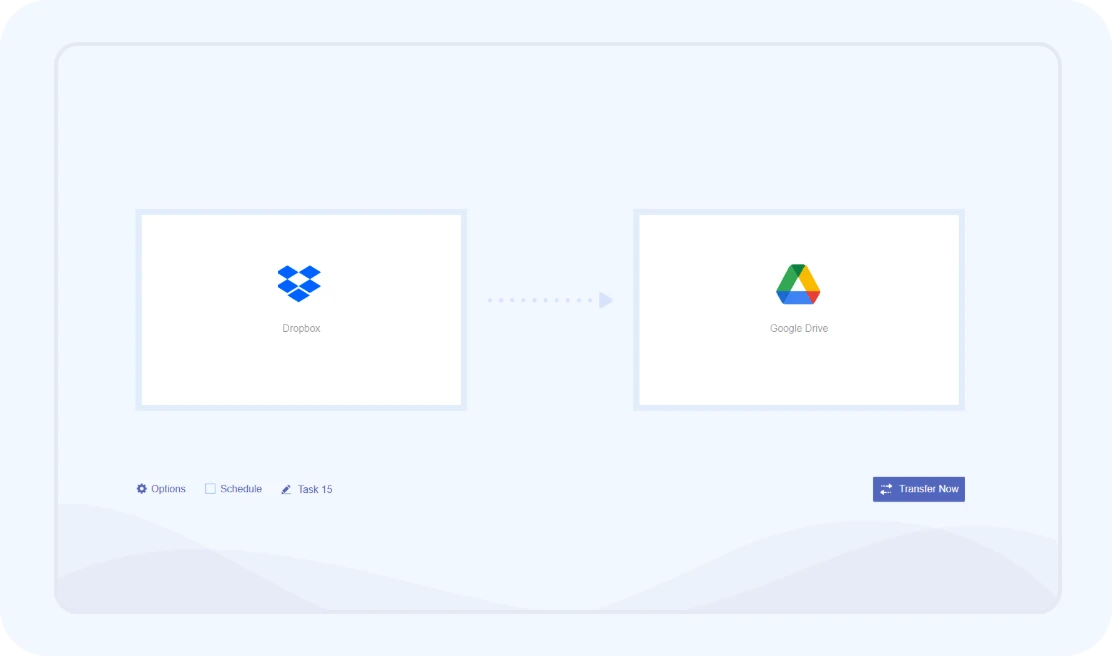
Step 3. Create a Dropbox to Google Drive Transfer Task

Click the “Cloud Transfer” in MultCloud, then choose your source Dropbox account and your target Google Drive account for migration. You can select specific files or entire folders depending on your transfer needs.

Utilize the built-in filter settings to exclude redundant system artifacts like .tmp or ~$ temporary files. Stripping this digital clutter can optimize your bandwidth utilization and accelerate overall transfer speeds by up to 15%.

Step 4. Start the Dropbox to Google Drive Migration

Click “Transfer Now” to initiate the migration process. MultCloud handles the entire data payload directly on its server-side infrastructure, completely eliminating the primitive, bandwidth-heavy "download-then-re-upload" cycle.
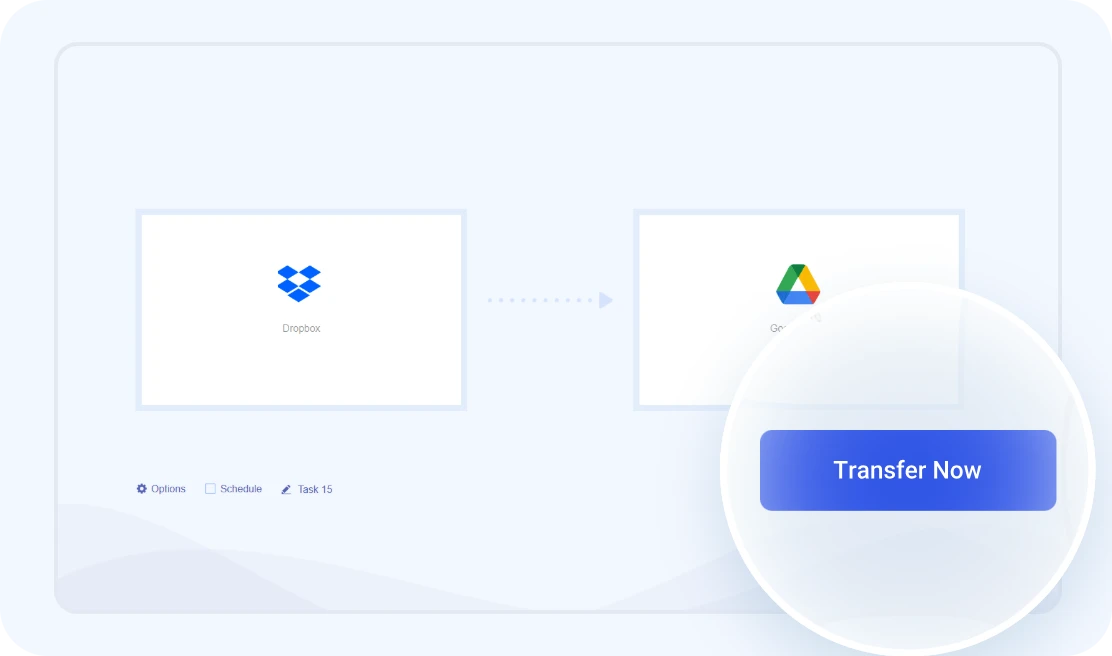
Start the Dropbox to Google Drive migration
Migration continues in the cloud Once started, the transfer will run in the cloud. You can close the browser tab, or shut down your workstation—the background servers will reliably manage the data deployment until completion.
Upgrade Your Workflow: Smart Dropbox to Google Drive Migration

Maximize transfer efficiency with MultCloud’s advanced automation settings, featuring off-peak scheduling, smart file filtering, and real-time alerts for a hands-off, worry-free migration.

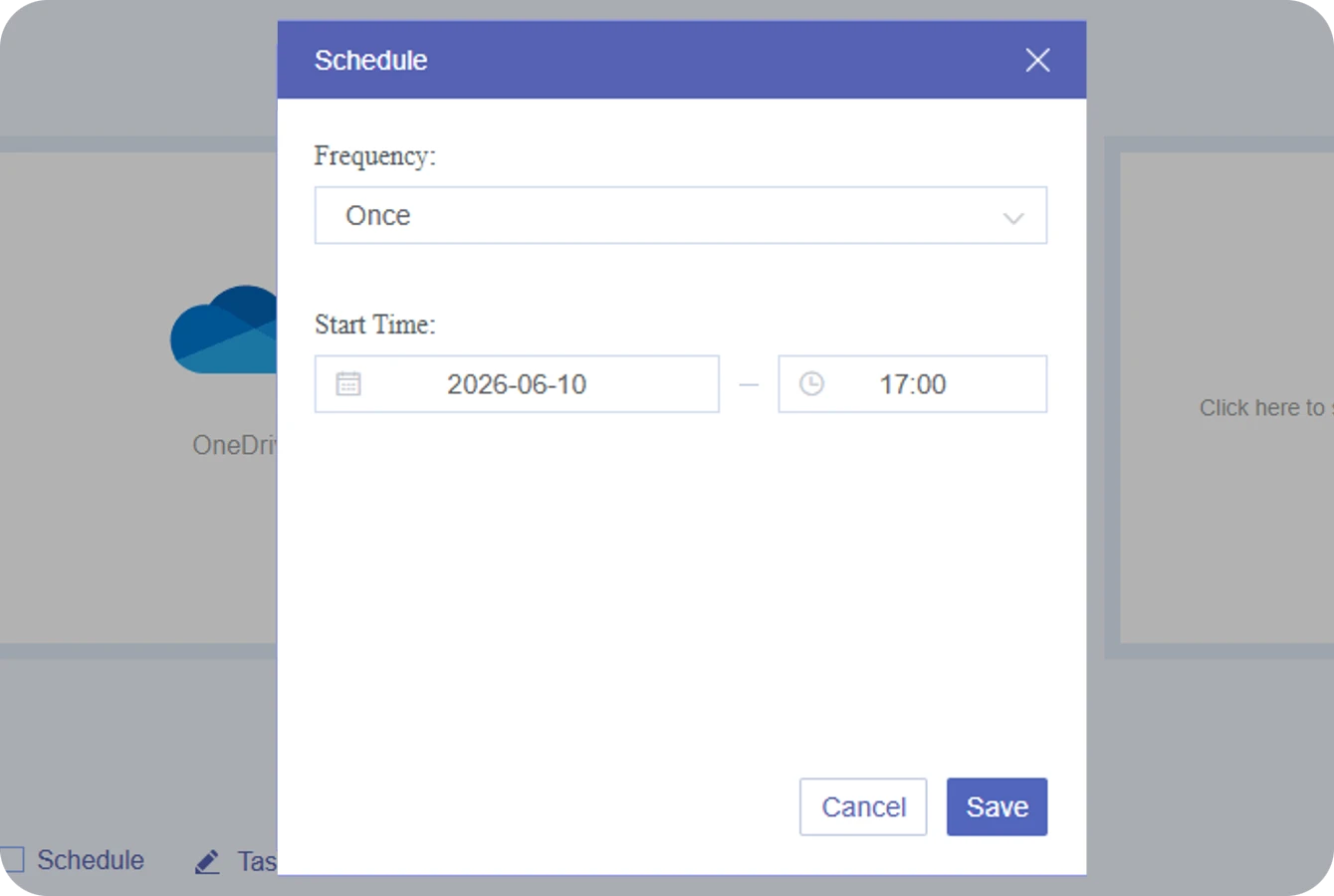
Schedule Transfers
“Trying to move large Dropbox folders during work hours slows down the whole office internet and makes my computer lag. I end up stuck at my desk just watching the progress bar, worried the transfer will fail if I walk away.”

Now, hand the schedule over to MultCloud and walk away with confidence.

Off-Peak Scheduling: Set your migrations to run automatically during standard off-peak hours (12 AM to 6 AM) when global cloud traffic is lowest.
Zero Daytime Interruption: Run migrations overnight via the cloud to eliminate background sync traffic and protect your office bandwidth.
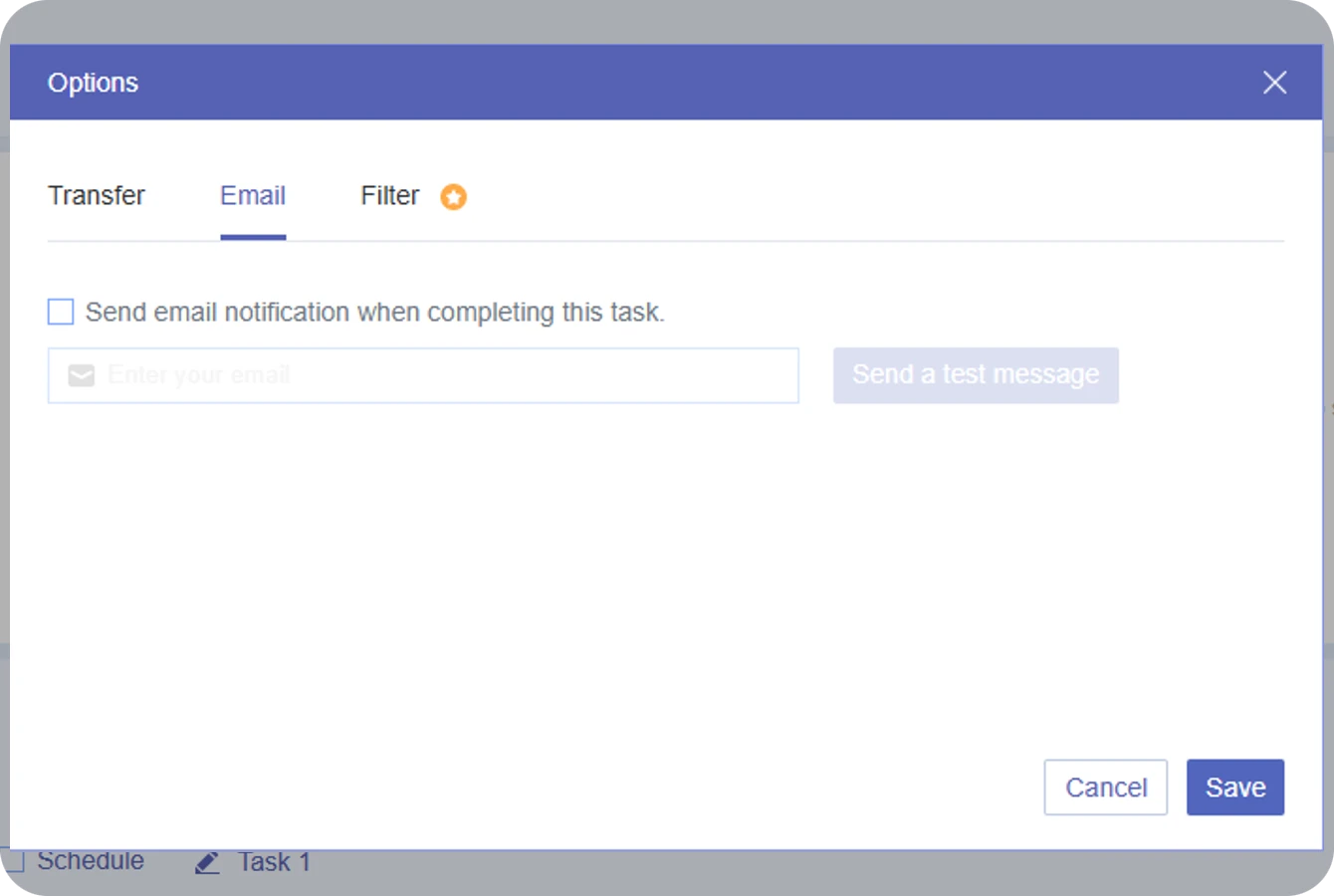
Receive Email Notifications After Transfer
When I was moving thousands of team folders, it was impossible for me to manually check every single one to see if any files were quietly skipped. I just couldn't track those hidden errors on my own."

Trade hours of manual double-checking for a single, comprehensive email.

Comprehensive Summaries: receive a full report when the transfer completes, confirming exactly what moved.
Error-Log Isolation: quickly pinpoint any failed files (caused by Google’s 750GB limit or locked permissions.
Manage Existing Files Intelligently
“Syncing files for the second time always gives me a headache. I'm always worried that I’ll accidentally overwrite my newest work with an old version, or wake up to find thousands of duplicate files cluttering my drive.”

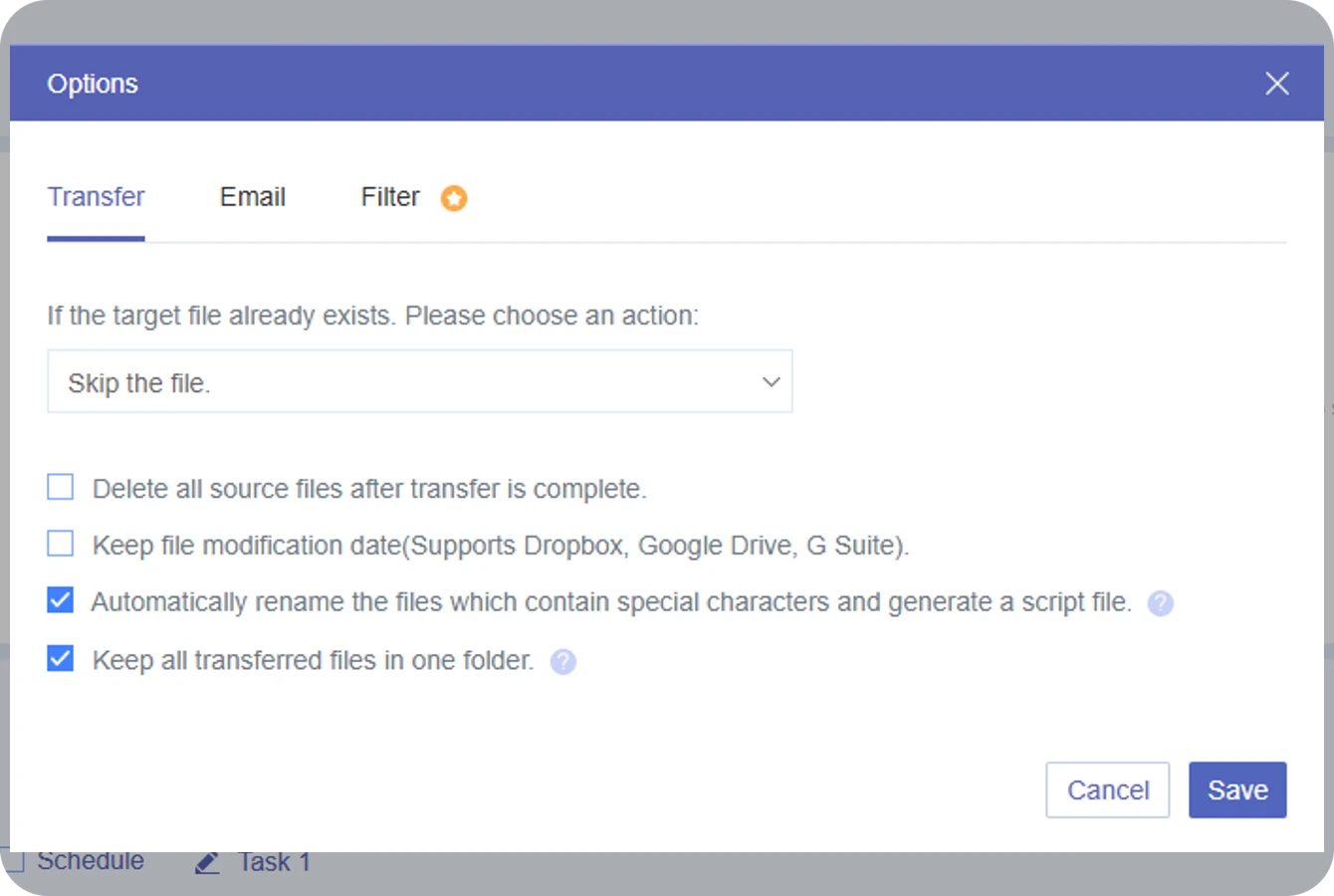
Eliminate the chaos by setting precise automation rules for how existing files are handled:

Skip the file: Skips existing file.
Overwrite if source newer: Updates files if the source is more recent.
Overwrite if different size: Replaces files when file size changes.
Always overwrite: Forcefully overwrite target files.
Rename: Appends a suffix to keep both.
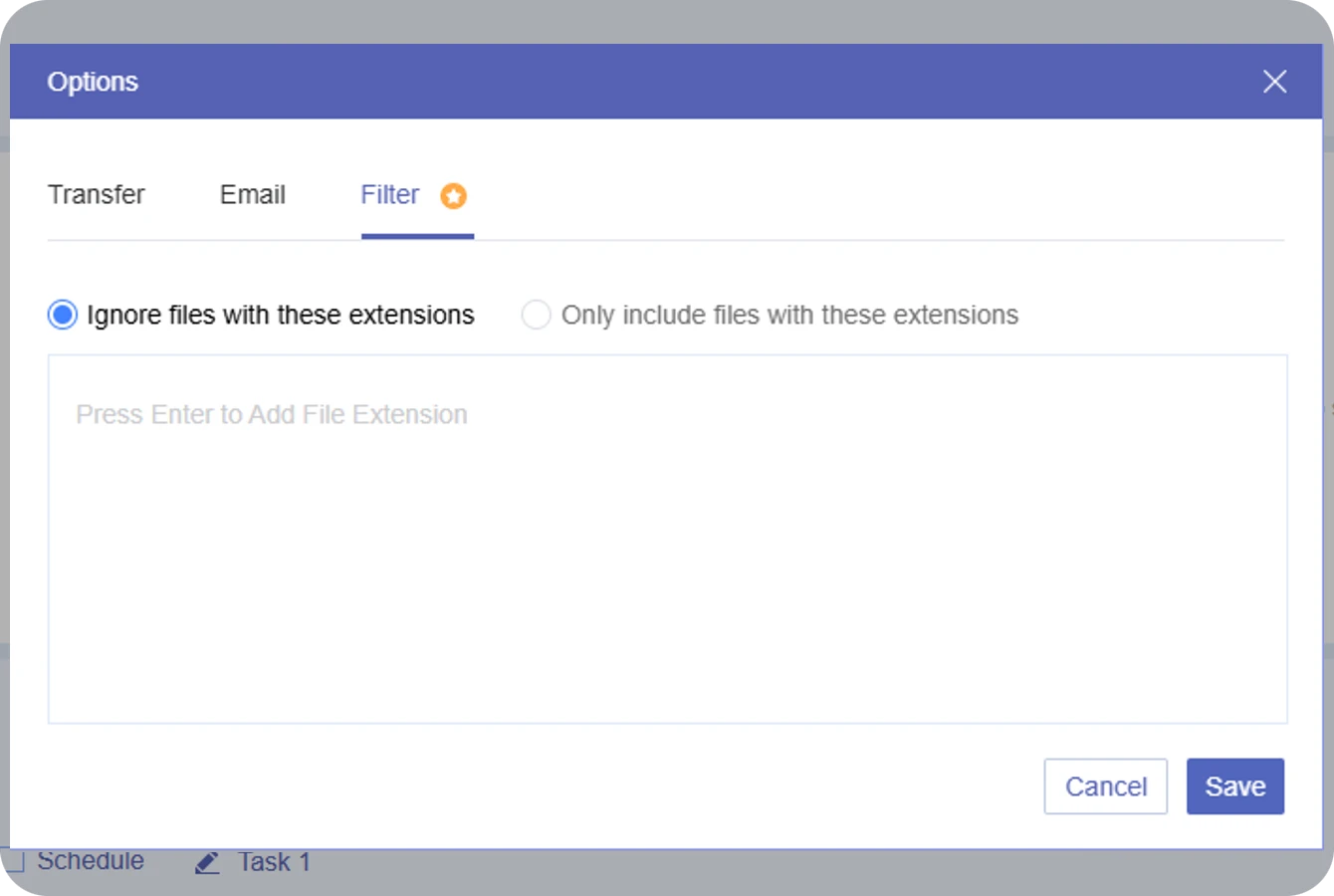
Filter Files During Migration
“My Dropbox is full of old system files, temporary caches, and junk. If I move all that garbage to Google Drive, it will waste so much time because transferring millions of tiny, useless files makes the whole process painfully slow.”

Use a smart filter into your Dropbox to Google Drive migration to trim the fat before it hits Google Drive.
Strip Digital Clutter & Temporary Artifacts: Exclude temporary system files (like Mac .DS_Store, Windows Thumbs.db, or temporary office files ~$*.docx) that Dropbox hiddenly syncs.
Optimize API Throughput: Cloud providers limit requests per second, not just file size. Filtering out millions of tiny cache files avoids API limits and boosts speed by up to 15%.
Schedule transfer settings Email notification settings Existing file handling settings File filter settings

Manually Transfer Files from Dropbox to Google Drive

Download & Re-upload
Drag & Drop via Desktop App

Step 1. Log in to Dropbox. Select the files or folders you want to move and click “Download” to save them as a zip file (or individual files) onto your local computer.

Step 2. Locate the downloaded file on your computer and unzip/extract it if necessary.

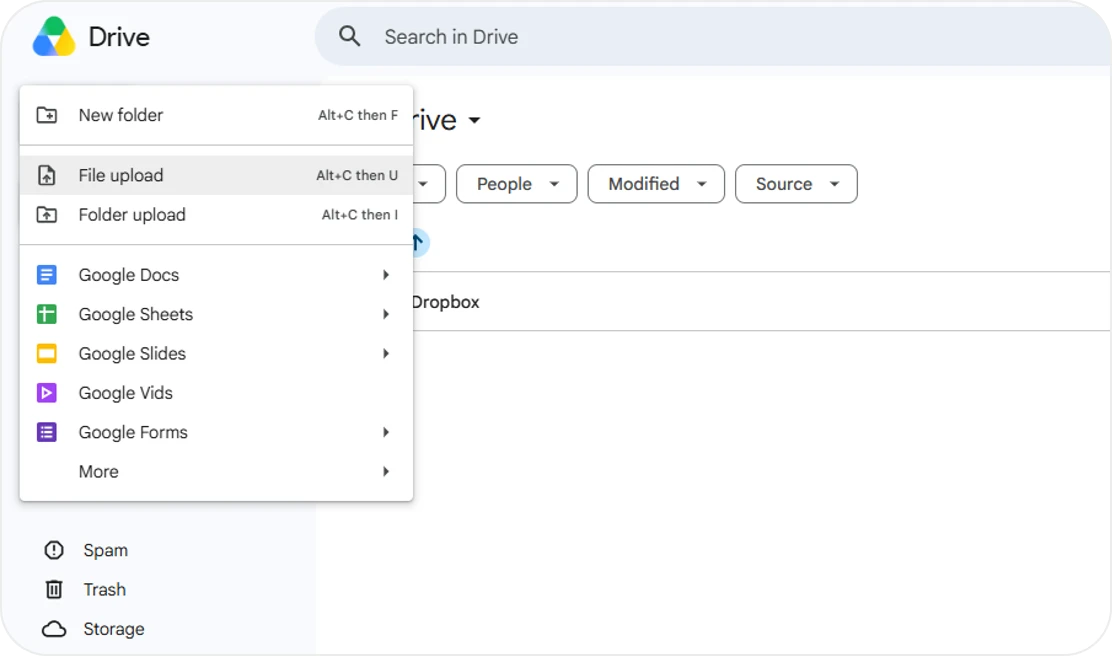
Step 3. Log in to Google Drive. Click the "+ New" button on the top left and select File upload or Folder upload, then choose your downloaded files to begin the transfer.
Pros:
  • No need to install any software.
  • Perfect for small data transfer.
Cons:
  • Moving large datasets or heavy files takes double the time.
  • Consumes double the local space for downloading and unzipping.
  • Completely depends on your local internet download and upload speeds.
Download Dropbox files and upload them to Google Drive

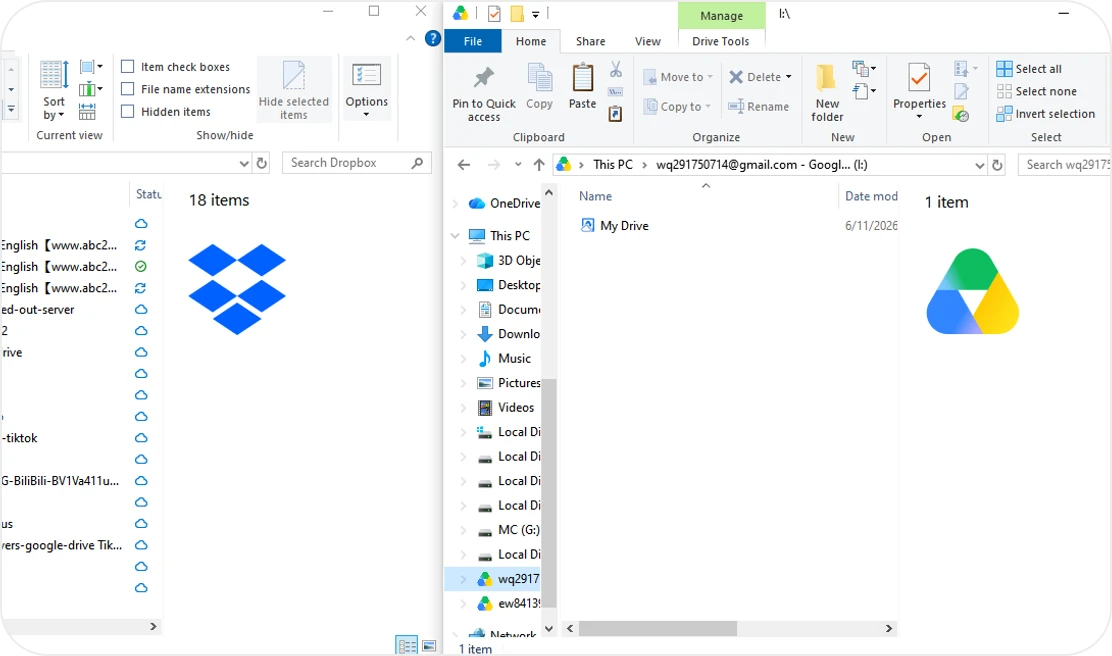
Step 1. Download and install both the Dropbox for Desktop app and Google Drive for Desktop app onto your computer.

Step 2. Log in to both apps to mount them as virtual drives in your file explorer. Then open those two separate file explorer windows.

Step 3. Select the target files in your Dropbox window, then drag and drop them directly into the desired folder in the Google Drive window.
Pros:
  • No need to open a web browser.
  • Perfect for small data transfer.
Cons:
  • Heavy on local RAM and CPU, slowing down your computer.
  • Relies entirely on local internet, network blips can corrupt transfers.
  • Consumes local disk space to temporarily cache files.
  • Apps may crash or freeze during large file transfer.
Drag Dropbox files to Google Drive desktop app
Speed Benchmark: Dropbox to Google Drive Transfer Methods
Test Specs: 1.48GB Files Asus, Samsung SSD 37.2Mbps Down / 5.20Mbps Up Ethernet Sync Logs: June,10 2026
Method Actual Transfer Time Speed (MB/S) Local Storage Dependency Transfer Risk & Data Integrity
Download & Re-upload 1hour, 5min, 18sec

• Download: 3min 30sec
• Local Unzip: 35sec
• Upload: 1hr 1min 13sec

0.39 MB/s (3.12 Mbps) High

Requires double the local disk space (first for downloading zip, then for unzipped folders, plus upload caching). Fully dependent on local network stability.

Medium to High

High risk of interruption due to local network drops, computer sleep mode, or browser crashes. Requires manual verification of file counts.

Drag & Drop (Desktop App) 6min 26sec 3.93 MB/s (31.44Mbps) High

Consumes local RAM and temporary cache during transfer. Heavily limited by local network bandwidth.

No

Data loss occurred

Skipped several large critical audio files during transfer. Poor integrity control; prone to skipping files due to client freezing or long file paths.

MultCloud
52 sec
29.14 MB/s (227.69 Mbps)
None

Pure server-to-server transfer. Does not use local disk or bandwidth. Transfer continues in the cloud even if you turn off your PC.

Very Low Risk

High Integrity: Immune to local network fluctuations. Features automatic retry mechanisms and provides a detailed success/failure log after transfer.

Why Choose MultCloud for Transferring Dropbox to Google Drive

Stable cloud migration

So Stable

13 Years of Mastery, Industry-Leading Stability. Transfer and Manage across 30+ clouds, scheduled & automation transfers, sync & backup.

Easy cloud migration

So Easy

Web-based, no install needed, Runs transfers on its own servers (no local bandwidth), just copy and paste all your files between clouds.

Safe cloud migration

So Safe

Privacy-focused, full GDPR compliance built-in. Protects transfers with 256-bit AES SSL encryption, ensuring interception-free data security across all migration scenarios.

Fast cloud migration

So Fast

Engineered with a robust 10-thread parallel processing engine, the platform splits the workload to maximize throughput within cloud throttling limits, significantly reducing total migration time.

Connect and Manage 30+ Cloud Drives in One Place
MultCloud supports over 30 cloud services (nearly 40 integrations), allowing you to connect, manage, and transfer files across all your cloud accounts from a single platform. Whether you use OneDrive, Google Drive, Dropbox, iCloud, Google Photos or other major cloud storage services, MultCloud unifies them into one centralized dashboard—making cloud file management and migration simpler than ever.
More Clouds
More Than Cloud to Cloud Transfer Tool

Apart from cloud-to-cloud transfer, MultCloud also provides other high-demand cloud management solutions.


What Our Users Are Saying

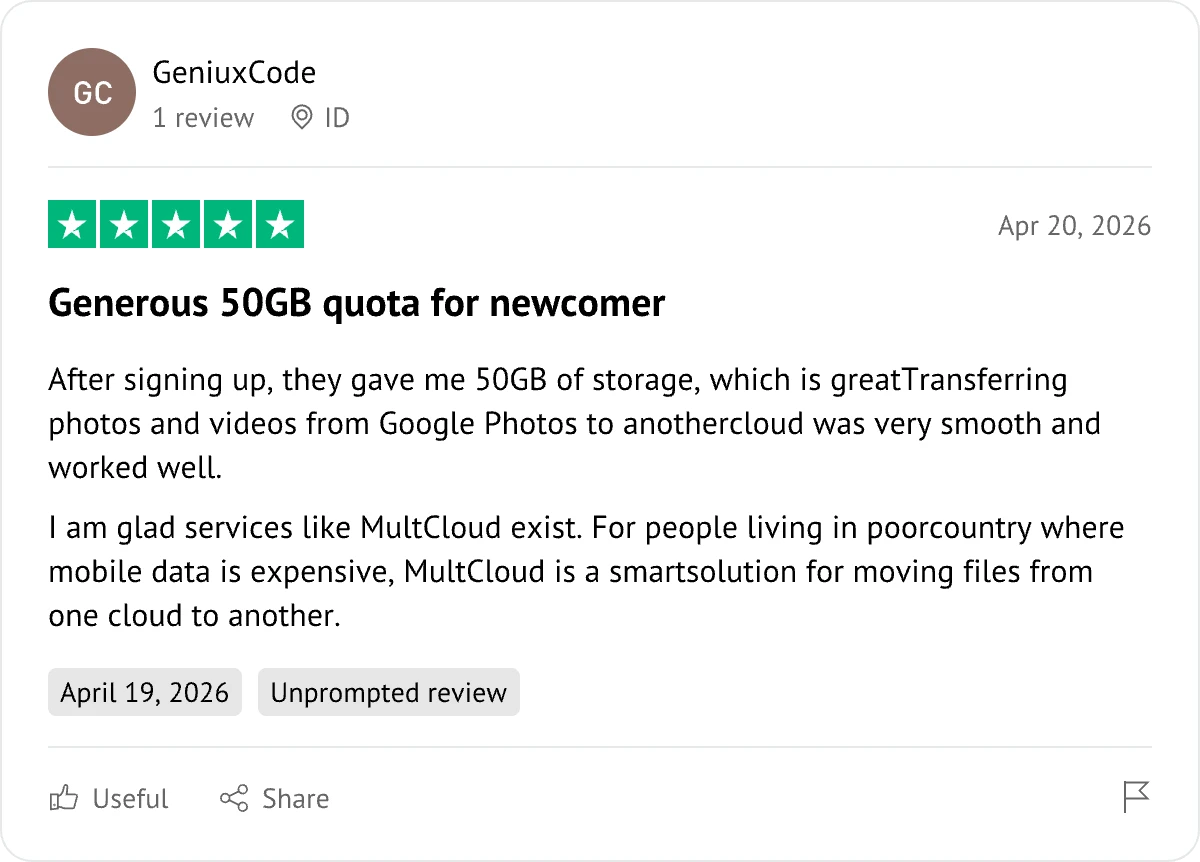
MultCloud user review by GeniuxCode
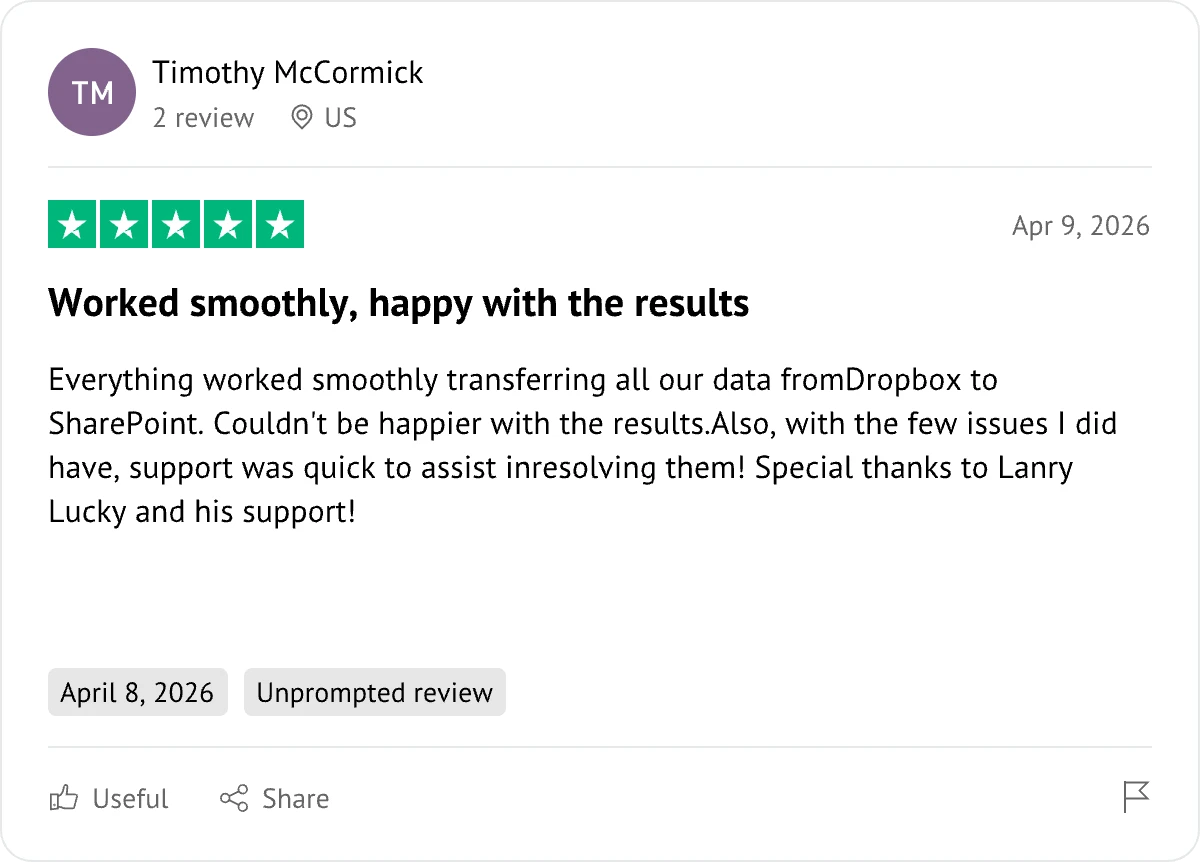
MultCloud user review by Timothy McCormick
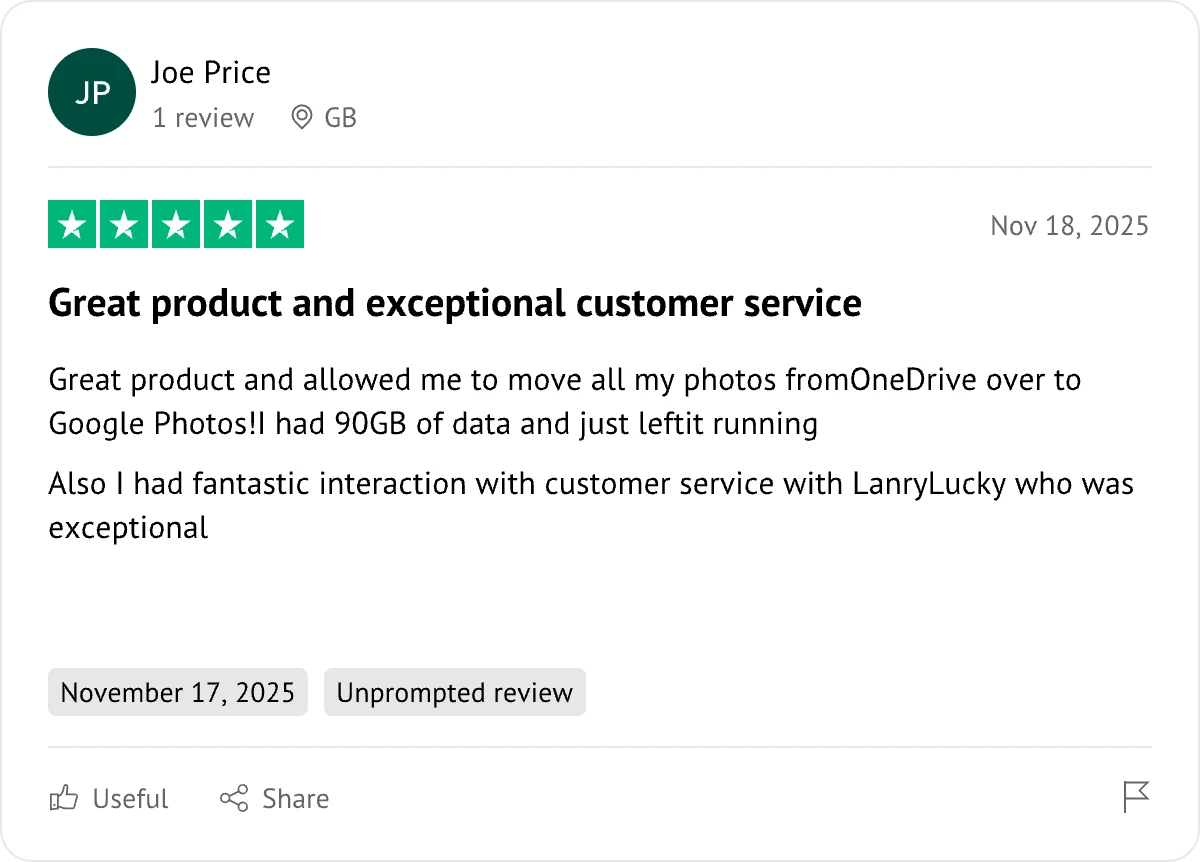
MultCloud user review by Joe Price
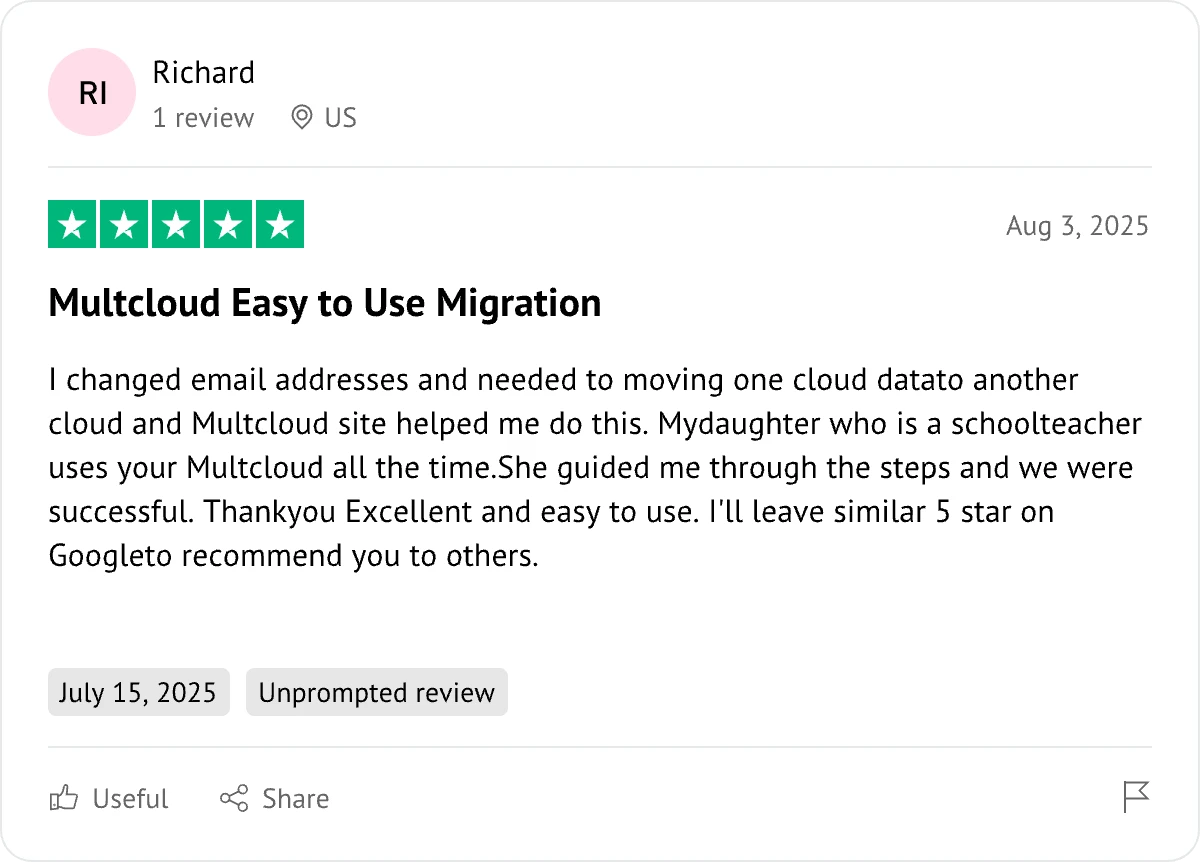
MultCloud user review by Richard
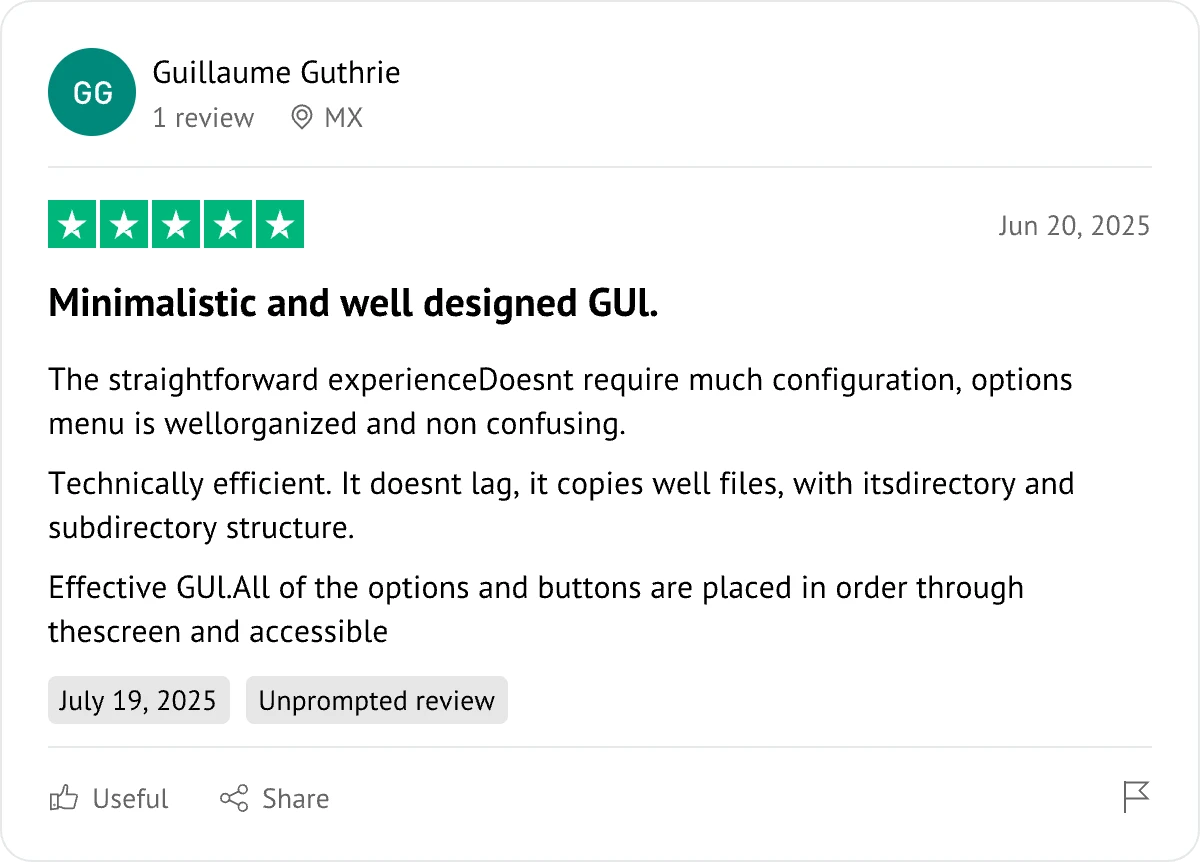
MultCloud user review by Guillaume Guthrie
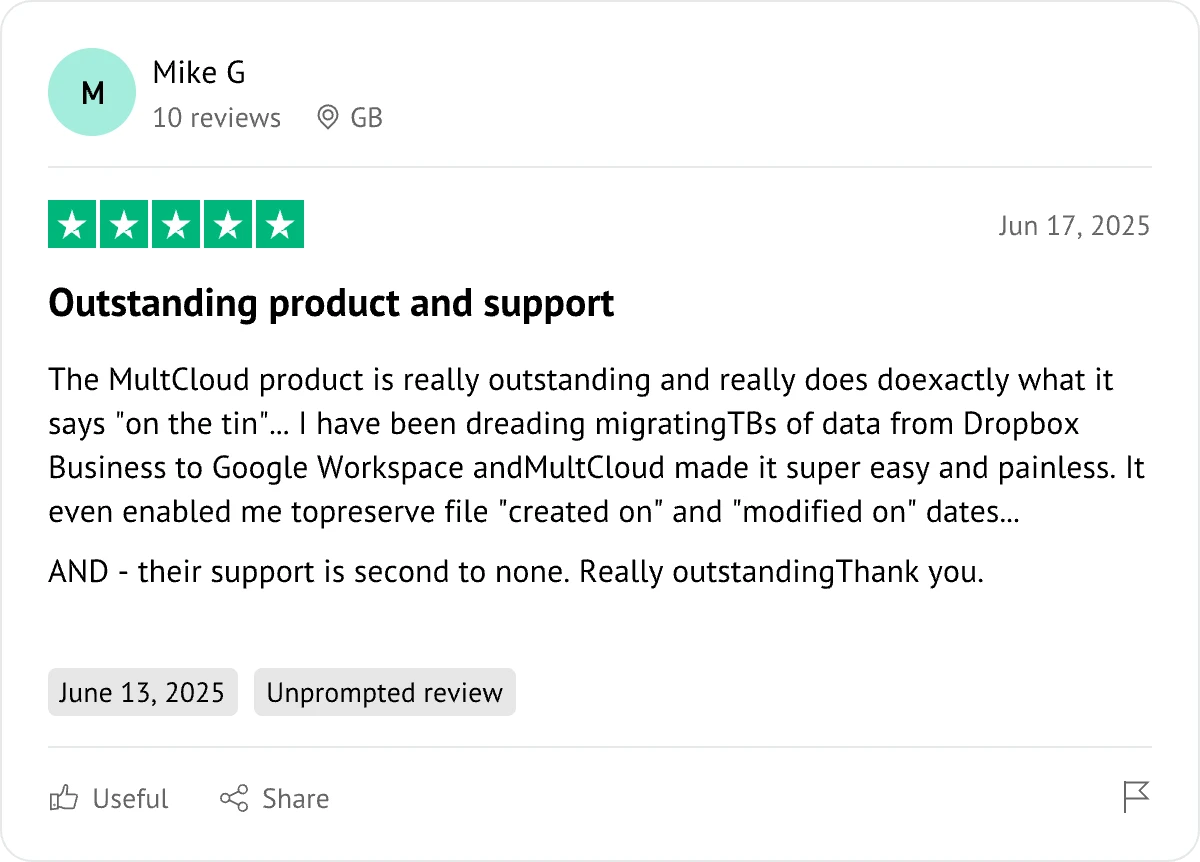
MultCloud user review by Mike G
FAQ
How to Avoid Downloading When Copying Dropbox Folders into Drive?
Downloading and re-uploading locally consumes massive bandwidth and local storage. To avoid downloading when copying Dropbox files or folders into Google Drive, you can use third-party SaaS tools like MultCloud that connect to both platforms via API. The data transfers entirely on server-side cloud pipelines, meaning you can shut down your computer while it runs.
What’s the Best Online tool to Clone Dropbox Library into Google Drive?
For a quick and effortless transfer of personal libraries, MultCloud is the top recommendation because its web-based interface allows you to connect both accounts and clone folders server-side without keeping your computer on. If you are tech-savvy and want a completely free, open-source solution that handles unlimited data directly between APIs without local downloading, Rclone is the best choice when configured on a cloud server.
What’s the Checklist for Planning Dropbox to Google Drive Migration?
A successful Dropbox to Google Drive migration requires a four-step plan: 1) audit your files, map shared folder permissions, and flag Dropbox Paper docs for conversion. 2) Check your total data size against Google’s daily 750 GB upload limit and connect your cloud migration tool via API. 3) Run a pilot test with a small batch of folders to verify user permissions and set a firm data-freeze schedule for your team. 4) Run a final delta sync to catch last-minute edits and check migration logs to confirm zero file loss.
Can You Sync Dropbox and Google Drive?
Yes, you can sync Dropbox and Google Drive, but not natively. Because they are direct competitors, neither platform offers a built-in feature to connect with the other. To link them, you must use a third-party tool like MultCloud, which offers highly flexible sync modes. You can use real-time or two-way sync to keep both accounts identical instantly, or set up custom file filters to include or skip specific file types automatically.
Is It Better to Use Google Drive or Dropbox?
Neither platform is universally better; it depends entirely on your specific workflow.

Choose Google Drive if your priority is real-time collaboration. It integrates seamlessly with Google Workspace for live document co-editing, offers 15 GB of free storage out of the gate, and provides highly cost-effective paid plans. It is ideal for teams working with standard documents, spreadsheets, and presentations.

Choose Dropbox if your priority is high-performance file syncing. It uses block-level copying (delta sync) to upload only the modified parts of large files, making desktop sync significantly faster for video, audio, or design assets. It also offers superior advanced link sharing, password controls, and more robust file version recovery.
Will I Lose My Files If I Cancel Dropbox?
No, you will not lose your files immediately, but they are at risk if you take no action. When you cancel, your account automatically downgrades to the free tier, which has a 2 GB storage limit. Your existing files stay safe and downloadable, but all syncing stops instantly if you are over the 2 GB limit. You cannot add new files or save edits to the cloud. If your account stays over the 2 GB limit for an extended period, Dropbox will send warning emails and eventually delete files to bring your account back under the free quota. Make sure your Dropbox to Google Drive migration or backup is 100% complete before your Dropbox subscription ends.
Migrate Dropbox to Google Drive with MultCloud Now!
The Go-to Choice for Cloud-to Cloud Transfer, Sync & Backup Files Across Clouds.
Get Started for free >>
Migrate Dropbox to Google Drive