Best Dropbox to OneDrive Sync Tool

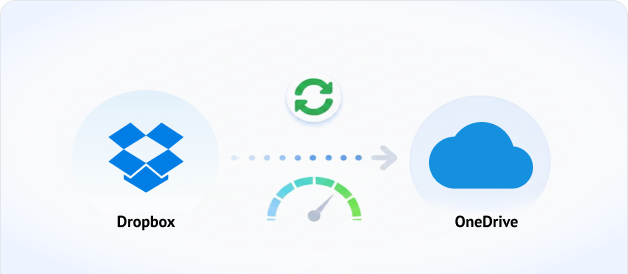
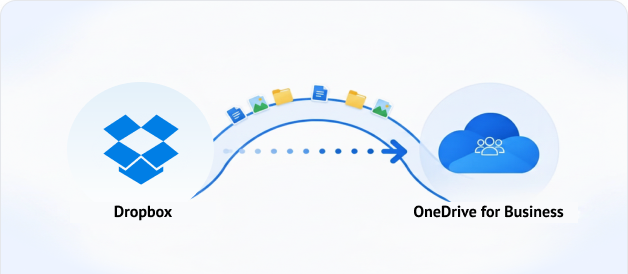
Sync files, folders, photos, and data from Dropbox to OneDrive.
No Downloads. No Uploads. Just Cloud-to-Cloud.

Go to app to sync across 30+ cloud services

G2 CNET TechRadar PCWorld Trustpilot

MultCloud Solves All the Pains of Dropbox to OneDrive Sync

Struggling to keep files consistent between Dropbox and OneDrive because there is no official cloud sync tool? Whether you are bridging personal and corporate clouds, backing up critical data, or transitioning teams, MultCloud offers automated cloud-to-cloud sync — web-based, no install, runs entirely on its own servers with zero local bandwidth consumption.

Sync personal Dropbox with corporate OneDrive

Bridge Personal Dropbox and Corporate OneDrive

“My company uses OneDrive, but I keep personal projects in Dropbox. I manually copy files every morning and already lost track of which version is latest. Last week, I sent a client an outdated proposal from OneDrive.”

Set up one-way sync from Dropbox to OneDrive — or reverse. Every edit propagates automatically. No manual copying, no version confusion.
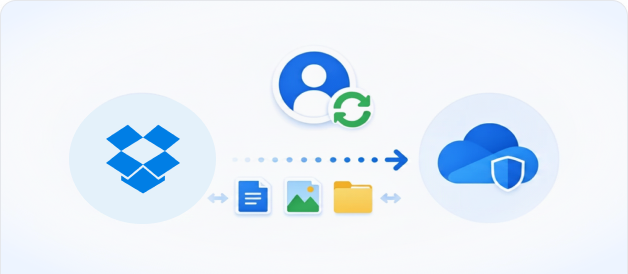
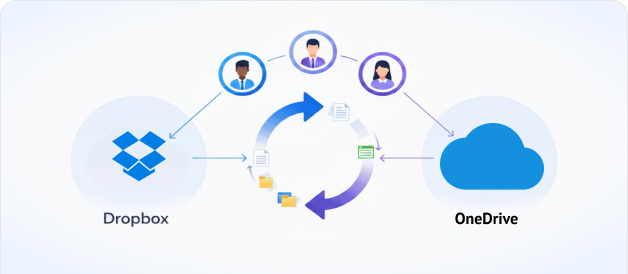
Back up Dropbox files to OneDrive

Auto-Backup Dropbox Files to OneDrive for Redundancy

“I store client deliverables in Dropbox, but company policy requires a secondary backup on OneDrive. Manually downloading everything after every update takes hours and eats up bandwidth. Last month, a sync error corrupted three folders — I didn’t notice until a client complained.”

Real time sync creates an exact, updated replica of your Dropbox in OneDrive. Every new file, edit, and deletion reflects in real time. Zero manual effort.

Keep Dropbox and OneDrive teams synchronized

Keep Hybrid Teams in Sync Across Both Platforms

“Half my team uses Dropbox for fast sync; the other half lives in OneDrive for Microsoft 365. When someone edits in Dropbox, OneDrive users don’t see it until someone manually uploads a copy. We’ve had three incidents this quarter from people working on outdated files.”

Two-way sync between a shared Dropbox folder and OneDrive folder. Changes in either cloud instantly appear in the other. Both teams use their preferred platform — always on the same, up-to-date version.

Server-side Dropbox to OneDrive sync

Sync Without Hogging RAM or Choking Your Network

“I ran both Dropbox and OneDrive desktop apps for syncing, and my laptop turned into a space heater. The fan never stopped, Chrome tabs crashed, and large syncs killed my internet. I ended up pausing both and doing manual transfers — defeating the whole purpose.”

Runs entirely on its own cloud servers. Your RAM stays untouched, bandwidth stays free, and you can even shut down your machine — sync keeps running. Zero local resources, 100% server-side processing.

MultCloud Dropbox to OneDrive Sync Performance Report

—   Conducted July, 2026, 100% Real-World Operational Test Log   —

Test A: Small Files Sync

(Images, Excel, Word, PDF, etc.)

100% verified
  • Total Files: 185
  • Successfully Synced: 185
  • Success Rate: 100%
  • Total Data Volume: 204.91 MB
  • Total Sync Time: 21 Seconds
  • Average Sync Speed: ~9.76 MB/s (78.08 Mbps)

Test B: Large Files Sync

(Videos, Audio, Compressed Archives)

100% verified
  • Total Files: 753
  • Successfully Synced: 753
  • Success Rate: 100%
  • Total Data Volume: 12.17 GB
  • Total Sync Time: 8 Minutes 36 Seconds
  • Average Sync Speed: ~24.15 MB/s (193.20 Mbps)

How to Sync Dropbox to OneDrive Automatically

0% local RAM usage, 100% success rate, 100% automated, 3 steps.

Sign up for a MultCloud account

Step 1. Sign Up for a MultCloud Account

Sign up for free and connect all your clouds to MultCloud. You can also use Google, Facebook, or Apple for one-click login. Then manage all clouds from one dashboard.

Step 2. Add Dropbox & OneDrive to MultCloud

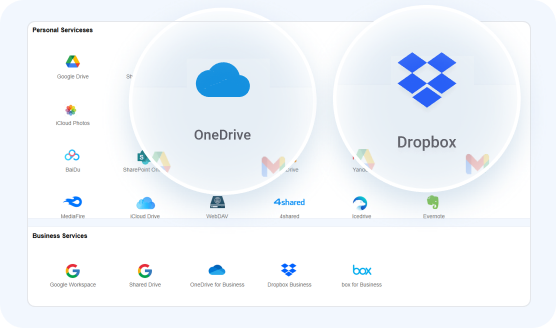
Go to “Add Cloud” and securely authorize both accounts via OAuth. Access both Dropbox and OneDrive from one dashboard.

Add Dropbox and OneDrive to MultCloud
Create a Dropbox to OneDrive sync task

Step 3. Create & Start the Dropbox to OneDrive Sync Task

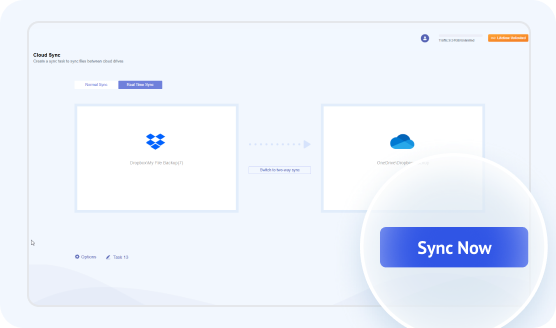
Click “Cloud Sync”, select your source Dropbox and target OneDrive, then set up sync modes, schedule, and filter to sync smoothly. Hit Sync Now to start.

Start Dropbox to OneDrive Sync

Upgrade Your Workflow: Smart Dropbox to OneDrive Sync

Maximize sync efficiency with MultCloud’s advanced automation settings, featuring off-peak scheduling, 10 sync modes, smart file filtering, and real-time alerts for a hands-off, worry-free synchronization experience.

Schedule Syncs to Run Automatically

MultCloud lets me schedule large Dropbox syncs outside work hours, so my office internet stays fast, my computer runs smoothly, and I can step away from my desk without worrying about failed transfers. Choose hourly, daily, weekly, or monthly sync schedules to match your workflow rhythm.

Choose From 10 Professional Sync Modes

MultCloud offers 10 specialized sync modes—from Real-Time and Two-Way to Mirror and Incremental—so you can match the exact strategy to your workflow, whether you need instant updates, one-way backups, permanent migrations, or deletion-free cumulative syncs.

Receive Email Notifications After Sync

MultCloud sends a comprehensive sync report with error-log isolation, so you instantly know exactly what transferred—and can quickly pinpoint any failed files due to permission locks, rate limits, or quota issues.

Filter Files During Synchronization

MultCloud lets you filter out junk files like temporary caches and system artifacts before syncing—so you avoid API rate limits, boost speed by up to 15%, and never waste time transferring useless clutter.

Compare All Sync Methods of Dropbox to OneDrive Sync

Check the below chart to find the best easiest way to sync Dropbox to OneDrive smoothly.

Manual download & upload

The default first attempt

  • Double bandwidth - every GB travels twice
  • Needs local disk = full transfer size
  • Computer must stay on the whole time
  • No scheduling, no resume on failure

Two desktop apps

Dropbox + OneDrive installed

  • Both apps run, hogging RAM and CPU
  • Apps don’t talk to each other - still manual copy
  • Sync conflicts create duplicate versions
  • No automation between the two clouds
DimensionDesktop Apps (Dropbox / OneDrive)Manual Download + Upload
Sync direction10 sync modes, including two-way, one-way, real-time sync.Two-way onlyOne-way, manual
Cross-cloud support30+ cloudsNoTheoretically yes, but fully manual
PC can be offYesNoNo
Local bandwidth~ZeroDouble consumption (download & upload)Double consumption (download & upload)
Local storageNoneOccupies disk (Files On-Demand mitigates)Occupies disk
Real-time syncYesYesNo
Scheduled syncYesNoNo
Large data (TB-scale)Multi-threaded server transfer, handles TB-ScaleSlow, bottlenecked by local bandwidth/storagePractically infeasible
Sync speedFast - 12.17GB - 8 mins 36 secsModerate - 12.17GB - 1 hrs 28 mins 12secsSlow - 12.17GB - 3hrs 8mins 56 secs

Your Data Security Is Our Priority

We understand that trust is earned, and we’ve built MultCloud with enterprise-grade security to protect your data at every step.

Your Data Belongs to You

MultCloud is only a secure transmission channel. We never permanently store your files on our servers—any temporary cache is immediately deleted once your task is complete. You remain the sole owner of your data.

Zero Password Exposure

We use the industry-standard OAuth authorization system, meaning MultCloud never sees or saves your cloud account passwords. You grant access securely, and you can revoke it anytime.

Bank-Grade Encryption

All data transfers are protected with 256-bit AES encryption for SSL—one of the most secure encryption technologies available today. This ensures your files cannot be tampered with, intercepted, or cracked during transmission.

Full Control & Transparency

You can revoke cloud access instantly, permanently delete your account and data on demand, and count on our full GDPR compliance, which ensures we only process what’s strictly necessary for your tasks and nothing else.

What Our Users Are Saying

MultCloud user review MultCloud user review MultCloud user review

Connect and Manage 30+ Cloud Drives in One Place

MultCloud supports over 30 cloud services (nearly 40 integrations), allowing you to connect, manage, and sync files across all your cloud accounts from a single platform.

More Clouds

FAQs About Syncing Dropbox to OneDrive

You can sync Dropbox to OneDrive by downloading Dropbox files to your computer and then uploading them to OneDrive, or by using a service like MultCloud to sync Dropbox folder to OneDrive without downloading them first.
Yes, MultCloud supports syncing Dropbox to OneDrive for Business, as well as between other cloud services like Google Drive, MEGA, and Amazon S3.
For best results, it’s recommended not to select too many files in a single task. If you have a large number of files, splitting them into smaller tasks can help avoid failures. The free version may have limitations, while premium plans unlock unlimited transfers and higher limits.
Yes, MultCloud offers two-way sync, which keeps both cloud folders identical in real-time. However, if you have many files, you may encounter rate limits from Dropbox. For large libraries, consider using one-way sync or splitting your data into smaller tasks.
Sync speed depends on several factors: the number and size of files, API restrictions from cloud providers, and whether you’re running multiple tasks at once. Only two sync tasks can run simultaneously; others will wait. If a task is stuck for over 24 hours, try canceling and restarting it manually. Also, transfer tasks are generally faster than sync tasks, so consider using Cloud Transfer for one-time moves.
If a sync fails, you can restart the task or contact support via support@multcloud.com for help. Some failures may be caused by network timeouts or unsupported file types (like Google’s proprietary formats). In those cases, you may need to download and transfer those files manually.

Sync Dropbox to OneDrive with MultCloud Now!

The Go-to Choice for Cloud-to-Cloud Transfer, Sync & Backup Files Across Clouds.

Started for Free >>
Sync Dropbox to OneDrive with MultCloud