FAQs about Google Drive to OneDrive Migration
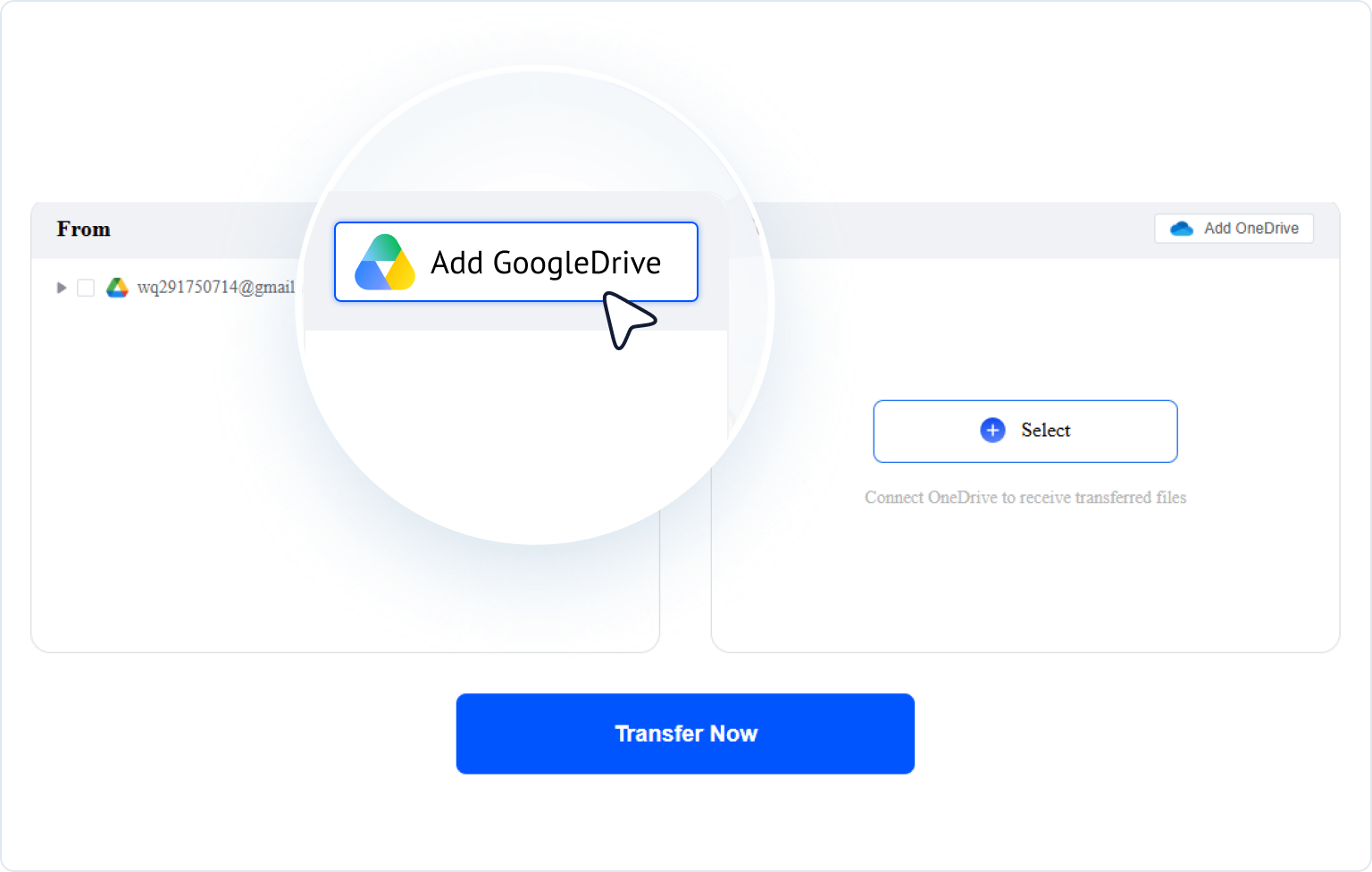
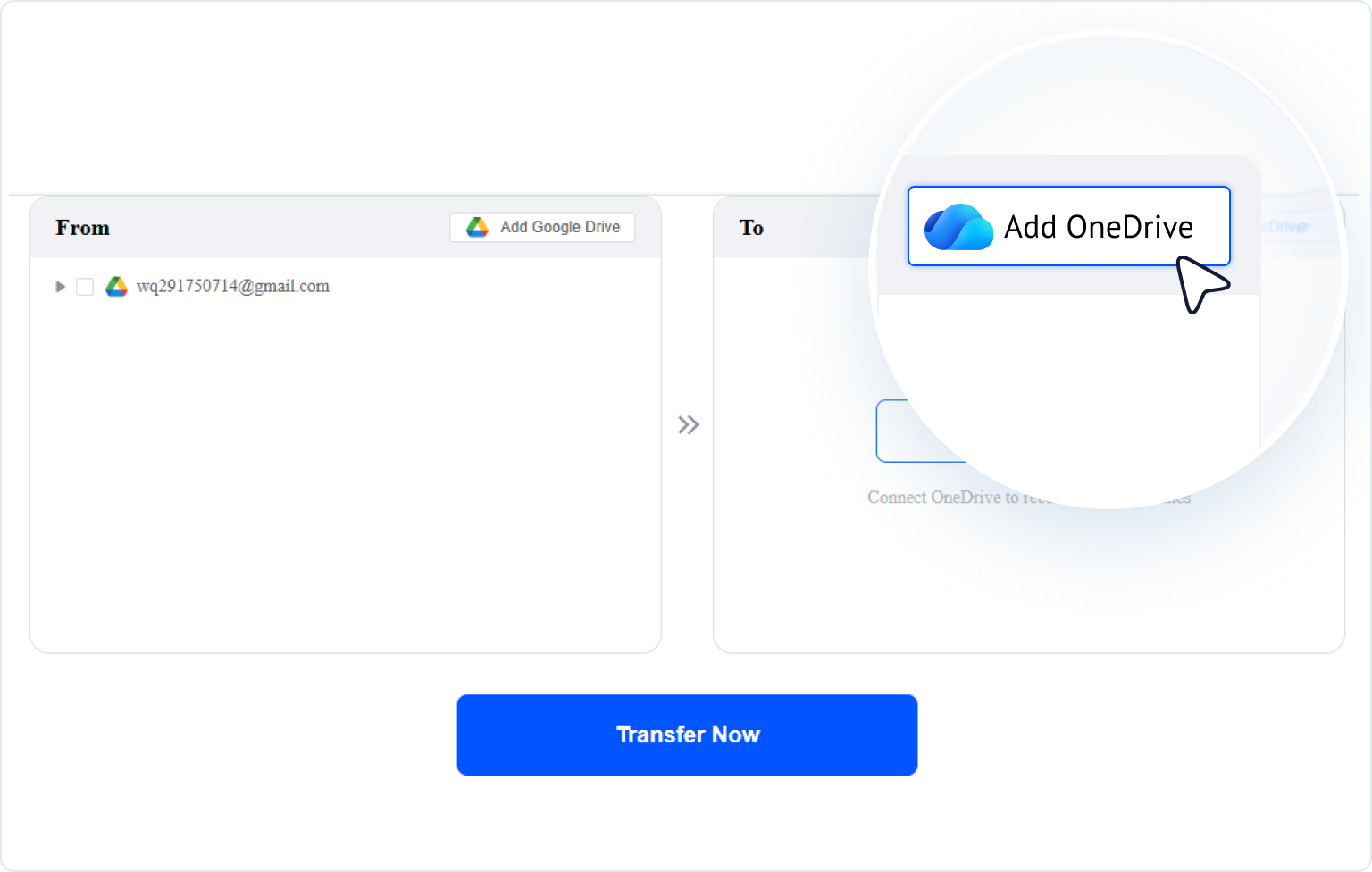
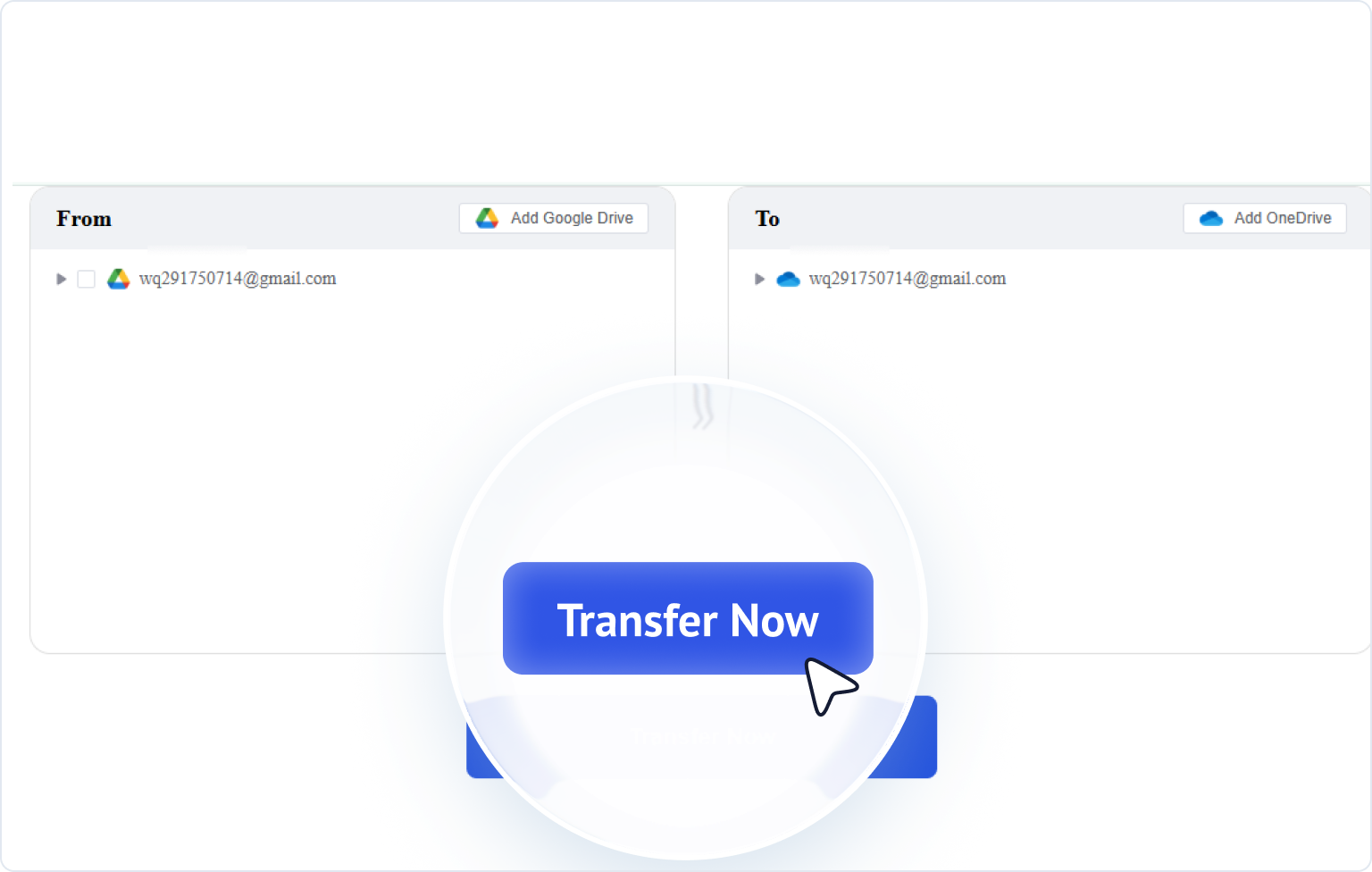
Can I migrate Google Drive to OneDrive without downloading?
Yes! With our service, you don’t need to download anything. The migration
happens server-to-server, so your files move directly from Google Drive to OneDrive without
using your computer’s bandwidth.
How long does it take to transfer files from Google Drive to OneDrive?
Transfer time depends mainly on the size and number of files, as well as the
connection speed between cloud servers. Since MultCloud performs migration online without using
your local device, tasks can continue running in the background even for very large folders or
media libraries.
Can I migrate only specific files or folders?
Absolutely. You don't have to move everything at once. You can freely
customize your transfer by selecting individual files, specific subfolders, or filtering by file
types and date ranges.
Is my data safe during migration?
Yes, your privacy and security are our top priorities. We connect directly to
your cloud accounts using official OAuth authorization, meaning we never see, handle, or store
your passwords. All data in transit is protected using standard industry-grade SSL/TLS
encryption. Furthermore, we only read and copy the files you select—your original files remain
untouched, and we never access, analyze, or share your private content.
Is there a way to sync Google Drive and OneDrive?
Yes. Although there is no direct built-in sync between them, you can set up automated continuous
or two-way
sync between Google Drive and OneDrive using third-party cloud tools like MultCloud.
Once configured, sync tasks run automatically on cloud servers without using local device
resources.
Which is better, OneDrive or Google Drive?
It depends on your primary ecosystem: OneDrive is better if you rely heavily
on Microsoft 365 desktop apps (Word, Excel) and Windows, offering seamless Office integration
and high value with M365 subscriptions. Google Drive wins for browser-based co-authoring,
real-time collaboration, and deep integration with Gmail and Android.
What happens to my duplicate files during the transfer?
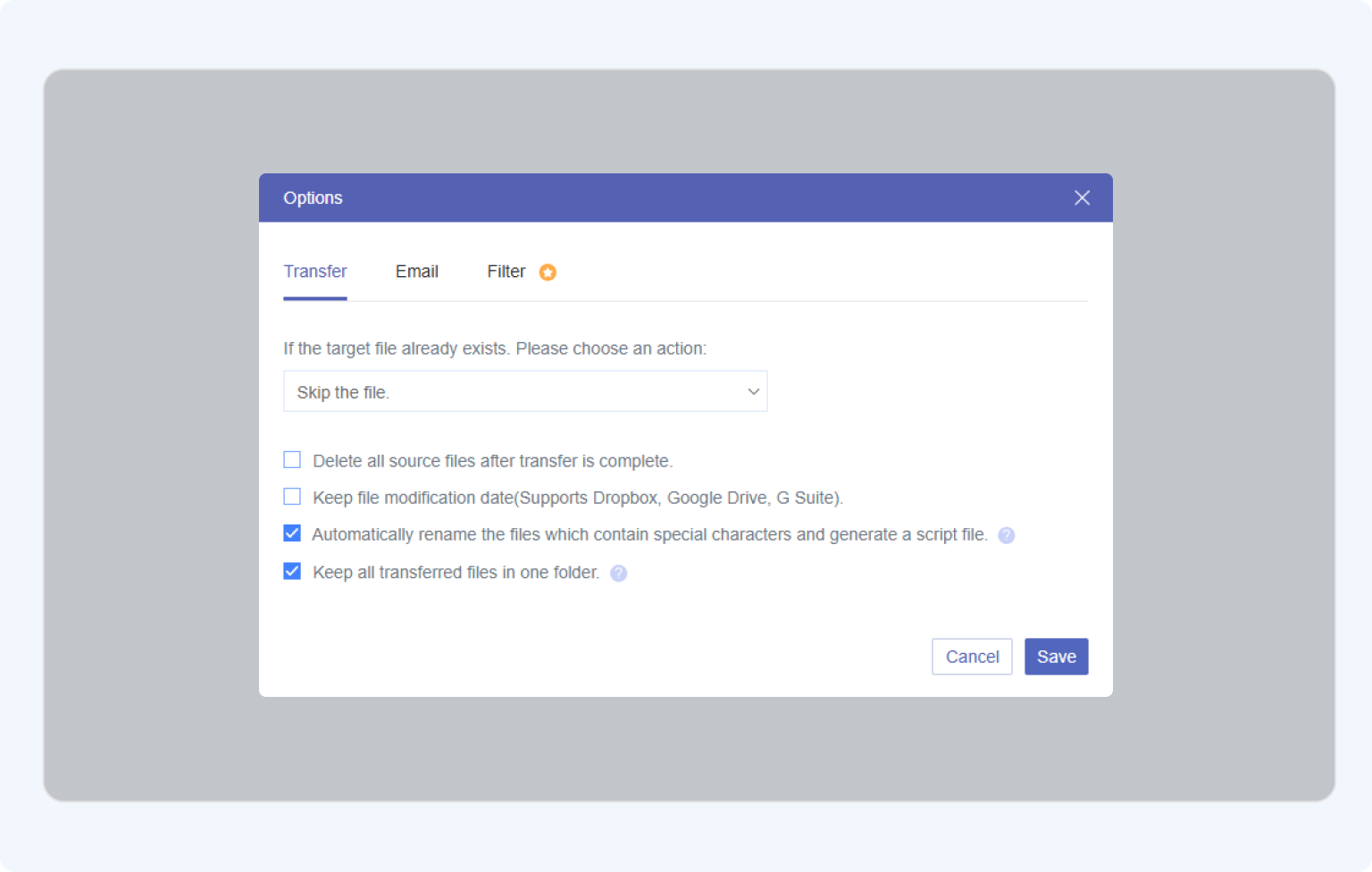
With MultCloud, you can set custom conflict rules before starting. Choose to
automatically skip duplicate files, overwrite older versions, or keep both by appending a number
to the filename.
Will my original files be deleted after the transfer is complete?
No, your source files remain completely untouched. The system only creates
copies in your destination account, giving you full control to manually delete the originals
whenever you are ready.



 Subscribed to Microsoft 365
 Running out of Google Drive storage
 Planning
to cancel Google One
Planning
to cancel Google One Wanting to
manage files through Windows and Office
Wanting to
manage files through Windows and Office

 Graduating or changing schools
 Their
school is switching to Microsoft 365
Their
school is switching to Microsoft 365 Their Google Workspace account is being deactivated
 Needing to
preserve course, research, or teaching files
Needing to
preserve course, research, or teaching files Their company is switching from Google Workspace to Microsoft 365
 The
company
is adopting OneDrive or SharePoint
The
company
is adopting OneDrive or SharePoint Their
work account is about to be deactivated
Their
work account is about to be deactivated Needing to
retain work materials with company authorization
Needing to
retain work materials with company authorization
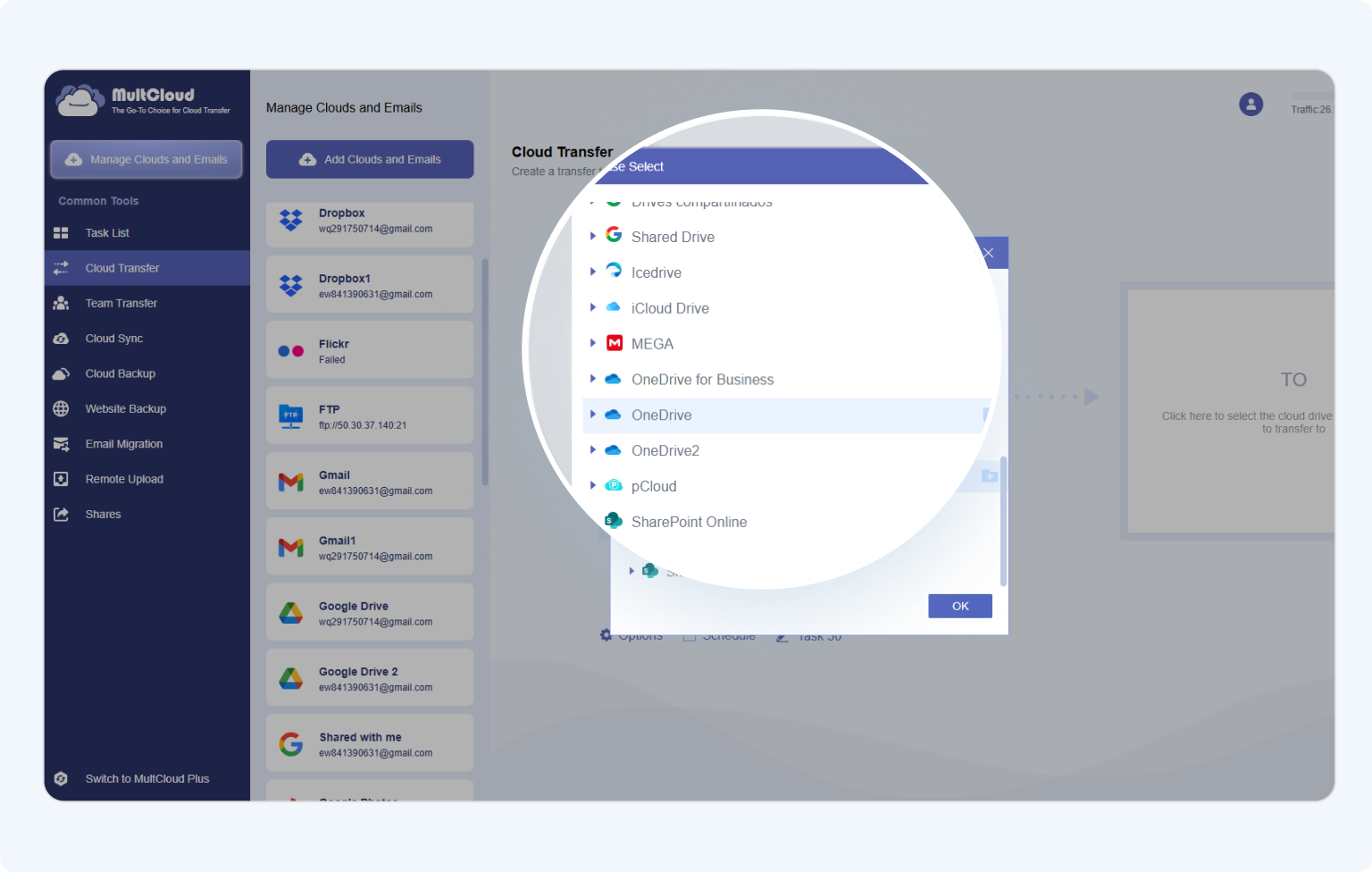
 Runs even when your device is off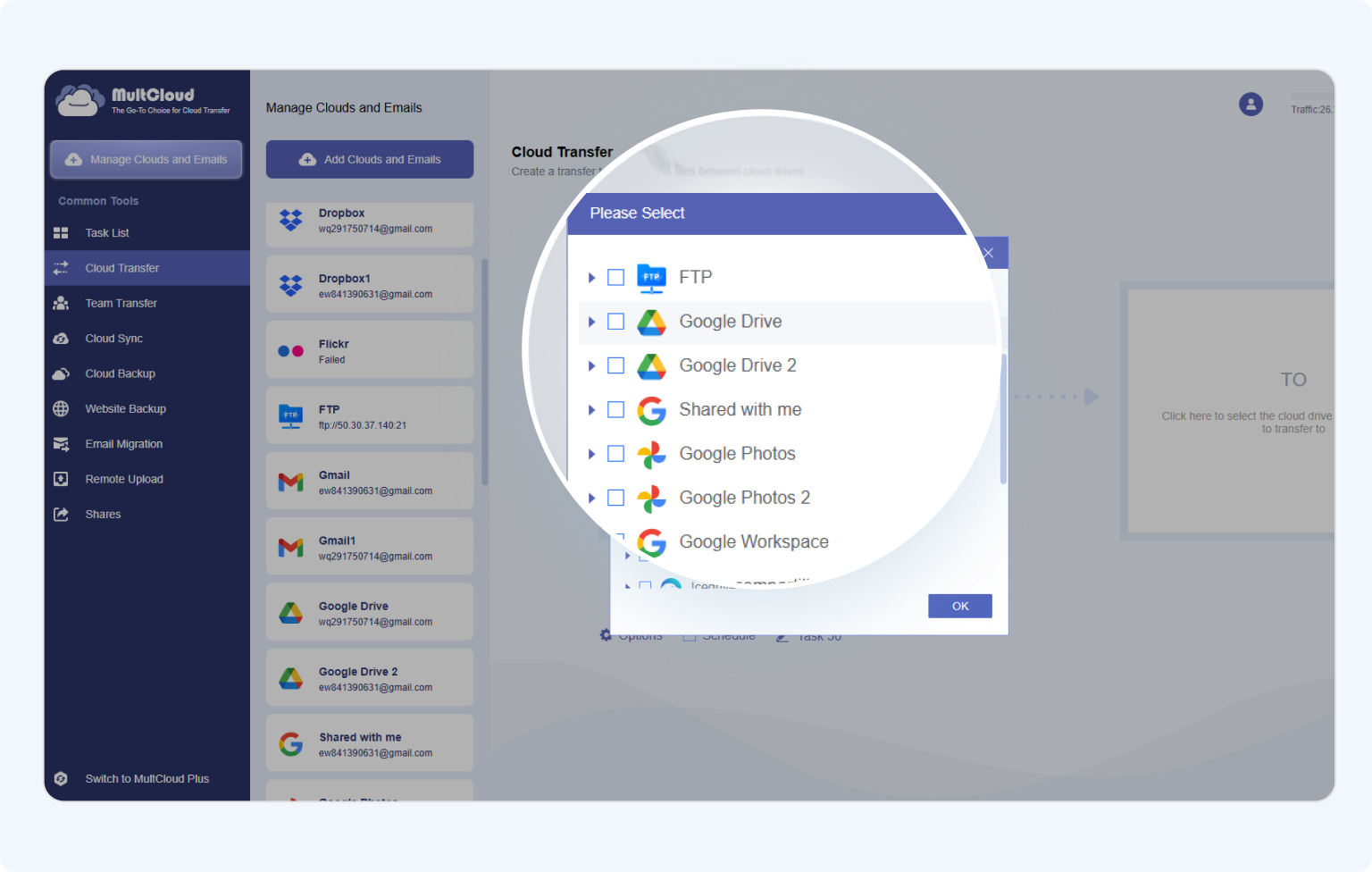
 Pro Tip:













 Google Docs
 Can be
converted
Can be
converted Google Sheets
 Google Slides
 Google Forms
 Cannot be imported
natively
Cannot be imported
natively Google Sites
 Google Maps
 Pro Tip: