

Quick Search:
User Case: Can You Sync Microsoft OneDrive with Google Drive
Is there a way I can transfer all of my OneDrive files to my Google Drive? And is there a way I can get them to sync with each other so new files go to both? For context, my school uses OneDrive, and I have been using it for school work for the past few years, but I prefer using Google Drive, which I use otherwise.
- Question from Reddit
Why Sync OneDrive to Google Drive?
OneDrive and Google Drive are smart and professional cloud services in the market. By syncing both platforms, you can access your files from either OneDrive or Google Drive, ensuring seamless access wherever you are, reducing the risk of data loss and enhancing data security.

Also, working with teammates across different platforms becomes easier as files are accessible and editable from both drives, allowing everyone to stay in sync. In this article, we will illustrate 3 useful methods to sync data between OneDrive and Google Drive. After reading, select the best solution based on your situation.
Compare All Methods to Sync OneDrive to Google Drive
In this post, you will find three ways to sync OneDrive to Google Drive, and we will now show you the situation for each method and its pros and cons, which will help you to decide which method to choose.
| Features | MultCloud | Download & Upload | OneDrive & Google Drive Desktop Apps |
|---|---|---|---|
| Best for | Users who need to automate the sync process, have large amounts of data, or want to sync files without using local storage or keeping their computer on. | Users with a very small number of files (e.g., less than 1GB total) and who do not need ongoing, automated sync. It’s a one-time, quick fix. | Users who regularly work with files on their local computer and want to have cloud files available offline. It creates a bridge between your local folders and the cloud. |
| How it works | MultCloud connects directly to both your OneDrive and Google Drive accounts and transfers data between them over the cloud. It runs on the service's servers, not your local machine. | Manually download the desired files/folders from OneDrive to the computer's local storage, and then upload them to Google Drive. | Install both the OneDrive and Google Drive desktop applications on the computer. Each creates a local folder that syncs with its respective cloud. Move or copy files from the OneDrive folder to the Google Drive folder, and the Google Drive app will upload them. |
| Pros | Fully Automated: Set up a one-time or scheduled sync (e.g., daily, weekly) and let it run automatically. Offline Operation: Tasks continue even if you close your browser or shut down your computer. Multiple Sync Modes: Offers flexible options like real-time, two-way, or mirror sync to fit different needs. Saves Local Resources: Does not use your bandwidth or hard drive space for the transfer. Secure: Data is encrypted during transit (e.g., with 256-bit SSL). |
Completely Free: No additional software or service costs involved. Full Control: You are in direct control of the files during the process. No Third-Party Access: No need to grant external applications access to your cloud accounts. |
Leverages Existing Tools: Uses the official, free desktop clients from Microsoft and Google. Offline Access: Files are available on your local hard drive, which can be useful for offline work. Easy for Small Transfers: It's simple to drag and drop a few files between the local folders. |
| Cons | Potential Cost: Most services offer a free tier (e.g., 5GB/month with MultCloud), but larger data volumes may require a paid subscription. Third-Party Dependency: You are entrusting a third-party service with access to your cloud accounts. |
Extremely Time-Consuming: For large data volumes, this can take days and requires constant manual attention. Requires Stable Internet: A dropped connection can interrupt the download or upload, causing errors. Uses Local Storage: You need sufficient free hard drive space to temporarily store the files. No Automation: This is a one-off action. New files added to OneDrive will not be automatically synced to Google Drive. |
Not a Direct Cloud-to-Cloud Sync: This method still requires downloading files to your computer (using your bandwidth and storage) and uploading them again. Consumes Local Storage: Both apps require significant local hard drive space, especially if you choose to sync all files. Manual Process: Like the download/upload method, this does not provide automated, scheduled syncing between the clouds. Requires Computer to Stay On: The sync will stop if your computer goes to sleep or is turned off. |
For 90% of users, the best choice is a professional cloud sync tool like MultCloud. It is the only method that truly solves the problem of keeping OneDrive and Google Drive in sync effortlessly.
Only choose the manual methods (Method 2 or 3) if:
- You have very little data (under 1 GB).
- You are sure you will never need this sync again.
- You have time to spare and don't mind a repetitive task.
How to Sync OneDrive to Google Drive Efficiently
The easiest and quickest way to sync files from OneDrive to Google Drive is to use a cloud sync service, MultCloud. MultCloud is a comprehensive cloud management tool that allows you to manage multiple cloud services in one place. It is compatible with over 30 popular cloud services, including Google Drive, OneDrive, Dropbox, iCloud Drive, iCloud Photos, and more.
You can access, organize, and manage files from different clouds with a single login, eliminating the need to switch between accounts. When syncing folders between cloud services, there are many virtues:

- Real-Time and Scheduled Sync: Sync files instantly or set up scheduled syncs to automate data transfers between cloud drives.
- Flexible Sync Modes: Offers multiple sync options, like one-way, two-way, incremental, and mirror sync, to meet various needs. If you want to sync Dropbox to iCloud in real-time, this feature helps a lot.
- Offline Sync: MultCloud consumes data traffic during the syncing process. So, don’t worry if your computer shuts down suddenly.
- Secure Data Sync: Ensures encrypted data transfers for safe and secure file syncing across cloud services.
- Easy-to-Use Interface: Simplifies the sync setup process with an intuitive design, making cloud-to-cloud syncing accessible for all users.
Then, follow the steps below to learn how to sync OneDrive to Google Drive via MultCloud:
Step 1: Register an account by visiting MultCloud’s official website. You can sign in directly with a Google, Apple ID, or Facebook account.
Step 2: Proceed to Add Cloud. All clouds that MultCloud supports will be shown on the main page. Simply tap the icon of OneDrive to add your account. Then permit MultCloud. Next, repeat the same steps to add Google Drive.
Step 3: Proceed to Cloud Sync, select the files/folders you want to sync from OneDrive as the source directory and choose Google Drive as the target directory. Finally, hit the Sync Now button.
- Notes:✎...
- Hit the Options button; you can select the syncing modes, such as Mirror Sync, Move Sync, Cumulative Sync, Update Sync, and so on. MultCloud offers an Email Notification feature. Once you enable it, MultCloud will send you an email notifying the task is finished.
- Additionally, you have the option to sync all or partial files from OneDrive. You can go to Filter and exclude/include files with certain extensions quickly and easily. To create automatic sync tasks, you can hit the Schedule button; then there are 4 options to choose from. For example, you can sync Google Drive with OneDrive daily.
- If you need to migrate unlimited files from one cloud to another, it's highly recommended to upgrade to a MultCloud advanced plan to enjoy, as well as all the premium features.
Can I move my OneDrive to Google Drive? Yes, MultCloud offers a cloud transfer feature, making it direct and seamless to transfer files between Google Drive and OneDrive seamlessly and effortlessly.
MultCloud- Access & Manage All Clouds Easily in One Platform
Cloud to Cloud Backup: Easily back up files from one cloud to another to keep backup versions, and then you can restore files with any version fast.
Cloud to Cloud Transfer: Transfer everything or selected files from one cloud to another efficiently, saving cloud space and effort.
Team Transfer: Migrate all sub-accounts from one business cloud to another business cloud to shorten the downtime.

How to Sync OneDrive to Google Drive Normally | 2 Ways
In this section, 2 simple solutions are provided to help you sync files from OneDrive to Google Drive, namely using the download-and-upload method and OneDrive/Google Drive’s desktop apps. Now, read below to learn the details.
Way 1: Download OneDrive Files and Upload to Google Drive
The traditional method is to download files from OneDrive and upload them to Google Drive. If you only want to sync a few files, this solution is helpful. However, you should make sure that the network connection is stable during the process. Or, it will be time-consuming and cumbersome.
Step 1: Sign in to your OneDrive account on the web.
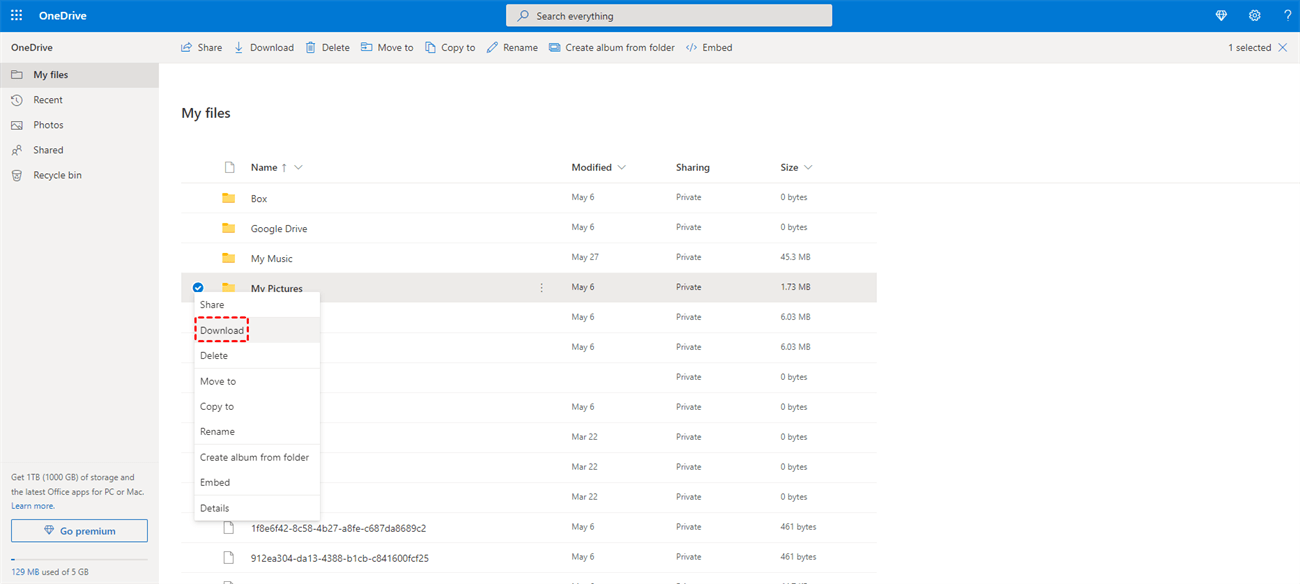
Step 2: Locate the file/folder you want to sync, right-click it, and select the Download button in the menu.
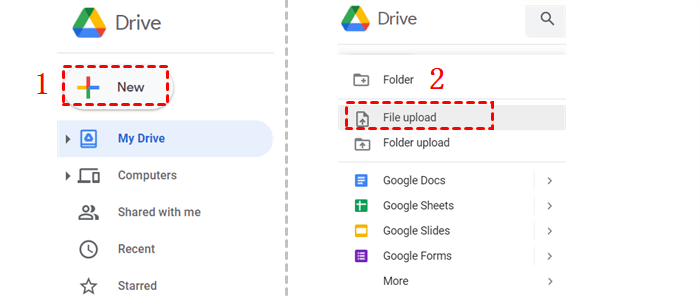
Step 3: Navigate to Google Drive. Then upload what you have downloaded to Google Drive.
Way 2: Utilize Desktop Apps to Sync OneDrive Folder to Google Drive
If you have downloaded the OneDrive and Google Drive apps on your desktop, you can use their client apps. Simply drag and drop OneDrive files to your desktop, then follow the steps below:
Step 1: Launch your Google Drive and head to Preferences.
Step 2: Head to My MacBook Pro/My computer > Sync with Google Drive. Then, local files can be synced to Google Drive automatically.
FAQs About Syncing OneDrive to Google Drive
1. Can I sync OneDrive and Google Drive in real-time?
Yes, if you use a third-party tool like MultCloud, it offers a real-time sync mode that automatically synchronizes changes as they happen. Manual methods like download/upload or using desktop apps do not provide real-time syncing.
2. Is it safe to use a third-party tool for syncing?
Reputable tools like MultCloud use 256-bit SSL encryption for data transfer, and they do not permanently store your files on their servers. Always review a service's privacy policy and security practices before granting access.
3. Will syncing files count against my storage limits on both services?
Yes. When you sync a 1GB file from OneDrive to Google Drive, it consumes 1GB of storage quota on both platforms. You should monitor your storage limits to avoid hitting capacity.
4. Can I sync specific folders instead of my entire drive?
Absolutely. Most sync tools, including MultCloud, allow you to select specific folders to sync rather than the entire cloud drive. This gives you better control and prevents unnecessary storage usage.
5. What happens if I edit a file on OneDrive and Google Drive at the same time?
This can cause a sync conflict, often resulting in duplicate files labeled as "conflicted copy". To avoid this, it's recommended to keep sync folders separate and avoid editing the same file across both platforms simultaneously.
6. Can I use Microsoft Power Automate to sync OneDrive to Google Drive?
Yes. Power Automate has templates like "Sync new OneDrive Files to Google Drive Files" that can automate the process. However, this method can be more complex to set up and may require troubleshooting.
7. Is there a way to merge OneDrive and Google Drive into one account?
No. You cannot merge the two accounts, but you can manage both through a single interface using a cloud management tool like MultCloud or by syncing both to your computer's File Explorer.
Final Words
That’s all about how to sync OneDrive to Google Drive. Anyway, if you want to complete the task as quickly as possible, you can utilize MultCloud, a free and reliable cloud sync service. Or, if you don’t want to use any third-party services, downloading files from OneDrive and uploading them to Google Drive can also be effective.
In addition, you can back up files from one cloud to another via MultCloud directly and effortlessly. It allows you to restore files after backing up, adding a layer of data protection. Similar to syncing and transferring, it offers a competitive backup speed. For instance, you are allowed to back up Google Photos to Synology NAS seamlessly.
MultCloud Supports Clouds
-
Google Drive
-
Google Workspace
-
OneDrive
-
OneDrive for Business
-
SharePoint
-
Dropbox
-
Dropbox Business
-
MEGA
-
Google Photos
-
iCloud Photos
-
FTP
-
box
-
box for Business
-
pCloud
-
Baidu
-
Flickr
-
HiDrive
-
Yandex
-
NAS
-
WebDAV
-
MediaFire
-
iCloud Drive
-
WEB.DE
-
Evernote
-
Amazon S3
-
Wasabi
-
ownCloud
-
MySQL
-
Egnyte
-
Putio
-
ADrive
-
SugarSync
-
Backblaze
-
CloudMe
-
MyDrive
-
Cubby

Stay Updated With Our
Latest Tips
Add us as a preferred source on Google to never miss helpful guides.
 Add as preferred source >>