

At A Glance:
About SharePoint Outlook Integration
Outlook for emails, SharePoint for documents—juggling both kills productivity. SharePoint Outlook integration solves that by creating a unified workspace where everything connects. This guide walks you through setup, troubleshooting, and the simplest way to migrate Outlook emails to SharePoint using MultCloud.
Why Integrate SharePoint with Outlook?
SharePoint Outlook integration essentially means connecting Microsoft's document management and collaboration platform with its email and calendar client.
SharePoint is Microsoft's web-based collaboration platform. Organizations use it to store, organize, share, and access information from any device. It's where teams keep project documents, meeting notes, policies, and all the institutional knowledge that keeps things running.

Outlook, on the other hand, is where the daily communication happens. Emails, calendar invites, tasks—it's the command center for most knowledge workers.

These two worlds don't naturally overlap. Without integration, you're manually saving attachments, copying calendar events, and duplicating work across platforms.
By connecting SharePoint and Outlook, you can perform SharePoint Outlook email integration by allowing users to save emails to SharePoint directly from Outlook, without relying on manual processes. This means better compliance, less knowledge loss, and more organized collaboration.
How to Set Up SharePoint Outlook Integration Step by Step
Setting up the connection isn't complicated, but you need to follow the right steps.
Prerequisites for Seamless SharePoint Integration in Outlook
Before you start, make sure you have the required permissions and licenses:
⭕ Contribute or higher permissions on the SharePoint site or library you want to connect to.
⭕ The SharePoint site must be accessible from your network.
Connect SharePoint Document Libraries to Outlook
Here is how to add SharePoint libraries as Outlook Folders:
1. Open your SharePoint site in a browser.
2. Navigate to the document library you want to connect to.
3. Click the "Library" tab in the ribbon.
4. Select "Connect to Outlook".
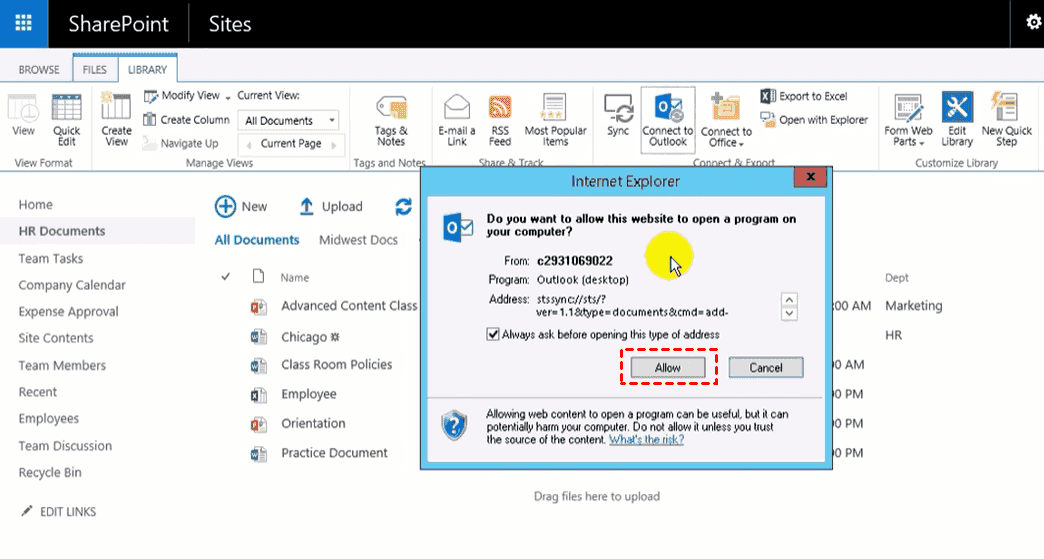
5. When prompted, click "Yes" to confirm.
The library will appear as a folder in your Outlook navigation pane. You can browse, open, and save files just like any other folder.
Once connected, Outlook syncs with SharePoint periodically. You can adjust sync settings in Outlook's account settings. For offline access, files are cached locally so you can work without an internet connection.
Link SharePoint Lists and Calendars with Outlook
The process is similar for other SharePoint content.
1. Navigate to the SharePoint calendar.
2. Click the "Calendar" tab at the top left of the screen.
3. Select "Connect to Outlook".
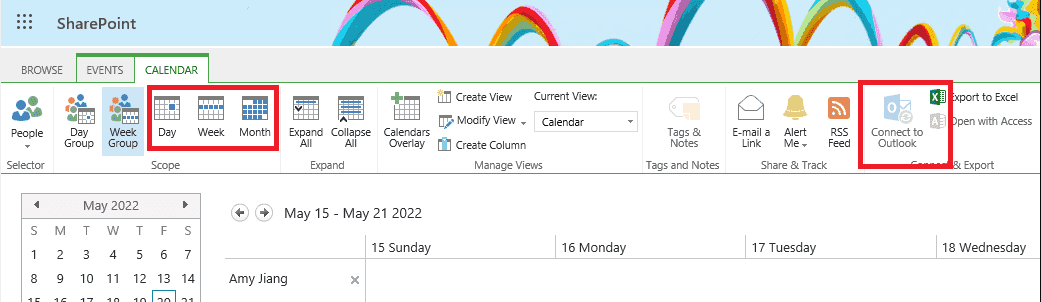
4. Confirm the connection when prompted.
The calendar appears under "Other Calendars" in Outlook.
Troubleshooting Common Issues for SharePoint Outlook Integration
Even with careful setup, things can go wrong. Here's how to fix the most common problems.
Resolve Sync Errors and Connection Failures
Check Network and Authentication Settings
Most sync issues trace back to authentication problems. Make sure you're signed into both SharePoint and Outlook with the same Microsoft 365 credentials. Check that your SharePoint site is listed under "Connected Services" in your Office Account page.
Update Outlook and SharePoint Clients
Outdated software causes all kinds of problems. Go to File > Office Account > Update Options > Update Now to ensure you're running the latest version.
Fix Missing Folders or Calendar Items
Recover Lost Data After Sync Interruptions
If a SharePoint calendar stops syncing, remove it from Outlook and re-add it. This recreates the connection and often resolves the issue.
If a SharePoint list won't connect, the list itself might be the problem. Try connecting to a different list to see if the issue persists.
Use Built-in Diagnostics Tools
Outlook and SharePoint both have diagnostic tools. In Outlook, check the "SharePoint Lists" tab under Account Settings to see connected lists and remove problematic ones.
Fast SharePoint Outlook Email Integration via MultCloud
If you need to integrate Outlook emails into SharePoint Online, it’s not easy for you. Because Power Automate only allows you to migrate newly arrived Outlook emails to SharePoint instead of everything, or you have to do it manually. So, how to perform SharePoint Outlook integration?
Fortunately, here comes the powerful all-in-one web-based multiple cloud storage manager, MultCloud, to do you a big favor.
MultCloud stands out for several reasons:
- Direct transfer: Moves emails from Outlook to SharePoint without the download-and-upload hassle.
- Email Migration feature: Converts emails to PDF files and saves them directly to SharePoint Online.
- Supports multiple platforms: Works with Outlook, SharePoint, Gmail, Google Drive, OneDrive, and 30+ clouds.
- User-friendly: No technical expertise required to create migration tasks.
- Flexible: Supports email migration settings, email notification, removing watermarks, scheduling tasks, etc.
Here is how to migrate Outlook emails to SharePoint Online with MultCloud:
1. Create a MultCloud Account for free and then log in. The free tier gives you 5 GB of monthly data transfer—enough to get started.
2. Add Outlook and SharePoint separately by hitting Add Clouds and Emails on the MultCloud Dashboard.
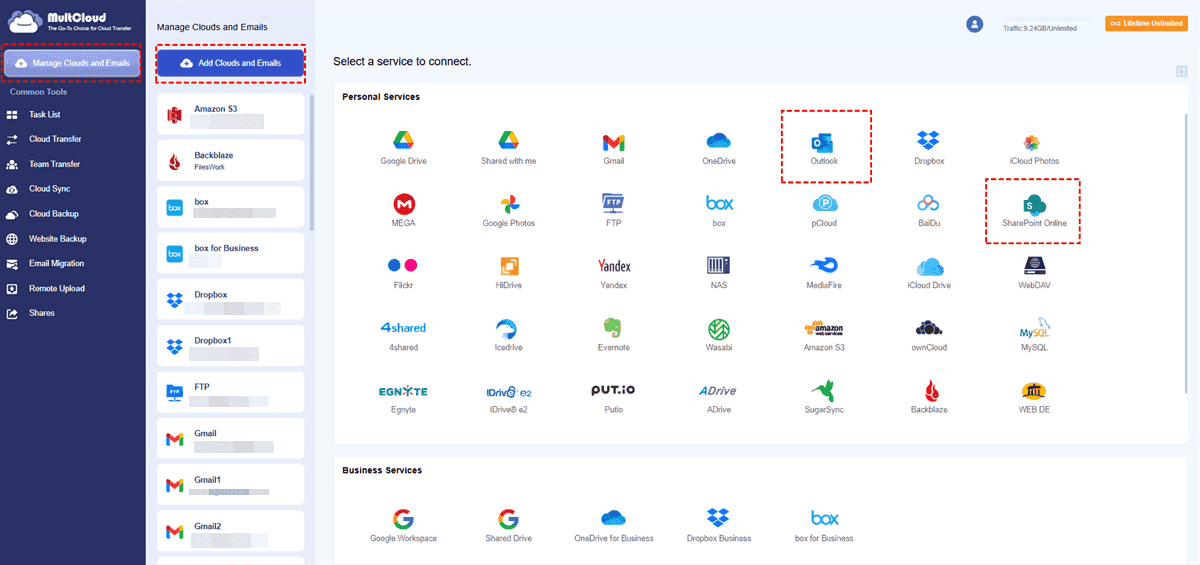
3. Tap Email Migration, choose your Outlook emails as the source and a folder in SharePoint Online as the destination.
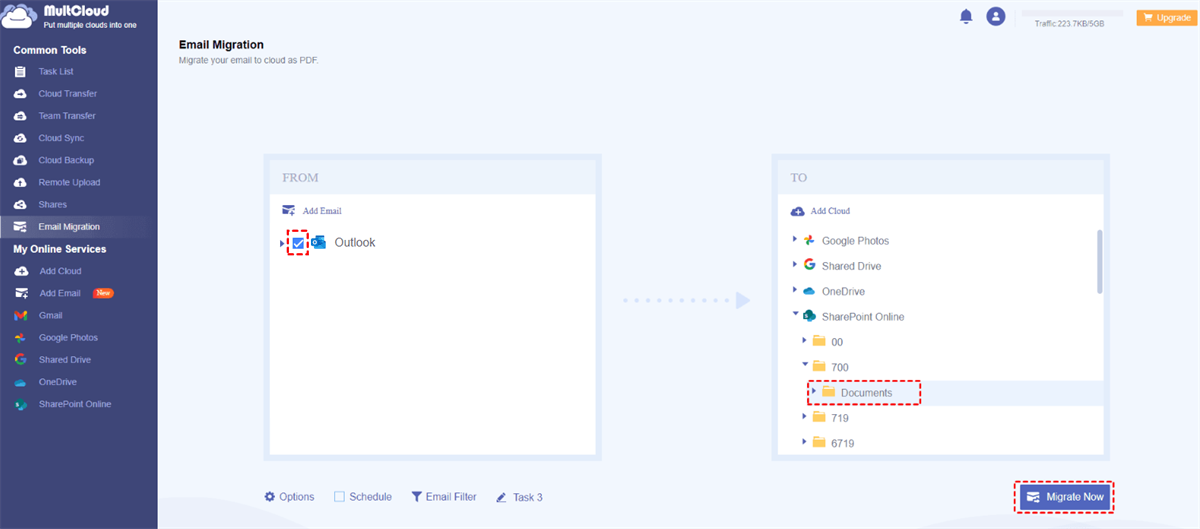
4. Set up settings in Options, Schedule, and Email Filter, then hit Migrate Now to migrate Outlook emails to SharePoint Online.
- Notes:✎...
- You can set up email migration settings, notifications, and remove the watermark in Options. Or you can integrate Outlook emails and attachments all at once to SharePoint Online with the Save Attachments option. Besides, you can automatically run the email migration, like once, daily, weekly, or monthly.
- Within Email Filter, filter emails by date, sender, receiver, unread, etc, easily to move these Outlook emails fast.
- MultCloud's Email Migration function can save your Outlook emails (up to 200 emails at a time) to SharePoint Online. The emails are converted to PDF files, making them easy to preview without opening another app.
- For larger migrations, consider upgrading to a MultCloud paid plan for more data traffic and additional features.

- Smart Share: Share cloud files via public, private, or source mode.
- One-key Move: Quick data transfer, sync, and backup among clouds.
- Email Archive: Protect emails to other clouds or local disks.
- Remote upload: Effectively save web files to clouds via URL.
- Safe: Full-time 256-bit AES and OAuth authorization protections.
- Easy: Access and manage all clouds in one place with one login.
- Extensive: 30+ clouds and on-premise services are supported.
FAQs About SharePoint Outlook Integration
How do I save an email from Outlook to SharePoint?
A: With integration, drag and drop emails directly into SharePoint folders in Outlook. For bulk moves, use MultCloud's Email Migration feature to automate the process efficiently.
Can I sync my SharePoint calendar with Outlook?
A: Yes. Open the SharePoint calendar, click the "Calendar" tab, and select "Connect to Outlook". It will appear under "Other Calendars" in Outlook.
Why isn't my SharePoint calendar syncing with Outlook?
A: Common causes: authentication issues, corrupted connections, or outdated software. Remove and re-add the calendar. Also verify you're signed into both platforms with the same account and that Office apps are updated.
Is it safe to use third-party tools like MultCloud for email migration?
A: MultCloud uses OAuth authentication and doesn't store your credentials—it only connects your accounts without holding data. Still, always review any third-party tool's security practices before use.
How long does it take to migrate Outlook emails to SharePoint?
A: Depends on volume. Small migrations (hundreds of emails) take minutes; large ones (thousands) may take hours. MultCloud runs in the cloud, so the process continues even when your device is offline.
What happens to my email formatting when migrated to SharePoint?
A: With MultCloud, emails convert to PDF files while preserving original formatting, making them readable on any device without Outlook.
Can I automate Outlook to SharePoint email saving?
A: Yes. Set up Outlook rules to sort emails into folders, then use MultCloud's scheduled transfers to automatically move them to SharePoint regularly.
The End
SharePoint Outlook integration isn't just a nice-to-have—it's a must-have for teams serious about productivity. Whether you're saving emails, syncing calendars, or managing tasks, the connection between Outlook and SharePoint transforms how your team works.
Tools like MultCloud make the transition painless. Just a direct, efficient path from your Outlook inbox to your SharePoint libraries. Besides, you can also migrate files between FTP servers, migrate website to Google Drive, Dropbox, OneDrive, and other clouds directly without downloading, save Instagram videos and images, etc.
MultCloud Supports Clouds
-
Google Drive
-
Google Workspace
-
OneDrive
-
OneDrive for Business
-
SharePoint
-
Dropbox
-
Dropbox Business
-
MEGA
-
Google Photos
-
iCloud Photos
-
FTP
-
box
-
box for Business
-
pCloud
-
Baidu
-
Flickr
-
HiDrive
-
Yandex
-
NAS
-
WebDAV
-
MediaFire
-
iCloud Drive
-
WEB.DE
-
Evernote
-
Amazon S3
-
Wasabi
-
ownCloud
-
MySQL
-
Egnyte
-
Putio
-
ADrive
-
SugarSync
-
Backblaze
-
CloudMe
-
MyDrive
-
Cubby


Stay Updated With Our
Latest Tips
Add us as a preferred source on Google to never miss helpful guides.
 Add as preferred source >>