
Can I Disable Google Drive App?
It is possible to disable Google Drive app on your device, particularly on Android tablets and smartphones where it is frequently pre-installed. Disabling an application doesn't erase your data or Google Drive account, but it stops it from syncing files, running in the background, or using system resources. Remember that disabling an app is not the same as uninstalling it; the app stays on your device but is no longer functional.
What Will Happen If I Disable Google Drive?
When the Google Drive app is disabled, it exits the app drawer and stops running background services. This is what occurs:
- No Syncing: The cloud will no longer automatically sync your files.
- No Access via App: The app will not allow you to view or open files.
- Storage is Unaffected: All of your Google Drive files are still secure and available on other devices or through a browser.
- Other Apps Could Be Affected: Applications that depend on Drive for file access or backup might not work correctly.
Make sure you're not breaking any company rules or interfering with any automated backups if you disable it on a work or school device.
Migrate Files from Google Drive to Another Place before Disabling It
It is possible that disabling Google Drive leads to data loss. Therefore, it is recommended to migrate your files from Google Drive to another place, such as a local drive, an external hard drive, or a cloud drive. If you also use OneDrive, iCloud Drive, Dropbox, pCloud, SharePoint, or other clouds, you can consider migrating files to one of them with MultCloud, a professional cloud file transfer service.

MultCloud helps create an automatic transfer task between Google Drive and another cloud. It means you do not have to transfer files by downloading and uploading. Moreover, if you have multiple Google Drive accounts, you can transfer files from them at the same time, since MultCloud Cloud Transfer supports multiple sources in one task.
If you have a large number of files that need to be migrated from Google Drive, you do not need to wait for the task to be completed with your computer on, because MultCloud tasks can run offline.
Google Drive to OneDrive Migration Example
Step 1. Enter the MultCloud website and sign up for an account.
Step 2. Add Google Drive to MultCloud by clicking “Add Cloud” and the Google Drive logo. Then, you will log in to your account and allow MultCloud to access it in the pop-up window. Of course, add OneDrive to MultCloud with the same step.
Step 3. Select the “Cloud Transfer” function. Then, choose Google Drive in the FROM box and OneDrive in the TO box.
Step 4. Open “Options” to check the transfer settings. Then, tap “Transfer Now” to initiate the task.
Note: There are some options in Cloud Transfer that you can add to your task.
- Email: If you want to know if the transfer task is done in time, you can check the Email options and enter your email address to receive the notification.
- Filter: If there are files you want to ignore, you can select them with Filter by file extensions.
- Schedule: If you want to start this task at another time, you can schedule it. This feature also benefits from setting a transfer frequency.
How to Disable Google Drive App
In the previous parts, you already know the answer to "Can I disable Google Drive app?" If you are ready to disable Google Drive app on your device, here are the steps you can take as a reference.
On Android:
Step 1. Open the Settings app on your phone.
Step 2. Go to Apps or App Management.
Step 3. Find Google Drive and tap to open it.
Step 4. Tap "Disable" to make Google Drive nonfunctional.
Step 5. Confirm the action.
Note: On some devices, this option might be unavailable if the app is essential to the system. In such cases, you may only be able to force stop or remove updates.
On iOS:
Unlike some Android phones that allow you to disable the Google Drive app, iPhone or iPad do not support disabling. However, you can choose to offload or delete this app. To do so on iPhone:
Step 1. Go to Settings on your device.
Step 2. Open General > iPhone Storage.
Step 3. Find Drive and tap to open it.
Step 4. Choose to offload or delete this app.
- Offload: This app will be removed from your iPhone to free up space. However, the data and documents will be kept. When you re-download this app, the previous data will still be available.
- Delete: This action will delete both the app and data, and it cannot be undone.
On PC/Mac:
It is the same that you cannot disable Google Drive on PC. However, you can quit Google Drive, disable auto-start, or disable sync for some folders to make Google Drive nonfunctional. If you do not need Google Drive anymore, you can uninstall it.
Option 1: Quit Google Drive Manually
► Windows & Mac
Step 1. Click the Google Drive icon in the system tray (Windows) or menu bar (Mac).
Step 2. Click the gear icon for “Settings”.
Step 3. Select "Quit" or "Exit Google Drive".
Option 2: Disable Auto-Start at Login
► Windows
Step 1. Right-click the Google Drive icon in the system tray.
Step 2. Click the gear icon > Preferences.
Step 3. Under “Settings”, uncheck “Launch Google Drive when you login to your computer” on system startup.
Step 4. Click “Done”.
► Mac
Step 1. Open System Settings > General > Login Items.
Step 2. Find Google Drive in the list.
Step 3. Click the minus button to remove it from startup.
Option 3: Disable Sync for Specific Folders
If you want to keep the app installed but stop syncing certain folders:
Step 1. Open Google Drive Preferences.
Step 2. Go to My Computer > Uncheck the folders you no longer want to sync. You can also pause syncing entirely from the gear icon > Pause Syncing.
Option 4: Uninstall Google Drive
► Windows
Step 1. Open Settings > Apps.
Step 2. Select Google Drive and click Uninstall to remove Google Drive from your PC.
► Mac
Step 1. Go to the Applications folder.
Step 2. Select Google Drive and right-click on it. Then, choose "Move to Trash".
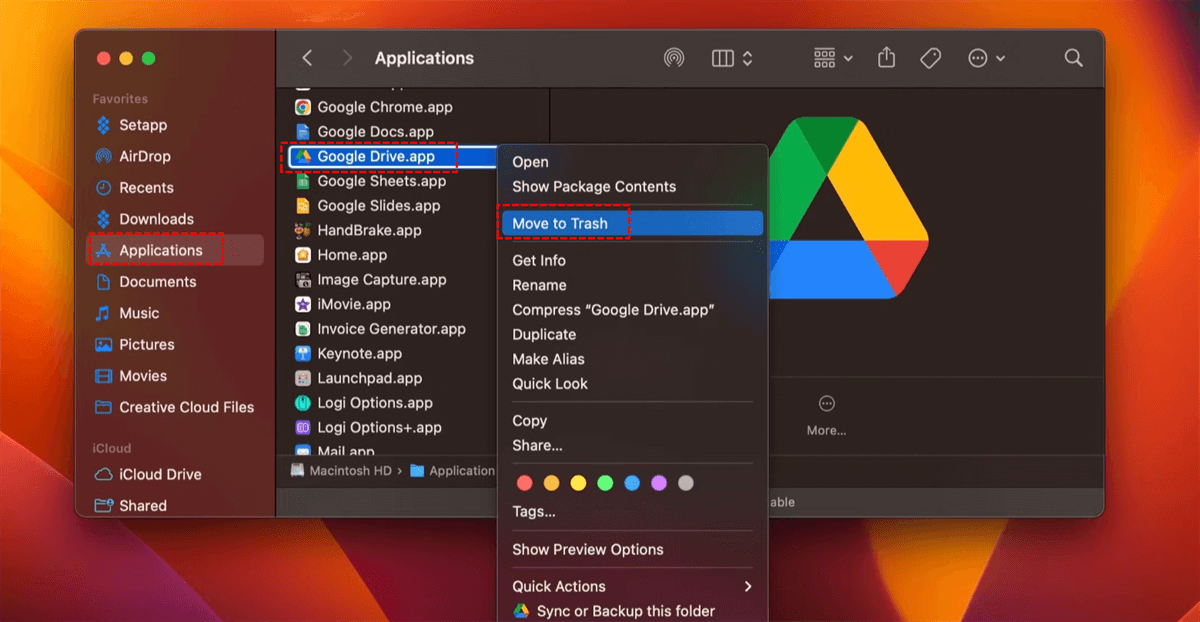
Step 3. Empty the Trash.
Conclusion
Can I disable Google Drive app? If you are using an Android device, you can disable it with a clear “Disable” button. However, you cannot directly disable it on your iPhone, PC, or Mac. Luckily, there are some workarounds, such as deleting the app, stopping syncing, or quitting it. Choose the way you prefer the best and try the steps!
Before disabling Google Drive, it is recommended to migrate or back up files to another place to avoid data loss. If you plan to migrate files from Google Drive to Dropbox, IceDrive, IDrive, or another cloud, MultCloud can be the most considerable helper since it helps create automatic tasks.
MultCloud Supports Clouds
-
Google Drive
-
Google Workspace
-
OneDrive
-
OneDrive for Business
-
SharePoint
-
Dropbox
-
Dropbox Business
-
MEGA
-
Google Photos
-
iCloud Photos
-
FTP
-
box
-
box for Business
-
pCloud
-
Baidu
-
Flickr
-
HiDrive
-
Yandex
-
NAS
-
WebDAV
-
MediaFire
-
iCloud Drive
-
WEB.DE
-
Evernote
-
Amazon S3
-
Wasabi
-
ownCloud
-
MySQL
-
Egnyte
-
Putio
-
ADrive
-
SugarSync
-
Backblaze
-
CloudMe
-
MyDrive
-
Cubby


Stay Updated With Our
Latest Tips
Add us as a preferred source on Google to never miss helpful guides.
 Add as preferred source >>