

Why You Need to Transfer Weebly Site to WordPress?
Weebly is a beginner-friendly website builder, but it may become limiting as your website grows. Many users choose to Transfer Weebly site to WordPress to get more flexibility, customization options, and control over your website.

- Here are the main reasons to move from Weebly to WordPress:
- More customization options: WordPress provides thousands of themes and plugins, allowing you to customize your website design, features, and functionality beyond Weebly's built-in options.
- Better SEO control: WordPress offers more advanced SEO tools, letting you optimize page titles, URLs, metadata, site structure, and other factors that can improve your search visibility.
- Greater ownership and flexibility: Unlike a hosted website builder, WordPress allows you to choose your hosting provider, manage your website files, and expand your site as your needs change.
- More opportunities to grow: Whether you want to add an online store, membership features, or advanced website functions, WordPress provides a wider range of solutions through plugins and integrations.
Much like Wix to WordPress, there is no official one-click method to transfer your Weebly site to WordPress. As a closed proprietary SaaS platform, Weebly uses a unique underlying architecture and exclusive data formatting that is entirely incompatible with open-source WordPress's database and file systems. Essentially, this means you are rebuilding your website from scratch on WordPress.
What you Need to do Before Transferring
Since Weebly does not provide a direct one-click migration to WordPress, preparing your website before the transfer can help prevent data loss and make the migration process smoother. Before rebuilding your site on WordPress, take time to organize your existing content and set up the necessary WordPress environment.
1️⃣ Create a backup of your Weebly content: Save important website content, including text, images, blog posts, and other media files, so you have a copy available during the migration process.
2️⃣ Make a list of your existing website elements: Record your important pages, blog posts, navigation menus, forms, and other features that need to be recreated in WordPress.
3️⃣ Plan your URL structure: Check your existing Weebly URLs and decide whether you can keep the same structure in WordPress. Maintaining consistent URLs or setting up redirects can help reduce the impact on SEO.
How to Transfer Weebly Site to WordPress Step by Step [3 Ways]
After preparing your Weebly content and setting up a migration plan, you can start transferring your website to WordPress. Since Weebly and WordPress use different systems, the process mainly involves exporting your existing content, importing it into WordPress, and rebuilding parts of your website structure.
Initial Step: Choose a WordPress Hosting Provider
Before moving your content, you need a place to host your new WordPress website. Unlike Weebly, WordPress requires separate hosting to store your website files and database. You need to purchase a WordPress hosting provider and download WordPress using the one-click installation if available.
Complete the basic WordPress setup, including your site title, admin account, and password. Log in to your WordPress dashboard to prepare for content migration.
Method 1. Using the weeblytowp Tool
Weebly does not provide a complete website export package that can be directly imported into WordPress. However, you can still transfer most important content, such as blog posts, by using available export methods.
weeblytowp open-source utility is developed by Automattic, the parent company behind WordPress. It extracts site content from Weebly and many other closed proprietary platforms, then outputs standard WordPress WXR or RSS files. These files store your core website content as well as complete structural data for seamless importing.
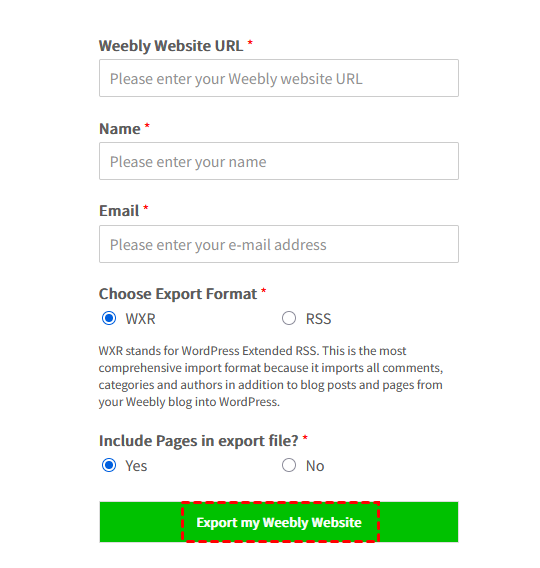
- Enter your Weebly site URL, your name, email and choose which export format you want, include or exclude Pages in the export file, then click "Export my Weebly Website" to start the process.
- ★Tips:
- For the export format, WXR is recommended choice. It is a structured XML file built specifically for migrating content between separate WordPress sites, storing nearly all site data including posts, pages, comments, and user profiles.
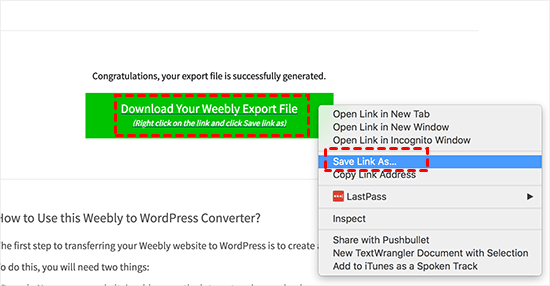
- Once the process is completed, right click on the "Download Your Weebly Export File" > "Save Link As" to download the export.xml to your local drive.
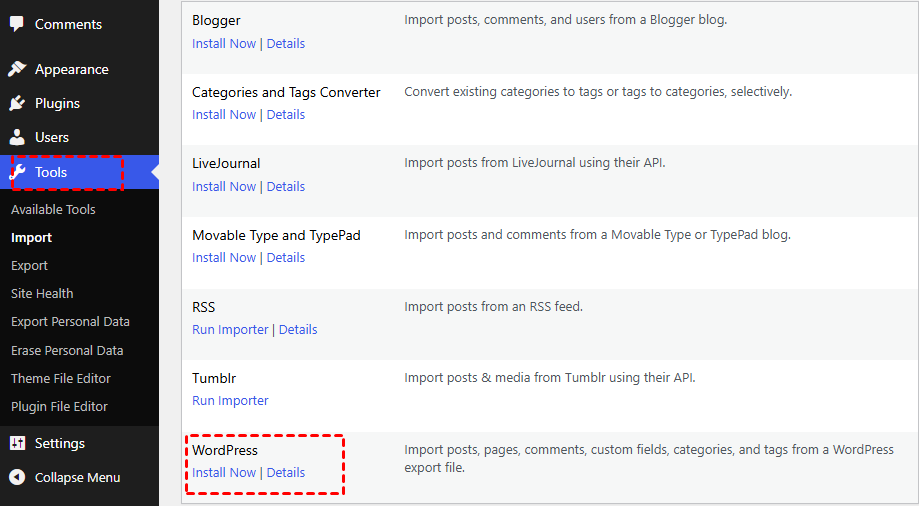
- Go back to WordPress, head to "Tools" > "Import" and locate "WordPress", then click "Install Now".
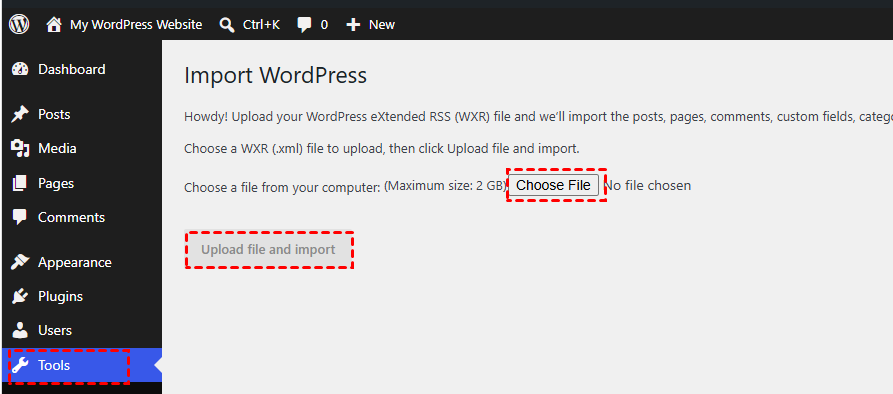
- Once installed, click "Run importer" to start the process. Click "Choose File" to add the downloaded XML file and click the "Upload file and import" button.
- On the import WordPress window, check the box of "Download and import file attachments" and "Change all imported URLs that currently link to the previous site so that they now link to this site", then click "Submit". This allows WordPress to automatically download and import all images from your Weebly blog posts into the Media Library, while updating every internal link within posts and pages to point to their new URLs.
When the process is finished, you can check your Posts, Pages, or Media Library to check if everything came through correctly.
Method 2: Using RSS Feed and Feedzy Plugin
For website with a large volume of blogs, RSS feeds provide another way to move posts from Weebly to WordPress. But note that RSS feeds only include your blog posts, won't bring over static pages, comments, categories or your full site framework. If you have key pages such as About Us, Contact or Service pages on your site, you'll need to build those manually once you finish importing posts.
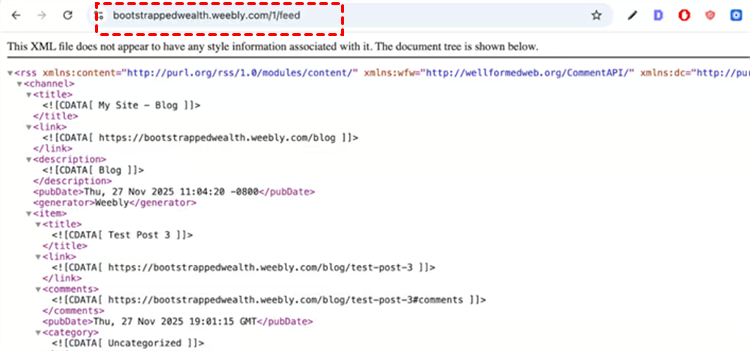
- Visit your Weebly domain and end in /1/feed. If your site hosts multiple blogs, enter https://yourdomain.com/1/feed, and continue incrementing the number for additional blog feeds.
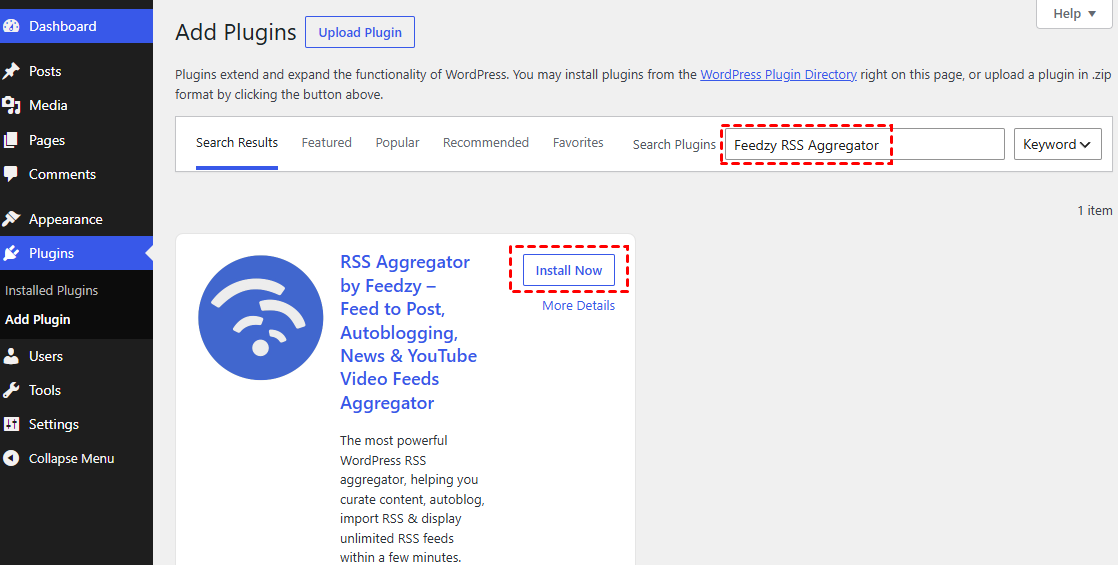
- Install and activate Feedzy RSS Aggregator plugin on WordPress.
- Navigate to "Plugins" > Feedzy" > "Import Posts" > "New Import". Enter the import name and your Weebly RSS feed URL in the "Source" field. Scroll down to expand other fields and assign more elements based on your needs.
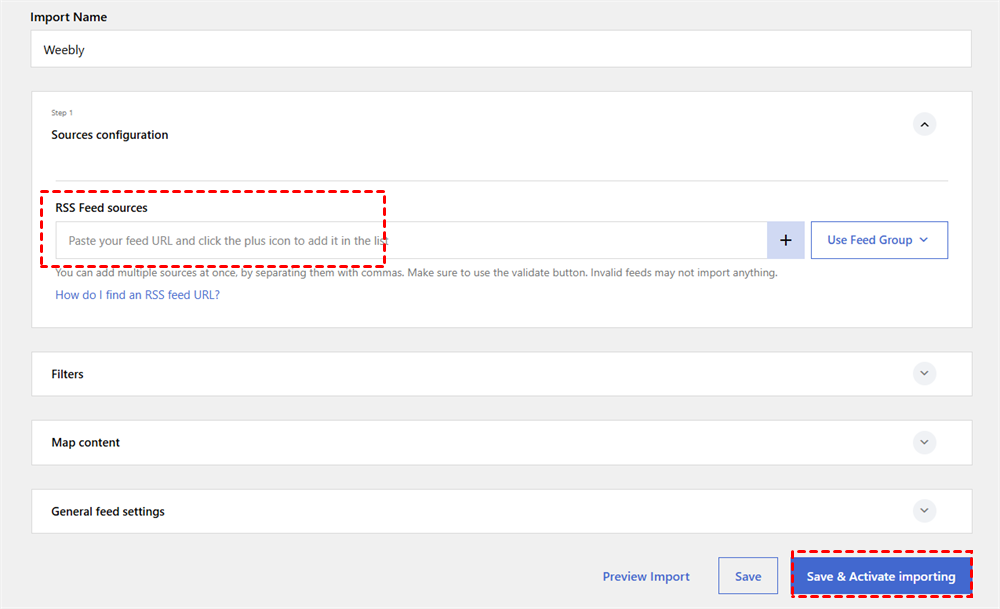
- Once all configurations are complete, click "Save & Activate importing" to create and start the importing. Feedzy will retrieve your RSS feed data and generates corresponding WordPress posts automatically.
After the process is completed, you can access the posts to check the contents is intact. Since RSS feeds do not carry static page data, you will need to create pages manually and copy over all content from your original Weebly pages. Repeat this workflow for every page on your site.
- If you run an ecommerce store on Weebly, you can export and import products data via a CSV file easily:
- Open your Weebly dashboard, head to "Items" > "Site items", click the three-dot button and "Export". This will export a CSV file with your items data in your email box. You can also import the CSV file to WordPress using the WooCommerce plugin.
Method 3. Manually Migrate Weebly to WordPress
Alternatively, you can migrate your Weebly site to WordPress entirely manually. Though this method is extremely time-consuming, it grants you full control over every individual page. All you need to do is copy content from your Weebly site piece by piece and paste it into WordPress.
Before the transferring, you need to create bulk of pages and posts in WordPress. To speed up the process, you can try the plugins like Bulk Page Creator which can bulk-generate multiple WordPress pages at once. Next, simply copy and paste content from each page of your Weebly site and transfer it bit by bit.
- ★Tips:
- This approach works perfectly for small-scale websites, yet it is clearly not the most efficient solution for large sites with abundant content.
Final Step: Set up Permalinks and Redirects
Unlike blog posts, Weebly pages like Home, Contact, Service, etc. and layouts usually cannot be imported automatically. You need to rebuild these elements using WordPress tools follow the steps in method 3. After moving all Weebly contents to WordPress, maintaining your website URLs is important for both visitors and SEO. Changing URLs without proper redirects may result in 404 links and ranking drops.
👉 Set up Permalinks:
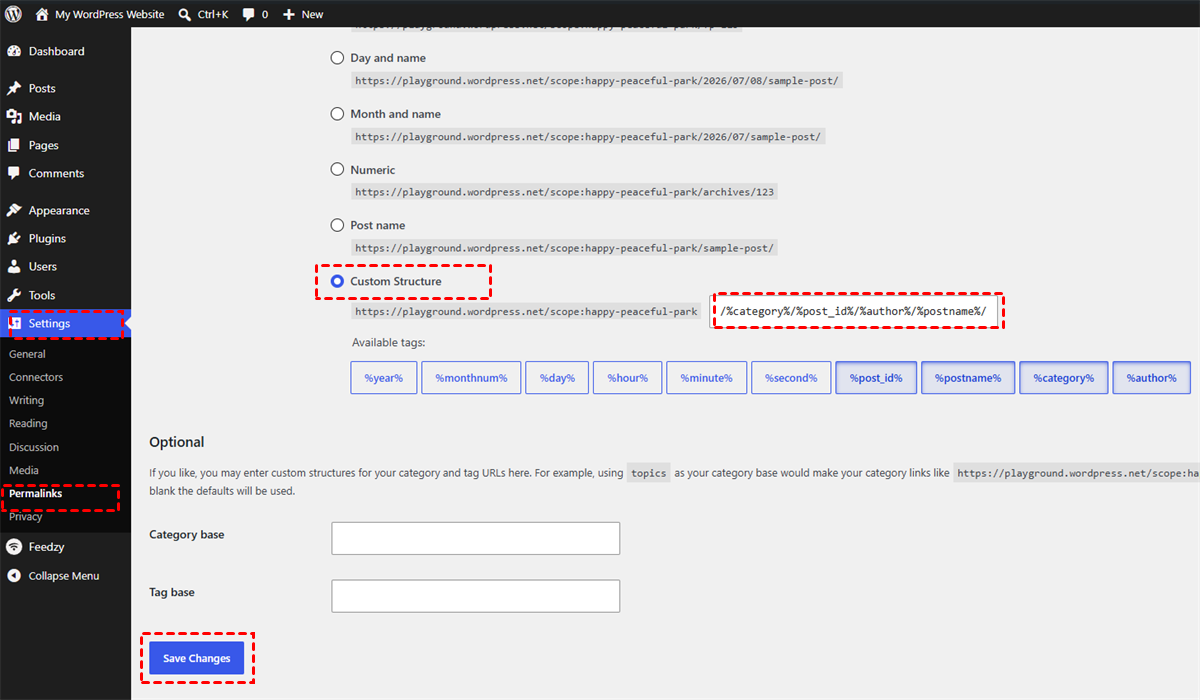
Go to "Settings" > "Permalinks" in the left panel of WordPress dashboard.
Select a Permalink structures for your website like Custom Structure and enter a URL structure that matches your previous Weebly structure if possible, then click "Save Changes".
👉 Set up 301 Redirects:
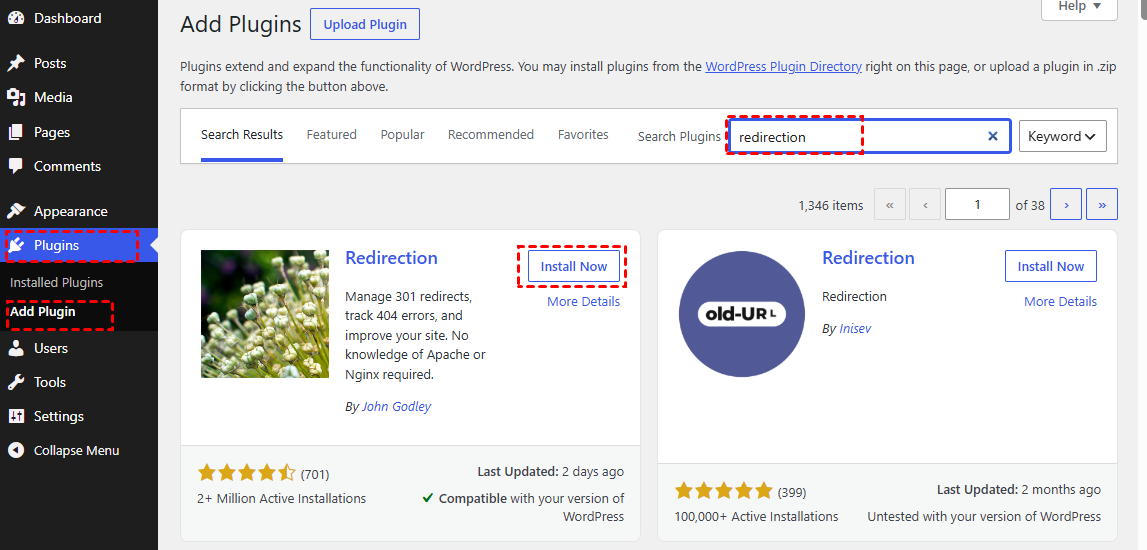
In WordPress, locate to "Plugins" > "Add Plugins", install and activate "Redirections".
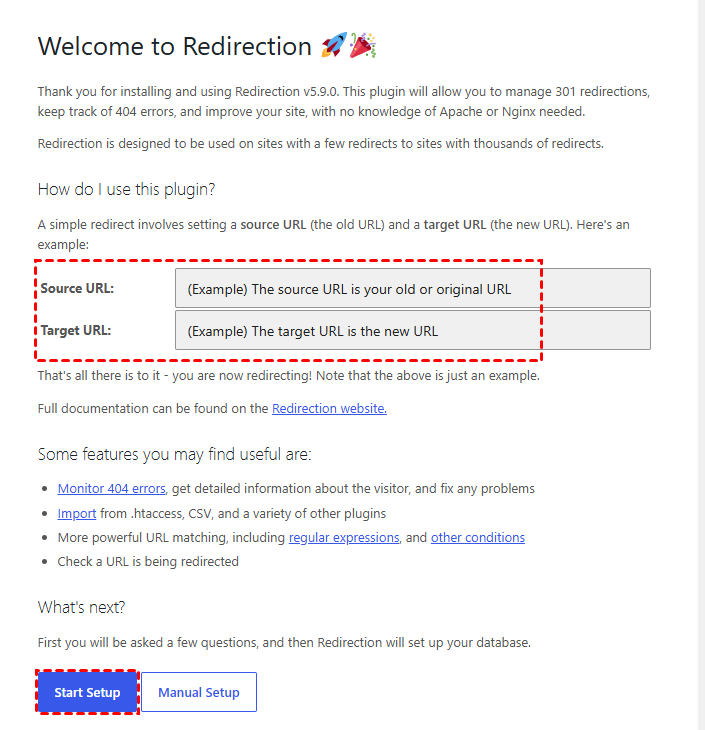
Once the plugin is installed, enter the old URL in source and the new URL in the target fields, then click "Start Setup".
If you used a custom domain with Weebly, you'll redirect by updating your domain's DNS settings. Log in to your domain registrar (wherever you purchased the domain). Find the nameserver settings and update them to point to your WordPress host.
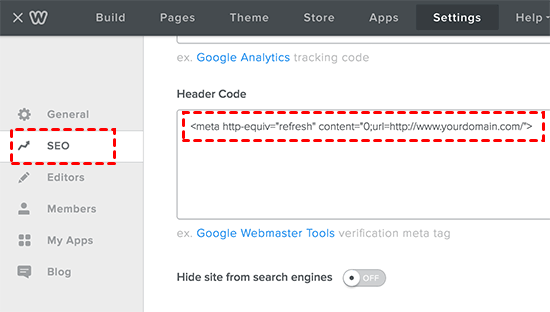
For subdomains site like xxx.weebly.com, log in to your Weebly account, click "Settings", then navigate to the "SEO" tab. Scroll down to the "Header Code" section and enter the following code to replace the old domain with the new one of WordPress site:
Further Reading: Protect Your New WordPress Website After Migration
After successfully transferring your Weebly site to WordPress, your migration work is not completely finished. Since you have rebuilt pages, imported content, configured plugins, and adjusted website settings, creating a reliable backup of your new WordPress site is an important step to protect your work. As a cloud based manage platform, MultCloud provides a Website Backup feature which allows you to back up your WordPress website, including website files and databases, and keep a secure recovery point for future use.

- Cross-Platform Integration: Support over 40+ cloud services in one unified interface, including Google Drive, Dropbox, OneDrive, MEGA, and more.
- Scheduled Automation: Set up daily, weekly, or monthly tasks for file transfer, synchronization, or backup without manual operation.
- Secure Cloud-Based Operation: All transfers are processed in the cloud, reducing local exposure and ensuring secure data handling with encrypted connections.
- Absolute File Security: All transferred files are protected with 256-bit AES encryption to prevent data leakage, and OAuth authorization further enhances account security.
Step 1. Log in MultCloud with a free account.

Step 2. Go to "Website Backup" tab, click "WEBSITE TO BACKUP" > "Add Website". Enter your SFTP and database server, username and password to add it to MultCloud.
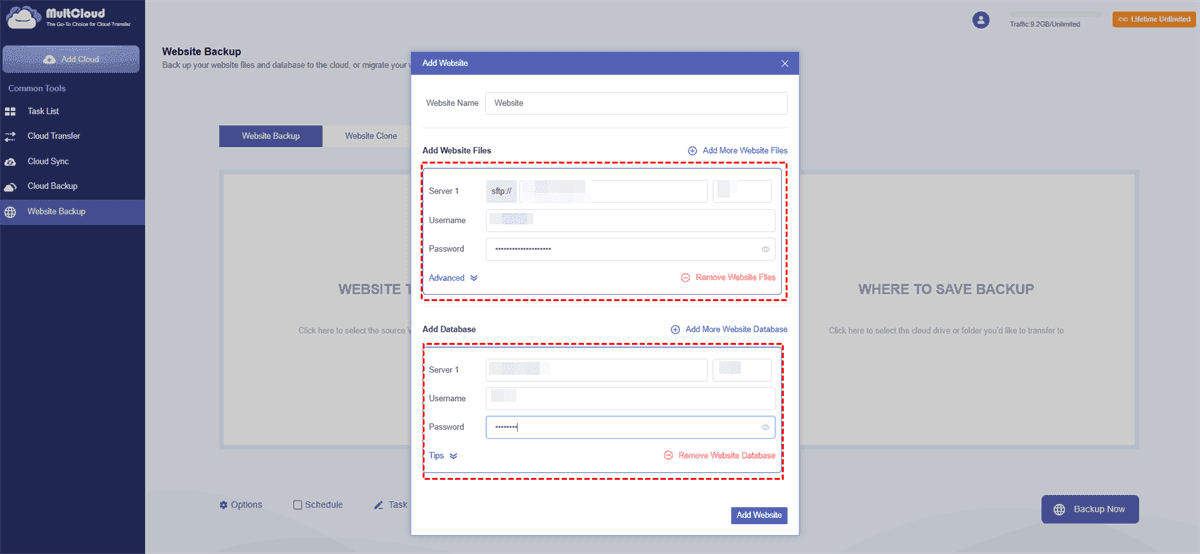
Step 3. Click "WHERE TO SAVE BACKUP" and select a cloud storage (Google Drive, OneDrive, Dropbox, etc.) or another website as the destination drive.
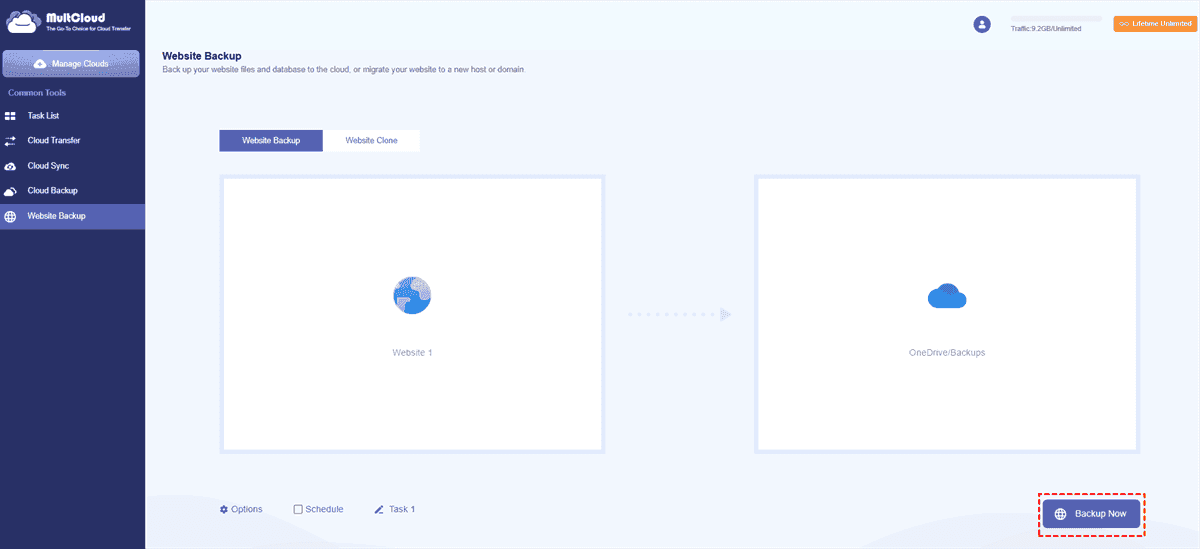
Step 4. Click "Backup Now" to begin the process.
Click the "Options" button, you can configure email notifications and file filters to include or exclude files in the backup plan.
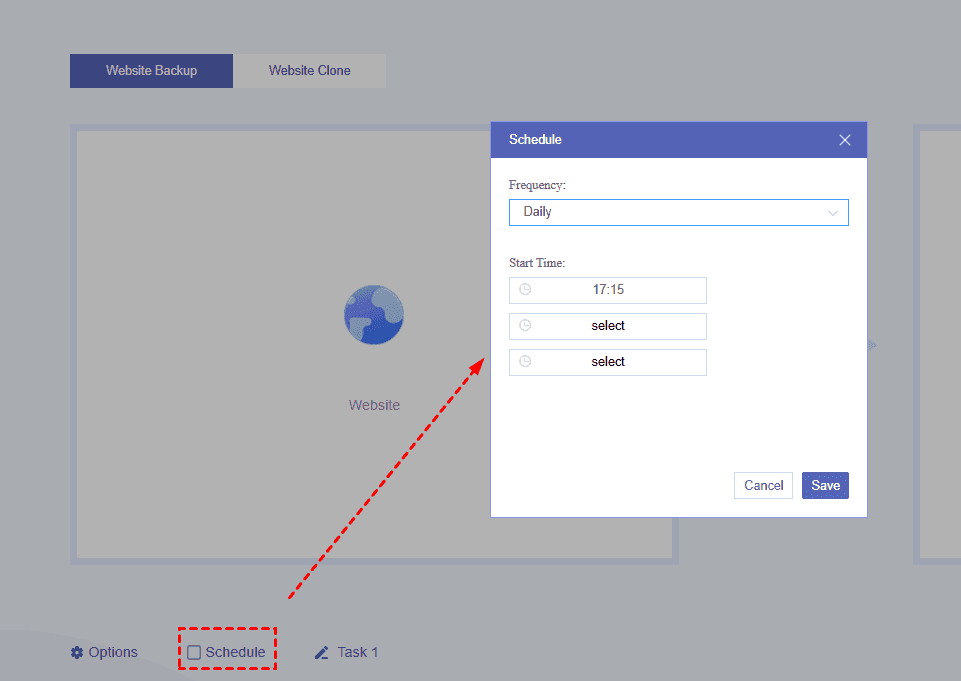
In the "Schedule", you can run scheduled backup task daily, weekly or monthly as you like.
The Bottom Line
Transferring a Weebly site to WordPress may seem complicated at first, especially since there is no direct one-click migration option between the two platforms. However, by choosing the right migration method, you can successfully move your website content, rebuild your pages, preserve your SEO performance, and launch your new WordPress site without coding experience.
Completing migration does not mark the end of the work; sustaining stable long-term website operation is the core priority. You can back up your site files and database with MultCloud to streamline website management and strengthen data protection. Additionally, MultCloud also provides a Website Clone feature for duplicating WordPress websites to another host or domain, making it easier to migrate hosts, create staging sites, or test website changes safely.
FAQs
Q1: Can I move my Weebly store over to WordPress?
Yes, you can move a Weebly store to WordPress. You can export product data from Weebly as a CSV file, which can be directly imported into WordPress via plugins such as WooCommerce. Customer records and order histories are also importable, though the process is more complicated. Store settings cannot be imported automatically and must be migrated to WordPress manually by copying each configuration.
Q2: How do I transfer a Weebly website to WordPress?
To transfer a Weebly website to WordPress, first set up WordPress hosting, then export or copy your Weebly content, import posts, rebuild pages and designs, configure URLs, and set up redirects. After migration, check your links, images, and SEO settings.
Q3: What's the risks of manually migrating a Weebly site to WordPress?
Manual migration can be time-consuming and may cause issues such as missing images, broken links, formatting errors, or SEO ranking drops. Without careful planning, important content or website features may not be transferred correctly.
Q4: What is fastest way to switch a Weebly website to WordPress?
The fastest way is to use a Weebly migration tool to export content and import it into WordPress, then manually rebuild any unsupported pages or features. This reduces repetitive work compared with copying every element manually.
Q5: How long does it take to migrate Weebly to WordPress?
Migration time depends on your website size and complexity. A small Weebly website may take a few hours, while larger websites with many pages, images, or store features can take several days to complete.
Q6: Will I lose SEO when moving Weebly to WordPress?
You may experience SEO changes if URLs, metadata, or website structure are not handled properly. To minimize ranking loss, keep the same URLs when possible, set up 301 redirects, transfer SEO settings, and submit your new sitemap.
MultCloud Supports Clouds
-
Google Drive
-
Google Workspace
-
OneDrive
-
OneDrive for Business
-
SharePoint
-
Dropbox
-
Dropbox Business
-
MEGA
-
Google Photos
-
iCloud Photos
-
FTP
-
box
-
box for Business
-
pCloud
-
Baidu
-
Flickr
-
HiDrive
-
Yandex
-
NAS
-
WebDAV
-
MediaFire
-
iCloud Drive
-
WEB.DE
-
Evernote
-
Amazon S3
-
Wasabi
-
ownCloud
-
MySQL
-
Egnyte
-
Putio
-
ADrive
-
SugarSync
-
Backblaze
-
CloudMe
-
MyDrive
-
Cubby


Stay Updated With Our
Latest Tips
Add us as a preferred source on Google to never miss helpful guides.
 Add as preferred source >>