

What is UpdraftPlus and What Does it Back up
UpdraftPlus is a WordPress backup plugin designed to simplify the process of creating, storing, and restoring website backups without requiring technical configuration. It allows users to schedule automatic backups or run them manually, making it suitable for both beginners and advanced WordPress site owners.

At its core, UpdraftPlus focuses on backing up the essential components of a WordPress site so that it can be fully restored in case of data loss, migration issues, or system failure. UpdraftPlus covers the key elements that make up a WordPress website:
- Database: It backs up all WordPress database content, including posts, pages, comments, settings, and user data. This ensures that the site structure and content can be restored exactly as before.
- Themes: All installed themes and their configurations are saved, allowing the site design and layout to be recovered without reconfiguration.
- Plugins: Installed plugins and their settings are included in the backup, ensuring functionality can be restored quickly after a failure.
- Uploads folder: This includes media files such as images, videos, PDFs, and other uploaded content stored in the WordPress media library.
- Core WordPress files (optional): In some configurations, UpdraftPlus can also include WordPress core files, ensuring a complete site snapshot for full recovery scenarios.
How to Back up WordPress Site with UpdraftPlus
By covering both site content (database and uploads) and site structure (themes and plugins), UpdraftPlus ensures a complete restore point. If your site is hacked, broken after an update, or accidentally deleted, you can rebuild it quickly from a single UpdraftPlus backup. Follow these straightforward steps to back up WordPress site without any coding or server-level configuration:
Step 1. Go to your WordPress admin panel, navigate to "Plugins" > "Add New", and search for UpdraftPlus.
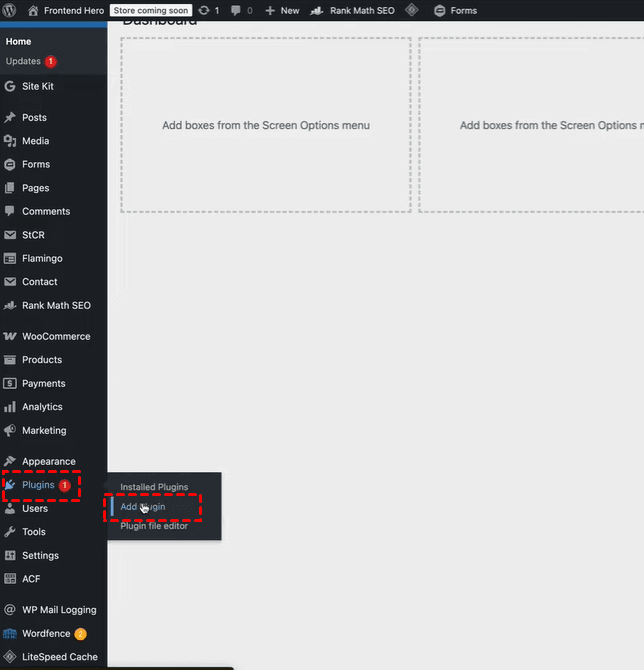
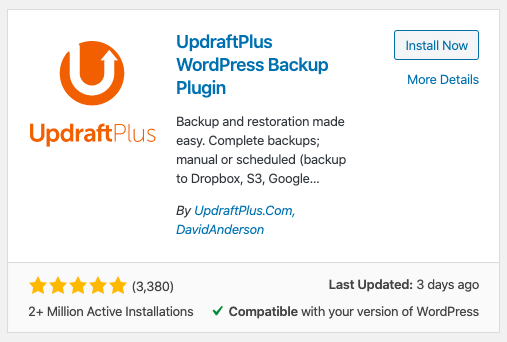
Step 2. Click "Install Now", then activate the plugin in "Installed Plugins" once installation is complete. After activation, you will see an "UpdraftPlus" option in your sidebar.
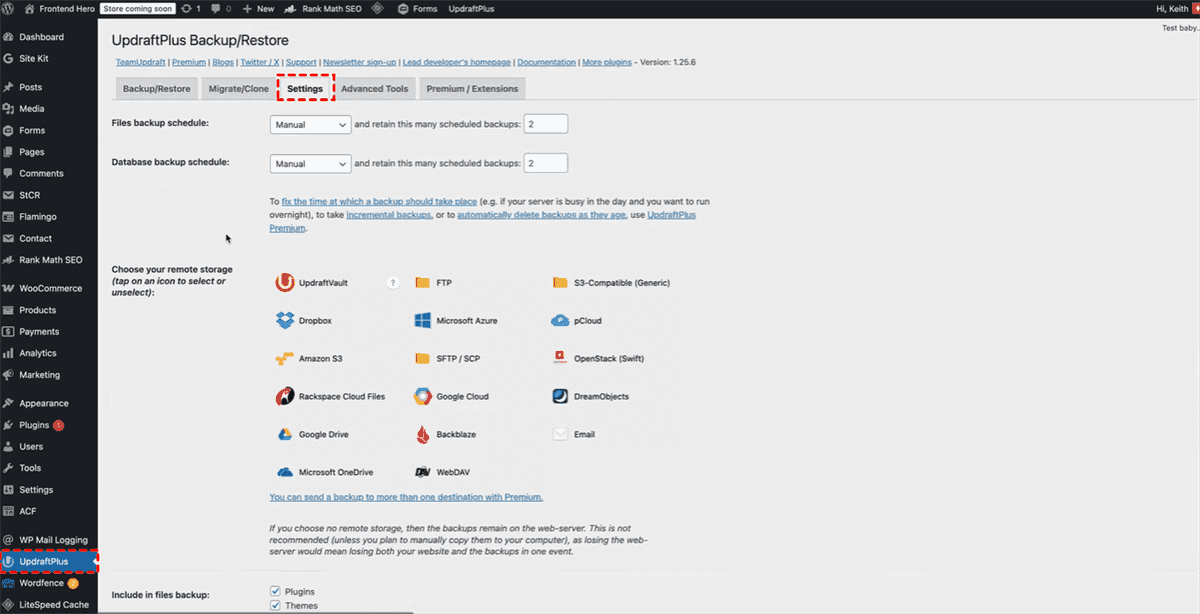
Step 3. Select "UpraftPlus" from the sidebar and go to "Settings" tab. You can create your site backup in this page.
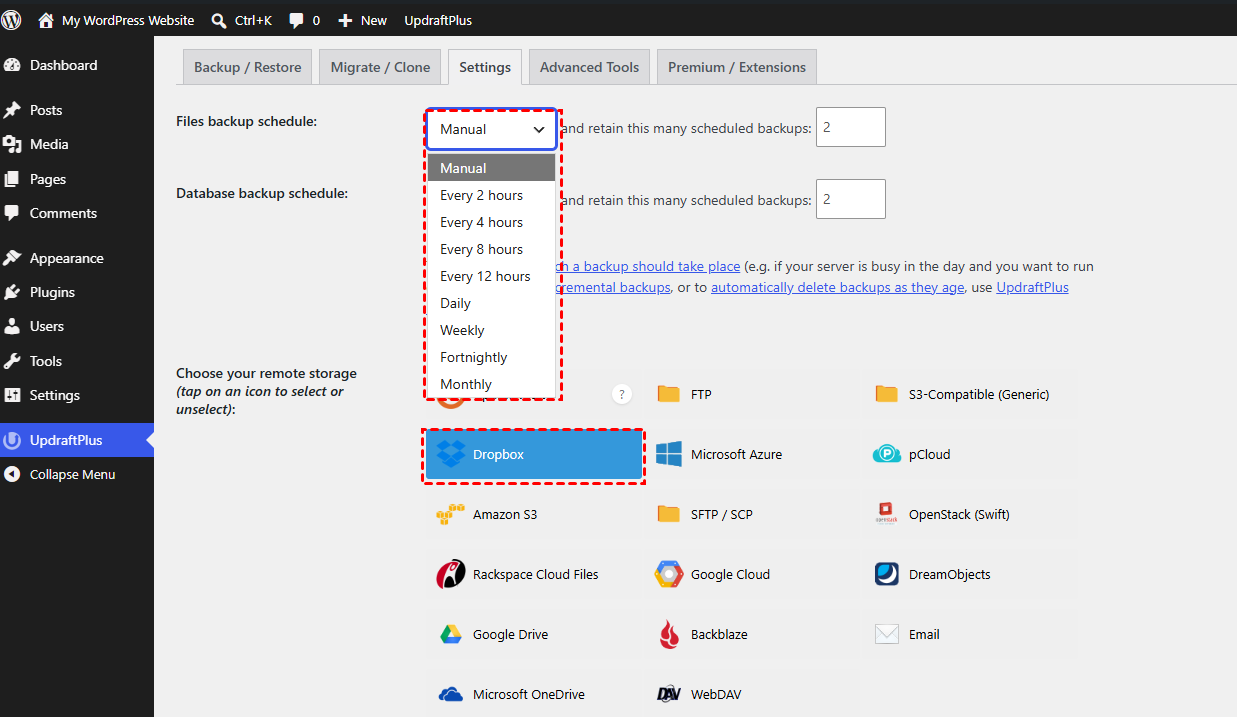
Step 4. To avoid manual backups in the future, choose a frequency based on your update activity (e.g., daily for active sites or weekly for static sites) for both files and database backups. You can also select a remote storage location such as Google Drive, Dropbox, or other supported cloud services to ensure backups are stored offsite for better security.
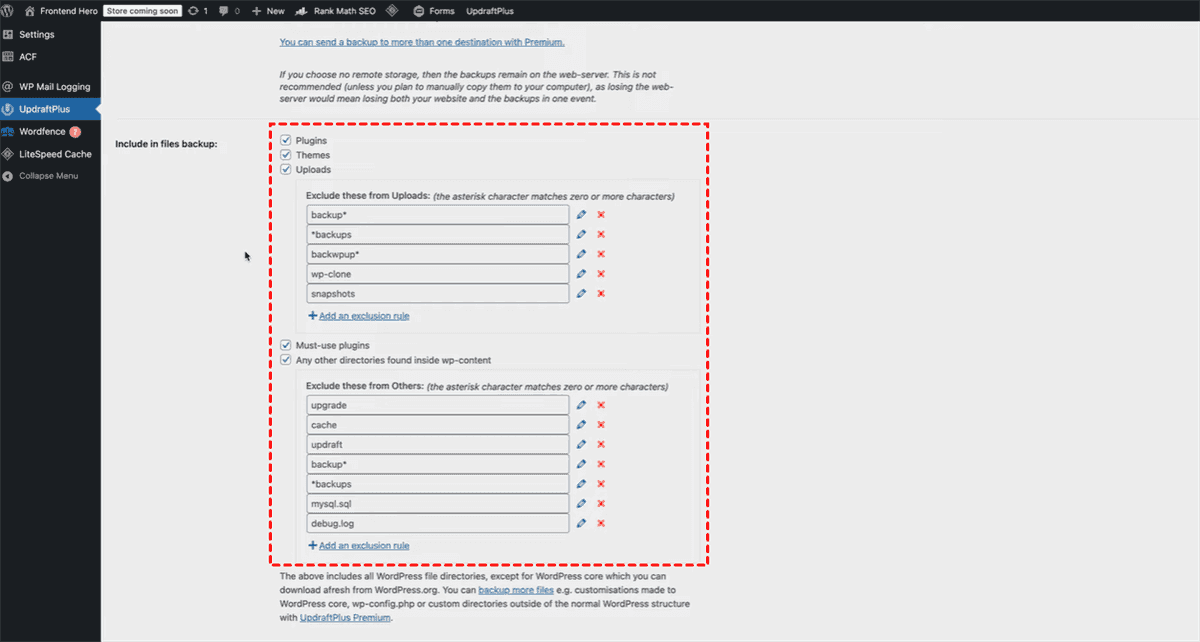
Step 5. Choose what you want to include (database, plugins, themes, uploads, etc.). You can specify individual files to be excluded from the uploads and others folders as needed.
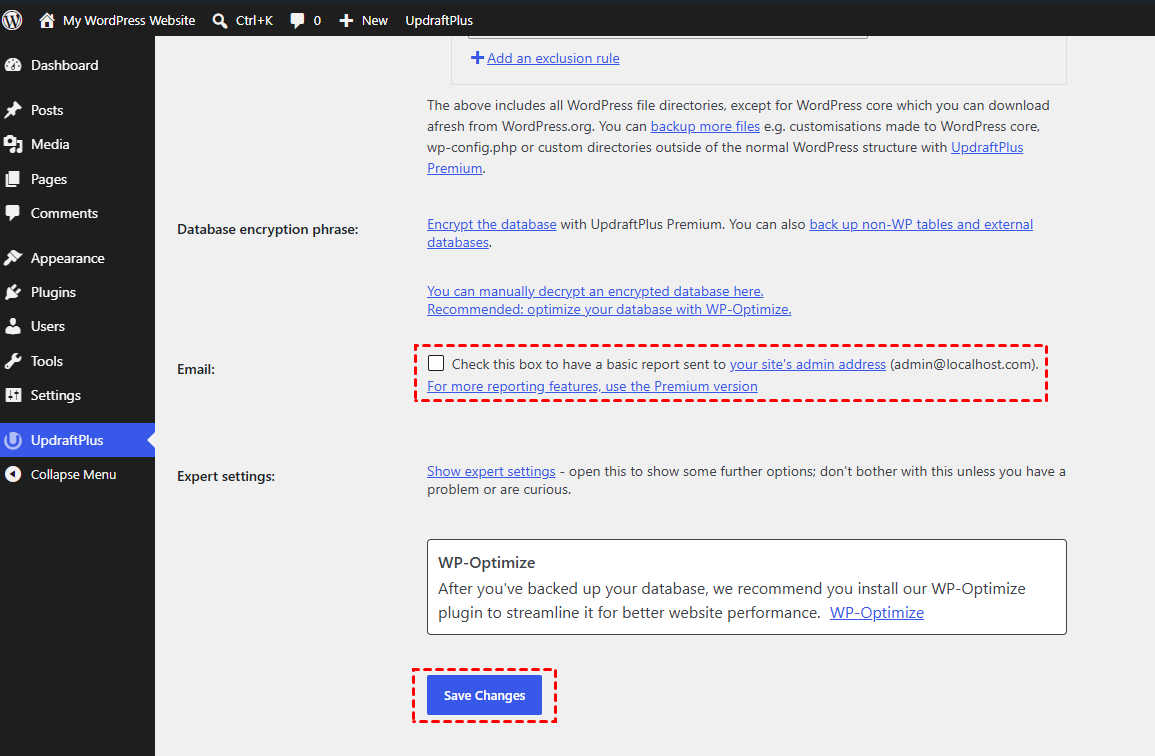
Step 6. In the Email section, check the box to get a basic report sent to your site's admin address once the backup completed, then click "Save Changes".
- ★Tips:
- If you select Google Drive or Dropbox as your destination storage location, you may need to return to their respective pages and follow the prompts to complete authorization.
Step 7. Select "Backup / Restore" section, click the "Backup Now" button. In the popup window, confirm whether you want to include the database and files, then start the process. UpdraftPlus will create a complete backup and display progress within the dashboard.
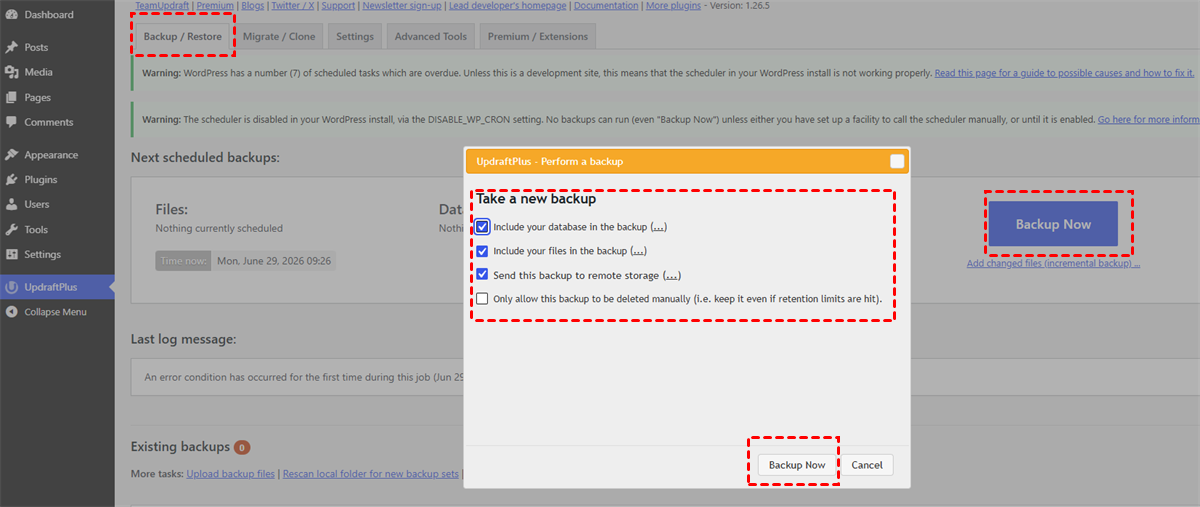
Once the backup is completed, it will appear in the existing backups list. From here, you can download the backup files to your computer or confirm that the backup has been successfully stored in your selected remote location.
How to Restore WordPress Site from UpfraftPlus Backup
Once a backup has been created with UpdraftPlus, restoring your WordPress site is a straightforward process. This is typically used when a site has been broken, hacked, or needs to be rolled back to a previous working version. The restore function allows you to recover all key components (database, plugins, themes, and uploads) from a single backup set.
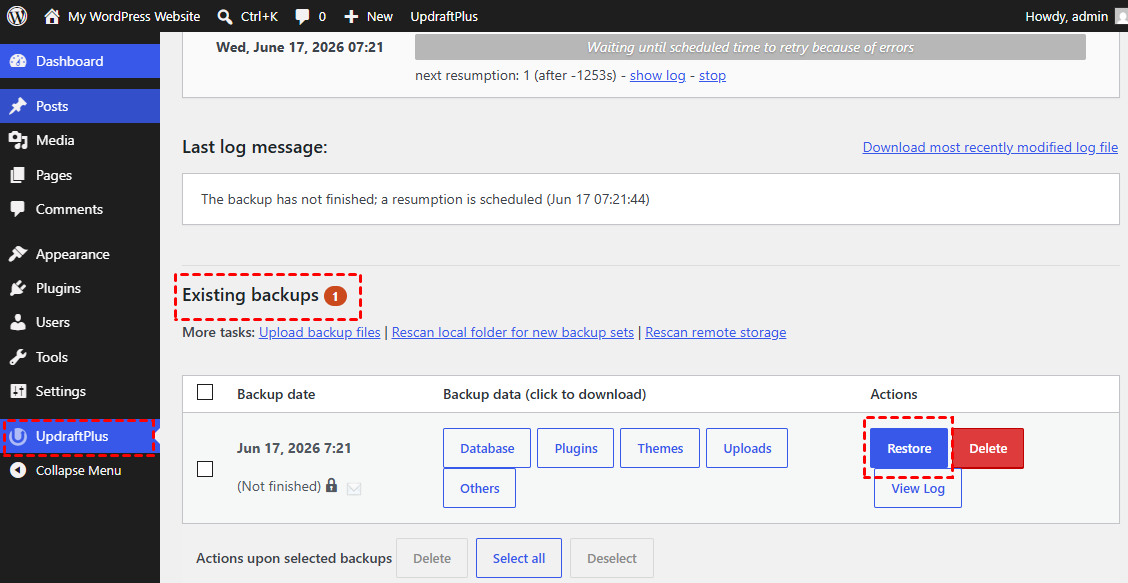
Step 1. Go to your WordPress admin panel and navigate to "UpdraftPlus" > "Backup / Restore" > "Existing backups". This section displays all available backups stored locally or in remote storage.
Step 2. Select a desired backup that matches the version of your site you want to recover and click "Restore" next to the selected backup.
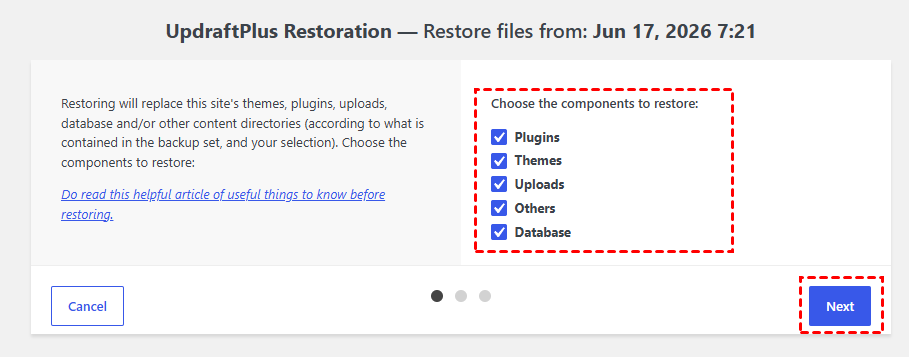
Step 3. A popup window will appear, allowing you to choose which components to restore (database, plugins, themes, uploads, or all). Click "Next" > "Restore" to begin the process. UpdraftPlus will automatically extract and overwrite the selected files and database entries, rebuilding your site to the chosen backup state.
A Smarter Alternative: Back up WordPress Site Automatically with MultCloud
While UpdraftPlus provides a reliable way to manually or automatically back up a WordPress site, a cloud-based file management service like MultCloud offers a more flexible solution for anyone who prefers a centralized tool does not rely on WordPress plugins or in-dashboard configuration to automate backups and manage storage across multiple cloud services.
MultCloud is a web-based multi-cloud management platform that allows you to connect different cloud drives and FTP servers in one place. It enables you to automate file transfers, sync data, and schedule recurring backups between FTP servers and cloud storage services such as Dropbox, Google Drive, and OneDrive.

- Cross-Platform Integration: Support over 40+ cloud services in one unified interface, including Google Drive, Dropbox, OneDrive, MEGA, and more.
- Scheduled Automation: Set up daily, weekly, or monthly tasks for file transfer, synchronization, or backup without manual operation.
- Secure Cloud-Based Operation: All transfers are processed in the cloud, reducing local exposure and ensuring secure data handling with encrypted connections.
- Absolute File Security: All transferred files are protected with 256-bit AES encryption to prevent data leakage, and OAuth authorization further enhances account security.
Step 1. Sign up and log in to MultCloud to access the dashboard where all cloud connections.
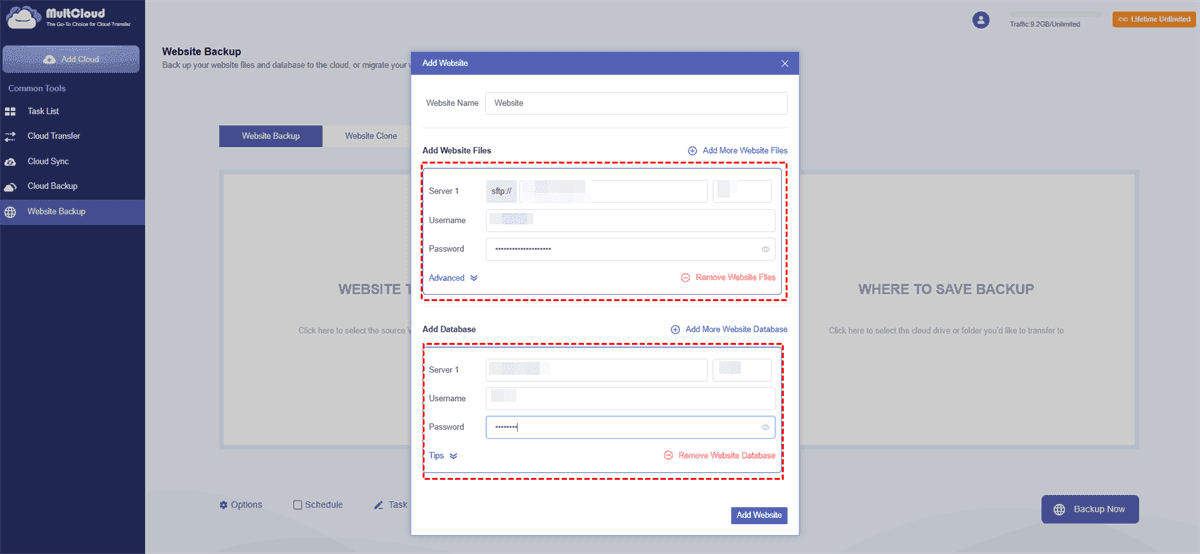
Step 2. Select "Website Backup" and click "WEBSITE TO BACKUP" > "Add Website". Connect your WordPress hosting server using FTP credentials (host, username, and password).
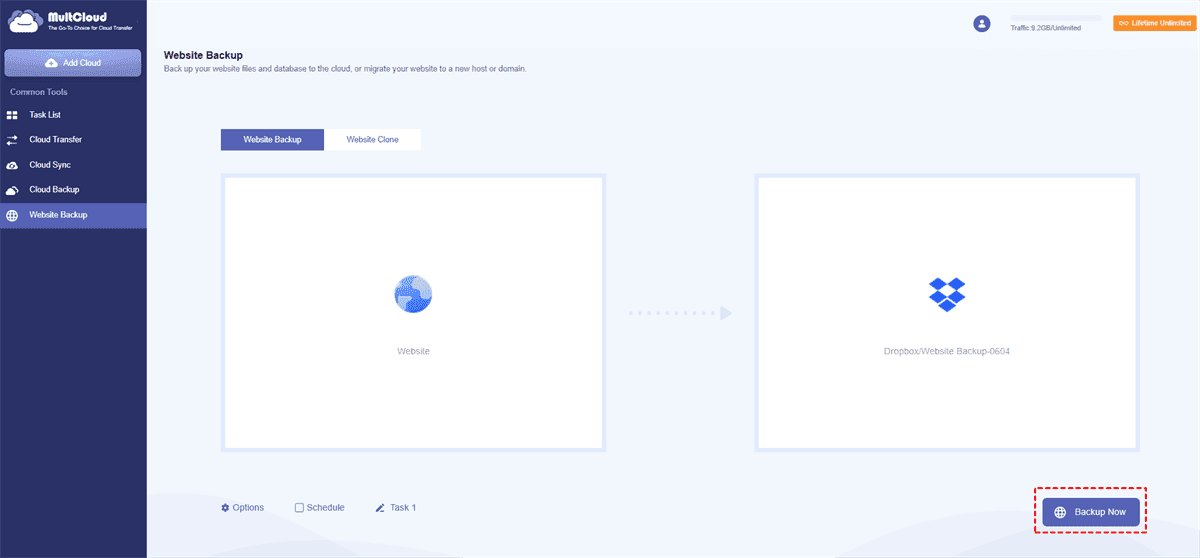
Step 3. Click "WHERE TO SAVE BACKUP" and select a cloud storage like Dropbox, grant access to MultCloud to add it as destination drive.
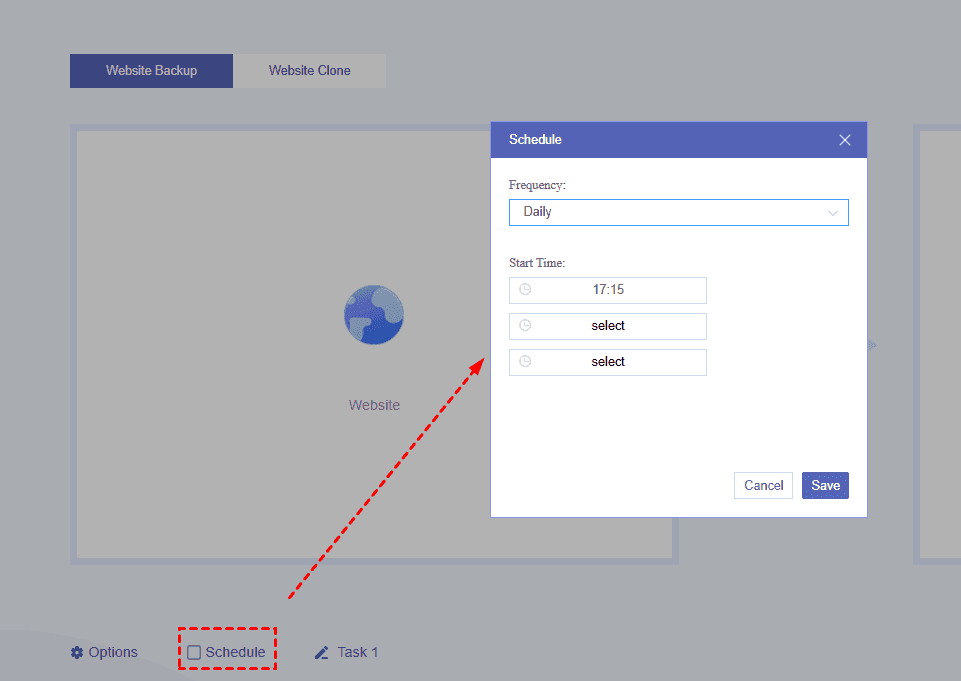
Step 4. Click "Options" to set email notifications or file filters, or click "Schedule" to run a scheduled backup task daily, weekly, or monthly.
Summary
Backing up a WordPress site is essential for maintaining data security and protecting long-term website stability. UpdraftPlus provides a straightforward way to handle full site backups and restores, covering critical components such as the database, themes, plugins, and media files without requiring technical expertise.
For users who want greater flexibility and centralized control, the cloud-based automation tools like MultCloud can back up WordPress site more easily. It extends beyond WordPress by enabling scheduled, cross-platform backups between FTP servers and cloud storage services.
FAQs
Q1: How do I backup my entire WordPress site?
Use a full-site backup plugin like UpdraftPlus or a hosting backup tool. Include database, themes, plugins, and uploads. Run a full backup manually or schedule automatic backups. Store copies in remote storage such as Google Drive or Dropbox to ensure recovery if your server fails or the site is compromised.
Q2: Why is UpdraftPlus not backing up?
Common reasons include insufficient server storage, PHP timeout limits, incorrect cloud authorization, or plugin conflicts. Check backup logs in UpdraftPlus for errors. Also ensure your hosting environment allows large file processing and that remote storage accounts (like Google Drive) are properly connected and authorized.
Q3: How to back up a WordPress website locally?
You can download files via FTP or use a backup plugin that supports local storage. Export the WordPress database using phpMyAdmin and copy the wp-content folder (themes, plugins, uploads). Combine these components to create a complete local backup stored on your computer or external drive.
Q4: Does WordPress have automatic backups?
WordPress core does not include built-in automatic backups. However, many hosting providers offer server-level backups, and plugins like UpdraftPlus enable scheduled automatic backups. These tools allow you to define backup frequency and storage destinations for continuous protection without manual intervention.
Q5: Where does UpdraftPlus store backups?
UpdraftPlus stores backups either locally on your web server or in remote storage services. Supported destinations include Google Drive, Dropbox, Amazon S3, OneDrive, and FTP. You can configure multiple storage locations to ensure redundancy and safer offsite backup protection.
Q6: How do I restore my WordPress site without a backup?
Without a backup, recovery options are limited. You can try restoring from hosting provider snapshots, cached versions, or Google cached pages for content. In some cases, database recovery tools or server-level snapshots may help. Otherwise, you will need to rebuild the site manually and reconfigure content and settings.
MultCloud Supports Clouds
-
Google Drive
-
Google Workspace
-
OneDrive
-
OneDrive for Business
-
SharePoint
-
Dropbox
-
Dropbox Business
-
MEGA
-
Google Photos
-
iCloud Photos
-
FTP
-
box
-
box for Business
-
pCloud
-
Baidu
-
Flickr
-
HiDrive
-
Yandex
-
NAS
-
WebDAV
-
MediaFire
-
iCloud Drive
-
WEB.DE
-
Evernote
-
Amazon S3
-
Wasabi
-
ownCloud
-
MySQL
-
Egnyte
-
Putio
-
ADrive
-
SugarSync
-
Backblaze
-
CloudMe
-
MyDrive
-
Cubby


Stay Updated With Our
Latest Tips
Add us as a preferred source on Google to never miss helpful guides.
 Add as preferred source >>