
Quick Navigation:
The Importance of WordPress Backup
Having a WordPress site backup helps you restore your site in minutes, not days. So if you had a local copy of your site sitting safely on your computer, your website files and database are safe.
In this guide, we'll walk through every reliable method to get that backup safely onto your computer. From one-click plugins to manual cPanel exports, there's an approach that fits your technical comfort level. Let's get started.
About WordPress Site Backup
A WordPress site is essentially two things: files and a database. The files include your themes, plugins, uploads (images, videos, documents), and the WordPress core itself. The database is where your posts, pages, comments, user accounts, and settings live.
When you perform a WordPress website backup download, you need both pieces for a complete restoration. Some methods let you grab everything at once, while others require separate steps for files and the database.
Way 1. Download Backup of WordPress Site Using a Plugin
For most WordPress users, plugins offer the simplest path to a complete backup. They require zero technical know-how and typically handle everything with just a few clicks.
The WordPress plugin repository is packed with excellent backup solutions. Options like UpdraftPlus, Duplicator, All-in-one WP Migration and Backup, ManageWP, etc.are all well-regarded and used by thousands of site owners every day.
So, here we will show you how to download a backup of your WordPress site via the Duplicator plugin. Here it is:
1. Log in to your WordPress admin dashboard.
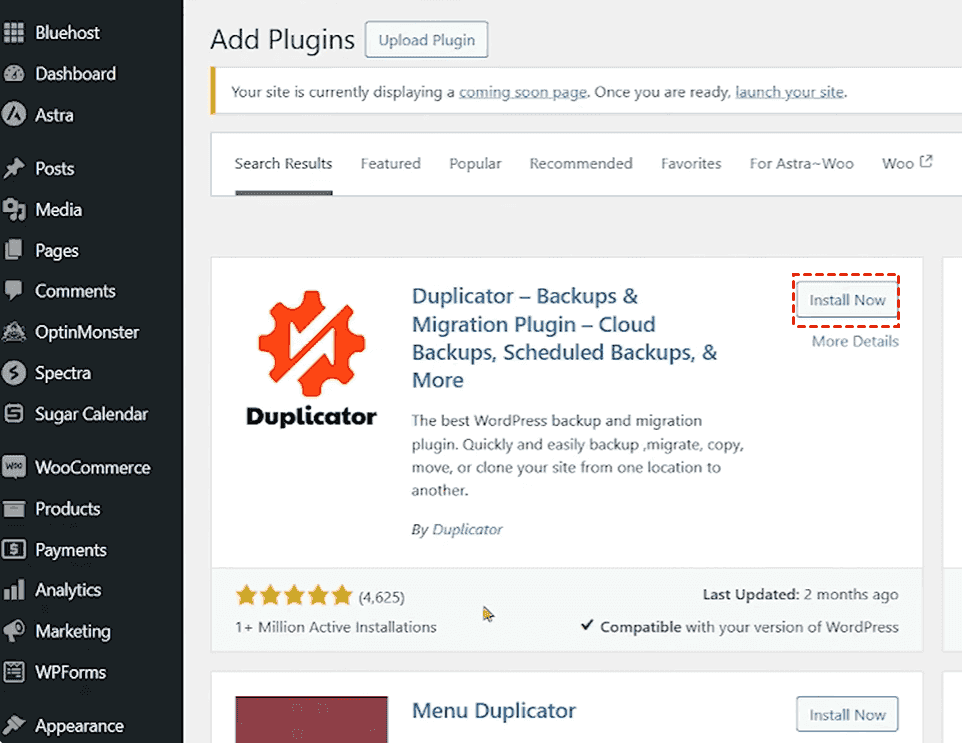
2. Click Plugins > Add New Plugin, and input Duplicator in the search box.
3. Find the Duplicator - Backup & Migration Plugin and hit Install Now and activate.
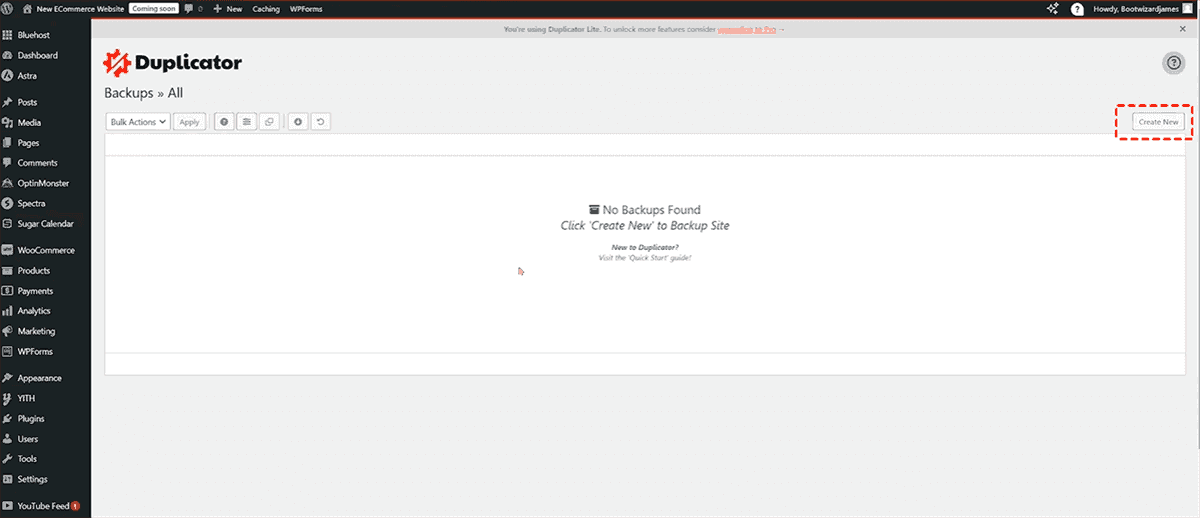
4. Tap Create New on the top right.
5. Rename the name, choose a destination for your WordPress site backup.
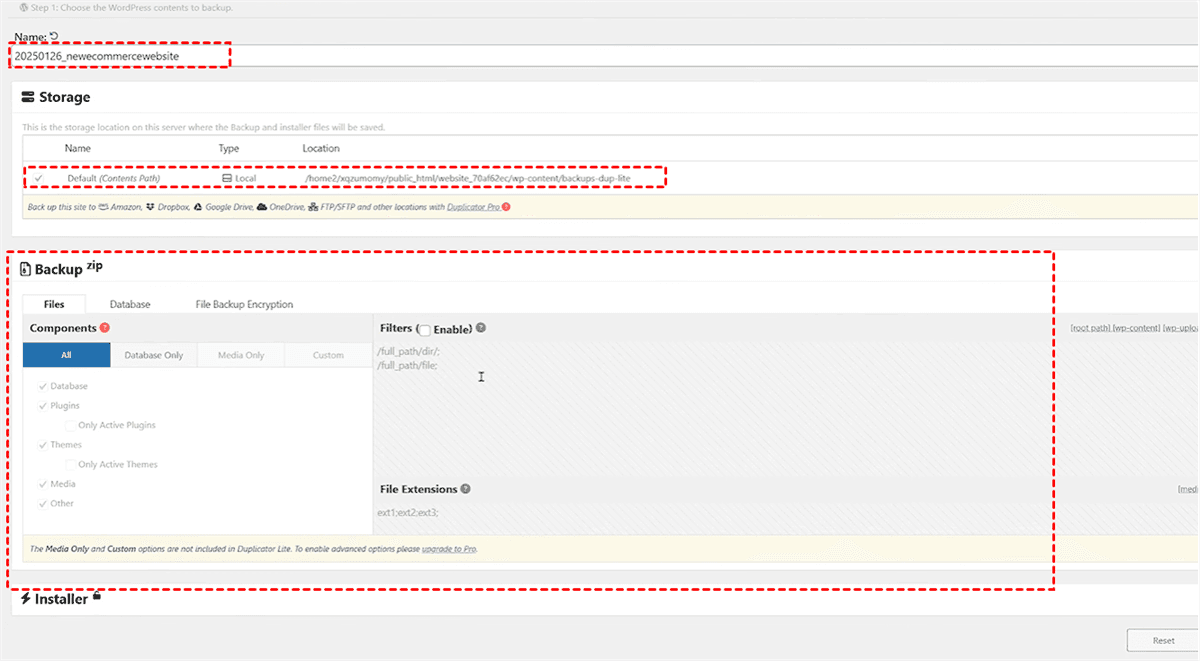
Tip: If you need to backup WordPress site to OneDrive, Amazon, Google Drive, Dropbox, FTP/SFTP, or other locations, you have to upgrade to Duplicator Pro to enjoy.
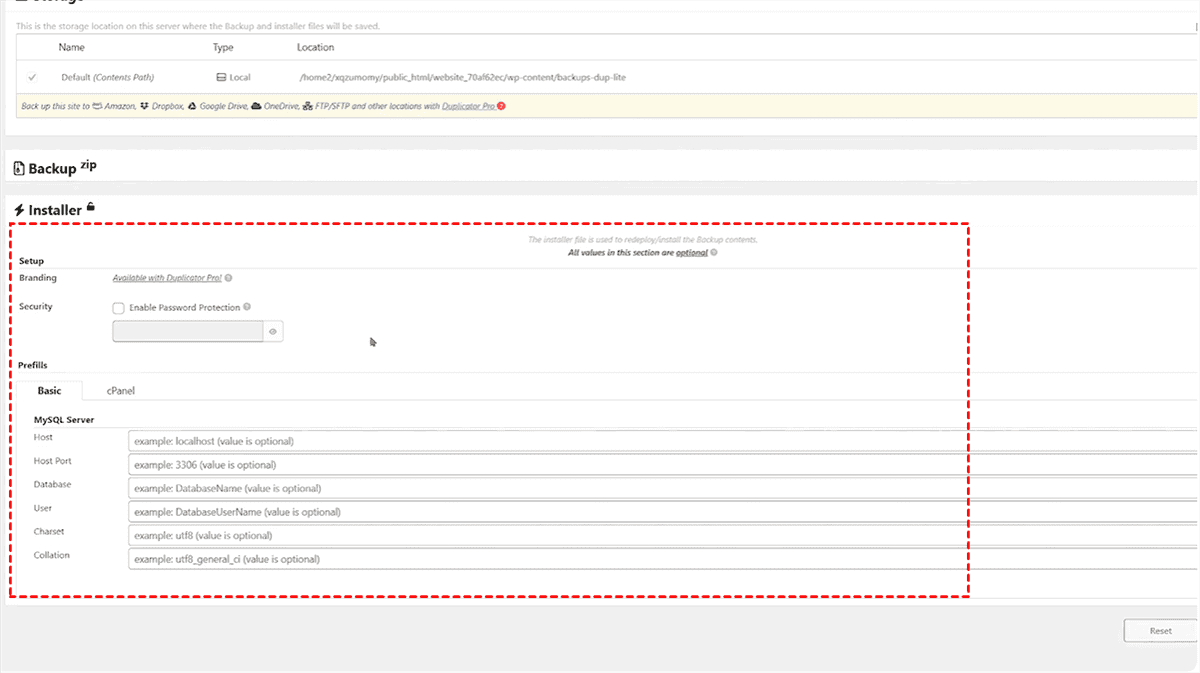
6. You can set up the Backup options and installer setup, like adding a password, etc, and hit Next.
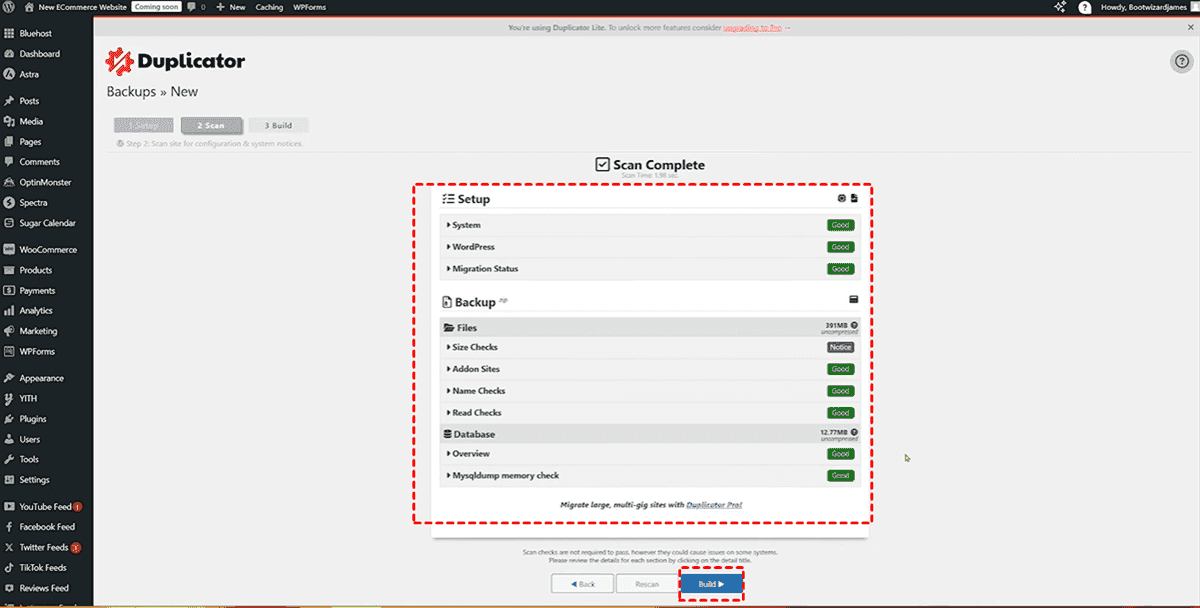
7. It will scan your WordPress site in seconds. Once scanned, hit Build to start backing up.
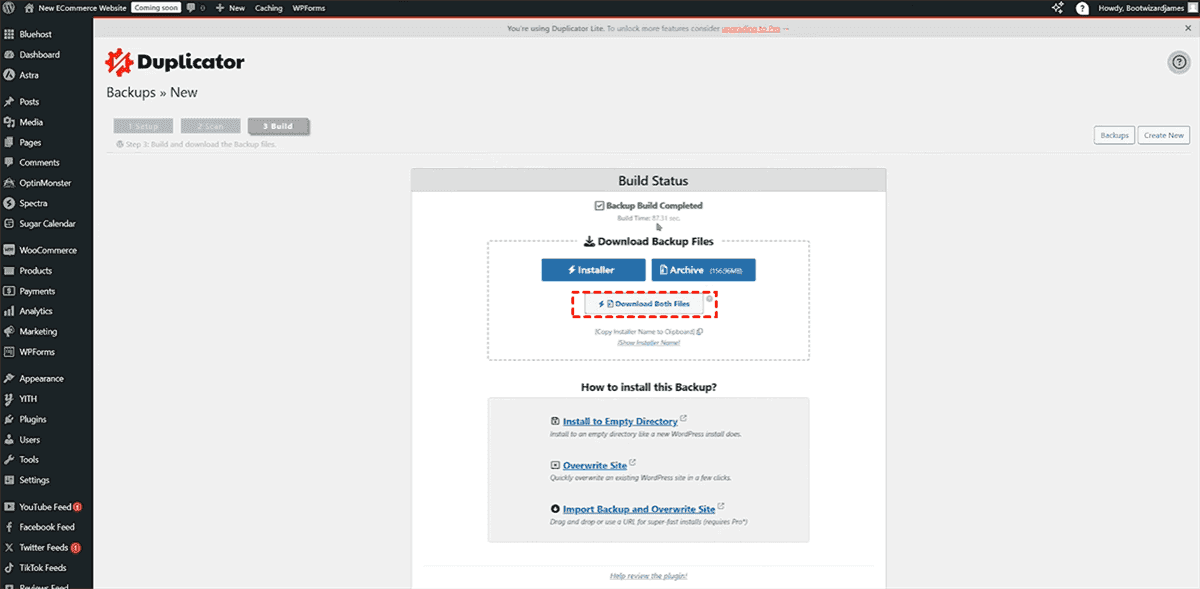
8. Once done, hit Download Both Files.
9. Then put the backup files into a safe location to keep.
Way 2. Manual WordPress Website Backup Download via cPanel
You can download your WordPress site files and database manually via cPanel's Backup and phpMyAdmin:
Part 1. Download Your WordPress Site Files
Through cPanel's File Manager, you can compress your entire WordPress directory into a single ZIP file and download it. Here's the step-by-step:
1. Log in to your hosting account and navigate to cPanel.
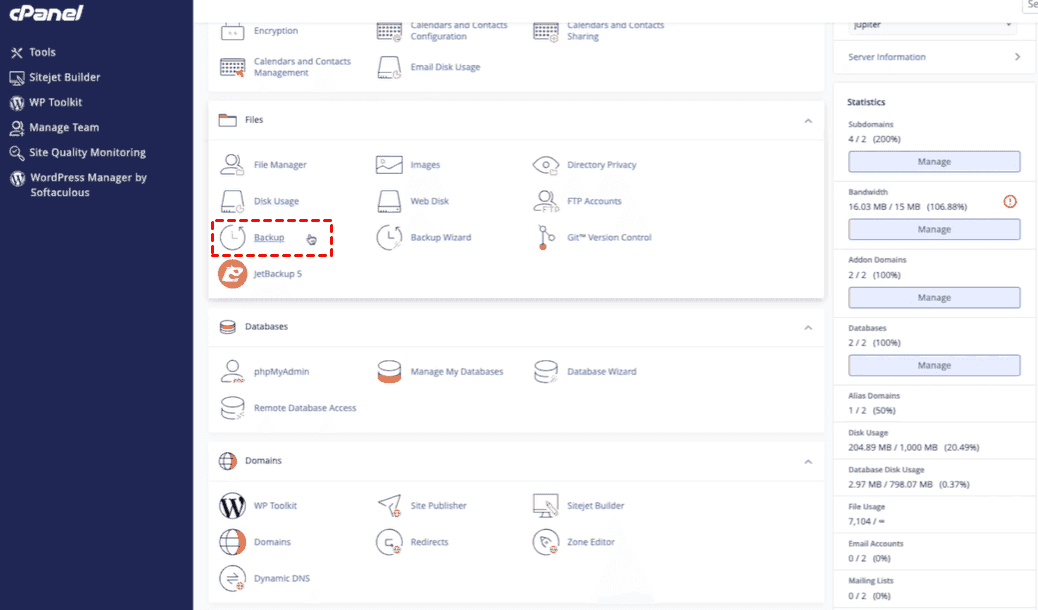
2. Open Backup.
3. Click the button: Download a Full Account Backup.
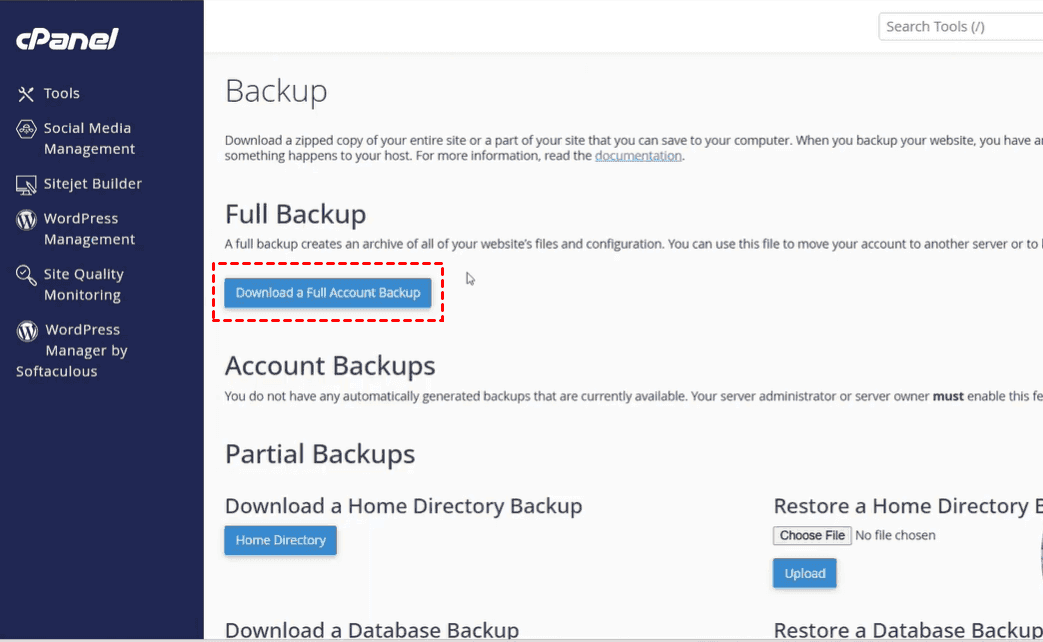
4. Select a backup destination- Home Directory, Remote FTP Server, Remote FTP Server (passive mode transfer), or Secure Copy (SCP), choose Home Directory, set up other options, and hit Generate Backup.
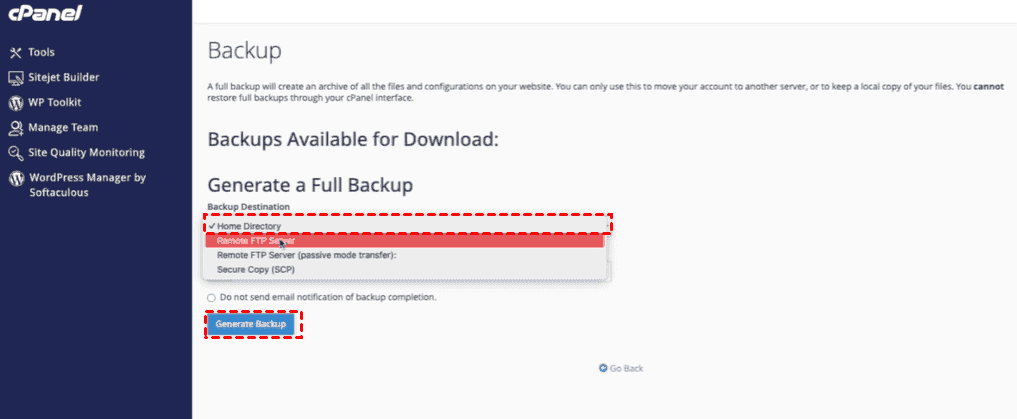
Part 2. Export Your MySQL Database with phpMyAdmin
Besides, you also need your database backup. phpMyAdmin is the standard tool for this.
1. First, open your wp-config.php file (using File Manager) and look for the line defining DB_NAME. That's the database you need to export.
2. Find phpMyAdmin in your cPanel (usually under "Database tools").
3. Log in and select the correct database.
4. Click the "Export" tab from the top menu.
5. Choose "Quick" export with SQL format—this gives you a complete database dump.
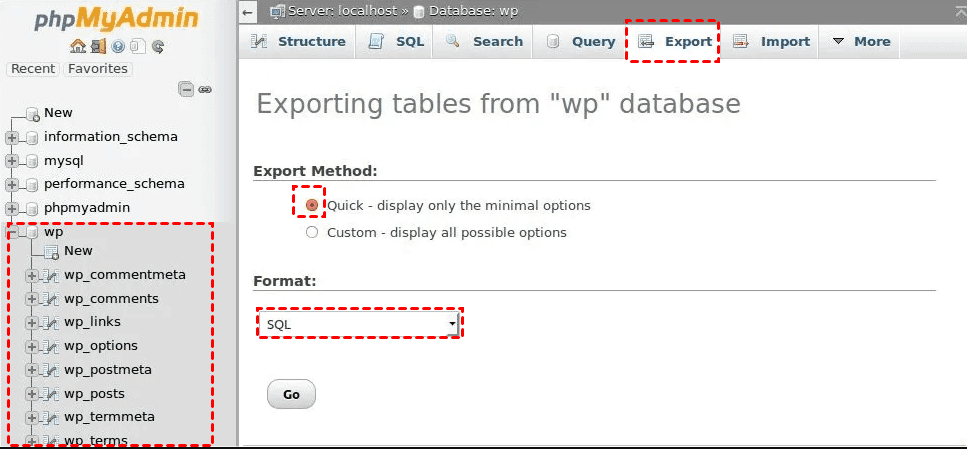
5. Click "Go" to download the .sql file to your computer.
For very large databases, you might want to select "Custom" export and compress the file in gzip format to speed up the download.
Either way, save this file alongside your file backup, and you have a complete WordPress website backup download ready for safekeeping.
Way 3. Download Backup of WordPress Site via FTP
Except for creating a full account backup for your WordPress site, you can also download all files from an FTP application, such as FileZilla, etc. Then export the database via phpMyAdmin to take a full backup of your WordPress site.
So, here we just show the steps to download files from the FTP server using FileZilla:
1. You'll need to install the FileZilla application.
2. Create a new server connection using the hostname and port number provided by your hosting provider.
3. Once connected, you'll see your server's file structure displayed in the client's interface. Go to your WordPress directory (typically under public_html).
4. Select all the files and folders in your WordPress directory, right-click, and choose "Download" or "Download selected items".
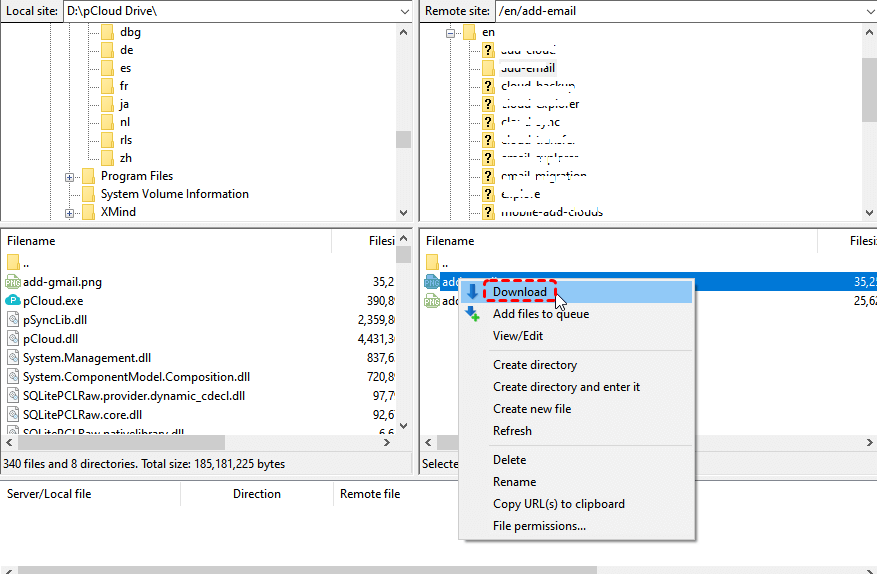
The process can take a while for large sites, but it's reliable and provides exact copies of every file on your server.
Way 4. Backup Your WordPress Site with MultCloud
While plugins and manual methods work well, MultCloud offers an automatic way to backup your WordPress site.
MultCloud is a web-based multiple cloud storage manager that connects 40+ cloud drives (Google Drive, Dropbox, OneDrive, MEGA, FTP) in one dashboard.
You can directly back up one website to these clouds or clone the entire website to another server with simple clicks. There is no need to download and re-upload files.
With MultCloud, enjoy:
- Direct website backup or clone.
- Scheduled automation.
- Multi-destination strategy.
- No local storage is used.
- Unified management.
- Incremental transfers.
Here is how to backup WordPress site to Google Drive with MultCloud:
1. Log in to your MultCloud account after registering.
2. Tap Manage Clouds > Website, input the credentials to add your WordPress FTP server and database server. Repeat the process to add Google Drive.
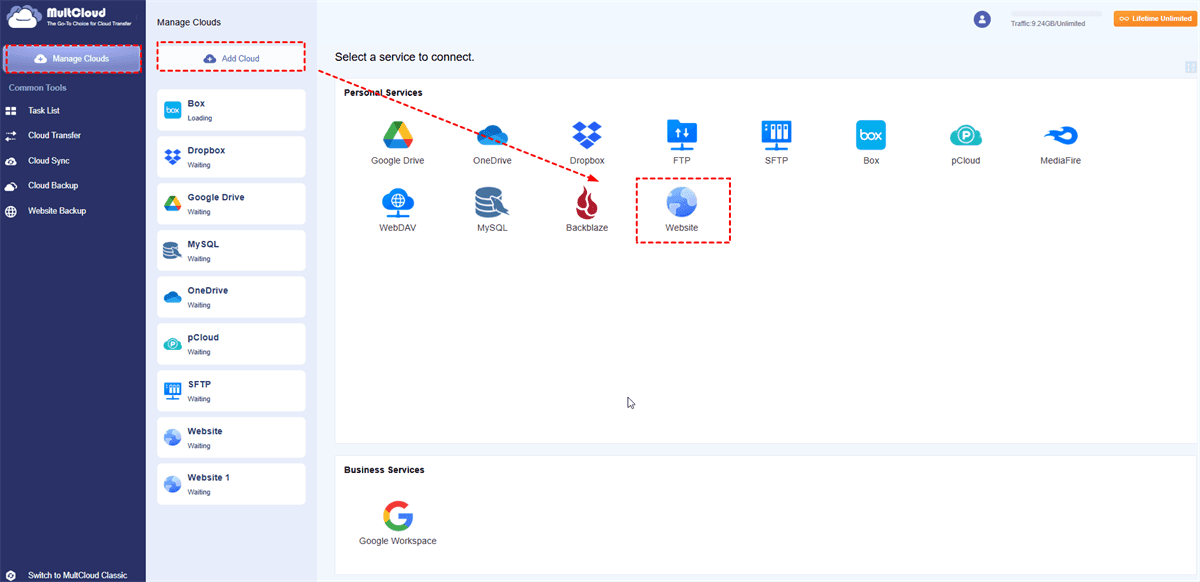
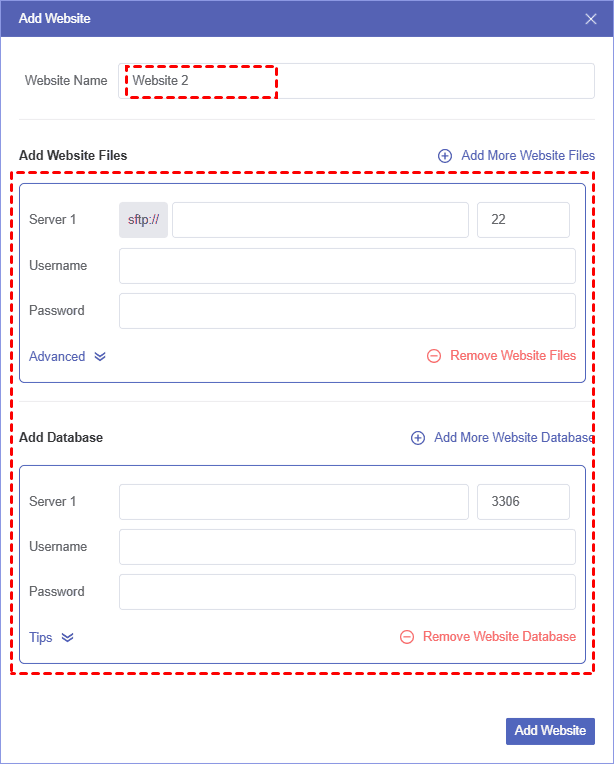
3. Click Website Backup, choose files and the database in the WordPress site as the source, and a folder in Google Drive as the destination.
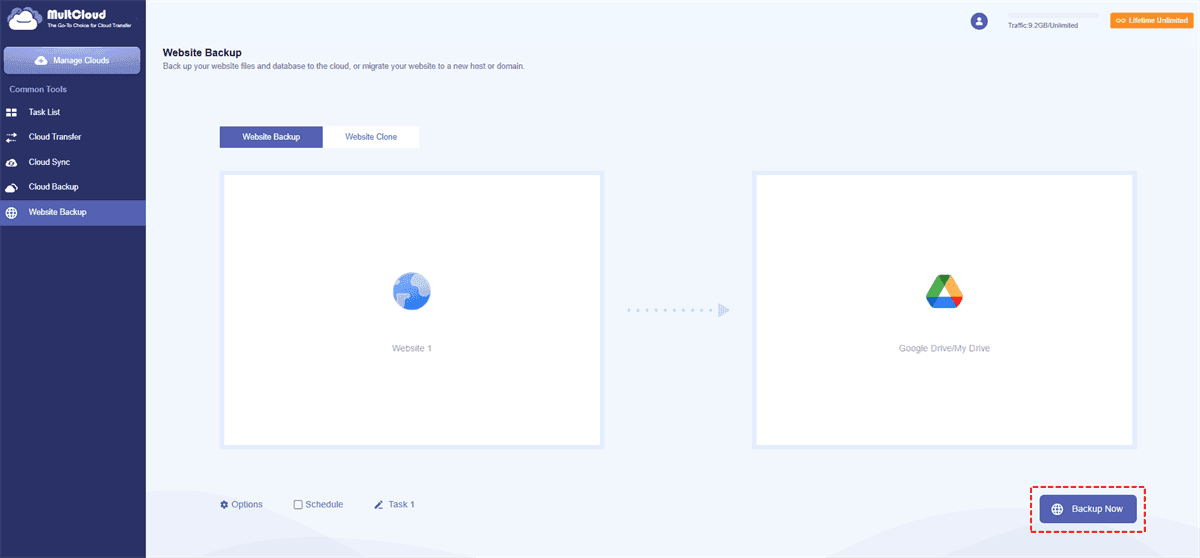
4. Press the Backup Now button to back up WordPress site to Google Drive.
- Notes:✎...
- You can configure Filter and Email in Options, include or exclude the file types you want in Filter, and enable email notification once the task is finished.
- Hit Schedule, you can set the task up to run once, daily, weekly, or monthly, which is very useful for performing unattended tasks.
- Upgrading to a MultCloud advanced plan is a wise choice if you need to back up unlimited data from your WordPress site.
You can also add FTP servers to transfer files between FTP servers directly. However, this way is to backup WordPress site to another cloud, instead of backing up the WordPress site to a computer. It's worth trying.

- Smart Share: Share cloud files via public, private, or source mode.
- One-key Move: Quick data transfer, sync, and backup among clouds.
- Email Archive: Protect emails to other clouds or local disks.
- Remote upload: Effectively save web files to clouds via URL.
- Safe: Full-time 256-bit AES and OAuth authorization protections.
- Easy: Access and manage all clouds in one place with one login.
- Extensive: 30+ clouds and on-premise services are supported.
Verify and Store Your Downloaded Backup Safely
A backup is only useful if it actually works. That means you need to verify what you've downloaded and store it properly.
- After downloading, take a few minutes to open the ZIP file and verify that it contains all expected folders: wp-admin, wp-content, wp-includes, and the important root files like wp-config.php. For your database, open the .sql file in a text editor—you should see CREATE TABLE statements and INSERT commands for your content.
- Create a dedicated "WordPress Backups" folder with subfolders organized by date. A good naming convention includes the site name, date, and a brief description of the state, like mysite_2026-06-22_pre-plugin-update.zip.
FAQs About Downloading a Backup of a WordPress Site
How do I download a backup of my WordPress site?
A: Several options exist. The easiest route uses plugins like WP BackItUp, Trinity Backup, or WP STAGING. Manual methods include cPanel's File Manager for file compression and phpMyAdmin for database exports. Advanced users can use FTP clients or WP-CLI commands to perform a WordPress backup download to a computer.
Do I need to back up both files and the database?
A: Yes. WordPress consists of files (themes, plugins, uploads, core) and a MySQL database (posts, pages, comments, settings). A complete backup requires both. Plugins often handle both automatically, but manual methods require separate steps for each.
How often should I download a backup of my WordPress site?
A: Frequency depends on update activity. Daily sites should back up daily; less active ones weekly suffice. WP STAGING recommends regular backups "once a week or once a month" at minimum. Always back up before major changes like plugin updates.
Where should I store my downloaded WordPress backups?
A: Multiple locations are best: local computer, external hard drive, and cloud storage (Google Drive, Dropbox). This provides redundancy. Server-only backups risk deletion if hacked, making a WordPress website backup download saved locally essential.
How do I download a WordPress backup without a plugin?
A: Use cPanel: compress your WordPress directory via File Manager and download the ZIP, then export your database with phpMyAdmin. Alternatively, use FTP (FileZilla) to download files or WP-CLI commands like wp db export backup.sql and tar for archiving.
Can I use MultCloud to back up my WordPress site?
A: MultCloud offers a convenient alternative. Connect your WordPress FTP to a destination cloud, then schedule automatic backups. You can restore previous versions directly from the dashboard, creating offsite backups without manually downloading files to your computer first.
MultCloud Supports Clouds
-
Google Drive
-
Google Workspace
-
OneDrive
-
OneDrive for Business
-
SharePoint
-
Dropbox
-
Dropbox Business
-
MEGA
-
Google Photos
-
iCloud Photos
-
FTP
-
box
-
box for Business
-
pCloud
-
Baidu
-
Flickr
-
HiDrive
-
Yandex
-
NAS
-
WebDAV
-
MediaFire
-
iCloud Drive
-
WEB.DE
-
Evernote
-
Amazon S3
-
Wasabi
-
ownCloud
-
MySQL
-
Egnyte
-
Putio
-
ADrive
-
SugarSync
-
Backblaze
-
CloudMe
-
MyDrive
-
Cubby


Stay Updated With Our
Latest Tips
Add us as a preferred source on Google to never miss helpful guides.
 Add as preferred source >>