
How to Restore WordPress Site without Backup?
Restore Website
Hi! I had a WordPress blog in the past, I quit a year ago, and I forgot to pay the server. After a year, I paid, but I lost the database file, but I have all the WordPress website folders and content. Is it possible to restore the blog? I'm an intermediate user, but I don't know how to solve the problem.
Who can help me with this, please?
- Question from reddit.com
It's an emergency to restore a WordPress site without a backup. Maybe a plugin update went haywire, a theme conflict broke everything, or a host migration left your files in limbo. But don't worry, the good news is that while it's tougher than a one-click restore, it's absolutely not impossible.
From hosting provider snapshots to web archives and manual database repairs, this guide covers everything you need to know about how to restore a WordPress site without backup.

Where Are Your WordPress Site Files And Database Stored?
Your website files can be found in the root directory of your server, typically the "public", "public_html", or "html" directory. The name of this directory varies by web host. All the core WordPress files are in that root directory. You'll also find the wp-admin, wp-content, and wp-includes directories.
In WordPress, the database is stored on the server where the site itself is hosted. This is usually MySQL or MariaDB, and all site data, such as records, pages, posts, comments, settings, users, and other information, is stored in tables in this database. You can access the database via phpMyAdmin, cPanel, or other tools.
About WordPress Site Files
The root directory (typically public_html) contains all core WordPress files, including the main configuration file and three essential subfolders.
3 Folders:
- wp-admin/ – dashboard and administration files
- wp-content/ – themes, plugins, and uploads (your site's unique content)
- wp-includes/ – core WordPress library files (should not be edited)
Static Files:
- .htaccess – a special file that configures the Apache web server for WordPress (rewrite rules, security, redirects)
- license.txt – contains the WordPress license information (GPL)
- readme.html – provides WordPress overview, installation steps, system requirements, and resource links
PHP Files That Control a WordPress Request:
- index.php – the directory index file that boots up WordPress
- wp-config.php – the main configuration file holding database credentials, security keys, and custom overrides
When index.php runs, it includes wp-blog-header.php, which loads wp-load.php. That file subsequently loads wp-config.php, making your database settings globally available.
Additional PHP Files (perform specific functions outside regular WordPress requests):
- wp-activate.php – handles multisite activation
- wp-blog-header.php – loads the WordPress environment and template
- wp-comments-post.php – processes comment submissions
- wp-cron.php – runs scheduled tasks (cron jobs)
- wp-links-opml.php – exports blogroll links in OPML format
- wp-load.php – boots the WordPress core
- wp-login.php – manages user login and authentication
- wp-mail.php – handles incoming email (for posting by email)
- wp-settings.php – sets up runtime environment and variables
- wp-signup.php – manages new user registrations (multisite)
- wp-trackback.php – processes trackback requests
- xmlrpc.php – enables remote access (via XML-RPC protocol)
What Happens When You Have No Backup?
So, how to restore a WordPress site without a backup? Here's the deal. Most of the "how to restore a WordPress site without a backup" advice you'll find assumes you have at least some files lying around. But the real heart of your site—your posts, pages, comments, user accounts, and every single setting—lives in the MySQL database.
Without a .sql backup file, you can't simply "roll back" to a previous state. The database is structured, with data stored in tables such as wp_posts and wp_users. If you only have the files (themes, plugins, core), you're looking at a blank canvas.
Unless your hosting provider has a recent snapshot, you're not restoring to a specific date.
Immediate Actions After a WordPress Crash
Action 1. Disable Plugins and Themes
If you can still access your WordPress admin dashboard, start here. If you're locked out entirely, you'll need to use an FTP client (like FileZilla) or your host's File Manager.
If a specific plugin caused the crash, deactivate all plugins via the dashboard.
Navigate to /wp-content/plugins/ and simply rename the plugins folder to something like plugins_old. This deactivates all plugins globally. If the site comes back up, you know a plugin was the culprit.
Then, you can rename the folder back and start reactivating plugins one by one until you find the troublemaker. The same trick works for themes—rename the themes folder inside /wp-content/ to disable them.
Action 2. Check Hosting Server Logs for Error Clues
Your hosting provider keeps detailed logs of what's happening on your server. These error logs are gold. They often tell you the exact file and line number where the error occurred. Access them through your hosting control panel (usually under "Logs" or "Metrics").
Then look for PHP fatal errors, memory exhaustion errors, or database connection errors. These logs can point you directly to the problem, saving your time.
How to Restore WordPress Site Without Backup Using Hosting Tools
Most people don't realize this, but your hosting provider often has your back. Even if you never set up backups yourself, many hosts take automatic server snapshots for their own disaster recovery purposes.
Hosts like SiteGround, WP Engine, and GoDaddy often create restore points every 24 hours or so. These are block-level snapshots of the entire server state, including both files and the database.
1. Contact your hosting support immediately. Don't just check your dashboard; ask a human to check for a snapshot from before the crash occurred.
2. They might have to restore your entire account to that point. Some hosts may call this "shadow copies" or "ZFS snapshots".
3. Time is critical here, as many hosts only keep these snapshots for 30 to 60 days before purging them. If your site broke yesterday, your provider might be able to restore WordPress site to previous date without backup in one fell swoop.
Some budget hosts might charge a restoration fee (anywhere from $50 to $150) to pull that backup for you. As much as it stings, it's almost always cheaper than the hours of manual labor you'd otherwise face. If they can't do a full account restore, ask for just the database dump (a .sql file). That contains all your posts and settings and is the most valuable piece of the puzzle.
Restore WordPress Site to Previous Date Without Backup via Staging Environment Rollbacks
If your host provides a staging environment, you might get lucky. Staging sites are copies of your live site used for testing. Sometimes, hosts keep previous versions of your staging site as well.
Check if your staging environment has an older, working version of your site. If so, you can copy the files and database from that staging site back to the live environment. This is a more technical process—you'll need to use FTP and phpMyAdmin to restore your WordPress site easily.
Retrieve Content from Google Cache or Wayback Machine
When the database is truly gone, you have to rebuild your content from external sources. You can get content from Google, Bing cache, or Wayback Machine.
Google Cache: Google saves a text snapshot of your pages. Search for your site on Google. Click the three dots next to a result and select "Cached." You'll see a plain-text version of your page. You can copy this content. It won't include images or formatting, but you'll have the text body of your posts and pages.
Bing's Cache: Similar to Google, Bing also caches pages. Search for your site on Bing, click the downward arrow, and select "Cached". Right-click and view the page source to grab the HTML.
The Wayback Machine: This is the big one. The Internet Archive has saved over 900 billion web pages. Go to archive.org, enter your domain, and select a date when your site was working. Click on a snapshot. You can now browse your old site. To recover the content, right-click and "View Page Source".You'll get the full HTML of that page. For bulk recovery, you'd need to copy this source for every post and page.
Use phpMyAdmin to Repair Corrupted Tables
Sometimes, the database is still there, but it's corrupted. This often happens after a server crash or an incomplete update.
1. Access phpMyAdmin through your hosting control panel.
2. Select your WordPress database.
3. Then, scroll to the bottom and click "Check All" tables.
4. From the dropdown menu, select "Repair Table".
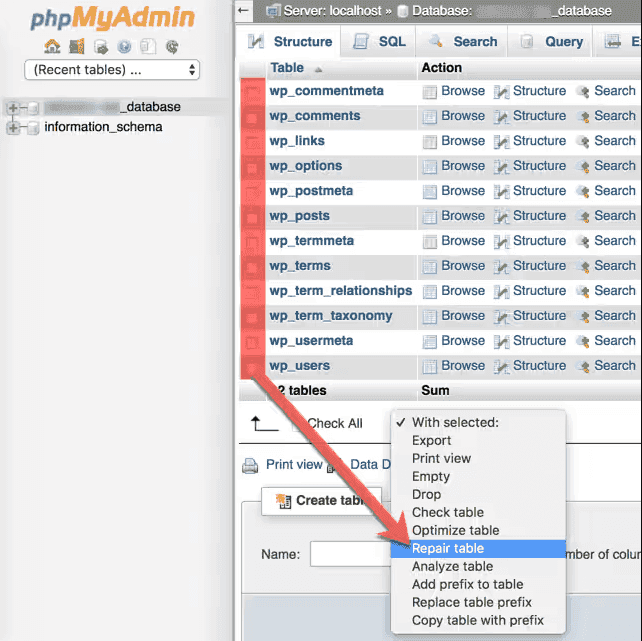
This runs a simple check and attempts to fix common issues. If the tables are intact, your data is still there. You might just need to update the siteurl and home options in the wp_options table if your domain has changed.
How to Back Up a WordPress Site via MultCloud?
To save you from writing this article again in the future, let's set up a proper backup system using MultCloud. It's a web-based multi-cloud manager that supports over 40 cloud services, including FTP/SFTP(for WordPress), Dropbox, Google Drive, OneDrive, iCloud Drive, iCloud Photos, pCloud, WebDAV, etc
You can enjoy the following benefits of MultCloud:
- Direct, Server-to-Server Backup
- Automated, Scheduled Backups
- Unlimited Backup Version History
- Incremental Backups and Granular Control
- Military Security
So, here is how to back up a WordPress site to Google Drive with MultCloud:
1. Sign up for a MultCloud account, then log in.
2. Tap Manage Clouds > Website, then input the credentials of your WordPress FTP server and database server to MultCloud. Then add Google Drive in the same way.
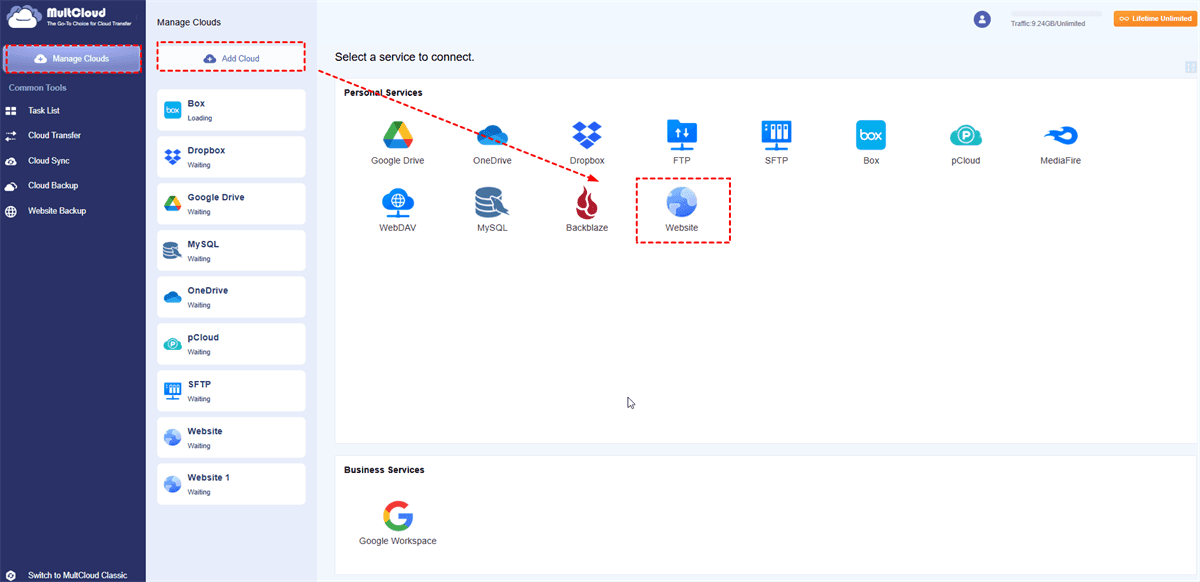
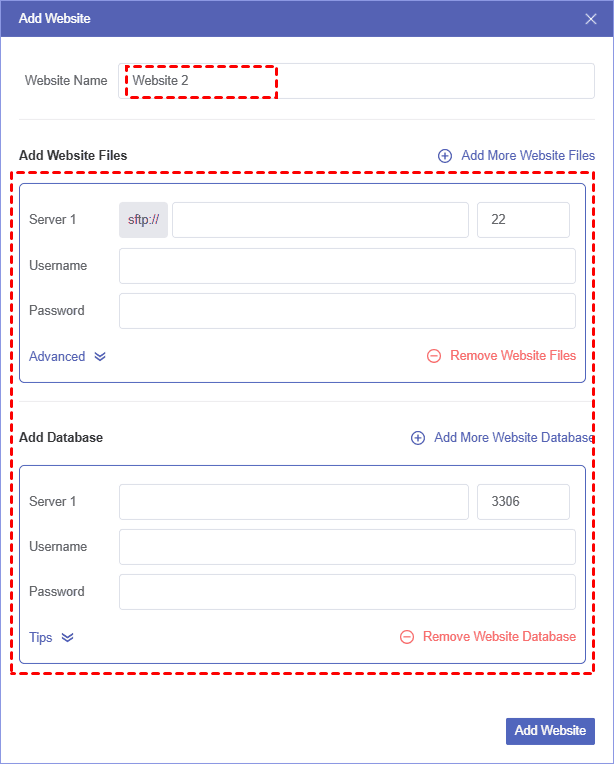
3. Click Website Backup, choose the WordPress files and database as the source, and a folder in Google Drive as the destination.
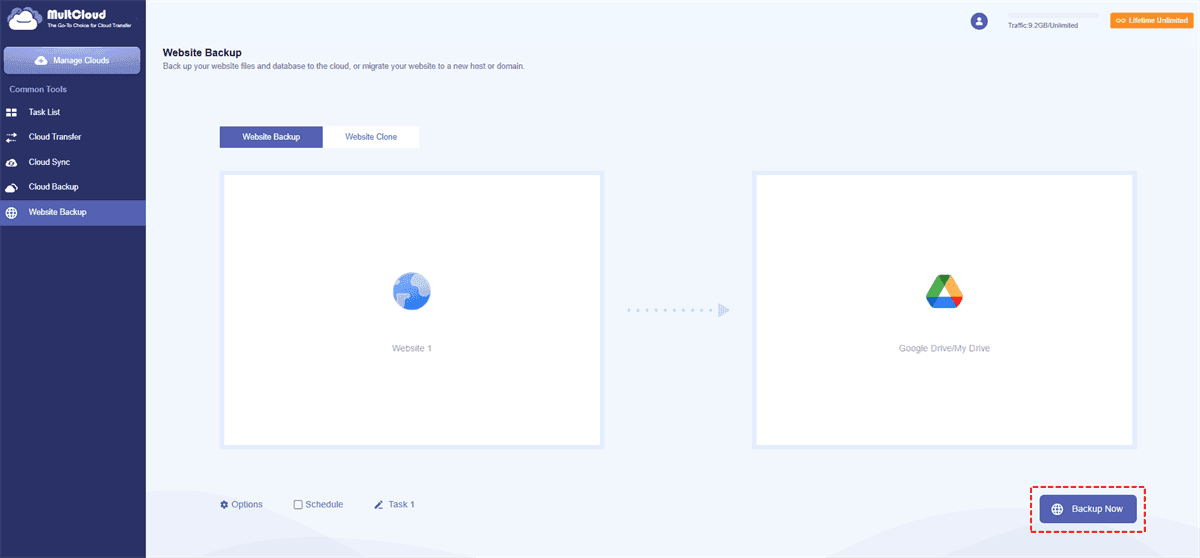
4. Configure the settings and hit Backup Now to backup WordPress site to Google Drive.
- Notes:✎...
- Click "Schedule", this is where you set it and forget it. You can configure daily, weekly, or monthly automatic backups.
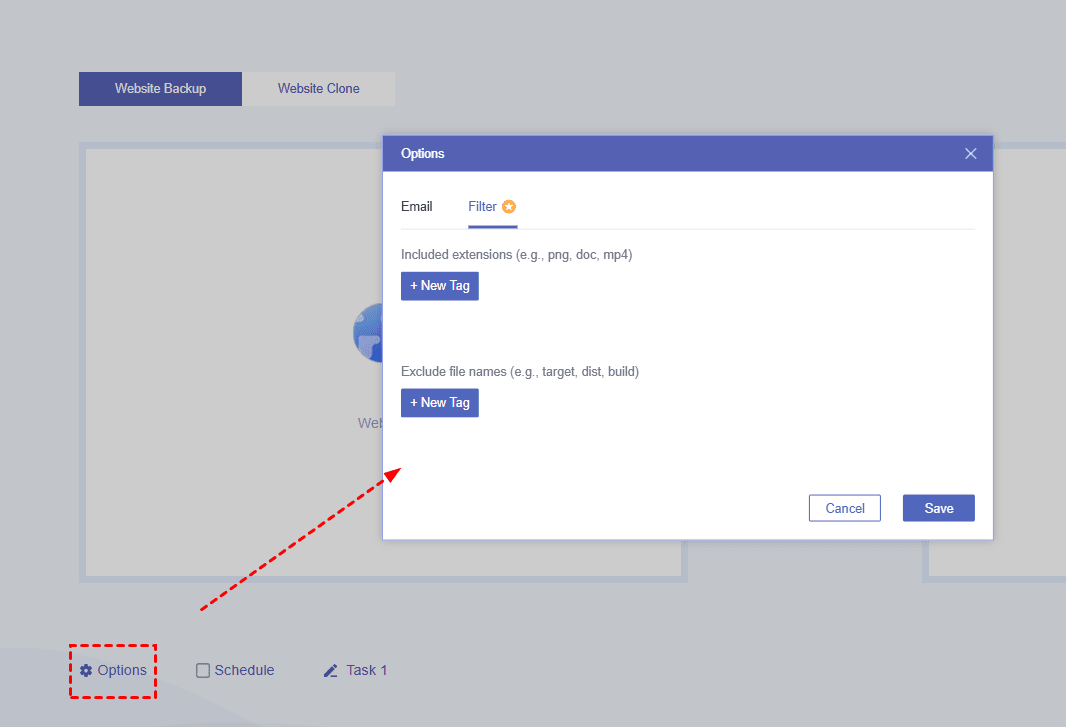
- You can also try Filter in Options to select certain files to back up as you like.

- Upgrading to MultCloud advanced plans is your best choice if you need to back up unlimited files for your WordPress site.

- Smart Share: Share cloud files via public, private, or source mode.
- One-key Move: Quick data transfer, sync, and backup among clouds.
- Email Archive: Protect emails to other clouds or local disks.
- Remote upload: Effectively save web files to clouds via URL.
- Safe: Full-time 256-bit AES and OAuth authorization protections.
- Easy: Access and manage all clouds in one place with one login.
- Extensive: 30+ clouds and on-premise services are supported.
If disaster strikes again, go to your MultCloud Task List. Click the three-line button on your backup task and select "Restore".You'll see all available versions. Select the version you want, choose whether to restore to the original FTP location or a new one, and click Next. MultCloud will push the files back to your server.
FAQs About Restoring WordPress Site without Backup
How do I restore my WordPress site to a previous date without a backup?
A: No one-click fix exists. Contact your host for a server snapshot first. If unavailable, use web archives like the Wayback Machine—manually or with tools like WaybackPress for bulk recovery. Expect to lose recent comments and plugin settings.
Can I use Google Cache to restore my entire WordPress site?
A: No. Google only caches rendered HTML (text and structure), not your PHP code, database, or full-resolution images. You can copy post text from Google Cache, but you'll need to paste it into a fresh WordPress install manually—it won't restore a working site with one click.
Is the Wayback Machine a reliable tool for restoring a WordPress site?
A: It's the best external tool for content recovery, but not a magic bullet. You copy HTML from archived page sources. For small sites, it's tedious yet doable; for large ones, it's brutal without automation like WaybackPress. It handles text well but struggles with media and dynamic features.
My hosting provider charges a fee to restore a backup. Is it worth it?
A: Yes. If your host has a backup, paying the fee (often $50–$150) is nearly always worth it—it's the fastest, most complete recovery option. Compare that to 10–20 hours of manual copying from archives. Your time is more valuable.
How do I manually restore a WordPress database without a backup file?
A: You can't restore the database structure or content without a `.sql` file. If tables exist but are corrupted, try "Repair Table" in phpMyAdmin. If they're empty or missing, your content is gone—you'll need to rebuild manually from web archives. No direct import from archives exists without copying/pasting or using a scraper like WaybackPress.
MultCloud Supports Clouds
-
Google Drive
-
Google Workspace
-
OneDrive
-
OneDrive for Business
-
SharePoint
-
Dropbox
-
Dropbox Business
-
MEGA
-
Google Photos
-
iCloud Photos
-
FTP
-
box
-
box for Business
-
pCloud
-
Baidu
-
Flickr
-
HiDrive
-
Yandex
-
NAS
-
WebDAV
-
MediaFire
-
iCloud Drive
-
WEB.DE
-
Evernote
-
Amazon S3
-
Wasabi
-
ownCloud
-
MySQL
-
Egnyte
-
Putio
-
ADrive
-
SugarSync
-
Backblaze
-
CloudMe
-
MyDrive
-
Cubby


Stay Updated With Our
Latest Tips
Add us as a preferred source on Google to never miss helpful guides.
 Add as preferred source >>