
 Posted by
@MultCloud September 2, 2021
Posted by
@MultCloud September 2, 2021

Migrate files across different cloud drives without manually downloading and re-uploading.

Sync two clouds or directories in two different cloud drives via one-way or two-way sync.

Backup one cloud data to another cloud for an extra protection and easy recovery.
There is a quick search bar in MultCloud's interface that helps the users to instantly locate a certain file among multiple cloud drives. Once a keyword is entered, MultCloud will immediately filter the related files throughout all the cloud drives. In this way, all the different cloud drives can be seen as a whole one.
Some clouds provide a quick search function. You will see these clouds by clicking on the Quick Search, and the quick search will take less time. Other clouds will also provide a general search function. You can find it through General Search, but the general search will take more time.

Search Icon

Entering the keyword

The result of quick search

Entering the keyword
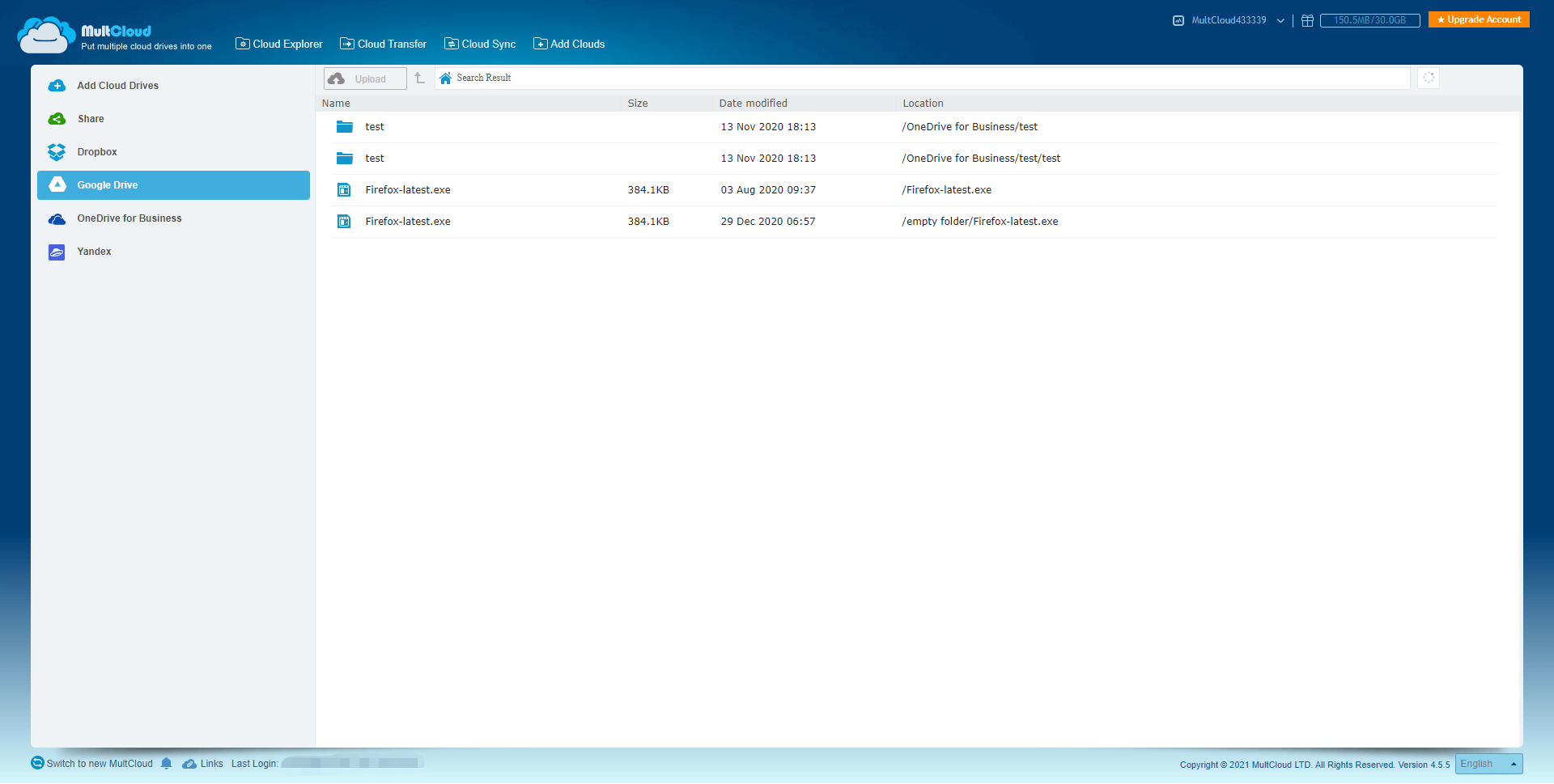
The result of general search

The result of suffix search
Google Drive
Google Workspace
OneDrive
OneDrive for Business
SharePoint
Dropbox
Dropbox Business
MEGA
Google Photos
iCloud Photos
FTP
box
box for Business
pCloud
Baidu
Flickr
HiDrive
Yandex
NAS
WebDAV
MediaFire
iCloud Drive
WEB.DE
Evernote
Amazon S3
Wasabi
ownCloud
MySQL
Egnyte
Putio
ADrive
SugarSync
Backblaze
CloudMe
MyDrive
Cubby
