
Content Overview:
How to Transfer WordPress Site to New Domain?
How do I manually migrate the WordPress website to a new domain?
Hello, I need some guidance on manually migrating an old WordPress website to a new domain. The old WordPress domain is inactive(not renewed).
Thank you
- Question from reddit.com
Moving your WordPress site to a new domain can feel like open-heart surgery for your online business. One slip, and you risk losing traffic, breaking links, or taking everything offline. But learning how to transfer a WordPress site to a new domain doesn't have to be stressful. Whether rebranding, upgrading domains, or switching hosts, the process is doable with a solid plan.
A smooth migration preserves your SEO rankings and visitor experience. A bad move can tank rankings, break internal links, and frustrate users. Follow the right steps, and you'll transfer your site's authority seamlessly.
What to Back Up Before You Start
Before you even think about moving files, you need to prepare your site. A little planning goes a long way in preventing data loss and minimizing downtime.
Take a Complete WordPress Backup (Files + Database)
If anything goes wrong during the transfer, having a complete backup is your only way back.
You need a copy of two things: your site's files (themes, plugins, and media uploads) and its database (all your posts, pages, and settings). You can easily create a full backup of files and database using a plugin like UpdraftPlus or Duplicator, or you can do it manually through your hosting control panel's File Manager and phpMyAdmin.
Automatic Transfer WordPress Site to New Domain | 2 Ways
There are 2 automatic ways to migrate a WordPress site to a new domain. Let's find out.
Way 1. Transfer WordPress Site to New Domain via WPvivid Plugin [Automatic]
WPvivid plugin helps you to transfer WordPress site to new domain automatically with one click, here it is:
1. Please go to your WordPress Dashboard on the source and destination sites. Tap Plugins > Add New Plugin.
2. Search for WPvivid, install and activate WPvivid Backup and Migration. Install the plugin on both sites.
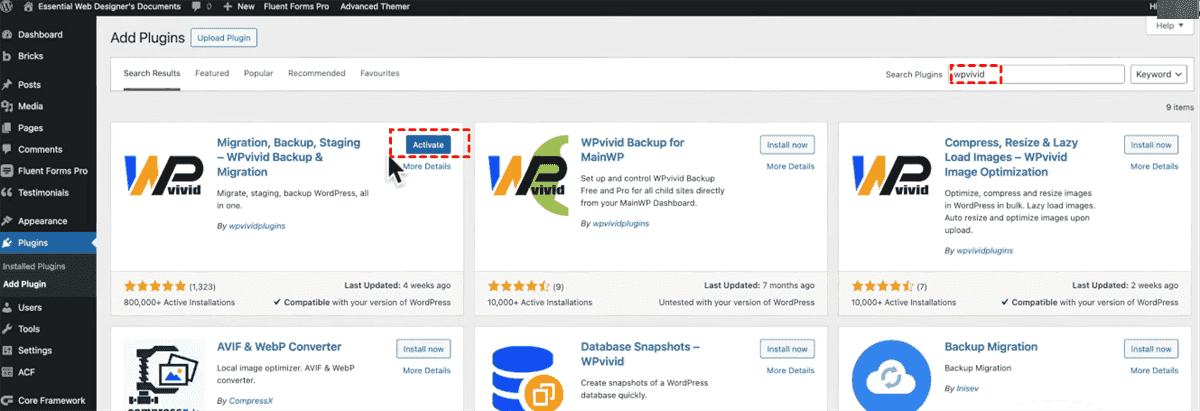
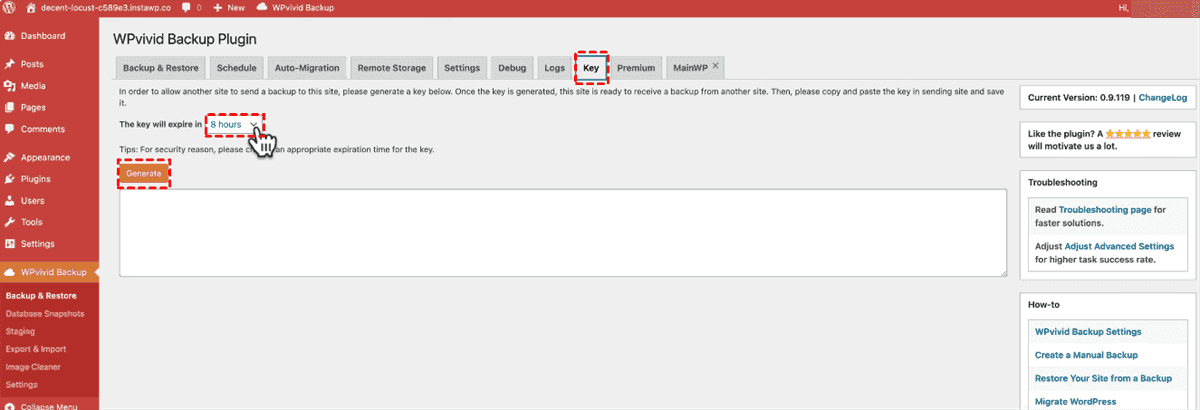
3. Then go to your destination WordPress site (new domain), click WPvivid Backup, tap Key, set up the key expiration time, and hit Generate to get a key. Copy the key.
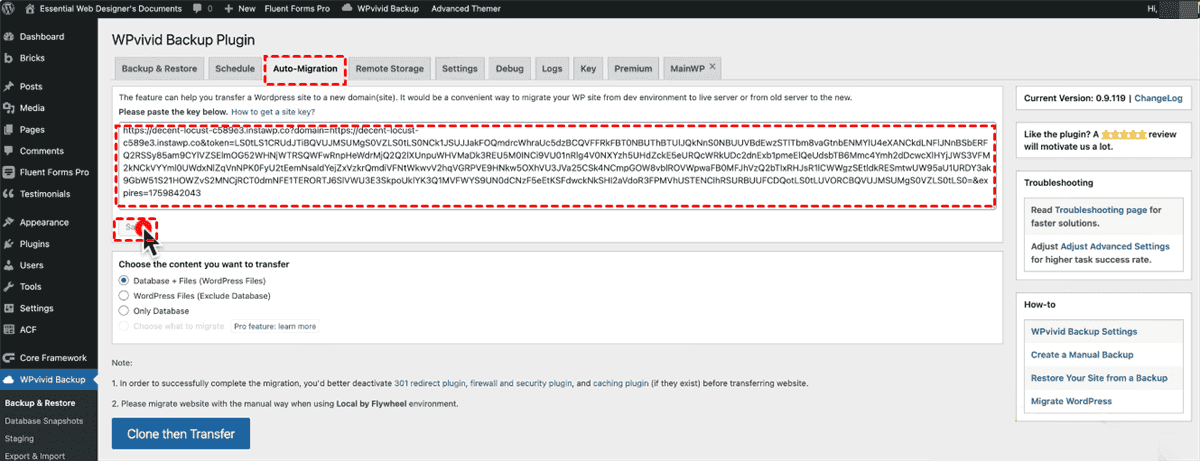
4. Go to your source WordPress site, hit WPvivid Backup > Auto-Migration, paste the key, and hit Save. Now, you have connected the two sites(domains).
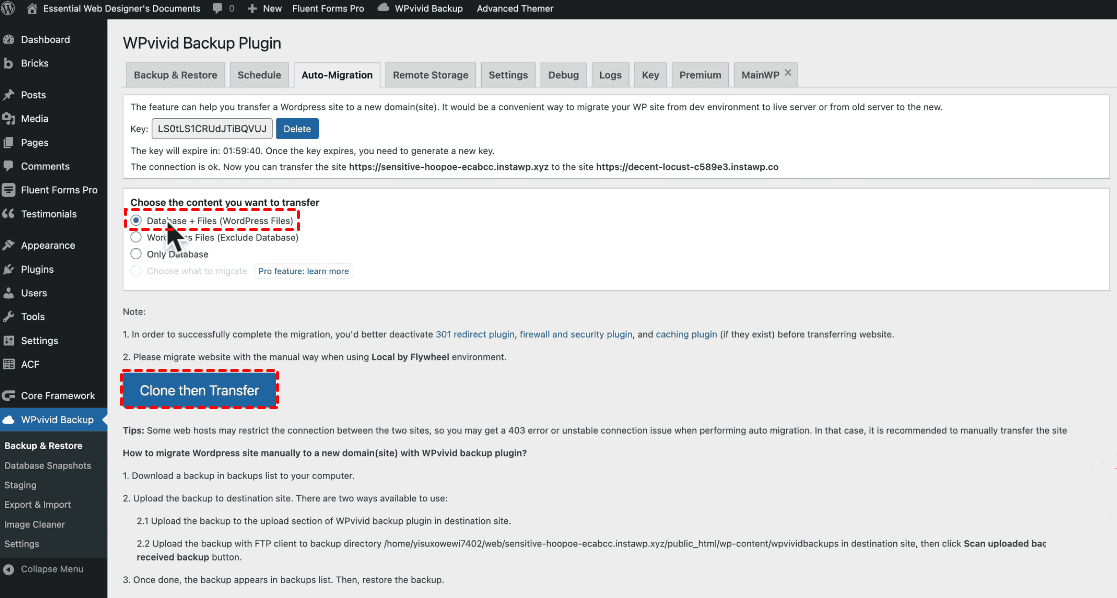
5. Choose Database + Files to transfer, and hit Clone then Transfer. Wait for the process to complete.
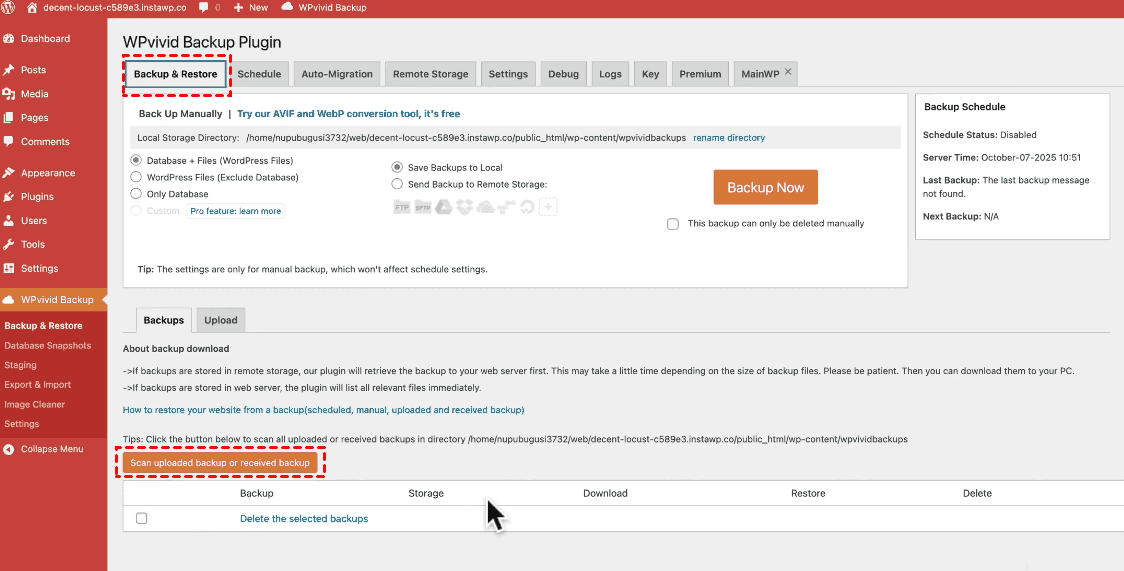
6. Now, go to your new domain site, tap WPvivid Backup > Backup & Restore > Scan uploaded backups or received backup,
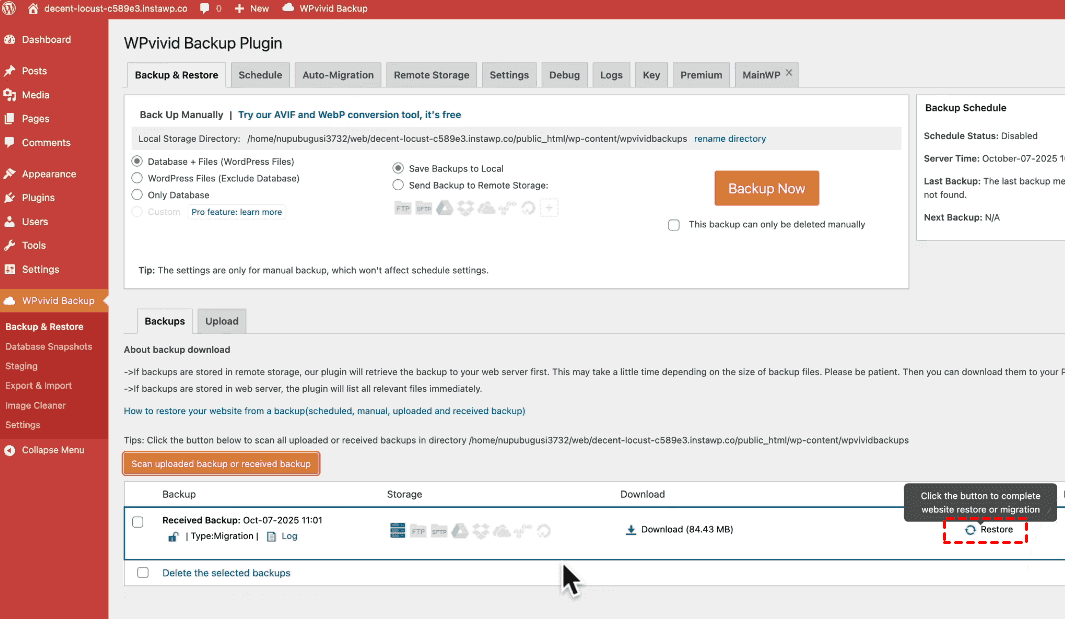
7. Then hit Restore when you find the content that was transferred from the source site.
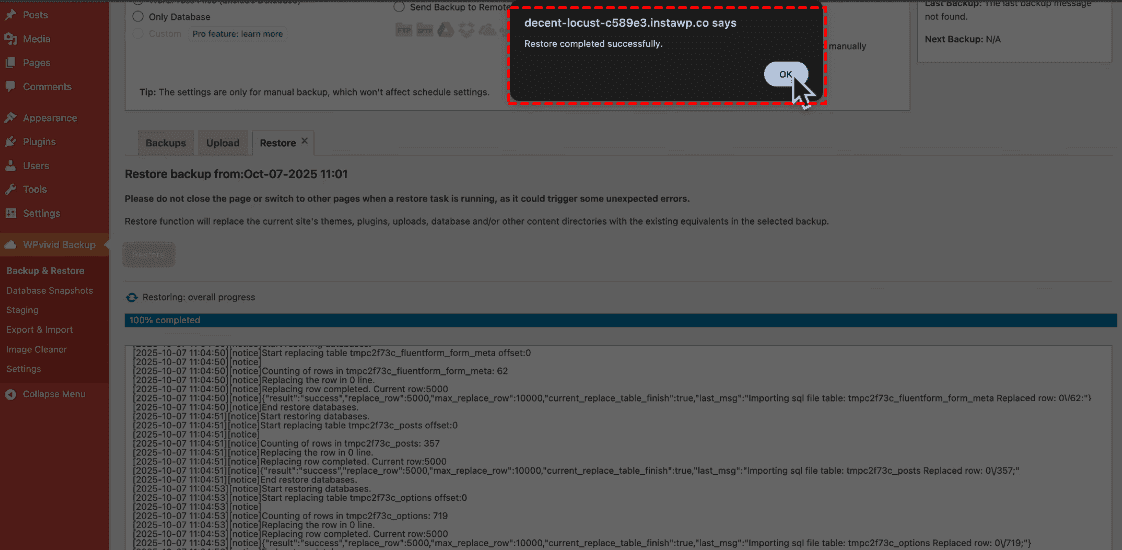
8. Wait for the process to complete and hit OK.
Now, you can log in to your new domain and check the content. If you want to document your current SEO settings, such as your permalink structure. This ensures your new site's URLs match the old structure, preventing 404 errors. To update the permalinks to the destination site, try this:
1. Go to your new domain site Dashboard, click Settings > Permalinks.
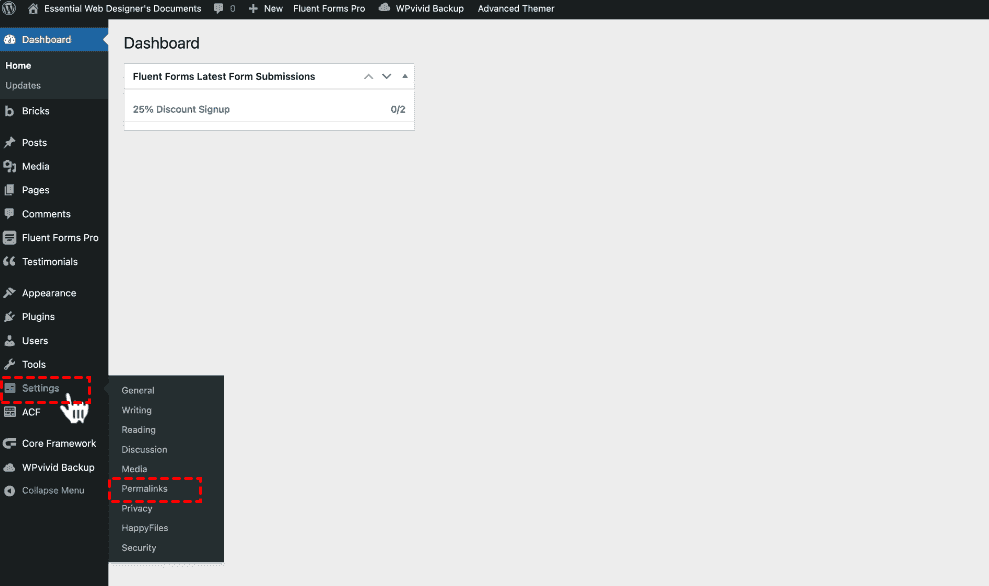
2. Make sure the Post Name is selected and hit save changes.
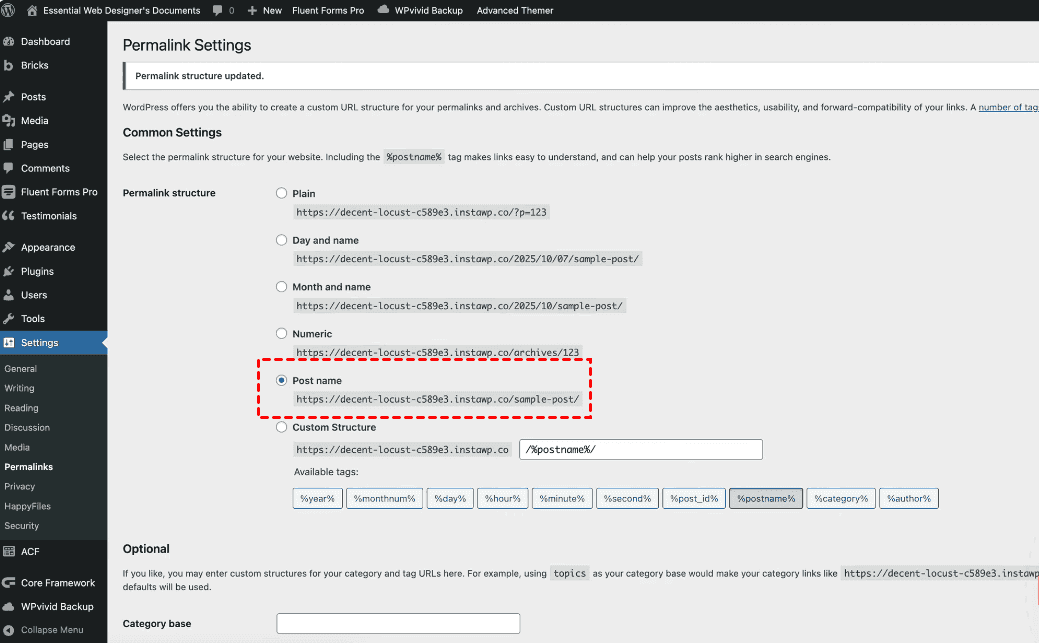
If you don't update these, your site will have broken links, missing images, and dysfunctional features
Way 2. Transfer WordPress Site to New Domain via MultCloud
Besides, you have another automatic way to transfer WordPress site to new domain, the all-in-one multiple cloud storage manager, MultCloud. It is not only a cloud storage manager but also a website backup and restore tool.
With MultCloud, enjoy:
- Direct Migration Without Manual Steps. MultCloud allows you to transfer all files and database directly between different servers(domains), without downloading and uploading.
- FTP/SFTP Support. The tool supports FTP and SFTP protocols, making it a suitable option for migrating WordPress sites.
- Beginner-Friendly Interface. MultCloud offers an intuitive interface that simplifies the migration process, even for those without technical expertise.
- Wide Cloud Compatibility. It supports over 40 cloud services, including Amazon S3, Google Drive, Dropbox, OneDrive, SharePoint Online, and NAS devices, giving you flexibility in where you store and move your site.
- Advanced Settings. You can customize your migration with filters, email notifications, schedules, sync modes, and transfer methods.
- Strong Security. MultCloud uses 256-bit AES encryption and a standard OAuth Authorization system to keep your website files safe during transfer.
Here is how to transfer WordPress site to new domain with MultCloud in simple clicks:
1. Please log in to your MultCloud acccount after registering.
2. Tap Manage Clouds > Website, input the credentials of your source WordPress site (FTP and database server), and hit Add Website. Repeat the process to add the new domain site.
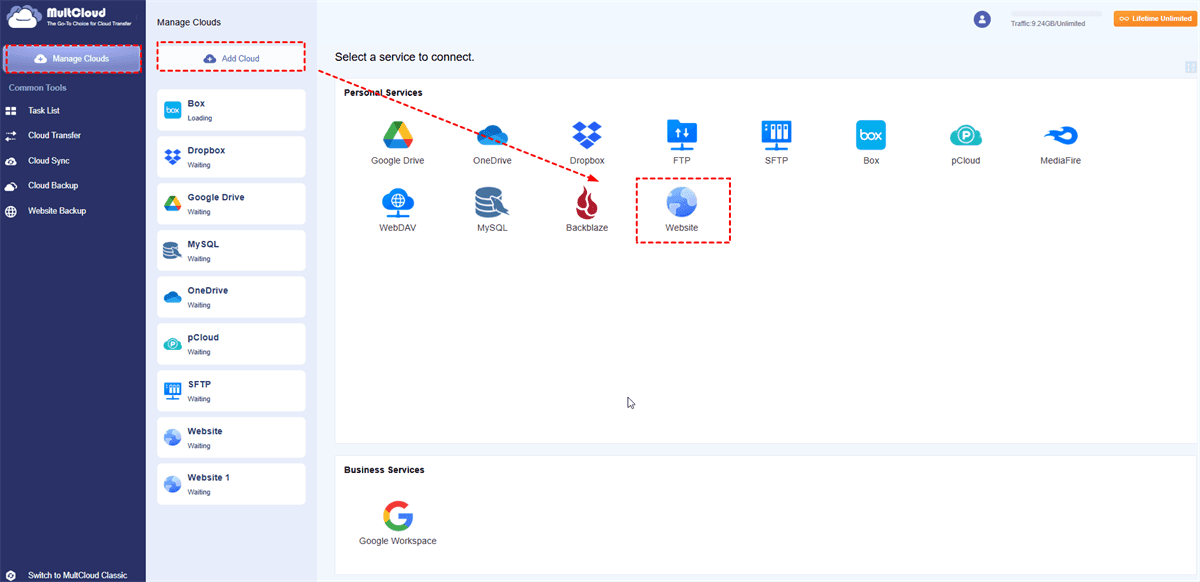
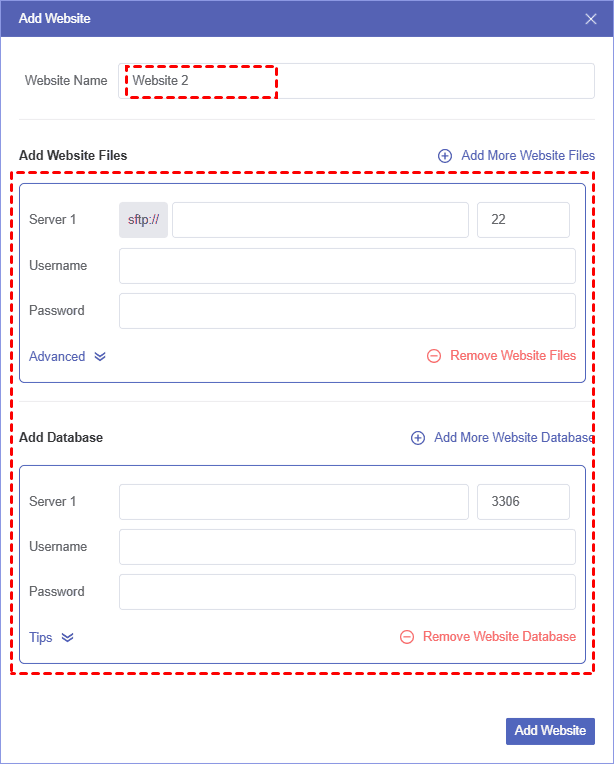
3. Click Website Backup > Website Clone, and pair the source WordPress files and database with the destination domain files and database.
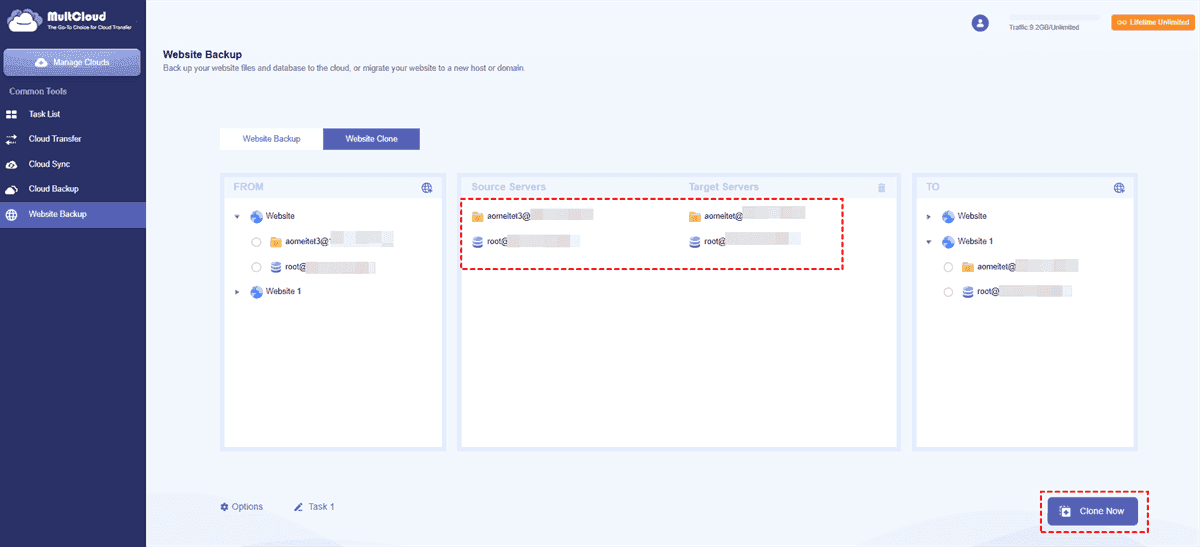
4. Set up the settings in Options, and hit Clone Now to transfer WordPress site to new domain.
- Notes:✎...
- You can set up Options to configure clone settings, email notification, or file filter. If the files already exist, you can set up to overwrite, rename, etc. Email alerts will be sent to you once the task is finished, once configured. Besides, try Filter to transfer certain files if required.
- It's wise to upgrade to MultCloud's advanced plans to enjoy more data traffic, faster speed, and all other premium features.

- Smart Share: Share cloud files via public, private, or source mode.
- One-key Move: Quick data transfer, sync, and backup among clouds.
- Email Archive: Protect emails to other clouds or local disks.
- Remote upload: Effectively save web files to clouds via URL.
- Safe: Full-time 256-bit AES and OAuth authorization protections.
- Easy: Access and manage all clouds in one place with one login.
- Extensive: 30+ clouds and on-premise services are supported.
Manually Transfer WordPress Site Files and Database (FTP & phpMyAdmin)
This hands-on method gives full control but demands technical know-how. You'll download site files via FTP, export the database, and upload everything to the new server. It's ideal if you're code-savvy and want to grasp each step—though it's slower and riskier if errors occur.
So, here we will show you how to transfer WordPress site to new domain manually with FTP and phpMyAdmin:
Download Files from FTP App
Here we will show you how to download files from FileZilla:
1. Download FileZilla on your computer, then connect your WordPress site server.
2. Go to the root directory, usually public_html, then select all files.
3. Right-click them and choose Download.
Export All Database from phpMyAdmin
1. Go to the phpMyAdmin page and log in.
2. Select all the databases on the left side, then tap Export.
3. Choose Quick or Custom method, then select SQL format.
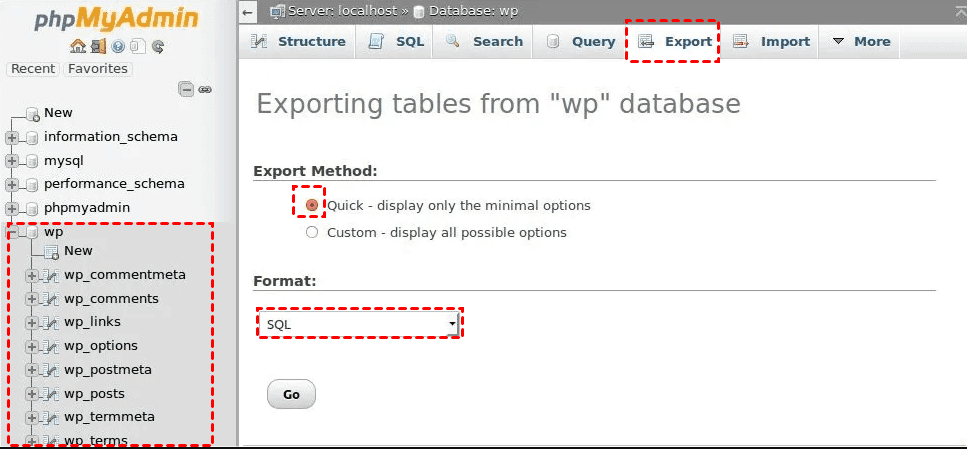
4. Hit GO to do a full database backup.
After taking a complete backup of your source WordPress site. Then you can upload these files to the new domain via FileZilla. And import the database from the source to the destination via phpMyAdmin like this:
1. Go to the phpMyAdmin console. Tap Import. (To import data into a specific database or table, open the database or table before going to the "Import" tab).
2. Choose a SQL file to import from.
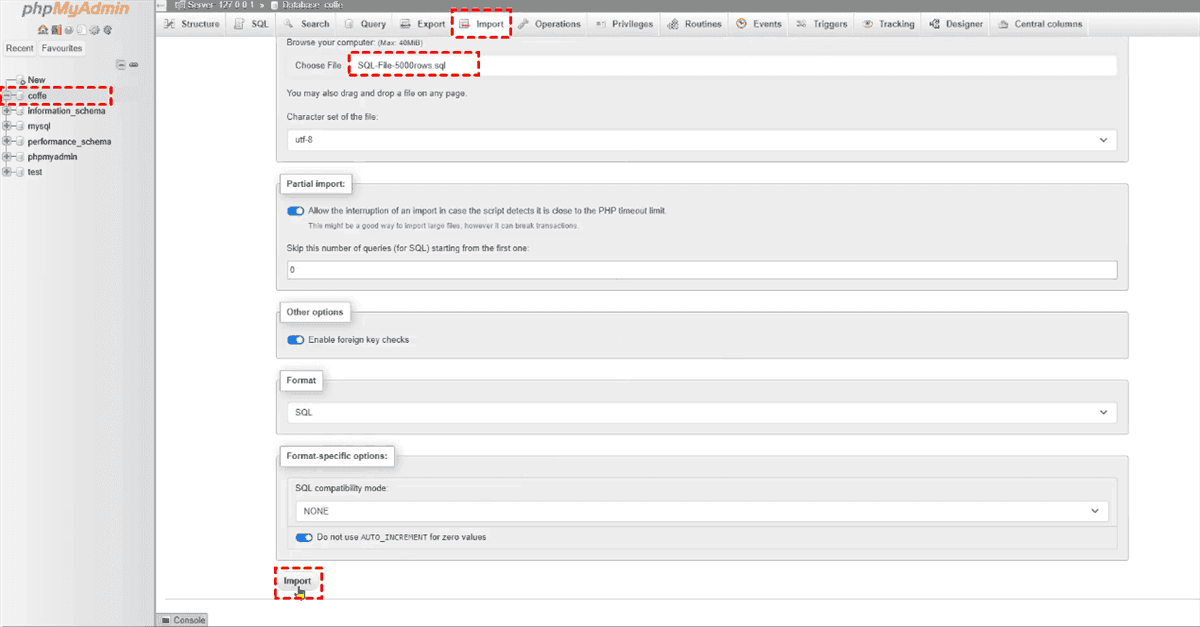
3. Set up other settings and hit Import to start restoring the database from the source site.
Change WordPress Site to New Domain After Files and Database Migration
This is the heart of the operation where you actually execute the move.
Step 1. Transfer Files and Database from One Domain to Another
Use the above automatic or manual ways to migrate a WordPress site to a new domain easily and quickly.
Step 2. Run a Search-and-Replace for Old Domain References
This is the most critical step for the WordPress site migration. A simple search-and-replace tool like Better Search Replace or WP Migrate Lite is perfect for this. It safely scans your database and updates all instances of your old URL to the new one.
Step 3. Update the wp-config.php File with New Database Credentials
After the move, you must tell WordPress how to connect to its new database. You'll find a file called wp-config.php in your site's root folder. Edit this file and update the following lines with the new database credentials you created on your new server:
php code:
define('DB_NAME', 'your_new_database_name');
define('DB_USER', 'your_new_database_user');
define('DB_PASSWORD', 'your_new_database_password');
define('DB_HOST', 'localhost'); // This is usually localhost
Change your_new_database_name, your_new_database_user, your_new_database_password with yours.
Step 4. Maintain Your WordPress Site SEO
How to transfer WordPress site to new domain without losing SEO authority and existing traffic? If you want this, try these:
Update Permalinks Structure
Your permalinks are the URLs that search engines have already indexed, so you need to protect them. You can update your permalinks to regenerate your .htaccess file and tell WordPress to use your URL structure on the new domain.
Set up 301 permanent redirects
To ensure you don't lose your existing traffic and SEO authority, you need to set up 301 permanent redirects from your old domain to the new one by editing the .htaccess file in the root of your old domain. This step is crucial for telling search engines that your content has permanently moved.
Step 5. Test and Troubleshoot Common Errors After Migration
Congratulations, you've moved your site! Now, you need to test everything to ensure it works perfectly.
- Check Internal Links, Images, and Mixed Content Warnings
- Verify SSL Certificate and Force HTTPS
Step 6. Notify the World of your Domain Change
The technical heavy lifting is behind you, but a few critical tasks remain. Now it's time to notify search engines and the wider web about your new digital home.
Point DNS Records to Your New Host
If you've switched hosting providers alongside your domain change, you'll need to update your domain's DNS records to point to the new host's nameservers. This adjustment happens in your domain registrar's control panel. Keep in mind that DNS propagation isn't instantaneous—it can take anywhere from a couple of hours up to 48 hours to fully roll out across the globe.
Update Your Site in Google Search Console
This step is arguably the most vital for preserving your SEO hard work. Head over to Google Search Console, add your new domain as a verified property, and locate the "Change of Address" tool under settings. Follow the guided steps to officially inform Google that your site has relocated. This direct signal helps maintain your search visibility and ensures your rankings transition smoothly to the new domain.
FAQs About Transferring WordPress Site to New Domain
Q: How do I clone a WordPress site to another domain?
A: Cloning keeps the original site live while creating a duplicate elsewhere. The easiest way to how to copy WordPress site to another domain is using plugins like Duplicator or WP Migrate Lite, which package your files and database, then install them on the new domain while auto-updating all URLs.MultCloud can also do the same job.
Q: Will I lose my SEO rankings if I move my domain?
A: A temporary dip is possible, but you can minimize it. Set up 301 redirects from old URLs to new ones to pass link equity and signal a permanent move. Also, submit a change of address in Google Search Console to help preserve rankings.
Q: What is the easiest way to move a WordPress site?
A: For most users, the WPvivid plugin or MultCloud offers the simplest and safest approach. Its one-click migration automates file and database transfers without requiring technical skills.
Q: How long does it take to migrate a WordPress site?
A: A plugin can move a 1 GB site in under 30 minutes, but the full process—including DNS propagation—may take up to 48 hours. Be patient and verify everything works post-migration.
Q: Why are my images and links broken after migration?
A: This happens when old domain URLs remain hardcoded in your database. Run a search-and-replace tool like WP Migrate Lite or Better Search Replace to update all old domain instances to the new one, fixing broken links and missing images.
Q: Is it necessary to keep my old site after migration?
A: Yes, keep your old site live on the old domain for several days. This lets you set up and test 301 redirects, ensuring visitors following old links are automatically forwarded to your new site.
MultCloud Supports Clouds
-
Google Drive
-
Google Workspace
-
OneDrive
-
OneDrive for Business
-
SharePoint
-
Dropbox
-
Dropbox Business
-
MEGA
-
Google Photos
-
iCloud Photos
-
FTP
-
box
-
box for Business
-
pCloud
-
Baidu
-
Flickr
-
HiDrive
-
Yandex
-
NAS
-
WebDAV
-
MediaFire
-
iCloud Drive
-
WEB.DE
-
Evernote
-
Amazon S3
-
Wasabi
-
ownCloud
-
MySQL
-
Egnyte
-
Putio
-
ADrive
-
SugarSync
-
Backblaze
-
CloudMe
-
MyDrive
-
Cubby


Stay Updated With Our
Latest Tips
Add us as a preferred source on Google to never miss helpful guides.
 Add as preferred source >>