

Quick Navigation:
How Can I Backup WooCommerce Site?
WooCommerce is the open-source commerce platform for WordPress that gives you full control of your checkout, your data, your costs. Choose any payments, any features, any host. Sell online and offline, locally or globally.
However, your server crashes, a plugin goes haywire, or some nasty malware waltzes right in. Without a recent WooCommerce site backup, you're staring down the barrel of lost orders, vanished product data, and customers losing. That's a nightmare no store owner wants to see.

In this guide, we'll walk through how to back up WooCommerce stores manually and automatically, how to back up WooCommerce site data, and even how to sync WooCommerce products between sites if you run multiple storefronts. Plus, we'll show you a dead-simple way to handle the backup and restoration using an automated tool.
How to Backup WooCommerce in 3 Methods
You've got options. Some are quick and dirty; others are set-and-forget. Let's break them down.
Way 1. Manual Backup WooCommerce Site via cPanel or FTP
If you're the hands-on type, manual backups give you full control.
Part 1. Backup WooCommerce Files via cPanel
You can backup WooCommerce files via cPanel like this:
1. Log in to your cPanel and click the File Manager icon.
2. Select Web Root (public_html, or www). Check "Show Hidden Files".
3. Right-click the public_html or www folder, choose Compress > Zip Archive.
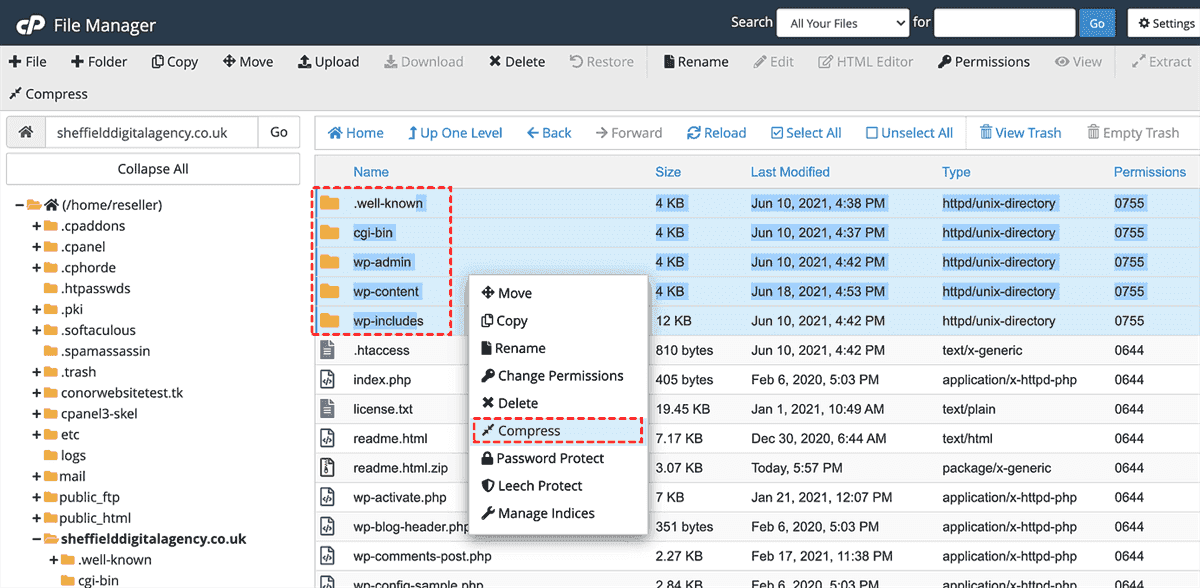
4. Rename it and click Compress.
5. Once completed, right-click the new .zip file and select Download.
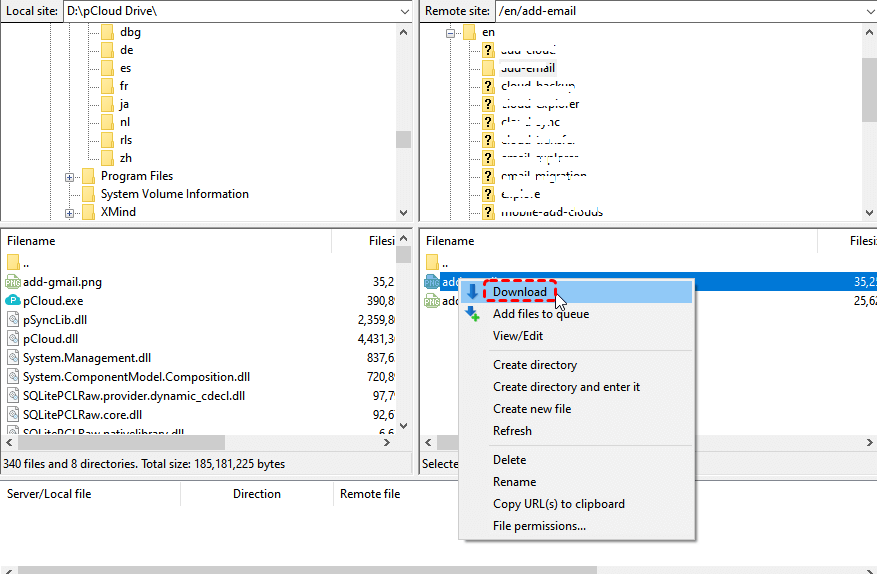
Or you can try to download WooCommerce files from the FTP/SFTP server. Here we will show you how to download files from FileZilla:
1. Log in to your FTP server via FileZilla.
2. Go to the root directory and right-click the public_html or www folder.
3. Choose Download to back up WooCommerce files.
Part 2. Export Database via phpMyAdmin
1. Log in to phpMyAdmin.
2. Select the source database on the left side.
3. Click the Export tab in the top menu.
4. Select the Quick or Custom export method.
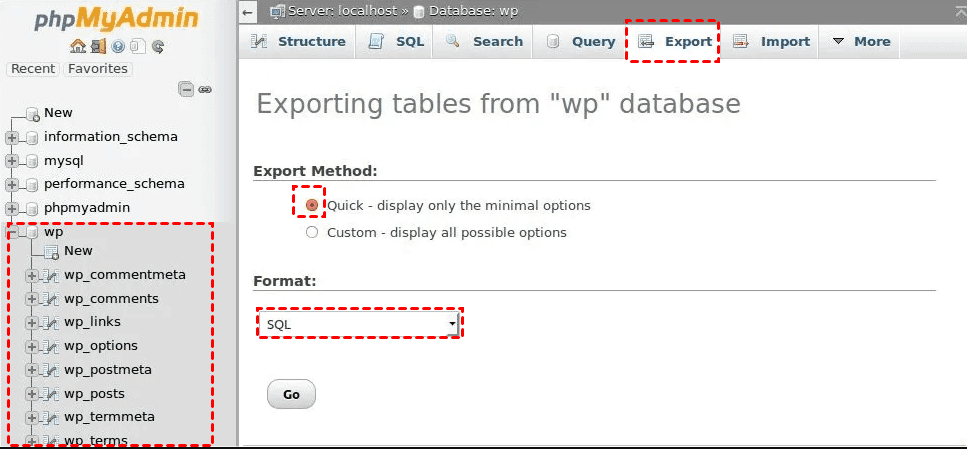
5. Choose the format you'd like to save the file.
6. Click Go to backup WooCommerce database now.
Once downloaded WooCommerce files and database to your computer, then move them to a safe location, such as an external drive, etc. It's free, and you have to remember to do it.
Way 2. Automated Backup WooCommerce Website with Plugin
Automation is your best friend here. Plugins like UpdraftPlus, Jetpack VaultPress, or BackupBuddy can handle everything on a schedule. You can tell them to backup WooCommerce website every night, and they do it while you sleep.
We'll use a popular free plugin (UpdraftPlus) for this example because it's beginner-friendly and rock solid.
Here is how to perform WooCommerce site backup with UpdraftPlus:
1. Go to Plugins > Add New, search “UpdraftPlus”, install, and activate.
2. Go to Settings > UpdraftPlus.
3. Click Settings, then set your schedule: daily for files and database.
4. Choose your remote storage and select Google Drive, Dropbox, or whatever you prefer. Authenticate the connection.
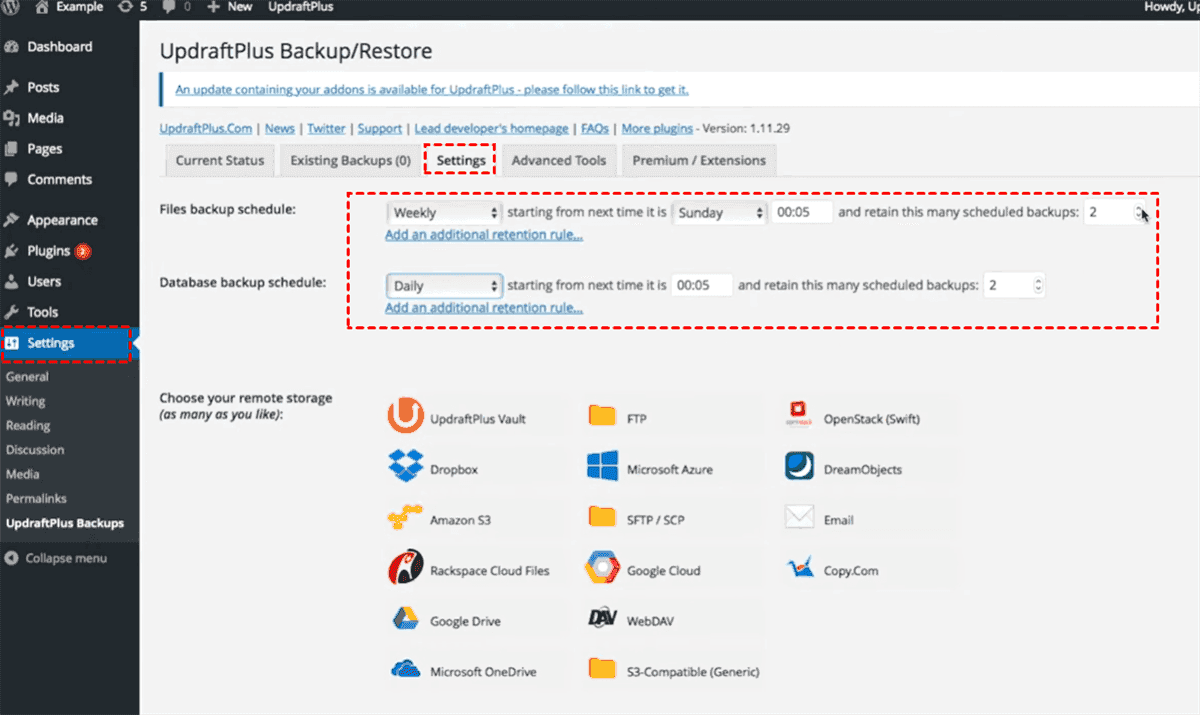
5. How many to keep – Retain 2-3 backups at most to save space.
6. Click “Backup Now” to test everything.
Free plugins usually cover the basics: scheduled backups, cloud storage, and one-click restore. Premium versions add things like incremental backups (saving only what's changed), database encryption, and priority support.
Way 3. WooCommerce Site Backup via MultCloud
Besides, you have another automatic way to backup WooCommerce site, including the files and database. The comprehensive multiple cloud storage manager, MultCloud is a great option. It not only manages cloud files in one platform but also protects your website files and database to reduce downtime.
- Centralized Cloud Management. It supports 40+ clouds, including Google Drive, Dropbox, OneDrive, MEGA, FTP/SFTP, WebDAV, Amazon S3, etc.
- Direct Server-to-Server Transfer. MultCloud transfers files directly between cloud services and FTP servers without downloading anything to your computer first.
- No Software Installation Required. Being entirely web-based, MultCloud works from any device with a browser.
- Scheduled Backup Tasks. Set up automated transfers on a schedule, even when your computer is off.
- 256-Bit AES Encryption. All data transfers use 256-bit AES encryption for SSL, keeping your store's backup files secure during transit.
Here is how to perform a WooCommerce site backup to Google Drive via MultCloud:
1. Please sign up for MultCloud for free, then log in.
2. Tap Add Cloud > Google Drive, then grant access to MultCloud.
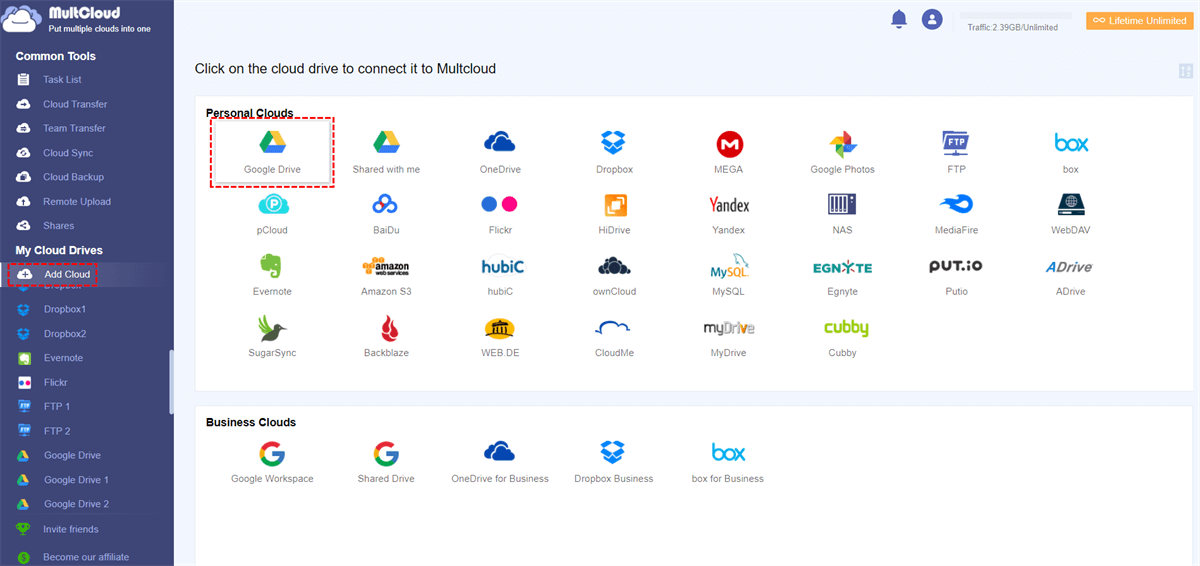
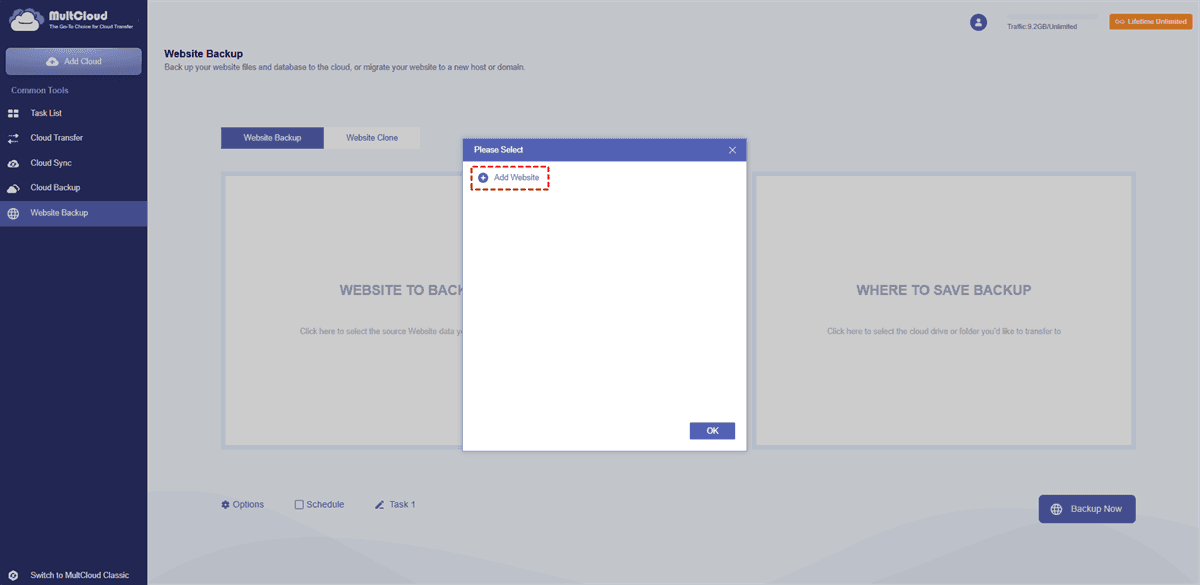
3. Click Website Backup > WEBSITE TO BACKUP > Add Website, input your WooCommerce FTP and database server credentials, and tap Add Website.
4. Select the WooCommerce files and database as the source, and a folder in Google Drive as the destination.
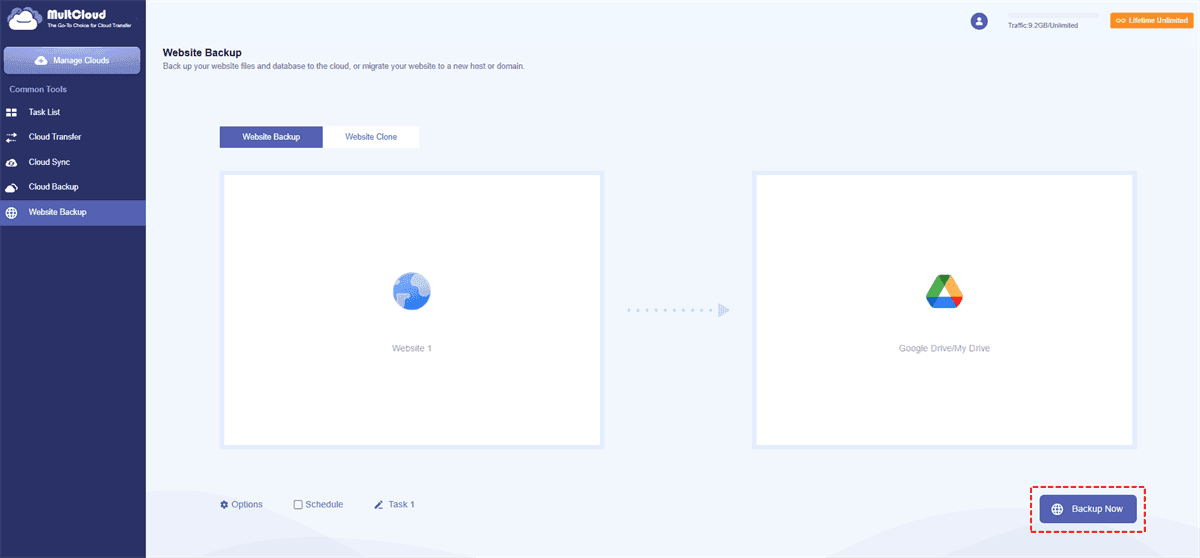
5. Tap Schedule and choose the intervals to back up, then click on Backup Now to backup WooCommerce site to Google Drive automatically.
- Notes:✎...
- You can choose once, daily, weekly, or monthly to run the WooCommerce site backup in the Schedule.
- Besides, Options allow you to set up Filter and Email. You can include or exclude the files you want before backing up.
- Upgrading to a MultCloud advanced plan is your best choice if you need to back up unlimited files and databases for a WooCommerce site.

- Smart Share: Share cloud files via public, private, or source mode.
- One-key Move: Quick data transfer, sync, and backup among clouds.
- Email Archive: Protect emails to other clouds or local disks.
- Remote upload: Effectively save web files to clouds via URL.
- Safe: Full-time 256-bit AES and OAuth authorization protections.
- Easy: Access and manage all clouds in one place with one login.
- Extensive: 30+ clouds and on-premise services are supported.
Restore a WooCommerce Site Backup After a Critical Failure
So the worst has happened. Your site is down, or half your products are MIA. Don't panic. Here's how to bring it back.
Your WooCommerce store has two main parts: the database (orders, products, settings) and the files (themes, plugins, images).
If you only lost the database, you can restore just that. Use phpMyAdmin or your backup plugin's restore function to import the .sql file.
Or you can restore files and the database with MultCloud easily:
1. Go to the Task List, find the WooCommerce site backup, and tap Three-dot > Restore.
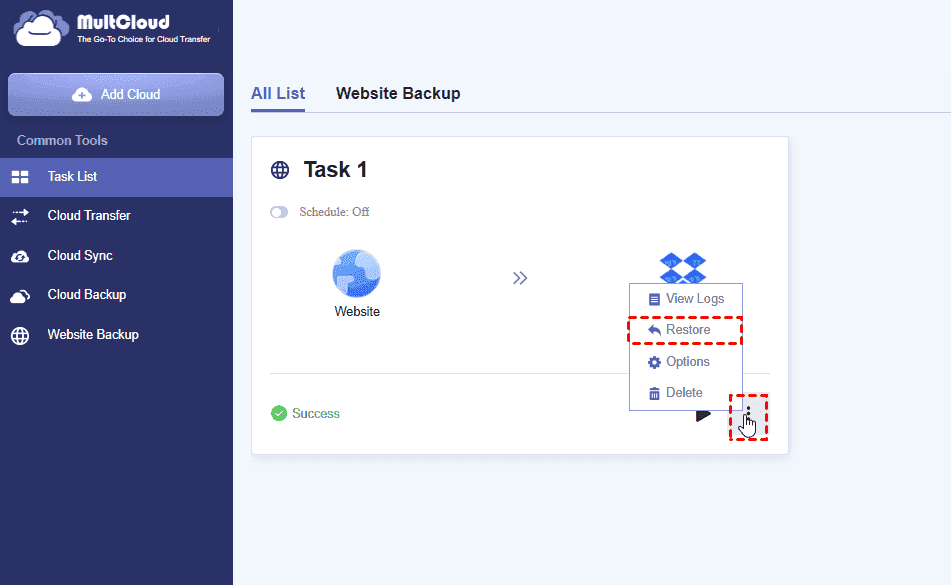
2. Choose the version you need, set up Restore options, and choose a destination.
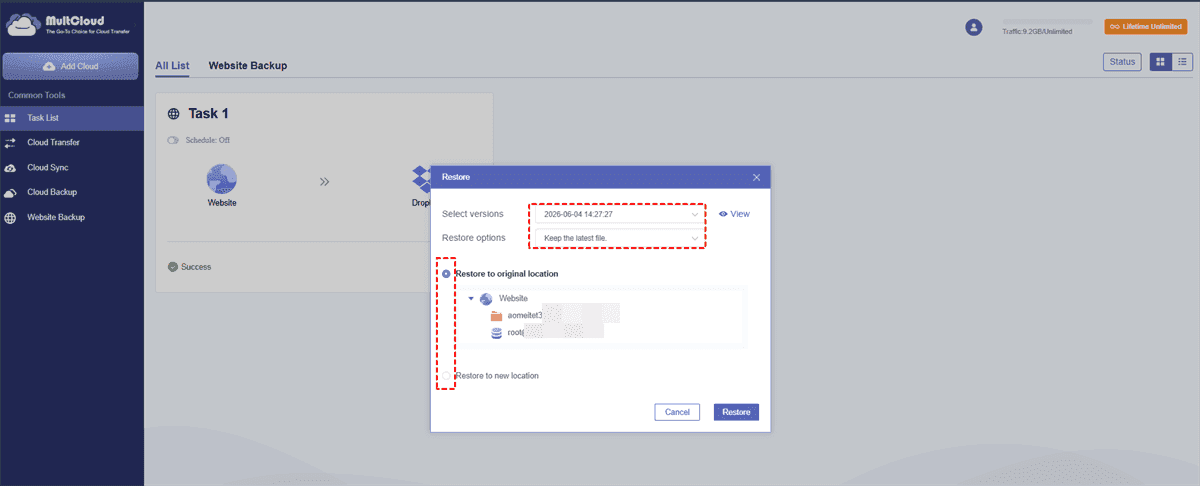
3. Tap Restore.
Tip: WooCommerce Sync Products Between Sites
Running multiple WooCommerce stores creates a headache: inventory mismatches.
The fix? You can sync products between WooCommerce sites in real time or on a schedule. This keeps stock levels, prices, and even product descriptions identical across all your storefronts.
When you sync WooCommerce products between sites from a central hub, your life gets easier. No more manual updates on each site. No more overselling. Tools like WP All Import Pro, AutomateWoo, or even custom REST API scripts can handle this.
FAQs About WooCommerce Site Backup
How often should I run a WooCommerce site backup?
A: Daily for active stores. Fewer than 10 orders/day? Every other day works. Weekly is risky. High-volume stores sometimes run backups twice daily.
Can I backup WooCommerce site without a plugin?
A: Yes. Use cPanel (zip files + export database) or FTP + phpMyAdmin. Hosting providers may offer free backups too. Downside? You have to remember. Most forget until something breaks.
What is the easiest way to backup WooCommerce website for beginners?
A: Use UpdraftPlus. Install it, connect to free Google Drive, set daily schedule. Done. Click "Restore" when needed. No coding required.
Does WooCommerce automatically back up my site?
A: No. WooCommerce has no auto-backup feature. Hosting backups are often weekly/monthly, and many don't let you download them. Get your own independent backup.
How do I sync products between multiple WooCommerce sites?
A: Use WP All Import Pro, WooCommerce REST API, or tools like TradeGecko. Real-time sync prevents overselling by updating stock instantly across all stores.
Can I restore a WooCommerce site backup to a different host?
A: Yes. Upload your backup (files + database) to the new host, update `wp-config.php` with new database credentials, and repoint your domain. Painless host switching.
What's the difference between backing up and syncing in WooCommerce?
A: Backup = time machine for your whole store (files, database, settings). Sync = messenger updating only product data across stores. You need both.
MultCloud Supports Clouds
-
Google Drive
-
Google Workspace
-
OneDrive
-
OneDrive for Business
-
SharePoint
-
Dropbox
-
Dropbox Business
-
MEGA
-
Google Photos
-
iCloud Photos
-
FTP
-
box
-
box for Business
-
pCloud
-
Baidu
-
Flickr
-
HiDrive
-
Yandex
-
NAS
-
WebDAV
-
MediaFire
-
iCloud Drive
-
WEB.DE
-
Evernote
-
Amazon S3
-
Wasabi
-
ownCloud
-
MySQL
-
Egnyte
-
Putio
-
ADrive
-
SugarSync
-
Backblaze
-
CloudMe
-
MyDrive
-
Cubby


Stay Updated With Our
Latest Tips
Add us as a preferred source on Google to never miss helpful guides.
 Add as preferred source >>