
Can I Copy Content from One WordPress Site to Another?
Figuring out how to copy content from one WordPress site to another sounds simple until you actually try it. Will the images break? Will the formatting go haywire? What about all those internal links?
Don't worry, you've got options—from WordPress's own export tool to plugin solutions and even a slick cloud-based method to simplify the WordPress site migration process entirely. Find the way that suits you best, then easily copy from one WordPress site to another.

Preparations for WordPress Content Migration
First of all, please prepare to copy your WordPress files to another location like this:
- Make sure you're an administrator on both sites. No admin access means no export tools or plugin installations.
- Delete unwanted files, including any draft pages, posts, comments, unused plugins (Plugins > find any > Delete), etc.
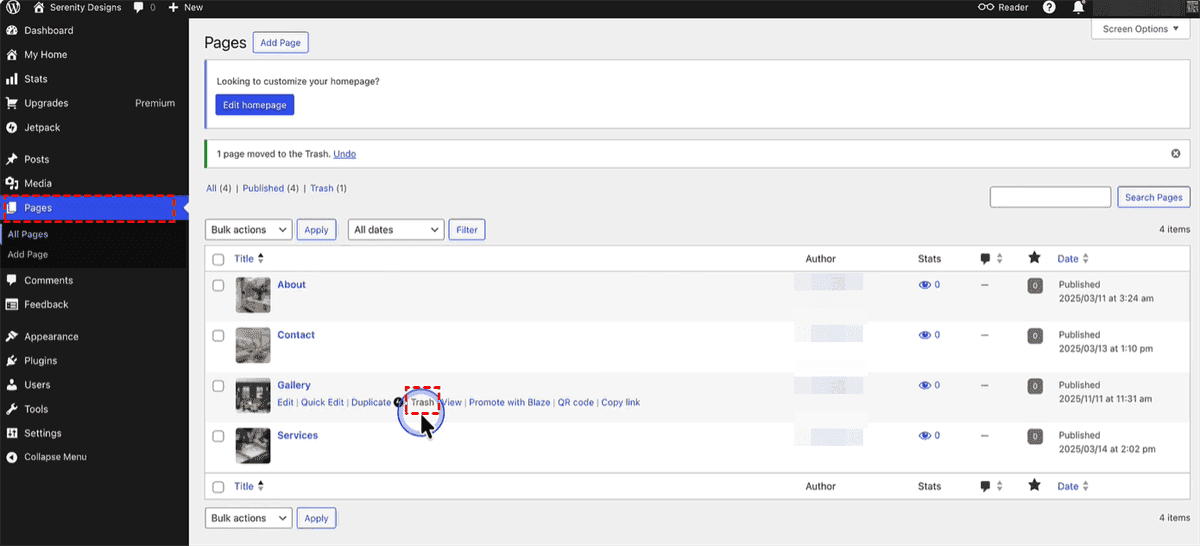
- Back everything up. Install a free backup plugin like UpdraftPlus or just zip up your files via cPanel.
- Choose a transfer method. Are you moving ten pages or ten thousand? If you are migrating a few pages from one WordPress site to another, the manual method might work. But for larger moves, automation like a dedicated migration plugin or a cloud-based tool like MultCloud wins every time.
Way 1. Copy Content from One WordPress Site to Another via Export & Import
WordPress provides the Export tool, and it's perfect for copying posts from one WordPress site to another without a plugin or third-partyhelp. You can export your posts, pages, comments, etc. But the theme design, customization, and plugins can't be exported.
Step 1. Export All Content Including Pages and Posts
1. Head to your source site's dashboard.
2. Navigate to Tools > Export.
3. Choose "All content" to get all, including posts, pages, comments, custom fields, categories, and tags.
4. Click "Download Export File" to export the entire WordPress site.
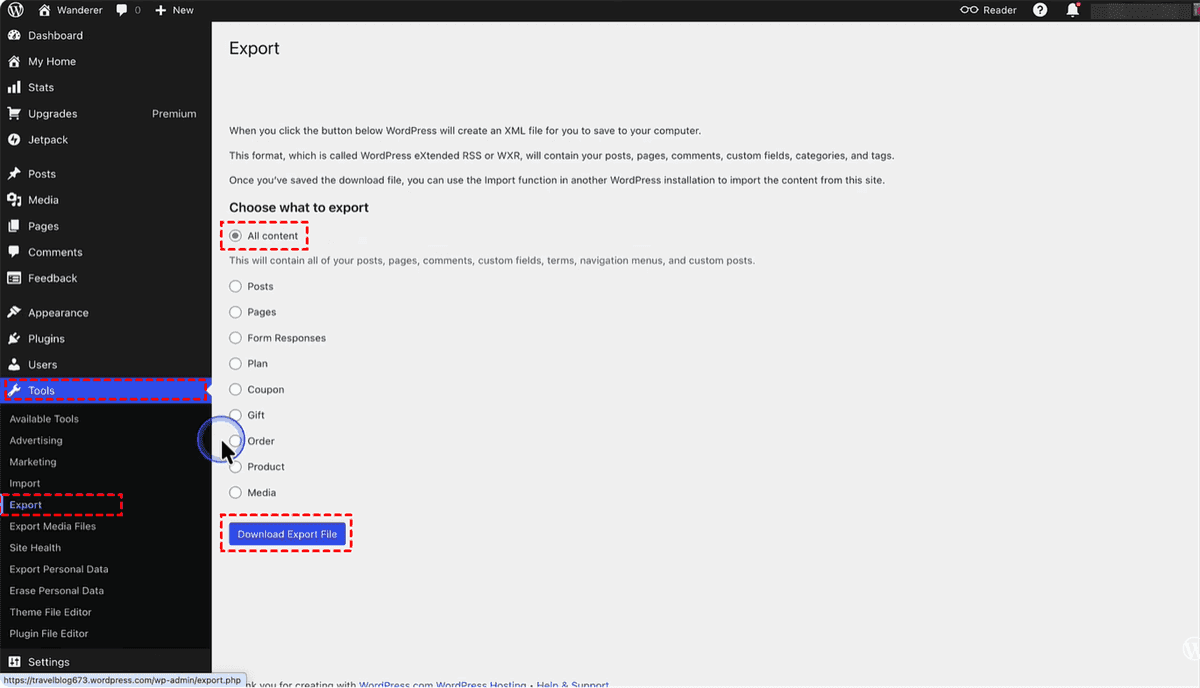
5. WordPress generates an XML file and saves it to your computer.
If your site is very large, you might get several XML files.
Step 2. Import the XML File into the Destination WordPress Site
Importing content from one WordPress site to another does not delete or overwrite the existing content on your destination site.
1. Now switch to your destination WordPress site.
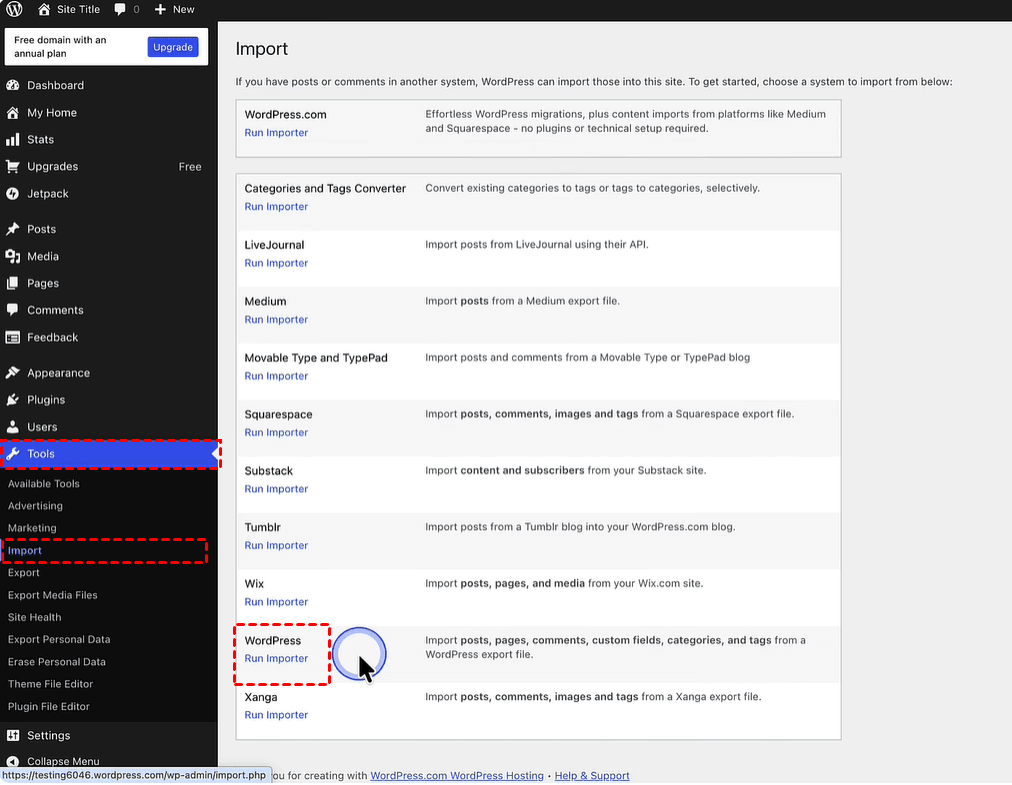
2. Go to Tools > Import.
3. Look for "WordPress" (instead of WordPress.com) at the bottom of the list, and hit Run Importer. If you don't see it, install the WordPress Importer plugin.
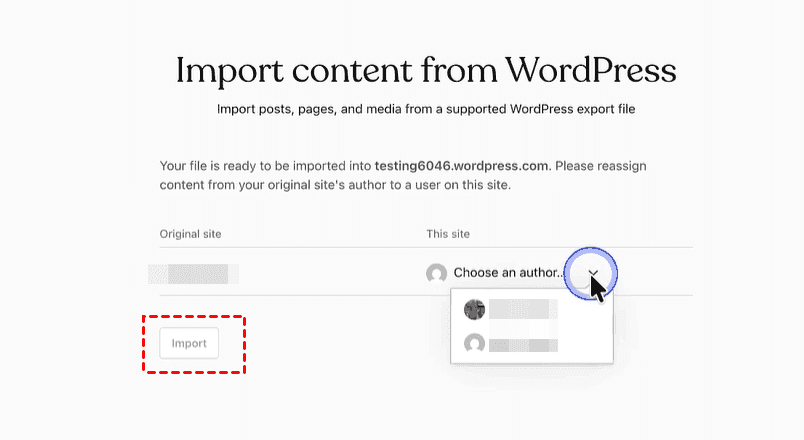
4. Upload that XML file you just downloaded, choose an author, then hit Submit to let WordPress import posts from another site.
- Notes:✎...
- During the import, you'll be asked whether to download and import file attachments. Say yes. Otherwise, your images will point back to the original site instead of the new site.
- If the XML file is larger than 5MB, it will fail. You have to compress it to a ZIP file and upload.
Way 2. Copy Pages from One WordPress Site to Another with a Plugin
Besides, you can also try a plugin to learn how to copy pages from one WordPress site to another. Plugins like Duplicator, All-in-One WP Migration, or UpdraftPlus are tailor-made for this.
- Duplicator or Migration Plugin: They package your entire site—database, themes, plugins, uploads—into a single zip file. Then you upload that package to the new site, run an installer script, and done.
- Export any WordPress data to XML/CSV: It lets you filter by post type, author, or date range.
Here, we will show you how to copy pages from one WordPress site to another with UpdraftPlus (copy entire site):
Step 1: Install UpdraftPlus on both sites (Plugins > Add New).
Step 2: On your source site, go to Settings > UpdraftPlus Backups. Click "Backup Now" with both database and files checked.

Step 3: After the backup finishes, scroll to "Existing Backups" and download both the database and the plugins/themes/uploads files.
Step 4: On your destination site, click "Upload Backup Files" and drop in those zip files.
Step 5: Click "Restore" and check both the database and files. UpdraftPlus automatically replaces old URLs with new ones. Done.
Way 3. Clone WordPress Website to Another with MultCloud
What if you could skip all the XML files, plugin conflicts, and manual headaches entirely? The powerful all-in-one multiple cloud storage manager, MultCloud, could help you a lot. It supports FTP and SFTP connections. And yes, it can clone your entire WordPress site without ever touching the dashboard.
- ★Enjoy the benefits of MultCloud:
- Server-to-server clone - no local download/upload loop; files move directly between FTP connections.
- Offline mode - transfers continue even when you close your browser or shut down your computer.
- Scheduled automation - set daily, weekly, or monthly transfers to keep staging sites in sync.
- Centralized management - handle multiple FTP accounts from one dashboard without juggling credentials.
- Faster with multi-threading - premium plans use up to 10 threads for quicker large-site migrations.
- Secure - AES-256 encryption plus OAuth token authentication (no stored credentials).
So, how to copy content from one WordPress site to another with MultCloud? Check the simple steps:
1. Create a MultCloud account for free and log in.
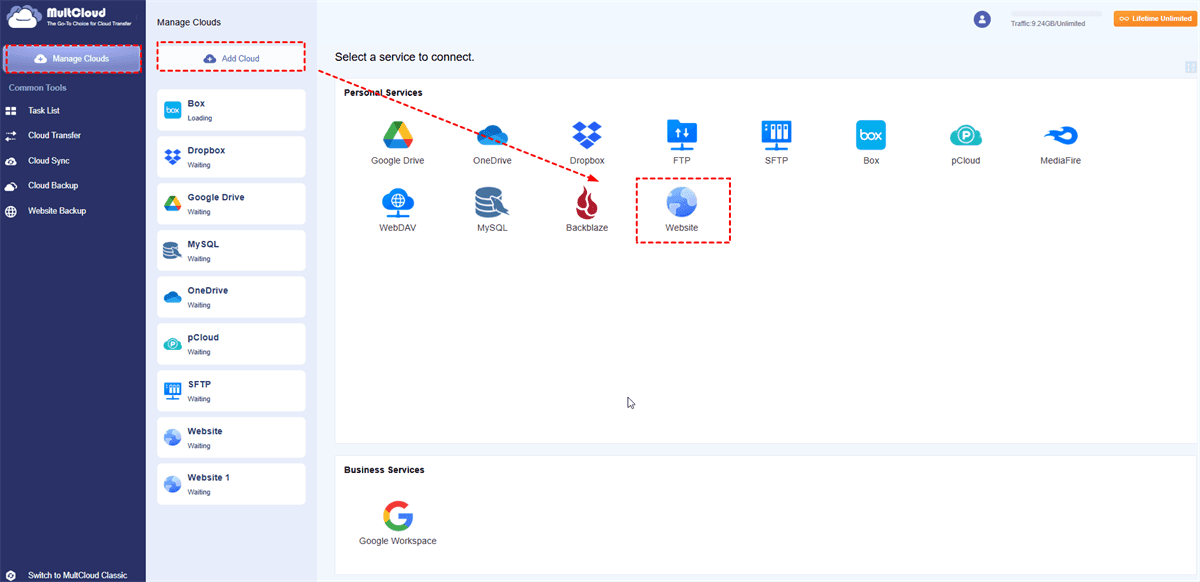
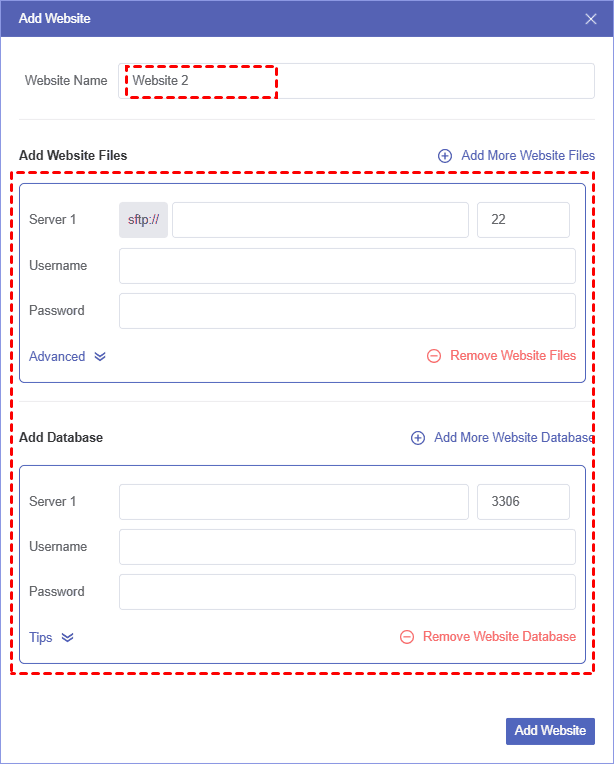
2. Tap Manage Clouds > Add Cloud > Website, and input the source WordPress site credentials (FTP server and database server) to add. Repeat the process to add the target WordPress site.
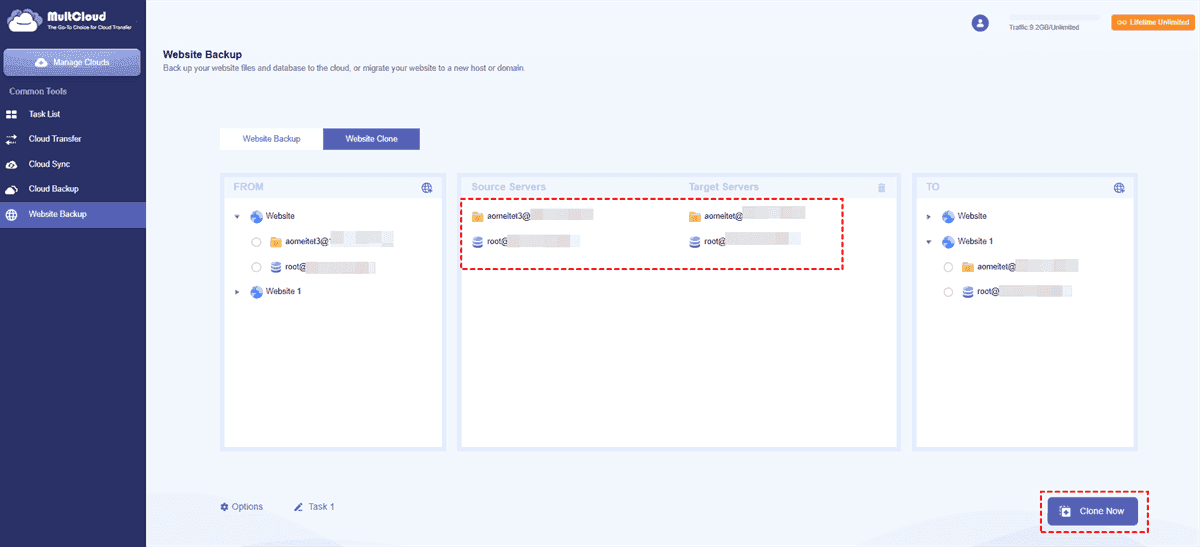
3. Press Website Backup > Website Clone, tick the source WordPress FTP files and database, and the FTP and database in the target WordPress site.
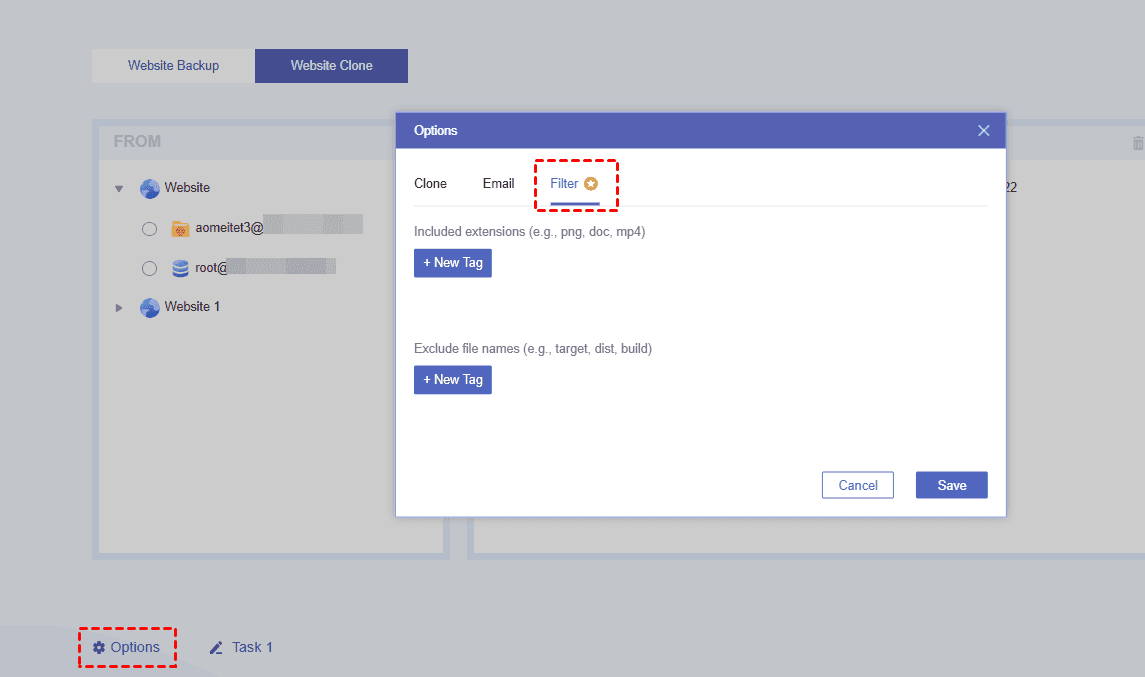
4. Tap Options > Filter, set up the tags to copy certain files, or ignore to migrate everything, then tap Clone Now to copy one WordPress site to another.
- Notes:✎...
- If you need to copy the entire WordPress site to another, you can choose all files and databases from the source WordPress site, and pair them with the target WordPress site, then move them all at once.
- It copies every file, folder, and subdirectory—including your wp-content uploads, themes, and plugins. No manual downloading or re-uploading required.
- To move unlimited files and databases, it's highly recommended to upgrade to a MultCloud advanced plan. Then, you can also enjoy all premium features, including scheduling and filtering.

- Smart Share: Share cloud files via public, private, or source mode.
- One-key Move: Quick data transfer, sync, and backup among clouds.
- Email Archive: Protect emails to other clouds or local disks.
- Remote upload: Effectively save web files to clouds via URL.
- Safe: Full-time 256-bit AES and OAuth authorization protections.
- Easy: Access and manage all clouds in one place with one login.
- Extensive: 30+ clouds and on-premise services are supported.
Final Checks After Copying from Another Website
After copying pages from one WordPress site to another, you can check the following things:
Test Internal Links and Media Display
Click around your new site. Do images load? Are internal links pointing to the old domain? Use a plugin like Better Search Replace to swap out old URLs for new ones in one go.
Redirect Old URLs if the Source Site Remains Live
If both sites stay active, set up 301 redirects so visitors hitting old links land in the right place. A plugin like Redirection makes this painless.
FAQs About Copying Content from One WordPress Site to Another
Q: Can I migrate WordPress via FTP without using a plugin?
A: Yes. Use FileZilla to download your entire WordPress folder from the source, then upload it to the destination. Export your database via phpMyAdmin and import it into the new database. Update wp-config.php with fresh credentials. MultCloud automates the file transfer part for you.
Q: Is it safe to copy content from one WordPress site to another?
A: Yes—back up both sites first, use SFTP over plain FTP, and avoid peak traffic hours. Tools like MultCloud encrypt data in transit with AES-256 and OAuth. Risks are mostly broken links or missing images, not security, so always test afterward.
Q: Do I need to install WordPress on the new domain before importing content?
A: Yes, the destination needs a fresh WordPress install first. If you're cloning everything via MultCloud's FTP method, you can skip that step since core files get copied over.
Q: What's the difference between migrating and copying content?
A: Migrating moves everything and shuts down the original. Copying duplicate content so both sites stay live. Most methods (export, plugins, MultCloud) copy without deleting the source.
Q: Why are images broken after I copy content?
A: Image paths still point to the old domain. Run a search-and-replace on your database using Better Search Replace or WP CLI to swap old URLs for new ones. Checking "download attachments" during import reduces this issue.
Q: Can I automate content copying on a schedule?
A: Yes. MultCloud's Schedule feature runs daily, weekly, or monthly FTP transfers. Native WordPress tools don't do this, but plugins like WP All Export Pro can schedule exports too.
The End
There you have it. Whether you lean on WordPress's native tools, a trusty plugin, or a cloud-based approach with MultCloud, moving content doesn't have to be a nightmare. Pick the method that fits your comfort level, test everything twice, and then kick back—you've earned it.
MultCloud Supports Clouds
-
Google Drive
-
Google Workspace
-
OneDrive
-
OneDrive for Business
-
SharePoint
-
Dropbox
-
Dropbox Business
-
MEGA
-
Google Photos
-
iCloud Photos
-
FTP
-
box
-
box for Business
-
pCloud
-
Baidu
-
Flickr
-
HiDrive
-
Yandex
-
NAS
-
WebDAV
-
MediaFire
-
iCloud Drive
-
WEB.DE
-
Evernote
-
Amazon S3
-
Wasabi
-
ownCloud
-
MySQL
-
Egnyte
-
Putio
-
ADrive
-
SugarSync
-
Backblaze
-
CloudMe
-
MyDrive
-
Cubby


Stay Updated With Our
Latest Tips
Add us as a preferred source on Google to never miss helpful guides.
 Add as preferred source >>