

What Is SQL Database Backup?
A SQL database backup is a copy of database files and information stored separately from the original database. SQL database backup provides a reliable way to protect important database information and restore data when unexpected issues occur, such as accidental deletion, system failures, or database migration.

A SQL Backup files, commonly saved with the .bak extension, can be restored to recover an existing database, create a duplicate database, or migrate data to another SQL Server location. You can restore the database to its previous state when needed. SQL Server supports several backup types, including:
- Full Backup: Creates a complete copy of the entire database, including tables, objects, and data. It is the foundation for most restore operations.
- Differential Backup: Saves only the changes made after the last full backup, reducing backup time and storage requirements.
- Transaction Log Backup: Records database changes after the last backup and allows more precise recovery of recent transactions.
When Do You Need to Restore SQL Database?
Restoring a SQL database is necessary when you need to recover database information, move data between environments, or return a database to a previous working state. Common scenarios where you may need to restore a SQL database include:
Recovering from accidental data loss: Restore a previous backup when important records, tables, or database objects are deleted or modified by mistake.
Recovering after system or database failure: Use a backup file to bring the database back online after server crashes, hardware problems, or database corruption.
Migrating a database to another server: Restore a database backup on a new SQL Server instance when changing hosting environments or upgrading server infrastructure.
Creating a test or development environment: Duplicate a production database in a separate environment to test applications, updates, or configuration changes without affecting live data.
Restoring an older database version: Recover a previous database state when recent changes cause errors or unexpected results.
How to Restore SQL Database from Backup Files [2 Methods]
This section covers two common approaches to restore a SQL database from backup files to its previous state, including a SQL Server Management Studio (graphical interface) and T-SQL (command-line). You may pick the suitable one based on your actual needs.
Method 1: Restore SQL Database Using SQL Server Management Studio (SSMS)
SQL Server Management Studio (SSMS) is the official graphical management tool provided by Microsoft for SQL Server administration. It allows users to restore databases from .bak backup files through a visual interface without writing commands. This method is suitable for beginners and database administrators who prefer a step-by-step restore process.
👉 Restore from Full Backup:
Step 1. Launch SSMS and connect to an instance of the SQL Server Database Engine and then expand that instance.
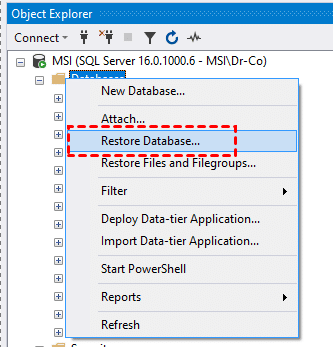
Step 2. In the Object Explorer section, right click on the Database and select "Restore Database".
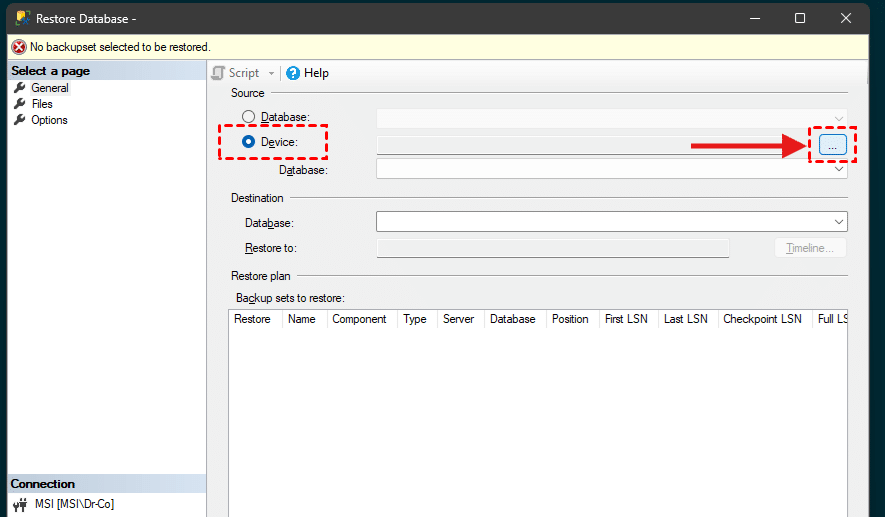
Step 3. Under the "Source" section, select "Device" and click the three-dots button to add backup file.
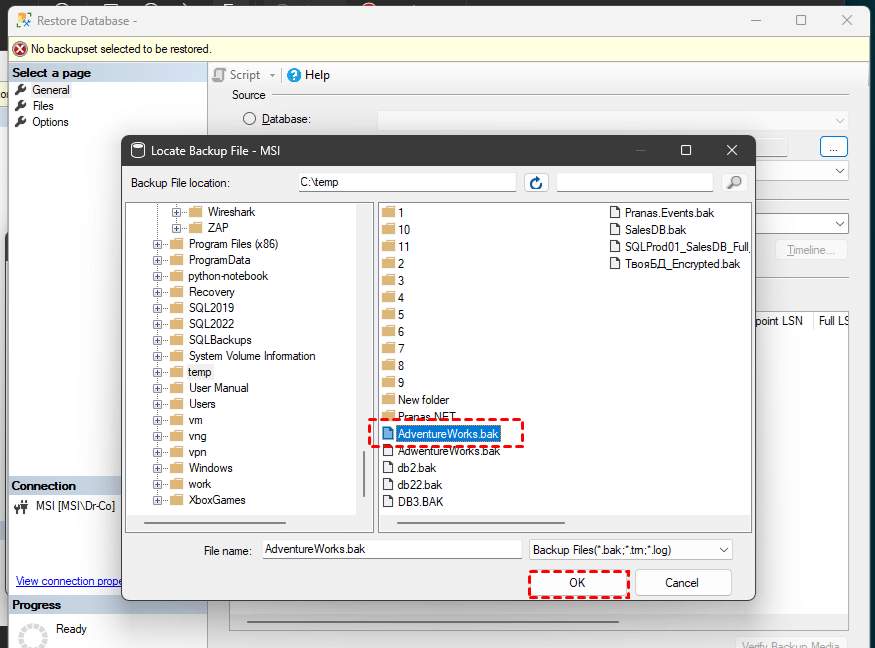
Step 4. Click "Add" to upload the SQL database backup file (.bak) that you want to restore, then click "OK". SSMS will load the available backup information from the file.
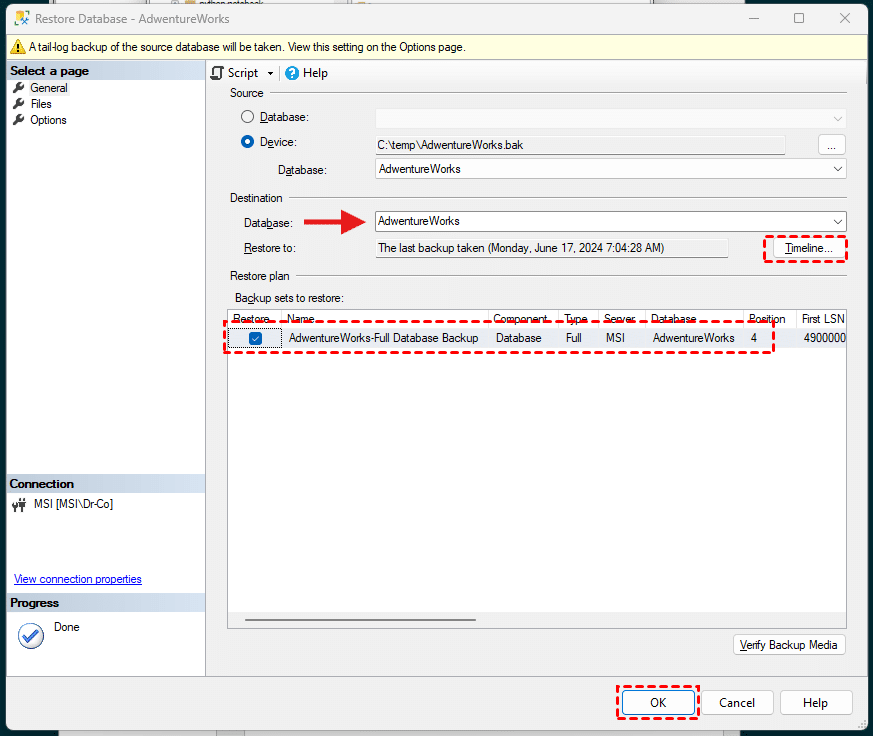
Step 5. Check the Full backup under "Restore Plan" and click "OK" to confirm the plan.
- ★Tips:
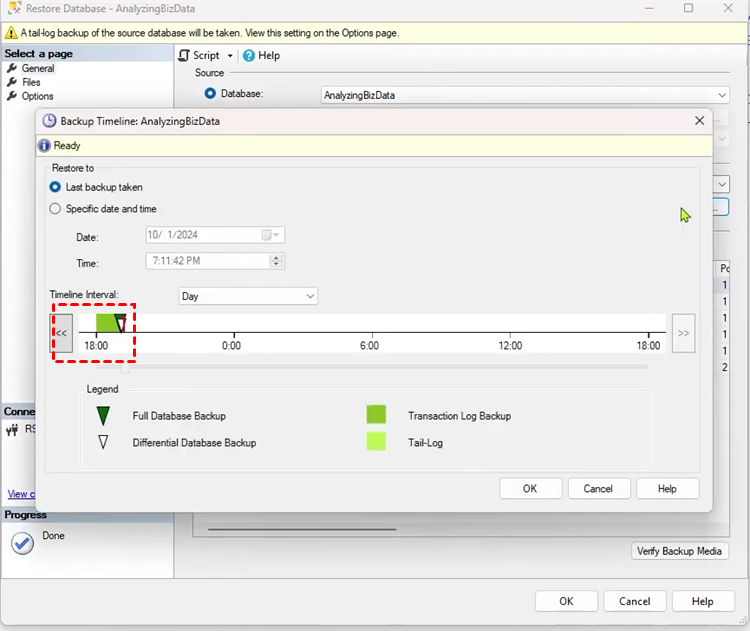
- In the "Restore to" box, leave the default as "The last backup taken" or click "Timeline" to manually select a point in time as you like.
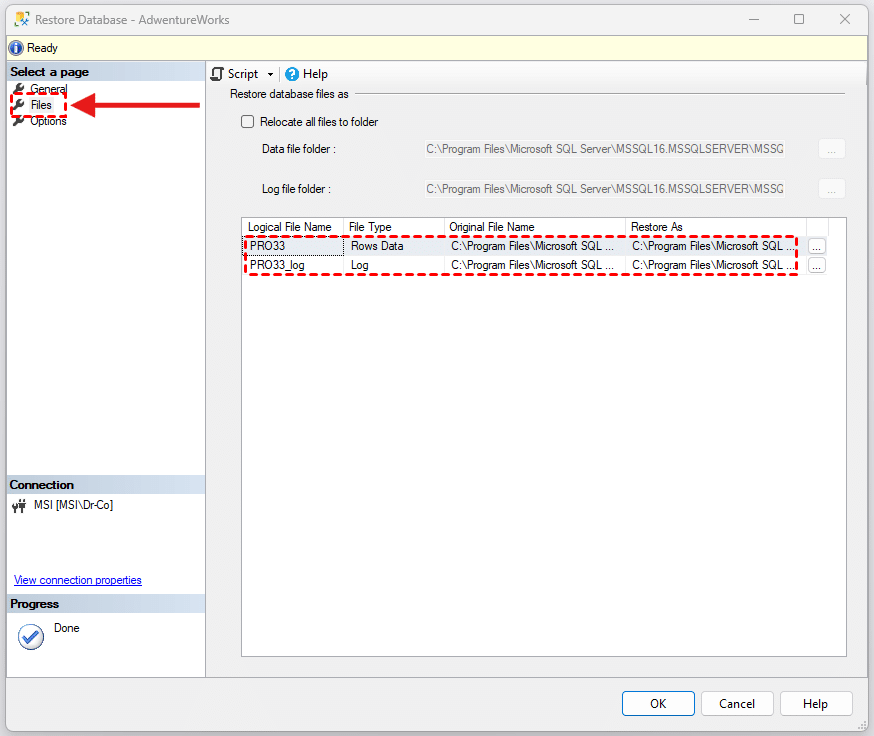
Step 6. Locate the "Files" section in the left panel. This section displays the storage paths for SQL database files that will be restored. SSMS automatically adopts the path settings of the original database. If you want to restore this database to another server or a different location, manually modify the paths under "Restore As" to valid directories.
Step 7. In the "Options" tab, if the target database already exists and you wish to overwrite it, check the box labeled "Overwrite the existing database (WITH REPLACE)". Note that this action will erase the original database completely and cannot be undone.
Step 8. Choose the "Recovery state" as "RESTORE WITH RECOVERY" from the drop menu and check the box of "Close existing connection to destination database".
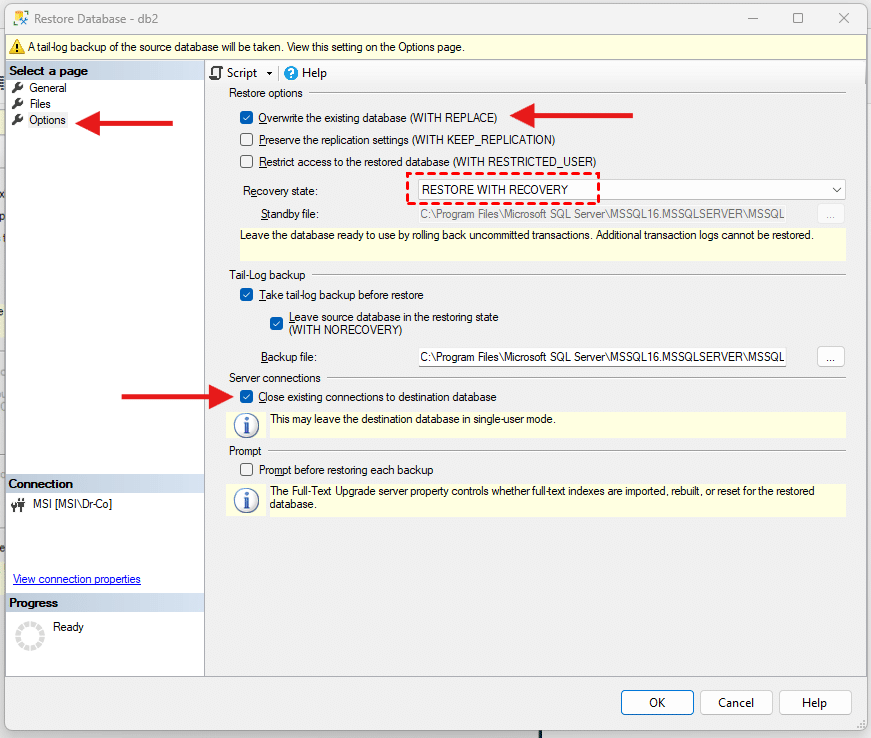
- ★Tips:
- Overwrite the existing database (WITH REPLACE): The target database exists, and you intend to overwrite it entirely via the backup set.
- Preserve the replication settings (WITH KEEP_REPLICATION): Preserves the replication settings when doing a restore using a backup file of a published database to a server other than the server where the database was created.
- Prompt before restoring each backup: Restore multi-file media sets with a pause after each file for log and system verification.
- Restrict access to the restored database (WITH RESTRICTED_USER): Makes the restored database available only to the members of db_owner, dbcreator, or sysadmin.
Step 9. Click "OK" to restore the SQL database from the backup file. When the message "Database restored successfully" prompt out, you can close the restore window and refresh the database list to view your recovered data.
👉 Restore from Differential Backup:
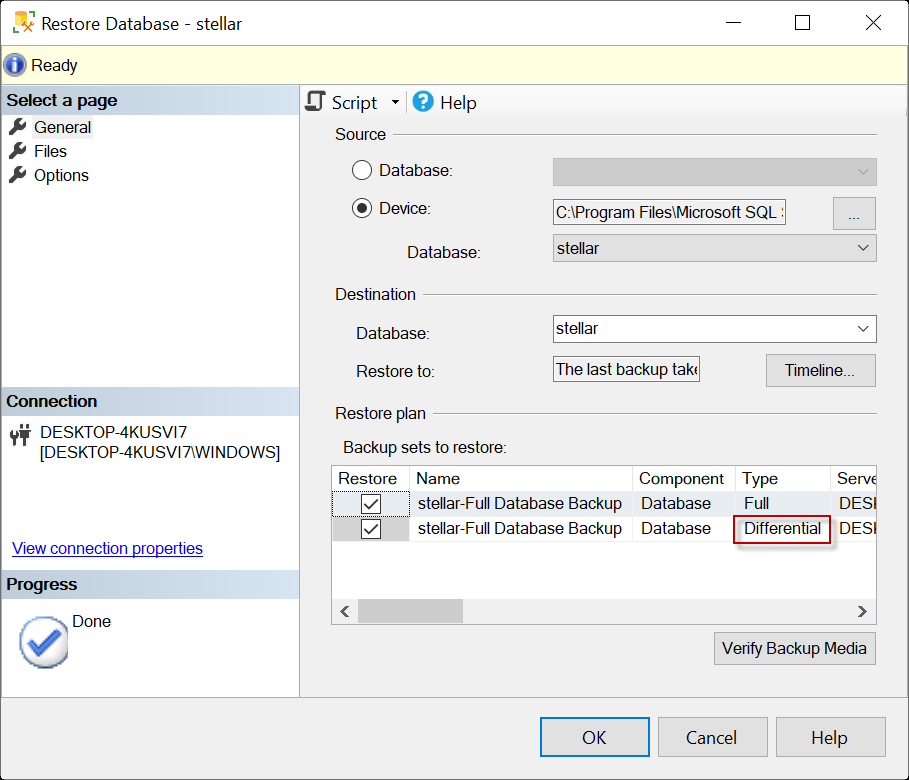
The core rule for restoring differential backups is that you must restore the full backup before the latest differential backup. The operation steps are similar to those outlined above.
- When selecting backup files, choose all relevant full and differential backups.
- Under the "Restore to" section, check the boxes for the latest full backup and differential backup. SSMS will automatically run the full backup restoration first, followed by the differential backup.
👉 Restore Transaction Log Backup:
The procedure for restoring transaction log backups is similar to the methods covered above, yet the critical requirement is that all restorations must be performed in strict chronological order. You first need to restore a full backup as the baseline, then sequentially restore every transaction log backup created after that full backup without interruption.
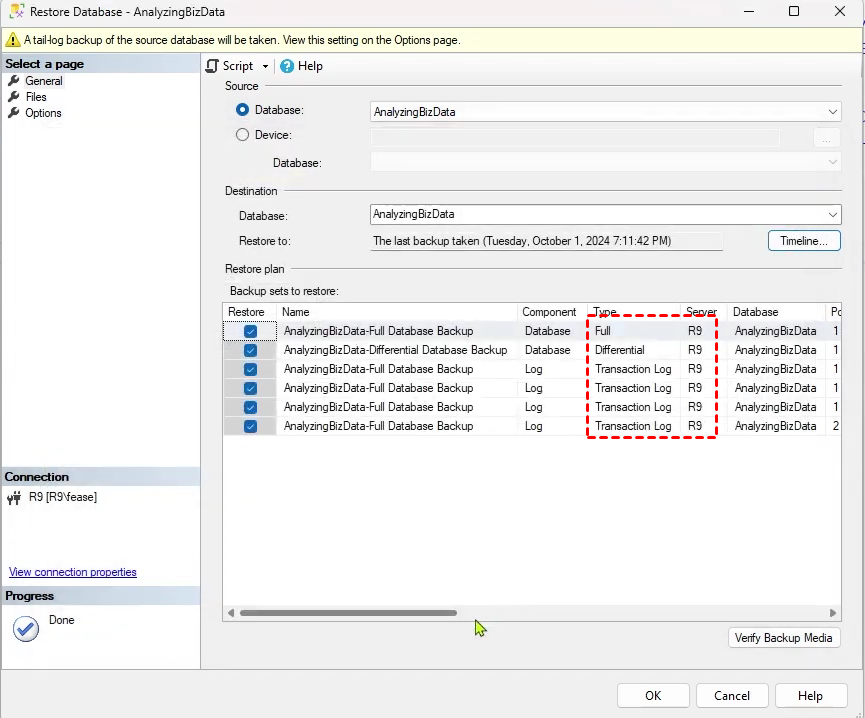
Transaction log backups depend on the database recovery model. You can only create and restore transaction log backups for databases set to the FULL Recovery model or Bulk-Logged Recovery model.
Method 2: Restore SQL Database Using Transact-SQL (T-SQL)
T-SQL provides a command-line approach for restoring SQL databases and gives administrators more flexibility when handling advanced restore scenarios. Instead of using the SSMS interface, you can execute RESTORE commands directly in SQL Server. T-SQL is especially useful when restoring databases across servers, creating scripts for regular recovery tasks, or controlling options such as file relocation and recovery status.
Step 1. You can’t restore a database if other users are connected to it. So, the first thing you need to do is set the database to single-user mode, which will disconnect any other user sessions using the command:
ALTER DATABASE [DatabaseName] SET SINGLE_USER WITH ROLLBACK IMMEDIATE
Step 2. Enter the following syntax to restore SQL database from backup files:
RESTORE DATABASE [DatabaseName]
FROM DISK = 'C:\Backup\DatabaseName.bak'
WITH REPLACE, RECOVERY, STATS=5
- ★Tips:
- RESTORE DATABASE [DatabaseName]: Name of the restored database.
- FROM DISK = 'C:\Backup\DatabaseName.bak': Physical storage path for backup files.
- WITH REPLACE: Force overwriting even if the target database exists or file paths differ from those recorded in the backup.
- WITH RECOVERY: The database goes online and becomes accessible immediately after restoration completes.
- STATS=5: Show restoration progress.
Step 3. Once the process is done, don't forget to set the database back to multiple user mode:
ALTER DATABASE [DatabaseName] SET MULTI_USER
How to Back up and Restore SQL Database Using MultCloud More Efficiently
For users who need a simpler way to protect and restore website or database-related data without manually managing complex server operations, an automated transfer and backup solution can reduce the risk of human errors. MultCloud provides a centralized platform to manage website data and backup tasks, allowing users to transfer database files between supported locations and keep backup copies on cloud storage services.
Instead of manually downloading backup files and uploading them between different storage environments, MultCloud can help move and protect backup data through automated workflows. It is especially useful when you need to store SQL backup files remotely, migrate files between cloud drives, or maintain an additional copy for disaster recovery. You can restore your database with just few clicks.

- Automated scheduling: Set daily, weekly, or monthly backups without manual operation.
- Off-site storage: Store backups in cloud drives instead of your hosting server.
- Better disaster recovery: Backup data remains safe even if your hosting server fails.
- Incremental backup support: Only new or modified files are backed up to save time and storage.
- No server dependency: Backup tasks run in the cloud without affecting website performance.
- Centralized management: Manage multiple FTP sites and cloud drives in one dashboard.
👉 How to Back up Your Website Database:
Step 1. Create a MultCloud account and sign in to access the dashboard.
Step 2. Click "Website Backup" from the left navigation panel and click "WEBSITE TO BACKUP" > "Add Website". Enter the host, username and password to connect the website SQL database to MultCloud.
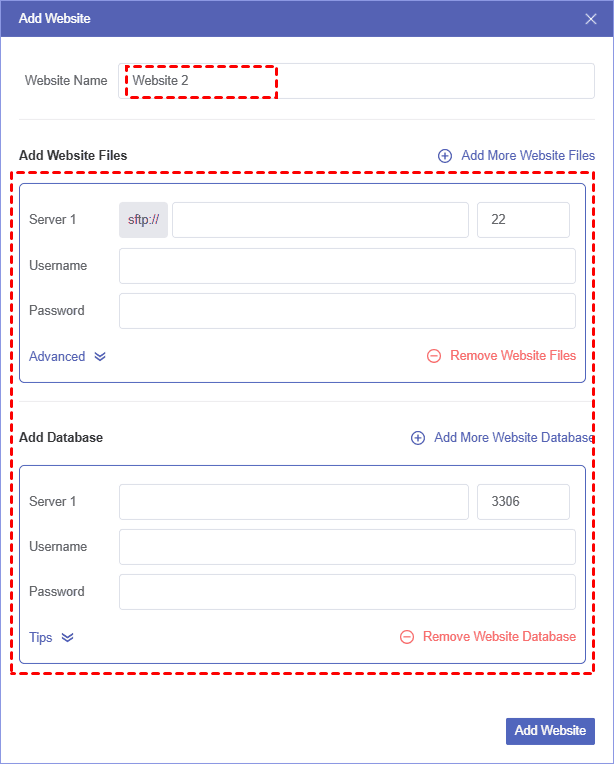
Step 3. Click "WHERE TO SAVE BACKUP" to select a cloud drive or another server as the backup destination. MultCloud supports 30+ cloud platforms, allowing you to manage backup files from different locations in one interface.
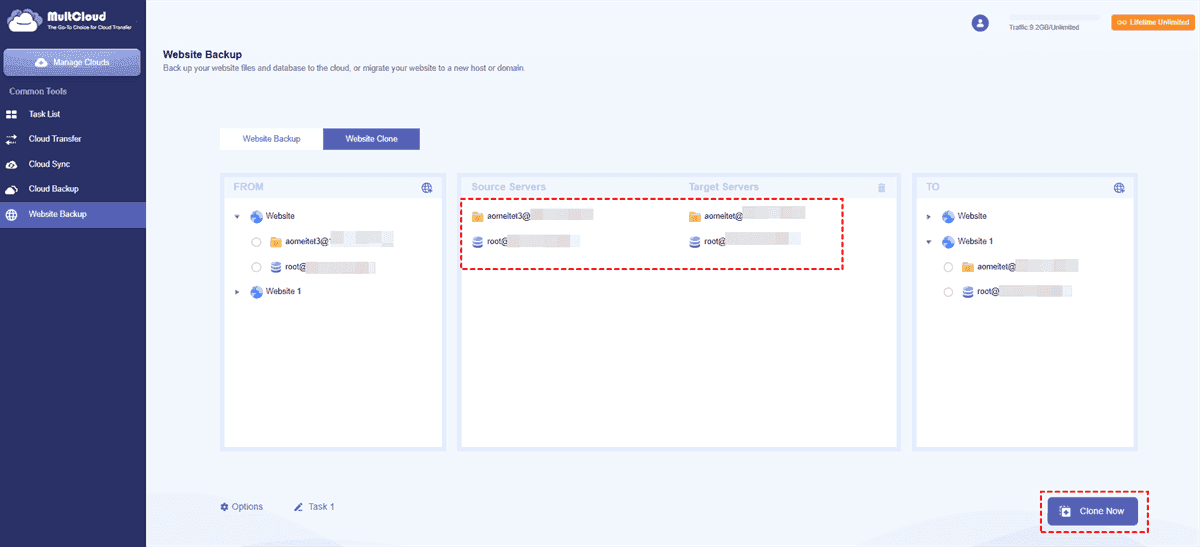
Step 4. Click "Backup Now" to start your backup.
- ★Tips:
- Click "Options": You can configure backup settings like email notifications or file filters to include or exclude specific files.
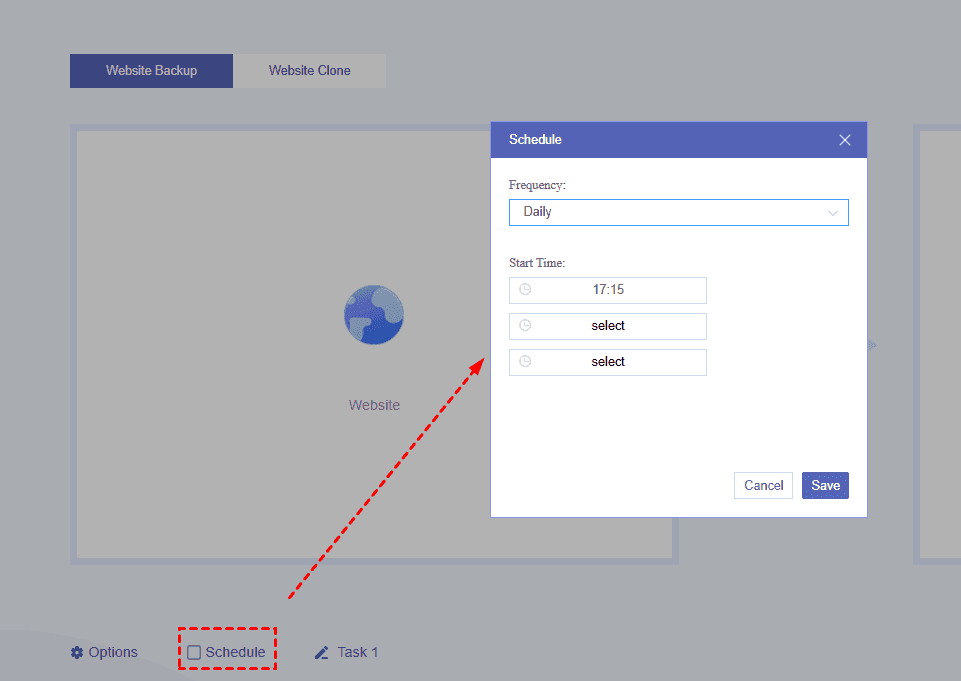
- Click "Schedule": You can run scheduled backup task daily, weekly or monthly based on your needs. With this setup, MultCloud will perform incremental backups for all subsequent tasks after the initial full backup. It only saves data changes generated since the last backup.
👉 How to Restore SQL database from backup:
Step 1. Go to "Task List" and locate your backup task.
Step 2. Click the three-dots button and "Restore", select a desired version and configure the "Restore Options".
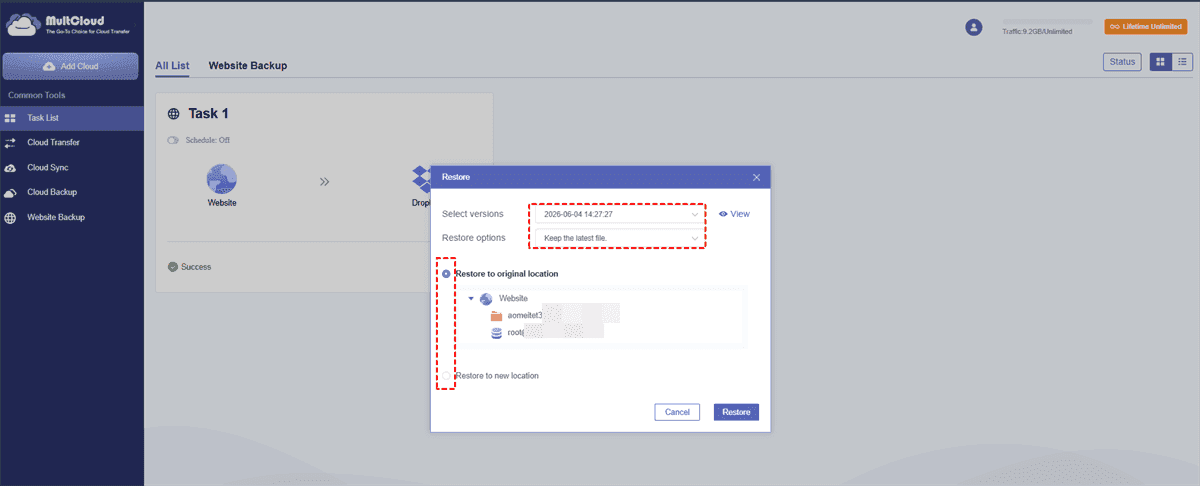
Step 3. Select a destination to save the restored SQL database and click "Restore". You can also add another server to restore the SQL database to a new server.
How to Verify SQL Database After Restore
After restoring a SQL database from a backup file, the process is not complete until you confirm that the restored database is accessible and the data is intact. Follow these checks after completing the restore process:
Check Database Status: Open SQL Server Management Studio and expand the Databases section to confirm that the restored database appears correctly, making sure the database is available for normal use.
Verify Tables and Data: Open the restored database and check whether important database objects are available, including tables, views, functions, etc. Run sample queries on important tables to confirm that the expected records have been restored correctly.
Run Database Consistency Check: Verify the logical and physical integrity of the restored database. If SQL Server returns no errors, the database structure is consistent and ready for use.
Test Application Connections: If the database is connected to an application, website, or service, test the connection after restoration.
Conclusion
Restoring a SQL database from backup files is an essential skill for recovering lost data, migrating databases, and maintaining business continuity. For simple restore tasks, SSMS provides a visual and straightforward process, while T-SQL offers more control for advanced database administrators.
If you frequently need to protect database files, move backups between locations, or prepare for unexpected failures, using an automated backup and transfer solution like MultCloud can simplify the process and reduce manual operations. Moreover, it allows you to clone your website effortlessly.
FAQs
Q1: Can db_owner restore a database?
Yes. A user with the db_owner database role can perform most database management tasks, including restoring databases in many scenarios. However, restoring a database usually requires higher-level permissions such as sysadmin, dbcreator, or appropriate server-level privileges depending on the restore environment.
Q2: How to restore SQL database from full and differential backup?
To restore from full and differential backups, first restore the latest full backup with the NORECOVERY option, then restore the latest differential backup. After all backup files are applied, use WITH RECOVERY to bring the database online and make it accessible.
Q3: How to restore an existing database in SQL Server?
You can restore an existing SQL Server database using SSMS or T-SQL. In SSMS, select Restore Database, choose the backup file, configure restore options, and start the process. If the database already exists, enable WITH REPLACE to overwrite the current database. Note that this operation is irreversible.
Q4: Can a deleted database be recovered?
Yes. A deleted SQL database can usually be recovered if you have a valid backup file. Restore the latest full backup and apply any required differential or transaction log backups to recover the database to the desired point in time.
Q5: Will I lose everything if I restore from backup?
Restoring from backup may overwrite the current database with the backup version, causing changes made after the backup to be lost. To avoid data loss, create a new backup of the current database before starting the restore process.
Q6: What is the difference between database owner and db_owner?
The database owner is the account that owns and controls a SQL database, while db_owner is a database role that grants members full permissions within that database. A database can have only one owner but multiple users can belong to the db_owner role.
MultCloud Supports Clouds
-
Google Drive
-
Google Workspace
-
OneDrive
-
OneDrive for Business
-
SharePoint
-
Dropbox
-
Dropbox Business
-
MEGA
-
Google Photos
-
iCloud Photos
-
FTP
-
box
-
box for Business
-
pCloud
-
Baidu
-
Flickr
-
HiDrive
-
Yandex
-
NAS
-
WebDAV
-
MediaFire
-
iCloud Drive
-
WEB.DE
-
Evernote
-
Amazon S3
-
Wasabi
-
ownCloud
-
MySQL
-
Egnyte
-
Putio
-
ADrive
-
SugarSync
-
Backblaze
-
CloudMe
-
MyDrive
-
Cubby


Stay Updated With Our
Latest Tips
Add us as a preferred source on Google to never miss helpful guides.
 Add as preferred source >>