

What is a Full Backup of a WordPress Site?
A full backup of a WordPress site refers to a complete copy of all components that make up your website. It is not limited to just posts or media files but includes every essential element required to fully restore the site if something goes wrong. In practical terms, a full backup contains the following elements:
WordPress core files: the system files that run your website
wp-content folder: themes, plugins, and uploaded media files
Database: all posts, pages, comments, settings, and user data
Configuration files: such as wp-config.php and .htaccess
This means a full backup captures both the visible content and the underlying system structure of your website. Without all of these components, recovery may be incomplete or may result in a broken or partially restored site.
How to Make a Full Backup of WordPress Site
To safely create a full backup of a WordPress site, you can choose different methods depending on your technical level and available tools. Below are four practical approaches, starting from the simplest automated option to more manual but flexible solutions.
Method 1. Create a Full Backup of WordPress Site Using MultCloud
If you want a simple, automated way to manage backups across cloud services without dealing with manual downloads or technical steps, MultCloud can be a reliable option. MultCloud works as a cloud file manager that connects your WordPress site and cloud storages (such as Google Drive, OneDrive, Dropbox, etc.) and allows you to backup website files directly between services. It reduces manual effort and helps ensure your backup files are safely stored in cloud drives.

- Automated scheduling: Set daily, weekly, or monthly backups without manual operation
- Off-site storage: Store backups in cloud drives instead of your hosting server
- Better disaster recovery: Backup data remains safe even if your hosting server fails
- Incremental backup support: Only new or modified files are backed up to save time and storage
- No server dependency: Backup tasks run in the cloud without affecting website performance
- Centralized management: Manage multiple FTP sites and cloud drives in one dashboard
Step 1. Go to the official website of MultCloud and sign up for an account, then log in. Alternatively, you can sign in with your Google, Facebook or Apple accounts.
Step 2. Select "Website Backup" tab in the left panel and click "WEBSITE TO BACKUP" > "Add Website". Enter your website files and database server, username, password to add it to MultCloud.
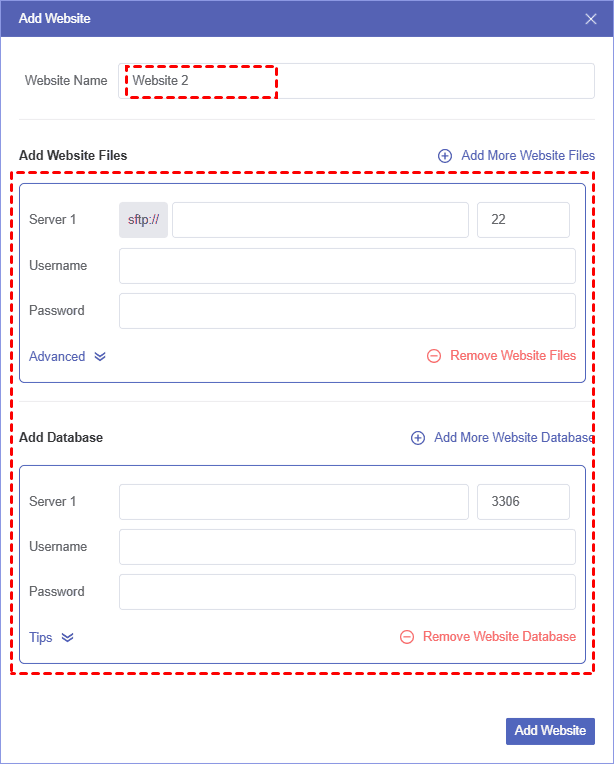
Step 3. Click "WHERE TO SAVE BACKUP" to add your cloud storage services (here we take OneDrive as an example) as destination drive.
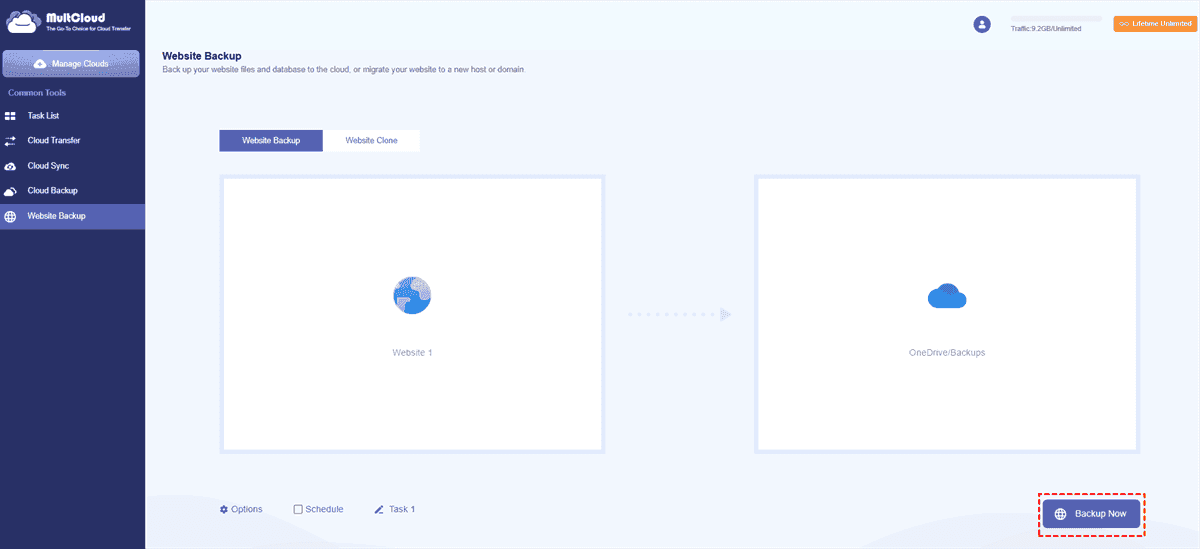
Step 4. Tap the "Backup Now" to start the process.
- ★Tips:
- Options: You can enable email notifications or file filters to include or exclude files.
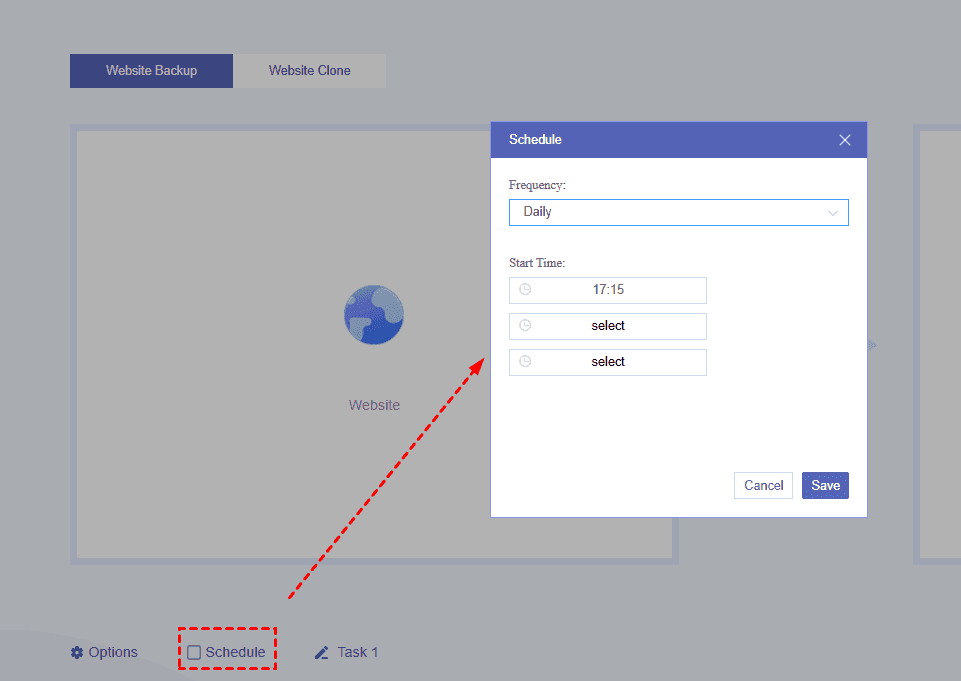
- Schedule: You can schedule backup tasks to start automatically at your preferred time (daily, weekly or monthly).
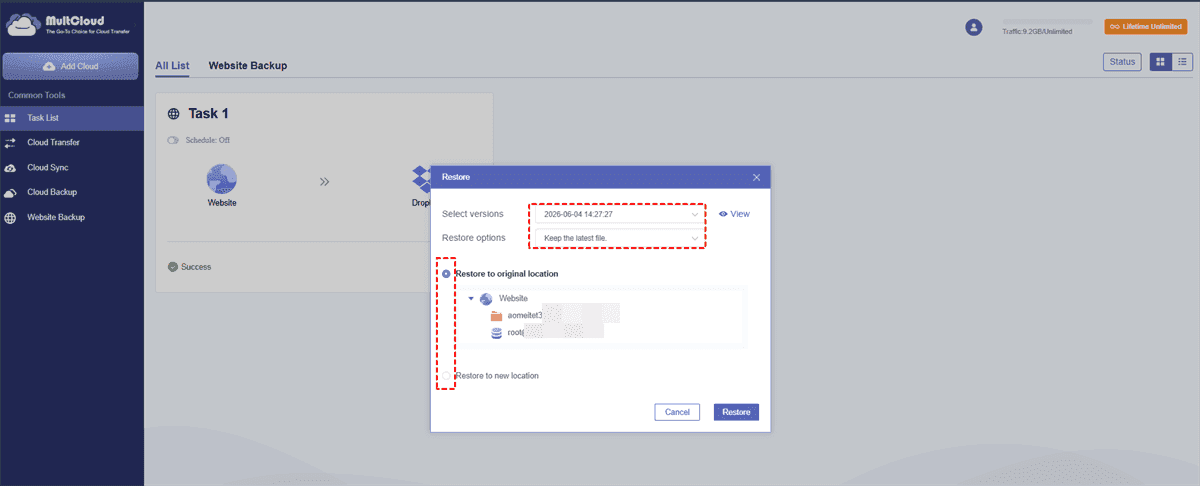
In addition, if unexpected issues arise, head to the "Task List", select your backup task, click "Restore", and pick a desired backup version. You can then restore your website from backup to its previous working state with just one click.
Method 2. Make a Full Backup of WordPress Site Using Plugins
This method is the most beginner-friendly because WordPress backup plugins can handle both files and databases automatically. Plugins like UpdraftPlus allow you to create a complete backup with just a few clicks and store it locally or in cloud storage. It is suitable for users who prefer automation and want quick recovery options without dealing with server-level settings.
Here, we take UpdraftPlus as an example:
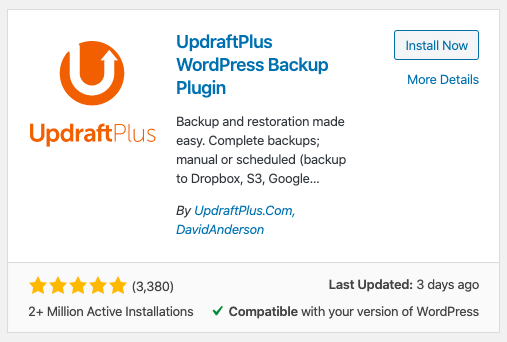
Step 1. Log in your WordPress admin account to install and activate UpdraftPlus from the dashboard.
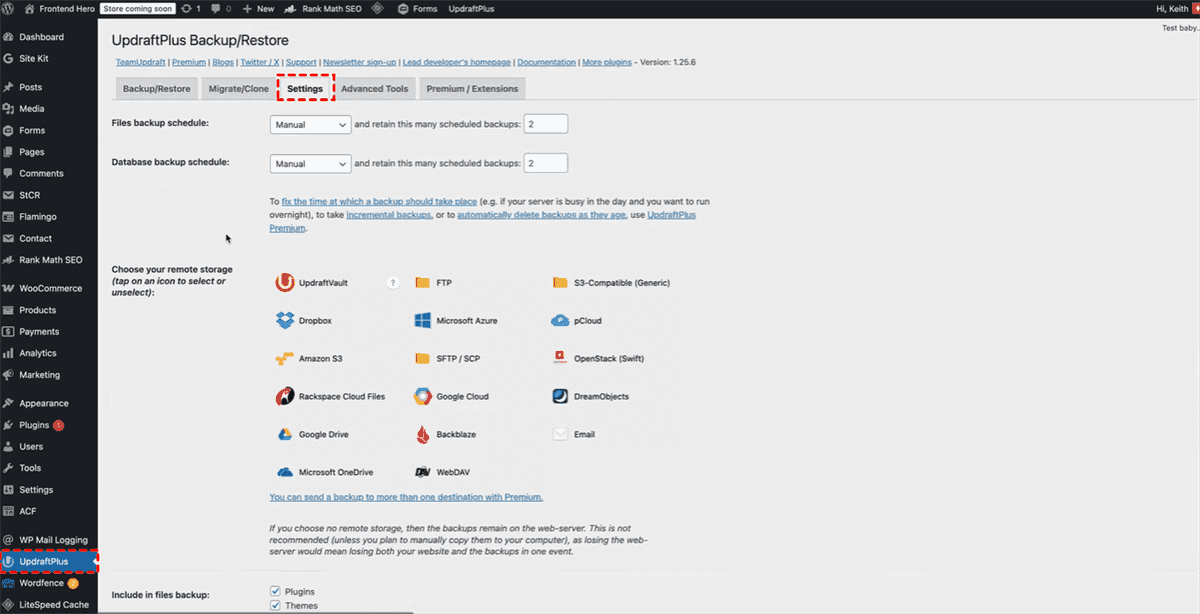
Step 2. Select "UpdraftPlus" in the sidebar and go to "Settings" tab.
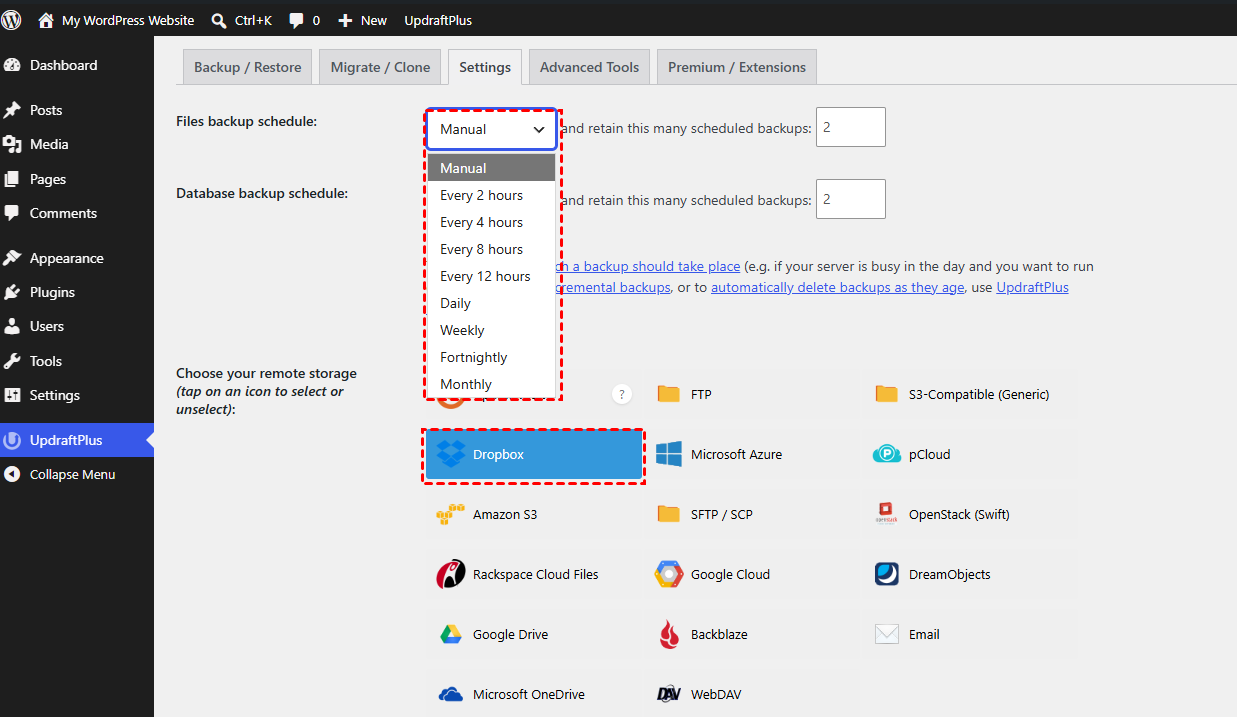
Step 3. Configure your backup frequency and select a storage location such as Google Drive, Dropbox, FTP, etc.
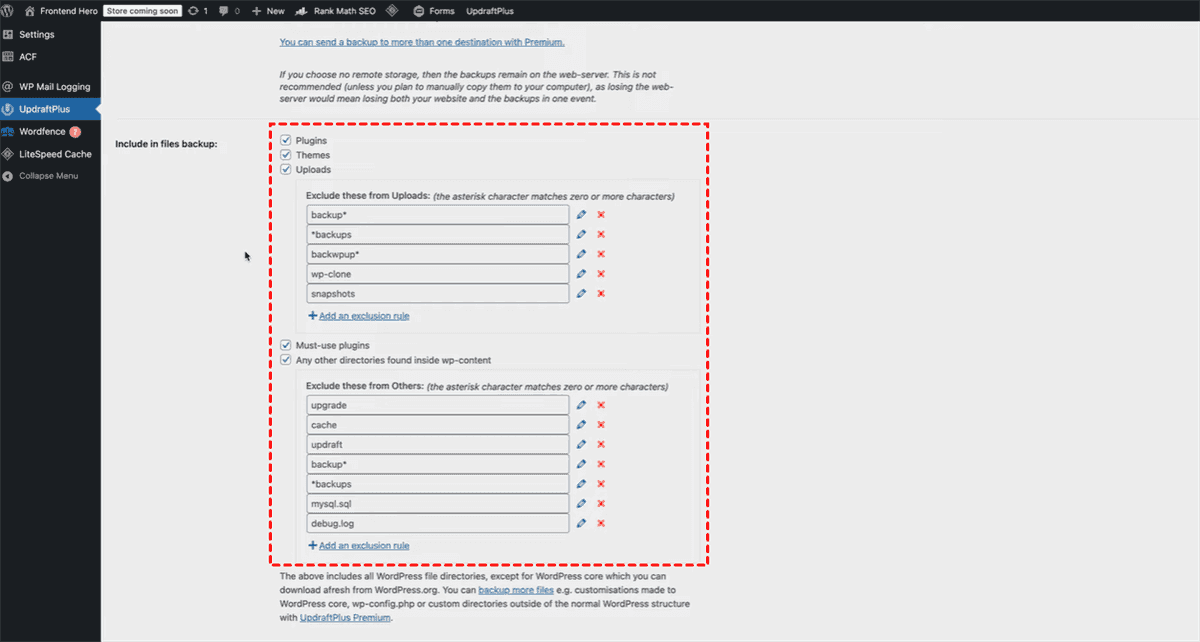
Step 4. Choose what you want to include in this backup. If you want to create a full backup of WordPress site, select all components like plugins, themes, uploads, etc.
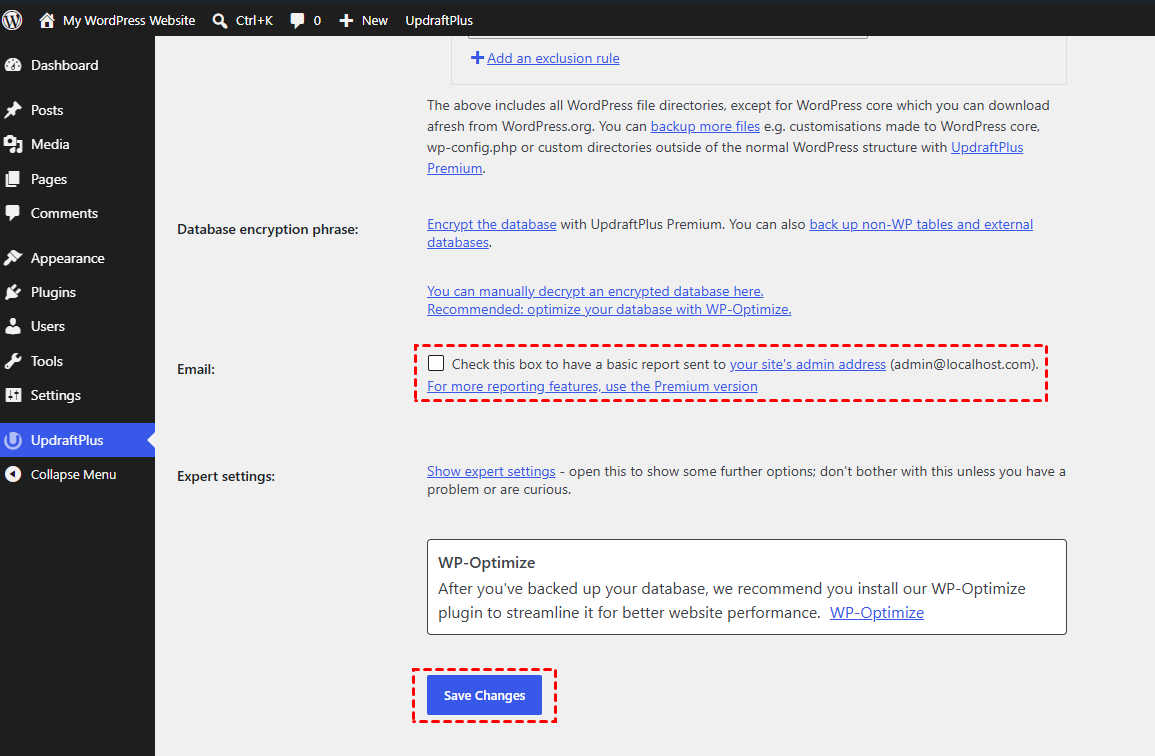
Step 5. Check the box next to "Email" section to send email notification and click "Save Changes".
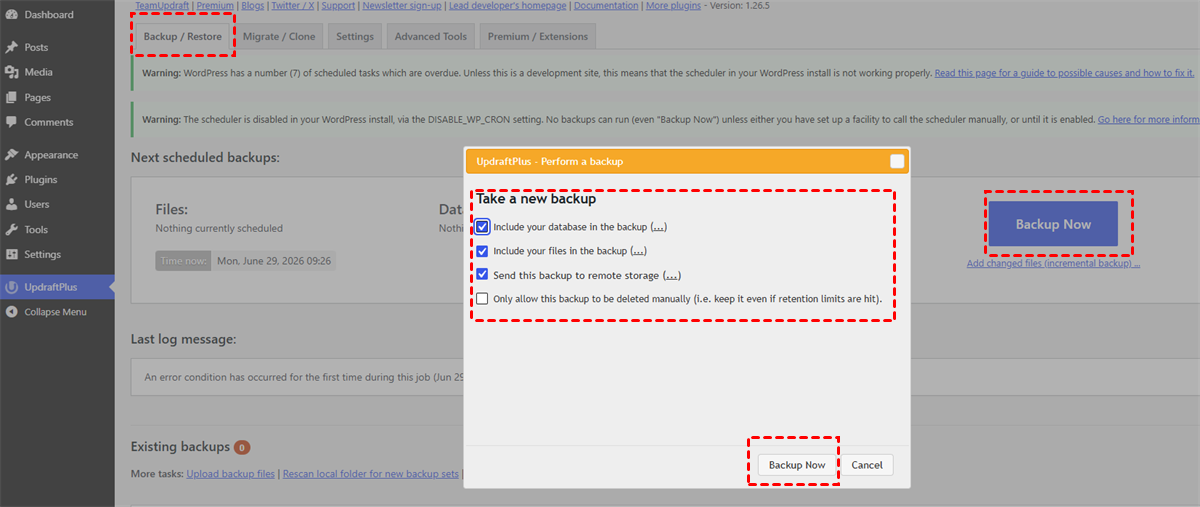
Step 6. Select "Backup / Restore" section, click "Backup Now". In the popup window, confirm your backup settings and click "Backup Now" to start the process.
Once the process is completed, you can download the backup files (ZIP) from WordPress to your computer.
Method 3. Take a Full Backup of WordPress Site via cPanel
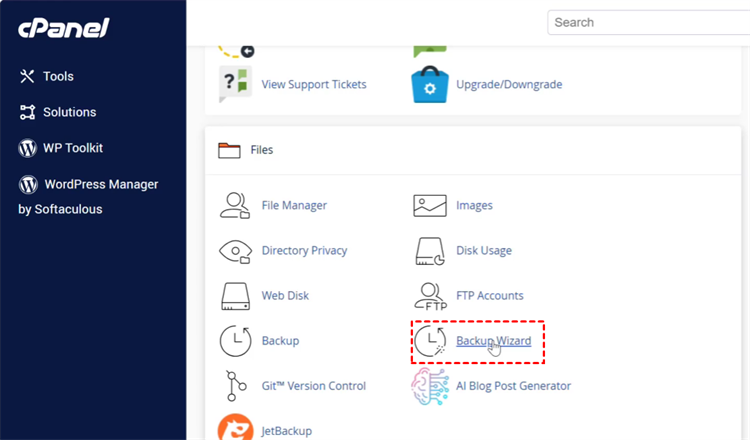
If your hosting plan includes cPanel access, you can use its built-in Backup Wizard tool to generate a full backup for your WordPress site. However, unlike the two previous solutions, this tool has no support for scheduled, automatic backups; you will have to trigger every backup manually on your own. Follow these steps to back up your site:
Step 1. Log in to your hosting cPanel dashboard and scroll down to open "Backup Wizard".
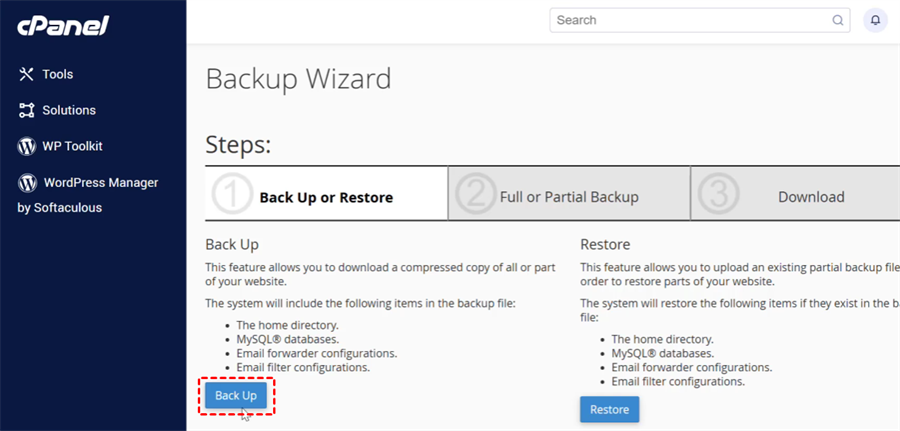
Step 2. Click "Back up". This feature allows you to download a compressed file of all or part of your website.
Step 3. Choose "Full Backup" to back up all the files and configurations on website.
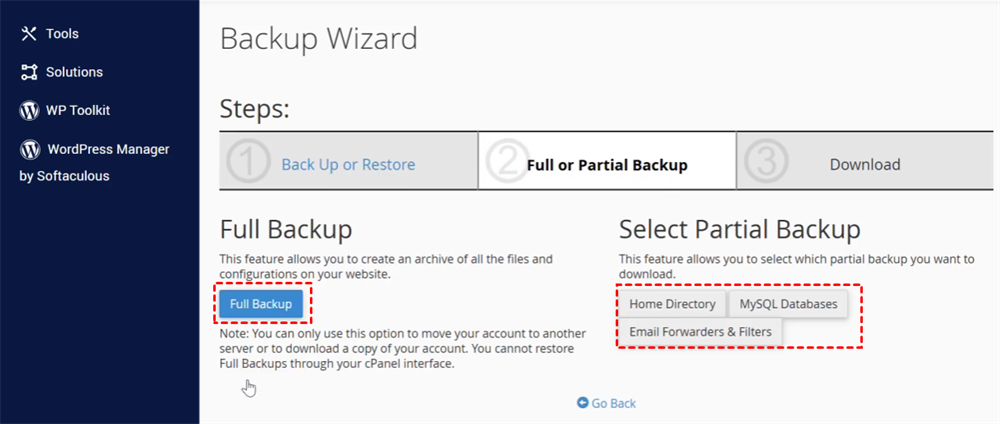
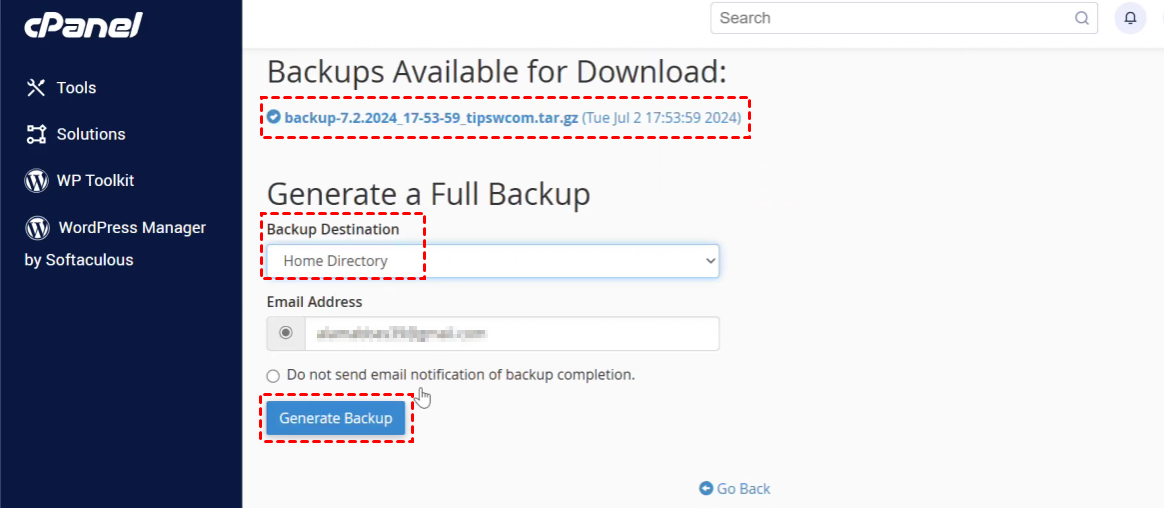
Step 4. Select a backup destination where you want to keep this file and click "Generate Backup" to initial the backup process. You can also send email notifications by entering your email address.
The End
Creating a full backup of a WordPress site is an essential step to ensure your website can be safely restored in case of data loss, system failure, or unexpected errors. No matter which method you pick, regularly backing up your site's files and database offers comprehensive protection for your website.
What's more, MultCloud comes with a full suite of tools to sync your data in real time across different cloud drives. With MultCloud, you can centrally manage all your cloud storage accounts in one unified dashboard, with no need to log into separate websites or download individual mobile apps.
FAQs
Q1: How to back up a WordPress site before deleting?
Before deleting a WordPress site, create a full backup of both files and database. You can use MultCloud to back up your website files and database. Then, select a cloud storage like Google Drive to save backup and guarantee safe recovery if needed later.
Q2: Where are WordPress backups stored?
WordPress backups are usually stored depending on the method used. Plugins may save them on your hosting server, local device, or connected cloud storage. Hosting backups are often kept in the server control panel. Always check plugin settings or hosting backup section to locate and manage stored files.
Q3: How often should I backup my WordPress site?
Backup frequency depends on update activity. For active sites, daily backups are recommended. For low-traffic sites, weekly backups may be enough. Always create backups before major updates, plugin changes, or content edits to minimize data loss risks and ensure quick recovery when needed.
Q4: How do I export a whole WordPress site?
To export a full WordPress site, use a migration or backup plugin that supports full-site export. Select both files and database, then generate an export package. Alternatively, use MultCloud to create a backup and you can access the file in cloud drives.
Q5: How do I backup my entire WordPress site?
The easiest way is using a WordPress backup plugin that creates a full backup automatically. You can also use cPanel or hosting tools to download all files and database. A complete backup should always include wp-content, core files, and the database to ensure full restoration capability.
Q6: How do I restore my WordPress site without a backup?
Restoring without a backup is difficult but sometimes possible. You may recover partial data from hosting cache, server snapshots, or Google cache. However, without a full backup, complete restoration is not guaranteed. The best approach is to contact your hosting provider for available server-side recovery options.
MultCloud Supports Clouds
-
Google Drive
-
Google Workspace
-
OneDrive
-
OneDrive for Business
-
SharePoint
-
Dropbox
-
Dropbox Business
-
MEGA
-
Google Photos
-
iCloud Photos
-
FTP
-
box
-
box for Business
-
pCloud
-
Baidu
-
Flickr
-
HiDrive
-
Yandex
-
NAS
-
WebDAV
-
MediaFire
-
iCloud Drive
-
WEB.DE
-
Evernote
-
Amazon S3
-
Wasabi
-
ownCloud
-
MySQL
-
Egnyte
-
Putio
-
ADrive
-
SugarSync
-
Backblaze
-
CloudMe
-
MyDrive
-
Cubby

Stay Updated With Our
Latest Tips
Add us as a preferred source on Google to never miss helpful guides.
 Add as preferred source >>