

Introduction
Downloading a full website is not as simple as saving the visible pages or copying a few files. A complete website copy requires both the website files and the database that stores important content, settings, and user data. Whether you are migrating to a new server or creating a backup for future recovery, keeping both parts ensures your website can be restored and run properly.
In this guide, we will show you how to download a full website with its database using different methods, including FTP, cPanel, and a more efficient backup tool.
What Does Downloading a Full Website Include?
Before you start the downloading process, you need to clarify which items should be included in a full website copy. Missing any critical components will result in an incomplete backup and trigger serious issues when you attempt to restore the site later. A full website backup or migration package usually contains two essential components: website files and the database.
1. Website Files
Website files contain the structure and resources required to display and run your website. Depending on your website type and platform, these files may include:
- Website code, such as HTML, CSS, JavaScript, and configuration files
- Images, videos, and other uploaded media files
- Themes, plugins, and extensions
- Server settings files, such as .htaccess or configuration files
For example, a WordPress website typically requires files from the website root directory, especially the wp-content folder that stores themes, plugins, and uploaded content.
2. Website Database
The database stores the dynamic information that cannot be downloaded as regular files. It usually contains:
- Website posts and pages
- User accounts and comments
- Site settings and configuration data
- Plugin and theme-related information
For database-driven websites such as WordPress, the database is usually stored in MySQL or MariaDB format and needs to be exported separately as an SQL file.
Only when both the website files and database are included can you create a complete website copy that can be moved to another server or restored when needed.
How to Download a Full Website with Database
In this section, we will show you how to download these components using different methods. You may pick the most suitable approach based on your technical proficiency and website platform. Besides, we also offer a one-click backup tool. Even users without professional tech skills can generate a complete site backup effortlessly in just a few simple steps.
Method 1: Download Website with Database Automatically Using MultCloud [The Simplest Way]
If you want a simpler way to back up website data without manually handling multiple files and database exports, the multiple cloud manage tool — MultCloud provides a more efficient approach for transferring website files from FTP/SFTP servers to cloud storage or another server. It is especially useful when you need to store website backups remotely, move files between servers, or schedule regular transfers.
MultCloud is a web-based platform that requires no desktop software downloads. You only need a web browser to manage all your cloud drive accounts, transfer, sync and back up files across different cloud storage platforms. Once you finish the task configuration, tasks will run automatically as scheduled even if you shut down your computer overnight.

- Cross-Platform Integration: Support over 40+ cloud services in one unified interface, including Google Drive, Dropbox, OneDrive, MEGA, and more.
- Scheduled Automation: Set up daily, weekly, or monthly tasks for file transfer, synchronization, or backup without manual operation.
- Secure Cloud-Based Operation: All transfers are processed in the cloud, reducing local exposure and ensuring secure data handling with encrypted connections.
- Absolute File Security: All transferred files are protected with 256-bit AES encryption to prevent data leakage, and OAuth authorization further enhances account security.
Step 1. Sign up for a free MultCloud account and log in to the dashboard. Or, you directly can sign in with your Google, Facebook or Apple accounts.
Step 2. Click "Manage Clouds" > "Add Cloud", and select "Website". Enter your FTP/SFTP and database server information, including host address, username, password, and port, to connect your website to MultCloud. Add a supported cloud drive or server, such as Google Drive, OneDrive, or Dropbox, where you want to store your website backup files as the same way.
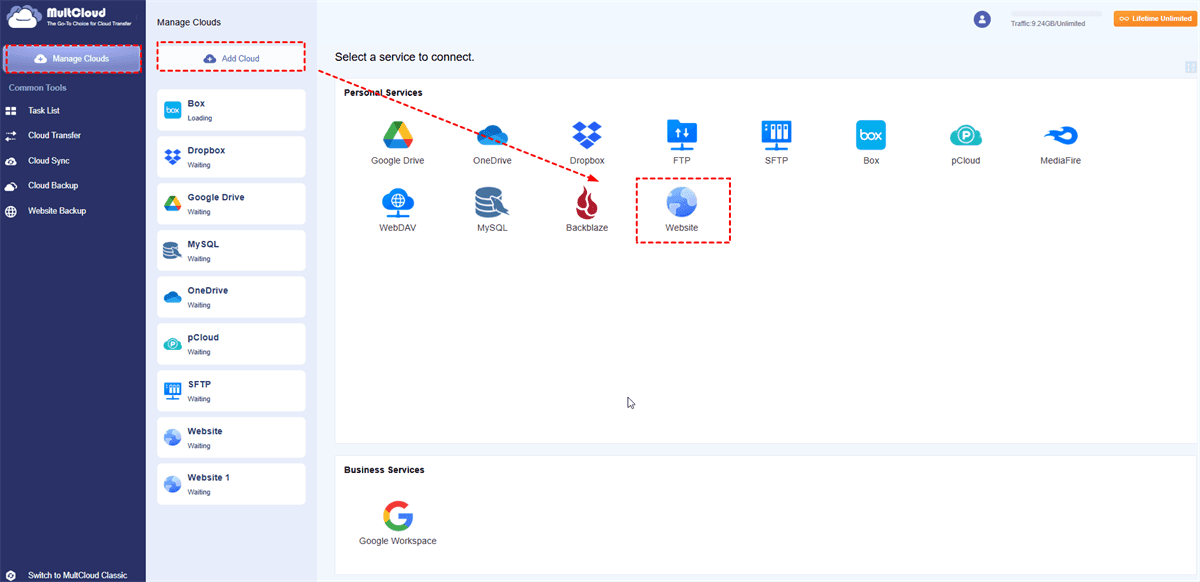
Step 4. Select "Website Backup" and choose the website as the source drive, cloud drive as the destination.
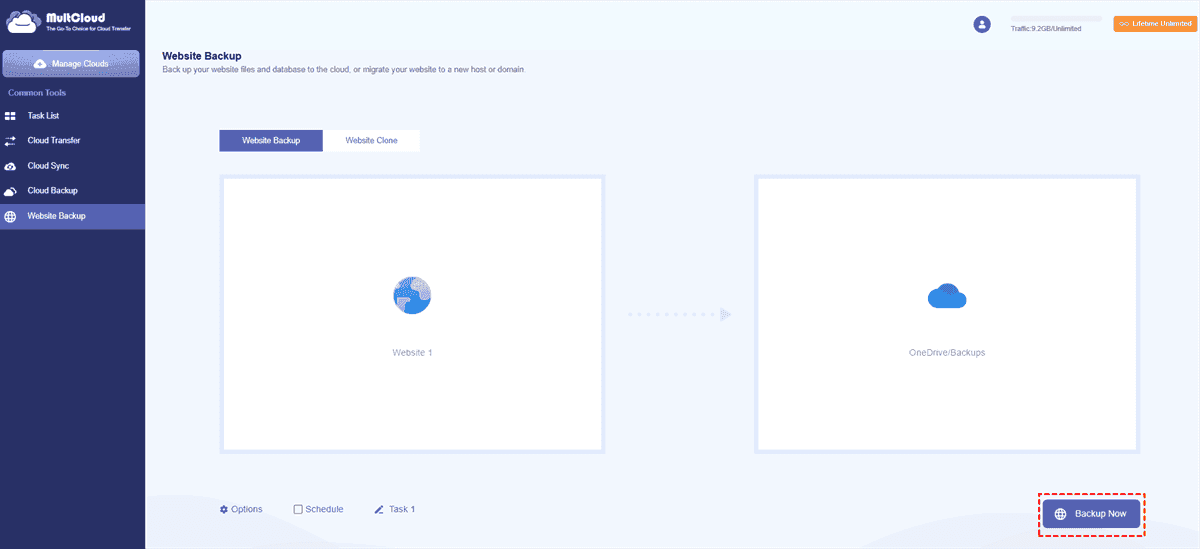
Step 5. Click "Backup Now" to start the process.
- ★Tips:
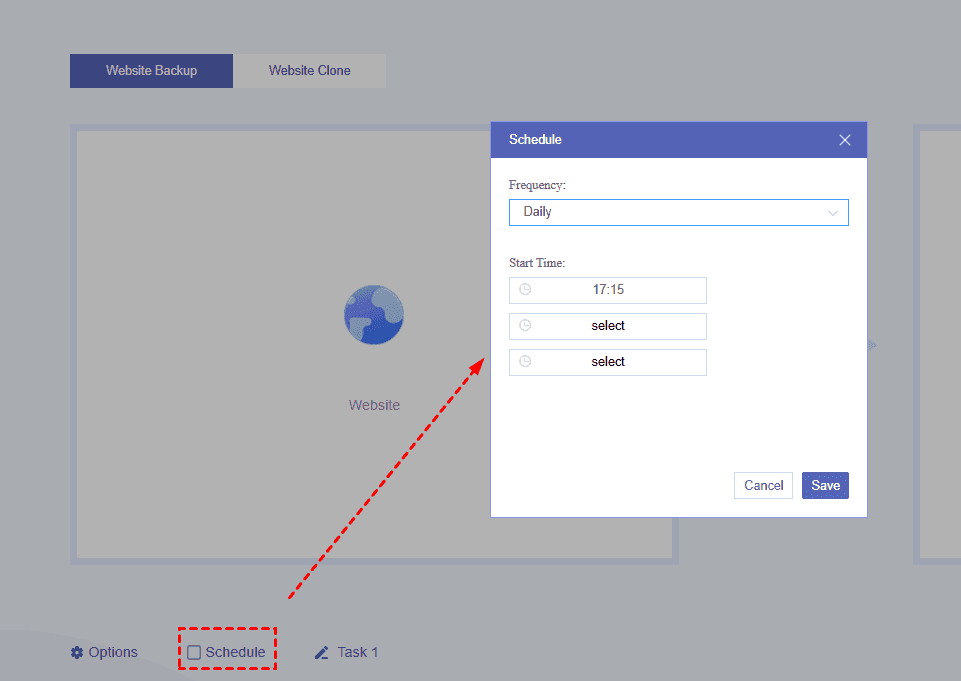
- If you need regular backups, create a scheduled transfer task to automatically copy updated website files at specific intervals in "Schedule".
- Tap "Options", you can set email notifications and file filters to include or exclude.
Method 2: Download Website Files and Database Manually (FTP + phpMyAdmin)
Manual downloading is a traditional method that gives you complete control over every website component. It works well for users who have FTP access and database management permissions. You can manually download all website files through an FTP client and exporting the website database through phpMyAdmin. After completing both steps, you will have the files and SQL database required to restore the website on another server.
👉 Download Website Files:
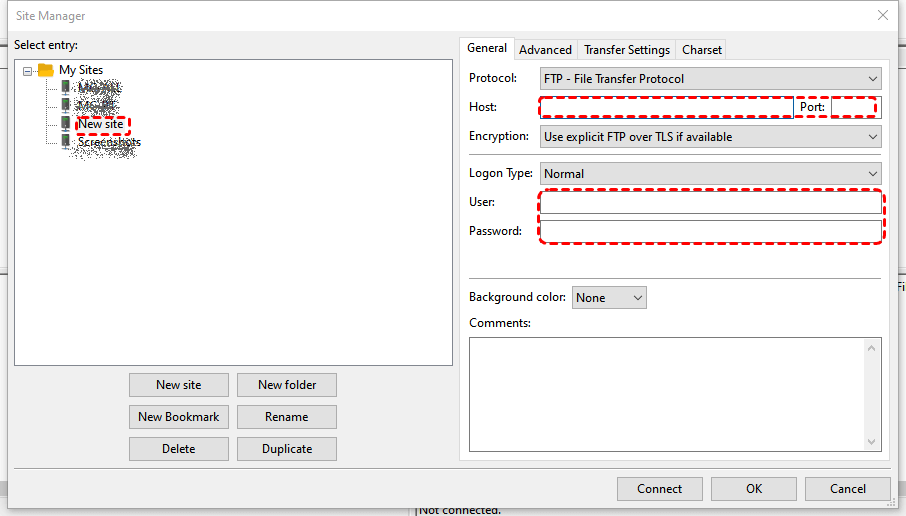
Step 1. Install an FTP client such as FileZilla and click "File" > "Site Manager" to connect to your server using your FTP credentials.
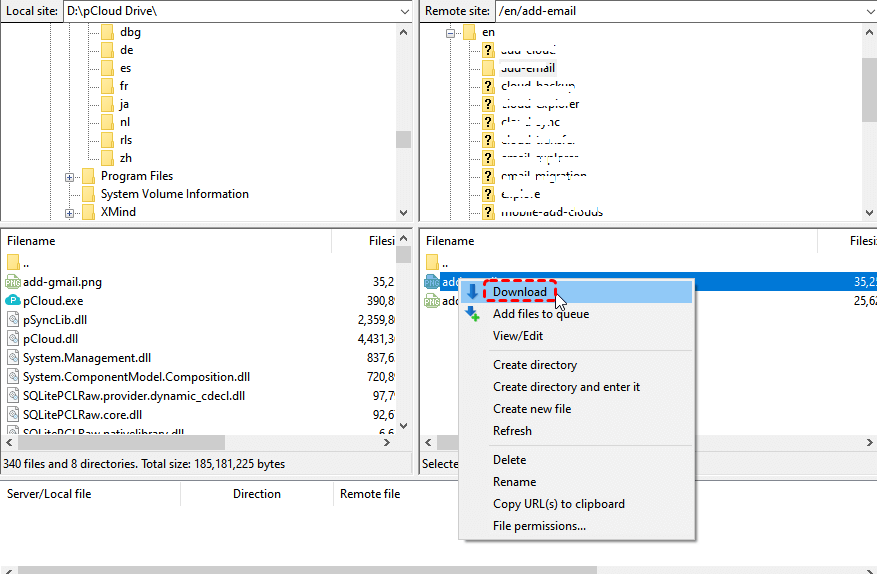
Step 2. Locate your website root directory, select all files and folders, and right click on them to download them to your local computer.
👉 Export the Database:
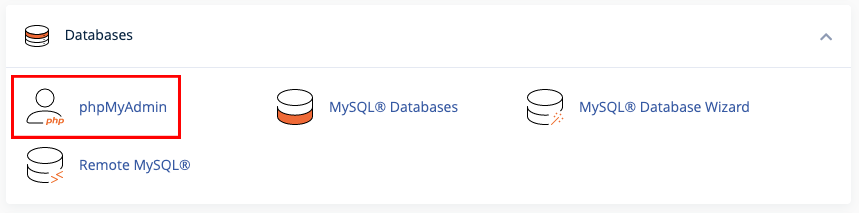
Step 1. Log in to your hosting control panel, open phpMyAdmin, and select the database associated with your website.
Step 2. Click the "Export" button, select the "SQL" format, and download the database file to your computer.
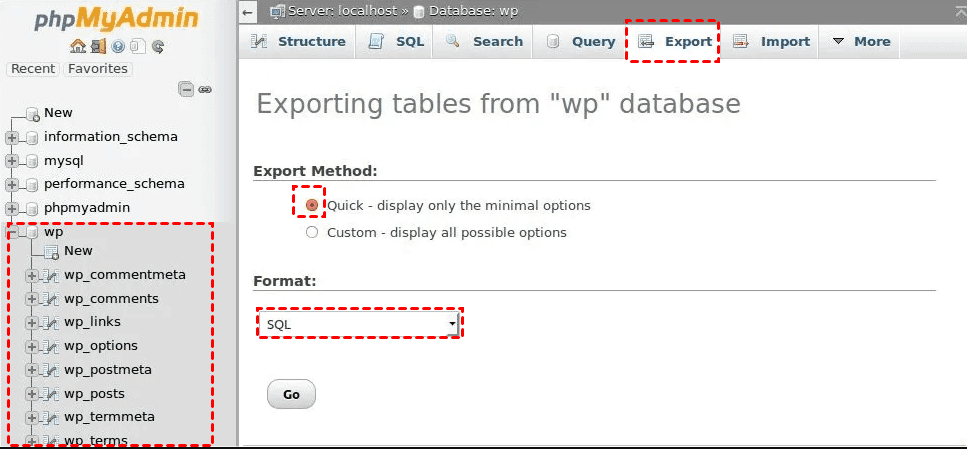
Step 3. Click "Go" to start the process.
Method 3: Download WordPress Website with Backup Plugin
For WordPress users, backup plugins provide a more convenient way to create a complete website copy. Instead of manually downloading files and exporting databases separately, these tools can package website content into a backup archive. You can create a full backup that includes WordPress files and database data using the plugins.
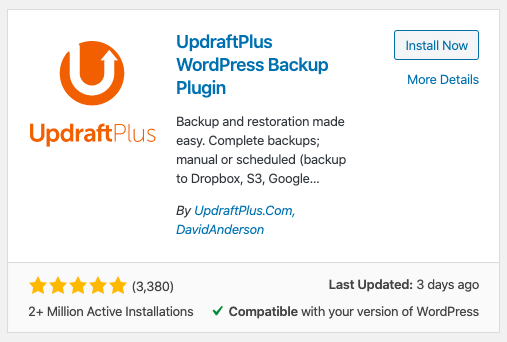
Step 1. Log in to your WordPress dashboard, go to "Plugins", and install a backup plugin that supports full website backups such as UpdraftPlus, All-in-One WP Migration.
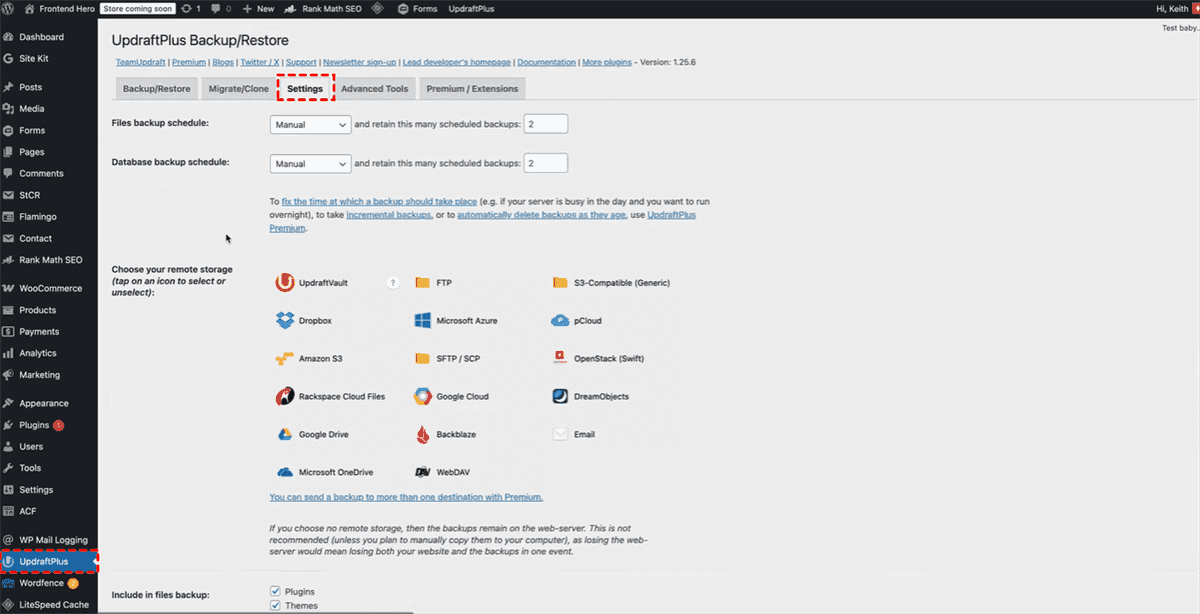
Step 2. Open the plugin in the sidebar and go to "Settings" tab. (Here, we take UpdraftPlus as an example).
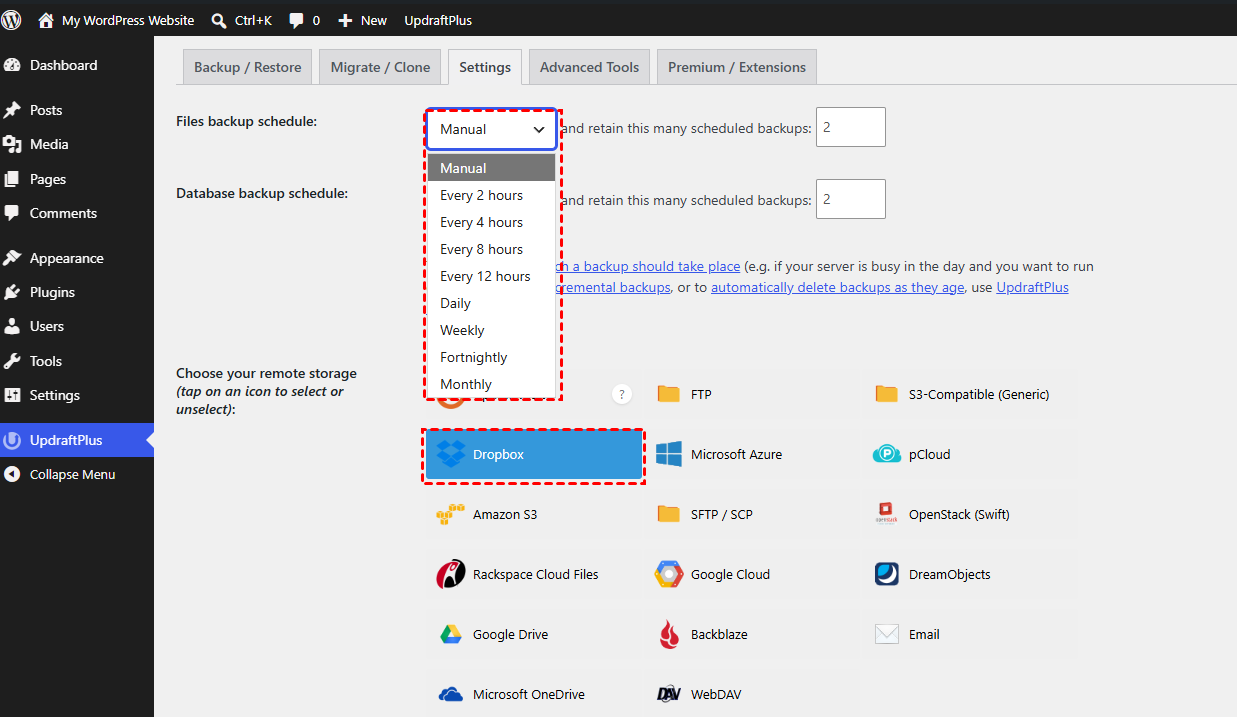
Step 3. Confirm the backup frequency and select a cloud drive to store the copy file.
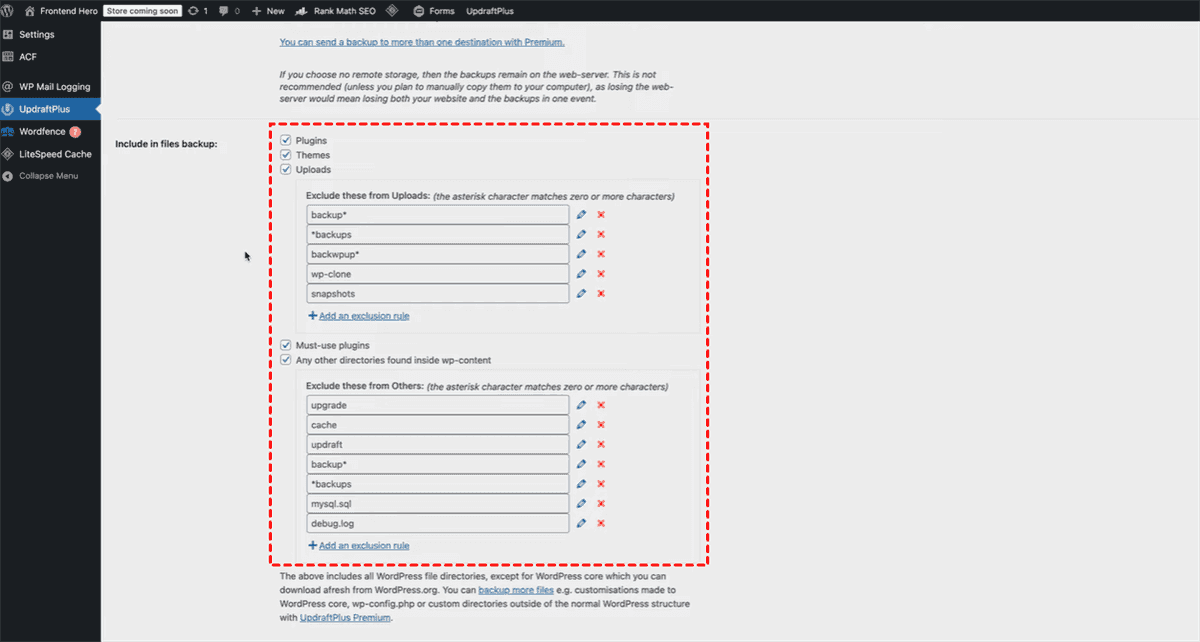
Step 4. Choose the option to back up both website files and the database.
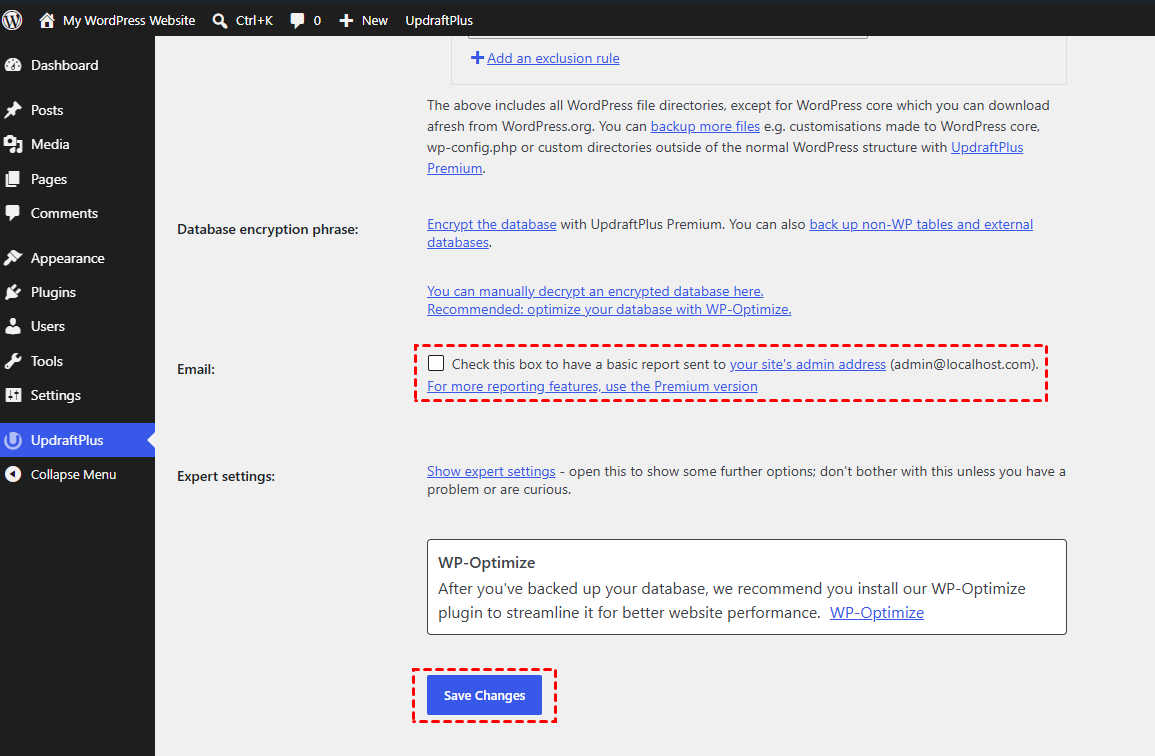
Step 5. Click "Save Changes". If you want to receive a basic report, check the box of "Email".
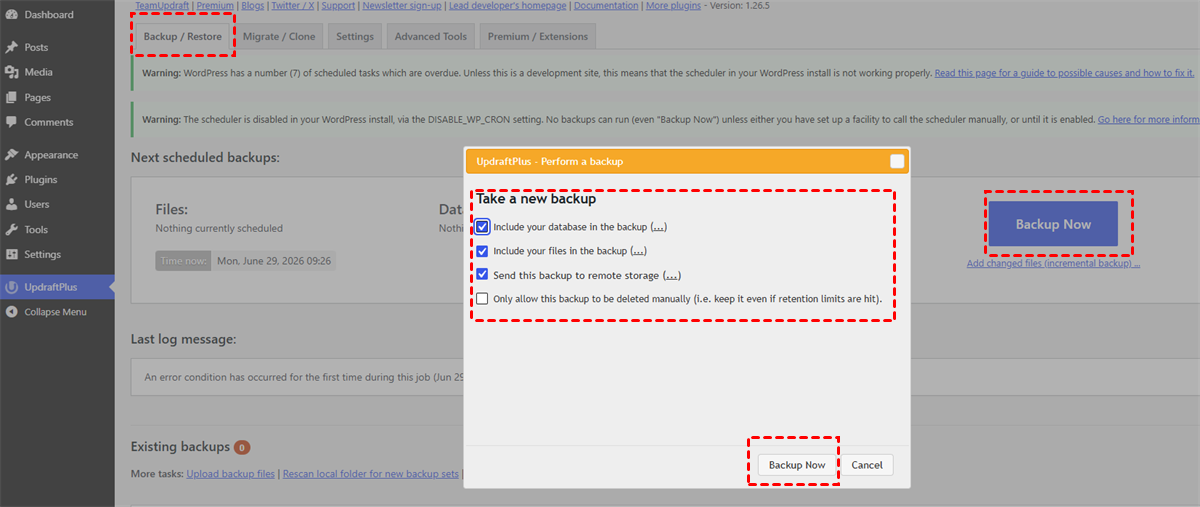
Step 6. Click the "Backup / Restore" tab, tap "Backup Now". In the popup window, confirm your backup settings and click "Backup Now" to start the process. Once done, download the website backup file to your local device.
Method 4: Download Website Backup from cPanel
cPanel provides built-in backup features that allow website owners to create and download backups directly from their hosting accounts. This method is useful for users whose hosting provider offers cPanel access. They can generate a backup archive including website files, databases, email accounts, and other hosting-related data through cPanel and download it locally.
Step 1. Access your hosting account and open the cPanel dashboard.
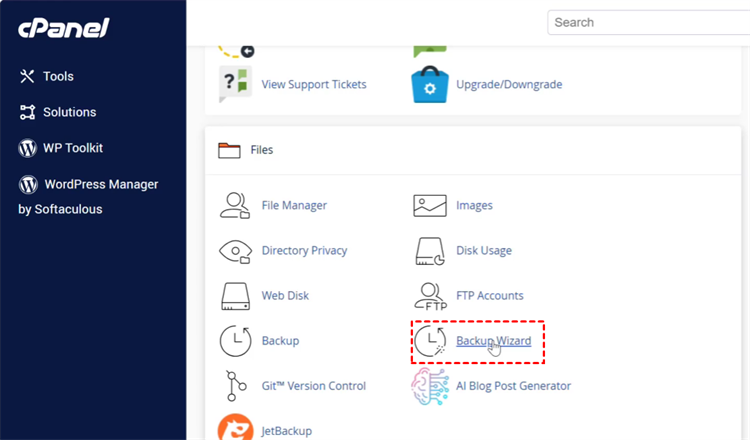
Step 2. Scroll down to find the "Backup" or "Backup Wizard" section and open it.
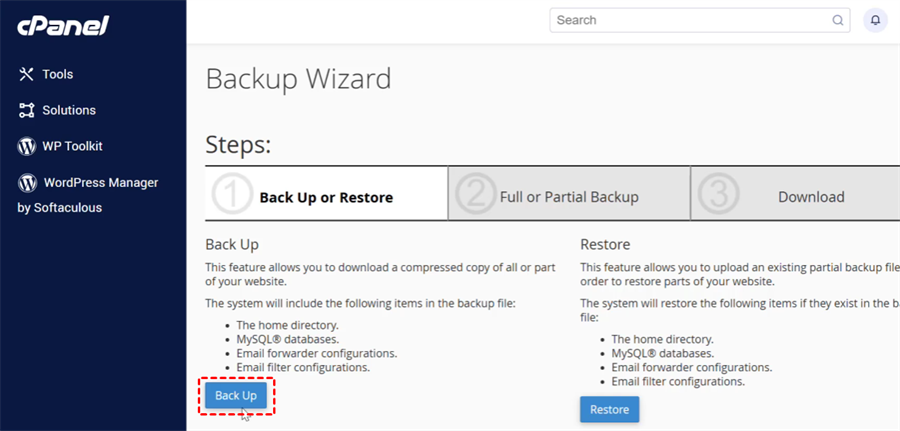
Step 3. Click "Back Up" to create a full or partial backup.
Step 4. Choose "Full Backup" to back up both website files and database.
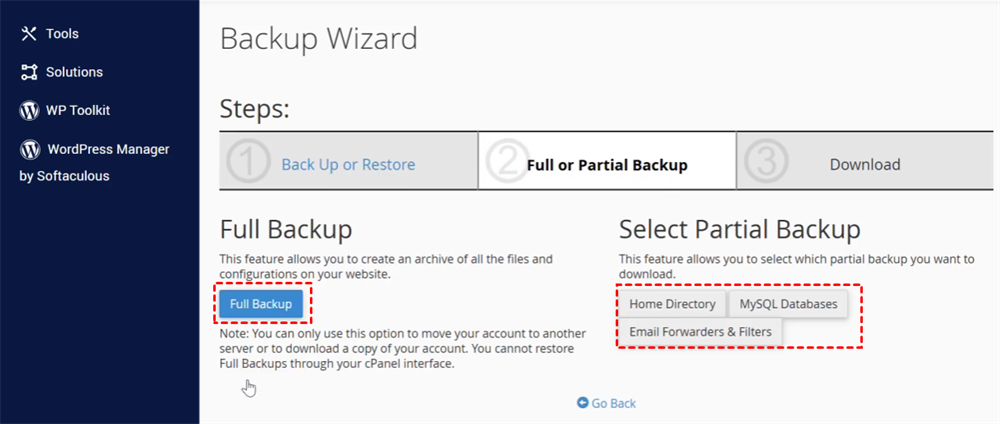
Step 5. Select a destination to save the backup file and click the "Generate Backup" button. Enter you email address you can receive an email notification of backup completion.
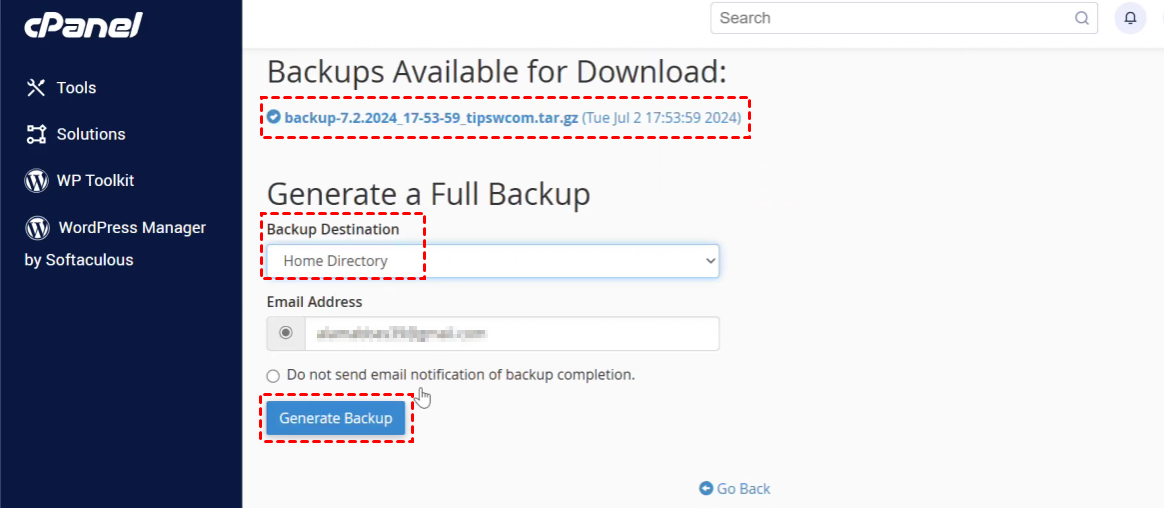
Once the process is finished, you can download the .tar.gz backup file to your computer.
Summary
Downloading a full website backup complete with its database may seem challenging at first. However, the four methods outlined in this guide let you easily create custom site backups even if you have no professional technical knowledge. Whenever errors or failures occur on your website, you can restore your site using these backups to its fully functional state without losing any data whatsoever.
In addition, MultCloud supports transferring data from FTP servers to Google Drive, as well as moving files between two separate Google Drive accounts. Simply register for a MultCloud account, and you can conveniently manage all your cloud storage services centralized within all-in-one platform.
FAQs
Q1: How do I download entire website data?
To download entire website data, you need to save both website files and the database. You can use FTP to download website files and phpMyAdmin to export the database, or use website backup tools like MultCloud that create a complete website copy for migration or recovery with one click.
Q2: How do I get the database of a website?
You can get a website database through your hosting control panel or database management tools. For most websites, open phpMyAdmin, select the correct database, choose Export, and download it as an SQL file for backup or migration.
Q3: Is it possible to copy an entire website?
Yes, you can copy an entire website by downloading all website files and exporting its database. A complete copy includes themes, plugins, media files, website code, and database content, allowing you to move or restore the website on another server.
Q4: How to bulk download from a website?
You can bulk download website files using FTP clients, hosting file managers, or website download tools. For large websites, FTP is usually more reliable because it can transfer folders and files in bulk while preserving the original directory structure.
Q5: How do I Access a database of a website?
You can access a website database through your hosting control panel, such as cPanel, by opening phpMyAdmin or another database management tool. You need valid database credentials and permissions to view, edit, export, or manage the data.
Q6: How do I download all PDF files from a website?
To download all PDF files from a website, you can use the website backup tool — MultCloud. Just connect your website and a destination cloud drive to MultCloud using credentials. Under "Options", click "Filter" and enter any type of files you want to download like PDF in "Include extensions". Then click "Backup Now" to back up all the PDF files. You can download all PDF files in the target drive without affecting other files.
MultCloud Supports Clouds
-
Google Drive
-
Google Workspace
-
OneDrive
-
OneDrive for Business
-
SharePoint
-
Dropbox
-
Dropbox Business
-
MEGA
-
Google Photos
-
iCloud Photos
-
FTP
-
box
-
box for Business
-
pCloud
-
Baidu
-
Flickr
-
HiDrive
-
Yandex
-
NAS
-
WebDAV
-
MediaFire
-
iCloud Drive
-
WEB.DE
-
Evernote
-
Amazon S3
-
Wasabi
-
ownCloud
-
MySQL
-
Egnyte
-
Putio
-
ADrive
-
SugarSync
-
Backblaze
-
CloudMe
-
MyDrive
-
Cubby

Stay Updated With Our
Latest Tips
Add us as a preferred source on Google to never miss helpful guides.
 Add as preferred source >>