

What Are the Differences Among Transferring a WordPress Site to Another Server, Host and Domain?
When you plan to copy a WordPress site to another server, you may come across different terms such as server transfer, host migration, and domain transfer. Although these processes are often mentioned together, they involve different parts of your website and require different steps.
| Migration Type | What It Means | What Changes | What Stays the Same |
|---|---|---|---|
| Transfer WordPress Site to Another Server | Move your website files and database from one server to another | Website files, database location, server configuration | Usually the same domain name and website content |
| Transfer WordPress Site to Another Host | Move your entire website from one hosting provider to another | Hosting account, server resources, files, database, and hosting settings | Domain name can remain unchanged |
| Transfer Domain Name | Move your domain registration from one registrar/account/provider to another | Domain ownership, registrar, management, DNS controls | Website files and hosting remain unchanged unless DNS settings are modified |
In most cases, copying a WordPress site to another server or host involves transferring website files and databases, while moving a domain only changes where the domain is managed. For a successful migration, you need to identify which part of your website you actually need to move and ensure that files, database settings, DNS records, and website configurations are properly updated.
Why Copy WordPress Site to Another Server?
You should now have a clear understanding of all tasks required to transfer a WordPress site to another server. In most cases, users copy their WordPress site to a new server to improve website performance, change hosting environments, or create a safer backup of their online assets. Common reasons for copying a WordPress site to another server include:
- Upgrade to a better server environment: A new server may provide better performance, more storage, improved security, or higher resource limits to support website growth.
- Switch to a different hosting provider: Website owners may move their sites when they need better pricing, customer support, uptime, or hosting features.
- Create a staging or testing environment: Copying a live WordPress site to another server allows developers to test new themes, plugins, and updates without affecting the original website.
- Migrate a website for business needs: Agencies, developers, or website owners may need to copy a completed site to a client’s server or a new business environment.
- Prepare for disaster recovery: Keeping a copy of your website on another server provides an additional recovery option if the original server experiences failures or data loss.
How to Copy WordPress Site to Another Server [4 Ways]
Regardless of the reason, the goal of copying a WordPress site is to create an identical version of the original website while keeping its content, settings, and functionality intact. A proper migration process helps prevent data loss, broken pages, and unexpected downtime during the transfer. Below are four common ways to copy a WordPress site to another server, ranging from automated solutions to manual migration methods.
Method 1. Automatically Copy WordPress Site to Another Server with MultCloud
For users who want to avoid manually downloading and uploading website files, an automated transfer solution can simplify the migration process. MultCloud's Website Clone allows you to move website data between supported servers through FTP/SFTP without handling each file and database manually.
MultCloud serves as an all-in-one multiple clouds manage platform. All data transfers are shielded by 256-bit AES encryption to eliminate security risks. Beyond server-to-server WordPress clone, it supports saving site backup to cloud drives like Google Drive, OneDrive, Dropbox, Box, iCloud drive and more than 30+ drives to avoid irreversible data loss caused by accidents or server failures.

- Automated scheduling: Set daily, weekly, or monthly backups without manual operation.
- Off-site storage: Store backups in cloud drives instead of your hosting server.
- Better disaster recovery: Backup data remains safe even if your hosting server fails.
- Incremental backup support: Only new or modified files are backed up to save time and storage.
- No server dependency: Backup tasks run in the cloud without affecting website performance.
- Centralized management: Manage multiple FTP sites and cloud drives in one dashboard.
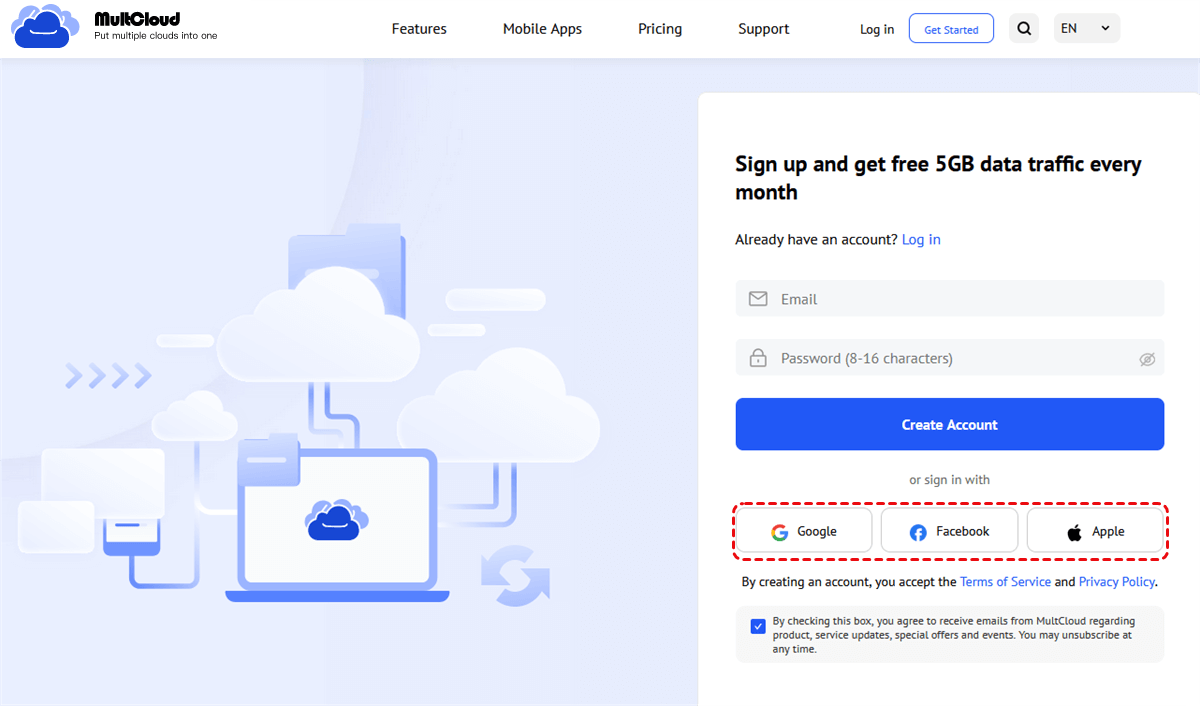
Step 1. Sign up for a MultCloud account and log in.
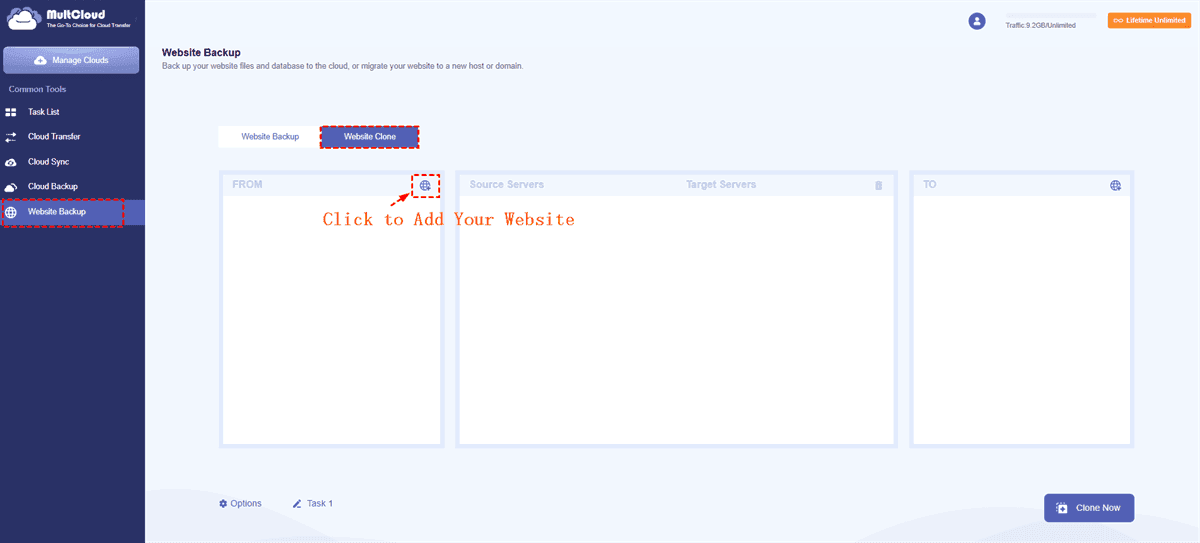
Step 2. Select "Website Transfer" > "Website Clone", click Add Website button. Enter your FTP/SFTP and database server, port, username, password to add the website to MultCloud as the source location. Add the new server with the same step as the destination drive.
Step 3. After connecting both servers, select the website files and database that need to be copied. Click the "Clone Now" button to begin copying your WordPress website data.
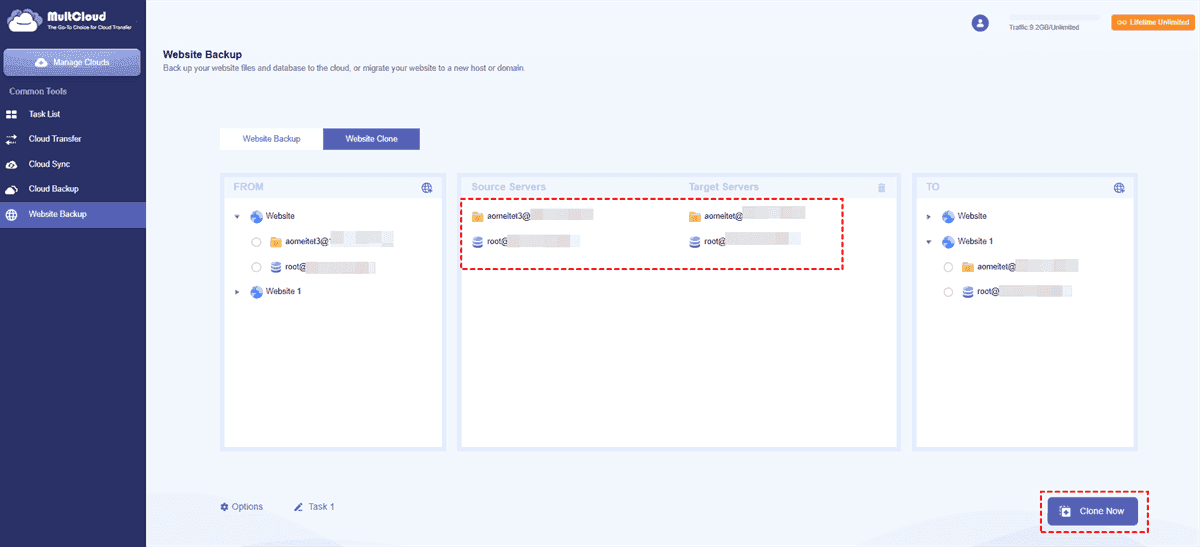
MultCloud will automatically transfer the selected website files and database information from the old server to the new server. The transfer time depends on the size of your website and network conditions.
- ★Tips:
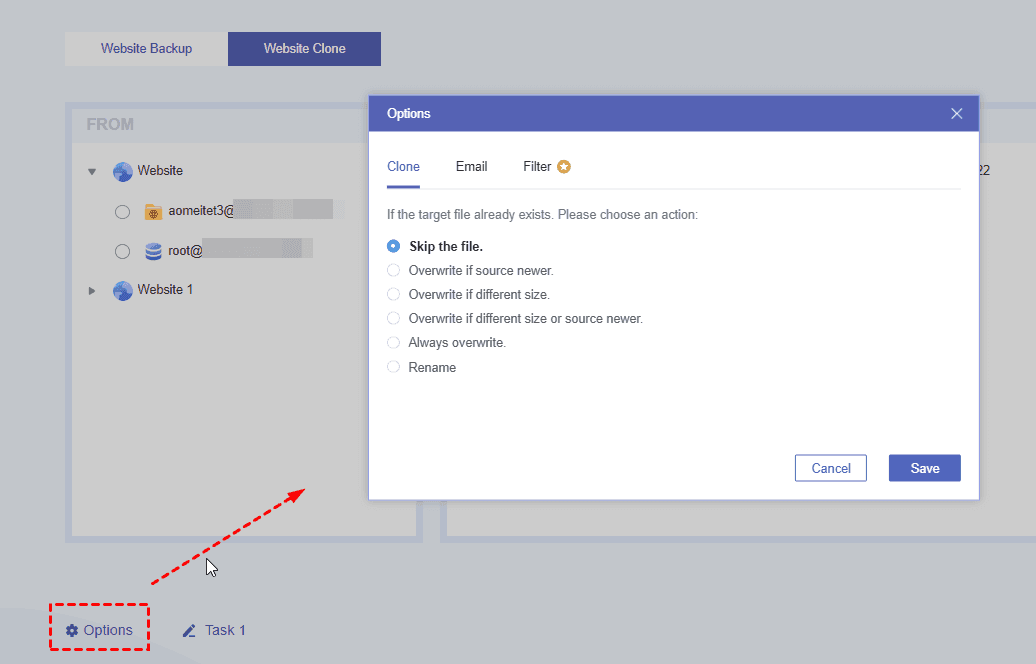
- If needed, you can set up clone settings, email notifications and file filters to include or exclude the target files by clicking on the "Options" button.
After the transfer is complete, access your new server and verify that WordPress files are transferred correctly and database content is available.
Method 2. Move WordPress Site to Another Server Using cPanel
cPanel provides a traditional way to migrate WordPress websites by manually copying files and databases. This method gives you full control over the migration process and does not require additional tools. You should export your WordPress database, download website files from the old server, upload them to the new server, and reconnect WordPress with the new database.
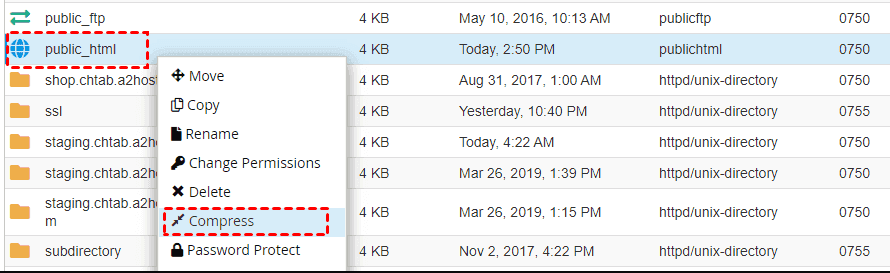
Step 1. Log in to your old hosting account and open File Manager. Download the complete WordPress installation folder, especially wp-content, p-config.php folder. Alternatively, you can also connect your server through FileZilla and download all files.
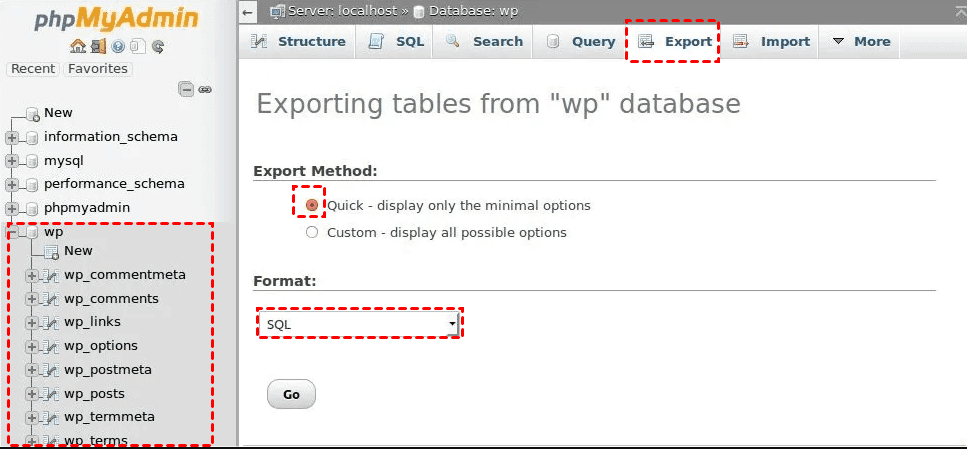
Step 2. Go to phpMyAdmin and click "Export", choose the SQL format to download the database file to your computer.
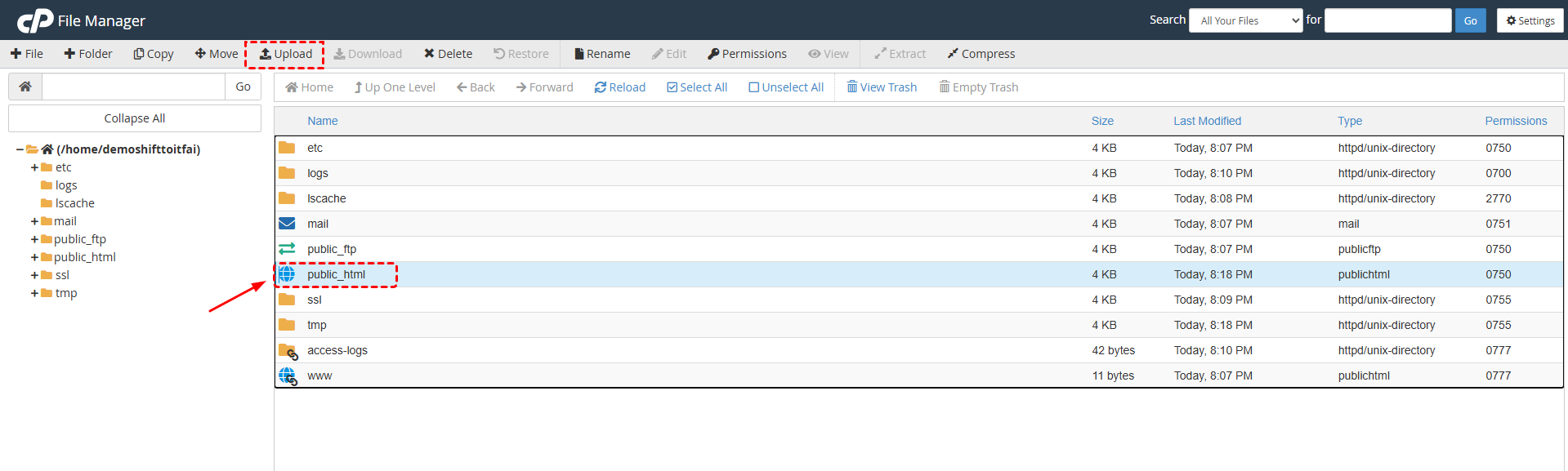
Step 3. Log in to your new hosting cPanel and upload the WordPress files to the correct directory, usually the public_html folder.
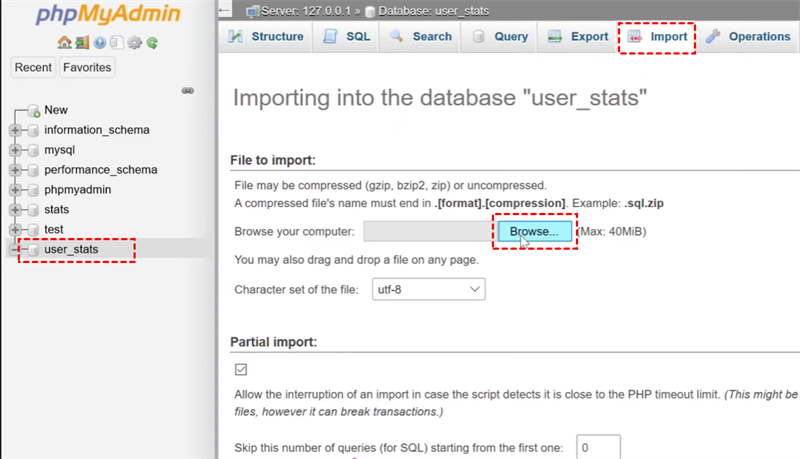
Step 4. Open phpMyAdmin on the new server. Click "Import" on the top of menu to upload the exported SQL file. After completion, your old WordPress database will be copied on the new server.
Method 3. Migrate WordPress Site to New Server Using XML Export and Import
WordPress’s built-in export and import feature provides a simpler way to move website content without manually transferring the entire database. However, this method mainly copies posts, pages, comments, and basic content information rather than creating a complete website clone. It is more suitable for smaller websites or users who only need to move content instead of themes, plugins, and server configurations.
Step 1. Log in to your old WordPress dashboard. Go to "Tools" > "Export" and select the content you want to copy, then click "Download Export File". WordPress will generate an XML file containing your selected website content.
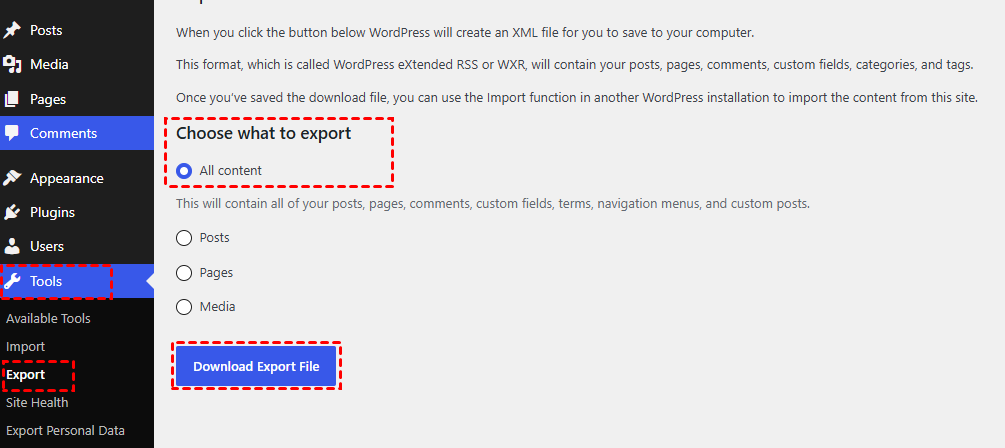
Step 2. Set up a fresh WordPress installation on your new server. Complete the initial setup and log in to the new WordPress dashboard.
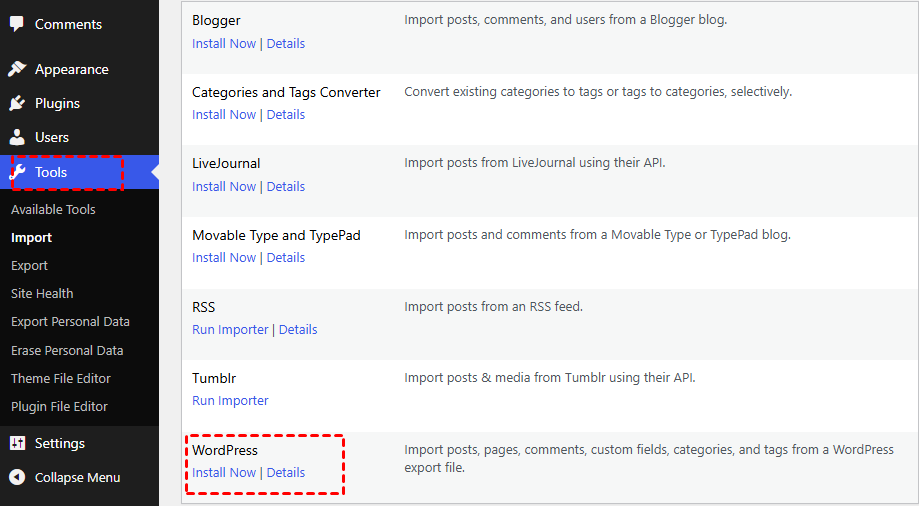
Step 3. Head to "Tools" > "Import" > "WordPress" > "Install Now".
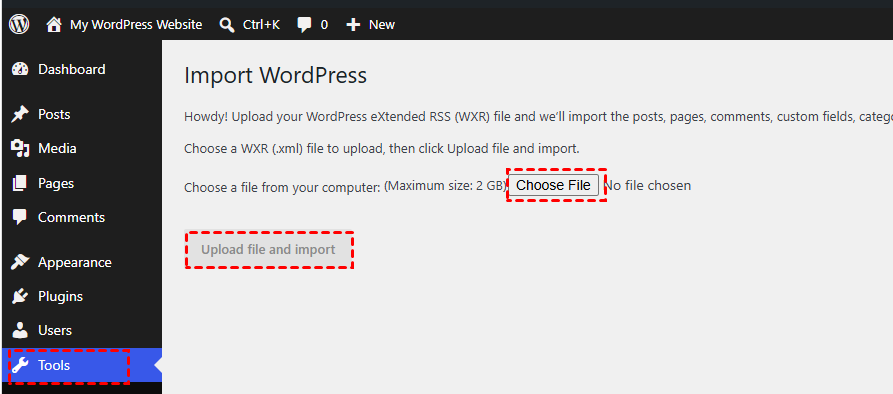
Step 4. Click "Choose File" to import the downloaded XML file, then tap the "Upload file and import" button.
After importing content, manually configure plugins, themes, menus, etc. and check the website carefully to ensure it matches the original version.
Method 4. Copy WordPress Site to Another Server Using Migration Plugins
WordPress migration plugins provide a beginner-friendly way to move websites without manually handling files and databases. These plugins usually package your website into a migration file and restore it on another server. This method is convenient for users who do not have technical server knowledge.
Step 1. Log in to WordPress dashboard and locate "Plugins" > "Add Plugin". Install and activate a migration plugin like All-in-One WP Migration.
Step 2. Select All-in-One WP Migration in the sidebar, click "Export" > "EXPORT SITE TO" > "FILE" to generate a website package file. You can also download the file to other cloud drives based on your needs.
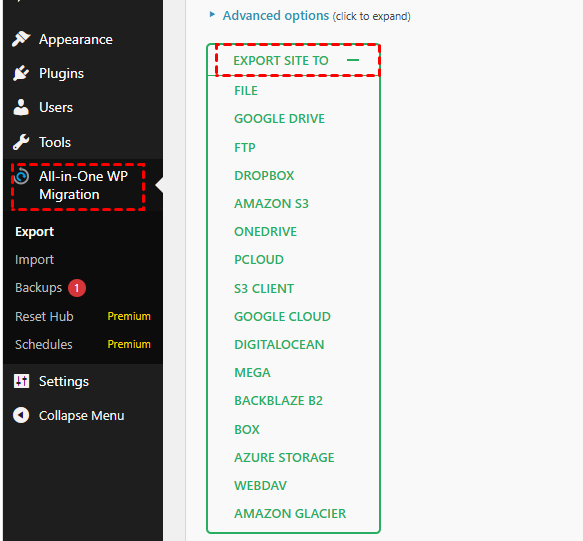
Step 3. Download the files to your local computer.
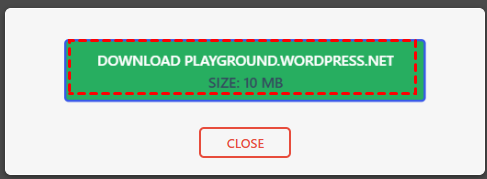
Step 4. Install a clean and blank WordPress site on your new server, then install the same migration plugin on the dashboard.
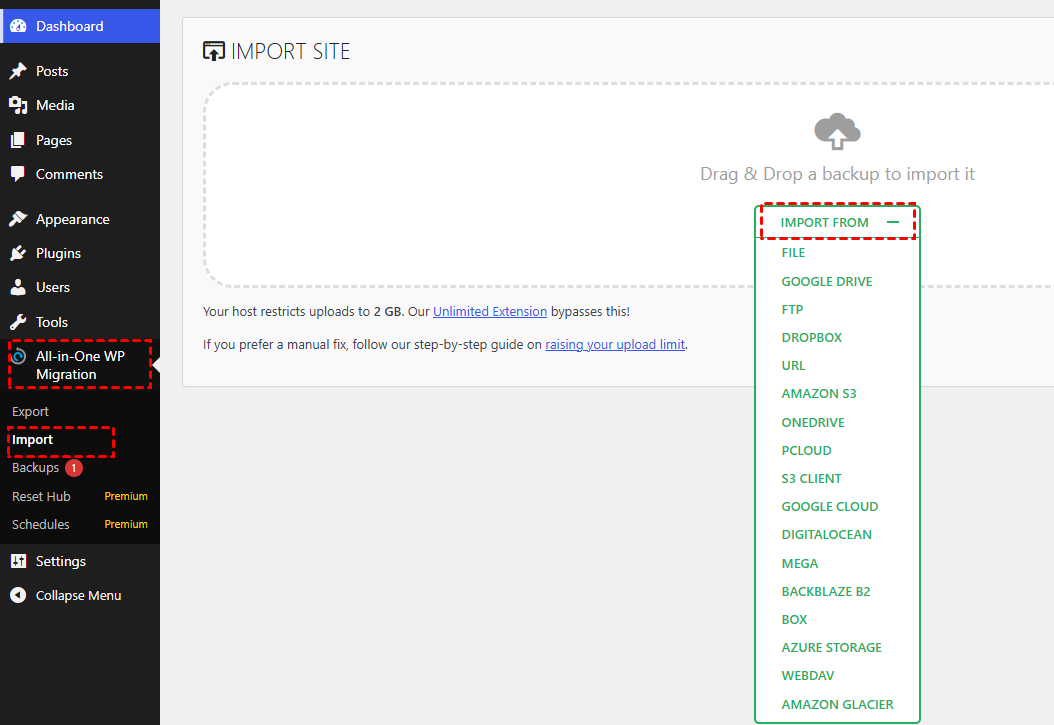
Step 5. Navigate to All-in-One WP Migration plugins and click "Import" > "IMPORT FROM" > "FILE" to upload the file. The plugin will automatically extract the files and database to recreate your original website.
Final Post-Migration Steps
After copying your WordPress site to another server, the migration process is not completely finished yet. Before pointing your domain to the new server or making the new environment live, you should carefully check that all website components work correctly.
Check Website Functionality
Open your new WordPress site and test the main functions to ensure everything has been transferred successfully.
Update Website URL and DNS Settings
If you are moving your website to a new server but keeping the same domain, update your DNS records to point your domain to the new server. After the DNS change, it may take some time for the update to take effect worldwide.
Check Permalinks and SEO Settings
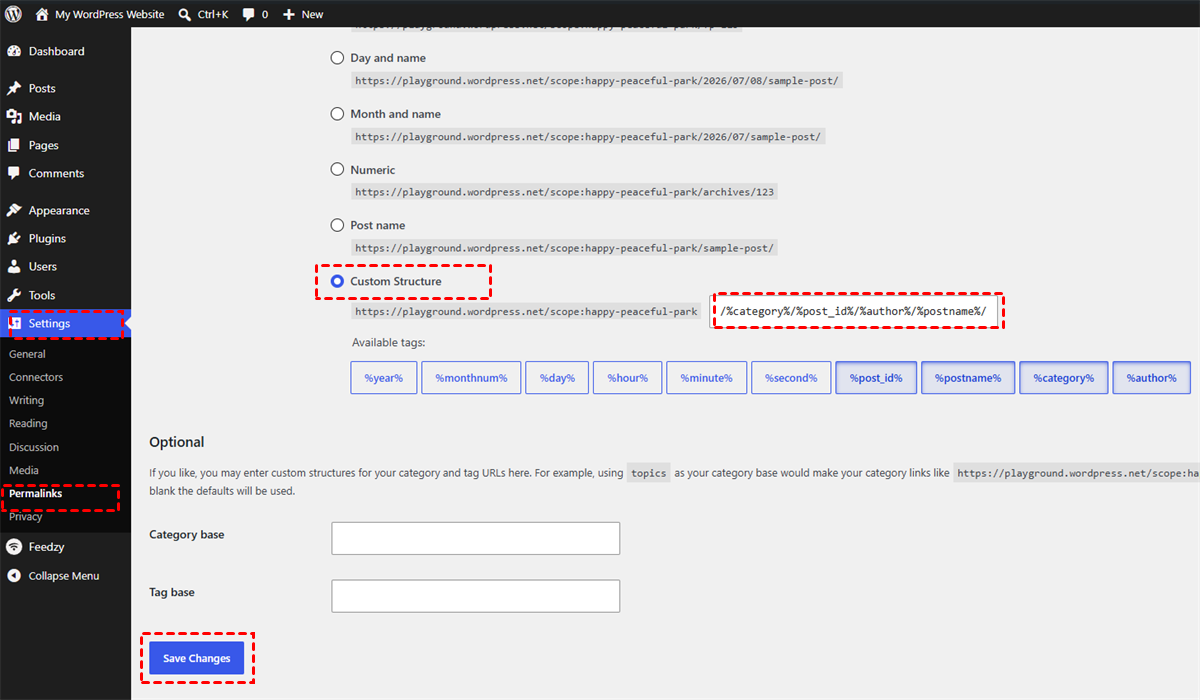
A server migration should not change your website structure or affect search rankings. However, incorrect configurations may cause broken links or indexing issues. Go to WordPress dashboard > "Settings" > "Permalinks", select the same structure as your old site, then click "Save Changes".
Remove Old Server Files After Confirmation
Do not immediately delete your old website after migration. Keep the original server available for a short period until you confirm that the new website works properly, no missing data or error appear.
Once everything is verified, you can safely cancel the old hosting service or reuse the previous server for other purposes.
Final Words
Copying a WordPress site to another server is not simply a matter of moving files from one location to another. A successful migration requires transferring website files, databases, configurations, and other important elements while ensuring your website remains functional and accessible. Among these four methods, automated tools can significantly simplify the process by reducing manual work, while traditional methods provide more control for users with technical experience.
Beyond Website Clone, MultCloud also provides solutions for managing and protecting your digital assets. You can use it to back up websites between servers, transfer data from Google Drive to OneDrive, and manage files across multiple cloud platforms from one place.
FAQs
Q1: How do I safely migrate a WordPress site?
To safely migrate a WordPress site, you can try the automatic tool — MultCloud. It adopts 256-bit AES encryption to secure your website data during migration. Simply add your site’s FTP, database server, as well as your target server or cloud drives, and you can complete website migration with one click. Don't forget to confirm that pages, links, plugins, and SEO settings work correctly before switching the site live.
Q2: How to move WordPress site without breaking URLs?
To prevent URL issues during migration, keep the same permalink structure, update website URLs correctly, and set up 301 redirects if any links change. After migration, check internal links, XML sitemap, and indexing status to ensure search engines can access your pages normally.
Q3: How to migrate WordPress site with zero downtime?
To achieve near-zero downtime, prepare the new server before switching, copy all website files and databases in advance, test the migrated site, and update DNS settings only after everything is ready. Keeping the old server active during DNS propagation helps maintain website availability.
Q4: How to transfer WordPress site and database correctly?
To transfer a WordPress site and database correctly, clone the database and all WordPress files from the original server using MultCloud, upload them to the new server, import the database, and update the wp-config.php file with the new database credentials. Always test the website after migration.
Q5: Which tools to use to copy entire WordPress site?
You can copy an entire WordPress site using migration tools such as MultCloud Website Clone or cPanel backup features. Automated tools simplify file and database transfers, while manual methods provide more control over the migration process.
Q6: What is the safest plugin to duplicate WordPress?
Popular WordPress duplication plugins like UpdraftPlus, All-in-One WP Backup can safely clone websites by packaging files and databases into migration backups. When choosing a plugin, look for reliable backup features, secure transfer options, compatibility with your hosting environment, and the ability to restore the complete website without data loss.
MultCloud Supports Clouds
-
Google Drive
-
Google Workspace
-
OneDrive
-
OneDrive for Business
-
SharePoint
-
Dropbox
-
Dropbox Business
-
MEGA
-
Google Photos
-
iCloud Photos
-
FTP
-
box
-
box for Business
-
pCloud
-
Baidu
-
Flickr
-
HiDrive
-
Yandex
-
NAS
-
WebDAV
-
MediaFire
-
iCloud Drive
-
WEB.DE
-
Evernote
-
Amazon S3
-
Wasabi
-
ownCloud
-
MySQL
-
Egnyte
-
Putio
-
ADrive
-
SugarSync
-
Backblaze
-
CloudMe
-
MyDrive
-
Cubby


Stay Updated With Our
Latest Tips
Add us as a preferred source on Google to never miss helpful guides.
 Add as preferred source >>