Transfer Photos from Dropbox to Google Photos Directly


MultCloud Solves All the Pain of Dropbox to Google Photos Transfer
MultCloud addresses the common frustrations of transferring photos from Dropbox to Google Photos by offering a direct, cloud-to-cloud transfer solution. It eliminates the need for the slow, tedious process of downloading everything to your device and then re-uploading it.
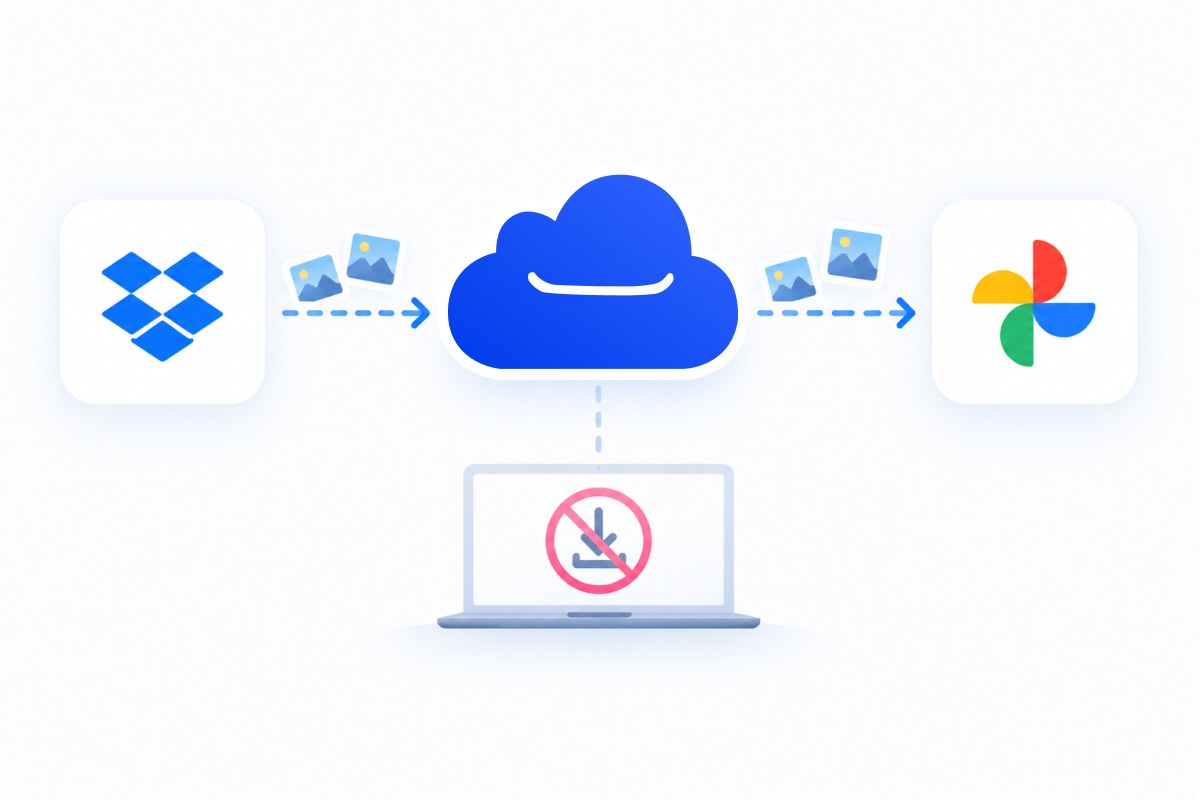
Manual Method Extremely Slow
"I have 50 GB of photos stuck in Dropbox, but Google Photos is where I actually want them — downloading and re-uploading takes hours and eats my bandwidth."

MultCloud transfers your photos directly from Dropbox to Google Photos on its own servers — nothing is downloaded to your device, so your bandwidth and time are never wasted.
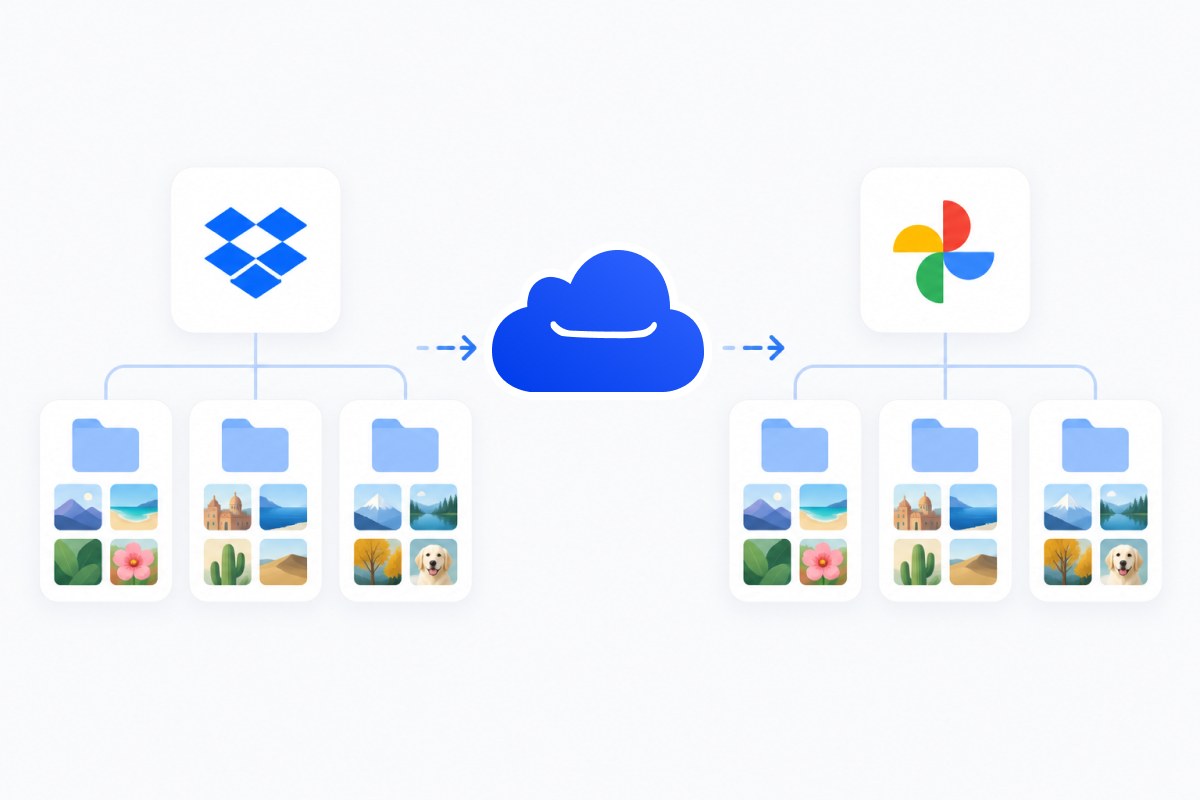
Messy Album Structure
"Google Takeout dumps my Dropbox photos as a messy ZIP full of .json files — my timestamps and album structure disappear."
MultCloud keeps your photo organization intact during the direct transfer, preserving original dates and album structure far better than Takeout exports.
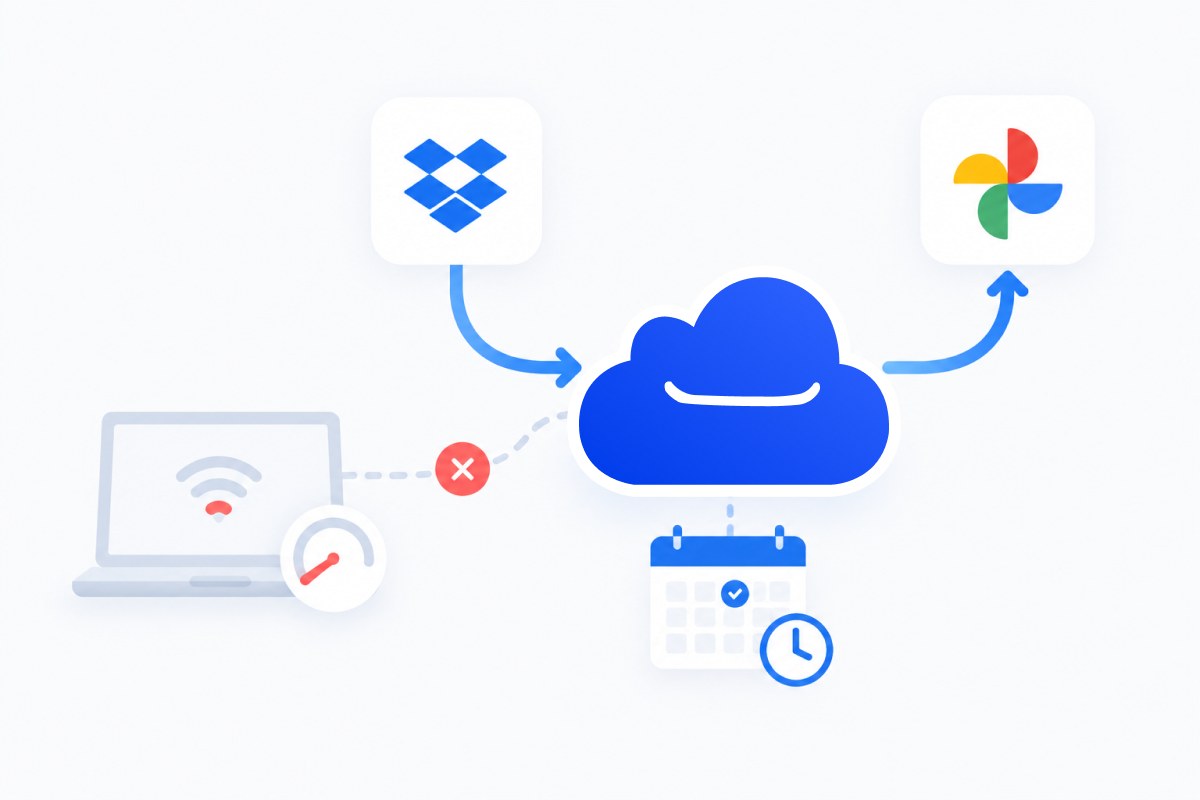
Slow or Metered Connection
"I'm on a slow or metered connection, so re-uploading 10,000 photos is basically impossible. It’s frustrating to move photos from Dropbox to Google Photos."
The transfer runs on MultCloud's servers, so your slow or metered connection is never the bottleneck. Start it, schedule it, and walk away.
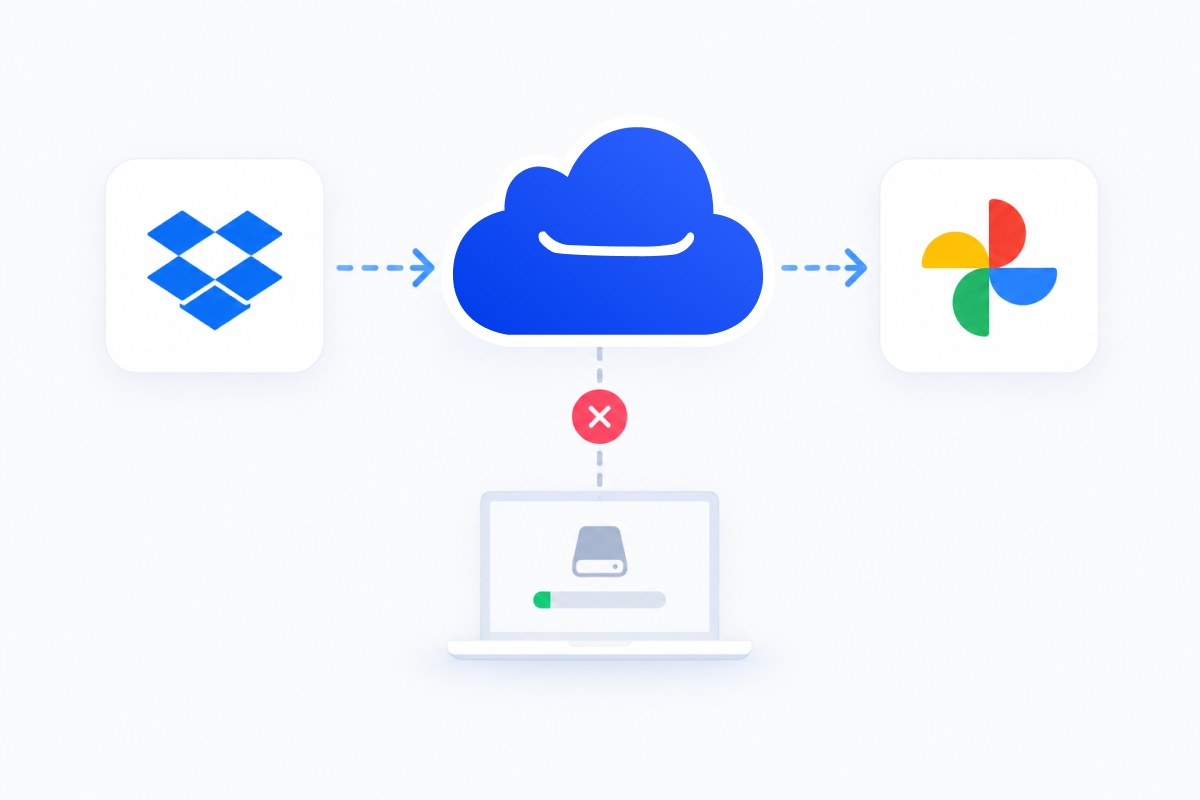
Low Disk Space
"Every manual method forces me to download everything to my computer first, then upload again. My laptop ran out of space halfway through."
Because the move is fully cloud-to-cloud, no local storage is used — your laptop never fills up, no matter how large the library.
Why Choose MultCloud to Transfer Dropbox Photos to Google Photos
MultCloud is the ideal choice for this Dropbox to Google Photos transfer because it's a web-based service designed specifically for moving data directly between cloud drives without passing through your local device.

Direct Cloud-to-Cloud Transfer
Move photos from Dropbox to Google Photos directly without storing the whole library on your computer.

Scheduled & Automatic Transfer
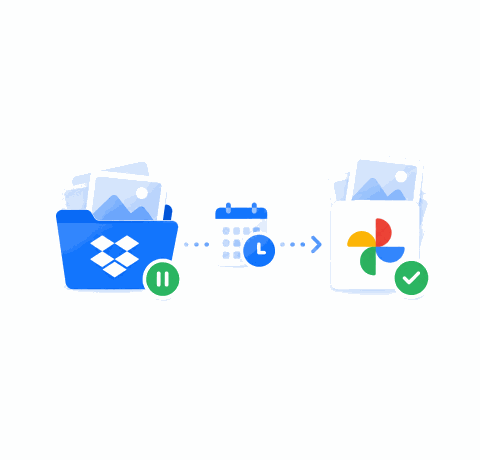
Set hourly, daily, weekly, or monthly transfers so new photos keep flowing to the new Google Photos account.

Selective Transfer
Choose specific albums, folders, or file types move from Dropbox to Google Photos, which helps you to save cloud space and effort.

Handles Huge Libraries
It uses multi-threaded technology (up to 10 threads) to process multiple parts of a file simultaneously, making transfers up to twice as fast.
Before Transferring from Dropbox to Google Photos
Before starting your transfer from Dropbox to Google Photos, taking a few preparatory steps can save you from headaches like data loss, wasted time, or a jumbled photo library. Here's a checklist of what you should do first.

Decide What to Transfer
Before moving anything, organize the photos and videos you need to transfer. Delete duplicate or blurry photos to sort them out. Then move all the photos you need into a folder.

Check Google Photos Storage
If you're moving a large collection, make sure you have enough space, or free up Google space if needed. Ensure Google Photos' available storage is 1.2 times the size of your Dropbox photos.

Test A Few Photos First
Before transferring thousands of photos, select a small, representative batch that include different file types (JPG, PNG, videos) and various dates. Run the transfer and verify the results in the destination account.
Don't Delete the Source Immediately
Patience is key here. Even if your photos show up in Google Photos, don't rush to clean up your Dropbox. It takes time to confirm that every file and its details (like dates and locations) made it over safely.
How to Transfer Photos from Dropbox to Google Photos Directly
Learn how to move Dropbox Photos to Google Photos automatically with the help of MultCloud, add Dropbox and Google Photos, then transfer with one click.

Manual Ways to Transfer Dropbox Photos to Google Photos
How to move photos from Dropbox to Google Photos in other ways? There are manual ways to move Dropbox files to Google Photos. Let’s explore.
Way 1. Manual Download & Re-upload
Way 2. Transfer via Desktop Apps
Compare All Ways to Transfer Dropbox Photos to Google Photos
Now, let’s find out the main differences among the ways to move photos from Dropbox to Google Photos. Then find the easiest way to transfer pictures from Dropbox to Google Photos.

In a nutshell, manual download/upload and desktop apps both work, but both drag your entire photo library through your local disk and connection. MultCloud keeps the migration off your machine entirely, which is what makes it the most practical option for anything beyond a few gigabytes.
Explore More About MultCloud
MultCloud is more than just a transfer tool; it's a comprehensive cloud-to-cloud management platform that simplifies how you work with multiple cloud storage services. Try other free tools to move files between clouds directly.

Sync Google Drive with Dropbox
Keeping files synchronized between Google Drive and Dropbox can be essential if you use both services regularly.
Start Sync for Free
Backup Google Photos to Dropbox
Backing up your Google Photos to Dropbox creates a valuable second copy of your precious memories, protecting against accidental deletion or service issues.
Start Backup for Free
Transfer Google Photos to iCloud
Transferring photos from Google Photos to iCloud creates a backup of your memories in Apple's ecosystem. So, your photos are safe.
Start Transfer for FreeYour Data Security Is Our Priority
We understand that trust is earned, and we've built MultCloud with enterprise-grade security to protect your data at every step.

Your Data Belongs to You
MultCloud is only a secure transmission channel. We never permanently store your files on our servers—any temporary cache is immediately deleted once your task is complete. You remain the sole owner of your data.

Zero Password Exposure
We use the industry-standard OAuth authorization system, meaning MultCloud never sees or saves your cloud account passwords. You grant access securely, and you can revoke it anytime.

Bank-Grade Encryption
All data transfers are protected with 256-bit AES encryption for SSL—one of the most secure encryption technologies available today. This ensures your files cannot be tampered with, intercepted, or cracked during transmission.

Full Control & Transparency
You can revoke cloud access instantly, permanently delete your account and data on demand, and count on our full GDPR compliance, which ensures we only process what's strictly necessary for your tasks and nothing else.
Connect and Manage 40+ Cloud Drives in One Place
MultCloud supports over 40 cloud services, allowing you to connect, manage, and sync files across all your cloud accounts from a single platform.
 Google
Drive
Google
Drive
 Google
Workspace
Google
Workspace
 OneDrive
 OneDrive
for Business
OneDrive
for Business
 SharePoint
 Dropbox
 Dropbox
Business
Dropbox
Business
 MEGA
MEGA
 Google
Photos
Google
Photos
 iCloud
Photos
iCloud
Photos
 FTP
FTP
 box
box
 box for Business
 pCloud
 Baidu
Baidu
 Flickr
 HiDrive
 Yandex
 NAS
NAS
 WebDAV
 MediaFire
 iCloud
Drive
iCloud
Drive
 WEB.DE
 Evernote
 Amazon
S3
Amazon
S3
 Wasabi
 ownCloud
 MySQL
MySQL
 Egnyte
 put.io
 ADrive
 SugarSync
 Backblaze
 CloudMe
 MyDrive
 Cubby
Cubby
What Our Users Are Saying
 ID
ID
 Apr 20, 2026
Generous 5GB quota for newcomer
Great product and allowed me to move all my photos from OneDrive over to Google Photos! I had 90GB of data and just left it running.Also I had fantastic interaction with customer service with Lanry Lucky who was exceptional.--Joe Price
 Useful
 Share
US
Apr 9, 2026
Share
US
Apr 9, 2026
Generous 5GB quota for newcomer
After signing up, they gave me 5GB of storage, which is great. Transferring photos and videos from Google Photos to another cloud was very smooth and worked well. I am glad services like MultCloud exist. For people living in poor country where mobile data is expensive, MultCloud is
Useful
Share
GB
Nov 18, 2025
Worked smoothly, happy with the results
Everything worked smoothly transferring all our data from Dropbox to SharePoint. Couldn't be happier with the results. Also, with the few issues I did have, support was quick to assist in resolving them! Special thanks to Lanry Lucky and his support! --Timothy McCormick
Useful
Share
MultCloud Easy to Use Migration
I changed email addresses and needed to moving one cloud data to another cloud and Multcloud site helped me do this. My daughter who is a schoolteacher uses your Multcloud all the time. She guided me through the steps and we were successful. Thank you Excellent and easy to use. I’ll leave similar 5 star on Google to recommend you to others.--Richard
Useful
Share
Minimalistic and well designed GUI.
The straightforward experience.Doesnt require much configuration, options menu is well organized and non confusing. Technically efficient. It doesnt lag, it copies well files, with its directory and subdirectory structure. All of the options and buttons are placed in order through the screen and accessible.--Guillaume Guthrie
Useful
Share
Outstanding product and support
The MultCloud product is really outstanding and really does do exactly what it says "on the tin"... I have been dreading migrating TBs of data from Dropbox Business to Google Workspace and MultCloud made it super easy and painless. It even enabled me to preserve file "created on" and "modified on" dates...AND - their support is second to none. Really outstanding. Thank you.--Mike G
Useful
Share
FAQs About Transferring Dropbox Photos to Google Photos
The easiest way to move Dropbox photos to Google Photos is to use a third-party cloud-to-cloud transfer service like MultCloud, which can move files directly between Dropbox and Google Photos without downloading and re-uploading.
If you manually download photos from Dropbox and upload them to Google Photos or use MultCloud to transfer Dropbox photos to Google Photos, the metadata (EXIF data) is typically preserved.
This is a common challenge. If you have your photos organized into many folders on Dropbox, transferring them while maintaining a specific structure isn't always straightforward. But you can use MultCloud to transfer them into the Photos folder, keeping all the photos in Google Photos, or transfer them into the Albums folder, so your photos and videos stay in the same folder structure in the Google Photos albums.
Several factors can cause transfer problems. The most common issues mentioned by users include:
- API Rate Limits: Services like Google Photos have API limits. You might encounter a "429 Too many requests" error if you exceed these limits. This is often a temporary problem that resolves itself after some time.
- Speed and Network Stability: Transfer speeds depend heavily on your internet connection and the service's server load. Large transfers can take hours or even days.
- Permissions and Errors: You may see an error like "No permission to delete" if the transfer tool attempts to sync and replace existing files in Dropobx.
MultCloud transfers your original files. However, if you choose to manually re-upload to Google Photos, be aware of Google Photos' upload quality setting.
- Storage saver" (formerly High quality) will compress your photos to save space.
- "Original quality" will preserve the full resolution but will count against your Google storage quota.
It's wise to check your Google Photos backup settings before starting any upload to ensure the final quality is what you expect
Yes, OneDrive offers a built-in feature to import files from other clouds, but there's a catch. Microsoft's OneDrive can copy photos and files from Dropbox and Google Drive into your OneDrive storage. However, this feature does not support importing directly from Google Photos; it only works with files stored in Google Drive. So, this is not a direct solution for your use case.
To sync your Dropbox photos with Google Photos, you can use MultCloud's "Cloud Sync" feature, which allows you to directly sync files between Dropbox and Google Photos without downloading and re-uploading them. Besides, you can enjoy up to 10 sync modes (such as real-time sync, two-way sync, one-way sync, incremental sync, etc.) to keep them in sync.

Transfer Dropbox Photos to Google Photos with MultCloud Now!
The Go-to Choice for Cloud-to-Cloud Transfer, Sync & Backup Files Across Clouds.
Get Started for Free >>