Switching from Microsoft to Google
“I am moving from Microsoft 365 to Google Workspace and need to bring my OneDrive files with me.”
 Transfer your OneDrive files directly to Google Drive while keeping the original folder structure intact.

The easiest way to move your entire OneDrive account or selected folders to Google Drive with automated cloud-to-cloud transfer.
No Downloads. No Uploads. Just Cloud-to-Cloud
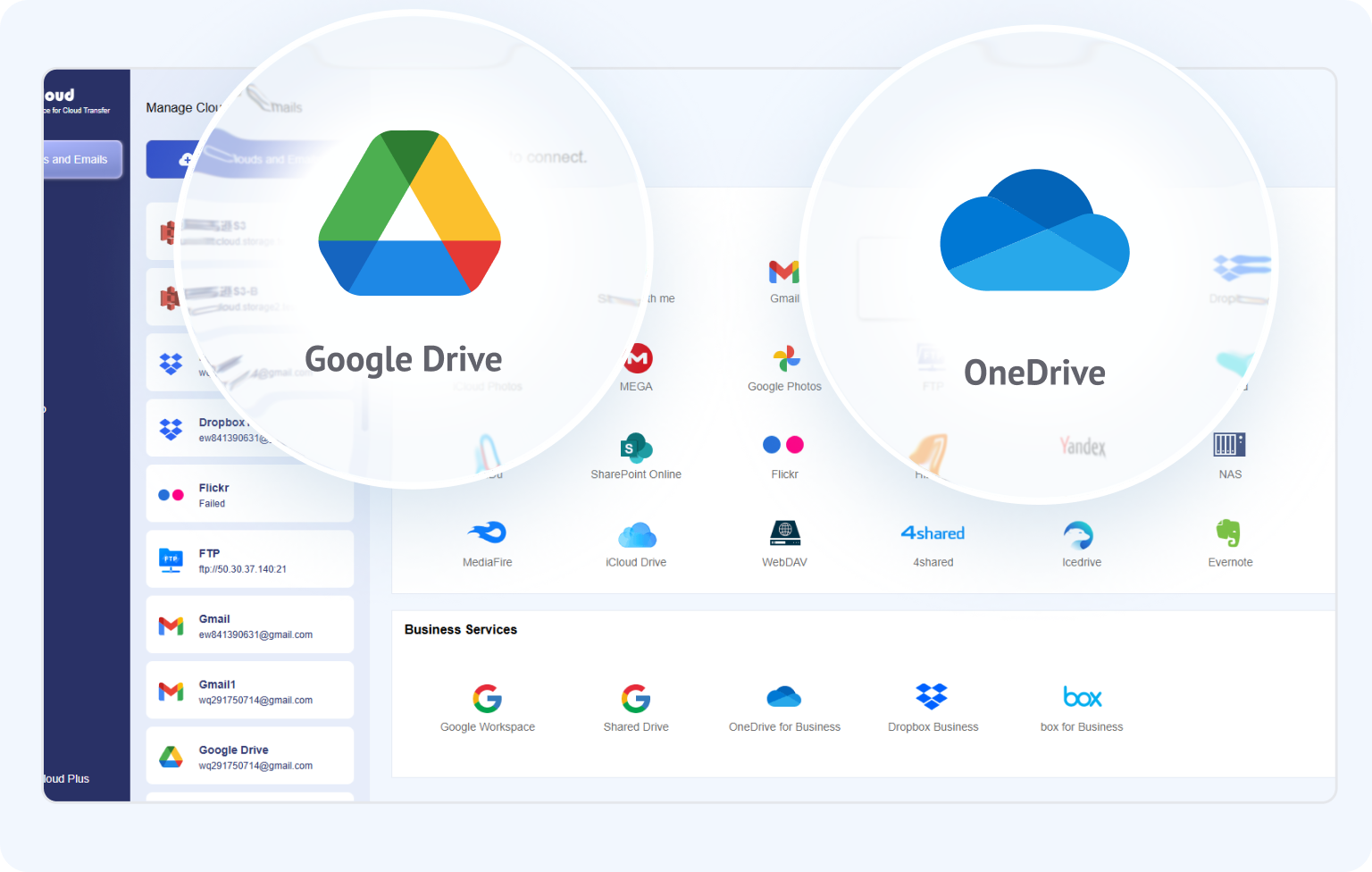
Go to app to transfer across 30+ cloud services


People move files from OneDrive to Google Drive for different reasons—from switching cloud ecosystems to simply making files available for a Google-based workflow.
Scroll over the card or use the arrow keys to see more OneDrive transfer scenarios.
“I am moving from Microsoft 365 to Google Workspace and need to bring my OneDrive files with me.”
Transfer your OneDrive files directly to Google Drive while keeping the original folder structure intact.
“My work or school OneDrive account is closing soon, and I need to save the files I am allowed to keep.”
Move permitted files to your personal Google Drive before the managed account is deactivated.
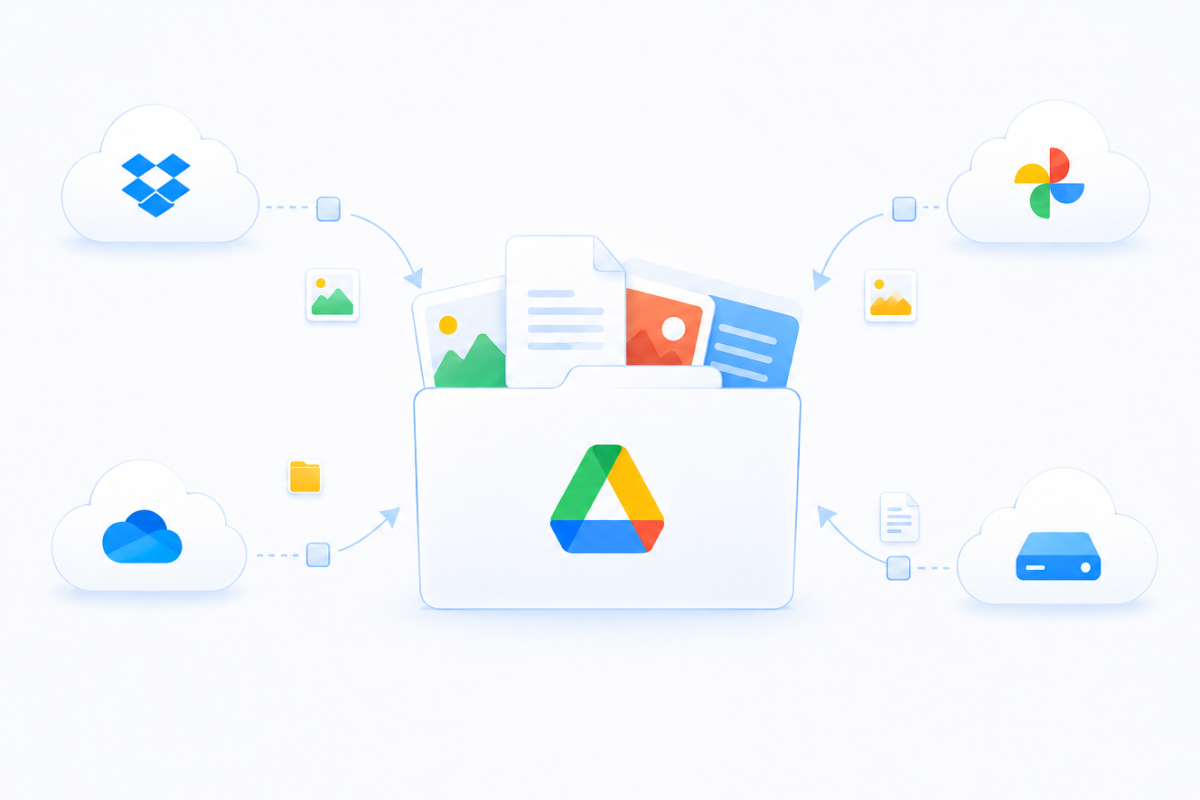
“OneDrive is full and my files are spread across several clouds. I want everything important in one place.”
Select only the data you need and transfer it server-to-server without using local disk space.
“The app I need only lets me open or select files from Google Drive.”
Create a targeted transfer to Google Drive so your files are available wherever your workflow needs them.
Not all cloud transfer tools are built the same. While basic file movers force you through tedious downloads and local bandwidth caps, MultCloud delivers a true server-side migration—packed with smart features designed for speed, safety, and zero effort.

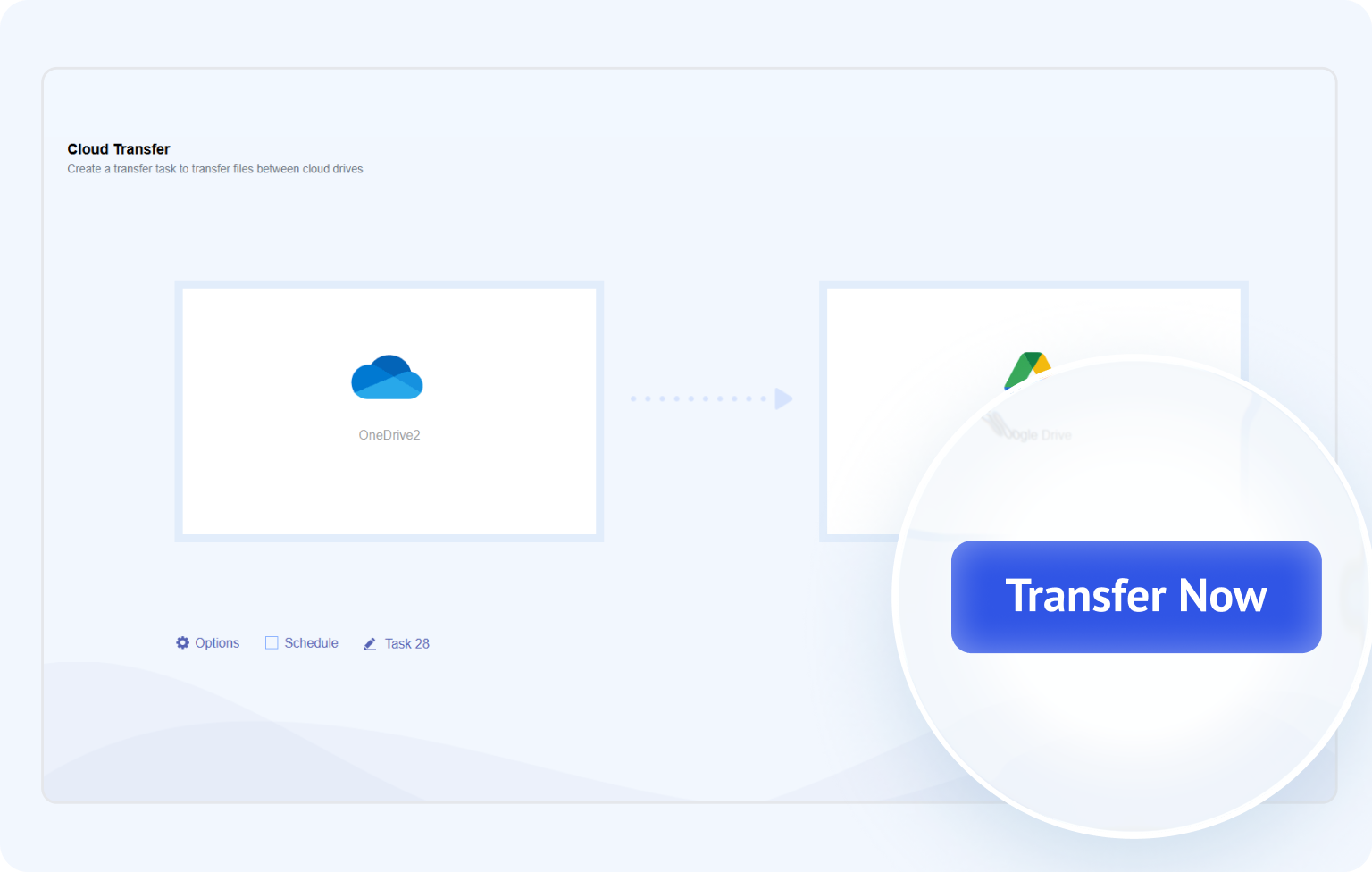
Transfer files directly from OneDrive to Google Drive through your browser, without repeatedly downloading and re-uploading data yourself.

Your files don't need to be stored on your computer first, making large migrations possible even when your device has limited free storage.

Once a cloud transfer task starts, it can continue on MultCloud's servers without keeping your browser open or computer powered on.

Set a transfer to run later or on a daily, weekly, or monthly schedule—useful when files need to be moved regularly or during a preferred time window.

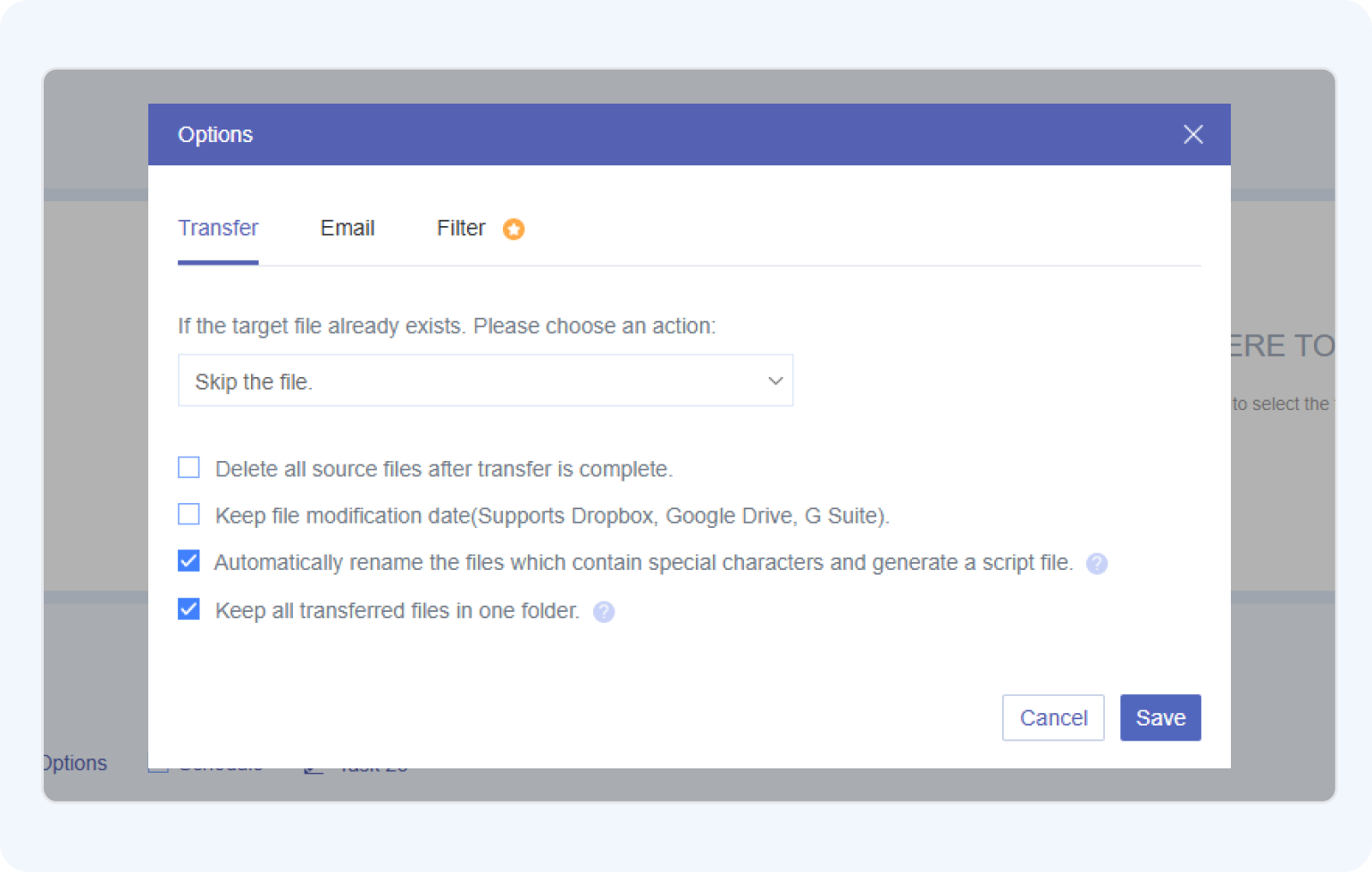
Use file extensions to include or exclude specific file types, so you can migrate the data you need instead of moving everything in OneDrive.

Enable email notifications to know when a transfer task finishes, so you don't have to keep checking its progress manually.
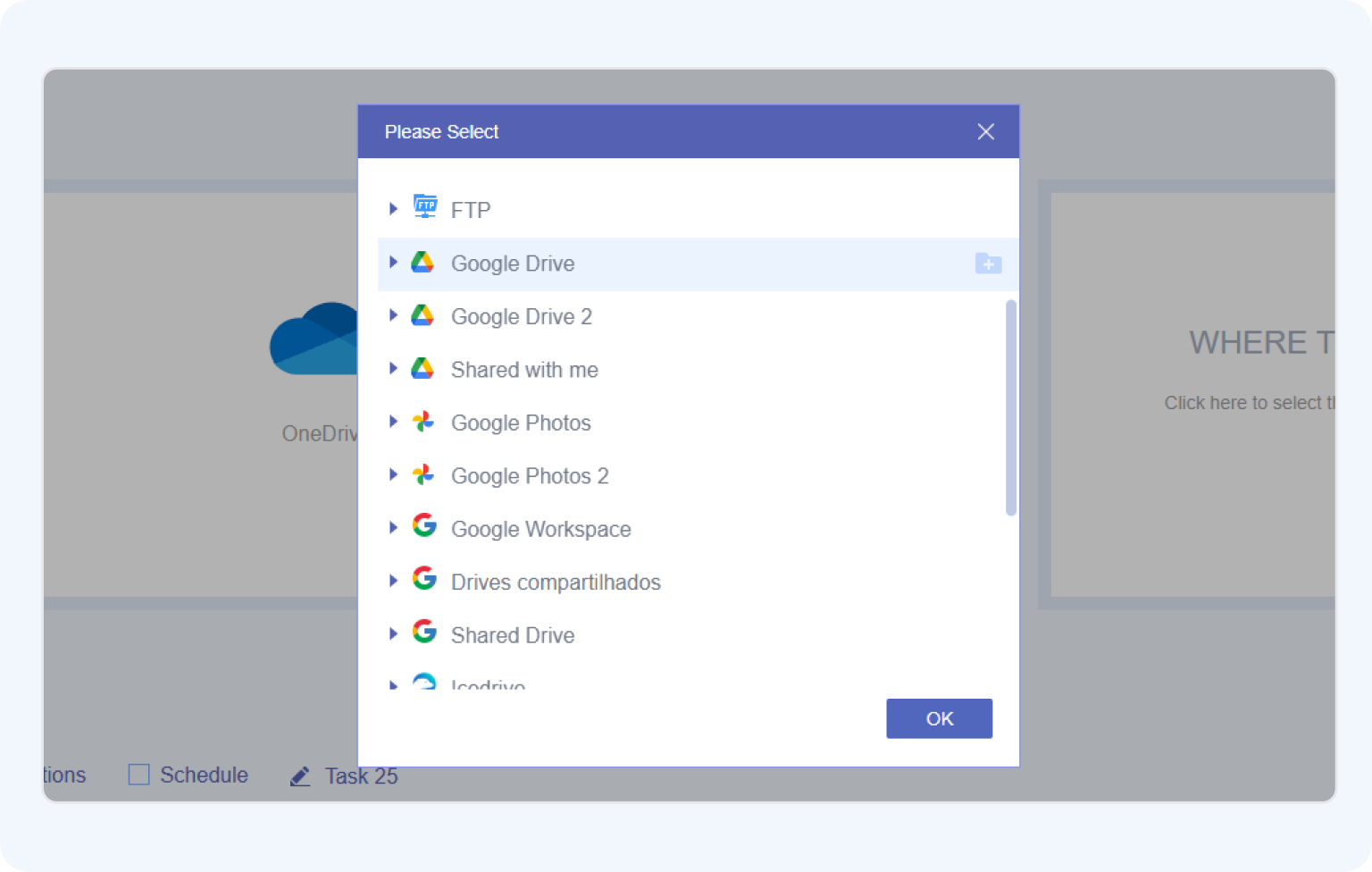
Transferring gigabytes of data doesn't have to consume your local disk space or eat up your bandwidth. With MultCloud, you can seamlessly migrate your OneDrive files to Google Drive directly online using two simple methods.
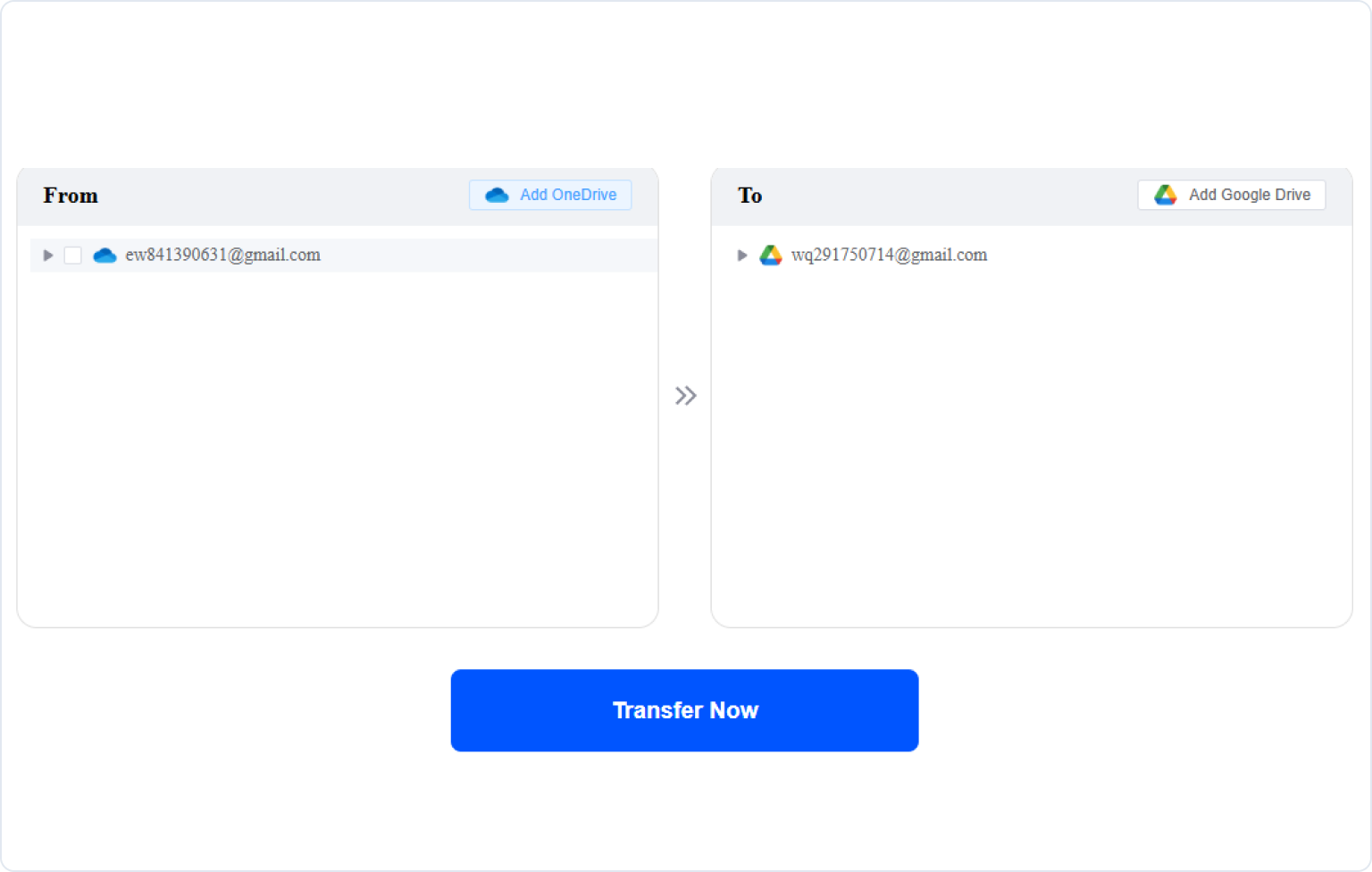
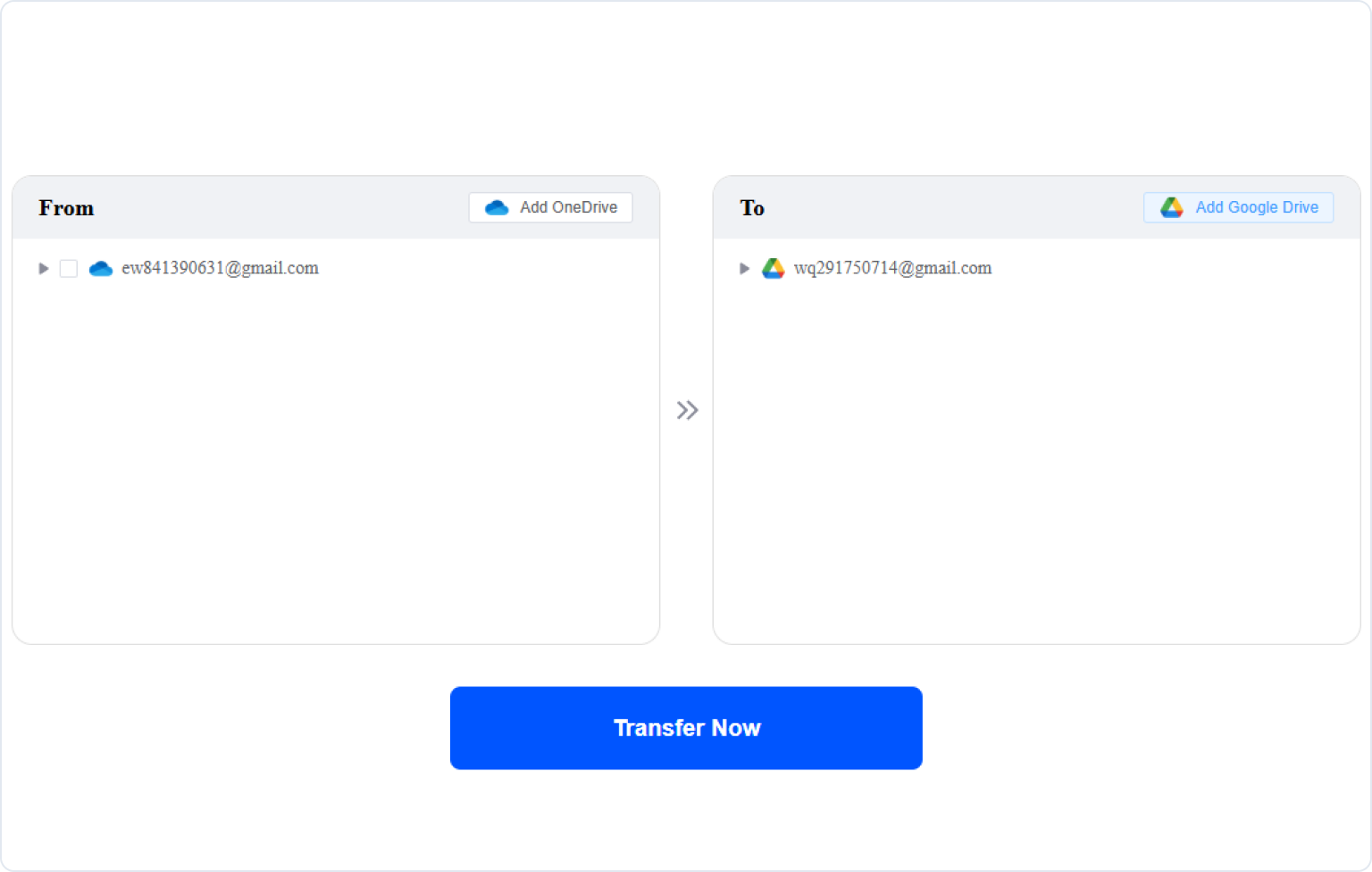
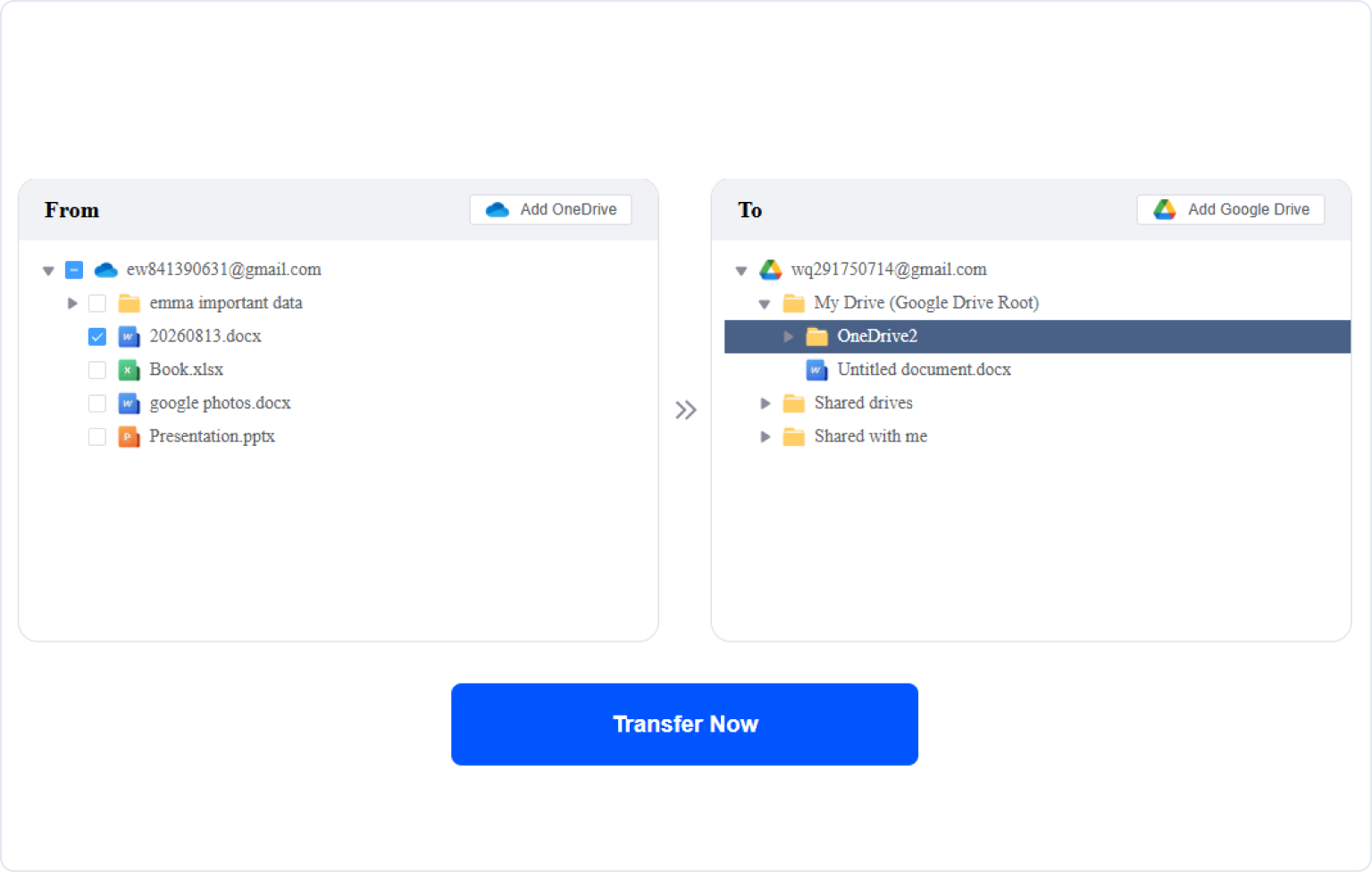
Security is non-negotiable when connecting your personal or business clouds. A trusted tool must safeguard your credentials and never expose your files to unauthorized access.
 256-Bit AES Encryption
Uses bank-grade 256-bit AES encryption and SSL during transfer to effectively protect your data from interception, tampering, and unauthorized access.
 OAuth System & Full Control
Connects via standard OAuth authorization—MultCloud never sees or stores your cloud passwords. You can revoke access at any time directly from your cloud provider.
 Strict GDPR Compliance
Fully compliant with GDPR and international privacy standards. We only process necessary metadata and enforce Standard Contractual Clauses (SCCs) to protect your rights.

MultCloud never stores your files. Any temporary cache required during transmission is immediately purged from our servers as soon as the task completes.

You hold 100% ownership of your account. Closing your account instantly and permanently wipes all your personal credentials and settings from our database.
 Test Logs: August 17, 2026
 Data Size: 50 GB
 Total Files: 116
 Duration: 30 min 18 s
 Local Disk Usage 0 bytes
 Special Characters & Extension
Special symbols (#, %, &, +) & non-Latin scripts preserved
Long Path Support
Nested subfolders & long paths fully intact
File Name & Character Integrity
100% Original names & extensions preserved
Office File Format
Word, Excel & PowerPoint remain in original Microsoft Office formats
Metadata Preservation
Modified time aligned with transfer time
 OneNote Compatibility
Notebooks become folders containing .one and .onetoc2 files which Google Drive cannot preview.
The most basic way to move OneDrive files to Google Drive is downloading them to your local computer first and re-uploading them to Google Drive. This works well if you only have a few small files to transfer.
If you already have OneDrive and Google Drive for Desktop installed, you can drag and drop files directly between synced folders in Windows File Explorer or Mac Finder.
For tech-savvy users who prefer scriptable automation over graphical interfaces, open-source command-line tools like Rclone provide a flexible way to transfer files directly between OneDrive and Google Drive.
rclone copy onedrive:Backup gdrive:OneDrive_Backup --progress --transfers 4 --drive-chunk-size 64MSkip the tedious download-and-reupload process. MultCloud moves your entire OneDrive library directly to Google Drive in the cloud—100% server-side, with zero consumption of your local storage or bandwidth.
 Online cloud-to-cloud transfer
No local storage required
Supports scheduled transfer
Better for large data volumes
Online cloud-to-cloud transfer
No local storage required
Supports scheduled transfer
Better for large data volumes
 High-volume transfers may require a paid plan
Subject to cloud API limitations
High-volume transfers may require a paid plan
Subject to cloud API limitations
Seeing your files in Google Drive doesn't necessarily mean the migration is finished. Before cleaning up OneDrive, take a few minutes to verify files arrived and still work as expected.
 Check That Everything Arrived
Compare important folders and files in both clouds. Check the total file count where practical, and pay particular attention to large folders, deeply nested files, and anything essential to your work.
 Open a Few Important Files
Don't stop at checking file names. Open representative Word, Excel, PowerPoint, PDF, image, and other important files in Google Drive to make sure they are accessible and usable after the transfer.
 Check Platform-Specific Files
Some Microsoft-specific content may behave differently outside OneDrive. For example, in our test, a OneNote notebook appeared in Google Drive as a folder containing .one and .onetoc2 files that Google Drive could not preview directly.
 Don't Delete OneDrive Files Immediately
Keep the source files until you've verified the Google Drive copy. A successful transfer doesn't necessarily guarantee that every cloud-specific feature or file type will work identically at the destination.
Whether you're moving your own OneDrive files or migrating data for an entire organization, MultCloud provides a purpose-built solution for different migration scales.
Need to move your personal files to Google Drive? Cloud Transfer connects both accounts online, so you can transfer selected files, folders, or larger amounts of data without downloading everything to your computer first.

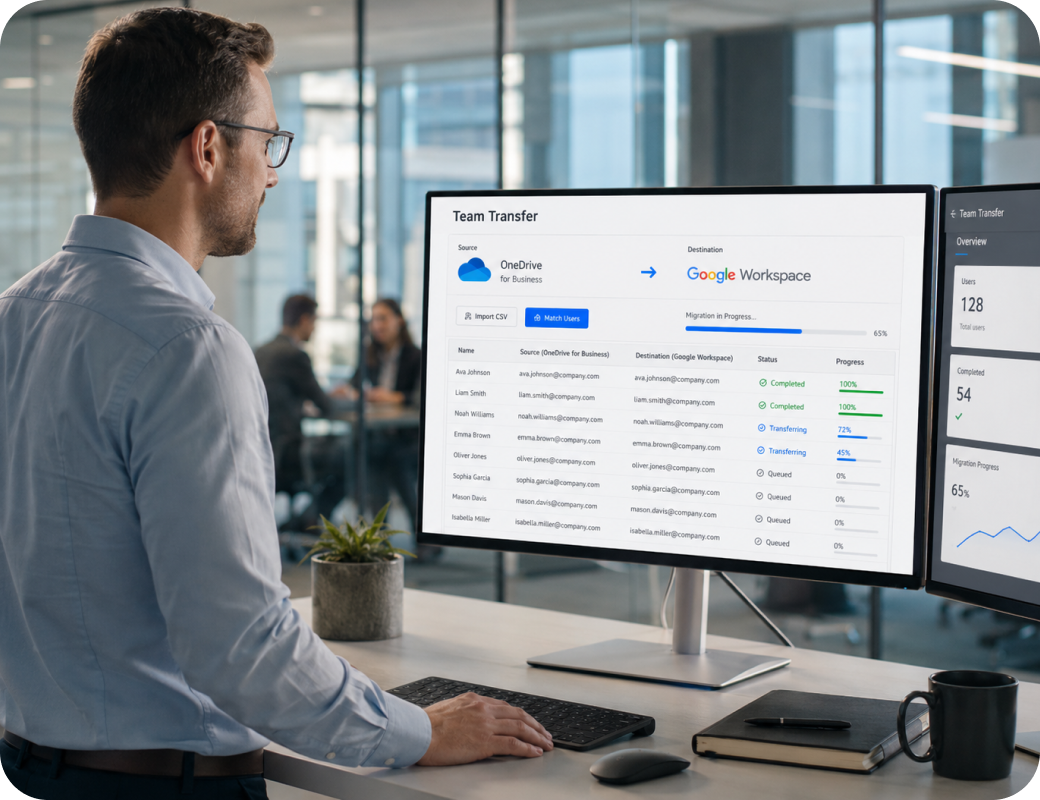
Moving an organization from OneDrive for Business to Google Workspace requires more than transferring one account at a time. “Team Transfer” helps admins organize multiple user migrations in one workflow: Add business clouds → Match users automatically or via CSV → Set options & start bulk migration.
Looking to move files between other cloud storage platforms? MultCloud provides fast, direct, server-side transfer engines across 30+ leading cloud services. Discover our most popular migration tools below:
 Transfer Dropbox to Google Drive
Seamlessly migrate your Dropbox documents, media, and shared folders straight to Google Drive. Skip local downloads and let our high-speed cloud servers execute the transfer in the background.
Start Transfer for Free >> Migrate Google Drive to Another Account
Moving to a new Google account or graduating from a school/work domain? Effortlessly transfer your entire Google Drive library, personal folders, and documents directly to your new Google Drive.
Start Transfer for Free >> Transfer OneDrive Files to Another Account
Consolidate or split your Microsoft cloud storage. Quickly copy or move files between two different OneDrive accounts without syncing to your local PC.
Start Transfer for Free >> Migrate Google Drive to OneDrive
Switching back to the Microsoft ecosystem? Move all your Google Drive files, Google Docs, and spreadsheets directly over to OneDrive with automated format options and full directory structures intact.
Start Transfer for Free >> Transfer Google Photos to OneDrive
Safely transfer your photo libraries, albums, and video collections from Google Photos directly into OneDrive for convenient backup and unified file access.
Start Transfer for Free >> Transfer Google Photos to iCloud
Easily back up or relocate your high-resolution photos and videos from Google Photos into your Apple iCloud ecosystem with zero loss in media quality.
Start Transfer for Free >>Explore more ways to transfer, sync, and back up your cloud files with MultCloud.
View All Online Transfer, Sync & Backup Solutions →MultCloud supports over 30 cloud services (nearly 40 integrations), allowing you to connect, manage, and transfer files across all your cloud accounts from a single platform.
 US
US
So glad I found MultCloud! The initial free data allowance made it super easy to test out, and transferring my data from OneDrive to Google Drive went smoothly without a single glitch. It’s easily the smartest solution for moving files between cloud drives without burning through my local internet data.
 Useful
 Share
Share US
USEverything worked smoothly transferring all our data from OneDrive to Google Drive. Couldn't be happier with the results. Also, with the few issues I did have, support was quick to assist in resolving them! Special thanks to Lanry Lucky and his support!
UsefulShare
GBMoved 90GB of photos from OneDrive to Google Photos seamlessly in the background. Excellent product, and Lanry Lucky from customer support provided exceptional help!
UsefulShare
USI changed email addresses and needed to moving one cloud data to another cloud and Multcloud site helped me do this. My daughter who is a schoolteacher uses your Multcloud all the time.
UsefulShare
No. MultCloud Cloud Transfer copies your selected files from OneDrive to Google Drive by default, so the original files remain in OneDrive after the transfer. If your goal is to move rather than copy the files, MultCloud also provides such an option to delete the source files after the transfer is complete.
No, MultCloud cannot directly transfer items that only appear under OneDrive's "Shared" or "Shared with me" section. Due to cloud provider API access restrictions, MultCloud can only read and migrate files that reside inside your own personal root directory ("My Files").
Yes. Google Drive enforces a strict account-level limit of 750 GB per day for uploads and transfers, regardless of the method or software tool you use (including browser uploads, desktop sync apps, Rclone, or third-party cloud services like MultCloud). If your transfer reaches this 750 GB cap within a 24-hour window, Google Drive will temporarily reject any further incoming files and return a rate limit error.
For a full migration, you can select your entire OneDrive as the source and Google Drive as the destination in MultCloud Cloud Transfer. Before transferring, make sure Google Drive has enough available storage and check any platform-specific files, such as OneNote notebooks, for compatibility.
It depends on your goal. If you're completely switching to Google, you may only need OneDrive until you've verified the migration. If you still use Microsoft and Google services, keeping both can be useful for different workflows, collaboration needs, or an additional copy of important files.
Choose Cloud Transfer for a one-time migration, such as switching from OneDrive to Google Drive. Choose Cloud Sync if new or updated files need to continue flowing between the two clouds after the initial move.
Yes, but only if you are a Workspace Super Administrator. Google Workspace offers a built-in Data Migration service in the Admin Console that allows admins to migrate OneDrive data directly to Google Workspace accounts across an entire organization. However, this feature is restricted to business and enterprise domains—it is not available for personal (@gmail.com) accounts and requires global admin privileges on both Microsoft 365 and Google Workspace to authorize and map user accounts.

Free Transfer from OneDrive to Google Drive Online Now!
The Go-to Choice for Cloud-to-Cloud Transfer, Sync or Back up Files Across Clouds.
Get Started for Free