
At A Glance:
Migrate from WordPress to Wix in 5 Steps
Migrate from WordPress to Wix in 5 steps:
1. Pick a Wix template and customize it.
2. Export content from WordPress and import into Wix. (Show below)
3. Check images, text, and SEO (meta titles, descriptions, alt texts, internal links).
4. Update your domain settings like DNS and SSL settings to point to Wix.
5. Test everything to confirm it works.
How to Transfer WordPress Site to Wix?
WordPress to Wix
I have a site created in WordPress. How can I migrate the site from WordPress to Wix? Any easy method for migrating the website?
- Question from reddit.com
If you are switching from WordPress to Wix for multiple reasons, you can find ways to migrate easily. This guide will show you everything about the WordPress to Wix website migration. Let's get started.
Why Migrate WordPress Site to Wix?
Moving from WordPress to Wix is a significant decision that usually comes down to one central trade-off: giving up long-term control and flexibility for short-term simplicity and ease of management.
It's worth performing the WordPress site migration to Wix, especially for website owners of those running small businesses. Hereare multiplereasons why someone might choose to migrate WordPress to Wix.
- Easier to use – True drag-and-drop, no coding, and far less technical learning curve.
- Zero maintenance – Wix handles hosting, security, updates, and uptime. No plugin conflicts to manage.
- All-in-one – Hosting, domain, SEO tools, forms, and bookings are built in. On WordPress, these often require separate (paid) plugins.
However, you have to be aware of the risks after migrating to Wix:
- SEO damage – Moving can break your search rankings. You must carefully map old URLs to new ones and set up 301 redirects to preserve traffic.
- Wix costs more money.
- Wix doesn't provide any open-source code.
If you decide to transfer WordPress site to Wix anyway, good luck with that. For more differences between the WordPress site and the Wix site, check the following chart.
WordPress Site vs. Wix Site
Here is a direct comparison of WordPress and Wix across the main aspects, reflecting that the choice often comes down to control and flexibility versus simplicity and convenience.
| Feature | WordPress (.org) | Wix |
|---|---|---|
| Philosophy | Full control, open-source, limitless potential | All-in-one, simple, quick to launch |
| Ease of Use | Steeper learning curve, needs hosting setup | Drag-and-drop, beginner-friendly |
| Design | 13,000+ themes, full code access | 800+ templates, design locked after choice |
| Extensions | 60,000+ plugins for any feature | ~800 apps, more limited |
| Cost | Free software + hosting (~$3–20/mo) | Starts at $17/mo, predictable but pricier |
| Maintenance | Self-managed (updates, security, backups) | Fully managed by Wix |
| SEO | Advanced, granular control via plugins | Good for basics, less depth |
| Scalability | Grows from blog to enterprise | Best for small to medium sites |
| Blogging | Industry gold standard | Basic functionality |
| E-commerce | WooCommerce = powerful & flexible | Built-in, simple but less flexible |
| Ownership | Full data ownership, easy to export | Limited portability, hard to leave |
| Support | Community forums + host support | 24/7 live chat & phone |
So, in a nutshell, choose WordPress for control, scalability, and long-term value. Choose Wix for speed, simplicity, and zero maintenance.
Prepare Your WordPress Site Before Transfer
Export Your Content – Posts, Pages, and Media Files
The first step to export your WordPress content.
For your blog posts, use the WordPress Export Tool (Tools > Export). This creates an XML file containing all your posts, pages, comments, and categories. It's the key to importing your blog to Wix.
Download the entire WordPress media library directly, or download all images from the FTP client to back up. Because the XML file doesn't include the actual image files.
Also, if you are using a page builder on WordPress, be aware that the content will be saved using that builder's shortcodes. You'll have to redesign those pages manually from the ground up.
Document Your Current Site Structure and SEO Settings
Before you switch, create a spreadsheet. List every single URL on your WordPress site and note its corresponding meta title and description. You'll need this to recreate your SEO settings on Wix.
Transfer Content from WordPress Site to Wix in 4 Steps
Alright, it's time to transfer the WordPress site to Wix by following these steps.
Step 1. Create Your New Wix Site and Choose a Template
Head over to Wix and sign up. You can create as many sites as you want on a free account, which is great for experimenting.
Choose a template that feels right for your brand. While you can start from scratch, a template speeds things up.
Step 2. Import Blog Posts and Pages Using Wix's Built-in Tools
1. In the Wix dashboard, go to Blog > More Actions > Import Posts.

2. Choose WordPress.
3. Select By using a WordPress XML file.
4. Click Next.
5. Click Get Started.
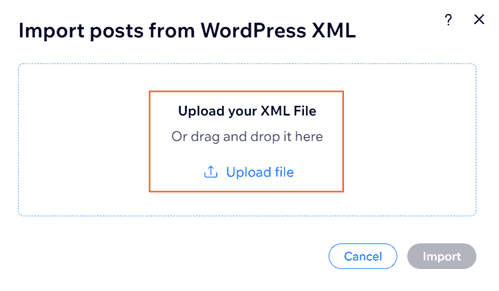
6. Click Upload file and select the XML file you want to use, or drag and drop the file into place.
A screenshot of the pop-up where you upload your XML file.
7. Click Import.
Tip: You can also import via your WordPress site URL.
Wix will pull in your posts, titles, and categories. Keep in mind that featured images sometimes don't make the trip over, so double-check those.
Pages, unfortunately, cannot be imported. You'll have to rebuild them manually using the Wix Editor.
Step 3. Manually Recreate Design Elements and Custom Functionality
This is where the work lies. Since WordPress themes and plugins don't transfer, you have to rebuild.
- Use Wix's drag-and-drop editor to recreate your pages.
- Copy the text from your old pages and paste it into new text boxes.
- For any special functionality—like a contact form, a booking system, or a gallery—find the equivalent Wix App and set it up fresh.
Step 4. Upload Media and Organize Your New Site Structure
Upload all the images you downloaded from WordPress into the Wix Media Manager. Then, go through your site and replace the image placeholders with the new Wix-hosted images.
Also, ensure your main navigation menu matches your old site structure to avoid confusing visitors.
Transfer Domain from WordPress to Wix Without Downtime
Once your Wix site is ready, connect your domain either by transferring it or updating DNS settings.
Unlock Your Domain (if transferring from WordPress.com)
Unlock the domain in your WordPress.com account, disable privacy protection, and get the authorization (EPP) code.
Connect via Nameserver Changes (recommended)
Update your registrar's nameservers to Wix's. For domains with email hosting, use A/CNAME records instead to avoid disrupting email. Wix provides clear setup guides.
Verify Propagation & SSL
DNS changes may take up to 48 hours. After propagation, Wix automatically activates your SSL certificate for HTTPS security.
Preserving SEO When Switching from WordPress to Wix
A poorly handled migration can kill your traffic, but doing it right protects your rankings.
Set Up 301 Redirects
Use Wix's Redirect Tool (or a redirect app) to map every old URL to its new counterpart. If exact matches aren't possible, redirect to the closest relevant page. This preserves link equity.
Submit Your New Sitemap
Add your Wix site to Google Search Console, then submit https://yoursite.com/sitemap.xml under Sitemaps. This prompts Google to crawl and index your new pages.
Fix Internal Links & Monitor 404s
Crawl your new site with Screaming Frog to find broken links. Update any that still point to old URLs to ensure a smooth user and search engine experience.
Post-Migration Checklist & Troubleshooting
The transfer is done, but final checks are critical.
- Test All Interactive Elements: Submit every form to confirm emails arrive. Click all menus, buttons, and links to ensure they work.
- Check Mobile Responsiveness: Use Wix's mobile editor to adjust font sizes, spacing, and images—desktop changes can disrupt mobile layouts.
- Fix Missing Images/Media: Run Wix's "fix broken links" tool. If issues remain, manually re-upload images from the Wix media library.
Important Advice About Converting WordPress Site to Wix
WordPress to Wix is a major downgrade—it limits design freedom and hurts SEO. Wix will likely harm rankings.
That said, WordPress isn't perfect, but there are better alternatives:
- Keep WordPress but add a drag-and-drop builder like Oxygen or Elementor.
- For simplicity, choose Squarespace over Wix.
- For a premium upgrade from WordPress, use Webflow (~$25/month).
- If they insist on Wix, at least use Editor X (Wix's newer product).
All are better than standard Wix.
FAQs About Transferring WordPress Site to Wix
Q: Can I use an automated tool to transfer everything from WordPress to Wix?
Not really. Tools like CMS2CMS exist but often fail on complex designs and custom fields. Wix has no direct "import all" option. You're better off manually moving content and rebuilding your design from scratch for a clean, error-free site.
Q: What happens to my WordPress plugins on Wix?
They disappear. WordPress plugins are PHP-based and incompatible with Wix. You'll need to find alternatives in the Wix App Market. Consider it a chance to audit your needs and remove plugin bloat.
Q: How do I preserve my SEO rankings after moving?
Use 301 redirects for every old URL to its new Wix counterpart, and manually copy your meta titles/descriptions into Wix's SEO settings. Done right, this prevents major traffic drops.
Q: Should I transfer my domain or just point nameservers?
Transfer = Wix becomes your registrar (everything in one place). Point = keep your current registrar (safer if you have email or other services linked). Pointing is quicker and less risky.
Q: Does the Wix Blog Import tool work?
Yes, for text, titles, and categories—via URL or XML file. But featured images don't import perfectly; you'll need to add those manually. It's one of the smoother parts of migration.
Q: Can I easily move WooCommerce products to Wix?
No. Wix doesn't support WooCommerce. You'll need to manually rebuild your product catalog in the Wix Stores app—adding descriptions, images, and prices one by one. Time-consuming but doable.
1 Tip: Transfer WordPress Site to Another Server
According to the above steps, the process is quite complex to migrate WordPress site to Wix. Besides, Wix does not offer an FTP (File Transfer Protocol) service, like Filezilla. So, It's not easy to manage your files on Wix.
If you choose to migrate WordPress site to another domain, it's quite easy to manage. Fortunately, you can try the all-in-one multiple cloud storage manager, MultCloud, to transfer WordPress site to another easily.
With MultCloud, enjoy:
- Direct Transfer: It allows for a direct transfer between your old and new hosting accounts without needing to manually download and re-upload files.
- FTP Support: The tool supports FTP and SFTP connections, which are standard for accessing a WordPress site's files.
- Unified Management: You can add and manage multiple cloud services, FTP accounts, and multiple MySQL databases from a single, user-friendly interface.
- Automatic & Scheduled Tasks: You can automate the migration with features like scheduled transfers to run at a convenient time, even if your computer is off.
- Secure: It uses 256-bit AES encryption and an OAuth authorization system to protect your data during the transfer.
- Smooth Transition: It supports seamless website migration without downtime or data loss.
Here is how to transfer WordPress site to another server with MultCloud:
1. Log in to your MultCloud account after registering.
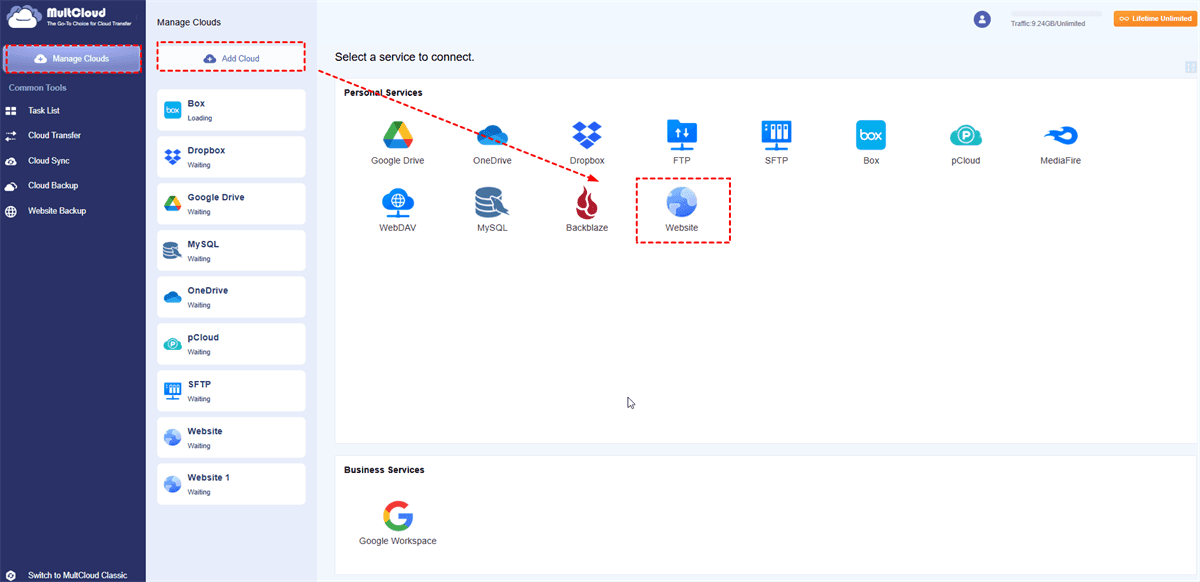
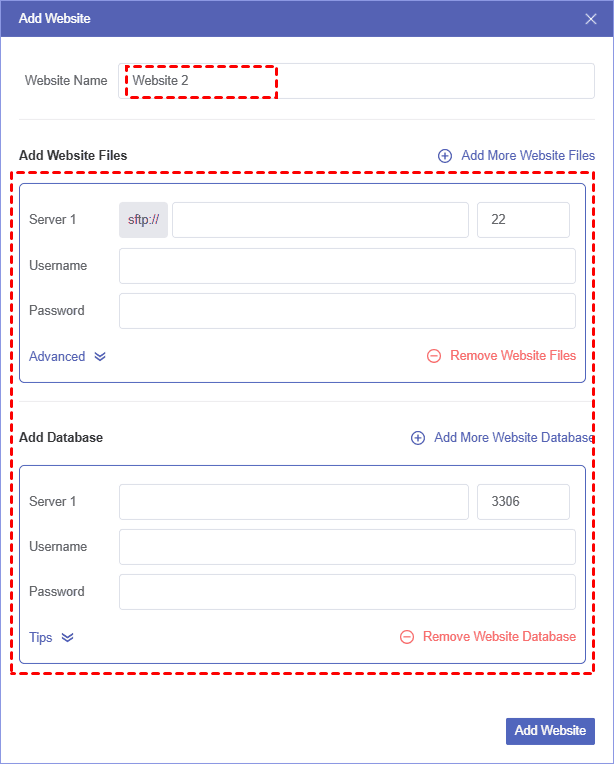
2. Tap Manage Clouds > Website, input the credentials of the source WordPress site (FTP server and database server) to add. Repeat the process to add another site.
3. Click Website Backup > Website Clone, then pair the source WordPress site files and database with these in the destination server.
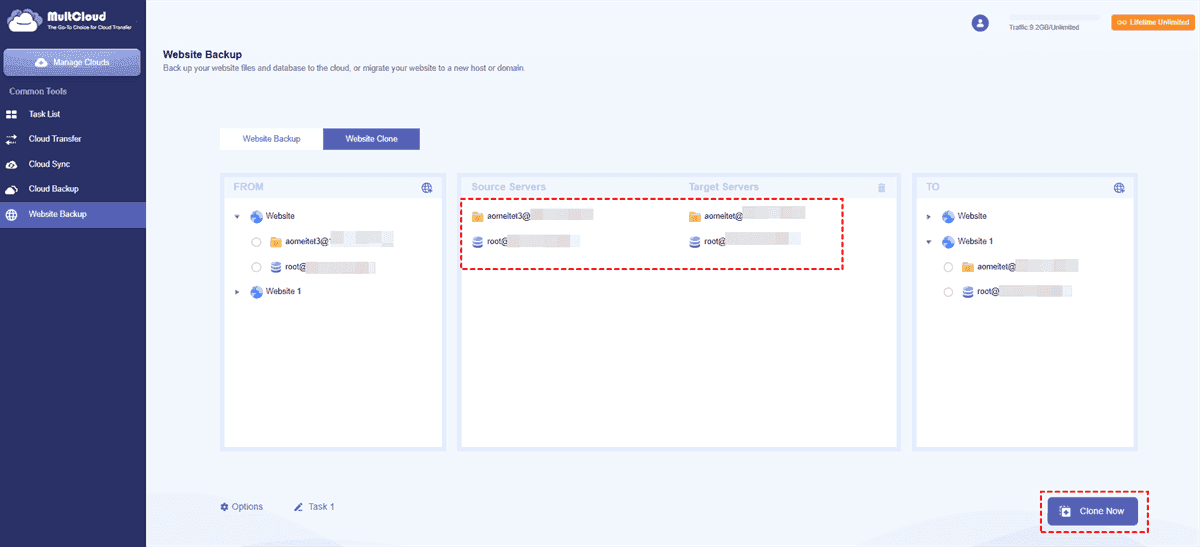
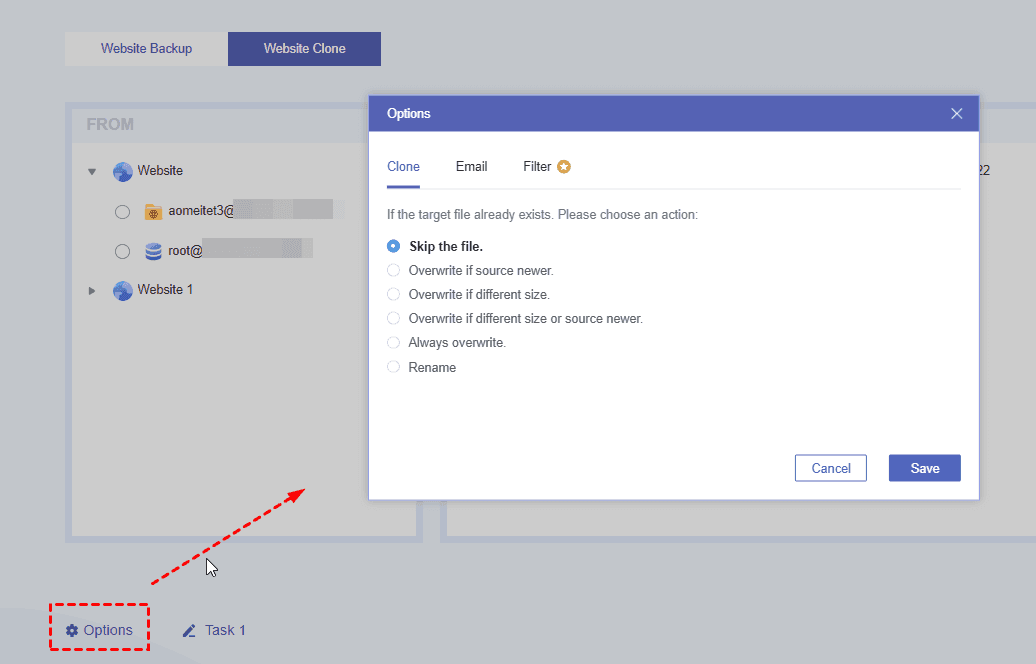
4. Configure settings in Options, and hit Clone Now to migrate WordPress site to another site.
- Notes:✎...
- You can set up Clone settings in Options to overwrite, rename, or skip the file if the target already has the same file. Besides, you can set up email notifications and file filter to run the task smoothly.
- Upgrading to MultCloud advanced plans helps you to run the task faster with 10 threads and enjoy all other premium features.

- Smart Share: Share cloud files via public, private, or source mode.
- One-key Move: Quick data transfer, sync, and backup among clouds.
- Email Archive: Protect emails to other clouds or local disks.
- Remote upload: Effectively save web files to clouds via URL.
- Safe: Full-time 256-bit AES and OAuth authorization protections.
- Easy: Access and manage all clouds in one place with one login.
- Extensive: 30+ clouds and on-premise services are supported.
MultCloud Supports Clouds
-
Google Drive
-
Google Workspace
-
OneDrive
-
OneDrive for Business
-
SharePoint
-
Dropbox
-
Dropbox Business
-
MEGA
-
Google Photos
-
iCloud Photos
-
FTP
-
box
-
box for Business
-
pCloud
-
Baidu
-
Flickr
-
HiDrive
-
Yandex
-
NAS
-
WebDAV
-
MediaFire
-
iCloud Drive
-
WEB.DE
-
Evernote
-
Amazon S3
-
Wasabi
-
ownCloud
-
MySQL
-
Egnyte
-
Putio
-
ADrive
-
SugarSync
-
Backblaze
-
CloudMe
-
MyDrive
-
Cubby


Stay Updated With Our
Latest Tips
Add us as a preferred source on Google to never miss helpful guides.
 Add as preferred source >>