
What is On-Site and Off-Site Backup?
In today's data-driven environment, a reliable backup strategy is no longer optional—it is essential for ensuring business continuity and protecting critical information. Data loss is one of the worst threats to all computing systems, striking regular users and businesses without exception. With organizations generating large volumes of data every day, a key question arises: when managing extensive data, should you rely on on-site backup or off-site backup?
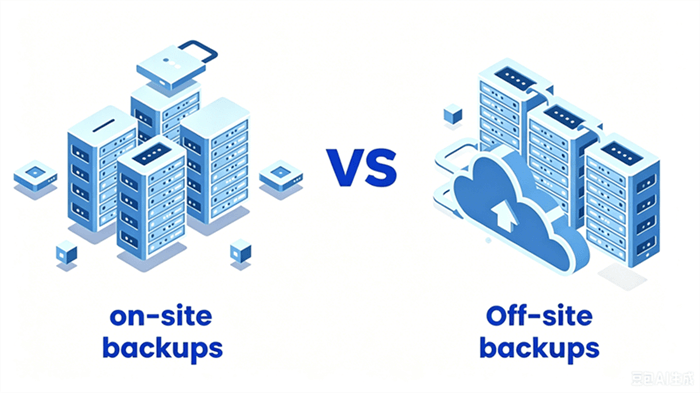
⭕ Off-site backup, on the other hand, involves storing data in a separate physical or geographical location. This can include remote servers, cloud storage, or external data centers. Its main advantage is stronger protection against site-wide risks such as fires, theft, or system outages, ensuring data remains safe even if the primary environment is compromised.
This article will further explore the difference between on-site and off-site backup, comparing their advantages, limitations, and use cases to help you choose the most suitable data protection strategy for your needs.
On-Site Backup: Fast Everyday Recovery
On-site backup focuses on speed and accessibility by keeping data within the same local environment as the primary system. Its biggest advantage is instant recovery performance, since data does not need to travel across networks or external locations. This makes it ideal for day-to-day operations where quick restoration is required after accidental deletion, software errors, or minor system failures.
👍 Pros
- Extremely fast recovery speed due to local access,
- Easy to manage and configure within existing infrastructure,
- No dependency on internet connectivity,
- Small-scale backups generate almost no extra costs following an initial one-time payment.
👎 Cons
- Vulnerable to local disasters such as fire, theft, or hardware failure,
- Limited protection against large-scale system crashes,
- Storage capacity is constrained by local hardware
- Higher risk of simultaneous loss of primary and backup data.
Off-Site Backup: Extreme Disaster Recovery
Off-site backup is designed for maximum data protection and disaster resilience by storing copies in a separate physical or cloud-based location. Its key strength lies in safeguarding data even when the entire local environment is compromised. This makes it essential for long-term retention and recovery from major incidents such as ransomware attacks, natural disasters, or complete server failure.
👍 Pros
- Strong protection against physical disasters and system-wide failures,
- Secure isolation from local security threats like ransomware,
- Supports long-term and scalable data storage,
- Enables full recovery even if on-site infrastructure is lost.
👎 Cons
- Slower recovery compared to local backups,
- Requires stable internet or external access for restoration,
- Potential ongoing storage or subscription costs,
- More complex setup and management in some cases.
Key Difference Between On-Site and Off-Site Backup
While both on-site and off-site backups aim to protect data, their real differences become clear when evaluated across location, performance, security, and disaster recovery capability.
👉 Physical Location & Accessibility
On-site backup is stored within the same local environment as the primary system, such as local servers, external drives, or NAS devices. This makes it highly accessible, allowing users to retrieve or restore data immediately without relying on external networks.
Off-site backup is stored in a separate physical or cloud-based location, often far from the original infrastructure. While it requires network access for retrieval, it ensures data is not tied to a single physical site, improving long-term protection and flexibility.
👉 Recovery Speed
On-site backup offers significantly faster recovery because data is stored locally. Restoration can often be completed within minutes, making it ideal for quick fixes and operational continuity.
Off-site backup is generally slower to restore since data must be transferred from a remote location. However, modern cloud systems and optimized transfer protocols have improved recovery times considerably.
👉 Security
On-site backup provides basic security but remains exposed to local risks such as hardware failure, theft, or malware affecting the entire system.
Off-site backup offers stronger security by isolating data from the primary environment. Even if local systems are compromised by ransomware or internal failures, off-site copies remain unaffected and secure.
Which One You Should to Choose: On-Site Backup VS Off-Site Backup
Choosing between on-site and off-site backup depends largely on your operational priorities, risk tolerance, and recovery requirements. In practice, these two approaches are not mutually exclusive—instead, they are often used together to create a balanced backup strategy.
On-site backup is typically preferred when fast recovery and immediate access are critical for daily operations. Off-site backup becomes essential when long-term protection, disaster recovery, and data resilience are the primary concerns.
| Comparison Dimension | On-Site Backup | Off-Site Backup |
|---|---|---|
| Physical Location | Same premises | Different geographic location |
| Recovery Speed | ⭐⭐⭐⭐⭐Extremely fast (minutes) | ⭐⭐Slower (hours/days) |
| Cost Structure | High upfront, low long-term | Low upfront, ongoing subscription fees |
| Disaster Resilience | ⭐Weak | ⭐⭐⭐⭐⭐ Strong |
| Data Control | ⭐⭐⭐⭐⭐Full control | ⭐⭐⭐Dependent on provider |
| Management Complexity | High (need to maintain hardware) | Low (provider handles infrastructure) |
| Compliance Readiness | Easy to meet data localization requirements | Need to verify cross-border compliance |
| Network Dependency | No internet required | Relies on network connectivity |
For most businesses and advanced users, combining both methods provides the most reliable protection: on-site backup handles quick recovery scenarios, while off-site backup safeguards against catastrophic data loss.
Extra Tips: How to Simplify Off-Site Backup with MultCloud
While off-site backup is essential for disaster recovery, setting it up manually, especially for web servers and databases, can be a technical nightmare. You may need to write complex cron scripts or configure intricate FTP/SFTP settings for data transmission. This is where modern cloud management service like MultCloud come to the rescue.

- No Software Installation Required. Being entirely web-based, MultCloud works from any device with a browser.
- Scheduled Backup Tasks. Set up automated transfers on a schedule, even when your computer is off.
- With only just simple click, you can backup, transfer, sync files to cloud drive Google on the intuitive Interface.
- 256-Bit AES Encryption. All data transfers use 256-bit AES encryption for SSL, keeping your store's backup files secure during transit.
Back up FTP or Database to Cloud Drive
If you are managing standard file servers, legacy systems, or production databases, setting up a secure backup to an off-site cloud manually can be a massive drain on your IT team's time. MultCloud provides a robust Cloud Backup feature specifically engineered for technical environments. It allows you to directly link your traditional FTP/SFTP servers and MySQL/SQL databases to the MultCloud platform and create an off-site backup.
Step 1. Go to the official MultCloud website and register a free account to access the cloud management dashboard.
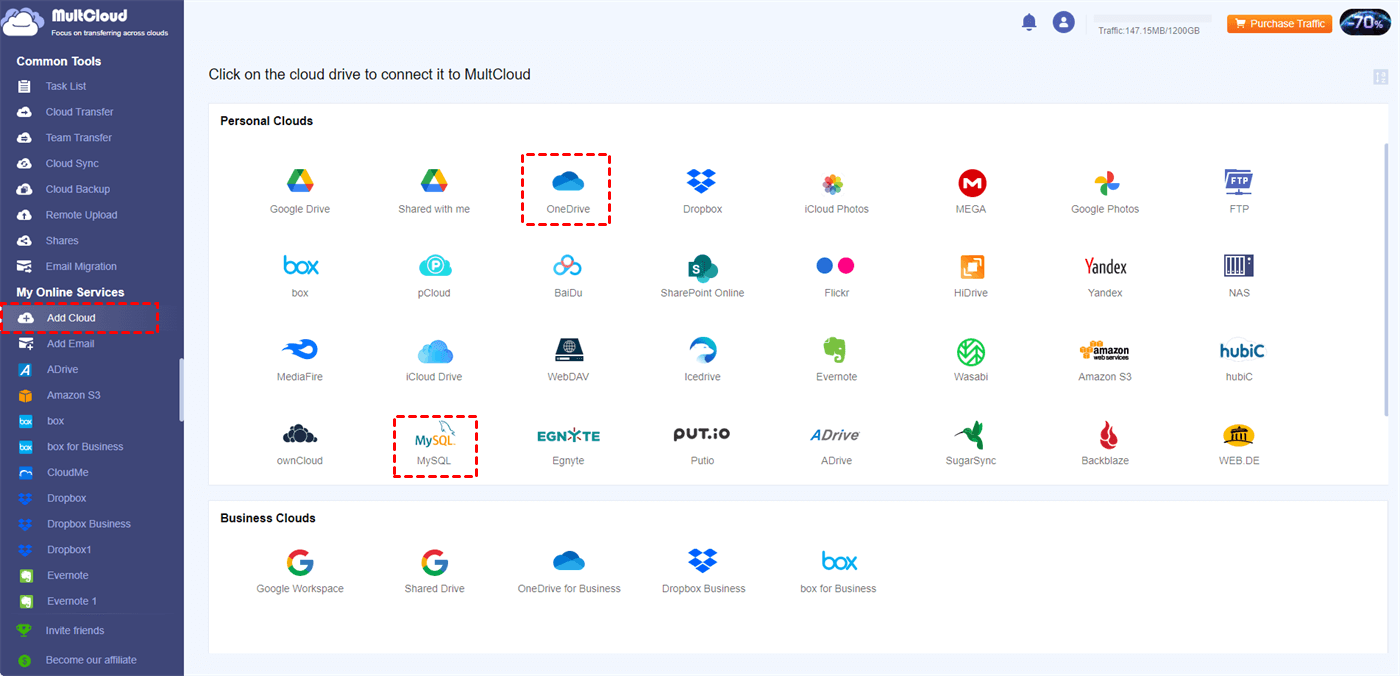
Step 2. Click "Add Cloud" and select your FTP or MySQL server icon, enter your credentials to add it to MultCloud. Add a cloud drive with the same step.
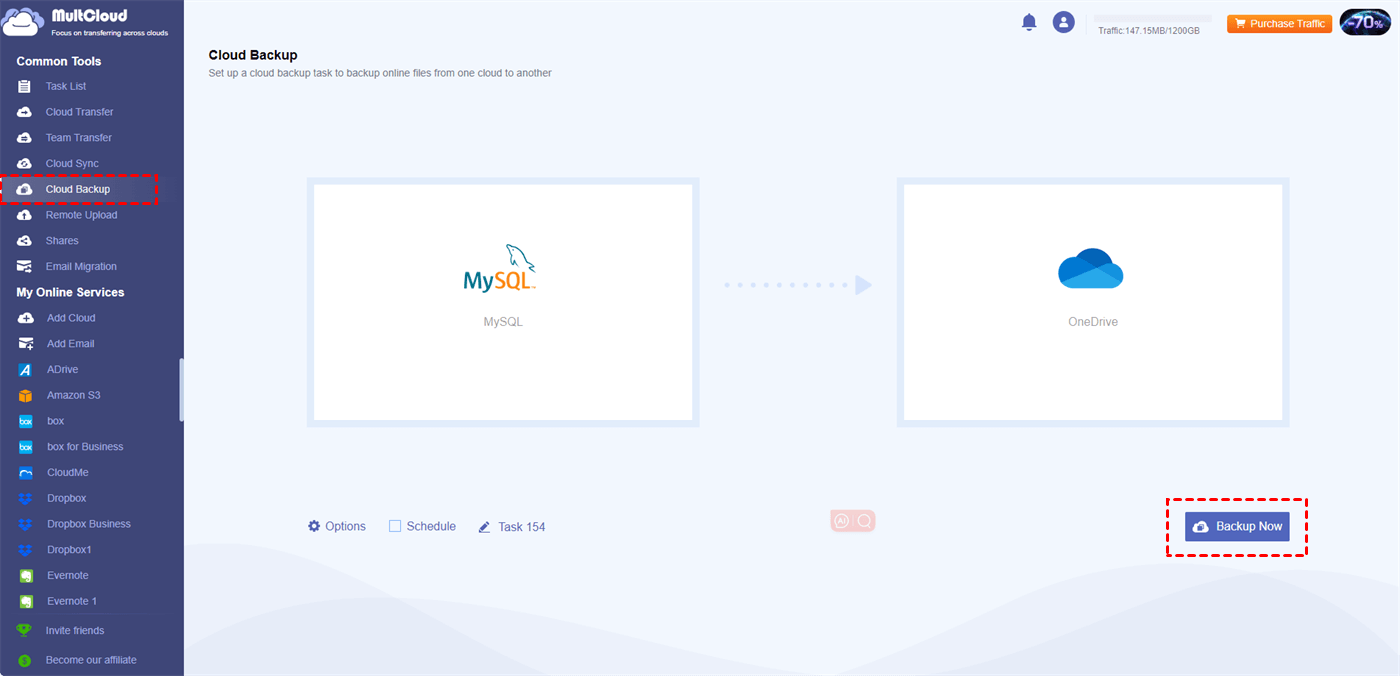
Step 3. Select "Cloud Backup" section and add your FTP/database as the source and cloud drive as the target, then click "Backup Now" to start the off-site backup.
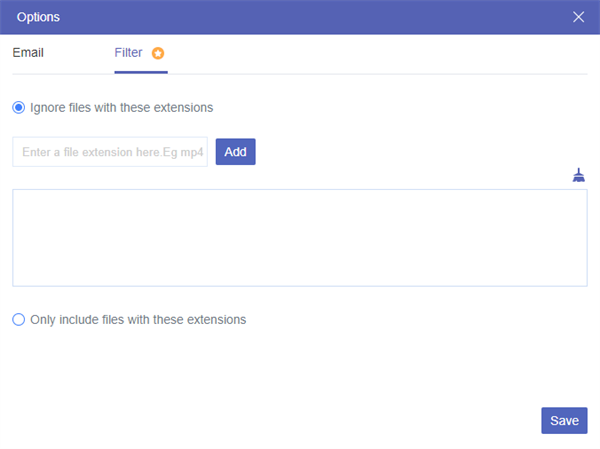
- ★Backup Settings::
- Options: You can set up email notifications for task completion, and choose to include or exclude specific file types as needed. Access to the filter function is restricted to Premium subscribers only.
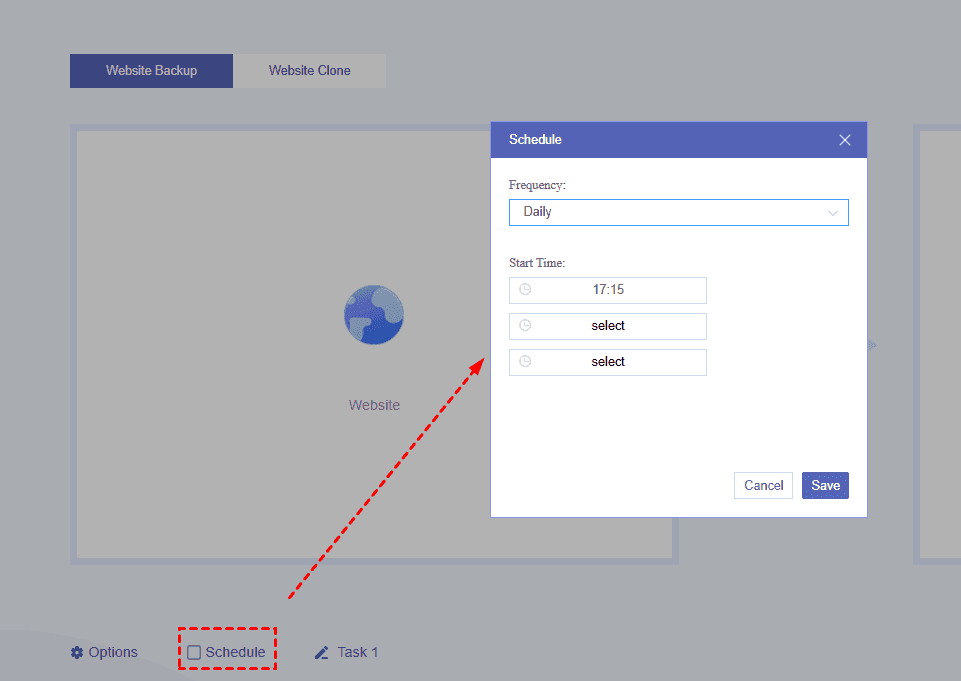
- Schedule: You can set up scheduled backups to run daily, weekly, or monthly as you see fit with just a single configuration.
Back up the Website to Cloud Drive
With the dedicated Website Backup feature of MultCloud, it automates the entire off-site backup process. Instead of writing complex scripts, you can directly connect your website via FTP/SFTP or MySQL and automatically schedule backups to secure off-site cloud storage like AWS S3, Google Drive, or OneDrive in just a few clicks.
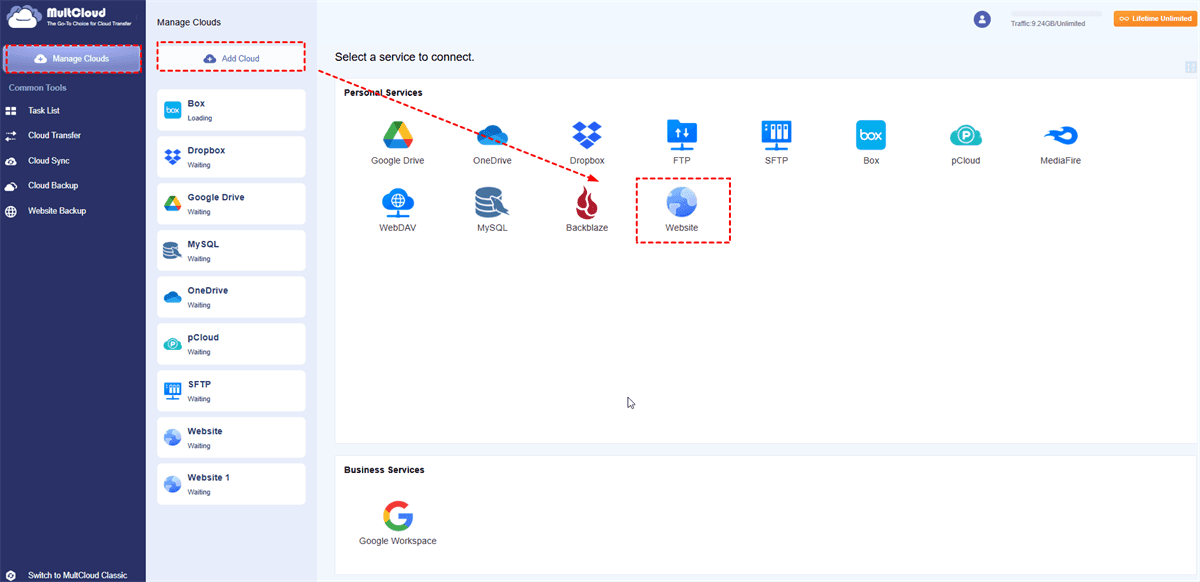
Step 1. Click "Add Cloud" > "Website" in MultCloud and enter your username and password of FTP and database server to add your source website. Add a target drive as the same way.
Step 2. Select "Website Backup" tab and add the source website and cloud drive as the destination.
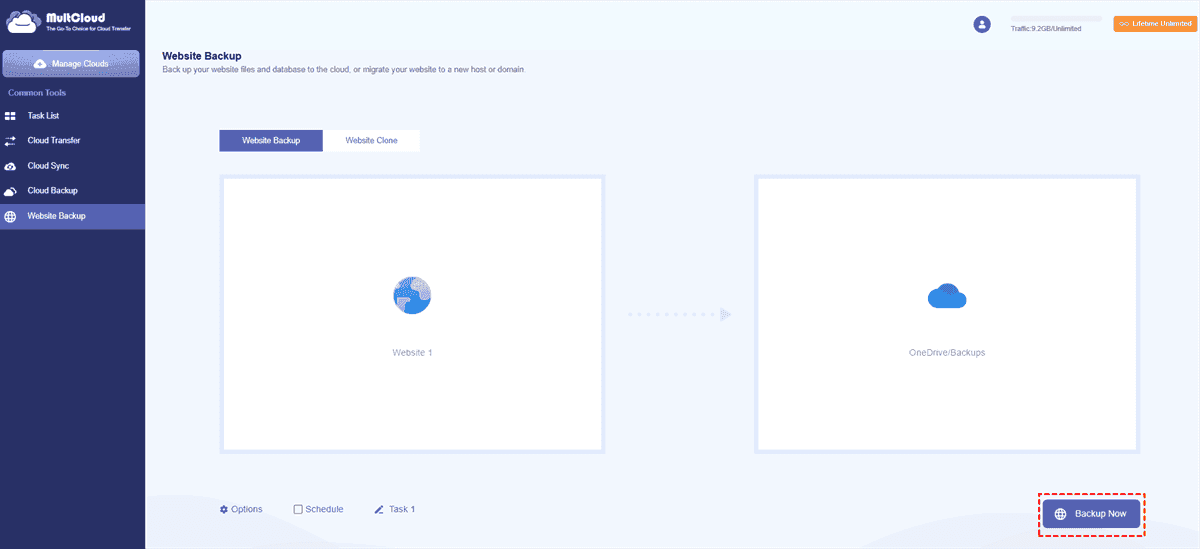
Step 3. Click "Backup Now" to begin the process. Just like the above functions, you can also configure email notifications and scheduled backups according to your requirements.
The End
In short, on-site backup and off-site backup differ substantially in how they operate, yet they are not mutually exclusive backup strategies in real-world deployment. The most effective data protection strategy often comes from combining both methods to ensure both rapid recovery and long-term safety.
To further simplify and optimize your backup workflow, tools like MultCloud can be highly valuable. Beyond off-site backup management, MultCloud also supports cloud file transfer from Dropbox to Google Drive, cloud synchronization, and centralized multi-cloud management, allowing users to move and protect data across different platforms without manual switching or complex configuration.
FAQs
Q1: What is a disadvantage of an off-site backup?
A key disadvantage of off-site backup is slower recovery time compared to local storage. Since data must be transferred over a network from a remote location, restoration can take longer. It may also involve ongoing storage costs and dependency on stable internet connectivity.
Q2: What is an advantage of off-site backups?
The main advantage of off-site backups is strong protection against disasters. By storing data in a separate location, it safeguards against fire, theft, ransomware, and system failure. It ensures data can still be recovered even if the entire local environment is lost.
Q3: Why should you back up files off site?
Off-site backups are essential for protecting data from localized risks such as hardware failure, cyberattacks, or natural disasters. They provide an additional layer of security and ensure business continuity by keeping copies of critical data in a separate, safe location.
Q4: Which is more secure: on-site or off-site backup?
Off-site backup is generally more secure because it isolates data from the primary system and local threats. On-site backups are faster but more vulnerable to physical damage and ransomware. Off-site storage ensures protection even in catastrophic failure scenarios.
Q5: How to choose between on-site and off-site backup?
Choose on-site backup for fast recovery and daily operational needs. Choose off-site backup for disaster recovery and long-term protection. In most cases, combining both provides the best balance of speed, security, and resilience.
Q6: What are the three types of backups?
The three main types of backups are full backup, incremental backup, and differential backup. Full backup copies all data, incremental backup saves only changes since the last backup, and differential backup stores changes since the last full backup.
MultCloud Supports Clouds
-
Google Drive
-
Google Workspace
-
OneDrive
-
OneDrive for Business
-
SharePoint
-
Dropbox
-
Dropbox Business
-
MEGA
-
Google Photos
-
iCloud Photos
-
FTP
-
box
-
box for Business
-
pCloud
-
Baidu
-
Flickr
-
HiDrive
-
Yandex
-
NAS
-
WebDAV
-
MediaFire
-
iCloud Drive
-
WEB.DE
-
Evernote
-
Amazon S3
-
Wasabi
-
ownCloud
-
MySQL
-
Egnyte
-
Putio
-
ADrive
-
SugarSync
-
Backblaze
-
CloudMe
-
MyDrive
-
Cubby


Stay Updated With Our
Latest Tips
Add us as a preferred source on Google to never miss helpful guides.
 Add as preferred source >>