
At a Glance:
Preface
Trying to move your entire company's file infrastructure from OneDrive for Business to Google Workspace? It's challenging. But hey, plenty of teams are doing it, and for these reasons.
- Maybe your team lives in Google Docs and Sheets.
- Perhaps you're looking for better collaboration tools that feel more native to how your people actually work.
Both platforms are heavyweights. OneDrive for Business is a beast when it comes to deep integration with the Microsoft ecosystem, while Google Workspace offers a web-first, collaborative experience that many modern teams find hard to beat.
But regardless of the "why", the "how" is what keeps IT admins up at night. How do you transfer OneDrive for Business to Google Workspace without losing file versions or breaking permissions? That's exactly what we're here to unpack.
Core Differences Between OneDrive for Business and Google Workspace
OneDrive for Business is a SharePoint front-end, deeply tied to Active Directory and Purview. It thrives in Windows environments as a native File Explorer extension. It natively stores Office files (Word, Excel, PowerPoint). OneDrive uses a structured, inheritance-based permission model tied to SharePoint and Azure AD—powerful but complex, with granular levels
Google Workspace is web-native—Google Drive integrates seamlessly with Gmail, Docs, Sheets, and Slides. It lives online, with desktop sync as an afterthought. Google Workspace simplifies roles to Editor, Commenter, and Viewer—easier for users but less granular for admins.
Now, you can find the main differences between OneDrive for Business and Google Workspace in the chart below.
| Category | OneDrive for Business | Google Workspace |
|---|---|---|
| Ecosystem | Microsoft 365 (Office, Teams, Outlook) | Google (Docs, Gmail, Meet, Calendar) |
| Default Storage | 1 TB/user (scalable) | 30 GB – 5 TB/user (by plan) |
| Team Storage | SharePoint libraries | Shared Drives (team‑owned) |
| Real‑time Collaboration | Co‑editing on Office web apps | Native, industry‑leading in Docs/Sheets/Slides |
| Version History | Up to 180 days (via Recycle Bin and versioning) | 30–180 days depending on plan |
| Encryption (At-rest & In-transit) | AES-256 + SSL/TLS | AES-256 + SSL/TLS |
| Sync Focus | Windows‑deep integration | Cross‑platform (Win/macOS/Linux) |
| Compliance & Security | Microsoft Purview (advanced DLP, eDiscovery, audit) | Google Vault + AI threat detection |
| AI Assistant | Copilot (paid add‑on) | Gemini (included in Business Standard+) |
| Pricing (Starting) | ~$6/user/mo (1 TB) | ~$7/user/mo (30 GB) |
| Free Tier | 5 GB | 15 GB (shared across Drive/Gmail) |
So, after all this, which one is better? It depends on your DNA.
- Cost-wise, they are neck-and-neck. Both start around $5-$12 per user per month for business plans, though storage amounts fluctuate depending on the plan.
- Security is a draw. Both are HIPAA- and GDPR-compliant, and both offer robust encryption. The differentiator is the ecosystem. If you are a Windows shop using Active Directory, SharePoint, and Outlook, sticking with OneDrive is often the path of least resistance.
- However, if you are a startup or a team that values web-based collaboration over desktop integration, Google Workspace is incredibly compelling. The synergy between Google's search, AI, and workspace tools is hard to beat for teams that are constantly creating new documents.
Preparing for A OneDrive for Business to Google Workspace Migration
Audit Existing OneDrive Data Volume and Structure
Audit your OneDrive environment—many pay for 1TB but use only 100GB. Estimating migration time and costs. Ditch junk before moving.
Identify Orphaned Shares and Stale Versions
Check for orphaned shares; moving them risks security. Also, clean up version histories and keep up to 50 versions.
Set Up Google Workspace Destinations and Drive Labels
Set up Shared Drives and My Drive; apply Drive labels to enhance metadata and search post-migration.
The Easiest Way to Transfer OneDrive for Business to Google Workspace
Here, we will show you the best way to sync OneDrive for Business to Google Workspace, the powerful web-based multiple cloud storage manager, MultCloud.
With MultCloud, you can enjoy:
- Fast, independent cloud transfer. Runs server-side, with no local bandwidth drain, and continues even when your device is offline.
- Flexible sync & backup. Supports 10 sync modes (real-time, incremental, one/two-way) plus version history for recovery.
- Efficient batch migration. Auto-matches sub-accounts for team-wide moves.
- Secure & cost-effective. It supports OAuth authentication, 30+ clouds, and offers a free tier (5 GB/month) with competitive paid plans.
- Easy to use. Intuitive interface backed by 24/7 support.
Now, we will demonstrate the steps to transfer OneDrive for Business to Google Workspace with MultCloud. Here it is:
1. Sign up for a MultCloud account, then log in.
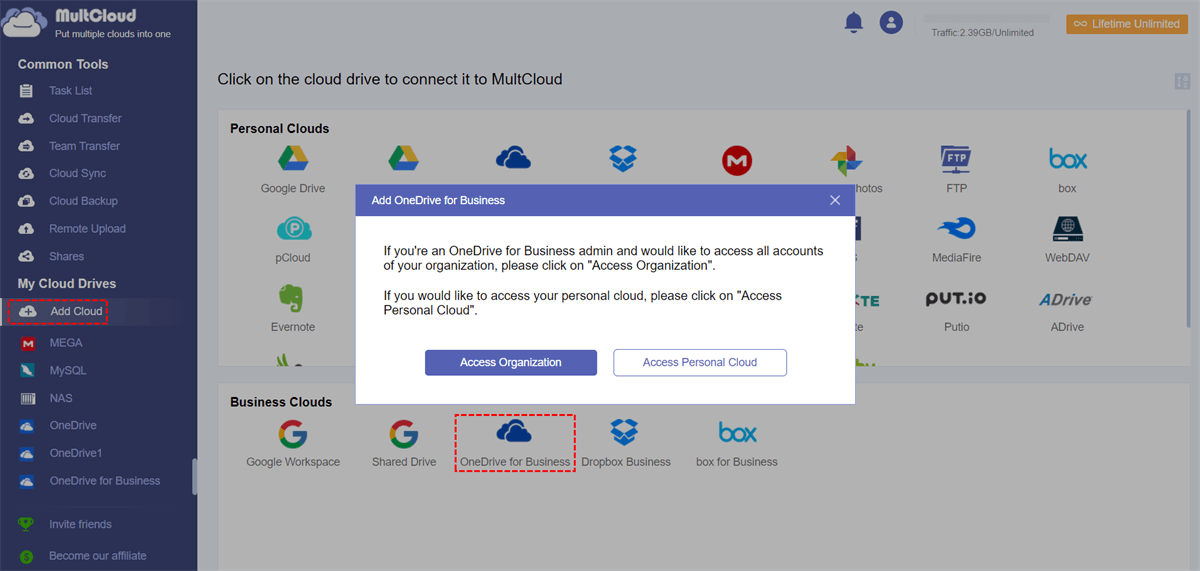
2. Click Add Cloud > OneDrive for Business, then grant access to MultCloud. Then add Google Workspace accordingly.
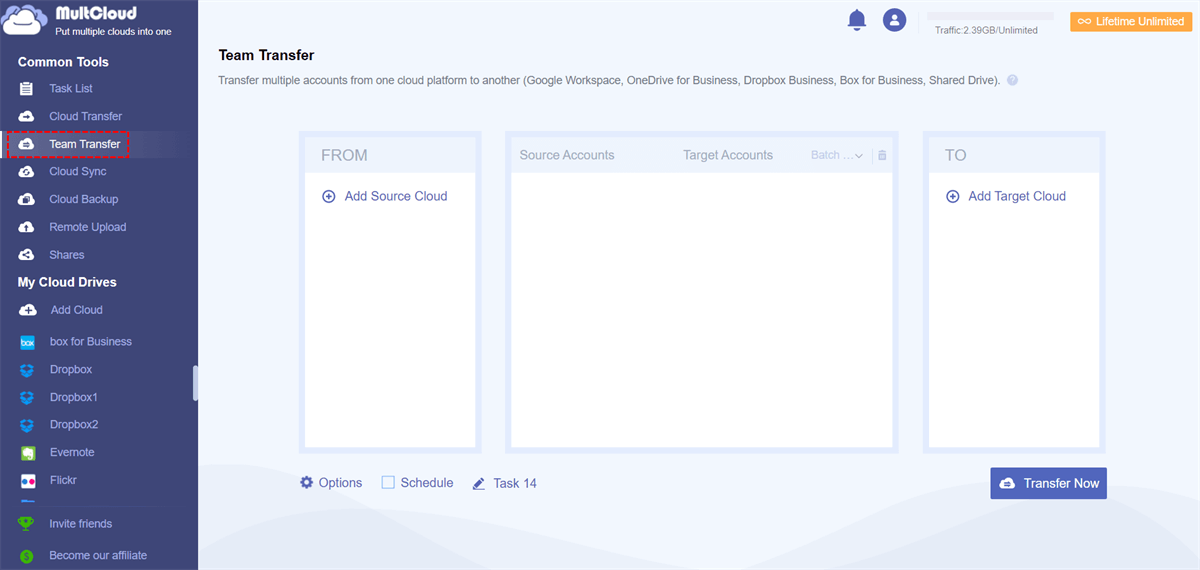
3. Tap Team Transfer, click Add Source Cloud to choose OneDrive for Business, and hit Add Target Cloud to choose Google Workspace.
4. Hit Batch Match > Auto Match to pair all sub-accounts between OneDrive for Business and Google Workspace.
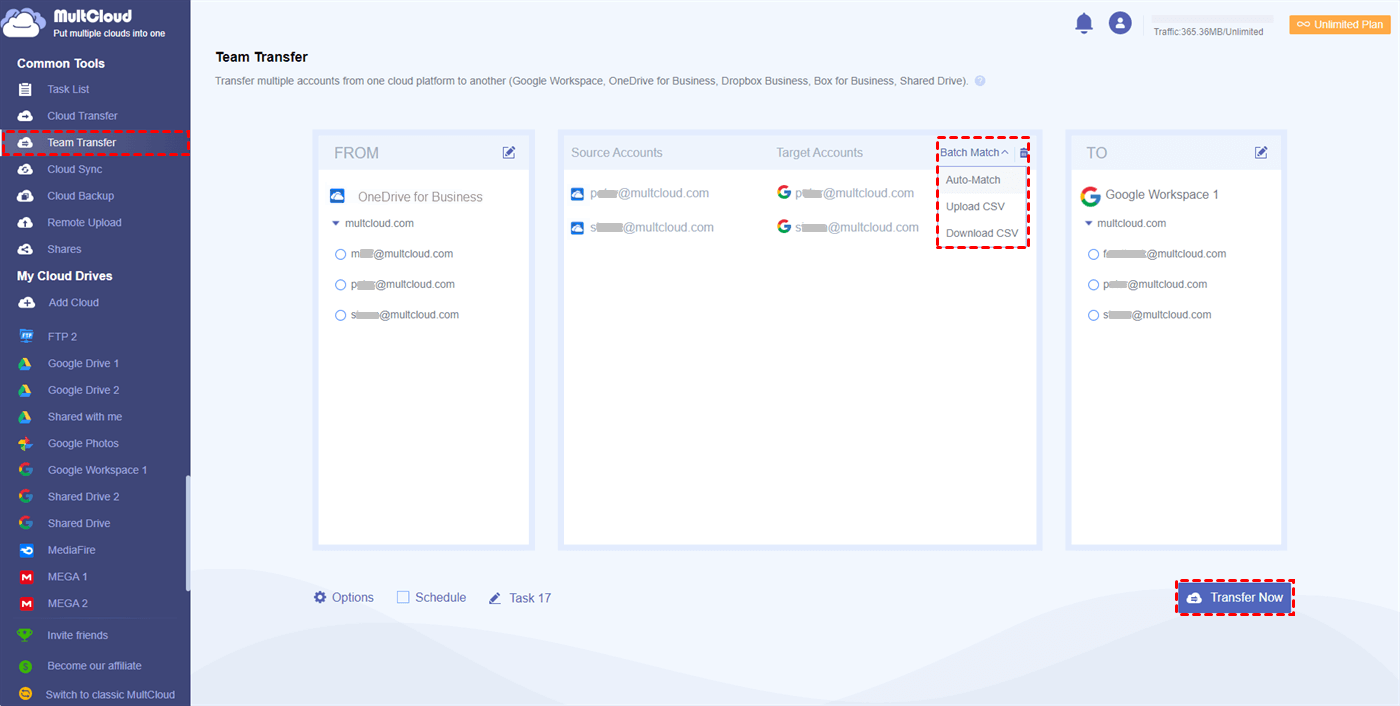
5. Configure settings in Options and Schedule, then tap Transfer Now to transfer OneDrive for Business to Google Workspace.
- Tips:✎...
- In Options, you can set up the transfer method if the file in the target already exists, such as skipping, overwriting, renaming, etc. Besides, you can also configure Email and Filter in Options to run it smoothly.
- You can set up Schedule, then run the task once, daily, weekly, or monthly.
- Upgrade to a MultCloud advanced plan to enjoy all premium features, including filters, schedule, more data traffic, and all others.
You can also sync OneDrive for Business to Google Workspace in real time, two-way, one-way, or other modes.

- Smart Share: Share cloud files via public, private, or source mode.
- One-key Move: Quick data transfer, sync, and backup among clouds.
- Email Archive: Protect emails to other clouds or local disks.
- Remote upload: Effectively save web files to clouds via URL.
- Safe: Full-time 256-bit AES and OAuth authorization protections.
- Easy: Access and manage all clouds in one place with one login.
- Extensive: 30+ clouds and on-premise services are supported.
FAQs About OneDrive for Business to Google Workspace Migration
Q: What is the best way to transfer OneDrive for Business to Google Workspace without losing data?
A: Audit your data first, then use a third-party tool like MultCloud. These preserve metadata, versions, and permissions—manual uploads are risky and slow.
Q: How long does a OneDrive for Business to Google Workspace migration usually take?
A: Small businesses (under 1TB) may take hours to a day; enterprises with terabytes can take weeks. Cloud-based tools run server-side, so you don't need to keep a local machine on.
Q: Is it safe to sync OneDrive for Business to Google Workspace during migration?
A: Yes, but stick to one-way sync (OneDrive → Google). Two-way sync risks conflicts and duplicates. Do a bulk transfer first, then a delta sync for final changes.
Q: What happens to Microsoft Office files when I transfer them to Google Workspace?
A: They stay in .docx, .xlsx, or .pptx format and open in compatibility mode. For full collaboration, convert to Google formats—but complex formatting may shift.
Q: Will my file permissions transfer automatically from OneDrive to Google Workspace?
A: No. OneDrive’s SharePoint-based permissions don't map directly. Tools can map users, but you’ll need to manually review and reconfigure complex shares, especially in Shared Drives.
Q: Why would a business choose Google Workspace over OneDrive for Business?
A: For superior real-time collaboration, better cross-platform support (Mac/Linux), simpler UX, and vastly better search that finds files by content, not just names.
Q: How do I verify that my OneDrive for Business to Google Workspace migration was successful?
A: Compare total file counts and storage sizes between old and new drives. Spot-check random files across Shared Drives to confirm they open and permissions are correct.
MultCloud Supports Clouds
-
Google Drive
-
Google Workspace
-
OneDrive
-
OneDrive for Business
-
SharePoint
-
Dropbox
-
Dropbox Business
-
MEGA
-
Google Photos
-
iCloud Photos
-
FTP
-
box
-
box for Business
-
pCloud
-
Baidu
-
Flickr
-
HiDrive
-
Yandex
-
NAS
-
WebDAV
-
MediaFire
-
iCloud Drive
-
WEB.DE
-
Evernote
-
Amazon S3
-
Wasabi
-
ownCloud
-
MySQL
-
Egnyte
-
Putio
-
ADrive
-
SugarSync
-
Backblaze
-
CloudMe
-
MyDrive
-
Cubby


Stay Updated With Our
Latest Tips
Add us as a preferred source on Google to never miss helpful guides.
 Add as preferred source >>