Migrating files between OneDrive accounts is a common need for both personal and business users. MultCloud’s online cloud transfer helps you move files directly in the cloud—no download, no upload, no hassle.
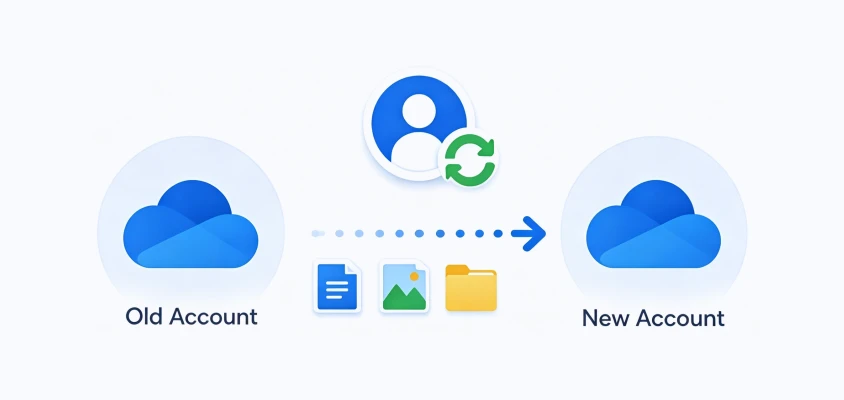
Transfer all files from your old OneDrive account to a new one in one go—no re-uploading, no folder restructuring, and no data loss during migration.
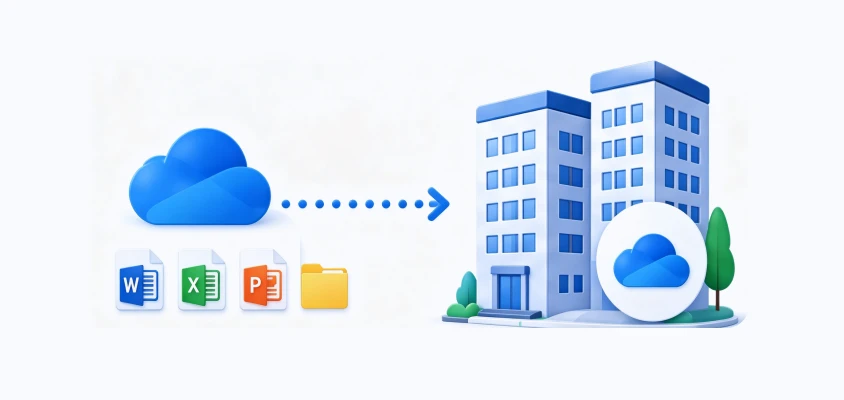
Seamlessly move business files to a new OneDrive Business account when changing companies or structures, while keeping workflows uninterrupted.
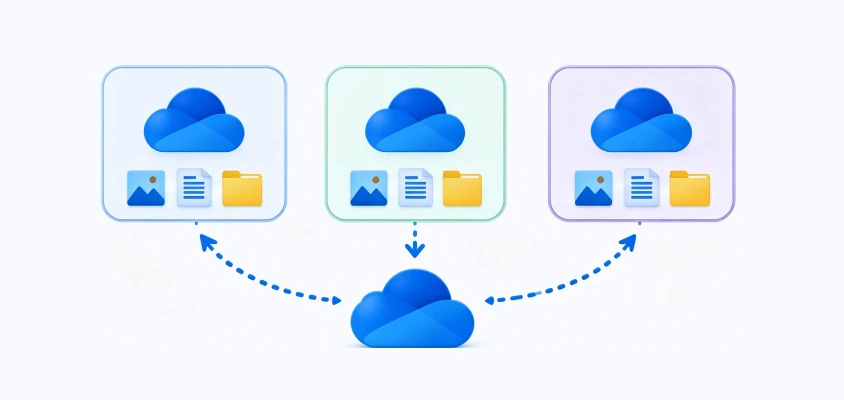
Combine files from multiple OneDrive accounts into one place for easier management.
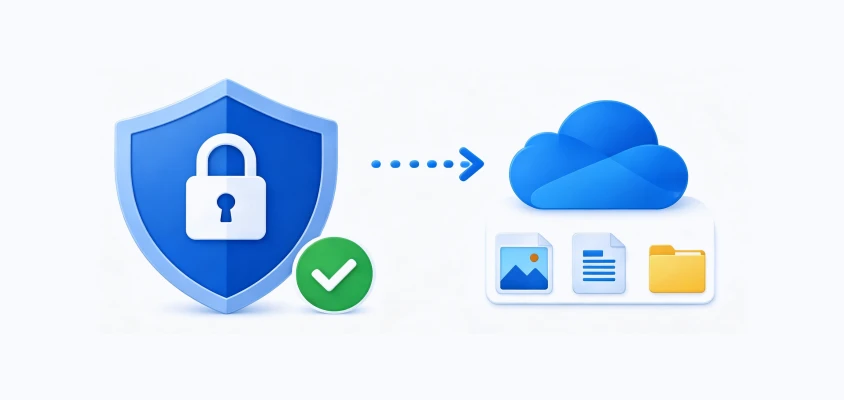
Protect important files by copying them to another OneDrive account as a backup, preventing loss from accidental deletion, corruption, or account issues.
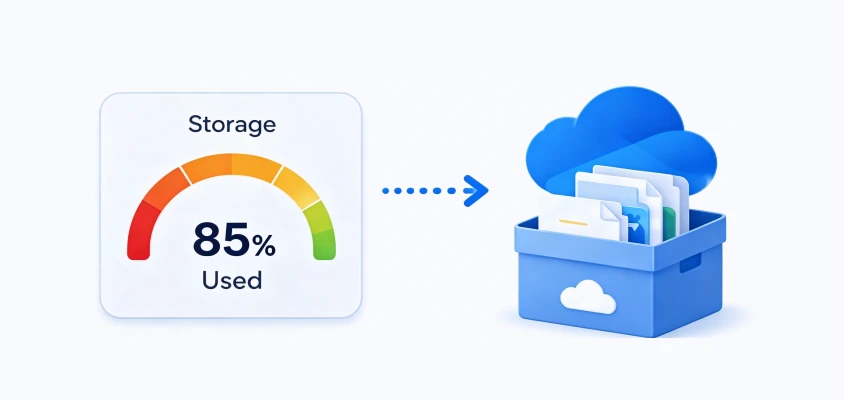
Offload large files or archives to another OneDrive account to optimize or free up storage usage while keeping data accessible in the cloud.

Merge scattered files from different OneDrive accounts into a single destination to simplify management and keep everything organized.



Dataset Profile: 177 items (slide decks, PDFs, image assets, and compressed zip archives)
 Total Size:
945.16 MB
Total Size:
945.16 MB
 Duration:
1 min 30 sec
Duration:
1 min 30 sec

Average Cloud Speed: 10.50 MB/s (84.00 Mbps )

Dataset Profile: 10 large HD video files and database backups
Total Size: 10.40 GB
Duration: 20 min 10 sec
Average Cloud Speed: 8.80 MB/s (70.40 Mbps)
Here are simple steps required to transfer OneDrive files to another OneDrive account with MultCloud

Sign up for a MultCloud account and log in to manage, sync, and migrate all your cloud files in one place. MultCloud also supports quick and secure sign-in with Google, Facebook, and Apple accounts, making account access faster and more convenient across devices.
Click “Add Cloud” in MultCloud, then securely connect both your source and destination OneDrive accounts. Once authorized, both accounts will appear in your cloud list, allowing you to easily manage them in one centralized interface and prepare for seamless file transfer between them.
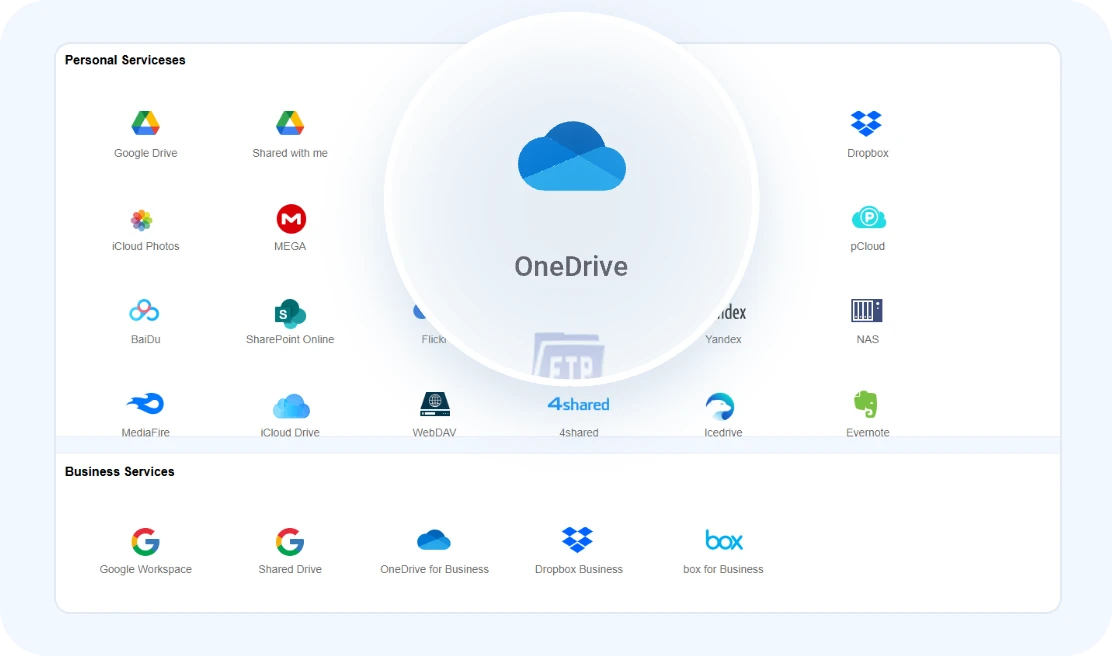
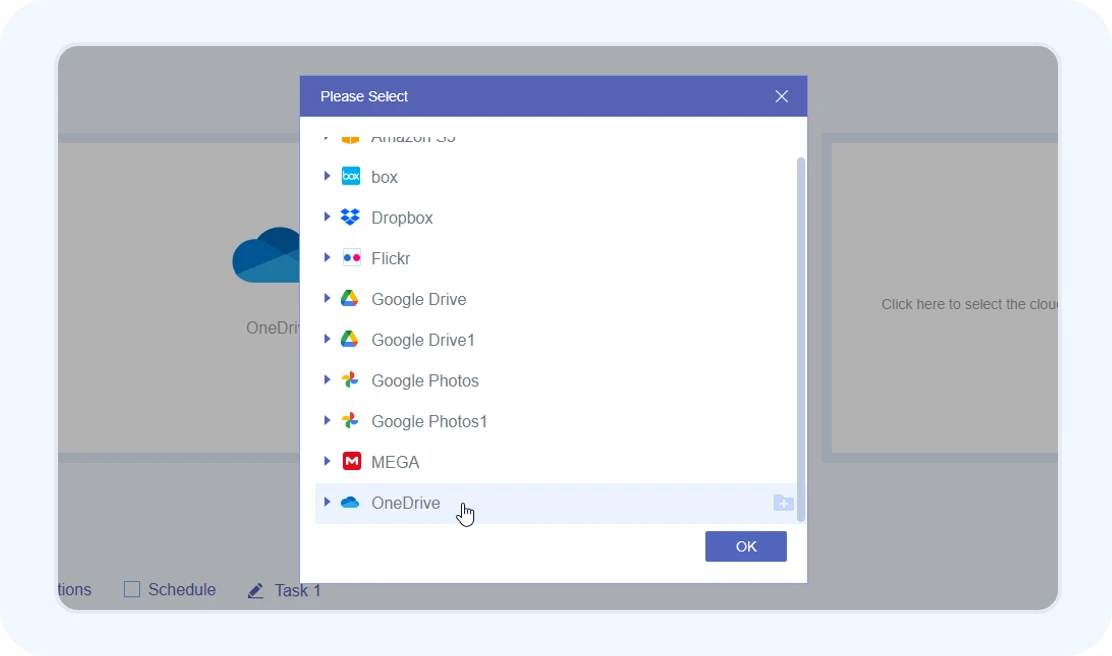
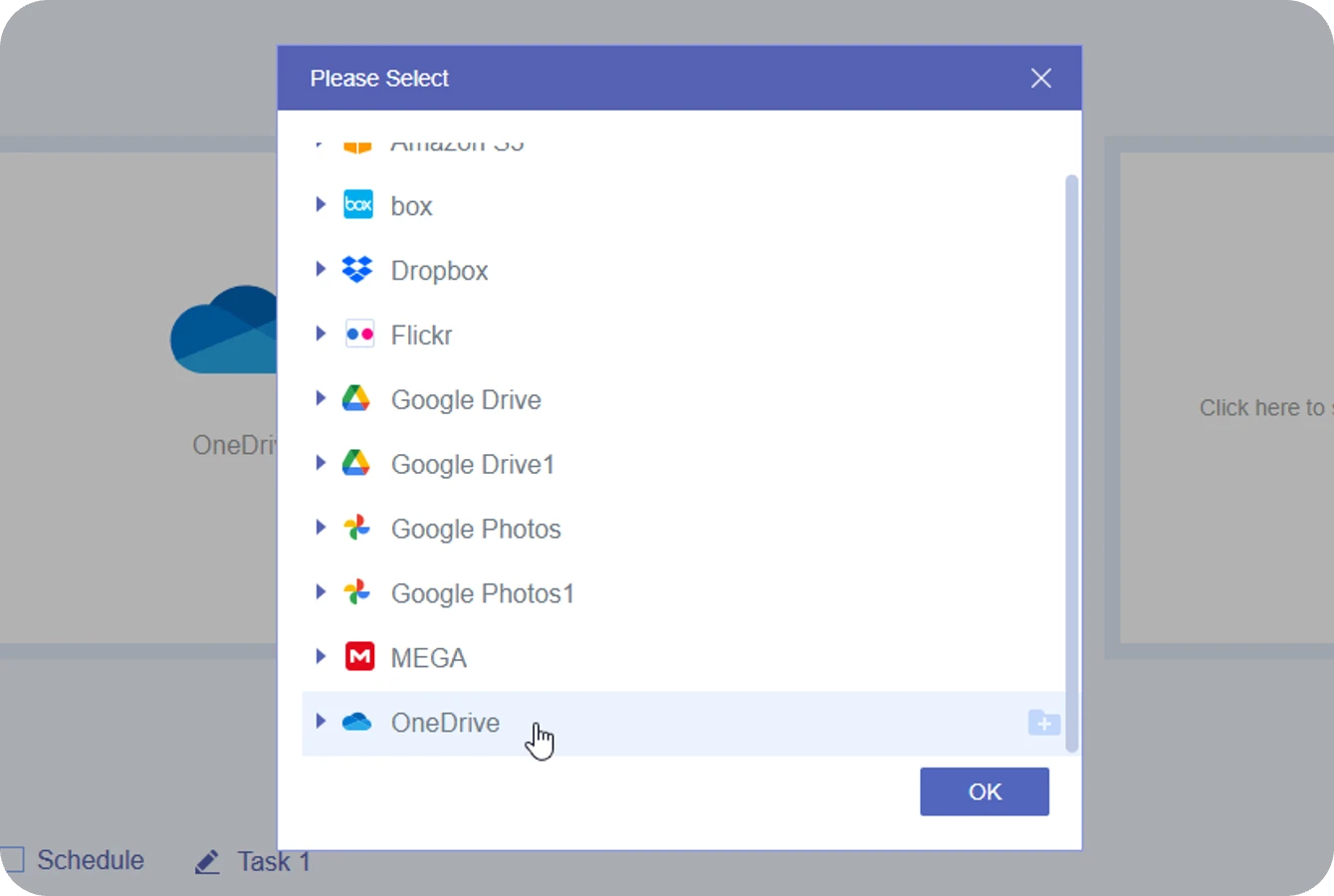
Open the “Cloud Transfer” feature in MultCloud, then choose your source OneDrive account and your target OneDrive account for migration. You can select specific files or entire folders depending on your transfer needs.
 Once started,the transfer will run in the cloud.You can
close your browser or turn off your computer,
and the transfer will continue.
Once started,the transfer will run in the cloud.You can
close your browser or turn off your computer,
and the transfer will continue.
Stop downloading and re-uploading. Seamlessly
transfer files, folders, or entire accounts across
OneDrive environments.
Zero local bandwidth, 100% data integrity, and
enterprise-grade automation.
Scenario : Graduate from college or leave your job, your institution will soon de-activate your Office 365 account? Back up hundreds of GBs of critical portfolios and personal research to a new OneDrive, but don't want to waste your new cloud storage on useless school assignments or outdated company logs.
Solution : Eliminates the restriction of an "all-or-nothing" migration. You have total flexibility to either initiate a full-account mirror to clone your entire root directory, or selectively cherry-pick only the high-value sub-folders, libraries, and specific files that matter
Scenario : Managing large, ongoing file transfers during peak work hours eats up your bandwidth and disrupts team collaboration. Worse, nobody wants to waste hours sitting at their desk just staring at a slow progress bar, waiting for the job to finish.
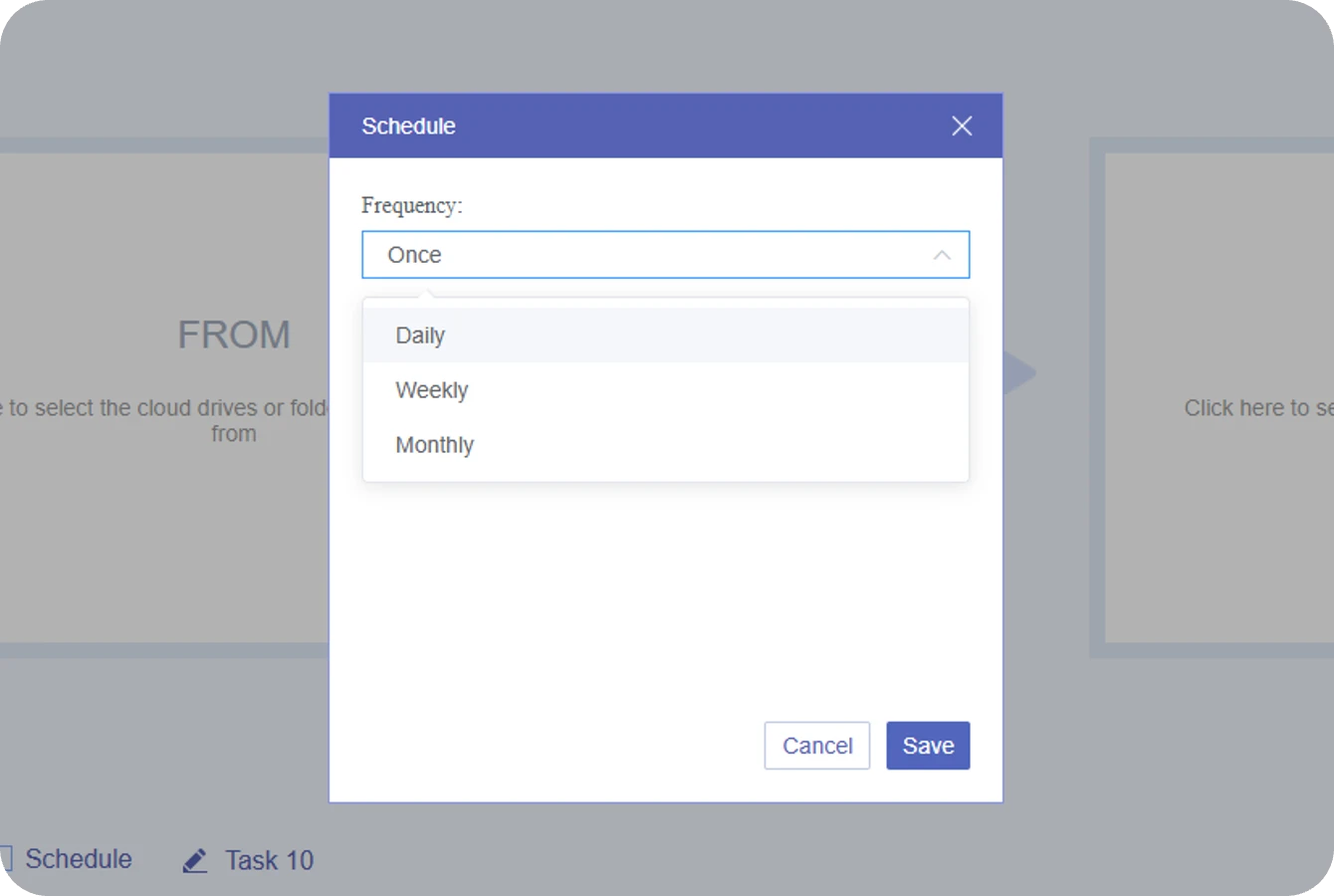
Solution : Set up our Off-Peak automation plan to schedule transfers daily, weekly, or monthly at specific times (like midnight or weekends). Once configured, MultCloud executes the task entirely on its cloud servers—no manual supervision, active browser tabs, or PC power required.
Scenario : When migrating terabytes of data, you can't afford to waste hours tracking the progress, nor do you want to manually cross-check thousands of folders afterwards just to find out if a critical file was quietly skipped or corrupted due to network blips.
Solution : Go beyond basic "Task Done" alerts with our Instant Delivery & Exception Reports. Once finished, a comprehensive status summary lands directly in your inbox. If any file fails due to admin permission blocks or temporary timeouts, the email provides a direct link to the specific error log for instant troubleshooting.
Scenario : Running incremental migrations or scheduled sync tasks carries a massive risk: you could accidentally overwrite a critical new file with an older version, or end up with thousands of messy, duplicate files cluttering your destination drive.
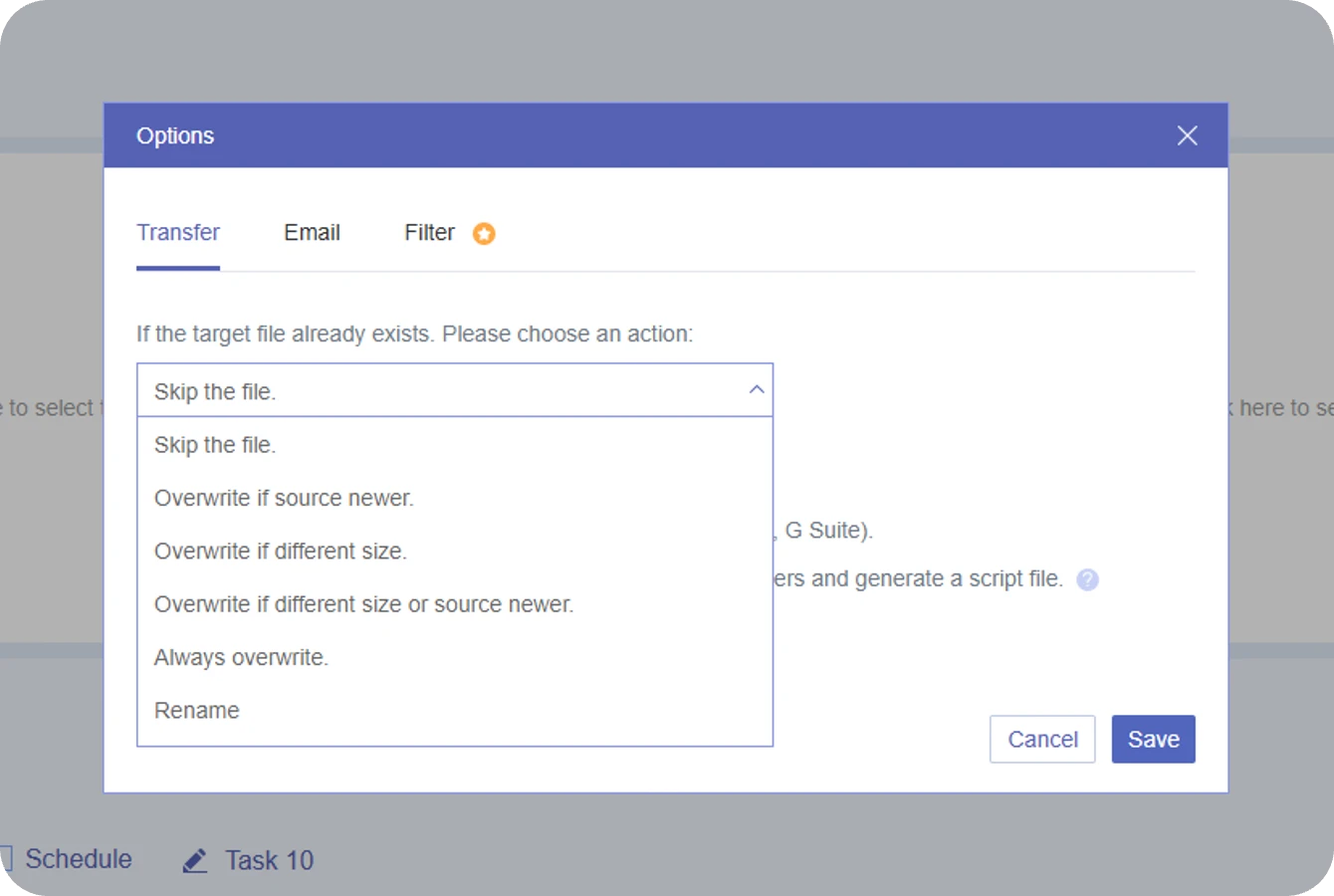
Solution : Choose how MultCloud handles duplicate or existing files in the destination OneDrive account to avoid unnecessary overwrites or conflicts during migration.
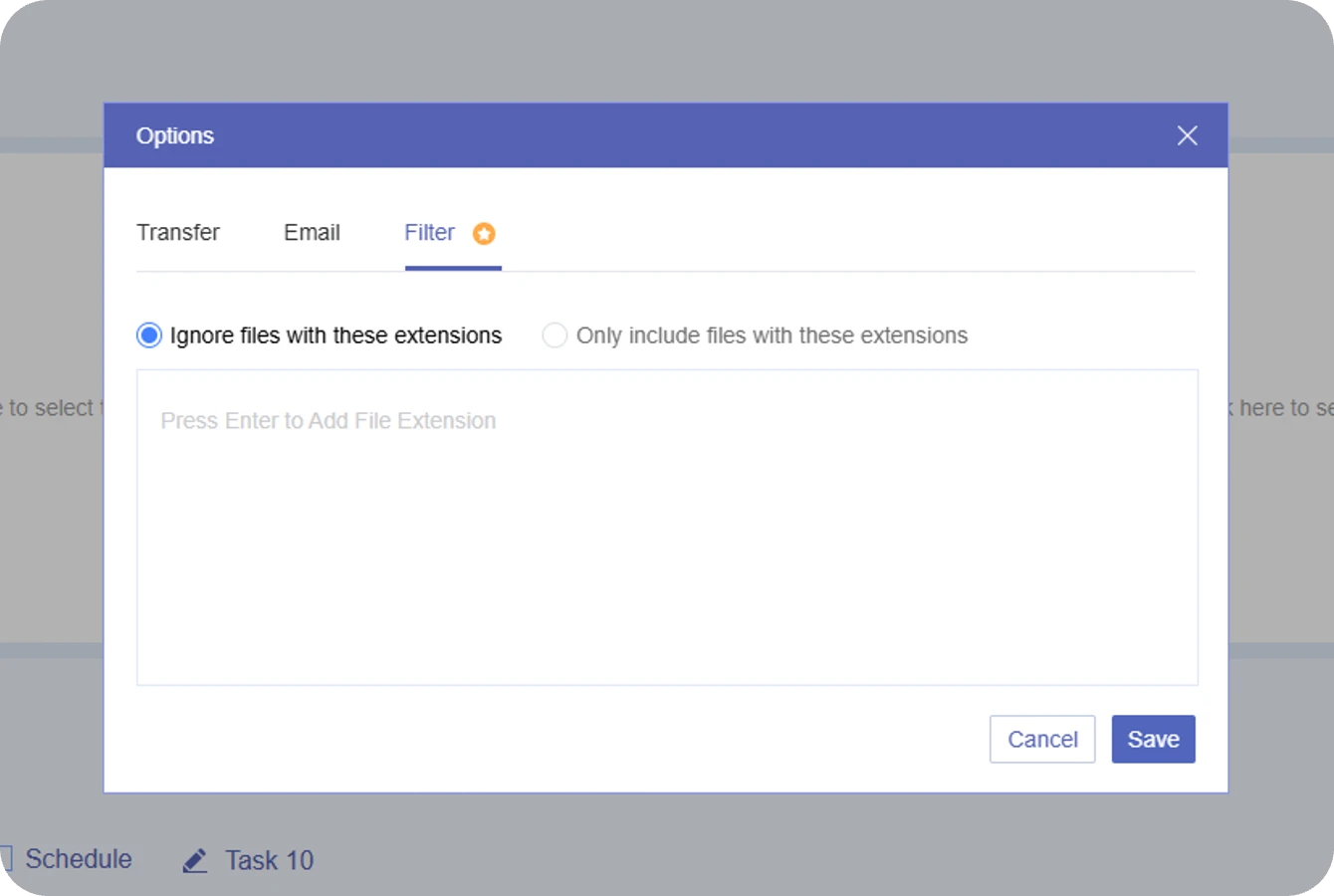
Scenario : Cloud drives are heavily cluttered with useless background files, such as temporary cache (*.tmp), system logs (*.log), lock files (~$), or hidden backup strings (*.bak). Transferring these redundant files blindfolded not only wastes your premium OneDrive storage but also severely drags down your overall migration speed.
Solution : Use file filtering options to include or exclude specific file types, helping you avoid transferring unnecessary files and boost overall migration efficiency by up to 15%.

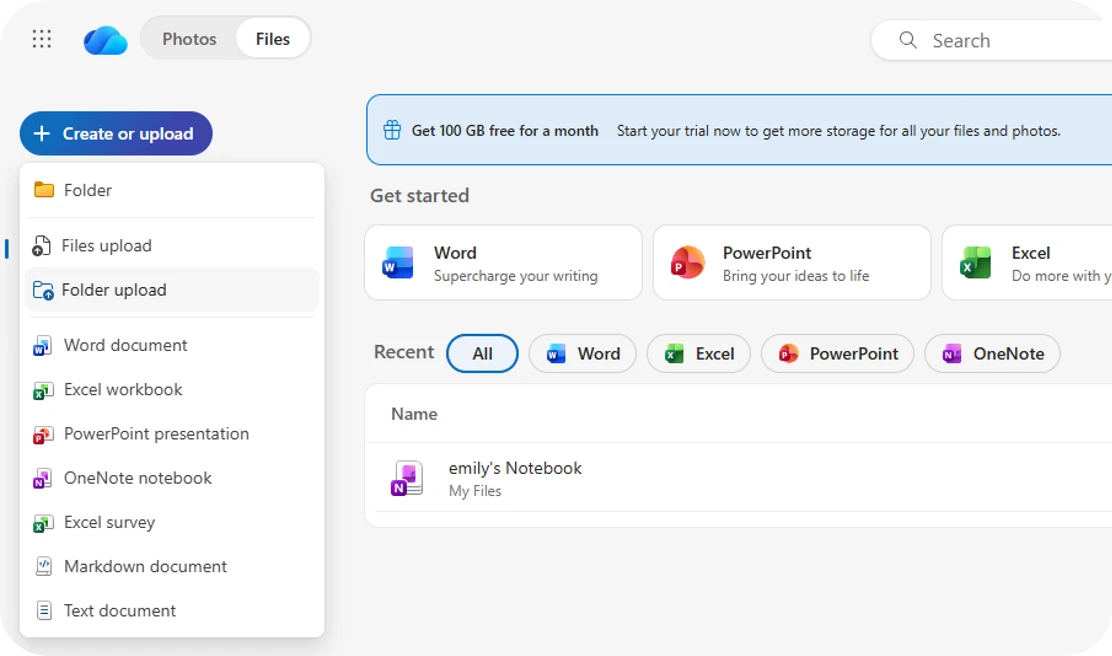
Step 1. Log in to your source Microsoft OneDrive account and download selected files/folders.
Step 2. Extract ZIP files if needed.
Step 3. Log in to the target OneDrive account and upload files via Upload → Files/Folders.
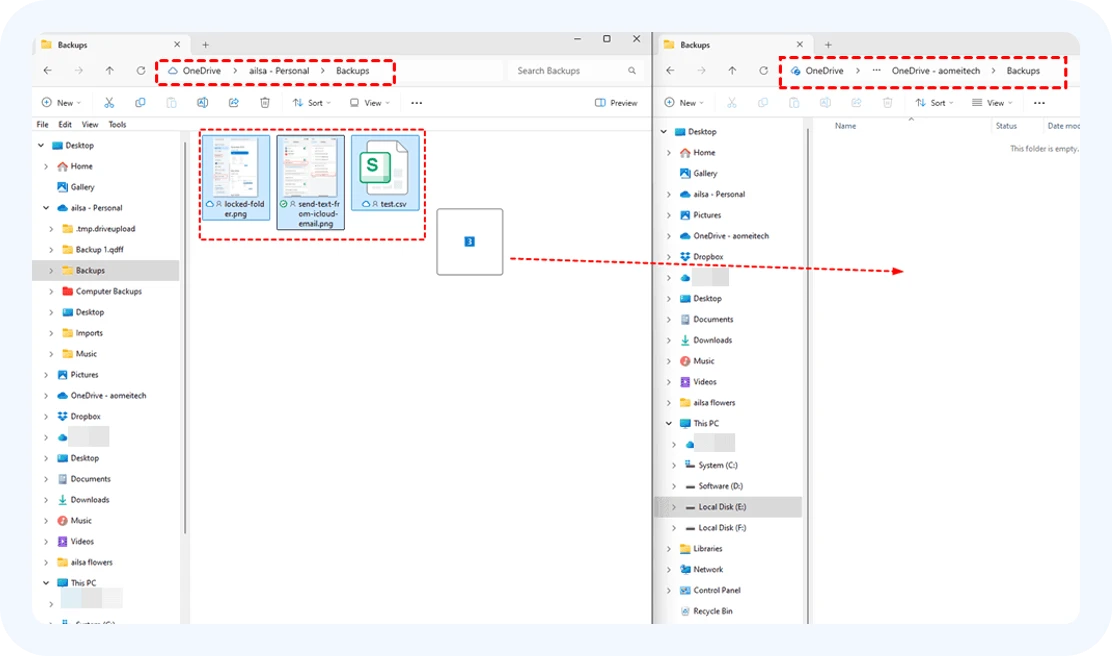
Step 1. Install and sign in to OneDrive desktop app with both accounts.
Step 2. Sync both OneDrive accounts to your computer.
Step 3. Open File Explorer. Drag and drop files between the two OneDrive folders.
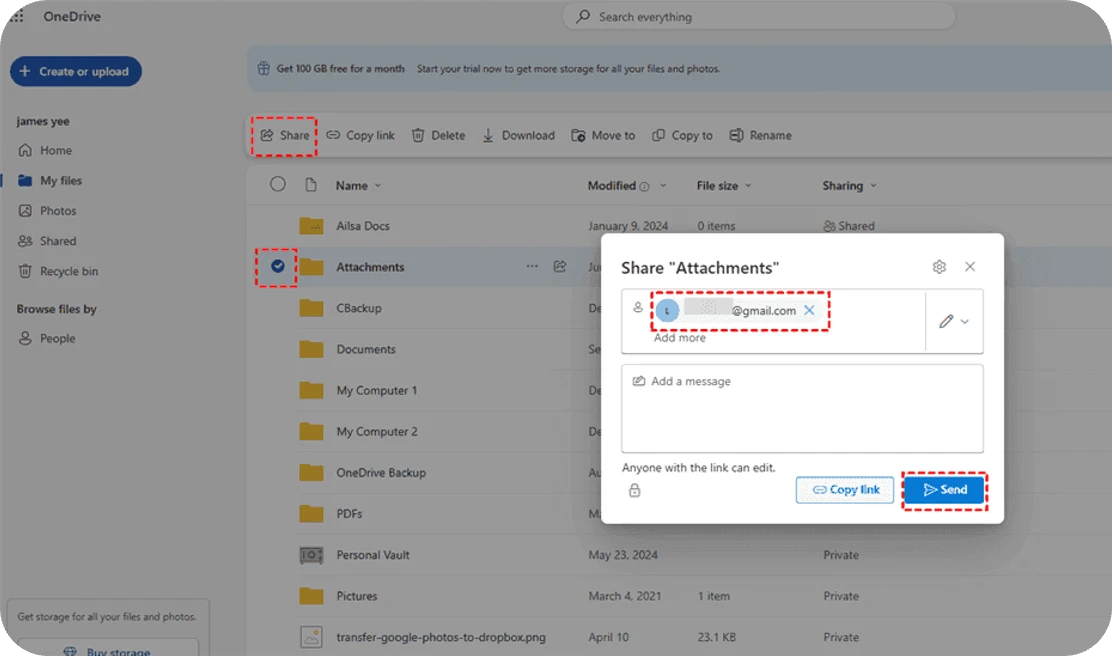
Step 1. Share files/folders from source OneDrive to target account.
Step 2. Accept access in the destination account under Shared.
Step 3. Use “Add shortcut to My files” or “Copy to” to save to your own storage.
| Method | Speed | Risk | Local Storage Dependency | Automation |
|---|---|---|---|---|
| Download & Re-upload |
Slow
Limited by local ISP upload bandwidth (typically < 50 Mbps) |
High
Network drops cause transfer failures; high risk of missing data. |
Heavy
PC must stay powered on; requires massive local storage cache. |
No
Requires manual supervision; cannot run automatically |
| Drag & Drop |
Medium
Throttled by OneDrive sync queue; easily gets stuck on small files. |
Medium
High risk of sync conflicts, file locking, or version overwrites. |
Medium
Stable internet connection and active desktop sync clients are required. |
No
Cannot set schedules or recurring triggers. |
| Share & Copy |
Medium
Subject to Microsoft API rate limits (Cloud Throttling). |
Medium
Fails on deeply nested folder paths or cross-tenant permissions. |
Medium
Not required to download to local storage, but you must keep the browser window open. |
No
One-off manual action; no continuous automation. |

|
Fast
Supports 10 threads parallel transmission to maximize cloud bandwidth. |
Low
Server-side breakpoint resume ensures 100% data integrity with auto-retry. |
No Dependency
PC can be turned off. Runs entirely on background cloud servers. |
Fully automated
Scheduled transfer by daily, weekly or monthly. |

Files move directly between clouds without downloading or uploading, saving your time, bandwidth, and local storage.

The entire folder hierarchy and file organization are preserved during transfer, so you never need to manually reorganize or restructure your data afterward.

Cloud-to-cloud transfer saves your time and bandwidth, with 10 threads running simultaneously to maximize speed and efficiency.

256-bit AES encrypts data transfer to prevent theft, OAuth authorizes cloud access without storing passwords, and GDPR ensures personal data privacy and legal compliance.

Run transfers immediately as a one-time task or set up automated recurring transfers based on your preferred schedule—daily, weekly, or monthly at a specific time.
 Google Drive
 Google Workspace
 OneDrive
 OneDrive for Business
 SharePoint
 Dropbox
 Dropbox Business
 MEGA
MEGA
 Google Photos
 iCloud Photos
 FTP
FTP
 box
box
 box for Business
 pCloud
 Baidu
Baidu
 Flickr
 HiDrive
 Yandex
 NAS
NAS
 WebDAV
 MediaFire
 iCloud Drive
 WEB.DE
 Evernote
 More Clouds
Apart from cloud-to-cloud transfer, MultCloud also provides other high-demand cloud management solutions.