





















MultCloud: Take the Hassle Out of iCloud and Google Drive Sync

MultCloud brings iCloud Drive and Google Drive together in one place, letting you configure sync tasks, choose how files stay updated, and manage cross-cloud syncing without juggling separate services.

Access iCloud Drive files more easily on Windows

Access iCloud Drive Files More Easily on Windows / Android

“Most of my important files are in iCloud Drive, but I do most of my work on a Windows PC, where accessing and managing those files can be inconvenient.”

Keep selected iCloud Drive files in Google Drive so they are easier to access alongside your other cloud documents on Windows.

Keep important files updated across both clouds

Keep Important Files Updated Across Both Clouds

“I use both iCloud Drive and Google Drive, and keeping track of the latest version of the same file across two cloud accounts takes extra time and effort.”

Sync selected folders between iCloud Drive and Google Drive to reduce repetitive file management and keep the copies aligned according to your chosen sync settings.

Make iCloud Drive files easier to share

Make iCloud Drive Files Easier to Share

“My colleagues and clients mainly use Google Drive, while the files they need are stored in my iCloud Drive. Sharing them often means extra steps.”

Keep selected iCloud Drive files available in Google Drive, where you can use Google Drive's sharing features to collaborate with others.

Keep project files organized in one place

Keep Project Files Organized in One Place

“Project documents, notes, and other work materials are scattered across iCloud Drive and Google Drive, making it harder to locate related files when I need them.”

Sync the folders you use most often to Google Drive, making related documents easier to find without manually checking multiple cloud accounts.

Sync files on a schedule

Sync Files on a Schedule

“New files and edits accumulate throughout the day, and manually checking both cloud accounts for updates is easy to forget and tedious to repeat.”

Schedule sync tasks with MultCloud to keep your iCloud Drive and Google Drive files updated at set intervals, without having to repeat the same process manually.

Maintain a separate copy of important files

Maintain a Separate Copy of Important Files

“Important documents are stored in iCloud Drive, and relying on a single cloud account leaves me concerned about losing access to those files if something goes wrong.”

Sync selected iCloud Drive files to Google Drive to maintain another copy. For stronger protection, review deletion behavior and consider a backup method that keeps recoverable versions independently.

Before You Sync iCloud with Google Drive: 5 Things to Check

A few quick checks can help prevent sync issues and unexpected file changes. Before creating a sync task in MultCloud, review your files, storage space, sync settings, and iCloud account access.

Confirm the Folders You Want to Sync

Choose the folders you want to sync from iCloud Drive and confirm the selected paths. This helps ensure your sync task covers the files and subfolders you need.

Check Your Google Drive Storage

Make sure your Google Drive has enough available space for the files you plan to sync. If storage is insufficient, some files may fail to sync.

Select the Right Sync Mode

Choose a sync mode that matches your needs, whether you want to sync files in one direction or keep both cloud accounts updated. Review the available options before creating your task.

Review Existing Copies in Google Drive

Check whether the files you want to sync already exist in Google Drive and whether their contents match the versions in iCloud Drive. This helps you identify duplicate files or conflicting versions before syncing.

Check Advanced Data Protection Settings

If Advanced Data Protection is enabled for your Apple Account, web access to your iCloud data is restricted by default. Check Apple's iCloud web-access settings and complete any required verification if MultCloud cannot access your iCloud Drive.

How to Sync iCloud with Google Drive via MultCloud

You can sync iCloud drive with Google Drive using MultCloud in two ways. Use the online tool for a quick, one-way sync / two-way from iCloud to Google Drive, or access the full MultCloud platform to explore the full range of cloud sync features and settings.

Limitations:
Only Cloud Sync No Scheduled Syncs Less Control Over Sync Task Internet-Dependent Operation

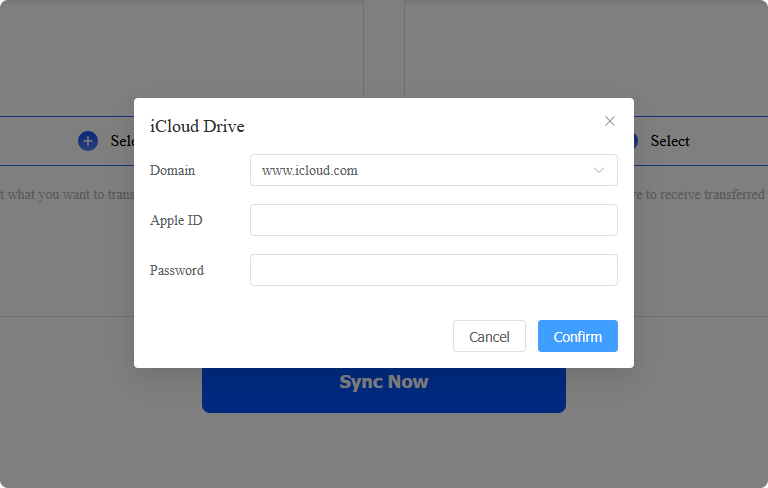
Step 1. Connect the iCloud Drive: Scroll back to the banner at the top of this page. Click “Select +” in the From box, enter your iCloud ID and password to log in.

Step 2. Connect the Google Drive: Click “Select + “ in the To box, choose your Google account and authorize your Google Drive accounts in the online tool.

Step 3. Start the Sync Task: Select the files you want to sync from iCloud to Google Drive and click “Sync Now” to start the task.

Connect the iCloud Drive in the online sync tool

Note:

  • Copy shared files to a personal iCloud folder first.
  • Keep names short; avoid invalid characters like /, :, ?, |, <, >.
  • Original permissions and metadata may not transfer over.

More Control, Less Effort: Smarter Way to Sync iCloud with Google Drive

Keep your iCloud Drive and Google Drive files connected with flexible sync options, automated schedules, and cloud-to-cloud processing—all managed in one place.

Flexible Sync Modes

Choose from 10 sync modes, including one-way, two-way, mirror, and incremental sync, to control how files are synchronized between clouds.

Scheduled Auto Sync

Schedule daily, weekly, or monthly sync tasks to keep selected folders updated without repeatedly starting them manually.

Offline Cloud Sync

MultCloud lets sync tasks continue in the server even after you close your browser or turn off your computer.

Selective File Sync

Use File Filters to sync only the file types you need, such as PDFs, documents or videos, avoiding unnecessary transfers and saving sync traffic.

Sync Task Management

Manage all your sync tasks in one place, track progress, check failed files, and adjust settings without starting over.

Email Notifications

Receive email updates on completed sync tasks, so you can check the results without constantly monitoring progress.

What Can You Sync from iCloud to Google Drive?

iCloud stores files, photos, and device backups in different services. Find out where your data belongs and see which types of iCloud content you can sync to Google Drive with MultCloud.

iCloud Drive files and folders illustration

iCloud Drive: All Files & Folders

SUPPORTED

You can select files and folders stored in iCloud Drive, including documents, photos, videos, and other files, and sync them to Google Drive with MultCloud.

Sync with MultCloud  →
iCloud Photos photos and videos illustration

iCloud Photos: Photos & Videos

SUPPORTED

Photos and videos in iCloud Photos library (separate from iCloud Drive files) can also be moved to Google Drive through MultCloud's supported photo workflow.

Explore iCloud Photo Backup  →
iPhone or iPad iCloud backups illustration

iPhone or iPad: iCloud Backups

NOT AVAILABLE AS REGULAR FILES

iCloud Backup stores device settings and app data in an Apple-managed backup format. They are designed to restore an iPhone or iPad, not available as regular files to select and sync with MultCloud.

Learn about iCloud Backup >

What Happens When You Sync iCloud with Google Drive?

Syncing iCloud with Google Drive involves more than copying files. How files are added, updated, or handled when they already exist depends on your selected sync mode and settings. Here's what to know before starting a sync task.

Choose iCloud Drive
Authorize iCloud Access
MultCloud Processes the Sync
Authorize Google Drive
Access
Files Arrive in Google Drive

Cloud-to-Cloud Sync

Files move between iCloud Drive and Google Drive through MultCloud, without relying on manual download and upload steps.

Only What You Choose

You decide which folders to sync and where they go, so the task stays focused on the files you actually need.

Folder Structure Preserved

Your files and subfolders retain their original organization when synced to the selected Google Drive destination.

No Permanent File Storage

MultCloud processes files between your connected clouds without keeping them as permanent copies on our servers.

Choose Your Sync Mode Based on What You Want

Whether you want to keep both clouds updated, preserve deleted files, or create separate copies, MultCloud offers 10 sync modes to match how you manage your iCloud Drive files.

Basic Sync Modes

1 Way Simple Sync

Sync iCloud Changes to Google Drive

Sync new, modified and deleted iCloud Drive files to Google Drive without sending changes made in Google Drive back to iCloud.

2 Way Simple Sync

Keep Both Clouds Updated

Reflect file additions, edits, and deletions between iCloud Drive and Google Drive, so changes can flow in either direction.

1 Way Real-Time Sync

Sync New Changes as They Happen

Monitor your iCloud Drive files and automatically sync detected changes to Google Drive without waiting for a scheduled run.

2 Way Real-Time Sync

Update Both Clouds Automatically

Monitor changes in both clouds and sync them in either direction as they occur, without manually restarting the task.

Advanced Sync Modes

PREMIUM

Mirror Sync

Make Google Drive Match iCloud Exactly

Keep the destination matching your iCloud Drive source, including removing files that no longer belong in the source folder.

Move Sync

Move Files Out of iCloud Drive

Sync selected files to Google Drive and remove them from the iCloud Drive source after successful synchronization.

Cumulative Sync

Keep Files Even After Deleting Them

Retain previously synced files in Google Drive even when you delete them from iCloud Drive.

Update Sync

Refresh Google Drive with Source Files

Replace the destination's existing contents with the current files from iCloud Drive during each sync run.

Incremental Sync

Save Only New and Changed Files

Create a separate destination subfolder for newly added or modified files on subsequent runs, avoiding another full copy.

Full Backup Sync

Create a Fresh Copy Each Time

Save the complete current source contents in a new destination subfolder each time the sync task runs.

Tips:

Mirror, Move, and Update Sync may delete existing files from the source or destination. Review each mode's behavior carefully before starting to avoid unintended data loss.

Advanced Sync modes are available with MultCloud Premium. Explore more upgrade options to unlock flexible sync controls.

iCloud Drive to Google Drive: Sync Performance Test

Sync ModeOne-Way Simple Sync
Source PathiCloud Drive / Test Folder
Destination PathGoogle Drive  Picture / MC
4min 17sTotal Time
≈ 19.5 MB/sSync Speed
656Files Tested
5GBTotal Data Size
656Successful Files
File Availability

All Sampled Files Accessible

Content Integrity

656/656 SHA-256 Matches

Folder Structure

Original Folder Structure Preserved

File Changes Synced

15/15 Changes Synced

How to Sync iCloud with Google Drive on Different Devices

Explore different ways to sync iCloud Drive with Google Drive on iPhone, iPad, Mac, and Windows, from manual file transfers to automated cloud-to-cloud syncing.

Any Device:

Sync iCloud Drive with Google Drive Using MultCloud

Recommended

MultCloud connects iCloud Drive and Google Drive directly, allowing you to sync selected folders automatically without routing files through your device. Choose from flexible sync modes and schedule recurring tasks to keep files updated.

  • No Local Storage Needed
  • Cross-Platform Access
  • Background Task Execution
  • Detailed Sync Records
Sync Now

Method 1. Sync iCloud Drive with Google Drive on iPhone / iPad

The built-in Files app on iPhone and iPad lets you access iCloud Drive and Google Drive from one interface. You can manually copy selected files between the two services without using a computer.

Step 1.Enable Google Drive in Files

Install and sign in to the Google Drive app with your account. Open Files app and select “Browse > More (···) > Edit”, then enable Google Drive under “Locations”.

Step 2.Find Your iCloud Files

In the Files app, open iCloud Drive under Browse menu and navigate to the files or folders you want to move.

Step 3.Copy the Selected Files

Tap “More (···) > Select”, choose your files, and tap “Copy”.

Step 4.Paste into Google Drive

Return to “Browse > Google Drive”, open the target folder, and use “Paste” to copy the selected items. Your iPhone will download the file from iCloud and upload it to Google Drive.

Best For iPhone or iPad users who occasionally need to copy a few files between iCloud Drive and Google Drive.
Cons Many files may require repeated manual actions Large transfers can take time Requires manual updates

Method 2. Sync iCloud Files with Google Drive on Mac

Mac users can access iCloud Drive directly through Finder and upload their files to Google Drive using a browser. This method requires no additional cloud management tool but involves manually downloading and uploading files.

Step 1.Install and Enable Google Drive

Download Google Drive and sign in with your account, granting the necessary macOS permissions under “System Settings > Privacy & Security”.

Step 2.Access iCloud Drive on Mac

Open Finder and select iCloud drive in the left sidebar. Locate the files or folders you want to sync. (If the files are stored only in iCloud, right-click them and choose Download Now. Wait for the downloads to finish.)

Step 3.Drag and Drop Files

Open your Google Drive in another Finder window, drag and drop the files you want to move from iCloud Drive folder to Google Drive folder. If you need to sync Google Drive to iCloud drive, just drag and drop the data in Google Drive to iCloud.

Best For Mac users who occasionally copy small or medium-sized folders from iCloud Drive to Google Drive.
Cons Files may need to download to the Mac first Large transfers can require substantial local storage No automatic ongoing sync

Method 3. Sync iCloud Data to Google Drive on Windows

Windows users can download iCloud Drive files through iCloud.com and upload them to Google Drive using a web browser. This approach works without installing iCloud for Windows or additional cloud management software.

Step 1.Access Files in iCloud Drive

Open iCloud website in a browser and sign in to your Apple Account. Browse iCloud Drive and select the files you want to copy to Google Drive.

Step 2.Download the Files

Click “Download” and save them to your Windows computer. If multiple files are packaged into an archive, extract them when necessary.

Step 3.Upload Files to Google Drive

Log into Google Drive with your Google accounts and click “New > File upload”, select your downloaded files to upload them to Google Drive.

Best For Windows users who occasionally need to transfer selected iCloud Drive files without installing additional software.
Cons Local downloads may be needed Large transfers take time and space Manual updates are required

Your iCloud to Google Drive Sync, Secured by MultCloud

Sync your files with confidence. MultCloud protects data in transit, avoids permanent file storage, and gives you control over connected cloud accounts and access permissions.

Encrypted Data Transfers

Files are protected by SSL connections with 256-bit AES encryption during syncing, helping safeguard your data as it moves between iCloud Drive and Google Drive.

No Permanent File Storage

Your synced files remain in your connected cloud accounts. MultCloud processes files without permanently storing their contents and removes temporary caches after processing.

Secure Cloud Authorization

Connect Google Drive through OAuth authorization, while iCloud uses Apple's account verification process. Each connection follows the authentication requirements of its cloud provider.

Revoke Access Anytime

Stay in control of your connected clouds by disconnecting accounts in MultCloud or revoking authorization through your cloud provider's security settings whenever needed.

Discover More Cloud Sync Tools

Need to sync files between other cloud services? Explore more MultCloud tools to keep your files connected across Google Drive, OneDrive, Dropbox, iCloud, and beyond.

Google Photos to Google Drive

Google Photos to Google Drive

Easily sync photos and videos from Google Photos to Google Drive for convenient file management, sharing, and access across devices.

Start Sync for Free
Google Drive to Dropbox

Google Drive to Dropbox

Keep files and folders updated between Google Drive and Dropbox with automated syncing, eliminating repetitive manual transfers.

Start Sync for Free
Google Drive to OneDrive

Google Drive to OneDrive

Sync files between Google Drive and OneDrive to streamline cross-platform collaboration and keep your documents accessible in both clouds.

Start Sync for Free

Connect and Manage 40+ Cloud Drives in One Place

MultCloud supports 40+ cloud services, including OneDrive, OneDrive for Business, iCloud Drive, iCloud Photos, etc. Once your accounts are connected, you can migrate, sync, back up, and manage files across all of them from a single dashboard.

Didn't find your cloud service? Be free to contact: support@multcloud.com

What Our Users Are Saying

FAQs About Syncing iCloud with Google Drive

No. With Simple Sync, MultCloud generally skips files that haven't changed and synchronizes new or modified files instead. Other sync modes, such as Full Backup Sync, may process files differently depending on their rules.

Not with standard sync modes. Your original files remain in iCloud Drive, while synchronized copies occupy storage in Google Drive. Syncing alone doesn't free up iCloud space. Move Sync is an exception because it removes source files after successful synchronization.

If Google Drive runs out of space, MultCloud may fail to sync the remaining files. Files already transferred successfully generally remain in Google Drive. Free up storage or upgrade your Google storage plan, then check the task logs and retry the failed files.

Files already synced to Google Drive remain there after you disconnect iCloud from MultCloud. Disconnecting removes MultCloud's access to that cloud account; it doesn't delete the files stored in Google Drive. However, sync tasks requiring the disconnected account cannot continue until you reconnect it.

Yes. You can create separate Cloud Sync tasks for different iCloud Drive folders and assign each a specific Google Drive destination. Each task can have its own sync settings and schedule. MultCloud also supports multiple destinations within a single task.

You can cancel a running sync task from MultCloud's Task List and run it again later. Real-Time Sync also supports pausing. However, canceling a normal sync task doesn't guarantee it will resume from the exact point where it stopped.

Some files may be skipped or fail to sync due to file filters, insufficient storage, access restrictions, unsupported filenames, or cloud service API limits. Open Task List > View Logs to check failed files and identify the cause before retrying.

Canceling auto-renewal doesn't immediately end your current paid subscription. Once your paid access expires or you downgrade, existing tasks that rely on premium features may no longer run as configured. Check your task settings and available free-plan features before your subscription ends.

Start syncing iCloud with Google Drive effortlessly Now!

The Go-to Choice for Cloud-to-Cloud Backup, Transfer or Sync Files Across Clouds.

Get Started for Free