


Make Your Photo Collection Work Better with Apple Devices
Whether you're switching to an iPhone or managing photos across two ecosystems, keeping your photo libraries connected can save time and simplify everyday access.
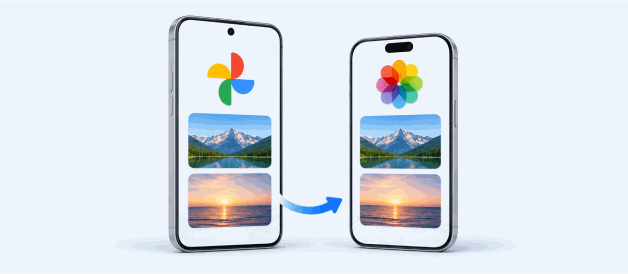
Switching from Android to iPhone
Your old photos are still in Google Photos after switching devices. Bring them into iCloud to access your memories through the Apple Photos app.
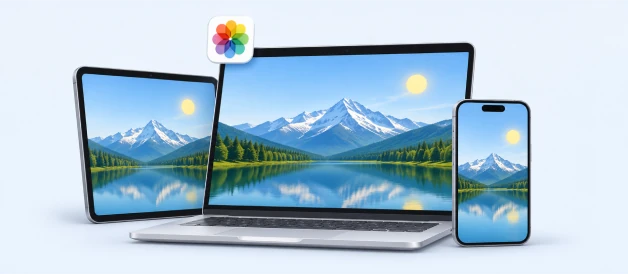
Accessing Photos Across Apple Devices
Photos stored only in Google Photos aren't automatically added to your iCloud library. Sync them to make viewing and managing memories easier across your Apple devices.
Managing Photos Across Two Clouds
Keeping separate Google Photos and iCloud libraries can make photo management repetitive. Bring your selected photos together without manually organizing the same collections across services.
Avoiding Repeated Photo Transfers
One-time transfers may leave newer photos behind. Use MultCloud's supported scheduling options to simplify recurring sync tasks instead of repeatedly starting transfers yourself.
Essential Preparations Before Syncing Google Photos to iCloud
A little preparation can help prevent incomplete transfers, duplicate photos, and
unexpected results.
Check these details before syncing Google Photos to iCloud with MultCloud.
Import Google Photos Content into MultCloud First
Before syncing, use one of the methods below to add media to MultCloud. Otherwise, your folders may appear empty even after your account is connected.
- Access Google Photos in MultCloud and create a new folder, then go to the Google Photos website and select the photos or videos you want to add.
- Open your connected Google Photos account in MultCloud and select the default Albums or Photos folder, click “Upload File” to import photos and videos from local device.
Check Your Available iCloud Storage
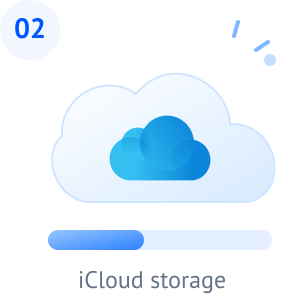
Large photo libraries and videos can take up considerable space. Check your available iCloud storage before starting, especially if you plan to move years of photos at once.
Choose the Right iCloud Destination
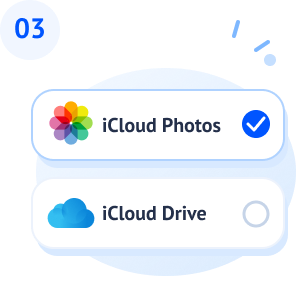
Choose where your photos should go before syncing. Use iCloud Photos for your Apple photo library, or iCloud Drive if you prefer to store them as regular files in folders.

Check Album or Shared Content Access
Some Google Photos content, especially shared albums, may not be accessible in MultCloud. Check which photos and albums are available and confirm your intended content has been imported or selected.

Review Existing Photos in iCloud
If you've already uploaded photos manually or used another transfer method, review your existing library before syncing. Check how your selected sync mode handles files that are already in the destination.
How to Sync Google Photos to iCloud with MultCloud
Syncing Google Photos to iCloud doesn't have to involve manually downloading and uploading files. With MultCloud, you can choose between using the online tool for a quick sync without registering or signing up for a MultCloud account to access more sync options and advanced features.
Best for: Quick or occasional photo syncs
No Account Required • Quick and Simple Setup • One-Time Sync Tasks
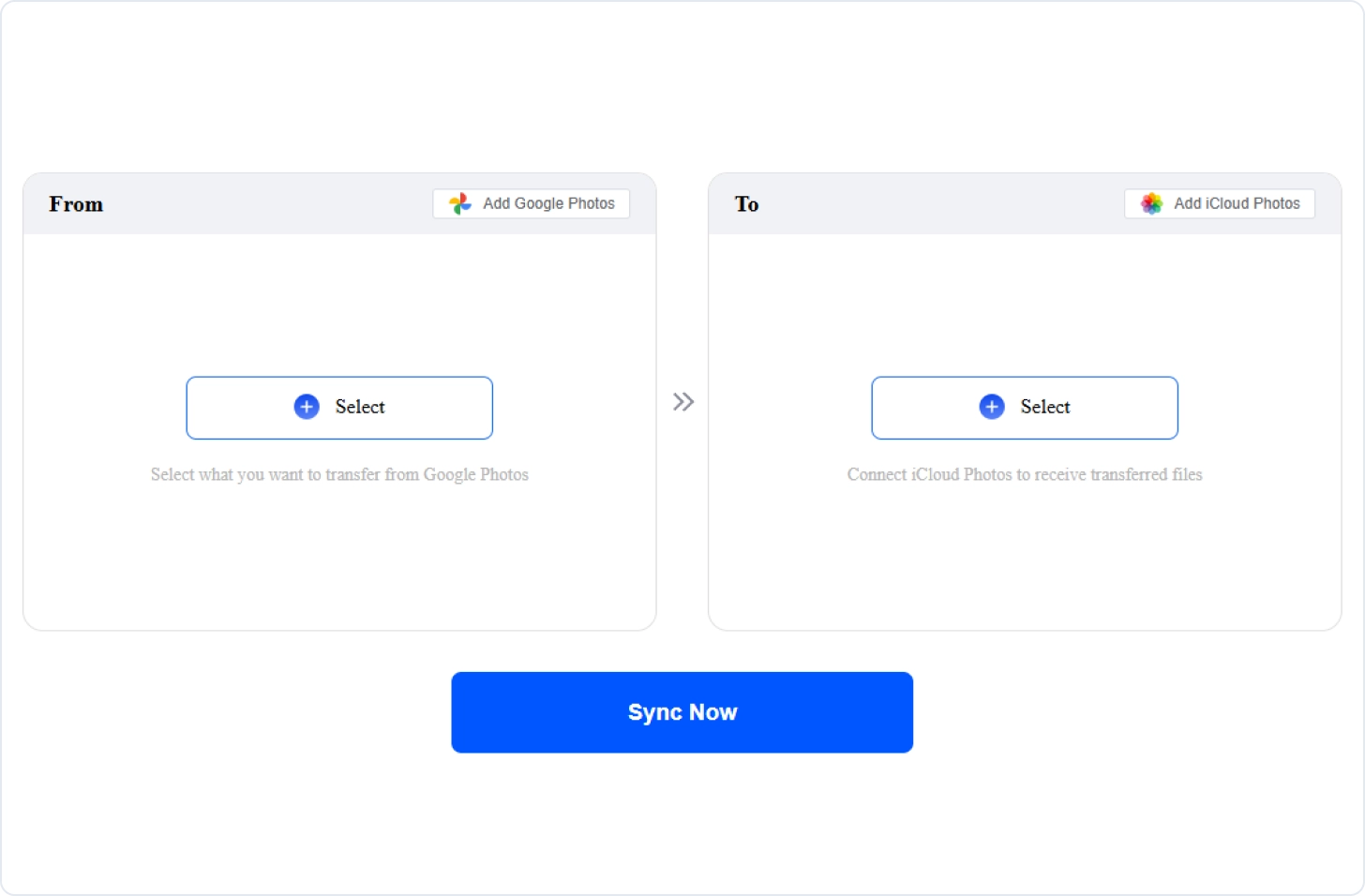
Scroll back to banner, click “Select” or “Add Google Photos” to authorize your Google account, then connect iCloud Photos as the destination with same step. Choose where you want to save your photos and videos.
Click “Add More Photos” and create a new folder. Click the new folder and select the photos and videos you want to sync in Google Photos, then tap “Done” to import them to MultCloud.
Review your selected source and destination, then click “Sync Now” to start the task. MultCloud will handle the cloud-to-cloud sync on its servers in the background.
Best for: Recurring syncs with more control
Advanced Sync Modes • Scheduled Sync Tasks • Task Management & History
Sign up to create a free MultCloud account. Go to “Add Clouds and Emails” and authorize Google Photos and iCloud Photos to connect them to your MultCloud dashboard.
Select your Google Photos account and click “Add More Photos” to create a new folder. Then go to “Cloud Sync”, select the specific folder in Google Photos as the source, and choose iCloud as the destination.
Choose your available sync mode, set up scheduling (daily, weekly or monthly) or other options as needed in “Options” or “Schedule”, and click “Sync Now” to initial the sync task.
What Carries Over from Google Photos to iCloud?
Syncing Google Photos to iCloud can involve more than transferring image and video files. What about their original quality, albums, capture dates, and location details? See what MultCloud preserves or cannot carry over during syncing.
| Content & Properties | Status | Details |
|---|---|---|
 Photos & Videos |
Status:  Preserved |
Details: Common image and video formats, such as JPG, PNG, HEIC, MP4, and MOV, can be transferred when supported by both cloud services. |
 Original Photo Quality |
Status: Preserved |
Details: MultCloud does not intentionally compress photos or videos during syncing. Transferring a file does not restore quality already lost through compression. |
 Photo Capture Dates |
Status: Preserved |
Details: Original shooting dates remain available when stored in the file's metadata. Photos without embedded capture dates may default to the sync time in the destination. |
 GPS & Albums |
Status:  Not Preserved |
Details: GPS location information and original album groupings are not carried over. Photos may still contain location data if it is embedded in their EXIF metadata. |
 EXIF Metadata & Organization |
Status: Preserved |
Details: Embedded EXIF details, such as camera settings and shooting information, remain with the files. MultCloud also preserves the folder structure of the selected content. |
 Live Photos & Motion Photos |
Status: Preserved |
Details: Live Photos and Motion Photos retain their image and motion components during syncing, allowing their original dynamic content to be preserved. |
 Google Photos-specific Features |
Status: Not Preserved |
Details: Favorites, archives, face grouping, Memories, and editable history are tied to Google Photos and are not recreated in iCloud Photos through MultCloud. |
How Does MultCloud Handle Changes During Google Photos to iCloud Sync?
 Sync Duration
Google Photos → iCloud Photos
One-Way Simple Sync


Initial Sync Verification
 File Availability
All 554 verified photos and videos opened or played normally in iCloud Photos, with their content matching the source files. No missing or unreadable files were found.
File Integrity & OrganizationFile names, sizes, capture dates, and supported EXIF metadata remained intact. The original folder structure was preserved, although photos marked as Favorites was not preserved in iCloud Photos.
Subsequent Sync Behavior
 New Photos
15 newly added photos were successfully synced to iCloud, with no missing files.
 Deleted Photos
The 5 photos deleted from the source album were also removed from the destination album in iCloud Photos.
 Edited Photos
10 edited photos were updated in iCloud, reflecting the latest source versions. No additional copies were created during the subsequent sync.
 Existing Files
All 539 unchanged files remained in iCloud without being duplicated or unnecessarily replaced during the next sync.
Notes:
Results are based on a One-Way Simple Sync task from Google Photos to iCloud Photos. File
changes and repeated-sync behavior may differ with other sync modes or account permissions.
Make Google Photos to iCloud Sync Much Easier with MultCloud
From occasional photo transfers to recurring sync tasks, MultCloud gives you more control over how your Google Photos content reaches iCloud, without repeatedly starting from scratch.

Flexible Sync Modes
Choose from different sync modes to control how existing, updated, or deleted photos are handled. Match the sync behavior to your photo management needs.

Scheduled Photo Sync
Schedule recurring sync tasks at daily, weekly, or monthly intervals. Move your selected photos from Google Photos to iCloud without manually starting the same task each time.

Offline Cloud Sync
Once a sync task starts, MultCloud handles the transfer on its servers. You can close your browser or turn off your computer while the task continues running.

Selective Photo Sync
Select the Google Photos content you want to sync instead of transferring your entire library. Organize your selected photos and videos before sending them to iCloud.

Sync Task Management
View task progress and history, manage existing sync tasks, and adjust supported settings from your MultCloud dashboard without creating a new task every time.

Email Notifications
Get email notifications about your Google Photos to iCloud sync task status, so you can stay informed of completion without constantly checking MultCloud.
2 Alternative Ways to Sync Google Photos to iCloud
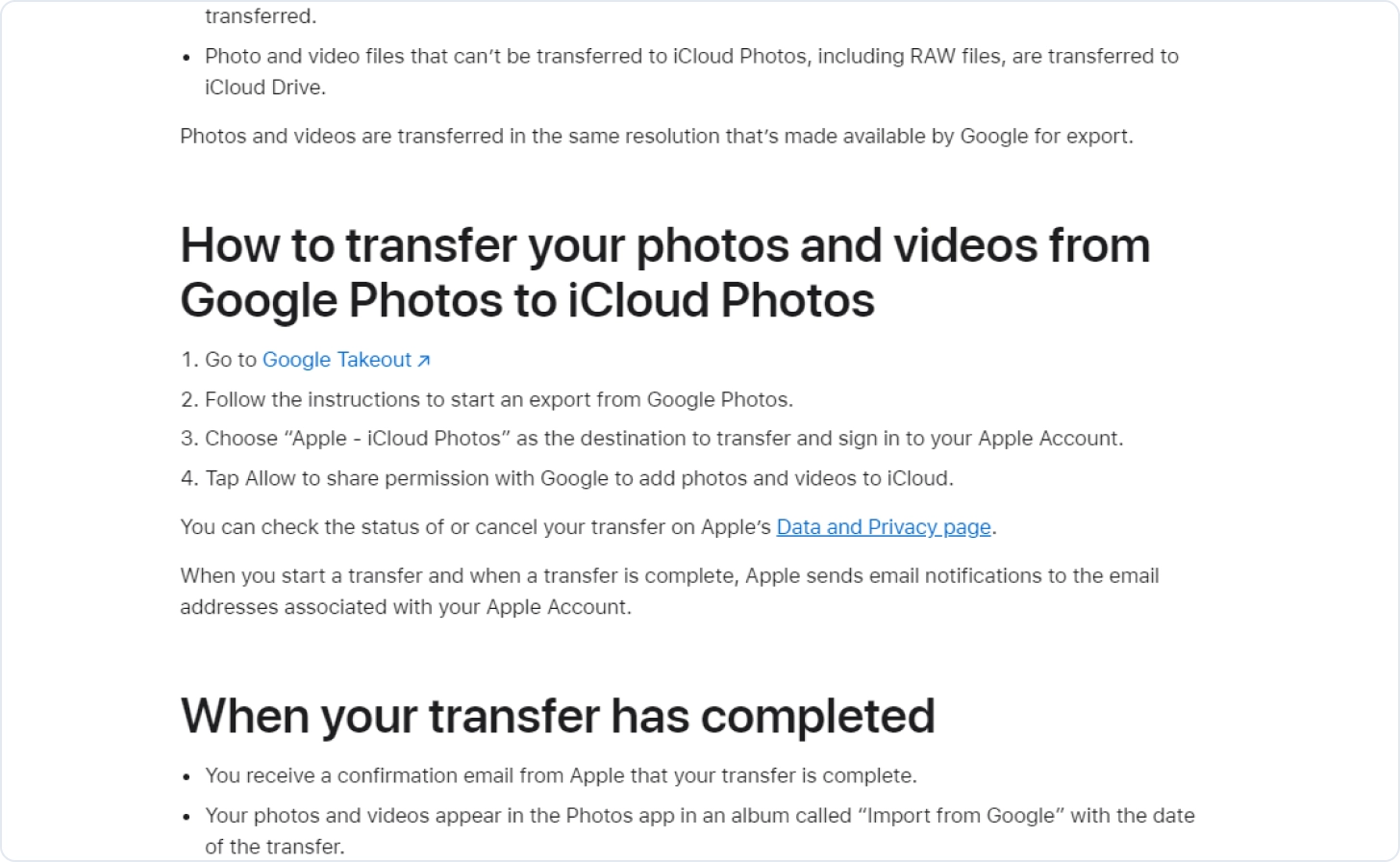
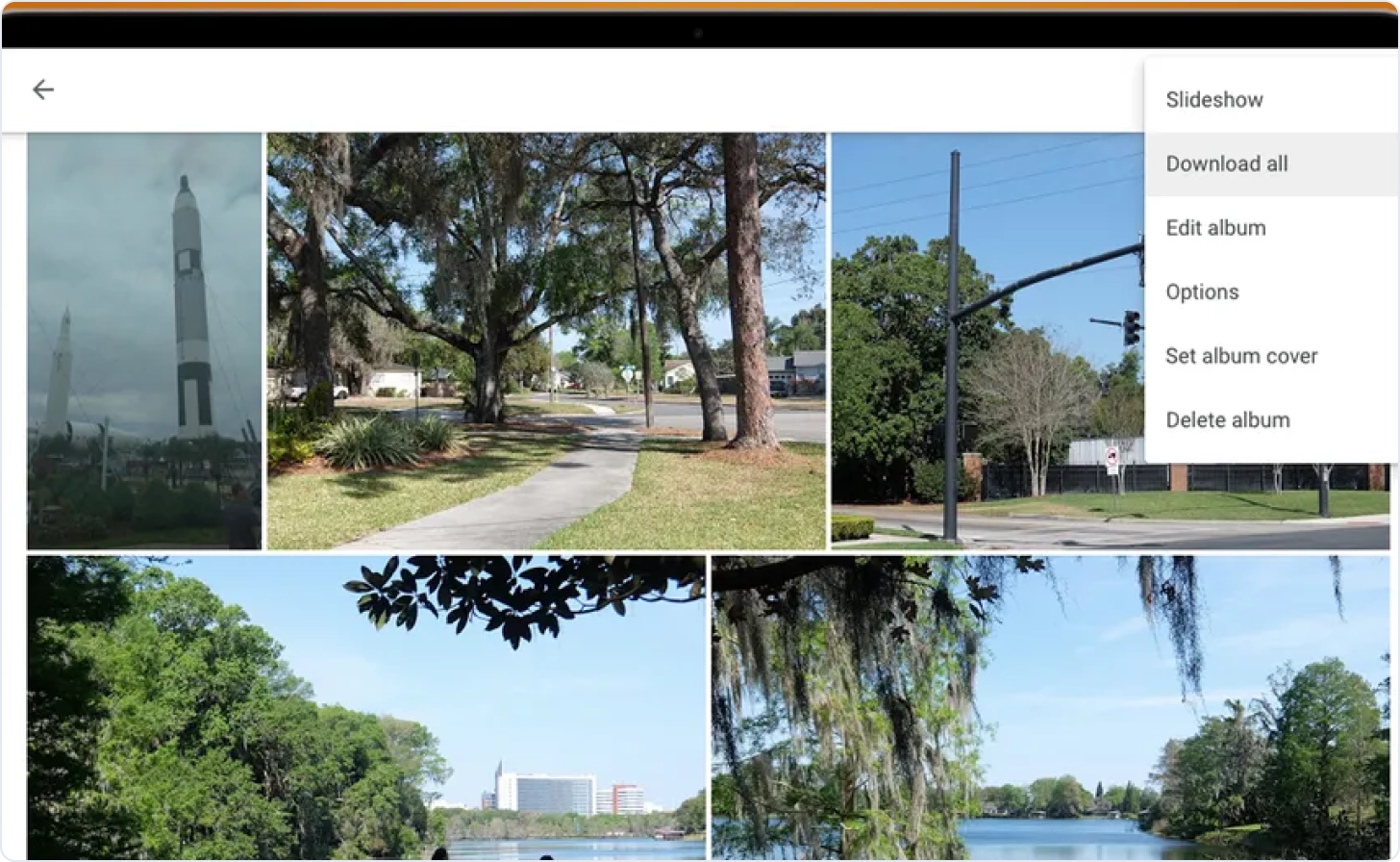
Besides MultCloud, you can use Google Takeout's official direct transfer or manually download and upload photos. Both methods work for one-time transfers, but neither keeps future changes automatically synchronized.
Best for: Moving a large photo library to iCloud without downloading files.
Best for: Transferring a small selection of photos or videos.
MultCloud vs. Google Takeout vs. Manual Upload: Which Method is Best?
Compare MultCloud, Google Takeout, and manual uploads to find the best way to migrate Google Photos to iCloud based on convenience, automation, storage requirements, and ongoing sync needs.
| Comparison |  |
Google Takeout | Manual Upload |
|---|---|---|---|
| Primary Purpose | MultCloud: Cloud-to-Cloud sync tasks | Google Takeout: One-time transfer | Manual Upload: Manual transfer |
| Sync Speed | MultCloud: Fast – Cloud-to-cloud sync (2.4 GB, 3 min 40 sec) | Google Takeout: Slow – Direct transfer (2.4 GB, 7 min 39 sec) | Manual Upload: Slow – Manual download and upload (2.4 GB, 15 min 22 sec) |
| Time & Effort | MultCloud: Quick setup; runs unattended | Google Takeout: One-time request; automatic processing | Manual Upload: Repeated manual operations |
| Scheduled Tasks | MultCloud:  |
Google Takeout:  |
Manual Upload: |
| Sync Modes | MultCloud: 10 sync modes | Google Takeout: Not applicable | Manual Upload: Not applicable |
| File Change Handling | MultCloud: Based on sync settings | Google Takeout: Requires another transfer | Manual Upload: Managed manually |
| Sync Without Local Downloads | MultCloud: |
Google Takeout: |
Manual Upload: |
| Repeated Transfers | MultCloud: Reusable tasks | Google Takeout: New transfer request | Manual Upload: Repeat manually |
| Task Management | MultCloud: Task History & Logs | Google Takeout: Transfer status | Manual Upload: Manual tracking |
| Best For | MultCloud: Large-scale & recurring photo syncs | Google Takeout: Large one-time migrations | Manual Upload: Small, occasional transfers |

Your Photo Privacy and Security Matter
Your photos and videos may contain personal memories and sensitive information. MultCloud uses secure authorization, encrypted transfers, and privacy safeguards to help protect your content throughout the syncing process.

Secure Cloud Authorization
Connect Google Photos securely through OAuth without sharing your Google account password. Your credentials stay protected, and MultCloud only receives the permissions you authorize.

256-Bit AES Encryption
Your photos and videos are protected by SSL/TLS encryption during transfer, helping prevent unauthorized interception as files move between Google Photos and iCloud.

No Permanent File Storage
Synced photos and videos aren't permanently stored on MultCloud's servers. Any temporary file caching required for processing is cleared after the operation is completed.

Revoke Cloud Access Anytime
Disconnect your cloud accounts from MultCloud or revoke supported authorizations whenever needed. This helps you maintain control over future access to your connected photo libraries.
Explore More Cloud Backup, Transfer, and Sync Tools
Need to manage photos across other cloud services? Explore more MultCloud tools to transfer, sync, or back up your photos between Google Photos, iCloud, and other popular cloud storage services.

Transfer Google Photos to OneDrive
Move your Google Photos pictures and videos to OneDrive for easier access, organization, and sharing across Microsoft devices and services.
Start Transfer for Free
Sync Dropbox with OneDrive
Keep files and folders synchronized between Dropbox and OneDrive with flexible sync modes and scheduled tasks, reducing repetitive manual transfers.
Start Sync for Free
Backup iCloud Photos to Google Drive
Create an additional copy of your iCloud photos and videos in Google Drive to protect important memories and keep them accessible outside the Apple ecosystem.
Start Backup for FreeConnect and Manage 40+ Cloud Drives in One Place
MultCloud supports over 40 cloud services, allowing you to connect, manage, and sync files across all your cloud accounts from a single platform.
 Google Drive
 Shared Drive
 Shared with me
 Google Workspace
 Gmail
 OneDrive
 OneDrive for Business
 Outlook
 Dropbox
 Dropbox Business
 iCloud Photos
 MEGA
 Google Photos
 FTP
 box
 box for Business
 pCloud
 Baidu
 SharePoint
 Flickr
 HiDrive
 Yandex
 NAS
 MediaFire
 iCloud Drive
 WebDAV
 4shared
 Icedrive
 Evernote
 Wasabi
 Amazon S3
 ownCloud
 MySQL
 Egnyte
 IDrive e2
 put.io
 ADrive
 SugarSync
 Backblaze
 WEB.DE
 CloudMe
 MyDrive
Didn't find your cloud service? Be free to contact: support@multcloud.com
FAQs About Syncing Google Photos to iCloud
Yes. MultCloud offers 5 GB of free data traffic per month for cloud syncing and transfers. You can also try the online sync tool without registration, which includes 1 GB of transfer traffic. If you need more traffic or advanced features, consider upgrading to a paid plan.
Yes. You can connect multiple Google Photos accounts to MultCloud and create separate sync tasks targeting the same iCloud account. Make sure to choose the appropriate destination for each account to keep your photo collections organized.
Usually, syncing copies your selected photos and videos to iCloud while keeping the originals in Google Photos, so your Google storage usage stays the same. However, if you choose Move Sync, the source files are deleted from Google Photos after they have been synced successfully. In either case, the copies stored in iCloud count toward your iCloud storage quota.
If your iCloud storage becomes full, MultCloud may be unable to transfer the remaining photos and videos. Files already synced should remain in iCloud. Free up storage on iCloud Photos or upgrade your iCloud plan before retrying the incomplete task.
Yes. MultCloud is web-based, so you can access it through a browser on an Android phone or Windows PC. Once you configure and start a cloud sync task, the transfer runs on MultCloud's servers without requiring your device to stay online.
New photos aren't automatically imported into MultCloud when they appear in Google Photos. Open your connected Google Photos account in MultCloud, use "Add More Photos" to select the new content, and include it in your sync task.
Yes. You can connect another iCloud account to MultCloud and create a new sync task with the new iCloud account as destination. Previously synced files in the original iCloud account won't be automatically moved to the new one.
Yes, provided the photos are successfully synced to iCloud Photos rather than iCloud Drive. Sign in to the same Apple Account and enable iCloud Photos on your iPhone, iPad, or Mac to access them through the Apple Photos app.

Make Google Photos to iCloud Sync Effortless Now!
The Go-to Choice for Cloud-to-Cloud Backup, Transfer or Sync Files Across Clouds.
Get Started for Free