Unify Your Workspace
Keep files alongside Gmail, Docs, Sheets, and Meet to reduce switching between platforms.

Effortlessly migrate your files and folders from Box to Google Drive directly
in your browser.
No Downloads. No Uploads. No Sign Up. Just Cloud-to-Cloud.
Sign up for 40+ cloud transfers & 5GB free monthly.


Keep files alongside Gmail, Docs, Sheets, and Meet to reduce switching between platforms.

Work where your colleagues and clients already share, edit, and review files.

Bring scattered Box and Google Drive content into one place for easier access and management.

Transfer and verify important files before your Box subscription ends or your account closes.

Copy selected files to Google Drive for backup or another team without replacing Box.
Transfer files from Box to Google Drive instantly—just authorize both cloud accounts and get started.
 Only Cloud transfer
 Only Box to Google Drive
 No Cloud backup or sync
No advanced options
No Cloud backup or sync
No advanced options

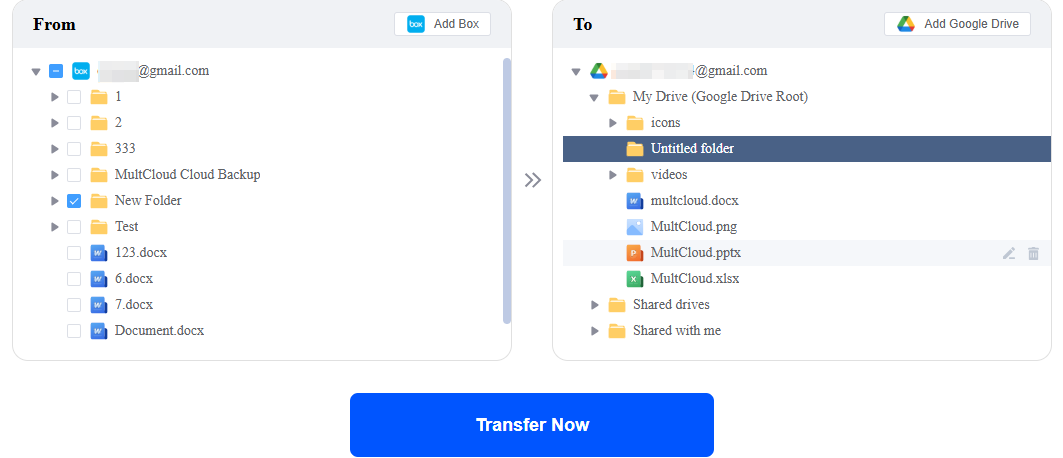
Connect Box and Google Drive, unlock advanced features, and transfer more data.
Cloud transfer, sync &
backup
40+ clouds
Scheduled tasks
Email alerts
Offline Execution
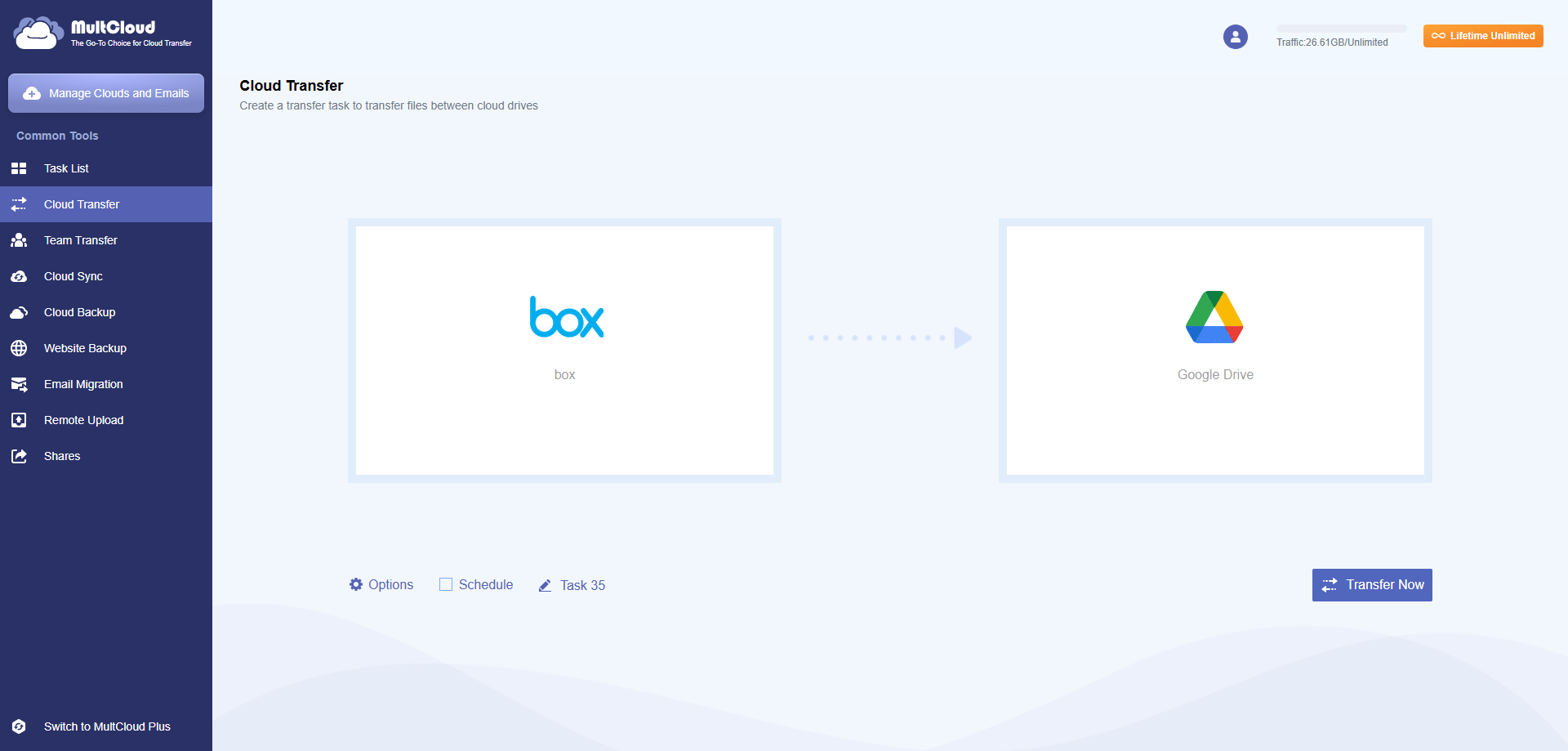
Not sure yet? Try Quick Transfer first and upgrade anytime whenever necessary.
Create a free MultCloud account to access scheduled transfers, file filters, background processing, and other advanced settings.

Transfer large folders without occupying space on your computer or relying on its storage capacity.

Create and manage transfers through a visual dashboard instead of configuring Rclone remotes and commands.

Schedule transfers for a specific time or set them to run daily, weekly, or monthly—ideal for off-peak migrations and recurring tasks.

Include or exclude files based on their extensions, making it easier to transfer only the content you need.

Once the task begins, MultCloud continues the transfer in the cloud. You can close the browser or turn off your device without interrupting the process.

Choose how duplicate files, modified files, and existing destination content should be handled to keep your Google Drive data organized.

Receive an email when your Box to Google Drive transfer is completed, so you can track the result without constantly checking its progress.

Review processed data, identify failed files and causes, and rerun transfer tasks from the Task List.
With MultCloud, your files and folders can move automatically, but permissions and sharing need a final review.




Selected files are transferred from Box to Google Drive. Check the Task List and transfer log to confirm completion.

After the transfer, the files remain organized under the same folder hierarchy in Google Drive.

Box roles do not map one-to-one to Google Drive. Reassign access based on the destination’s rules.

Old Box links do not become Google Drive links. Replace links in bookmarks, documents, and workflows.
Don’t want to authorize a third-party migration service or only need to transfer a small number of files? The following manual methods are worth trying.
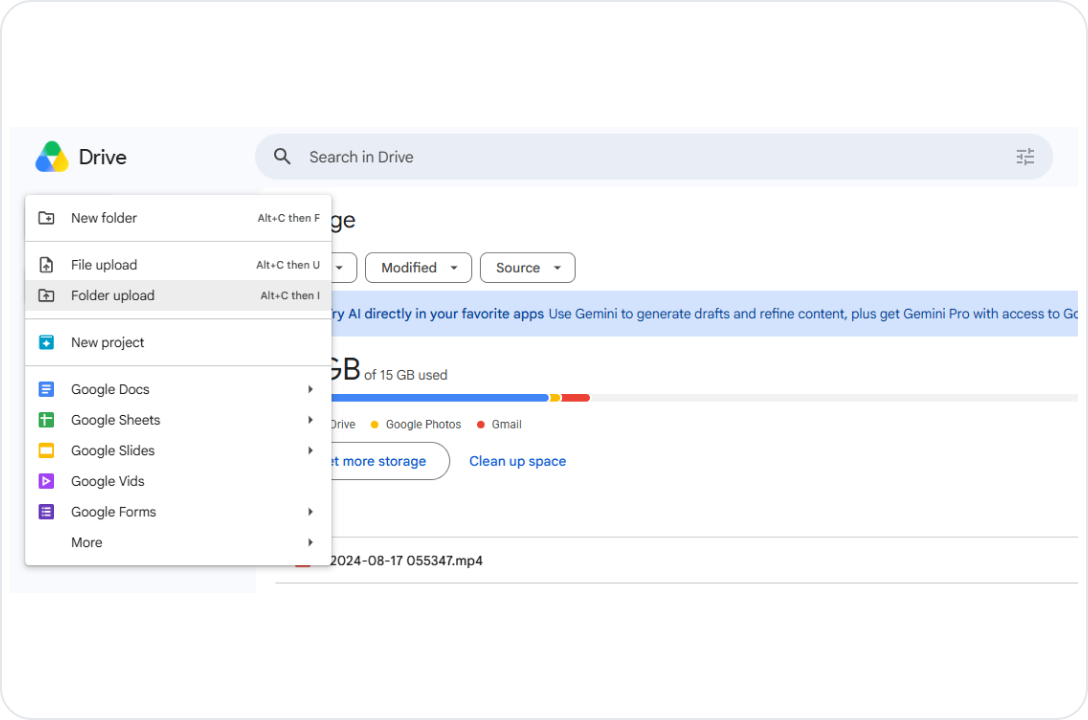
This is the simplest and safest method for transferring a few files or folders.
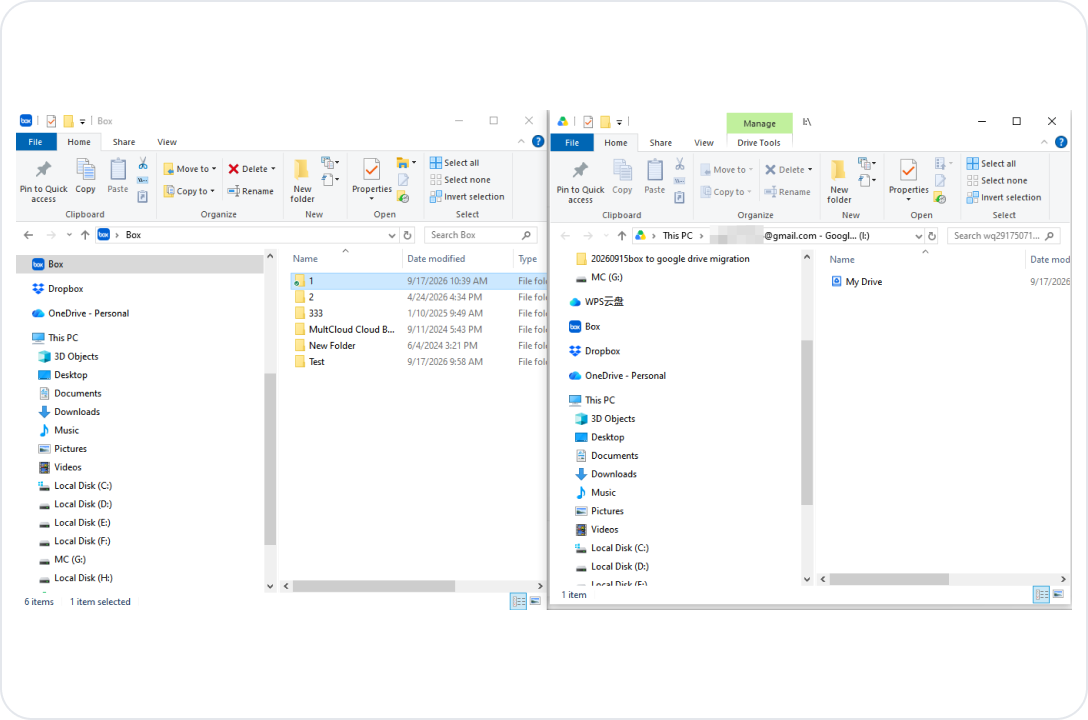
You can install both Box Drive and Google Drive for desktop, and then copy files using Windows File Explorer or macOS Finder.
Note: Large transfers via desktop apps consume heavy local cache disk space, causing sync to freeze.
Test data: 10 GB in total, including images, videos, PDFs, DOCX documents, and other file types.
 MultCloud
Fastest
MultCloud
Fastest
Approximately 32.2 MB/s
Approximately 3.3 MB/s
Approximately 4.7 MB/s (Including sync with drive.google.com)
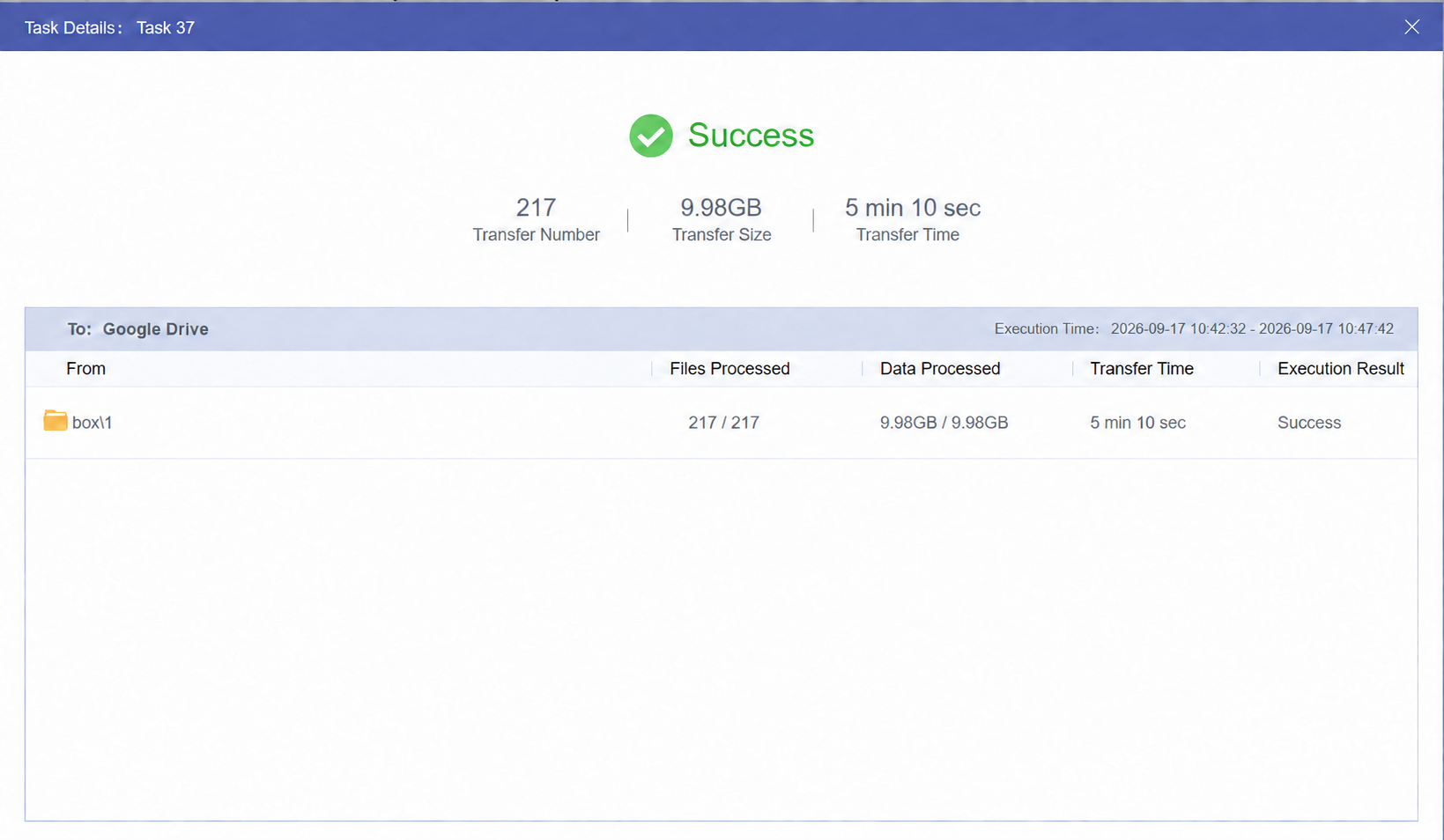
MultCloud is 6.8× faster than app drag-and-drop and 9.8× faster than browser transfer.
Data transfers are protected using SSL with 256-bit AES encryption to reduce the risk of interception or tampering.

It connects to Box and Google Drive through OAuth, so MultCloud does not receive your cloud account passwords.

It follows GDPR-related privacy requirements and processes only the personal data needed for specific purposes.

It does not permanently store transferred files. Some content may be cached temporarily and removed after the operation finishes.

You can remove connected cloud accounts and revoke MultCloud’s authorization at any time. You can also permanently delete your MultCloud account and associated account information.
Moving an entire organization involves multiple users, account mapping, and large-scale data transfers. Simplify with MultCloud’s Team Transfer.
 Auto-MatchCSV MappingBulk MigrationScheduled Transfers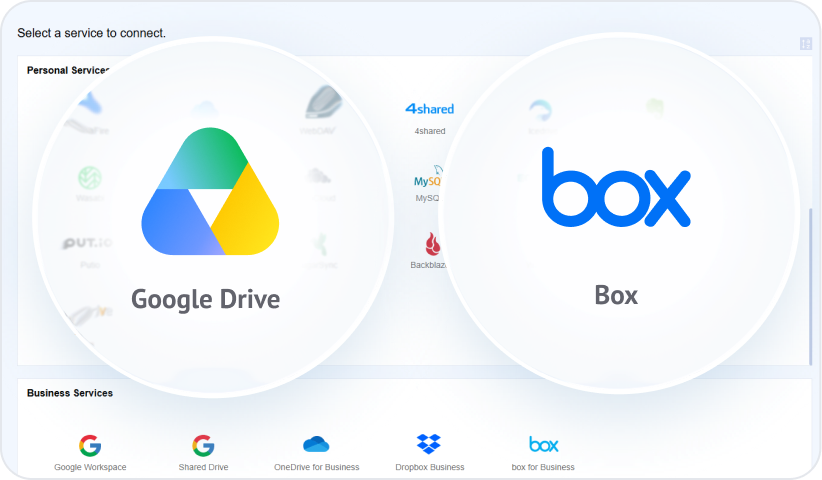
Go to “Add Clouds and Emails”, select Box for Business, and authorize the administrator account. Repeat the process for Google Workspace.
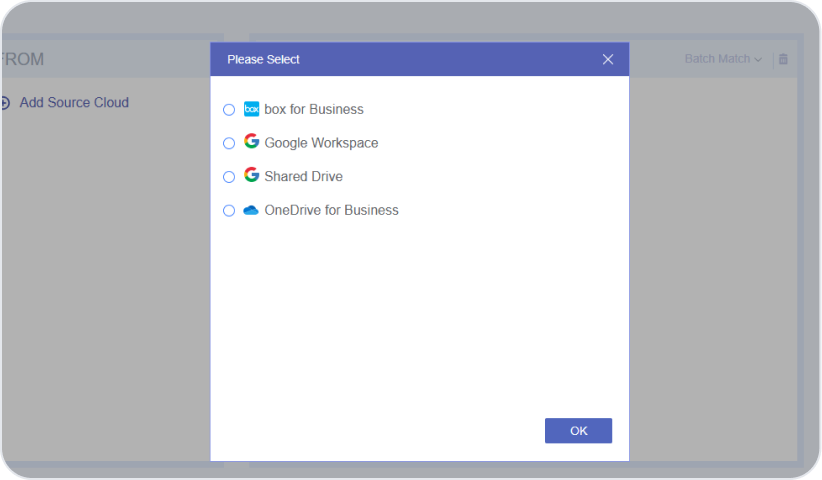
Open “Team Transfer”, select Box for Business as the source and Google Workspace as the destination, and then pair the user accounts.
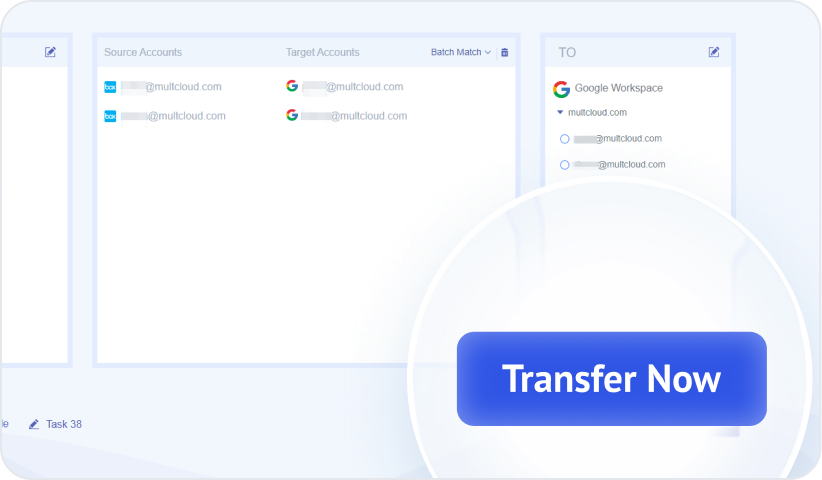
Configure file filters, overwrite rules, schedules, or email notifications if needed. Click “Transfer Now” and monitor the results from the Task List.

Move Dropbox files and folders directly to Google Drive without downloading them first. Keep the folder structure intact while the transfer runs in the cloud.

Transfer files and folders between Google Drive accounts in one streamlined task. Preserve the original folder organization while the process runs in the background.

Move OneDrive files and folders directly to Google Drive without using local storage. Maintain the existing folder structure with an automated cloud-to-cloud transfer.
 Google Drive
 Google Workspace
 OneDrive
 OneDrive for Business
 SharePoint
 Dropbox
 Dropbox Business
 MEGA
MEGA
 Google Photos
 iCloud Photos
 FTP
FTP
 box
box
 box for Business
 pCloud
 Baidu
Baidu
 Flickr
 HiDrive
 Yandex
 NAS
NAS
 WebDAV
 MediaFire
 iCloud Drive
 WEB.DE
 Evernote
 Amazon S3
 Wasabi
 ownCloud
 MySQL
MySQL
 Egnyte
 put.io
 ADrive
 SugarSync
 Backblaze
 CloudMe
 MyDrive
 Cubby
Cubby
 US
US
I received 5GB of free transfer traffic when I signed up, which was a welcome bonus. Moving my photos and videos from Google Photos to another cloud was straightforward and went smoothly. In places where mobile data is expensive, a service like MultCloud can make cloud-to-cloud transfers much more practical. — Gavin
 Useful
 Share
Share
 US
USOur Box Business to Google Workspace migration stayed on track from start to finish. Whenever we encountered a problem, the support team provided prompt and practical assistance. --Theo Martin
Useful
Share
USMultCloud handled our 90GB Box-to-Google Drive migration in the background, allowing us to continue working without interruption. An excellent cloud to cloud transfer tool that i would like to recommended to my friends. — Jordan Lee
Useful
Share
USI changed email addresses and needed to moving one cloud data to another cloud and Multcloud site helped me do this. My daughter who is a schoolteacher uses your Multcloud all the time. She guided me through the steps and we were successful. Thank you Excellent and easy to use. I’ll leave similar 5 star on Google to recommend you to others.
Useful
Share
FRThe straightforward experience. Doesn't require much configuration, options menu is well organized and non confusing. Technically efficient. It doesnt lag, it copies well files, with its directory and subdirectory structure. All of the options and buttons are placed in order through the screen and accessible.
Useful
Share
UKThe MultCloud product is really outstanding and really does do exactly what it says "on the tin"... I have been dreading migrating TBs of data from Dropbox Business to Google Workspace and MultCloud made it super easy and painless. It even enabled me to preserve file "created on" and "modified on" dates...AND - their support is second to none. Really outstanding. Thank you.
Useful
Share


The Go-to Choice for Cloud-to-Cloud Transfer, Sync or Back up Files Across Clouds.
Get Started for Free