

What “Merge All Duplicates” Does in iCloud Photos
iCloud Photos keeps one photo library in sync across devices signed in to the same Apple Account with iCloud Photos enabled. The duplicate-finding and merge controls live in Apple Photos on a supported device, rather than in a separate iCloud.com bulk-merge tool. Once changes sync, a merge made in Photos can be reflected on the other devices using that library.

Apple Photos groups duplicates it recognizes. It does not promise to identify every near-duplicate, such as two similar shots taken seconds apart, edited copies, or images with different crops. Therefore, “merge all” means merge every group currently shown in Duplicates, after you have reviewed the selection.
Before confirming a large batch, make sure the library has finished syncing and consider keeping an independent copy of irreplaceable photos. Merged copies are moved to Recently Deleted, where Apple says they remain recoverable for 30 days before permanent removal. Avoid emptying that collection until you have checked the merged library.
What you can get from merging duplicate photos?
- Free up storage space: Eliminating duplicates can significantly reduce the size of your photo library, especially if you have a large collection of photos. This can be particularly beneficial for users with limited storage space on their devices.
- Improve organization: A clutter-free library is easier to navigate and search. When you remove duplicates, it becomes simpler to find the photos you need quickly and efficiently.
- Enhance photo management: Merging duplicates simplifies the process of backing up and sharing photos. You can avoid transferring unnecessary files, saving time and bandwidth.
How to Merge All Duplicates on iPhone or iPad
The iPhone and iPad workflow is similar. Menu labels can vary slightly by system version, but the Duplicates collection is under Utilities in Photos when the app has identified duplicate items.
Step 1. Open Photos and find Duplicates.
On iPhone, tap Collections, scroll to Utilities, then tap Duplicates. On iPad, open Photos and locate Duplicates under Utilities. If you do not see it, Photos may not have found duplicates yet or may still be processing the library.
Step 1. Open Photos and find Duplicates.
On iPhone, tap Collections, scroll to Utilities, then tap Duplicates. On iPad, open Photos and locate Duplicates under Utilities. If you do not see it, Photos may not have found duplicates yet or may still be processing the library.
Step 2. Review the groups before selecting them.
Open several groups and check that the items are genuinely redundant. Keep in mind that an edited or lower-resolution copy may have personal value even when Photos groups it with another item.
Step 3. Select every detected group.
Tap Select, then Select All. If you only want to merge some groups, select those groups individually instead. The selection covers the groups currently listed; it does not force a new scan or identify every visually similar image.
Step 4. Confirm the merge and check Recently Deleted.
Tap Merge and confirm the number of items when prompted. After Photos completes the action, revisit the library and Recently Deleted. If iCloud Photos is enabled, allow time for the change to sync to other devices before judging whether they show the same library state.
- Note: During merging duplicates, the system will evaluate the quality of each photo and retain the one with the best clarity, resolution, and overall appeal, so you don't need to worry about losing the finest version.
How to Merge Duplicates on a Mac
On Mac, Photos also presents a Duplicates collection after it identifies matches. This can be useful for reviewing groups on a larger display before applying a bulk action.
Step 1. Open Photos and select Duplicates in the sidebar.
Wait if the app indicates that it is still finding duplicates. Detection may take time, especially for a large library; keep the Mac available and connected to power and network while Photos processes it.
Step 2. Inspect the suggested matches and choose the groups.
Review the pairs or groups, then use the selection controls to select the duplicates you want to merge. Choose all only after checking that the displayed groups are appropriate for your library.
Step 3. Choose Merge and verify the library.
Confirm the merge in Photos. Apple says one original appears where the selected duplicates were located in the library. Check key images, albums, and Recently Deleted, then allow iCloud Photos to synchronize the changes to your other devices.
Why Duplicates May Be Missing or Incomplete
A missing Duplicates collection does not necessarily mean iCloud Photos has a problem. The collection may be absent when Photos has not found duplicate items, or it may not appear until the app has finished analyzing the library. Keep the device connected and give Photos time to process newly added content.
Also check that you are viewing the expected Photos library and are signed in to the Apple Account that holds the iCloud Photos library. On Mac, confirm the correct library is open. If devices show different results, compare their sync status and allow pending uploads or downloads to finish before repeating a merge.
If Photos does not group two images, you can inspect them manually and delete one only when you are sure it is unwanted. Manual deletion is not the same as Merge: it does not combine the best quality and relevant data from a duplicate group. Since iCloud Photos synchronizes deletions, removing an item on one device can remove it from the other devices using the same account.
What to Check After a Bulk Merge
Open representative photos and videos from the merged groups, check important albums, and confirm that the expected item remains in the library. Review Recently Deleted to understand which copies were moved there. If you need a removed copy back, recover it before the 30-day window expires.
A completed tap or a disappearing group is not a substitute for checking the library. For important collections, compare a few dates, videos, edits, and album placements across devices after syncing. Do not permanently clear Recently Deleted until you are satisfied with the result.
MultCloud does not identify or merge duplicate photos. For a separate copy of selected iCloud Photos items to Google Photos, the optional procedure below explains the scope and checks; the copy leaves source items in iCloud Photos, but does not deduplicate the destination.
Copy Selected iCloud Photos to Google Photos with Cloud Explorer
Use this optional workflow only if you want a separate cloud copy after cleaning up duplicates in Apple Photos. It copies selected items from iCloud Photos to Google Photos; it does not merge or remove duplicates. You need access to both accounts and should choose the exact source folder and destination before copying. Open Cloud Explorer in MultCloud and create or sign in to your account to begin.
Step 1. Add and authorize the source and destination clouds.
In Cloud Explorer, add iCloud Photos and Google Photos if they are not already connected. Complete each provider’s authorization flow and confirm both services appear in the cloud list. A connection only grants access; it does not copy any photos.

Step 2. Open iCloud Photos and select the source items.
Choose iCloud Photos in the left cloud list, open the specific folder or album you intend to copy, and select the needed files. Avoid selecting the root when a specific folder is available. Review the selected items before moving to the destination.
Step 3. Choose Google Photos and the destination folder.
Use Copy to for the selected source items, choose Google Photos as the target cloud, and select the destination folder. Confirm the direction is iCloud Photos → Google Photos. Copying keeps the source in place; do not choose a move or delete-source action for this separate copy.
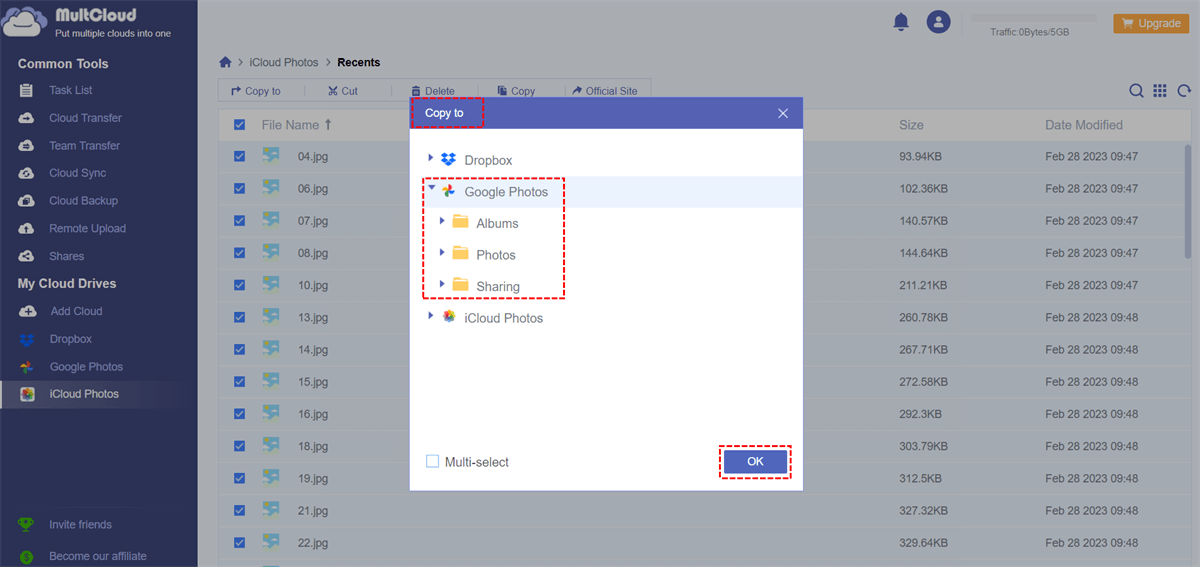
Step 4. Start the copy and verify the result.
Start the copy, then check the task status in MultCloud and open the selected destination in Google Photos to confirm the expected items are present. A task status alone does not verify every file or detail. Compare important photos and counts where practical.

- Cloud Transfer: MultCloud can transfer files from one cloud service to another directly without downloading and re-uploading.
- Cloud Sync: With MultCloud, you can easily sync two folders between different cloud services in real-time.
- Cloud Backup: You can backup and restore data between different cloud services automatically.
- Instagram Downloader: MultCloud can help you download Instagram videos, photos, reels and stories to local device or remotely upload them to your clouds.
- Email Migration: You can directly back up and save Gmail emails as PDFs to your computer or cloud drive in bulk.
- Manage all cloud accounts in one place: Connect all your clouds to MultCloud and you'll find it so easy to access and manage multiple cloud storage files with a single login.
Summary
To merge all duplicates currently detected in iCloud Photos, open Duplicates in Photos on iPhone, iPad, or Mac, review the groups, select all, and confirm Merge. Apple keeps one item using the highest image quality and relevant data and moves the other copies to Recently Deleted. Allow syncing to finish and verify important items before permanently deleting anything.
FAQ
Can I merge all iCloud Photos duplicates on iCloud.com?
No. Use the Photos app on iPhone, iPad, or Mac to review and merge groups in Duplicates. iCloud.com lets you view and manage photos, but Apple’s duplicate-merge instructions direct users to Photos on a device. After merging, iCloud Photos can sync the library change to other devices signed in to the same Apple Account.
Does Select All find every duplicate in my library?
No. Select All selects the duplicate groups Photos has already identified and displayed; it does not guarantee that every repeated or similar-looking image was detected. Photos may need time to analyze a library, and near-duplicates such as different edits or similar shots may not be grouped. Review the displayed sets before confirming a batch merge.
What happens to the copies after I merge duplicates?
Photos keeps one item from each merged group, combining the highest image quality and relevant data, and moves the other copies to Recently Deleted. Check the retained item and the Recently Deleted collection after the merge. Apple says deleted photos remain recoverable there for 30 days, so avoid permanently clearing them before reviewing the result.
Will merging duplicates on one device affect my other devices?
Yes, when iCloud Photos is enabled and the devices use the same Apple Account, library changes sync across those devices. Wait for syncing to complete before checking the outcome elsewhere. If another device still shows the old state, confirm its account and iCloud Photos settings, then check whether uploads or downloads are still pending.
Why is the Duplicates album missing?
The Duplicates collection may not appear if Photos has not identified duplicates, and a newly added or large library may still be processing. Leave the device available and connected while Photos analyzes the library, then check again. On Mac, also confirm that the intended Photos library is open and that syncing has settled.
MultCloud Supports Clouds
-
Google Drive
-
Google Workspace
-
OneDrive
-
OneDrive for Business
-
SharePoint
-
Dropbox
-
Dropbox Business
-
MEGA
-
Google Photos
-
iCloud Photos
-
FTP
-
box
-
box for Business
-
pCloud
-
Baidu
-
Flickr
-
HiDrive
-
Yandex
-
NAS
-
WebDAV
-
MediaFire
-
iCloud Drive
-
WEB.DE
-
Evernote
-
Amazon S3
-
Wasabi
-
ownCloud
-
MySQL
-
Egnyte
-
Putio
-
ADrive
-
SugarSync
-
Backblaze
-
CloudMe
-
MyDrive
-
Cubby