

Introduction
OneDrive claims that there is not enough space to sync or upload my files when there is enough space. I've tried to unlink and re-link my desktop app, I've tried to access via the web browser and the outcome is the same.
- Question from techcommunity.microsoft.com
When attempting to sync files between OneDrive and SharePoint, you may receive an "There's not enough space in your OneDrive for this file" error. This not only disrupts your workflow but also prevents you from saving new files to OneDrive.
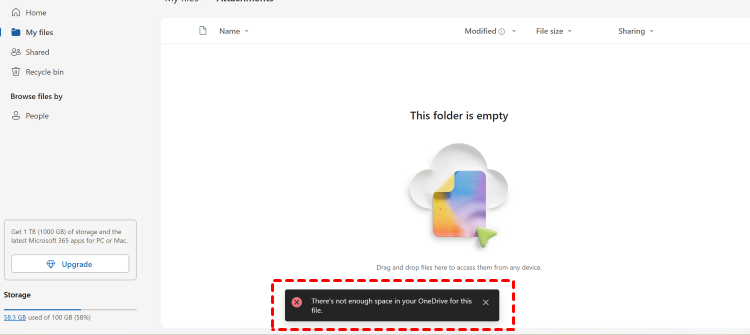
Importantly, this error does not always indicate that your OneDrive account is full. In some cases, it can also occur even when you have ample cloud storage available. This guide covers practical methods to restore smooth syncing between OneDrive and SharePoint.
Why Does OneDrive Say "Not Enough Free Space for Files"?
The "not enough free space" error can be triggered by several different factors. Understanding the root cause can help you choose the most effective fix. Listed below are some leading causes:
Insufficient OneDrive storage quota: If your OneDrive account has reached its storage limit, new files cannot be uploaded or synchronized until space is freed up or additional storage is purchased.
Lack of local disk space: Even when plenty of cloud storage is available, OneDrive still requires free space on your computer to process and synchronize files. A nearly full system drive can cause sync operations to fail.
Large SharePoint libraries: When syncing a SharePoint document library containing a large number of files, OneDrive may struggle to process the data efficiently, resulting in storage-related sync errors.
Files On-Demand configuration issues: If Files On-Demand is disabled, OneDrive may attempt to download all files locally, quickly consuming available disk space and triggering the error.
Sync cache or client problems: Corrupted OneDrive cache files, outdated sync clients, or temporary synchronization glitches can sometimes generate incorrect free-space warnings.
Account or permission issues: In some cases, SharePoint storage quotas, restricted permissions, or account synchronization problems may prevent files from syncing even when sufficient storage appears to be available.
How to Fix OneDrive SharePoint Sync Not Enough Free Space for Files Error
The good news is that most of these issues can be resolved without deleting important files. In this section, we'll walk through several proven methods to fix the OneDrive SharePoint sync not enough free space for files error and restore normal synchronization.
Fix 1. Enable "Files On-Demand"
Files On-Demand is designed to reduce local storage usage by keeping files online until you need them. When this feature is disabled, OneDrive may attempt to download every file from a SharePoint library to your computer, quickly consuming disk space and triggering sync errors. Enabling it allows OneDrive to sync file placeholders instead of full copies, which is often enough to eliminate the "not enough free space" message.
Step 1. Click the OneDrive icon in the Windows taskbar and select "Settings".
Step 2. Switch to the "Sync and backup" tab and click "Advanced settings".
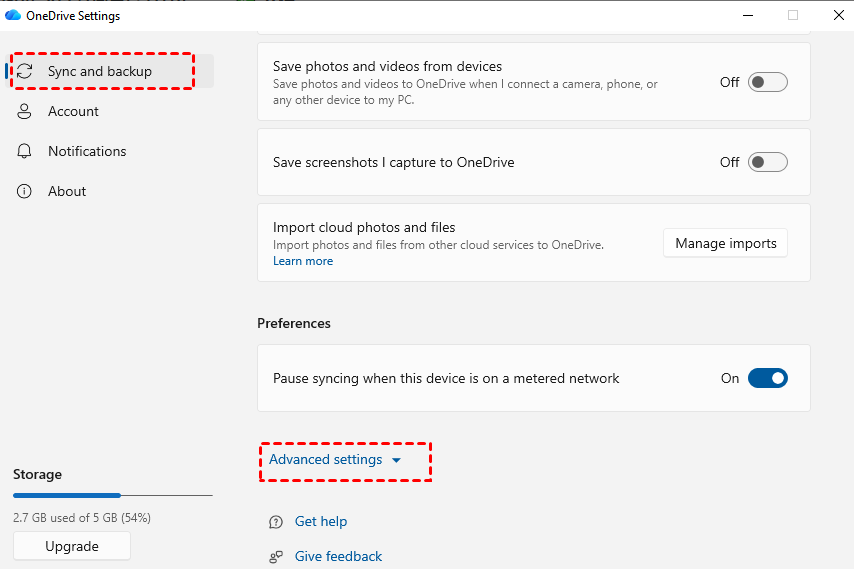
Step 3. Locate Files On-Demand and click "Free up disk space". The system automatically converts synced files to online-only status to instantly free up local disk space.
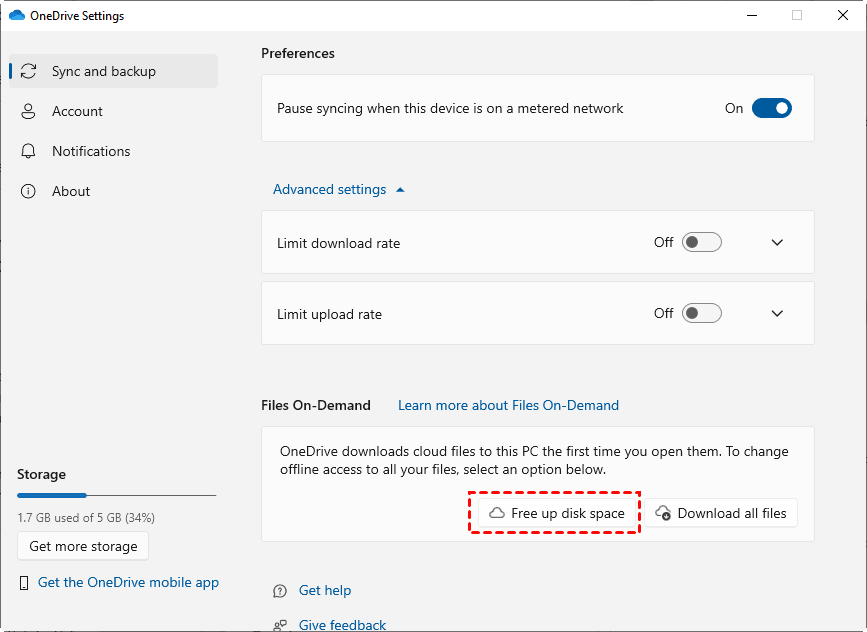
Step 4. Restart OneDrive and try again to sync the SharePoint library.
Fix 2. Check Local Drive Space
Even if your OneDrive account has plenty of available cloud storage, OneDrive still requires temporary local storage to process files during synchronization. If the drive containing your OneDrive folder is nearly full, syncing may fail. Checking and freeing local disk space is one of the quickest ways to resolve the error on your device.
- ★Tips:
- When syncing large files or compressed archives, OneDrive first creates temporary data chunks locally in %LOCALAPPDATA%\Microsoft\OneDrive\settings or the cache folder. Even if you have 1TB of cloud storage available, the OneDrive not enough free spacce error will pop up immediately if the free space on drive C is smaller than the size of that single file.
Step 1. Open File Explorer and select "This PC".
Step 2. Check the available free space on the drive where OneDrive is installed.
Step 3. Delete unnecessary files, empty the Recycle Bin, or move large files to another drive.
Step 4. Restart OneDrive and attempt the sync again.
Fix 3. Check SharePoint Storage Quota
In some environments, the issue originates from SharePoint rather than OneDrive. A SharePoint site or document library may have reached its storage allocation limit, preventing additional files from syncing. Verifying the available SharePoint storage can help determine whether the problem is caused by organizational storage restrictions instead of your personal OneDrive quota.
Step 1. Sign in to the SharePoint admin center.
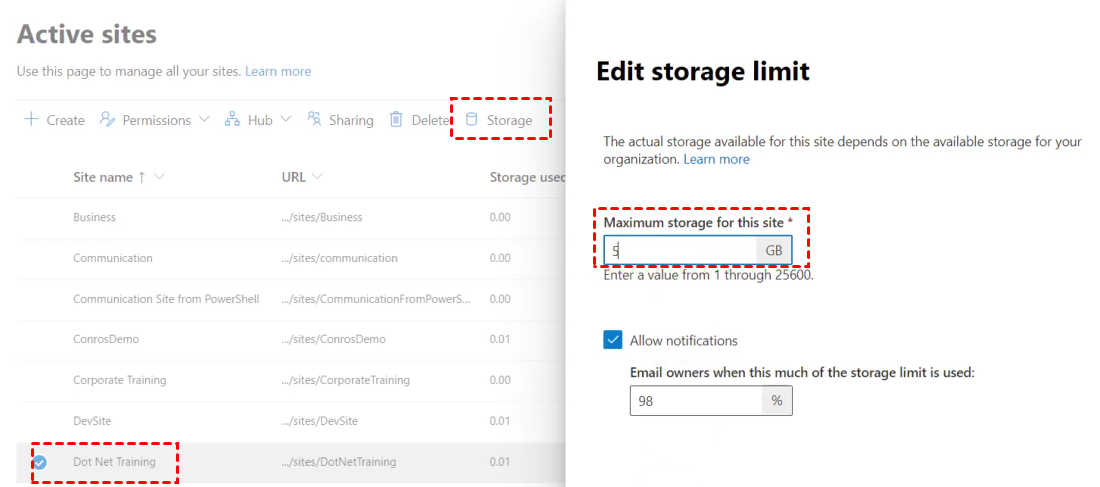
Step 2. Navigate to "Active sites" and select the affected site. Change the "Site storage limits" to "Manual" and save the changes.
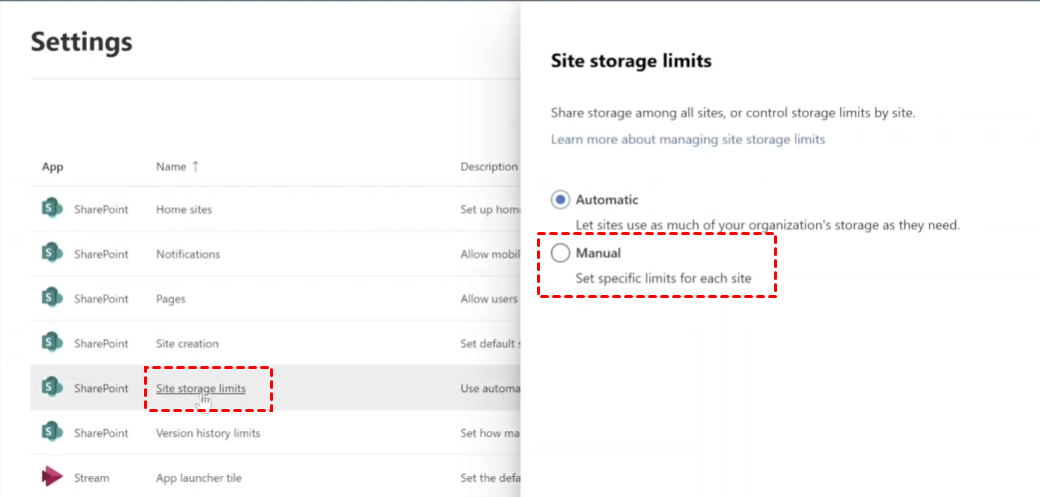
Step 3. Then, select the affected site and click "Storage" at the top of menu, increase the "Maximum storage of this site" and save the change.
Fix 4. Clear Stuck Cache
A corrupted sync cache can cause OneDrive to display incorrect storage warnings even when sufficient space is available. Resetting the sync cache forces OneDrive to rebuild its local database and establish a fresh connection with SharePoint. This can resolve many unexplained sync issues without affecting files stored in the cloud.
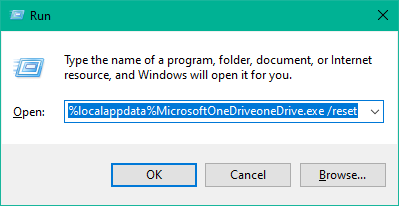
Step 1. Press "Win" + "R" to open the Run dialog. Enter the following command and press "Enter":
%localappdata%\Microsoft\OneDrive\onedrive.exe /reset
Step 2. Wait for OneDrive to restart automatically.
Step 3. Sign in again if prompted and verify whether syncing resumes normally.
Fix 5. Choose Specific Folder to Sync
Syncing an entire SharePoint library may overwhelm devices with limited storage or resources. Instead of downloading everything, you can configure OneDrive to synchronize only the folders you actively use. This reduces storage consumption, improves sync performance, and minimizes the likelihood of encountering OneDrive "not enough free space" errors.
Step 1. Open OneDrive Settings, select "Account" and click "Choose folders".
Step 2. Uncheck folders that do not need to be synchronized locally.
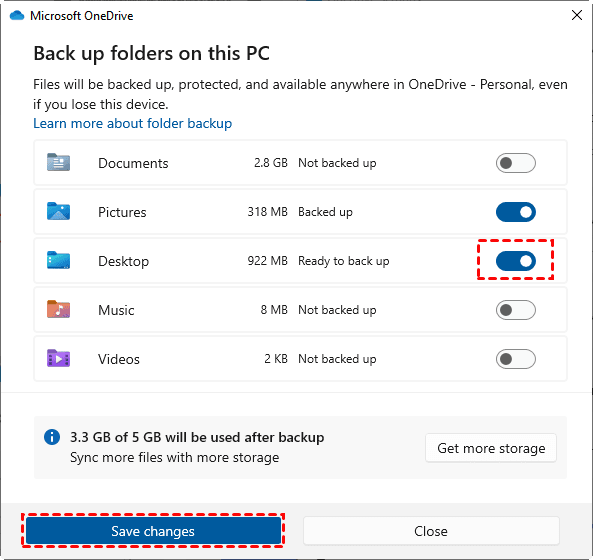
Step 4. Save the changes and allow OneDrive to update the sync configuration.
Fix 6. Empty OneDrive Recycle Bin
Files stored in the OneDrive Recycle Bin continue to count toward your storage quota until they are permanently deleted. As a result, if your OneDrive storage is truly running low, emptying the Recycle Bin can immediately recover quota and resolve the OneDrive SharePoint sync not enough free space for files error.
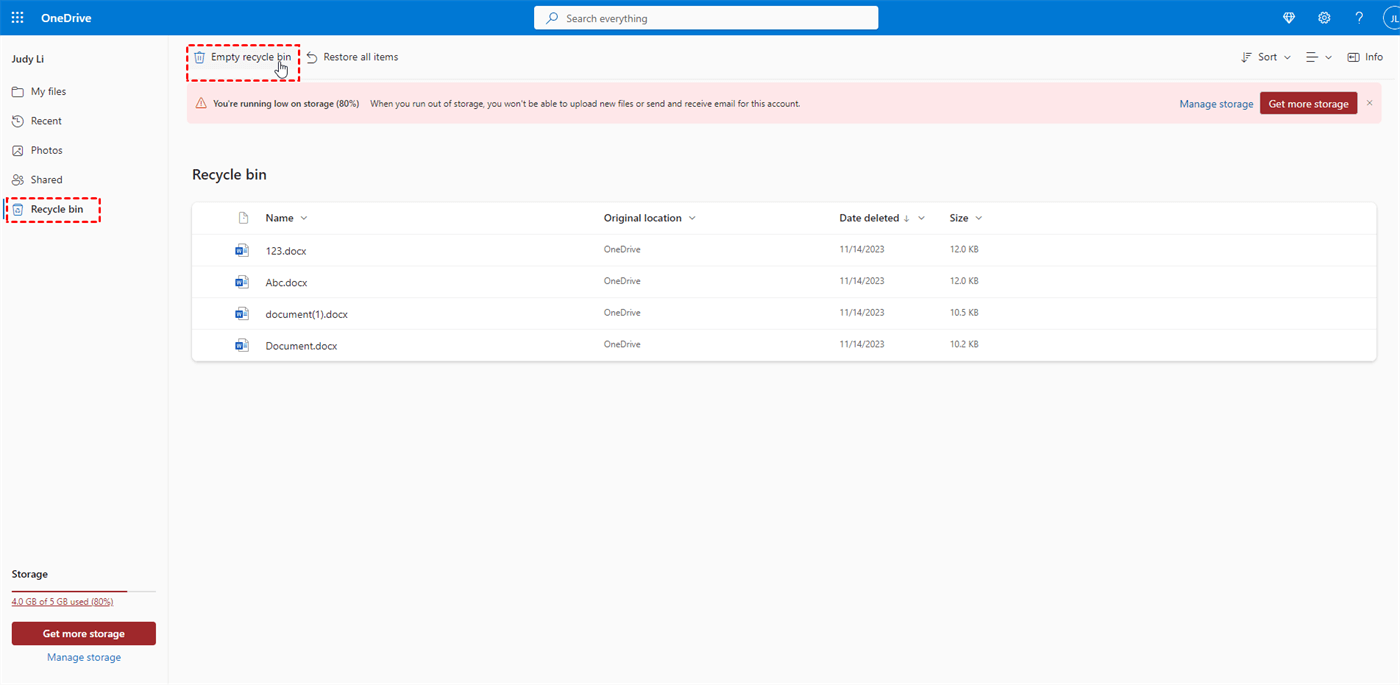
Step 1. Sign in to OneDrive on the web, select "Recycle Bin" from the left navigation pane.
Step 2. Review the deleted files and confirm that none are needed.
Step 3. Click "Empty Recycle Bin" to permanently remove the files.
Fix 7. Upgrade Your OneDrive Storage Plan
If both local storage and SharePoint quotas are sufficient but your OneDrive storage is genuinely full, upgrading your plan may be the most practical solution. Additional storage eliminates quota limitations and provides room for future file growth, especially for users who regularly sync large SharePoint libraries.
Step 1. Sign in to your OneDrive account online and open Manage Storage from your account settings.
Step 2. Review the available Microsoft 365 and OneDrive storage plans.
| Plan | Monthly | Yearly | Cloud Storage |
| Microsoft 365 Basic | $1.99 | $19.99 | 100GB |
| Microsoft 365 Personal | $9.99 | $99.99 | 1TB |
| Microsoft 365 Family | $50 | $498 | 6TB |
Step 3. Select a plan that meets your storage requirements and complete the upgrade process.

Add us as a preferred source on Google to see more helpful content like this.
Best Way to Sync OneDrive with SharePoint Without Consuming Local Storage
In most cases, "there is not enough free space in your OneDrive or shared library" error arises from insufficient free storage on your local PC, which stops it from downloading or caching selected files. If you want a lightweight and flexible solution to sync OneDrive and SharePoint, MultCloud is a superior alternative, which not consume your local storage.
MultCloud is a cloud file management platform designed specifically to handle cross-cloud operations without requiring local downloads. MultCloud adopts server-to-server transfer technology. Data flows directly between cloud servers without passing through the memory or hard drive of the user’s local computer at all. With MultCloud, you can link both your OneDrive and SharePoint accounts, then directly transfer or sync files between them in the cloud.
Follow these steps to bypass the "not enough free space" issue while keep your workflow seamless:
Step 1. Sign up for a MultCloud account and log in.
Step 2. Click "Add cloud" to add both your OneDrive and SharePoint accounts to MultCloud.
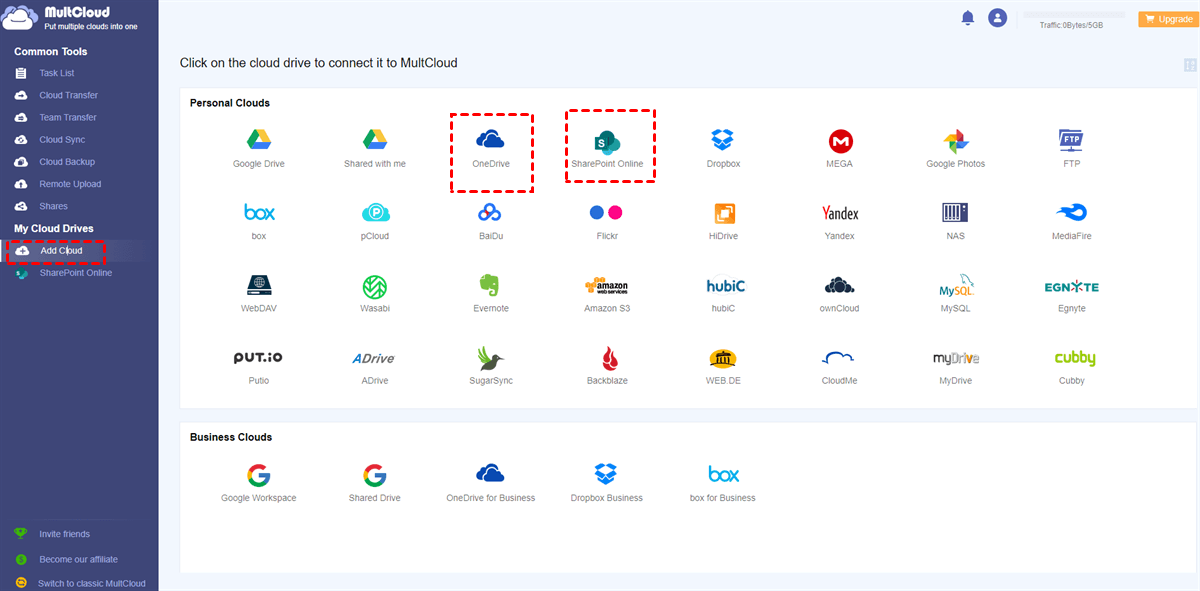
Step 3. Select "Cloud Sync" in the left panel, choose SharePoint as the source and OneDrive as the target.
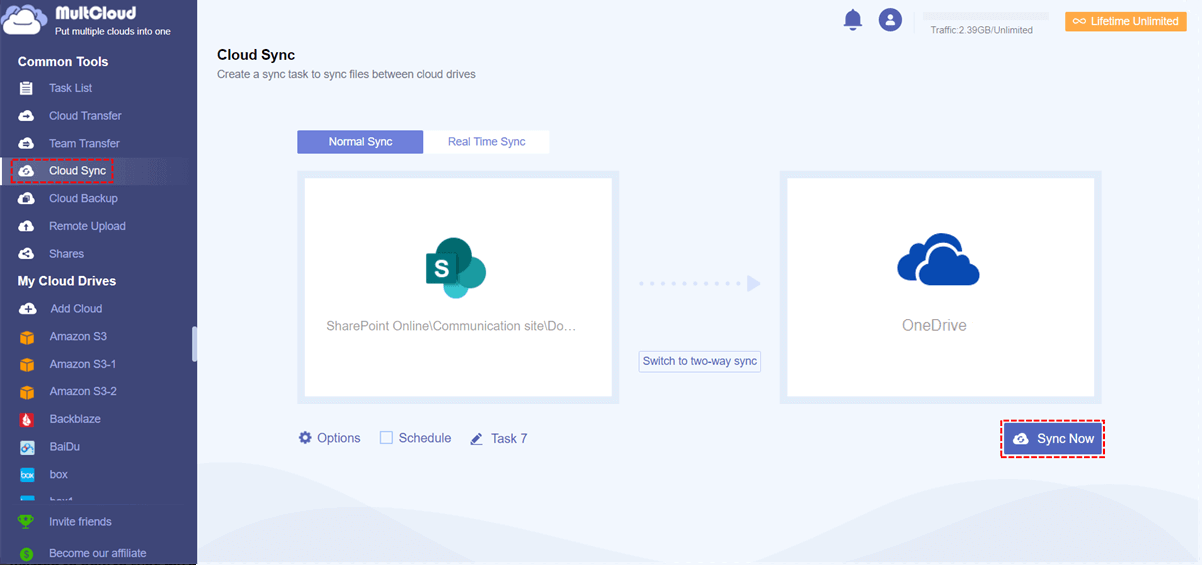
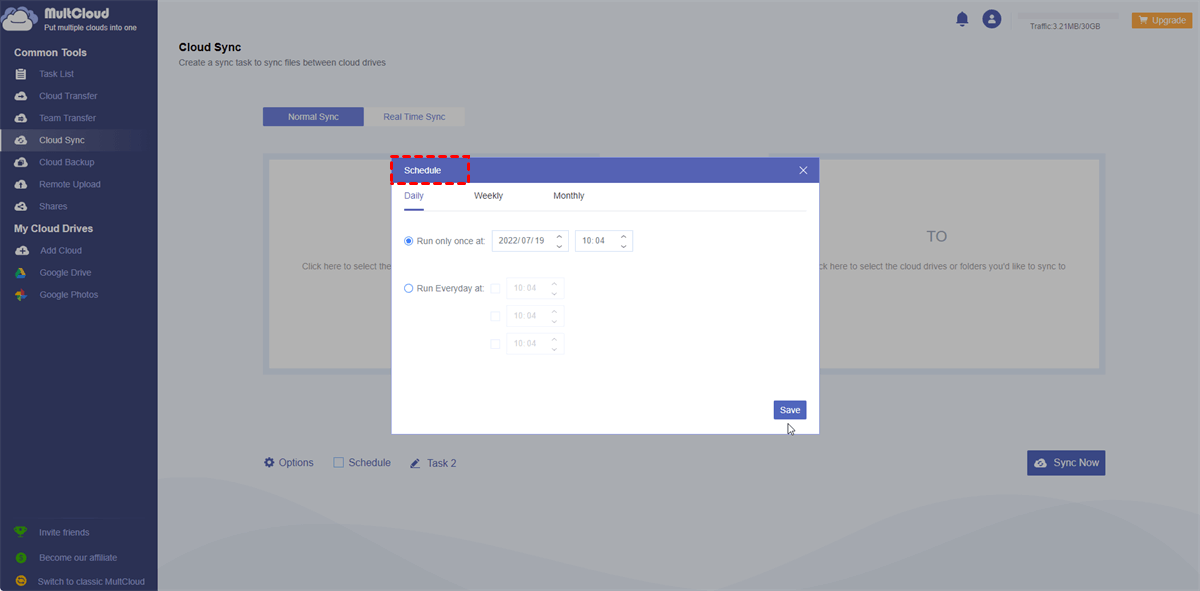
Step 4. Click "Options" to choose sync modes and set a schedule if recurring sync is needed, then click "Sync Now" to start the process.
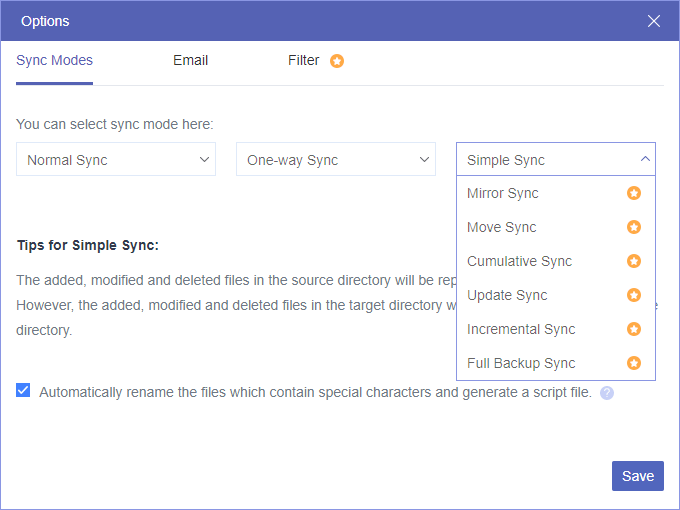
MultCloud offers up to 10 sync modes for your selection. Free users have access to only five options, and you may upgrade to a paid subscription to unlock all available sync modes if needed.
Summary
As we've seen, the OneDrive SharePoint sync "not enough free space for files" is not always indicate a full OneDrive account. By following the solutions outlined in this guide, you can restore normal syncing, prevent recurring storage errors, and streamline your workflow without unnecessary file deletions or manual interventions.
For users dealing with large SharePoint libraries or frequent updates, leveraging a cloud-based solution like MultCloud can eliminate local storage constraints altogether, ensuring smooth, reliable synchronization between OneDrive and SharePoint.
Frequently Asked Questions
Q1: How to fix OneDrive SharePoint sync not enough space?
Check both your local drive and OneDrive storage, enable Files On-Demand, clear the OneDrive cache, and ensure SharePoint quotas allow additional files. Selectively syncing folders or using a cloud-to-cloud tool like MultCloud can also prevent space-related sync errors.
Q2: How to free up disk space for OneDrive sync?
Remove unnecessary local files, empty the Recycle Bin, enable Files On-Demand to convert local files to online-only, and move large files to another drive. Restart OneDrive after freeing space to resume syncing successfully.
Q3: How to sync large SharePoint libraries without low space errors?
Use selective folder sync in OneDrive to limit local downloads, enable Files On-Demand, or leverage cloud to cloud sync services like MultCloud to sync directly without consuming local storage.
Q4: How to fix OneDrive SharePoint Sync issues?
Restart OneDrive, clear the sync cache, verify SharePoint permissions and quotas, check local drive space, and ensure your OneDrive client is up to date. These steps resolve most common syncing problems.
Q5: How to free up SharePoint storage space?
Delete unnecessary files, empty the site recycle bin, remove old versions of documents, or request an increase in site storage from your SharePoint admin to free up space.
Q6: How to expand OneDrive storage to sync large libraries?
Upgrade your OneDrive or Microsoft 365 plan online, selecting a storage tier that accommodates your current and anticipated file needs. This ensures large libraries sync without hitting quota limits.
MultCloud Supports Clouds
-
Google Drive
-
Google Workspace
-
OneDrive
-
OneDrive for Business
-
SharePoint
-
Dropbox
-
Dropbox Business
-
MEGA
-
Google Photos
-
iCloud Photos
-
FTP
-
box
-
box for Business
-
pCloud
-
Baidu
-
Flickr
-
HiDrive
-
Yandex
-
NAS
-
WebDAV
-
MediaFire
-
iCloud Drive
-
WEB.DE
-
Evernote
-
Amazon S3
-
Wasabi
-
ownCloud
-
MySQL
-
Egnyte
-
Putio
-
ADrive
-
SugarSync
-
Backblaze
-
CloudMe
-
MyDrive
-
Cubby


Stay Updated With Our
Latest Tips
Add us as a preferred source on Google to never miss helpful guides.
 Add as preferred source >>