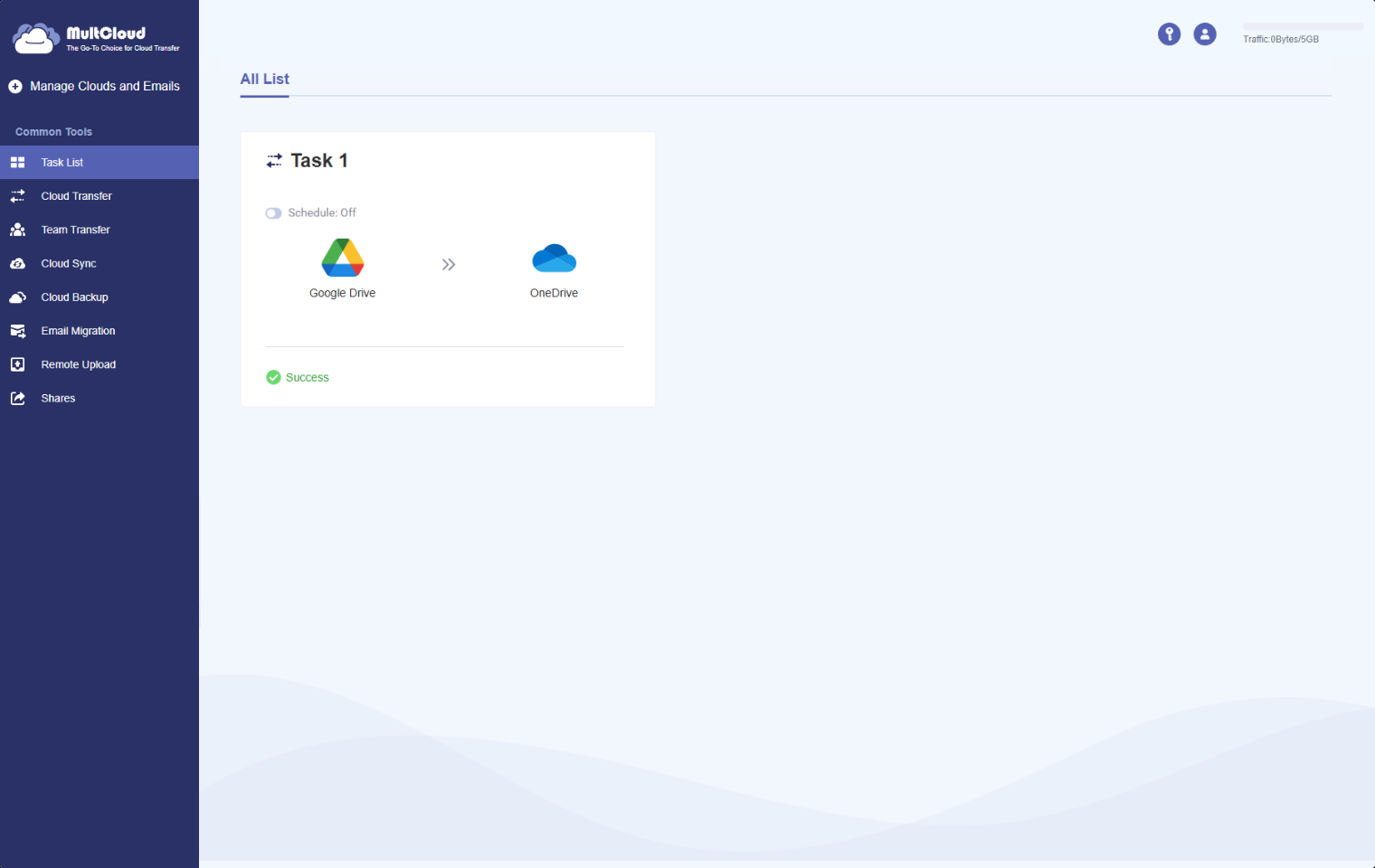
How MultCloud Migrates Google Drive to OneDrive
Transfer your data cloud-to-cloud with a secure, automated process
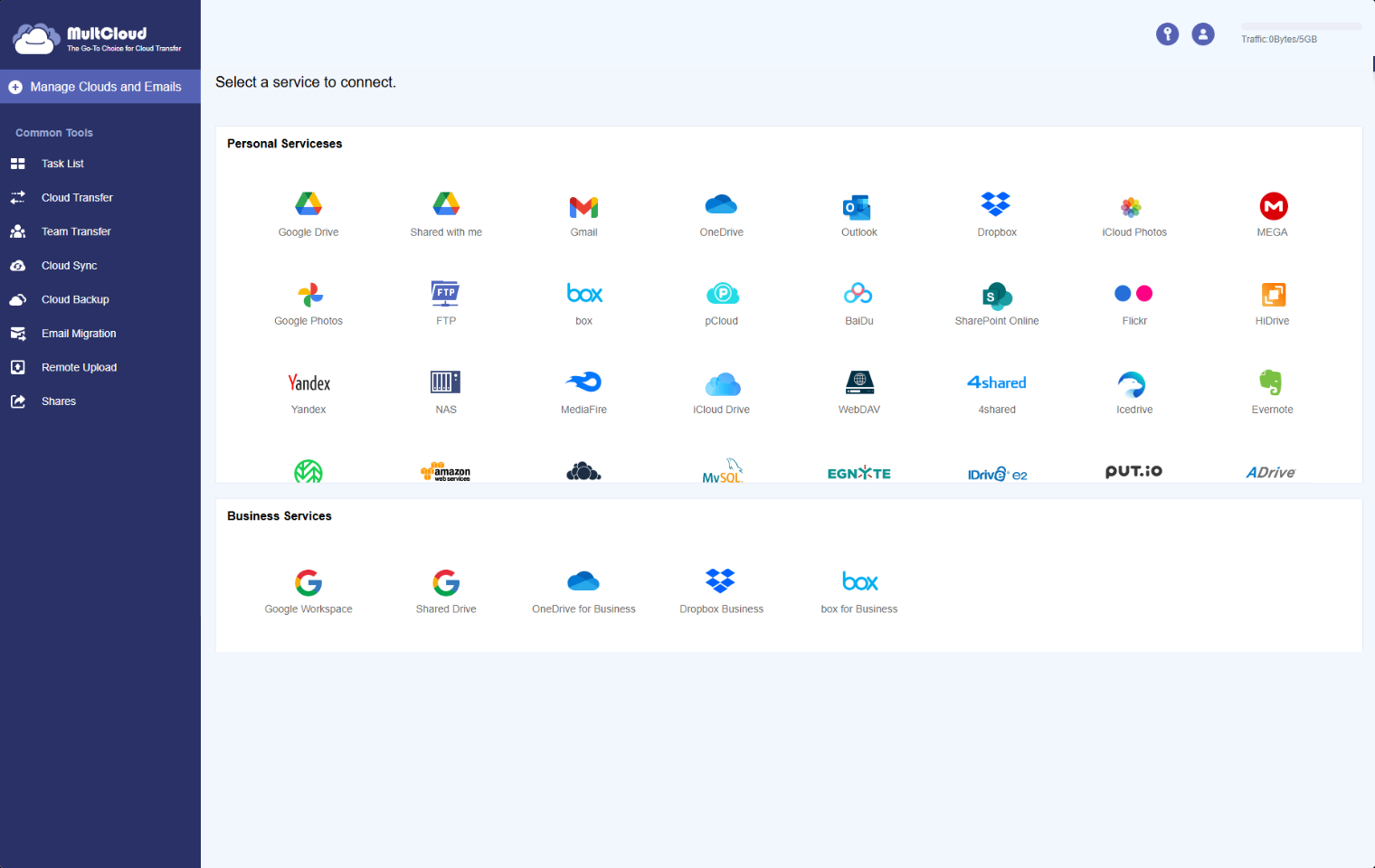
Step 1: Sign In and Connect
Log in and link both accounts to allow direct file transfer between cloud services.
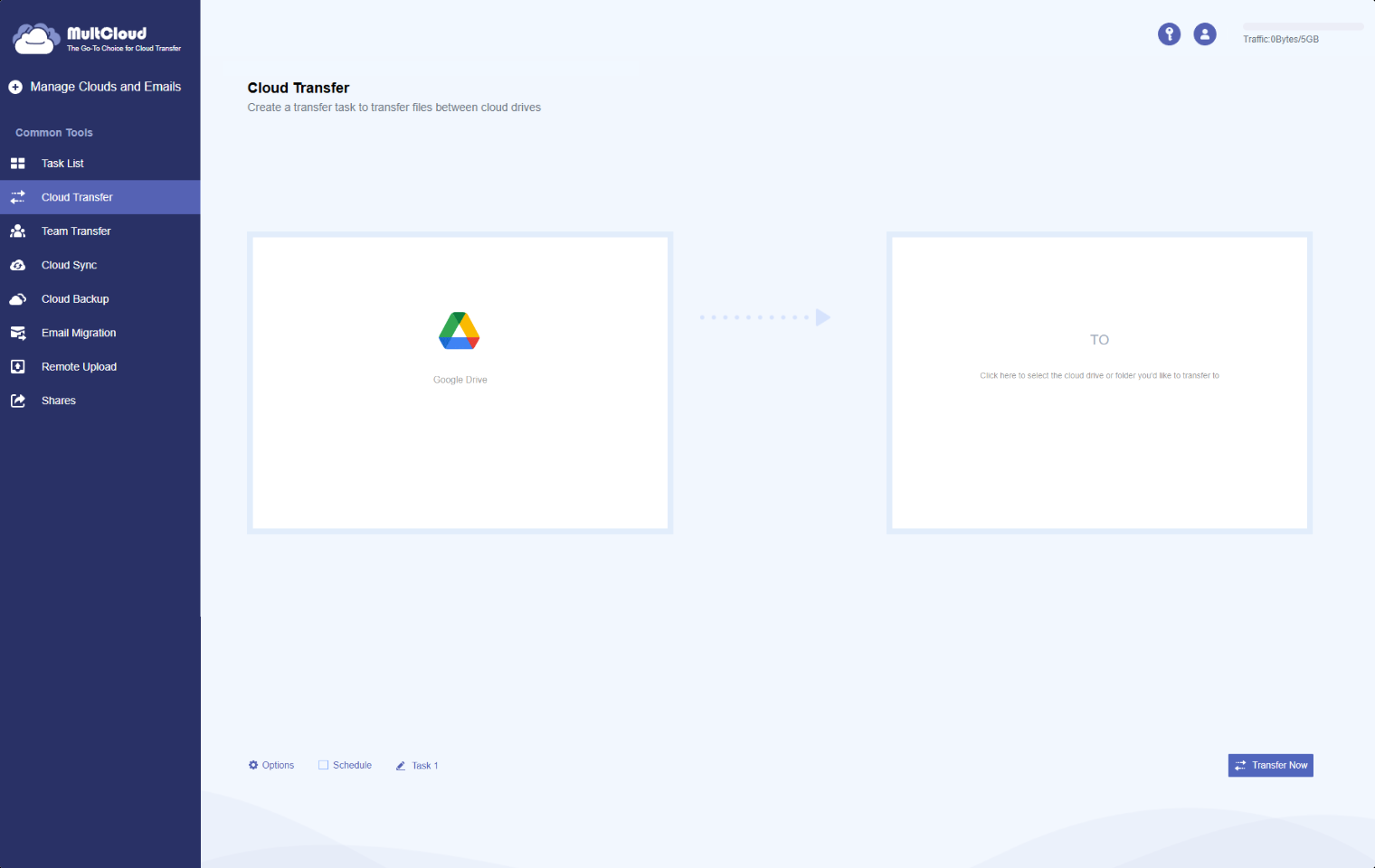
Step 2: Open Cloud Transfer
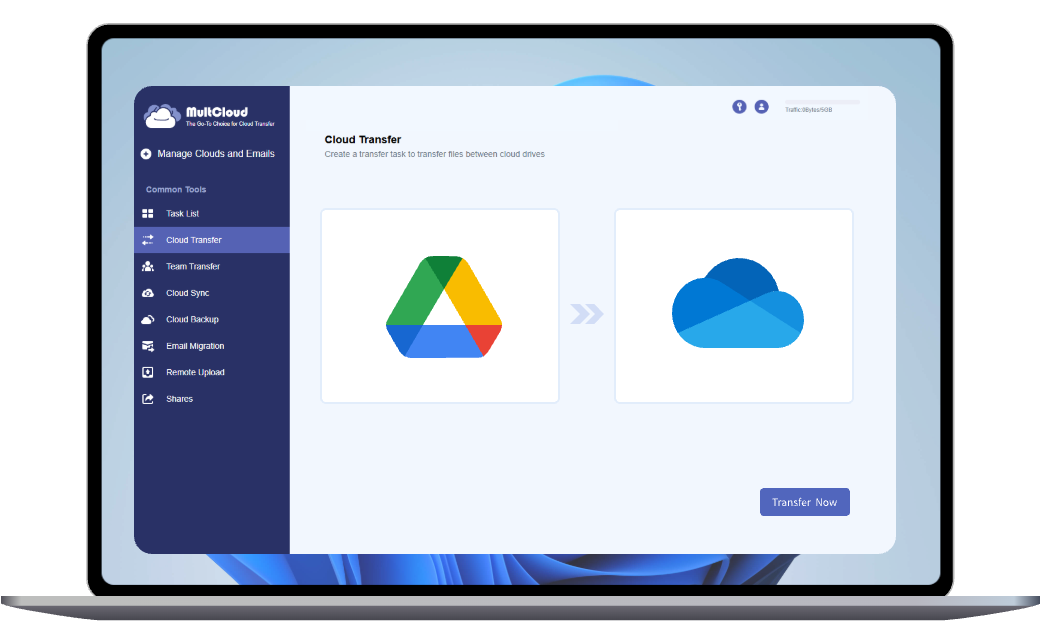
Use the Cloud Transfer tool to migrate files from Google Drive to OneDrive.
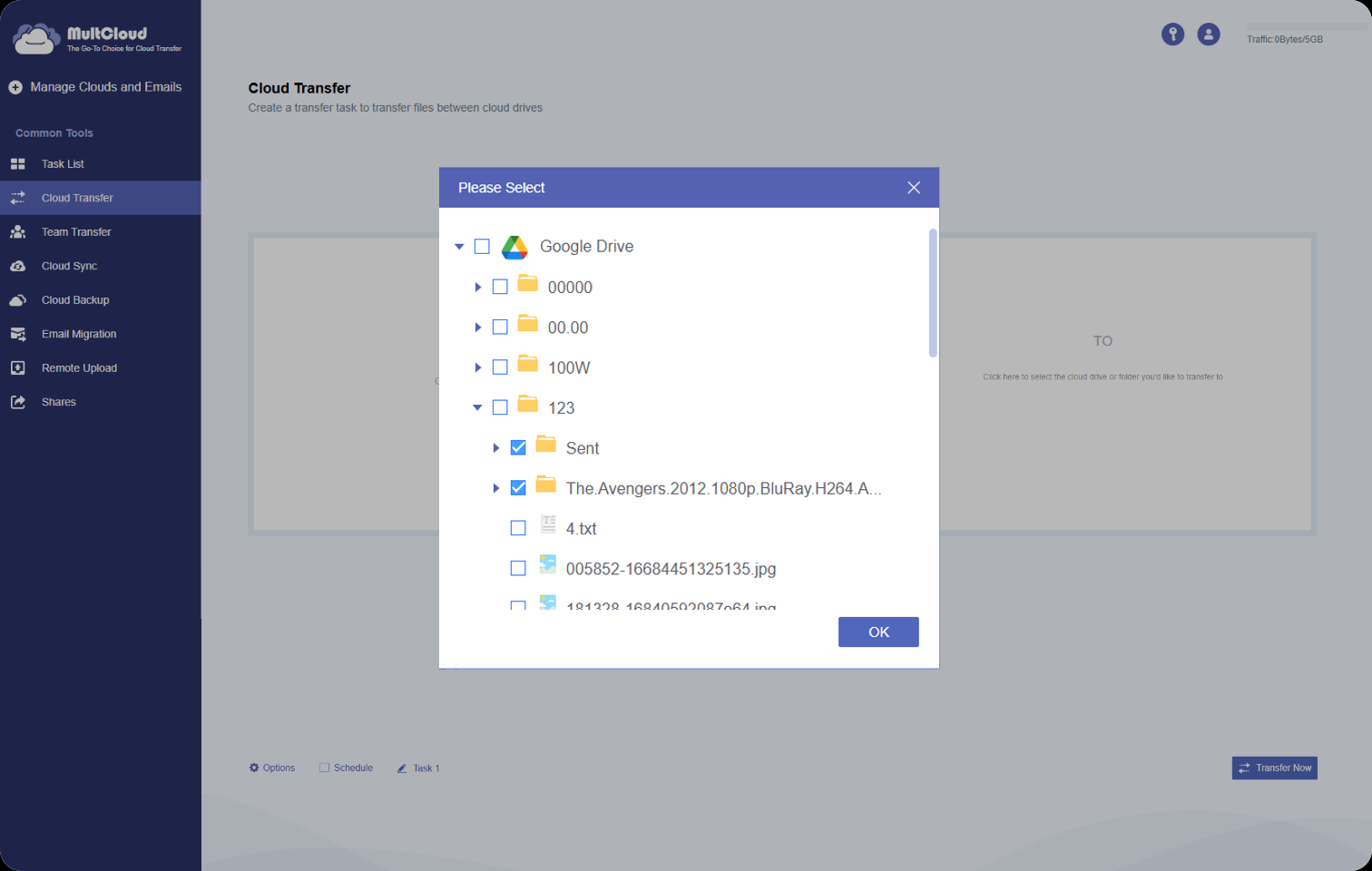
Step 3: Choose What to Transfer
Select files, folders, or entire Google Drive data for migration.
Step 4: Start Cloud Migration
Launch the transfer and let MultCloud move your data automatically.
Powerful Cloud Migration Features
Direct Cloud-to-Cloud Transfer
Move data directly from Google Drive to OneDrive without downloading. Transfers run securely in the cloud and save local storage and bandwidth.
Try it free
Selective File Migration
Transfer only specific folders, file types, or Google Photos albums to OneDrive using advanced filter settings.
Try it free
Keep Folder Structure Intact
All files and folders are transferred with their original hierarchy so you don’t need to reorganize them later.
Try it free
Automated & Scheduled Migration
Set up automatic transfers daily, weekly, or monthly. Perfect for recurring backup workflows.
Try it free
Run Transfers in the Background
Once started, migration continues even if your browser is closed or your device is offline.
Try it free
Transfer Large Files and Full Folders
Easily migrate large folders, media libraries, or multiple files at once. MultCloud handles the transfer online, no downloads.
Try it free
Find the Best Way to Transfer Google Drive to OneDrive
Tool Best For Strength Weakness
MultCloud Go to App Personal & business cloud migration Direct cloud-to-cloud transfer, scheduled automation, background tasks Free plan has transfer traffic limits
Manual Download & Upload Small file transfers No third-party tools needed Slow, unstable, requires local storage
CloudFuze Enterprise cloud migration projects Advanced reporting and user migration support Complex setup for individuals and higher cost
cloudHQ Continuous sync between cloud services Real-time sync options, strong privacy controls Expensive, not designed for one-time migration
Cloudsfer Business & Google Workspace migration Supports cloud migration across business accounts, automation options Less intuitive UI for beginners
Online storage Services Supported by MultCloud
Transfer, sync and backup data between over 30 cloud services with MultCloud
More Clouds
Explore More Cloud Transfer Solutions
Transfer Google Drive to OneDrive for Business
Move files and folders to both personal and business OneDrive accounts quickly and securely.
Transfer Google Drive to Dropbox
Transfer Google Drive cloud data directly to Dropbox with no manual downloads or uploads.
Transfer Google photos to OneDrive
Move albums and media libraries from Google Photos to OneDrive easily.
FAQs
Can I migrate Google Drive to OneDrive without downloading ?
Yes! With our service, you don’t need to download anything. The migration happens server-to-server, so your files move directly from Google Drive to OneDrive without using your computer’s bandwidth.
Can I sync Google Drive with OneDrive?
Yes. You can sync Google Drive and OneDrive automatically so files stay updated across both cloud accounts without downloading and re-uploading them manually.
How long does it take to transfer files from Google Drive to OneDrive?
Transfer time depends mainly on the size and number of files, as well as the connection speed between cloud servers. Since MultCloud performs migration online without using your local device, tasks can continue running in the background even for very large folders or media libraries.
Can I migrate only specific files or folders?
Absolutely. You can select individual files, folders, or file types to transfer without moving everything.
Is my data safe during migration?
Yes. We use secure OAuth authorization, and your login credentials are never stored. All files remain private and encrypted.
Is there a limit on the number of files I can migrate?
No. You can migrate any number of files, large or small, without worrying about limits.
How do I unlink OneDrive and Google Drive?
You can disconnect either account anytime from your app or cloud transfer service settings. This only removes the connection and won’t delete your files stored online.
How do I merge Google Drives into one?
The easiest way is to transfer or sync files from one Google Drive account to another. You can move folders, photos, videos, and documents into a single account without downloading everything first.
Can I transfer my OneDrive to Google Drive?
Yes. You can move documents, photos, videos, and folders from OneDrive to Google Drive directly online, saving you from the usual download-and-upload process.
Migrate Google Drive to OneDrive with MultCloud Now!
The Go-to Choice for Cloud-to Cloud Transfer, Sync & Backup Files Across Clouds.
Started for free >>