Free Transfer Files from Box to Dropbox Online
3 simple clicks to transfer data from Box to Dropbox directly in your
browser.
No Downloads. No Uploads. No Sign Up. Just Cloud-to-Cloud.
Sign up for 40+ cloud transfers & 5GB free monthly.


Difference between Box and Dropbox
 Box
Box Dropbox
2 Simple Ways to Transfer Box to Dropbox Online

No Sign Up Required
Connect Box and Dropbox securely, then move your files directly between the two cloud services.
 Only Cloud transfer
 Only Box to Dropbox
 No Cloud backup or sync
No advanced options
No Cloud backup or sync
No advanced options
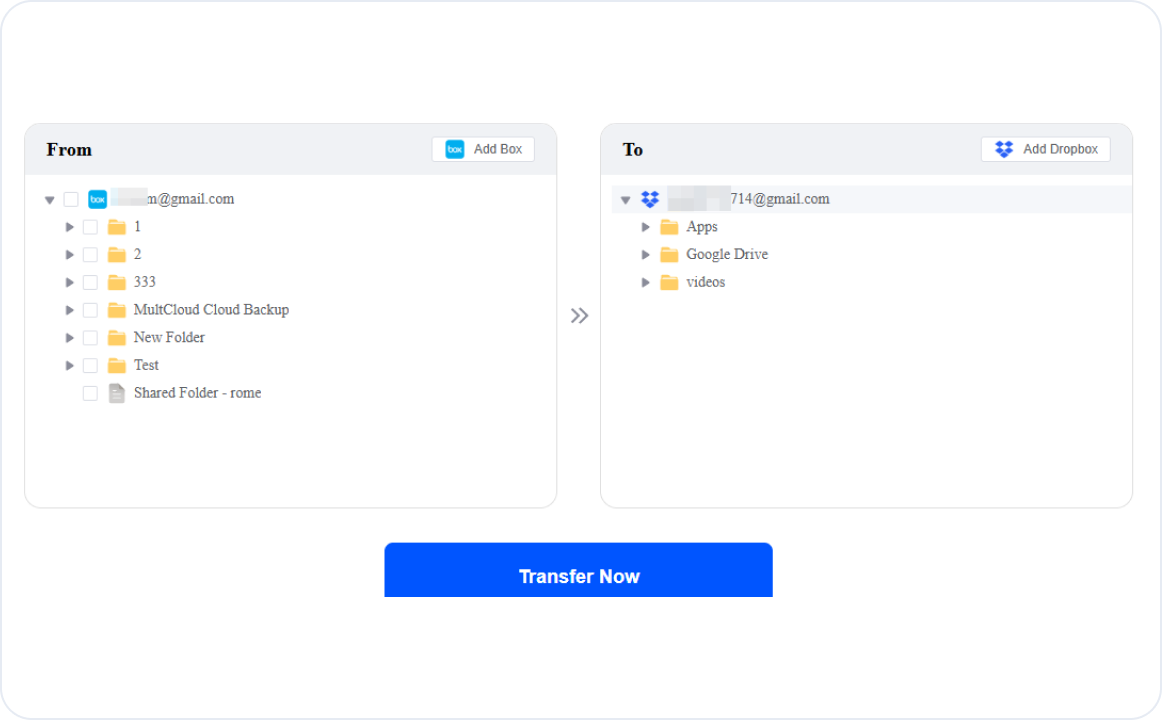
- 1Add and authorize your Box and Dropbox accounts.
- 2Choose the Box files or folders and select a Dropbox destination.
- 3Click “Start Transfer.” Your files will be transferred directly in the cloud.
Create Free Account
Connect Box and Dropbox to access more transfer capacity and advanced cloud-management features.
Cloud transfer, sync &
backup
40+ clouds
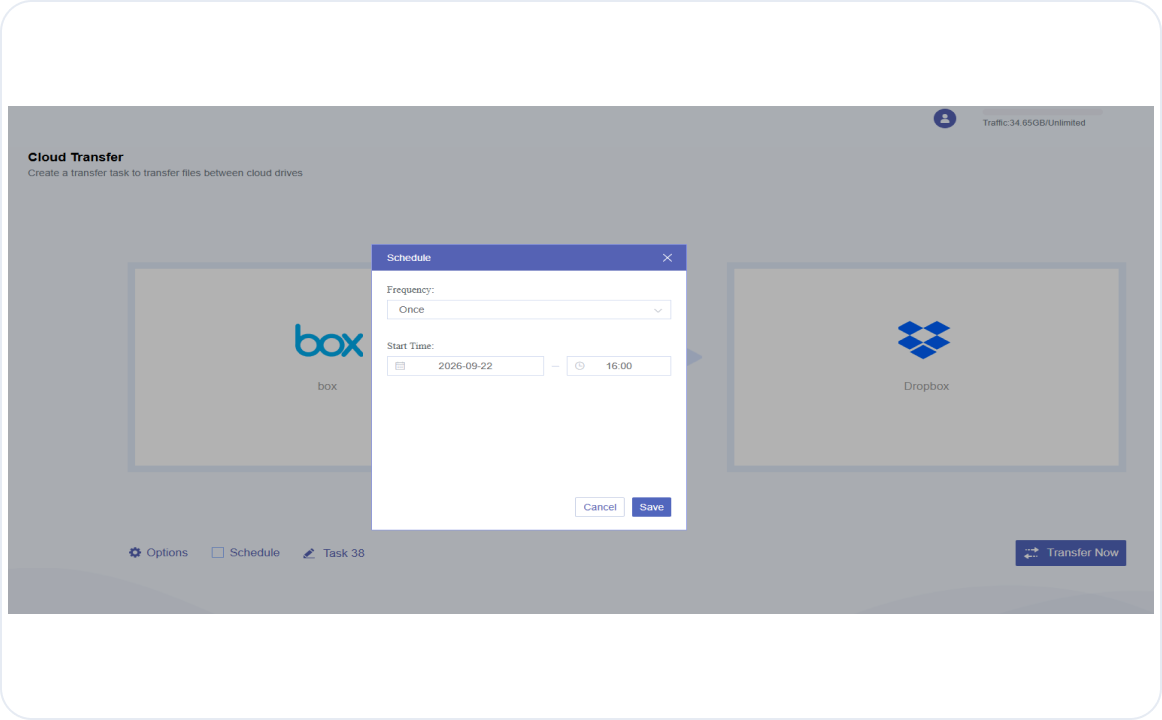
Scheduled tasks
Email alerts
Offline Execution
- 1Create a MultCloud account using your email, Google, Facebook, or Apple ID.
- 2Authorize access to your Box and Dropbox accounts.
- 3Select the Box files or folders and choose a Dropbox destination.
- 4Click “Transfer Now.” MultCloud will complete the transfer on its dependent server without going through your computer.
Not sure yet? Try Quick Transfer first and upgrade anytime whenever necessary.
What to Prepare Before Moving Box to Dropbox
Complete these checks before starting your full migration.
0 / 8 COMPLETED
How to Handle Box-Specific Content When Moving to Dropbox?
These Box-native items require special handling because they cannot be migrated as standard files.
 Box Canvas
 Box Bookmarks
 Box Hubs
 Box Notes
What Are the Benefits of Moving from Box to Dropbox?
Move Large Files Without Splitting Them
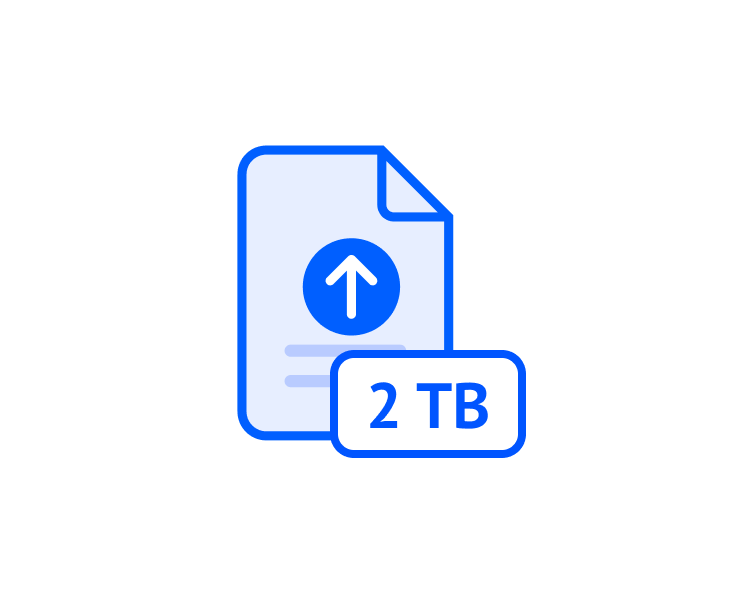
Box upload limits vary by plan, while Dropbox supports individual files up to 2 TB—useful for videos, backups, and design files.

Replace Seven Roles with Three Clear Choices
Dropbox simplifies Box’s seven collaborator roles into Owner, Editor, and Viewer, reducing permission setup and user confusion.

Put Shared Work in One Team Space
Instead of managing scattered owned and collaborated folders, Dropbox team folders keep shared content in one consistent workspace.

Make Everyday Syncing Less Complicated
Dropbox automatically keeps changes updated across computers and mobile devices, while online-only files help preserve local disk space.

Reduce Unnecessary Governance Work
Teams that do not need Box’s classifications, metadata templates, retention policies, or complex workflows can use Dropbox’s simpler admin controls.
Manual Methods to Transfer Data from Box to DropBox
Method 1. Use Box Drive and the Dropbox Desktop App
This method lets you move selected folders through File Explorer or Finder. It works best when you have enough local storage and a stable internet connection.
- Step 1.Install Box Drive and the Dropbox desktop app, then sign in.
- Step 2.In Box Drive, right-click the required folders and select “Always keep on device”.
- Step 3.Wait for the green offline icon, then copy the folders into your local Dropbox folder.
- Step 4.Wait for Dropbox to finish syncing and verify the files on dropbox.com.
Tips: Box Notes and other online-only formats must be exported separately.
Method 2. Download and Upload Through a Web Browser
This is the easiest option for moving a small number of files without installing additional software. However, the transfer speed depends on your internet connection and local storage.
- Step 1.Sign in to Box and select the files or folders you want to transfer.
- Step 2.Click Download and extract any downloaded ZIP archives.
- Step 3.Sign in to Dropbox and open the destination folder.
- Step 4.Click Upload or drag the downloaded files into Dropbox.
Tips: If your computer does not have enough local storage, connect an external hard drive and use it as a temporary transfer location.
Method 3. Rclone
Rclone is suitable for technical users who need more control over large or repeatable transfers. It streams files through your computer but does not require a complete local copy.
- Step 1.Install Rclone and run
rclone config. - Step 2.Connect Box as the source and Dropbox as the destination:
rclone copy boxsrc:/Folder dbxdst:/Folder. - Step 3.Preview the transfer using
rclone copy boxsrc:/Folder dbxdst:/Folder --dry-run. - Step 4.Start it using
rclone copy boxsrc:/Folder dbxdst:/Folder --progress. - Step 5.Verify the destination before removing anything from Box.
Why Choose MultCloud For Box to Dropbox Migration?
Create a free MultCloud account to access scheduled transfers, file filters, background processing, and other advanced settings.

0 Local Storage Needed
Move large folders directly from Box to Dropbox without taking up your computer’s storage.

Flexible Scheduling
Run transfers at a selected time or repeat them daily, weekly, or monthly.

Advanced File Filtering
Transfer only the files you need by including or excluding specific file extensions.

Background Processing
MultCloud completes tasks online, allowing you to close the browser or turn off your device.
Custom Transfer Options
Control how duplicate, updated, and existing Dropbox files are handled during transfer.
Email Notifications
Receive an email when your Box-to-Dropbox transfer finishes, without repeatedly checking its status.
Your Data, Our Priority

Encrypted transfers
Box-to-Dropbox transfers use SSL and 256-bit AES encryption to help prevent interception, unauthorized access, and data tampering.

OAuth authorization
MultCloud connects to Box and Dropbox through OAuth, so your cloud account passwords are never shared with the service.

No permanent file storage
Transferred files are not stored permanently; temporary cached content is removed after the Box-to-Dropbox transfer process is completed.

Compliance With GDPR & Privacy
MultCloud follows GDPR-related privacy requirements and processes only the personal data required to complete and manage your cloud transfers.

User-controlled access
You can disconnect Box or Dropbox, revoke MultCloud authorization, or permanently delete your MultCloud account and associated information anytime.
Enterprise Migration: Box Business to Dropbox for Business
For enterprise administrators, MultCloud "Team Transfer" automates sub-account mapping and data migration across entire business domains.
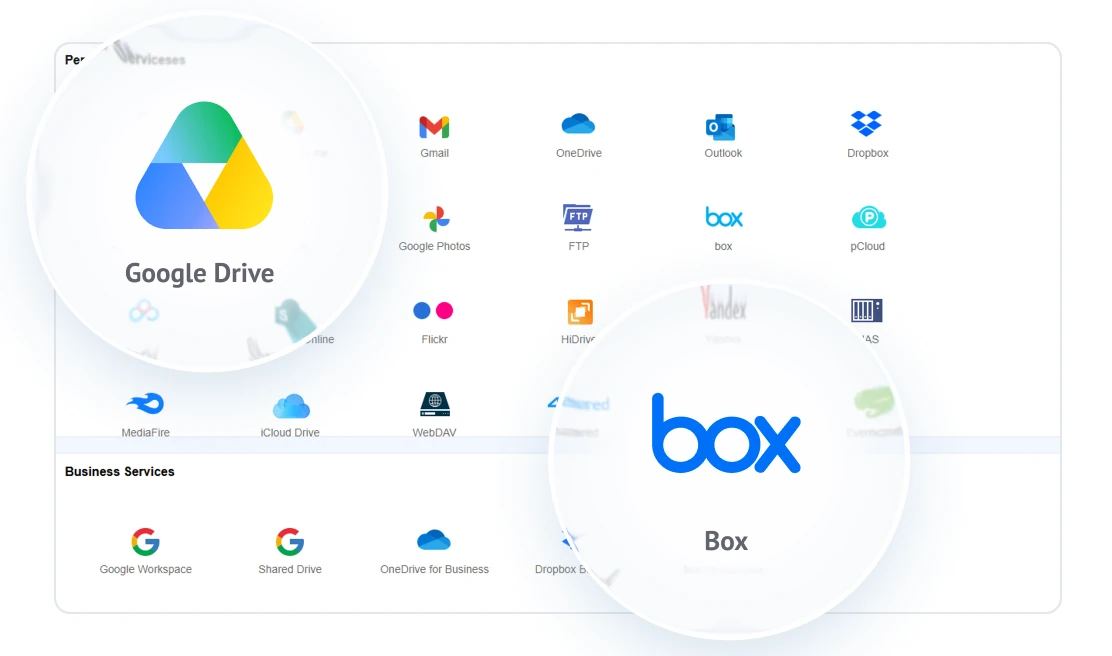
1Authorize Admin Accounts
Log in to MultCloud as an administrator. Select "Add Clouds and Emails", then choose Box Business and Dropbox Business. Grant admin authorization to access both domain environments.
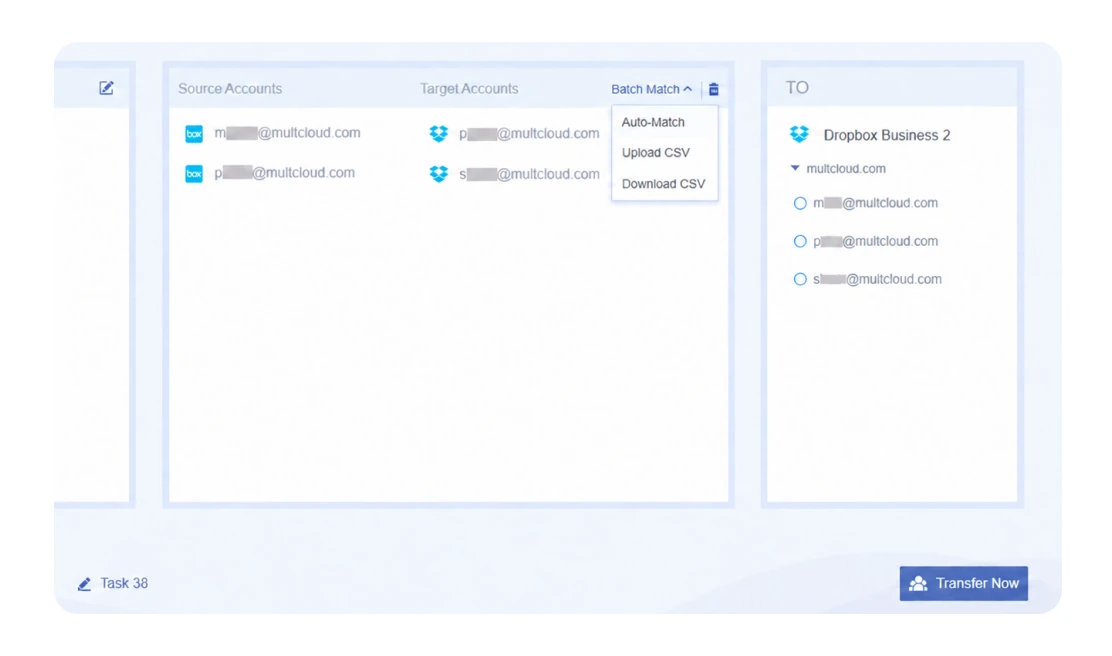
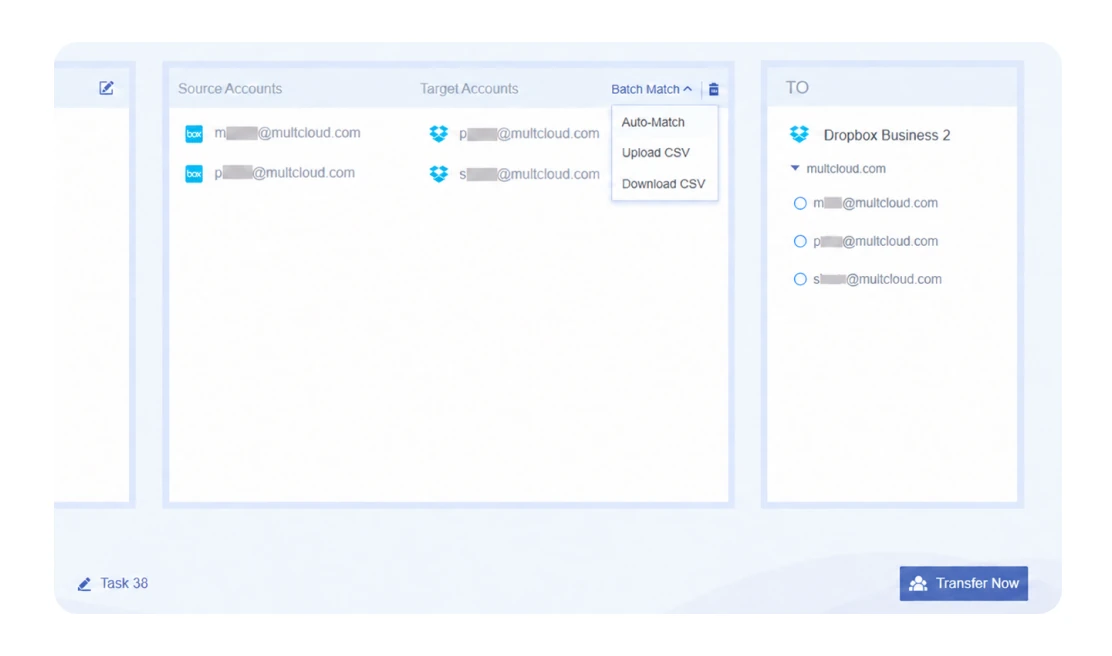
2Configure Team Transfer & Auto-Match Users
Navigate to “Team Transfer” in the left menu. Select Box Business as the source and Dropbox Business as the target. MultCloud will automatically scan user directories and match identical email addresses between both systems. You can also upload a CSV file to manually define user mapping rules.
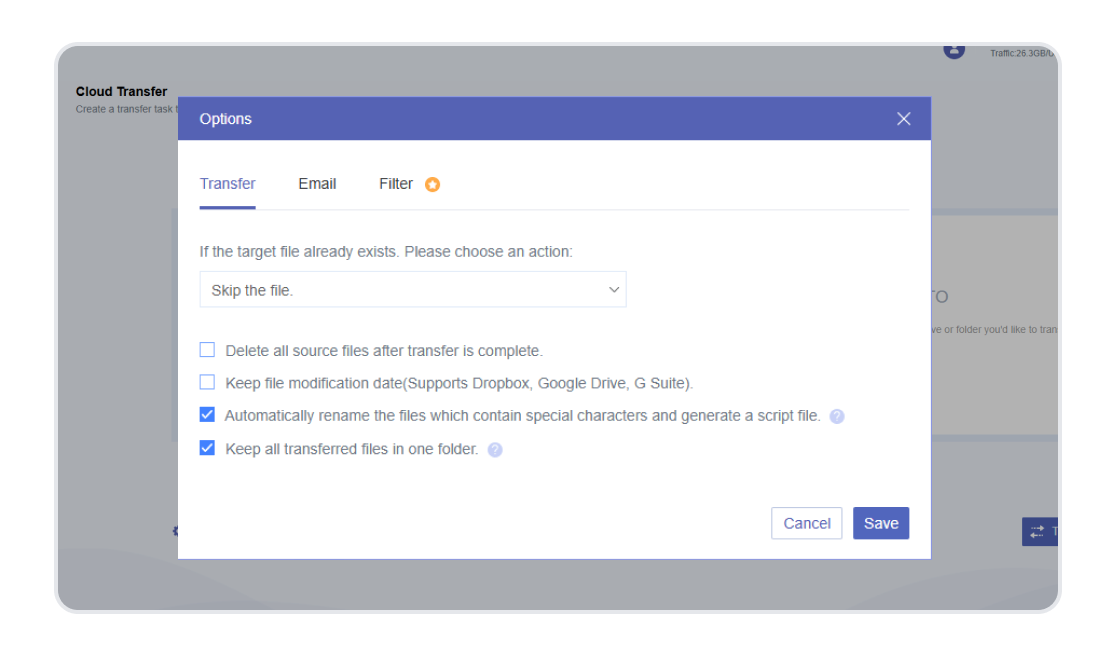
3Set Transfer Rules & Schedule
In the Options menu, set permission retention, file filtering, and schedule the migration job during off-peak hours to avoid bandwidth competition.
4Execute Migration
Run the initial full migration. Once complete, conduct a final Delta Sync (migrating only newly modified or created files) while revoking edit permissions on Box to complete the final cutover to Dropbox Business.
How to Keep Box and Dropbox Synced in Real Time
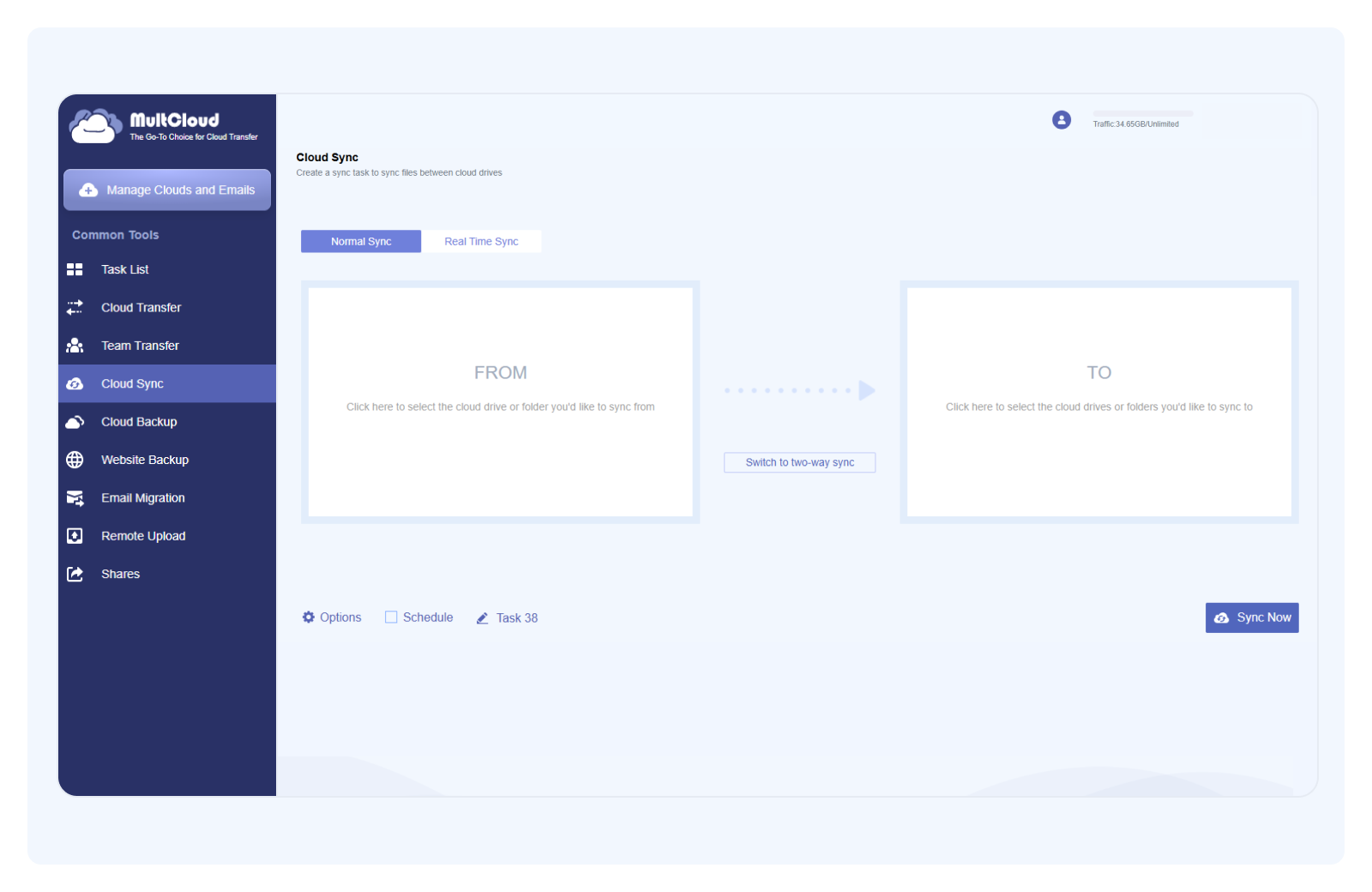
Need to maintain data consistency between Box and Dropbox for hybrid workflows, setting up an automatic Cloud Sync task ensures every new file or modification is instantly updated across both clouds.
Quick Decision: Which Method to Choose for Box to Dropbox Migration?








 Download & Upload via Browser
 Box Drive with the Dropbox desktop app
 Rclone
 MultCloud Cloud Transfer
 MultCloud Team Transfer
 MultCloud Cloud Sync
Common Box-to-Dropbox Migration Issues
Common problems and practical fixes for a smoother migration.

Dropbox Storage Full
Free up space or upgrade your Dropbox plan.

Upload Interrupted
Restart the task and check your connection.

Box or Dropbox Rate Limiting
Box allows 1,000 API calls per user per minute; for Dropbox 429 errors, follow the Retry-After period.
Unsupported Filenames
Remove / \ < > : " | ? *, trailing spaces, and trailing periods.

File Path Too Long
Keep the complete path within 255 characters.
Box Notes Cannot Be Opened
Export Box Notes to DOCX or PDF first.

Missing Permissions
Reconnect both clouds and approve access.

Files Skipped or Duplicated
Review logs and adjust conflict settings.

Empty Folders Not Transferred
Add a placeholder file or recreate the folder.
Explore More Cloud to Cloud Transfer Solutions

Transfer Google Drive to OneDrive
Move Google Drive files and folders directly to OneDrive without downloading them first. Preserve the folder structure while the transfer runs in the cloud.
Start Transfer for Free >>
Transfer Google Photos to iCloud
Transfer photos and videos from Google Photos to iCloud without moving each file manually. Let the cloud transfer continue automatically in the background.
Start Transfer for Free >>
Transfer Dropbox to Google Drive
Move Dropbox files and folders directly to Google Drive without using local storage. Maintain the folder structure while the transfer runs in the cloud.
Start Transfer for Free >>What Our Users Are Saying
 US
US
 Apr 9, 2026
I received 5GB of free transfer traffic when I signed up, which was a welcome bonus. Moving my photos and videos from Google Photos to another cloud was straightforward and went smoothly. In places where mobile data is expensive, a service like MultCloud can make cloud-to-cloud transfers much more practical.
 Useful
 Share
Share

 GB
Nov 18, 2025
GB
Nov 18, 2025Our Box Business to Google Workspace migration stayed on track from start to finish. Whenever we encountered a problem, the support team provided prompt and practical assistance.
Useful
Share
MultCloud made moving our project files from Box to Dropbox remarkably straightforward. Our team continued working during the migration, and everything arrived neatly organized without manual downloading and uploading.
Useful
Share
I changed email addresses and needed to moving one cloud data to another cloud and Multcloud site helped me do this. My daughter who is a schoolteacher uses your Multcloud all the time. She guided me through the steps and we were successful. Thank you Excellent and easy to use. I’ll leave similar 5 star on Google to recommend you to others.
Useful
Share
The straightforward experience.Doesn’t require much configuration, options menu is well organized and non confusing. Technically efficient. It doesnt lag, it copies well files, with its directory and subdirectory structure. All of the options and buttons are placed in order through the screen and accessible.
Useful
Share
The MultCloud product is really outstanding and really does do exactly what it says "on the tin"... I have been dreading migrating TBs of data from Dropbox Business to Google Workspace and MultCloud made it super easy and painless. It even enabled me to preserve file "created on" and "modified on" dates...AND - their support is second to none. Really outstanding. Thank you.
Useful
Share
FAQ: Transferring Files from Box to Dropbox

No. Dropbox’s built-in web import function currently only supports direct imports from Google Drive and OneDrive, offering no native import entry for Box. To directly import or transfer files from Box to Dropbox without downloading them to your local device, you should use a third-party cloud transfer solution like MultCloud, which connects your Box and Dropbox accounts to perform server-side migration.
Standard cloud migration tools fully preserve your nested subfolder hierarchy during the transfer from Box to Dropbox. Regarding access rights, individual personal transfers do not migrate permissions.
Yes. By using the Cloud Sync feature in MultCloud, you can set up automated, continuous synchronization between a Box folder and a Dropbox folder. You can choose Real-Time Sync to instantly push newly added or modified Box files to Dropbox, or schedule periodic sync tasks daily, weekly, or monthly during a transition period.
Common reasons for file transfer failures between Box and Dropbox include unsupported file formats, path length limits, storage quota issues, and authorization timeouts. Box-proprietary formats like Box Notes cannot be natively created in Dropbox and must be converted to PDF or DOCX before transfer. Additionally, file paths exceeding 260 characters or containing special characters forbidden by cloud storage systems may cause errors.
Yes, MultCloud uses official OAuth 2.0 authorization. Under OAuth authentication, you never reveal your plain-text Box or Dropbox passwords to the tool; instead, you grant temporary, revocable permission tokens. Moreover, it processes transfers server-to-server without storing, viewing, or modifying your underlying files. Once the migration is complete, you can instantly revoke the tool's access within the Security settings of your Box and Dropbox accounts.
Basic file properties like file names and folder structures are fully preserved. However, due to cloud API limitations, both manual transfers and third-party tools will reset creation and modification dates to the current timestamp in Dropbox.

Free Transfer Box Files to Dropbox with MultCloud Now!
The Go-to Choice for Cloud-to-Cloud Transfer, Sync or Back up Files Across Clouds.
Get Started for Free >>