

Content at a Glance:
Can I Sync OneDrive and Google Drive?
Using cloud storage as a backup is becoming increasingly popular now. Most cloud services provide versions for desktop and mobile phones so that you can access these storage files whenever and wherever. It is commonly seen that one person owns multiple cloud drives in order to get maximum free storage.
Google Drive and OneDrive are two of the most famous and powerful cloud services that are widely used worldwide. Google Drive offers users 15 GB of free storage and upgrade options while charging a monthly fee.
OneDrive, integrated tightly with Microsoft Office, offers 5 GB of storage space free of charge. You could purchase additional storage separately or through subscriptions to other Microsoft services, such as Office 365.
It is safe to say that having several clouds means you spend more time managing them. In this situation, synchronization is a good solution to integrate multiple clouds so that you can use both OneDrive and Google Drive. So, is there any way to sync OneDrive with Google Drive for free? Yes! The following part will introduce 6 ways to help you, although there is no official way to move files from Google Drive to OneDrive. That means you have to use a third-party OneDrive sync software or the manual ways.
| Sync Google Drive with OneDrive via MultCloud | Click Cloud Sync, choose Google Drive files as the source and a folder in OneDrive as the destination, and hit Sync Now. |
| Download and Upload to Sync Google Drive to OneDrive | Go to the Google Drive website, choose files, and hit Download. Then log in to OneDrive, and tap Upload. |
| Sync Google Drive to OneDrive via Google Takeout | Go to the Google Takeout website, tick Drive only, then choose Add to OneDrive, and set up the export formats and frequency, hit Create export. |
| Move Files Between Google Drive and OneDrive Folders | Download both Google Drive and OneDrive apps and log in. Drag Google Drive files to the OneDrive folder directly. |
| Power Automate Sync Google Drive to OneDrive | Connect both your Google Drive and OneDrive accounts in Power Automate, and choose a suitable template. Select the source Google Drive files and a destination OneDrive folder, save and test the flow. |
| Import Google Drive to OneDrive | Log in to the OneDrive account, tap Settings > Import cloud photos and files > Connect to Google Drive. Once connected, hit Import now. |
Best Free Way to Sync Google Drive with OneDrive
To sync Google Drive to OneDrive effectively, you can take advantage of the "Cloud Sync" feature of MultCloud, a Google Drive to OneDrive migration tool, which has prominent advantages as below compared with the basic ways for Google Drive OneDrive sync.
- No need to download and upload: MultCloud, as a FREE and professional multiple cloud storage manager, allows you to use several clouds at the same time, so you can sync between cloud drives without downloading and uploading.
- High speed of synchronizing: the process runs on the server of MultCloud, so you don’t have to worry about the connection or speed of the network.
- Schedule sync task: MultCloud allows you to set up a sync plan to automatically carry out syncing tasks in the future.
- Offline sync: As long as the sync process starts, you are allowed to close the browser because MultCloud can run the task in the background.
4 Steps to Sync Google Drive to OneDrive with MultCloud
Step 1. Create one MultCloud account. and log in to MultCloud.
Step 2. Click the "Add Cloud" button to choose Google Drive to add. Then add OneDrive in the same process.

Step 3. Achieve Google Drive OneDrive Sync with the "Cloud Sync" Task. Click on the "Cloud Sync" icon and select Google Drive as the source and OneDrive as the destination.
Tips:
- If you did not set up the sync modes, it's Normal Sync (One-way simple sync) by default. Besides, you can enjoy up to 10 sync modes (which will be described in the following part) in Options, including two-way or one-way real-time sync, two-way normal sync, or one-way normal sync modes ( simple sync, mirror sync, move sync, incremental sync, cumulative sync, update sync, and full backup sync).
- Moreover, you are able to set up the Options to enable email notifications and filter. The Filter allows you to sync only some files from Google Drive to OneDrive you'd like.
- For the "Normal Sync", you can also set a specific time to run the sync task as you wish in the "Schedule" configuration.
- To automatically sync Google Drive to OneDrive, tap Options > Real-Time Sync to enable it.
- Unlock all premium features after subscribing, such as Filter, Schedule, all sync modes, 10 threads instead of 2, and many more.
Step 4. Then click on "Sync Now" to sync from Google Drive to OneDrive.
What's more, once you have created a sync task, you can also commit it or re-edit, delete, view logs, etc., from the Task List. And you're also able to sync OneDrive to Google Drive in this way, just exchange the source and destination cloud to make it true. It supports Shared with Me and Shared Drive as well. So, you can transfer Google Drive Shared with Me to OneDrive for Business, migrate Shared with Me to Shared Drive, move Shared Drive to OneDrive, etc.

- Smart Share: Share cloud files via public, private, or source mode.
- One-key Move: Quick data transfer, sync, and backup among clouds.
- Email Archive: Protect emails to other clouds or local disks.
- Remote upload: Effectively save web files to clouds via URL.
- Safe: Full-time 256-bit AES and OAuth authorization protections.
- Easy: Access and manage all clouds in one place with one login.
- Extensive: 30+ clouds and on-premise services are supported.
Sync OneDrive to Google Drive in Up to 10 Sync Modes | Explanation
To make all the sync modes clear to you, we will explain them in more detail.
6 Normal Sync Modes
If you just want to use Normal Sync, try these normal sync modes to sync OneDrive and Google Drive flexibly:
- Mirror Sync: files in the source and target directories are always the same (extra files will be deleted in the target directory).
- Move Sync: all the synced files in the source directory will be deleted once the sync process is completed.
- Cumulative Sync: when deleting the files in the source directory, the same files in the target directory will not be deleted.
- Update Sync: before added and modified files in the source directory are transferred to the target directory, all files in the target directory will be deleted first.
- Incremental Sync: each time you sync files, a subdirectory will be created in the target directory so that the added and modified files in the source directory will be transferred to it.
- Full Backup Sync: each time you sync files, a subdirectory will be created in the target directory so that all the files in the source directory will be transferred to it.
2 Real-Time Sync Modes
Besides "Normal Sync", the MultCloud also provides you with "Real Time Sync", which is able to perform an automatic sync whenever any changes are detected in either of the clouds.
- The "One-way sync" in "Real Time Sync" means added, modified, and deleted files in the source directory will be synced to the target directory. However, the added, modified, and deleted files in the target directory will not be replicated in the source directory.
- On the other hand, "two-way sync" in "Real Time Sync" means any added, modified, and deleted files in the source or target directory will be replicated to each other. In this way, the files in the source and target directories are always the same.
To know more details about the differences between sync modes, click to generate the important information.
If you want to keep the same files up to date on OneDrive and Google Drive, use two-way sync to perform two-way sync OneDrive and Google Drive. Besides, you can also move photos from Google Photos to OneDrive, migrate files from iCloud Drive to iCloud Photos, backup Google Drive to OneDrive, and so on.
5 Basic Ways: How to Sync Google Drive with OneDrive Free?
You might want to try some traditional ways to sync Google Drive and OneDrive.
Solution 1. Perform Google Drive OneDrive sync Using Download and Upload
This is a traditional way to sync one cloud to another. To backup Google Drive to OneDrive, you can also use this method.
Sync Google Drive to OneDrive for Free via Downloading and Uploading
Step 1. Log in to your Google Drive account.
Step 2. Select all the files and click on the "Download" button to download them to your local storage.
Step 3. Login to OneDrive account.
Step 4. Click on the "Upload" button to add all the downloaded files to OneDrive.
But before operating with this method, there are some potential problems that you have to pay attention to.
Limitations:
- The process of downloading and uploading can be extremely slow if the network speed is slow.
- The files will be downloaded as a zip file, so you have to unzip the file before uploading if you want to upload these files separately. Thus, this way will cost you more time and energy.
Solution 2. Sync Google Drive with OneDrive Free with Google Takeout
Google Takeout is also called "Download your data" which allows you to export your data from Google Photos, Google Keep, YouTube, Google Drive, etc., to an archive file, so that you can transfer data to local PC, Google Drive, Dropbox, OneDrive or Box. Now, you can use Google Takeout to sync Google Drive and OneDrive.
Step 1. Move to the website of Google Takeout and log in.
Step 2. Select Drive to export and click on the "Next step" icon to continue.
Notes:
- "Multiple formats" option allows you to choose specific formats for your archive.
- "Advanced settings" option helps you choose additional files for your archive. For example, you can choose to include named, published, and uploaded versions or include additional info for files and folders.
- "All Drive data included" option helps you choose specific Drive data for your archive. For example, you can choose synced data or data that is related to Google Docs user preference.
Step 3. Select the "Add to OneDrive" option as the delivery method, click on the "Link account and create export" icon, and accept the permissions that Google Takeout sends to you.
Step 4. Sign in to your OneDrive account and move to the "Files" interface and you can see the exported data from Google Photos in the "Google Download Your Data" folder.
Limitation: Solution 2 can help you avoid downloading and uploading but it requires a high-speed and uninterrupted network or the process needs to be re-started once the Internet is interrupted.
Solution 3. Move Files from the Google Drive Folder to the OneDrive Folder
If you have installed the OneDrive desktop app and Google Drive for desktop app, you can sync all files from OneDrive to your computer, then move them to the Google Drive folder to sync Google Drive with OneDrive. Here is how:
1. Please ensure you have installed OneDrive and Google Drive apps on your computer, it automatically generate the OneDrive and Google Drive folders.
2. Please open the Google Drive Preferences window, and use Mirror files to download all Google Drive files to your computer.
Tip: Check the differences between Mirror files and Stream files for Google Drive.
3. Open the OneDrive and Google Drive folders side by side.
4. Select the Google Drive files and folders you'd like to sync, drag and drop them to the OneDrive folder to sync Google Drive files to OneDrive.
Limitation: This way is also about downloading and re-uploading, so it's time-consuming and requires manual operations. So it's not the ideal way for you to perform Google Drive to OneDrive sync.
You can also import OneDrive to Google Drive in this way.
Solution 4. Sync Google Drive to OneDrive via Power Automate
To automate file transfers from Google Drive to OneDrive, use Microsoft Power Automate to create a trigger-based workflow that copies new files between accounts. Start with a pre-built template for automated synchronization, which lets you map a specific source folder in Google Drive to a destination folder in OneDrive.
How to Set Up the Google Drive to OneDrive Flow using Power Automate:
1. Sign In – Log into Power Automate and connect both your Google Drive and OneDrive (or OneDrive for Business) accounts.
2. Select Template – Search for and choose the template titled "Copy files from Google Drive to OneDrive on a daily basis".
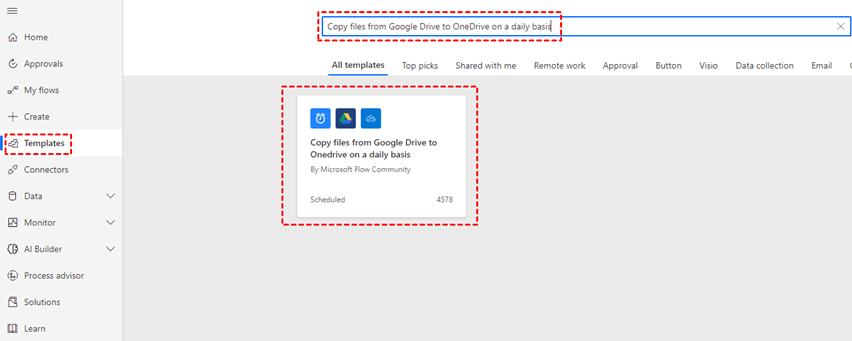
3. Configure Folders – Specify the designated Google Drive folder as the source and the corresponding OneDrive folder as the destination.
4. Create & Test the Flow – Save the flow and run a test. Once active, any new file uploaded to the source Google Drive folder will automatically copy to the target OneDrive folder.
Limitations:
- Only one-way copy, not bidirectional sync.
- You can't copy Google Sheets, Docs, or Slides.
- This tool can't recognize files in team/shared drives.
- It needs a complex setup to filter files to migrate.
Way 5. Import Google Drive to OneDrive
In fact, OneDrive provides a built-in feature called Import cloud photos and files recently. You can import photos or files from Google Drive, Dropbox, and Google Photos to OneDrive directly.
Here is how to import Google Drive to OneDrive directly:
1. Please log in to your OneDrive account.
2. Tap the gear icon on the top right corner, choose Settings.
3. Click Import cloud photos and files from the left side, then hit Connect to Google Drive.
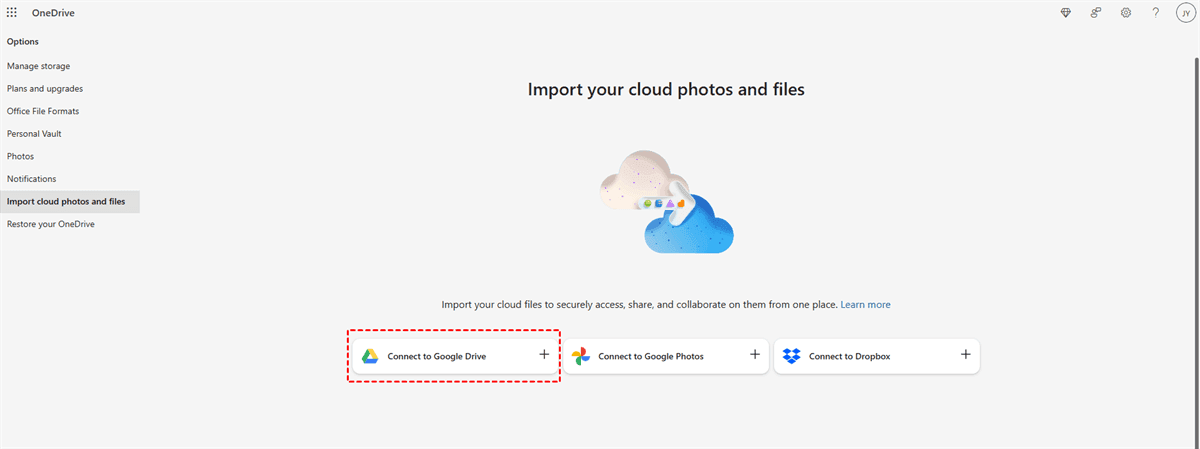
4. It will prompt you to log in to your Google Drive account to connect.
5. Once connected, hit Import now to start the Google Drive to OneDrive sync.
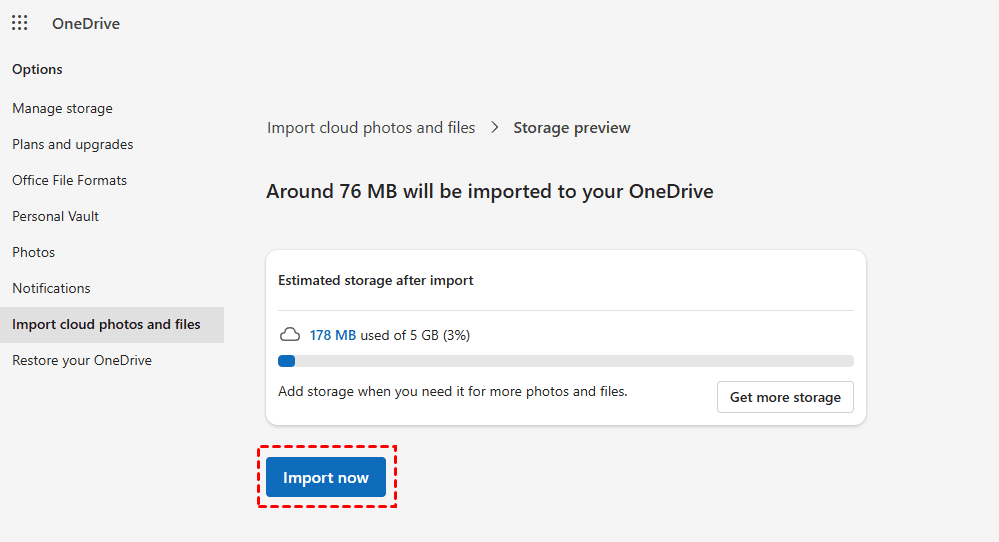
Limitations:
- OneDrive automatically compresses photos and videos during import, often reducing quality (e.g., a 1.2GB video to 333MB).
- Cannot import Google Docs, Sheets, Slides, Drawings, Forms, or Sites. You must manually convert them to Microsoft Office formats first.
- Fails on file paths longer than 400 characters. Individual files over 15GB are blocked.
- Original "date taken" metadata is often lost. Photos appear with the import date instead of the original creation date in your timeline.
- The import is a one-time copy, not a live two-way sync. Changes made in Google Drive after import won't sync.
So, is it possible to avoid these limitations of manual ways? Yes! You can use the above third-party tool called MultCloud to perform the Google Drive OneDrive Sync effectively.
| 1. Sync Google Drive with OneDrive via MultCloud | Fast; Automatic; No downloading; Supports two-way sync; For small or massive migration | Best for most users |
| 2. Download and Upload to Sync Google Drive to OneDrive | Slow; Manual operation; Limited by file size and internet connection | Not recommended |
| 3. Sync Google Drive to OneDrive via Google Takeout | Slow; Manual selection; One-time export; Limited by the export numbers (2-3 per day, or 7 per week) | Best for one-time export |
| 4. Move Files Between Google Drive and OneDrive Folders | Slow; App installed; Manual operation; | Suitable for a few file migrations |
| 5. Power Automate Sync Google Drive to OneDrive | Fast; Manual selection; Complex setup; | Suitable for a few file migrations |
| 6. Import Google Drive to OneDrive | Fast; Not selective; Reduce quality; Limited by file type and size | Best for one-time export |
Google Drive vs. OneDrive: Compare All
If you don't know which is better, Google Drive or OneDrive. You are in the right place to find all the key differences between Google Drive and OneDrive in this part.
Ecosystem & Integration
The most significant difference is how deeply each platform is woven into its respective productivity suite.
- Google Drive is the native storage layer for Google Workspace (formerly G Suite). If your workflow revolves around Gmail, Google Calendar, Google Meet, and the Google Docs editors (Docs, Sheets, Slides), Drive is the natural choice. It operates seamlessly in a web browser and works well across Windows, Mac, Linux, and mobile devices.
- OneDrive is an integral part of the Microsoft 365 ecosystem. It is deeply embedded into Windows (via File Explorer), Outlook, Teams, and SharePoint. For organizations that rely on desktop versions of Word, Excel, and PowerPoint, or use Teams for communication, OneDrive provides the most cohesive experience.
Sync & Performance
- OneDrive uses block-level sync, meaning when you change a large file (like a PowerPoint or a video), only the modified parts are uploaded. This makes it significantly faster and more bandwidth-efficient for large files.
- Google Drive typically performs full-file sync. Changing one small detail in a large file often requires re-uploading the entire file, which can be slower for big creative assets or complex documents.
Collaboration
Both platforms support real-time co-authoring, but their strengths differ.
- Google Drive is the leader in real-time collaboration on the web. Google Docs, Sheets, and Slides allow multiple users to see each other's keystrokes instantly with minimal latency. It is designed for teams that create and edit documents together in a browser.
- OneDrive enables co-authoring in the desktop versions of Microsoft Office (Word, Excel, PowerPoint), which is a key feature for users who prefer powerful desktop apps over web-based tools. The collaboration is reliable, though sometimes slightly less instant than Google's web-native experience.
Search & Organization
- Google Drive leverages Google's core competency: search. It can find files using natural language, search for text inside scanned documents (OCR), and even identify objects within images. This is extremely useful for users who don't have a rigid folder structure.
- OneDrive search is more traditional and folder-dependent. It works well if your team maintains clean file names and a logical folder hierarchy. However, it cannot match Google's ability to infer content.
Pricing & Storage Value
- Google Drive offers a more generous free tier (15 GB). For business, its entry-level plan is cheaper per user, but it offers significantly less storage (30 GB) compared to OneDrive's 1 TB at a similar price point.
- OneDrive has a very small free tier (5 GB). However, its business value is higher. For around $5-6 per user per month, you get 1 TB of storage per user plus web versions of Office apps. For personal users, the Microsoft 365 Family plan ($9.99/month) includes 1 TB of storage for up to 6 people, making it a great deal for households.
Security & Compliance
- OneDrive generally offers more advanced enterprise compliance and security tools through Microsoft Purview, including eDiscovery, data loss prevention (DLP), and retention policies. It also features "Personal Vault", an extra-secure folder for sensitive files.
- Google Drive provides strong, standard enterprise-grade security with features like 2FA and client-side encryption. However, its compliance toolset (Google Vault) is often considered less mature than Microsoft's offerings for heavily regulated industries
Google Drive vs. OneDrive: Comparison Chart
| Feature | Google Drive | Microsoft OneDrive |
|---|---|---|
| Best For | Google Workspace users, real-time collaboration | Microsoft 365 users, Windows-centric teams |
| Free Storage | 15 GB (shared with Gmail & Photos) | 5 GB |
| Paid Personal Plans | Starts at $1.99/month for 100 GB | Starts at $1.99/month for 100 GB |
| Business Starting Price | $7/user/month for 30 GB pooled storage | $5/user/month for 1 TB per user (Microsoft 365 Business Basic) |
| Maximum File Size | 5 TB | 250 GB |
| Daily Upload Limit | 750 GB per 24 hours | No daily limit |
| Sync Technology | Full file sync | Block-level sync |
| Collaboration Strength | Real-time co-authoring in Google Docs, Sheets, Slides (best-in-class) | Co-authoring in Word, Excel, PowerPoint (desktop & web) |
| Search Quality | Advanced Google search (finds content inside images/docs) | Standard search (relies on file/folder names) |
| Key Integrations | Gmail, Google Calendar, Google Meet, Slack, Zoom | Microsoft 365, Teams, SharePoint, Outlook, Windows File Explorer |
| AI Assistance | Gemini (in Gmail, Docs, Sheets, etc. with paid plans) | Microsoft Copilot (add-on for business plans) |
| Security Features | AES-256 encryption, 2FA, Advanced Protection Program | AES-256 encryption, 2FA, Personal Vault (extra authentication folder) |
- Choose Google Drive if: You use Gmail/Google apps, want 15GB free storage, need real-time collaboration, or work with files up to 5TB.
- Choose OneDrive if: You use Microsoft 365/Outlook/Teams, work on Windows, need 1TB per user at $5/month, or upload over 750GB daily (block-level sync is faster).
Avoid hybrid setups – using both causes version conflicts, duplicate costs, and friction. Stick to one ecosystem.
FAQs About Syncing Google Drive to OneDrive
Can I use both OneDrive and Google Drive together on the same computer?
A: Yes, you can use both OneDrive and Google Drive. Install both apps but set different sync folders (e.g., C:\Users\[YourName]\OneDrive for OneDrive and C:\Users\[YourName]\Google Drive for Google Drive). Avoid syncing the same folders, like Desktop or Documents, with both.
How do I two-way sync OneDrive and Google Drive?
A: Native tools don't support two-way sync. Use a third-party tool like MultCloud with "Real-Time Sync" and select two-way mode to mirror changes bidirectionally.
Does syncing Google Drive with OneDrive affect my storage limits?
A: Yes. A 1GB file synced between both clouds consumes 1GB on each service. Plan accordingly.
How can I transfer files from Google Drive to OneDrive without downloading and uploading?
A: Use Google Takeout. Select "Add to OneDrive" as the delivery method instead of a download link. Or try the third-party OneDrive sync tool, like MultCloud, which can move files between Google Drive and OneDrive directly.
Can I sync specific folders instead of entire drives?
A: Yes. Most tools let you select individual folders for sync, giving you better control and saving storage.
Is there a free way to auto-sync Google Drive to OneDrive?
A: Microsoft Power Automate offers free one-way copying. But it lacks two-way sync and fails with native Google formats (Docs, Sheets).
The End
How to sync Google Drive to OneDrive? This article has introduced 6 solutions to sync Google Drive with OneDrive for free. You can choose one method as you like. You can use Power Automate to move Google Drive to OneDrive, but it's complicated to set up the migration due to the conditions, parameters, etc. Conversely, you can also directly sync OneDrive and Google Drive with the help of MultCloud if MultCloud is your choice.
MultCloud supports OneDrive, Google Drive, Box, Dropbox, FTP, MySQL, MEGA, and more than 30 cloud services, so you can easily perform data migration or sync between different cloud drives, like move photos from Google Drive to Google Photos, etc.
In addition to the "Cloud Sync" feature, MultCloud also has "Cloud Transfer", "Copy to", and "Remote Upload" functions. Therefore, as long as you have cloud drives that MultCloud supports, you can manage cloud data with the most ease. For example, you will be able to copy Google Drive to OneDrive, quickly remote upload to MEGA, migrate Box to OneDrive, or upload to Google Drive from URLs if necessary.
MultCloud Supports Clouds
-
Google Drive
-
Google Workspace
-
OneDrive
-
OneDrive for Business
-
SharePoint
-
Dropbox
-
Dropbox Business
-
MEGA
-
Google Photos
-
iCloud Photos
-
FTP
-
box
-
box for Business
-
pCloud
-
Baidu
-
Flickr
-
HiDrive
-
Yandex
-
NAS
-
WebDAV
-
MediaFire
-
iCloud Drive
-
WEB.DE
-
Evernote
-
Amazon S3
-
Wasabi
-
ownCloud
-
MySQL
-
Egnyte
-
Putio
-
ADrive
-
SugarSync
-
Backblaze
-
CloudMe
-
MyDrive
-
Cubby


Stay Updated With Our
Latest Tips
Add us as a preferred source on Google to never miss helpful guides.
 Add as preferred source >>