
Change Google Drive Folder Location!
How to change the location of the Google Drive on my computer?
move the default location for Google Drive from \Users\
- Question from support.google.com
When your C: drive flashes red, warning you it's almost full, and you realize your Google Drive folder is gobbling up every last gigabyte? Learning how to change Google Drive sync folder to a new location—whether that's a secondary internal drive or a spacious external hard drive—can save you from that storage panic and keep your workflow humming along.
Why Change Google Drive Sync Folder Location?
Most of us set up Google Drive once, pick the default folder, and never think about it again. Then a storage warning appears, and available space has vanished. That is when changing the sync folder becomes urgent.
- Freeing Up Space on a Cramped System Drive. Your primary drive fills up quickly. Operating system updates, app installations, and temporary files consume most available space, leaving little room for a growing Google Drive folder. Relocating it elsewhere reclaims valuable storage.
- Moving to a Larger External Drive for Expanded Storage. Your Google Drive library may hold hundreds of gigabytes of photos, documents, and project files. Moving your sync folder to a dedicated external drive gives your cloud library room to expand without crowding your main drive.
What Happens When You Change Sync Folder in Google Drive
Before relocating your sync folder, a few rules must be followed.
Google Drive for Desktop does not support simply cutting and pasting the folder like some other cloud applications. Dragging the folder to a new location without following the correct steps causes Drive to lose track of its files and begin a full re-download. The proper method requires pausing sync, moving the folder, and then directing the app to the new path.
When done correctly, no files are lost. The relocated folder contains all locally available files. Once Google Drive is pointed to the new location, it recognizes the existing files and resumes syncing without re-downloading everything.
How to Change Google Drive Sync Folder on Windows 11/10
There are two ways to change sync folder for Google Drive in Windows 11, 10, etc.
Way 1. Disconnect Account to Change Google Drive Sync Folder
This method is the official, supported way to change your Google Drive sync folder location without causing sync headaches.
Step 1. Pause Sync and Disconnect Your Account
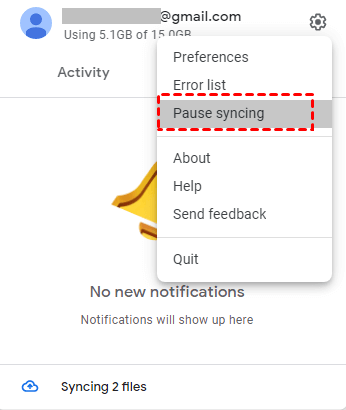
Open Google Drive for Desktop from your system tray. Click the settings gear, then select "Pause syncing". This tells Drive to stop all activity while you relocate the folder. Then disconnect your Google Drive account.
Step 2. Move the Google Drive Folder to a New Location
Go to your current Google Drive folder in File Explorer—usually located in C:\Users\[YourName]\Google Drive. Right-click it and select "Cut". Then head to your desired new location (say, D:\Google Drive or an external drive like E:\). Right-click and select "Paste".
Step 3. Restart Sync and Point to the New Path
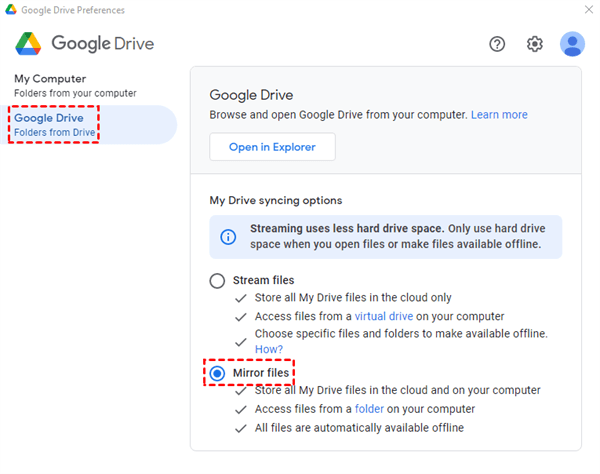
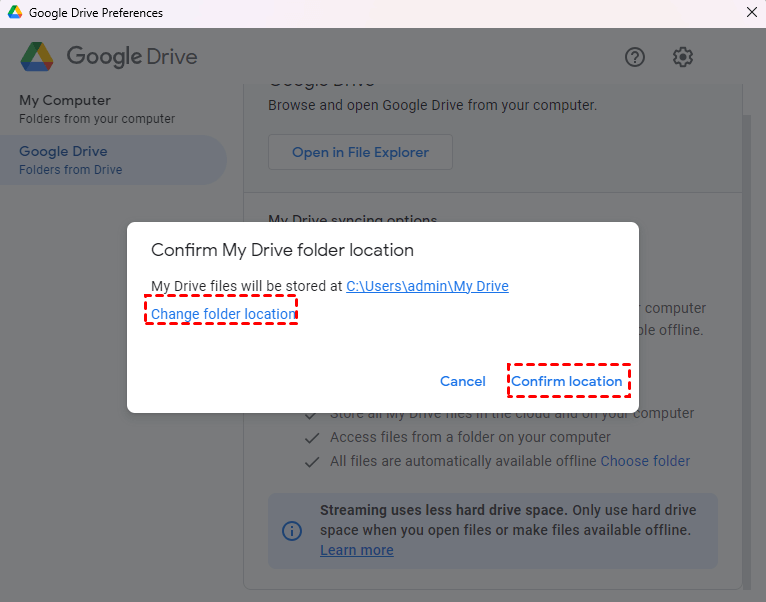
Go to Google Drive for Desktop and log in. Then Google will show you: Google Drive is loading your files. Click the settings gear > "Preferences", then go to "Google Drive" > Mirror Files. It prompts you to confirm the My Drive folder. Click "Change Folder location", choose the location where you have copied the Google Drive files, and click Confirm location. Then resume syncing from the system tray menu. Drive will verify the existing files and sync normally.
Way 2. Quit Google Drive for Desktop to Change
There is another proven solution for you. Check the steps:
1. Quit the Google Drive for Desktop app.
2. Copy the Google Drive folder from the user folder on the C: drive to another location, like a USB drive, an external hard drive, etc.
3. Delete the Google Drive folder in the user folder.
4. Open the Google Drive for Desktop app, and it will show the message about a missing folder. Click on 'Locate' and point to the Google Drive folder, which is now located on the USB drive, external hard drive, etc.
Sometimes, you might need to repeat step 4 for the new location to be accepted. At this time, Google Drive does not create duplicate files in the User folder.
How to Change Google Drive Folder Location on macOS
On modern macOS (Ventura/Sonoma+), Google Drive typically restricts folder location changes because it relies on Apple's File Provider API, which manages the folder at ~/Library/CloudStorage. To move it, you'll need to switch from streaming to mirroring in your settings, disconnect your account, and then sign back in to select a non-standard location—such as an external drive.
How to change your Google Drive folder location (Mirror mode):
1. Open settings: Click the Google Drive icon in your menu bar, select the gear icon, and choose Preferences.
2. Disconnect your account: In Preferences, click the gear icon again, then select Disconnect account.
3. Choose Mirror files: Sign back in, and when prompted, select Mirror files.
4. Set the folder location: Choose a new folder location on your Mac or an external drive.
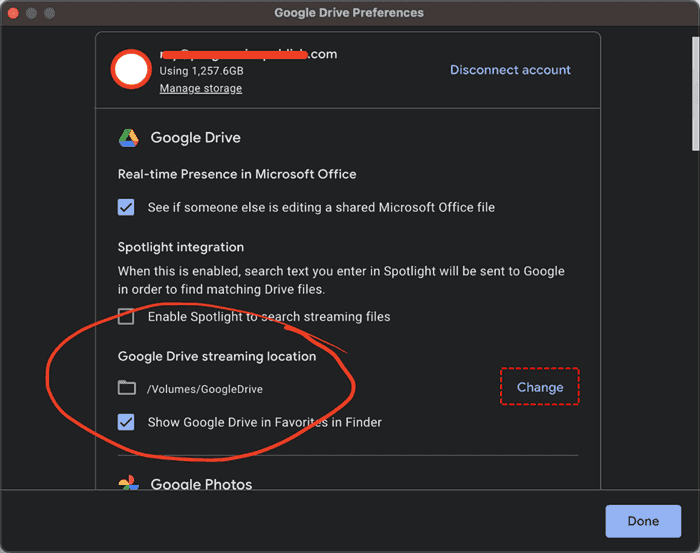
Or you can change the Google Drive folder location in Google Drive settings.
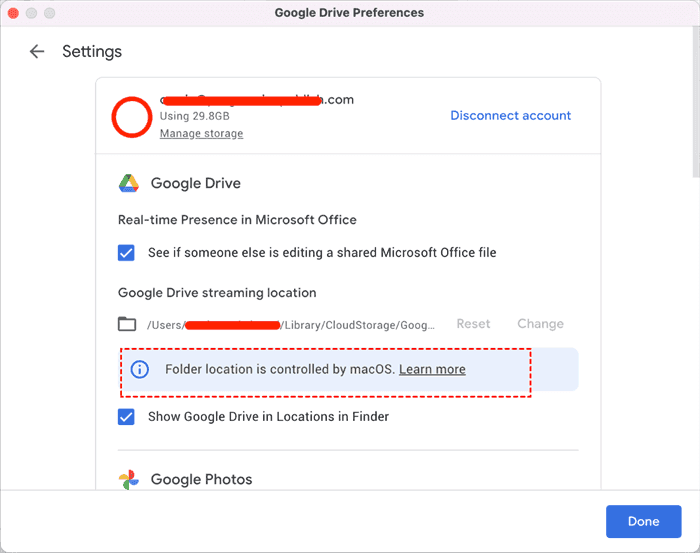
But you might encounter the message: Folder location is controlled by macOS, because the File Provider API restricts it. You can switch from streaming to mirroring to change the folder location.
1 Tip: Move Google Drive Files to Another Cloud to Free Up Space
While changing your Google Drive mirror location solves local storage issues, MultCloud helps you reorganize your cloud storage itself. What if you need to free up space for Google Drive because it is full? How to move files from Google Drive to another cloud without downloading and re-uploading everything? That's where MultCloud enters the scene.
MultCloud is a professional web-based cloud storage manager that lets you transfer, sync, or back up files directly across different platforms. Check the strengths below:
- No Download/Upload: Transfers files server-to-server without using your bandwidth or hard drive.
- Fast & Offline: Runs on MultCloud's servers; you can close your browser or turn off your computer.
- Supports 40+ Clouds: Move data to/from OneDrive, Dropbox, Box, Google Drive, iCloud Drive, iCloud Photos, MEGA, pCloud, and many others.
- Selective Filtering: Use filters to transfer only specific file types (e.g., just documents or photos).
- Scheduled Transfers: Automate transfers for off-peak hours (e.g., weekly or monthly).
- Preserves Structure: Maintains your folder hierarchy and file permissions where supported.
Here are the demonstration steps to migrate files from Google Drive to OneDrive with MultCloud:
1. Please create a free MultCloud account and log in.
2. Tap Add Cloud, and choose Google Drive. Follow the guide to grant access. Add OneDrive in the same way.
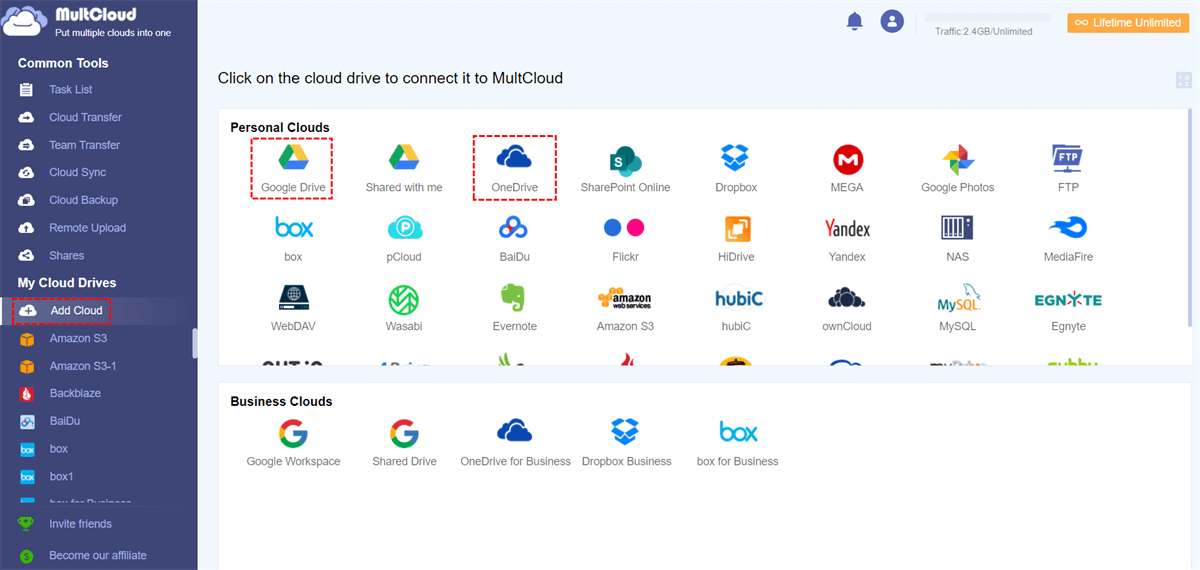
Tip: Each service connects via OAuth, meaning MultCloud never stores your actual passwords.
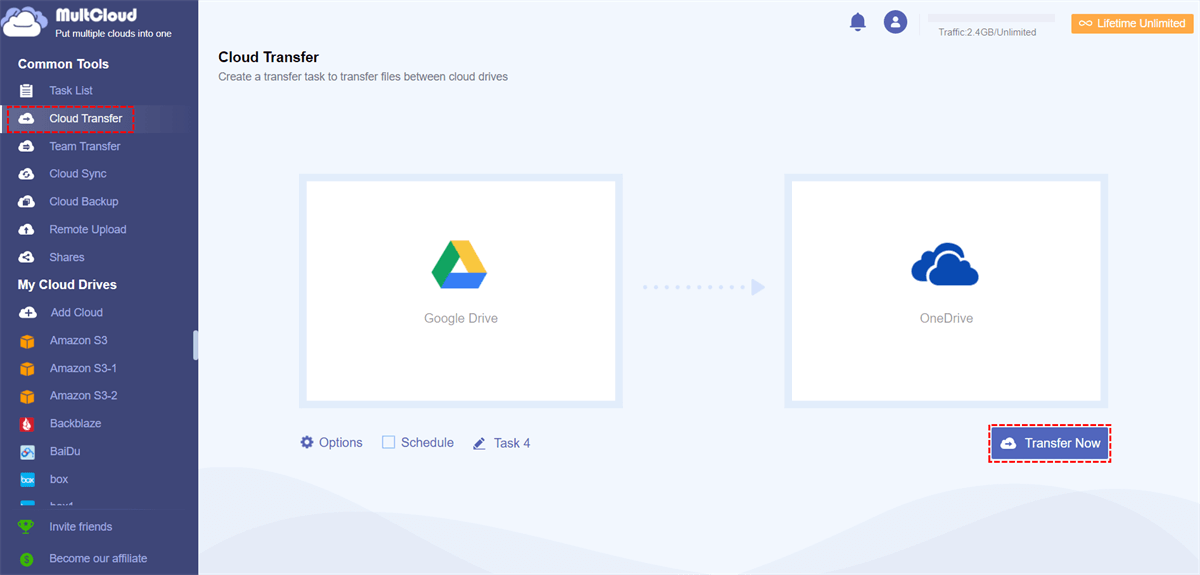
3. Click Cloud Transfer, choose the source files in your Google Drive account, and a folder in OneDrive as the destination.
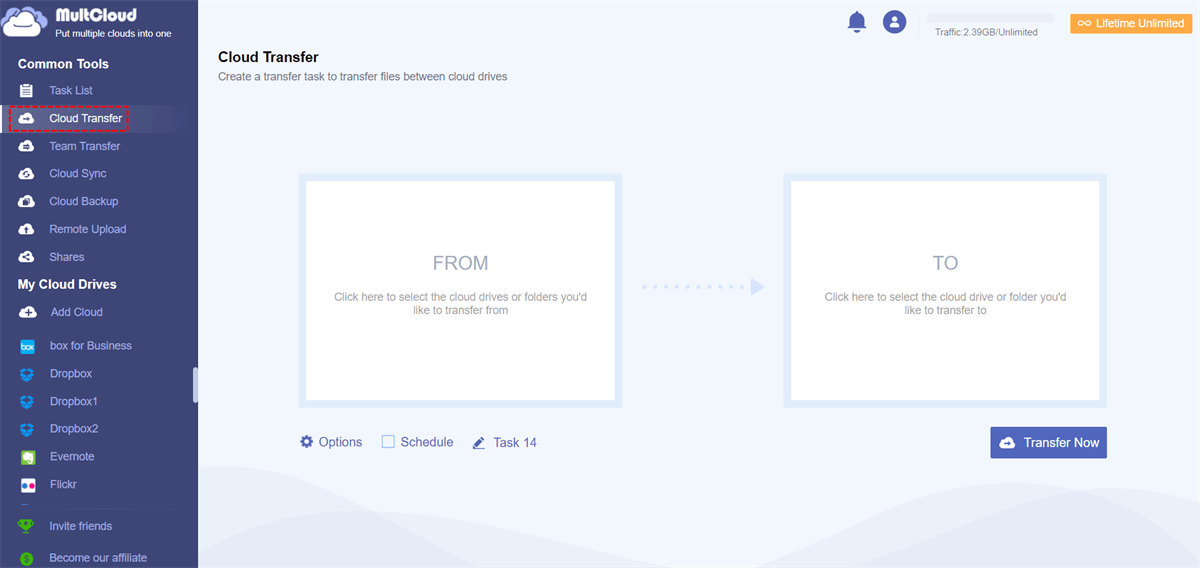
4. Set up Options and Schedule according to your demands, then tap Transfer Now to start the Google Drive to OneDrive migration.
- Notes:✎...
- To automatically free up space for Google Drive after the transfer, tap Options > Delete all source files after transfer is complete to set up.
- You can set filters to move only certain file types, schedule transfers for off-peak hours, or enable email notifications when the task finishes. This is especially handy for large migrations.
Once complete, log in to your destination cloud and check that everything arrived intact. Folder structures are preserved, and files retain their original metadata like timestamps.

- Smart Share: Share cloud files via public, private, or source mode.
- One-key Move: Quick data transfer, sync, and backup among clouds.
- Email Archive: Protect emails to other clouds or local disks.
- Remote upload: Effectively save web files to clouds via URL.
- Save Webpages as PDF/PNG: Keep them locally or online.
- Instagram Download: Archive Instagram materials locally or online.
- Easy: Access and manage all clouds in one place with one login.
- Extensive: 30+ clouds and on-premise services are supported.
FAQs About Changing Google Drive Sync Folder
Can I change the Google Drive sync folder to an external drive?
A: Yes. You can relocate your Google Drive folder to any external drive formatted for your operating system (NTFS for Windows, APFS or exFAT for macOS). If the drive is disconnected, Google Drive will show an error until it is reconnected.
Will I lose my files if I change sync folder for Google Drive?
A: No. Following the proper steps—pausing sync, moving the folder, then updating preferences—keeps all files intact. Drive recognizes existing files and resumes syncing without re-downloading.
How do I change Google Drive folder location without re-downloading everything?
A: Pause sync before moving the folder. After relocating, update the path in Drive's preferences. Drive verifies the existing files rather than downloading them again.
Why is my Google Drive change sync folder location option grayed out?
A: This usually occurs when Drive is actively syncing. Pause syncing first. Once paused, the option becomes available.
What happens if I change the Google Drive mirror location while files are uploading?
A: Wait until all uploads and downloads are complete. Changing location during active transfers risks sync conflicts. Pause sync, allow activity to finish, then proceed.
Does changing the sync folder affect files that are shared with me?
A: No. Shared files move with the rest of your Drive folder. Permissions remain unchanged as they are managed by Google's servers.
How do I free up space after moving my Google Drive folder to another drive?
A: After confirming sync works from the new location, delete the original folder from your system drive to reclaim space.
MultCloud Supports Clouds
-
Google Drive
-
Google Workspace
-
OneDrive
-
OneDrive for Business
-
SharePoint
-
Dropbox
-
Dropbox Business
-
MEGA
-
Google Photos
-
iCloud Photos
-
FTP
-
box
-
box for Business
-
pCloud
-
Baidu
-
Flickr
-
HiDrive
-
Yandex
-
NAS
-
WebDAV
-
MediaFire
-
iCloud Drive
-
WEB.DE
-
Evernote
-
Amazon S3
-
Wasabi
-
ownCloud
-
MySQL
-
Egnyte
-
Putio
-
ADrive
-
SugarSync
-
Backblaze
-
CloudMe
-
MyDrive
-
Cubby


Stay Updated With Our
Latest Tips
Add us as a preferred source on Google to never miss helpful guides.
 Add as preferred source >>