
Dropbox Selective Sync Not Freeing Up Space!
You opened Dropbox, unselected those massive folders you no longer need on your hard drive, clicked update, and waited. But when you checked your storage, nothing changed. If you’re dealing with Dropbox Selective Sync not freeing up space, you’re in the right place.
When Dropbox Selective Sync does not free up space, it disrupts workflow, fills up drives meant for other applications, and leaves users stuck. Don't worry, this guide covers everything about using Dropbox Selective Sync and fixing the issues you encounter.
Common Reasons for Dropbox Selective Sync Not Removing Files
Before you can fix the problem, you need to understand why it’s happening in the first place. There are some culprits for that situation:
- Stuck Sync Cache and Corrupted Database Files. Dropbox uses a local database to track which files belong on your drive versus the cloud. When this database gets corrupted—from an interrupted sync, system crash, or failed update—Selective Sync commands fail.
- Permission Conflicts Preventing File Removal. Sometimes the operating system blocks file removal. Windows or macOS may lock files because another app is using them, or folder permissions may prevent deletion. This is common with shared folder files or recently accessed items.
- Smart Sync Confusion. Using Smart Sync alongside Selective Sync creates conflicts. Smart Sync marks files as “online-only”, which should remove local copies. But when both features overlap, files stay cached locally. This is why Dropbox make online only, not freeing up space, a frequent issue.
Dropbox Manage Hard Drive Space Not Working | 5 Fixes
Try these proven solutions to fix Dropbox selective sync not freeing up space quickly.
Way 1. Restart Your Computer
A quick way to test this is to restart your computer and check your available storage again. Sometimes that’s all it takes to kick the sync engine into gear.
Way 2. Reset Selective Sync Selections
Sometimes the easiest fix is to unselect and reselect everything.
1. Go into Dropbox preferences.
2. Open the Selective Sync tab, and uncheck all folders.
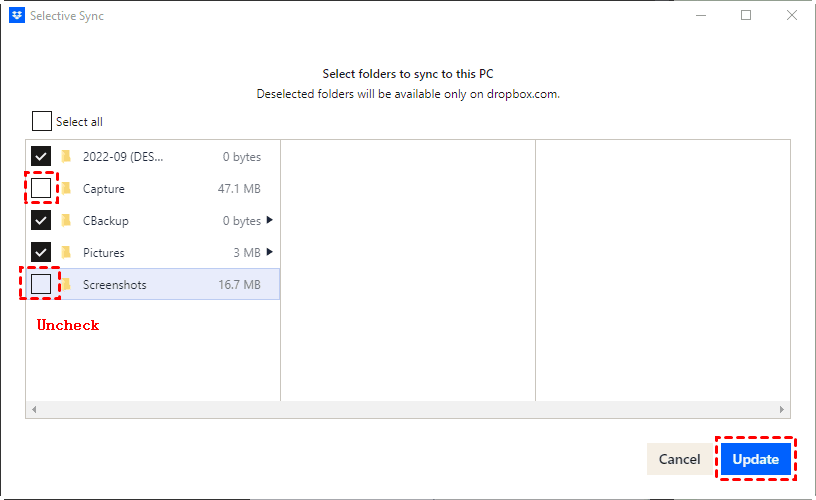
3. Apply the changes. Let Dropbox process that request—this tells the app to remove everything local.
4. Once it’s done, restart your computer, then go back and reselect only the folders you actually want stored locally.
This brute-force method often clears out stuck files that individual unchecks couldn’t handle.
Way 3. Clear the Dropbox Sync Cache Manually
The Dropbox cache folder—often hidden—can become bloated with files that should have been deleted.
- On Windows, navigate to %HOMEPATH%\AppData\Local\Dropbox and look for the cache or .dropbox.cache folder.
- On macOS, check ~/Library/CloudStorage/Dropbox/.dropbox.cache. Delete the contents of that folder (not the folder itself), then restart Dropbox.
Way 4. Perform a Clean Reinstall That Actually Works
A standard uninstall won’t cut it. You need a clean reinstall. Here’s how:
1. Back up any local-only files that aren’t synced to the cloud.
2. Uninstall Dropbox through your system’s standard method (Settings > Apps on Windows, or dragging the app to Trash on macOS).
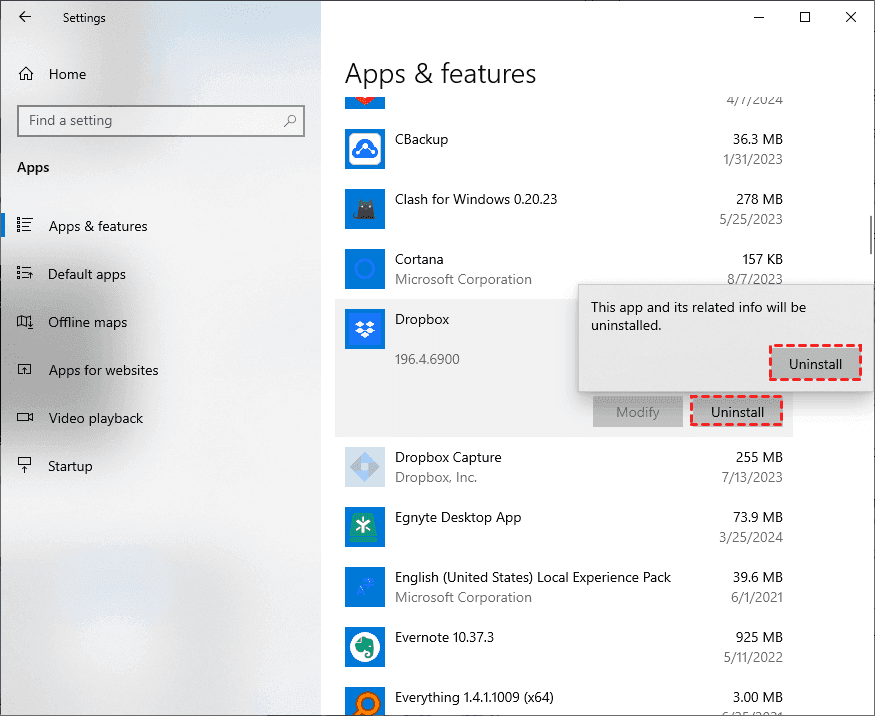
3. Remove hidden Dropbox files.
- On Windows, delete %HOMEPATH%\AppData\Local\Dropbox and %HOMEPATH%\AppData\Roaming\Dropbox.
- On macOS, delete ~/Library/Application Support/Dropbox and ~/Library/Preferences/com.dropbox.Dropbox.plist.
4. Restart your computer to clear any lingering processes.
5. Download a fresh installer from the official Dropbox website and reinstall.
6. Sign in and let it sync. Once synced, reconfigure Selective Sync and Smart Sync from scratch.
Way 5. Move Dropbox Folder
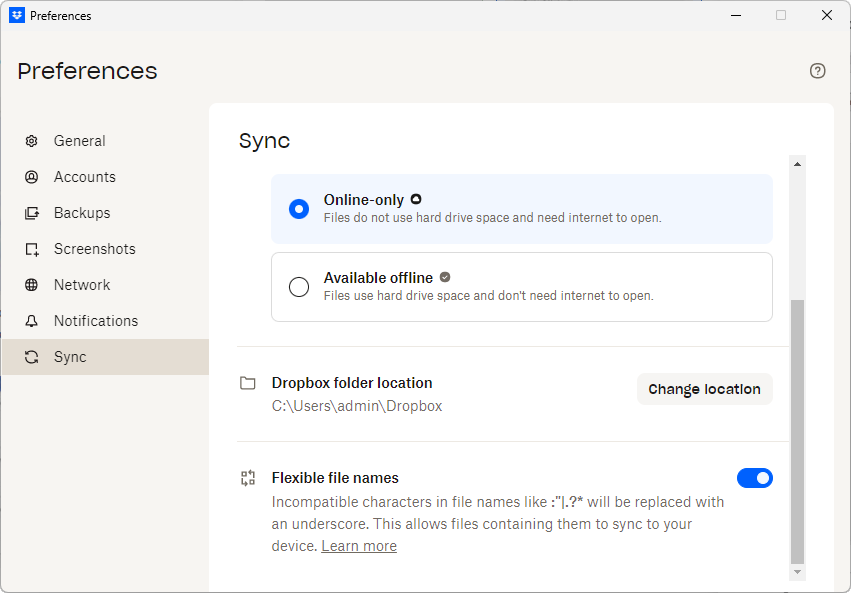
Try moving the Dropbox folder to a different location, such as the Library folder. Go to Dropbox Preferences > Sync > Change Location. Then your Dropbox selective sync not freeing up space might be solved.
Way 6. Reindex Spotlight
Reindex Spotlight to ensure your Mac is recognizing the freed-up space.
Go to System Preferences > Spotlight > Privacy, add your hard drive, then remove it to trigger reindexing.
Directly Back up Dropbox Files to Another Cloud
When Dropbox Selective Sync isn't freeing up space, it’s difficult to manage your Dropbox files. If you are going to move files from Dropbox to another cloud directly. The powerful web-based multiple cloud storage manager, MultCloud, is your best choice. No downloading, no re-uploading, and no dealing with a stuck sync engine.
- Pros of MultCloud for Cloud-to-Cloud Migration:
- No Downloading or Re-Uploading. MultCloud performs direct server-side transfers. Files move from one cloud to another without ever touching your computer—saving bandwidth, time, and local storage. You can sync, backup, and transfer files between clouds directly.
- Centralized Management. Connect over 40 cloud services—Google Drive, Dropbox, OneDrive, Box, MEGA, and more—and manage them all from a single dashboard.
- Automated and Scheduled Transfers. Set up daily, weekly, or monthly transfers for ongoing backups or syncs. Tasks run automatically, even when your computer is off.
- Preserves Folder Structure. Original folder hierarchy and metadata like modification dates remain intact. Your destination cloud mirrors the source perfectly.
- Web-Based and Cross-Platform. Works in any browser on Windows, Mac, Linux, or Chromebook. No software installation required.
- Secure Authorization. Uses OAuth—your cloud credentials are never stored on MultCloud’s servers. Revoke access anytime from your cloud provider.
- Large File Support. Handles files up to several gigabytes and bulk transfers reliably without constant monitoring.
Here is how to migrate files from Dropbox to OneDrive via MultCloud:
1. Please sign up for a free MultCloud account, then log in.
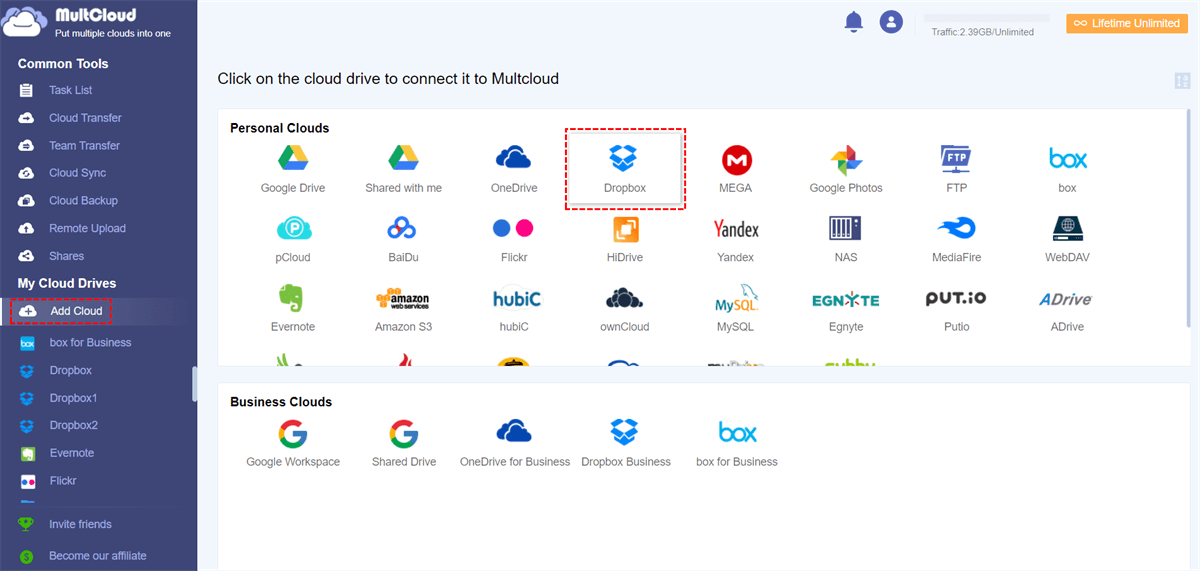
2. Tap Add Cloud > Dropbox, and follow the guide to add. Then add another cloud like Google Drive in the same way.
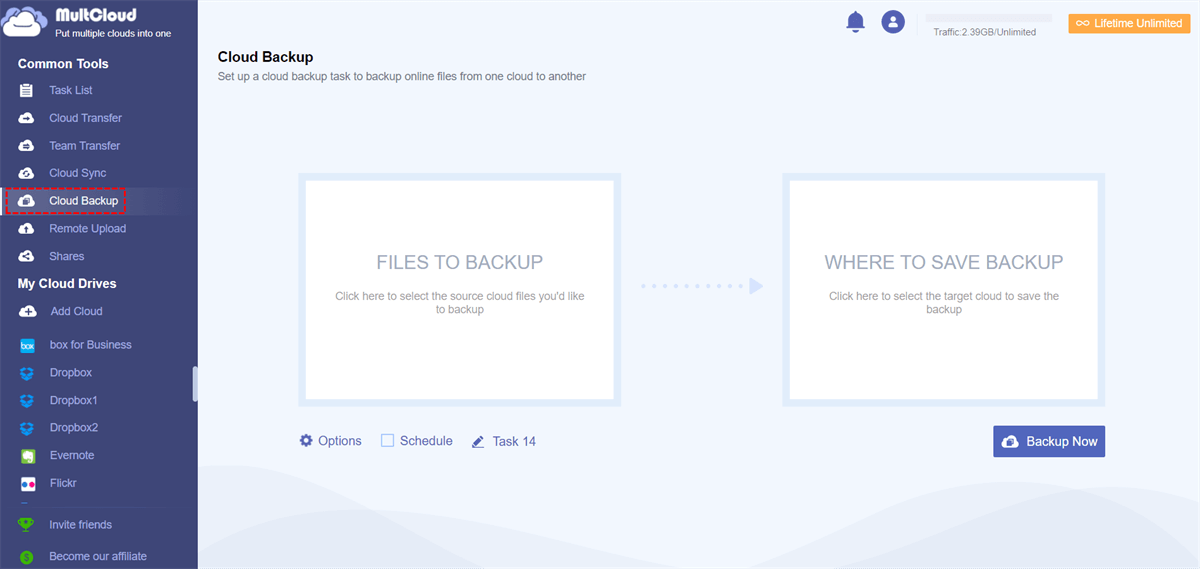
3. Click Cloud Backup, select Dropbox as the source, and pick a folder in Google Drive as your destination.
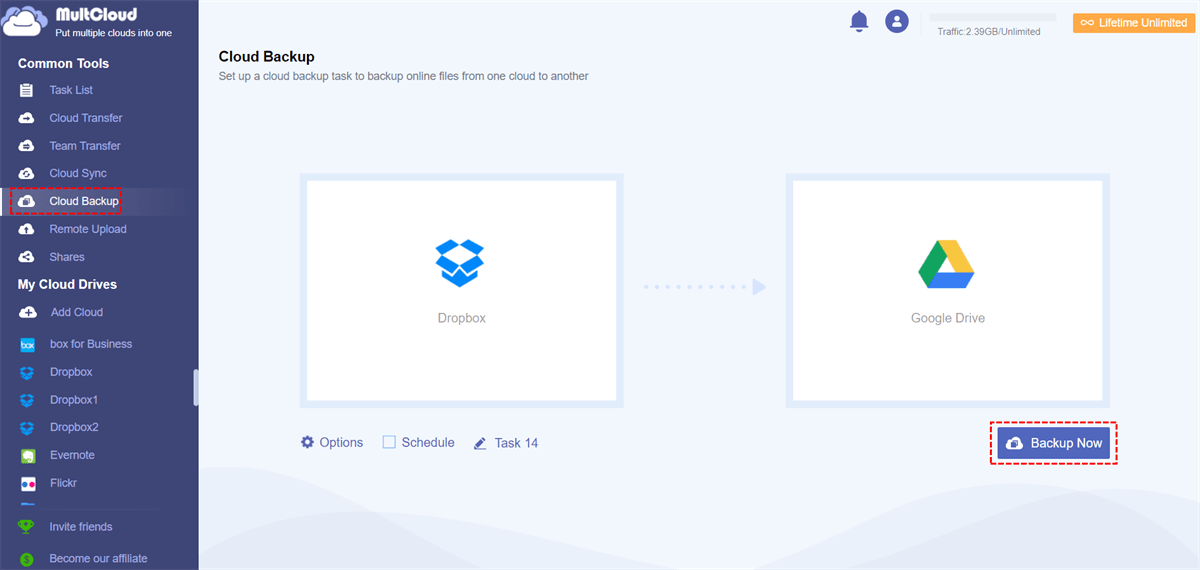
4. Tap Schedule and Options to configure, then click Backup Now to back up Dropbox to Google Drive directly.
- Notes:✎...
- You can set up Email notifications and Filter in Options. You can include or exclude the file types you want, which is especially useful to sync certain files.
- Schedule allows you to run the task daily, weekly, monthly, or even once. Set it and forget it.
- MultCloud keeps backup versions for you to restore files quickly if needed in the future.

- Smart Share: Share cloud files via public, private, or source mode.
- One-key Move: Quick data transfer, sync, and backup among clouds.
- Email Archive: Protect emails to other clouds or local disks.
- Remote upload: Effectively save web files to clouds via URL.
- Safe: Full-time 256-bit AES and OAuth authorization protections.
- Easy: Access and manage all clouds in one place with one login.
- Extensive: 30+ clouds and on-premise services are supported.
FAQs About Dropbox Selective Sync Issues
Why does Dropbox Selective Sync not freeing up space even after unselecting folders?
A: This usually happens due to a corrupted sync cache or database. Reset Selective Sync by unselecting all folders and applying the change. If that fails, manually clear the Dropbox cache folder.
What does the “please reinstall Dropbox to free up hard drive space ” message actually mean?
A: This appears when local files or the database are severely corrupted. A standard reset won’t work. Perform a clean reinstall, manually removing hidden Dropbox folders after uninstalling.
How can I tell if Dropbox make online-only not freeing up space is due to a conflict with Selective Sync?
A: Temporarily disable Selective Sync for the problematic folder, then mark it as online-only. If space frees up, conflict was the cause. Re-enable Selective Sync with a fresh configuration.
Will resetting Selective Sync delete files from the cloud?
A: No. Unselecting a folder removes the local copy only. Files remain safely in your cloud account and can be downloaded again later.
Why does Dropbox manage hard drive space not working after a system update?
A: System updates may reset permissions or interrupt the sync engine. Restart Dropbox and run a manual sync. If issues persist, reset Selective Sync or perform a clean reinstall.
Can third-party antivirus software cause Dropbox selective sync not removing files?
A: Yes. Antivirus programs can lock files during scans. Temporarily disable real-time protection, adjust Selective Sync, then add the Dropbox folder to your antivirus exclusion list.
What’s the fastest way to reclaim space when Selective Sync isn’t working?
A: Pause syncing, manually move the Dropbox folder to an external drive, then restart Dropbox and reconfigure Selective Sync. Ensure cloud files are up to date first.
Is there a way to prevent Dropbox selective sync not freeing up space from happening again?
A: Regularly restart Dropbox, avoid interrupting syncs during large changes, and periodically clear the sync cache. Keep your OS and Dropbox updated. Heavy users may prefer storing the full Dropbox folder on an external drive.
MultCloud Supports Clouds
-
Google Drive
-
Google Workspace
-
OneDrive
-
OneDrive for Business
-
SharePoint
-
Dropbox
-
Dropbox Business
-
MEGA
-
Google Photos
-
iCloud Photos
-
FTP
-
box
-
box for Business
-
pCloud
-
Baidu
-
Flickr
-
HiDrive
-
Yandex
-
NAS
-
WebDAV
-
MediaFire
-
iCloud Drive
-
WEB.DE
-
Evernote
-
Amazon S3
-
Wasabi
-
ownCloud
-
MySQL
-
Egnyte
-
Putio
-
ADrive
-
SugarSync
-
Backblaze
-
CloudMe
-
MyDrive
-
Cubby


Stay Updated With Our
Latest Tips
Add us as a preferred source on Google to never miss helpful guides.
 Add as preferred source >>