

Quick Navigation:
How to Back up Drupal Site?
Best way to back up a Drupal Website
My first Drupal project is about doing some maintenance and adding code to an existing Drupal Website.
What is the best approach to back up the database and code? If something goes wrong, I want to recover the website from these backups.
Actually, I'm doing a backup of the Drupal database via phpMyAdmin, and a backup of the code via FTP (copying all the content of the public_html folder)
The website is actually in production, users add content, chat...
- Question from stackoverflow.com
Drupal is a powerful, open-source content management system (CMS) built on three core layers: the codebase (engine), modules (features), and themes (design). Unlike simpler website builders, Drupal organizes content using structured tools like Content Types (e.g., Articles, Events) and Taxonomy (categories/tags), which helps keep even massive sites clean and searchable.

However, a failed update, a server hiccup, an admin accidentally deleting the wrong node, a hard drive failure, or some nasty little hack wipes the floor with everything you've built. Although you can get old content from the Wayback Machine, it’s not easy. It’s wise to back up a Drupal site, whether you run a small blog or a bustling e-commerce hub, because it will make a difference.
What is Contained in A Drupal Site Backup?
A proper Drupal backup covers your files (themes, modules, custom code) and your database (all that precious content, user data, and configurations).
- Files -everything in your Drupal root directory (sites/default/files, contributed modules, themes, and settings.php).
- Database -all your nodes, users, comments, taxonomy, and configuration variables are stored in MySQL or PostgreSQL.
How to Find the Drupal Site Files?
In Drupal 10, the directory structure is organized to separate various aspects of the system, including core files, contributed modules, custom modules, themes, and more.
You have the following main folders in the Drupal root directory:
- core/: Contains Drupal's core files and essential components.
- modules/: This folder contains modules, both contributed and custom.
- themes/: Contains themes, including both custom and contributed themes.
- sites/: This folder is where settings, configurations, and files related to specific Drupal sites are stored.
- libraries/: Typically used for third-party libraries that Drupal relies on.
- vendor/: Contains external dependencies managed by Composer.
And you have these files in the root directory: index.php, composer.json, update.php, and robots.txt.
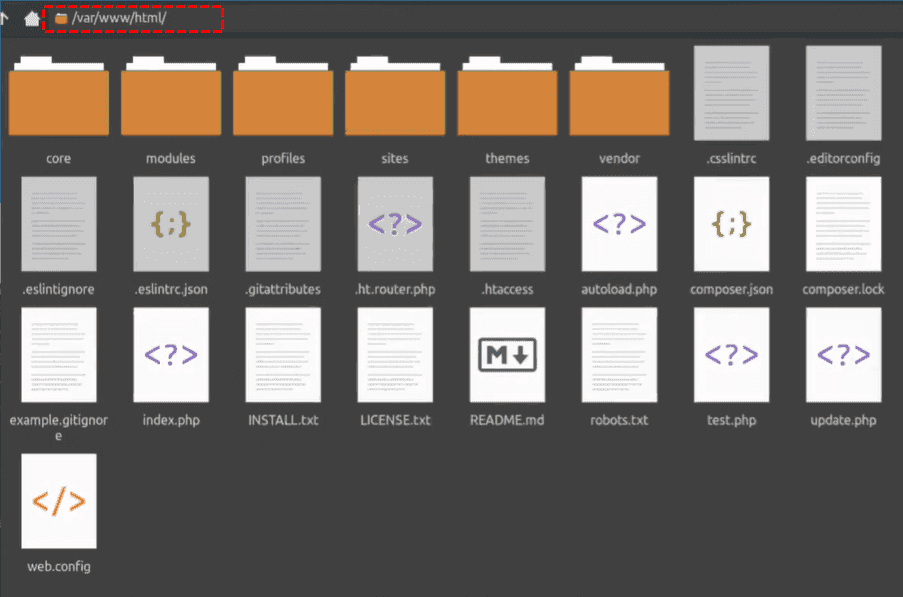
As a suggestion, everything in the root directory should be backed up monthly, and always back up the core files before an upgrade.
How to Backup Drupal Site Easily? 3 Ways
There are multiple ways to backup your Drupal site. Check them now.
Important:
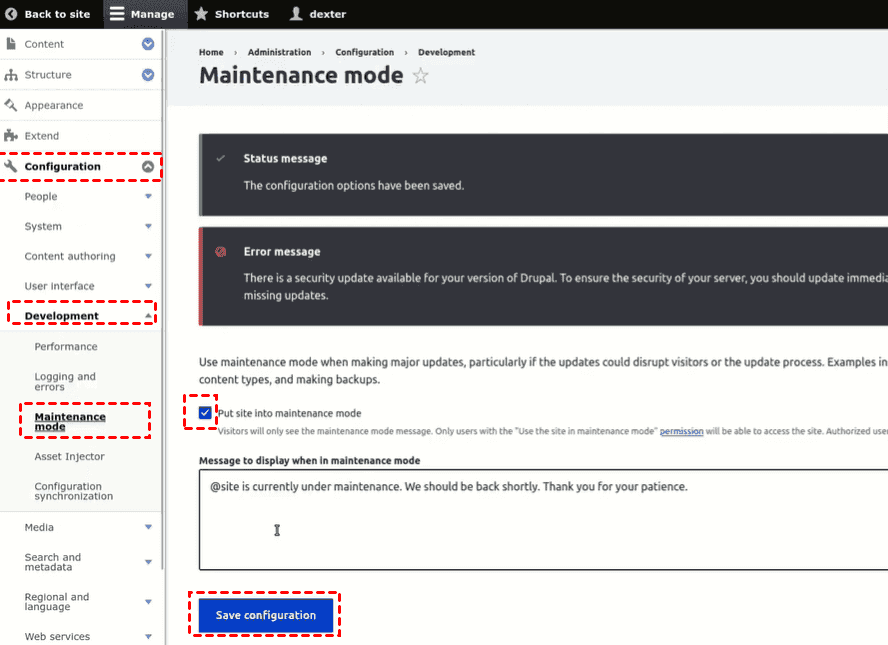
- Before backup, you can choose to put your Drupal site into maintenance mode or not. So, the maintenance mode locks the database, preventing writes during the backup. But also, no one can access the website during maintenance. Go to Configuration > Development > Maintenance mode > Put site into maintenance mode to set up.
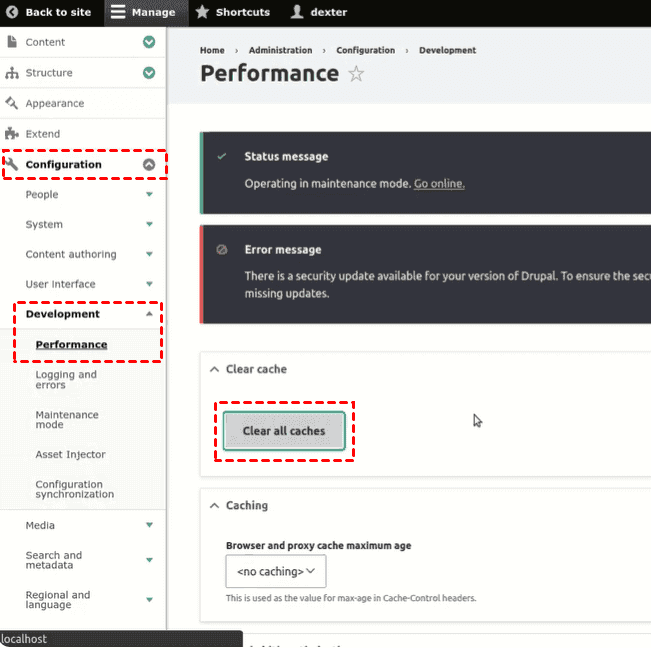
- It’s necessary to clear all caches because they extend your backup size for no good reason. Log in to your Drupal site as administrator, then click Configuration > Development > Performance > Clear all caches.
Way 1. Backup Drupal Site Manually
Manual backups give you total control. No modules required. You just need FTP/cPanel access and a little patience.
Part 1. Backup Drupal Site Files via (S)FTP or cPanel
The manual process to back up Drupal files is easy to operate and contains two parts:
- Try to use an FTP/SFTP or cPanel to back up Drupal files.
- Then export the Drupal database via phpMyAdmin.
Try cPanel to Backup Drupal Site Files
1. Inside cPanel, open “File Manager”.
2. You can just browse to your Drupal root.
3. Highlight all files and folders, then click “Compress” (ZIP is also acceptable).
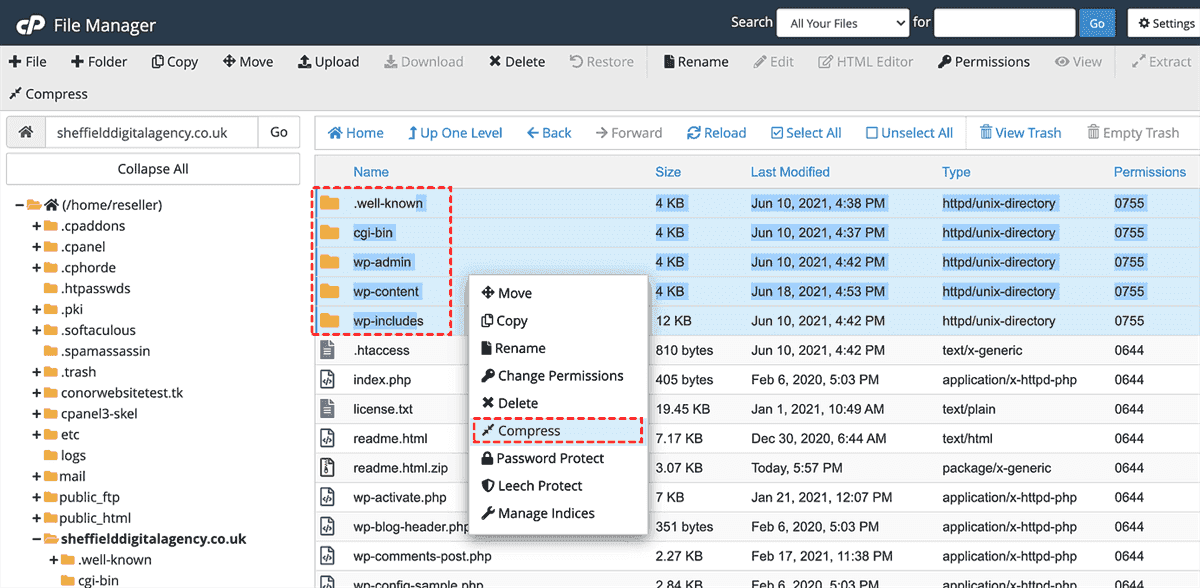
4. Once compressed, download that ZIP to your computer.
Use FTP or SFTP for Drupal Backup
If you prefer FTP, fire up FileZilla or similar.
1. Connect your Drupal site and navigate to the root.
2. Select all and drag them to a local folder.
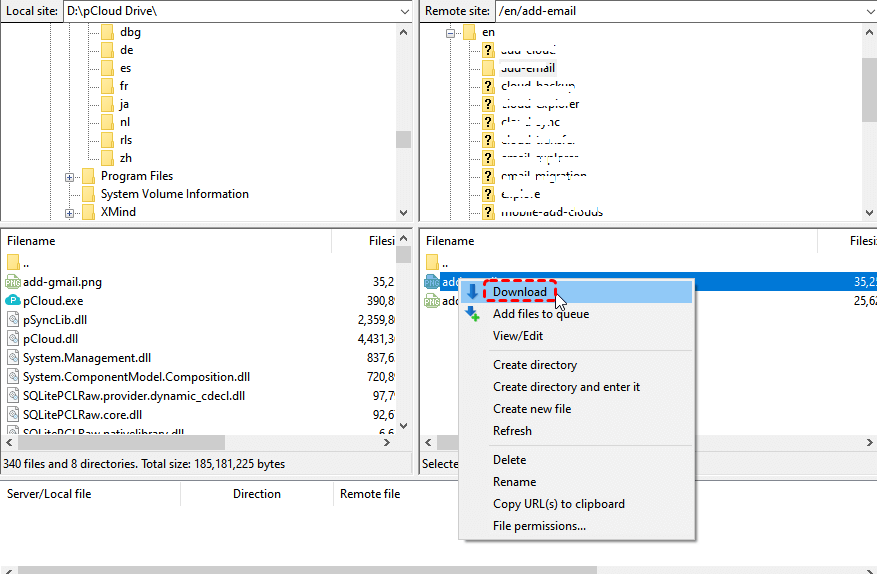
SFTP is safer, so use it if your host offers it.
Either way, you’ve just made a full file copy: Choose all the files and folders in the root directory, choose Create Archive, rename them, and hit Create to get the backup copy.
Part 2. Export the Drupal Database via phpMyAdmin
1. Log in to cPanel and open phpMyAdmin.
2. Select your Drupal database.
3. Click the “Export” tab.
4. Choose “Quick” or “Custom”—both work, but “Custom” lets you add DROP TABLE statements, which makes restores cleaner.
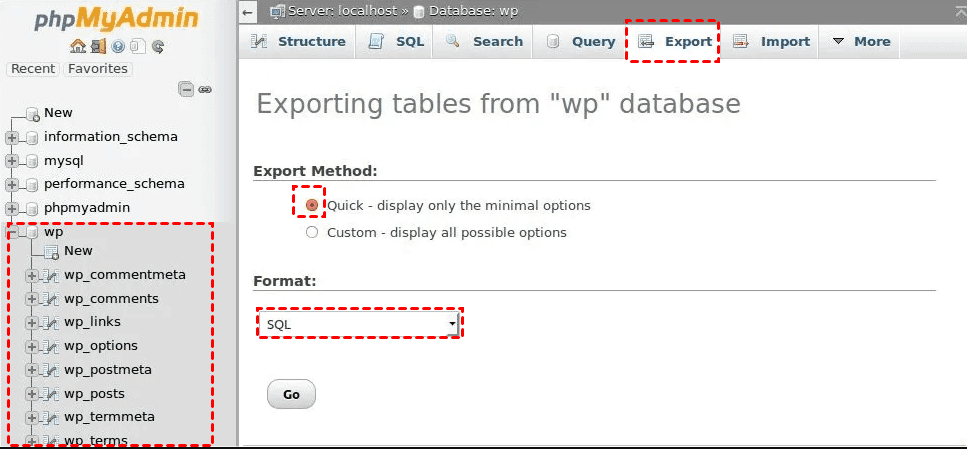
5. Hit “Go” and save the SQL file.
- Limitation:✎...
- It’s time-consuming to back up Drupal files manually, especially when there are lots of files to back up.
Way 2. Backup Drupal Site via the Backup and Migrate Module
The Drupal backup and migrate module automates the whole backup, compresses files, and even lets you schedule backups. It is one of the most widely used Drupal contributed modules in this area. It creates database and file backups.
1. Go to Extend in your Drupal admin, search for “Backup and Migrate”, install, and enable.
2. Then head to Configuration > Backup and Migrate.
3. Click “Advanced Backup”; you can set up the destination settings, schedule, and file exclusions.
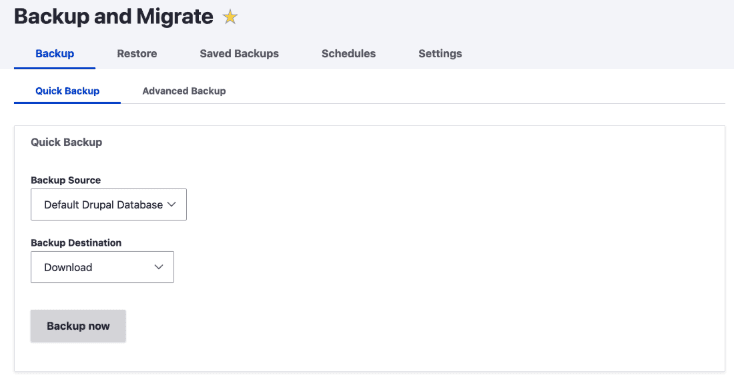
- Notes:✎...
- Click“Schedules” >“Add Schedule”, pick daily to run, tick what to back up (database, files, or both), and a destination (“Download” or “Server Directory”).
- Besides, you can also exclude cache tables, watchdogs, or sessions to minimize the backup size.
Way 3. Backup Drupal Files and Database via MultCloud
Except for the above solutions, you can also try the comprehensive multiple cloud storage manager, MultCloud, to back up your Drupal site files and database in one click.
Based on the search results, here are the key pros of using MultCloud to back up a Drupal site and its database, presented in a concise format suitable for the ongoing article:
- True Backup with Version History. MultCloud creates real backups with timestamps, keeping multiple versions so you can restore any file to a previous state.
- Military-Grade Encryption. Your data is protected by AES-256 encryption during both storage and transmission.
- Automated Scheduled Backups. Set up automatic backups at regular intervals, ensuring your Drupal site files and database exports are consistently protected.
- Lightning-Fast Performance. MultCloud uses multi-thread technology for speedy backups and restores, so you can quickly recover lost files when needed.
- Easy File Restoration. Restore with just a few clicks, maintaining productivity during disaster recovery.
- Support for 40+ Cloud Services. Works with Google Drive, Dropbox, OneDrive, Amazon S3, FTP, SFTP, WebDAV, MySQL, and many others.
Here is how to back up your Drupal site files and database to Google Drive with MultCloud. Check the simple steps:
1. Please sign up for MultCloud for free, then log in.
2. Tap Add Cloud > Google Drive, and grant access to MultCloud.
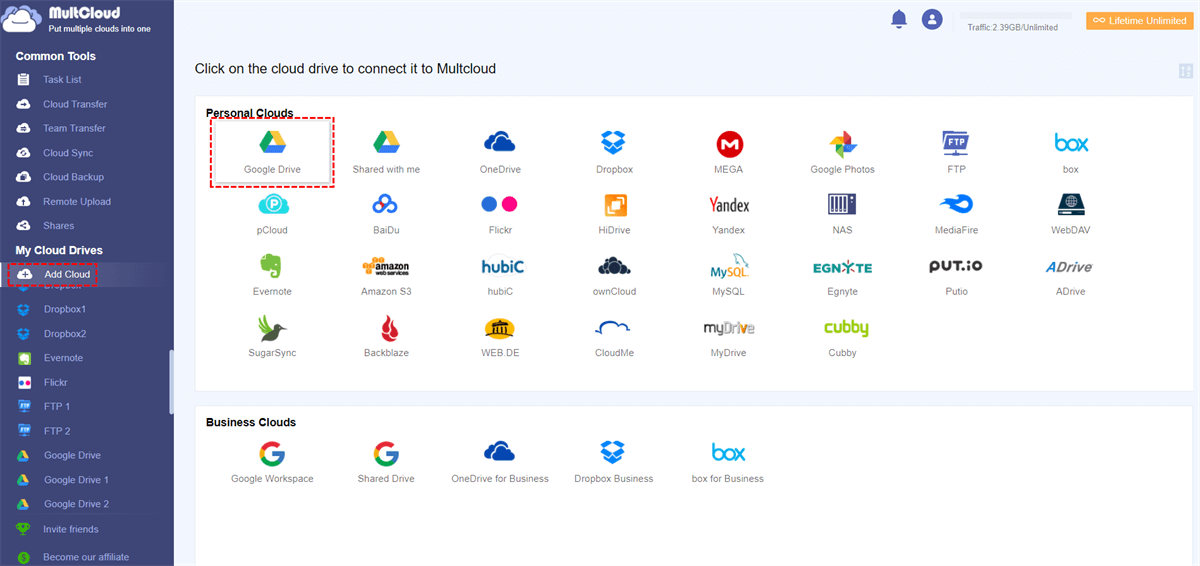
3. Click Website Backup > WEBSITE TO BACKUP > Add Website, input your Drupal credentials to add the Drupal website and its database.
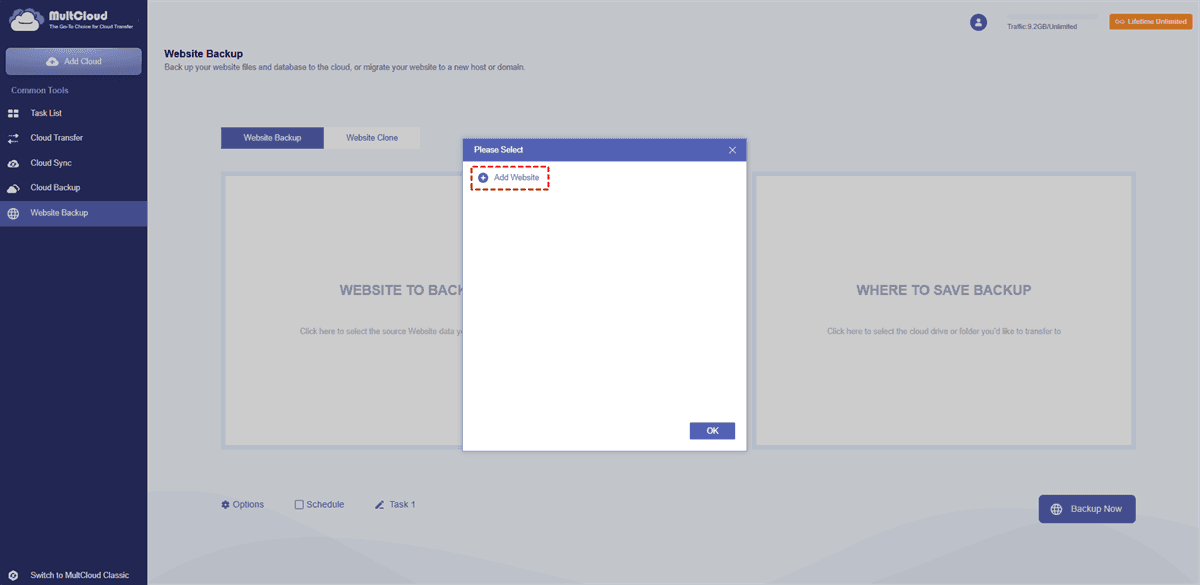
4. Tick the Drupal site files and database as the source, and tap WHERE TO SAVE BACKUP to select a destination folder in Google Drive.
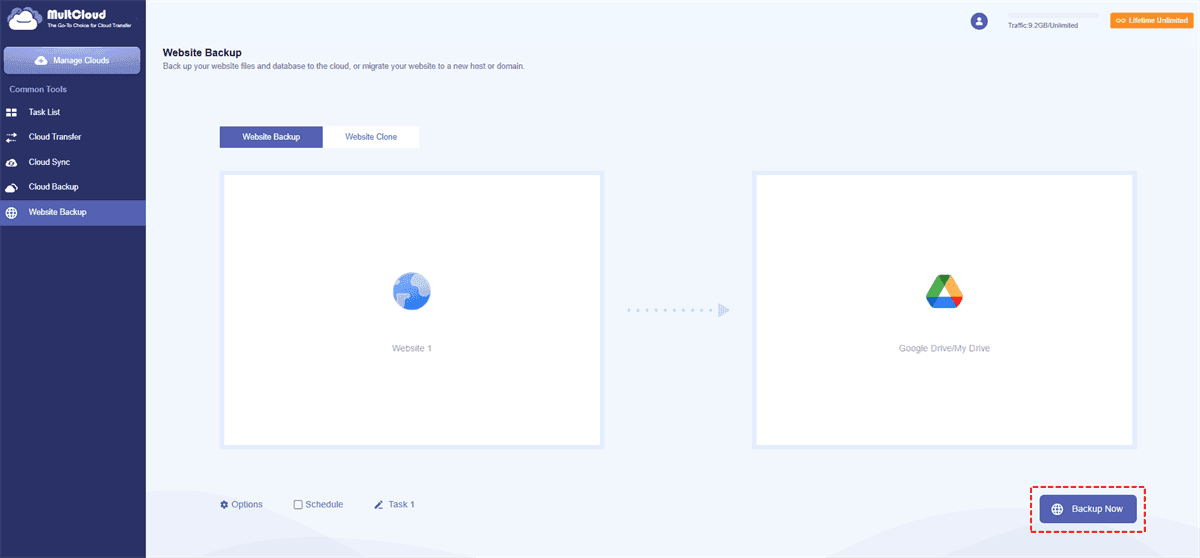
5. Configure settings in Options and Schedule, then tap Backup Now to backup Drupal site automatically.
- Tips Before Backing Up:✎...
- You can click Options to set up email notifications and filters, saving time and effort.
- Schedule is able to run the task once, daily, weekly, or monthly, and set it up according to your demands.
- It’s wise to upgrade to a MultCloud advanced plan to enjoy all the premium features, including scheduling, filtering, more data traffic, etc.

- Smart Share: Share cloud files via public, private, or source mode.
- One-key Move: Quick data transfer, sync, and backup among clouds.
- Email Archive: Protect emails to other clouds or local disks.
- Remote upload: Effectively save web files to clouds via URL.
- Instagram Downloader: Download all videos and images from Instagram.
- Save Webpage as PNG/JPG: Save entire webpage as images for archiving.
- Safe: Full-time 256-bit AES and OAuth authorization protections.
- Easy: Access and manage all clouds in one place with one login.
- Extensive: 30+ clouds and on-premise services are supported.
Restore Drupal Site From Backup When Things Go Wrong
Part 1. Restore Files from a Manual Drupal Backup
Upload your saved files back to the server via FTP or cPanel, overwriting the broken ones. Be careful not to erase new content if you’re restoring only part of the site.
Part 2. Restore the Database Using Backup and Migrate
Inside the Backup and Migrate module, go to the “Restore” tab. Upload your SQL backup file. Hit “Restore now”.Wait a few seconds—done.
If you prefer phpMyAdmin, drop all existing tables first, then import your SQL file.
FAQs About Backing Up DrupalSite
Q: Can I backup Drupal site without installing any module?
A: Absolutely. You can manually copy files via FTP and export your database using phpMyAdmin or Drush (drush sql-dump > backup.sql)without installing any module.
Q: How often should I run a Drupal backup?
A: That depends on how often your content changes. For a busy blog or store, daily is smart. For a static brochure site, weekly might be fine. The Drupal backup and migrate module makes scheduling a breeze.
Q: What’s the difference between a Drupal Backup and Migrate the entire site vs just the database?
A: “Entire site” means both your files (modules, themes, uploaded images) and your database. A database-only backup covers content and settings but won’t restore custom code or assets.
Q: How to restore a Drupal site from backup if I don’t have access to the admin panel?
A: Restore files via FTP or cPanel. Then restore the database using phpMyAdmin (drop all tables and import your SQL file). Finally, clear the cache by truncating the cache_* tables or using Drush.
Q: Does Backup and Migrate module work for large sites (5GB+)?
A: Possibly, but memory/time limits may hit. For huge sites, back up in pieces (exclude large dirs) or use rsync and mysqldump. Use the module just for config.
MultCloud Supports Clouds
-
Google Drive
-
Google Workspace
-
OneDrive
-
OneDrive for Business
-
SharePoint
-
Dropbox
-
Dropbox Business
-
MEGA
-
Google Photos
-
iCloud Photos
-
FTP
-
box
-
box for Business
-
pCloud
-
Baidu
-
Flickr
-
HiDrive
-
Yandex
-
NAS
-
WebDAV
-
MediaFire
-
iCloud Drive
-
WEB.DE
-
Evernote
-
Amazon S3
-
Wasabi
-
ownCloud
-
MySQL
-
Egnyte
-
Putio
-
ADrive
-
SugarSync
-
Backblaze
-
CloudMe
-
MyDrive
-
Cubby


Stay Updated With Our
Latest Tips
Add us as a preferred source on Google to never miss helpful guides.
 Add as preferred source >>