

Content Overview:
About the Shopify Site
A Shopify site is an online store built using the Shopify platform. In simple terms, it's a website created with Shopify’s tools that allows businesses to sell products, accept payments, manage inventory, and handle shipping—all without needing to code everything from scratch.
- Hosted solution. Shopify hosts your site on its servers, so you don’t need to buy separate web hosting or manage server security.
- Templates (themes). You can pick a pre-designed look or customize it to match your brand.
- Product management. Add product descriptions, images, prices, and inventory counts through an easy dashboard.
- Shopping cart & checkout. Shopify provides a secure cart and payment system that accepts credit cards, digital wallets (like Apple Pay or Google Pay), and other methods.
- Apps & integrations. Extend functionality with thousands of apps (e.g., email marketing, loyalty programs, reviews).
- Blog & pages. You can also add blog posts, an About Us page, contact forms, etc.
Thus, how to backup Shopify site is very important for all of us. This guide will show you everything about how to backup Shopify site. Let’s get started.
Why Back Up the Shopify Site?
Shopify keeps your data safe from server failures, but they don’t protect you from yourself or from third-party app glitches. You are risking your data if you don't have a Shopify backup:
- Theme overwrites. You tweak your live theme’s code, and suddenly the whole layout breaks.
- App data loss. Many apps store critical info (reviews, loyalty points, custom discounts) only inside their own system. If the app crashes or you delete it, that data is gone for good.
- Human error. Accidentally hitting “delete” on a product collection or customer group happens more often than you’d think.
So, creating a Shopify backup website is practical.
What Files Should Be Backed Up in A Shopify Site?
When backing up a Shopify site, you shouldn't think of it as just one file but as a collection of several distinct data categories. A true Shopify site backup covers everything from your product catalog to your theme code.
Core Store Data (Products, Customers, Orders)
This is the transactional heart of your business. Most manual exports cover this, but apps offer more depth.
- Products & Variants: Names, descriptions, prices, SKUs, inventory levels, and SEO handles.
- Customers: Email addresses, shipping addresses, phone numbers, and tags.
- Orders & Drafts: Past purchases, transaction IDs, fulfillment statuses, and abandoned checkouts.
- Discounts & Gift Cards: Code names, discount values, usage limits, and expiration dates.
Design & Content (Theme, Blogs, Navigation)
This covers the look, feel, and written content of your store—what your customers actually see.
- Theme Files (Liquid/JSON): The actual code (HTML/CSS/JS) defining your store's layout. If you lose this without a Shopify backup site, you might have to rebuild your entire design from scratch.
- Blog Posts & Pages: Article content, "About Us" pages, contact forms, and meta descriptions.
- Navigation & Menus: Your header menu structure, footer links, and collection hierarchies.
Custom Data & Settings (Metafields, Files, Configs)
These are the advanced settings that make your store unique. Warning: Standard Shopify exports do not cover this area well.
- Metafields & Metaobjects: Custom fields used for spec sheets, fabric details, ingredient lists, or internal part numbers.
- Files & Images: Product photos, logos, PDF manuals, and other uploads found in Content > Files.
- Store Configurations: URL redirects (to avoid 404 errors), payment gateway settings, and shipping zones.
How to Backup Shopify Website in 3 Ways
You don’t always need fancy tools to create a backup for a Shopify website. For small stores or occasional checkpoints, manual methods work just fine. But keep in mind, they’re time-consuming and easy to forget.
Way 1. Export to CSV Files
Shopify does offer some native backups, but they’re limited. For example, you can export products, customers, orders, discounts, and gift cards as CSV files manually. However, these exports are just snapshots.
The most straightforward way to backup Shopify site manually is through the admin panel.
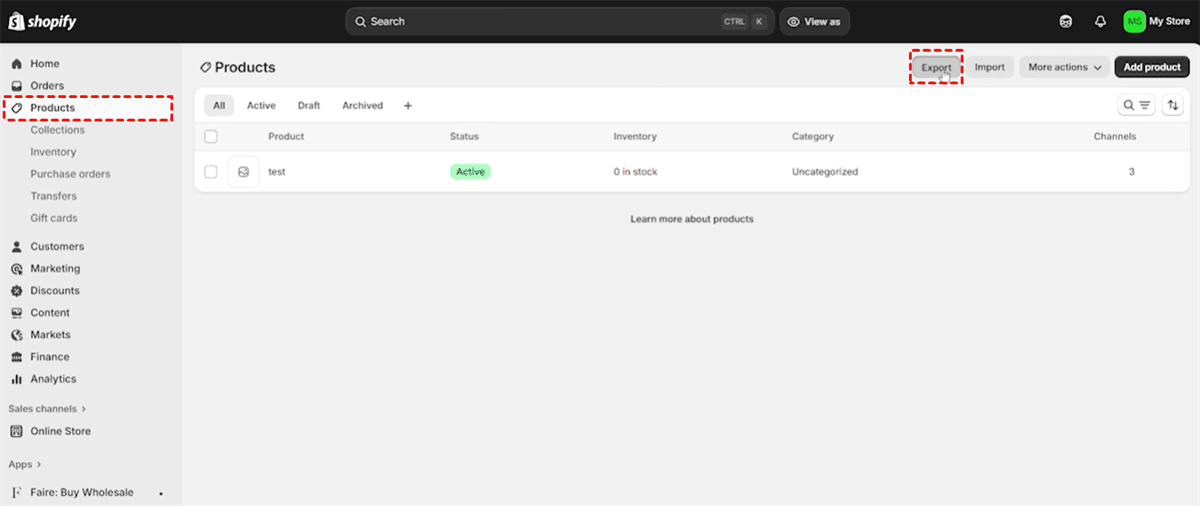
1. Go to your Shopify admin, head to Products > Export.
2. Then choose “All products” and CSV format, and hit Export products.
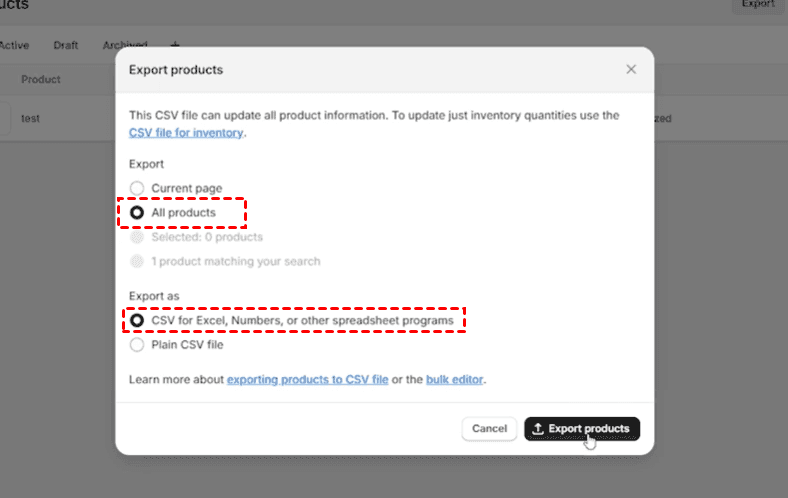
Repeat the process for all the data in Products. Do the same for Customers, Orders, and other data that matters to you.
To create customers backup: Click Customers > Export > All Customers, set up the settings, and hit Export customers.
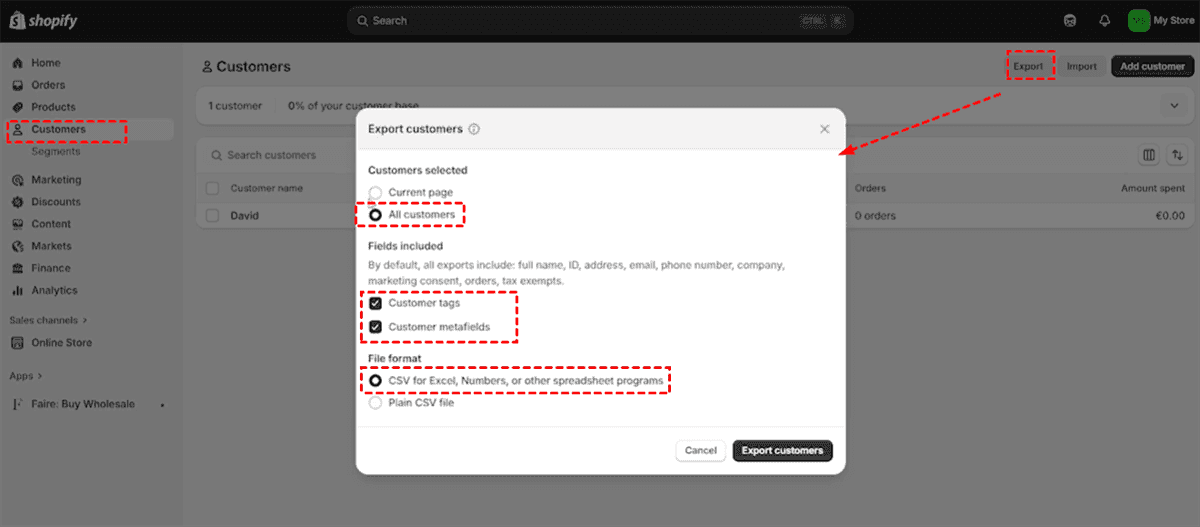
This gives you raw data you can re-import later. However, these CSV files won’t include your product images, blog posts, or theme settings. So it’s a partial safety net at best.
Way 2. Back Up Your Shopify Theme Code
Your theme is the face of your store. To create a Shopify site backup that includes your design:
1. Go to Online Store > Themes > Actions > Download theme file.
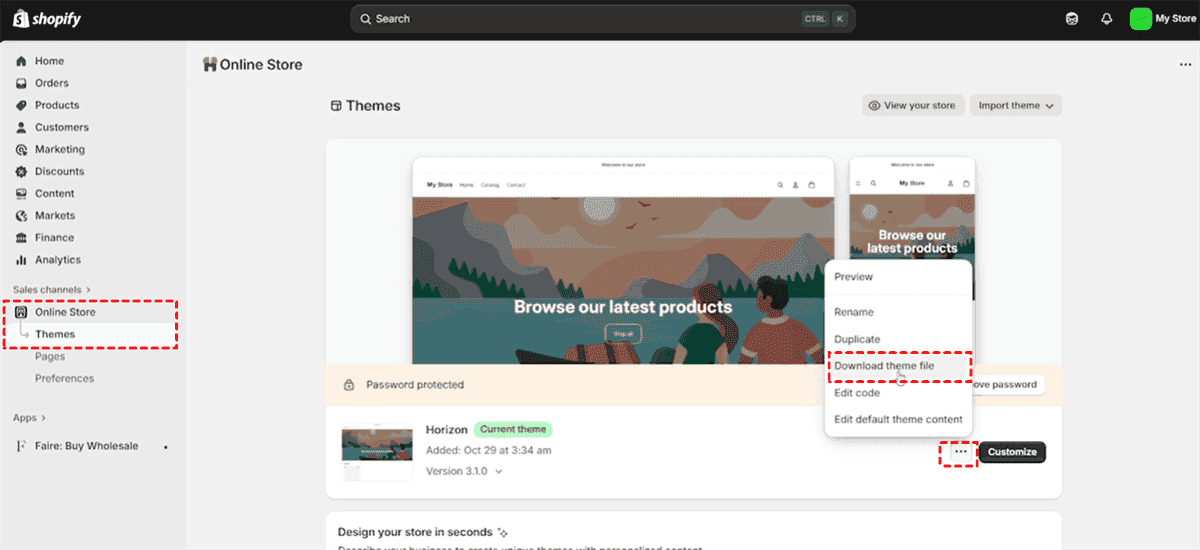
2. This will download a ZIP folder with all your Liquid files, CSS, and JavaScript.
3. Store that ZIP somewhere safe, like Google Drive or Dropbox. Remember, this method doesn’t capture any settings from third-party apps or metafields.
Way 3. Try Rewind to Automatically Back Up Shopify Store
If you need an app to backup Shopify site online, Rewind Backups creates daily backups and creates real-time backup while there is a change. Here is how to back up your Shopify store via Rewind Backups:
1. Please log in to your Shopify admin, then search Rewind, and choose Rewind Backups from the list.
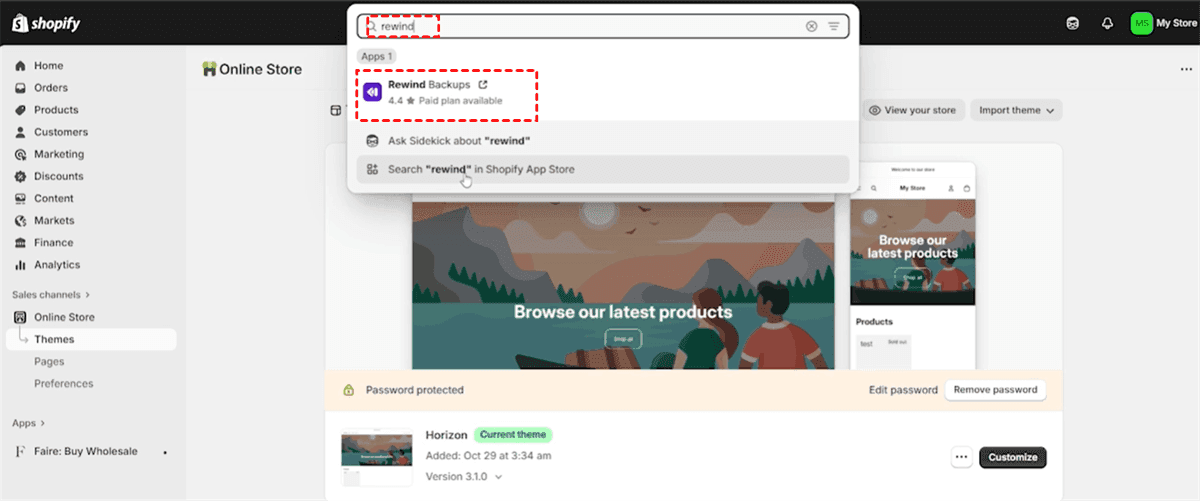
2. Install Rewind Backups.
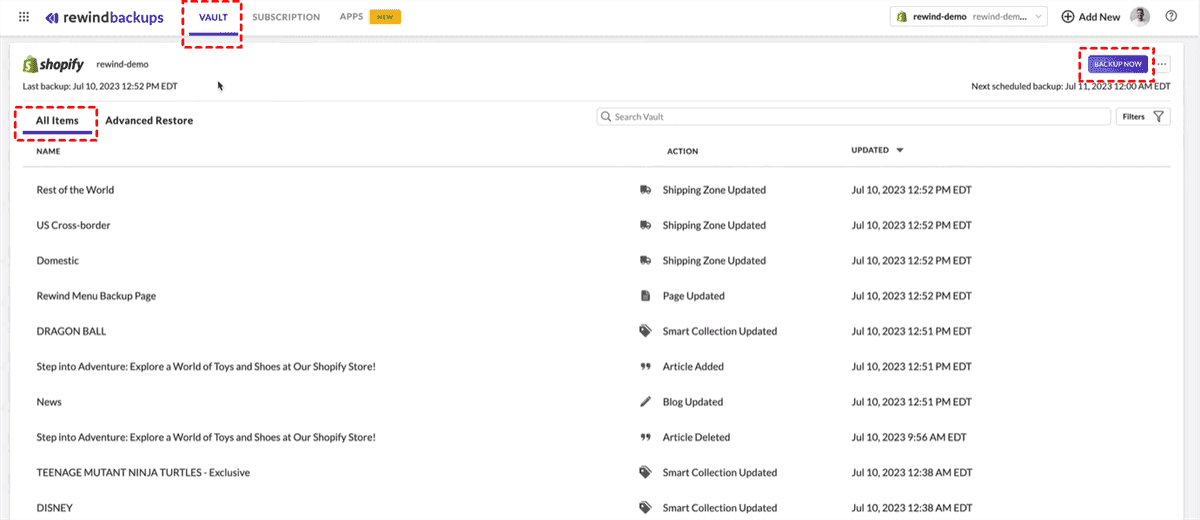
3. Go to Shopify Vault> All Items > Backup Now to back up your Shopify store.
Shopify won’t keep version history for you, nor will it automatically back up the Shopify site every hour. Plus, deleted items usually stay in your “deleted” list for only 30 to 90 days, depending on your plan. After that? They’re gone forever. That’s a pretty narrow window.
Restore Your Store from a Shopify Site Backup
Backups are only half the battle. Successful restoration is the other half.
Way 1. Recover Data from CSV
If you exported CSV files as part of your manual backup of the Shopify site.
1. Go to Products > Import.
2. Select your CSV and upload.
Shopify will match columns and recreate your products.
Be warned: imported images need to be re‑uploaded manually because CSV only holds URLs. And any custom product metafields might not map correctly unless you set them up beforehand.
Way 2. Restore Deleted Themes and Liquid Files
To restore a theme from your Shopify site backup ZIP file.
1. Go to Online Store > Themes > Upload theme.
2. Choose the ZIP, and Shopify adds it as an unpublished theme.
3. You can then preview and publish it.
This restores all your custom code, but not any app blocks or third-party scripts that were added directly through the theme editor.
Way 3. Restore Shopify Store with Rewind Backups
How to restore Shopify Store with Rewind Backups? Here is how:
1. Click Vault in Rewind Backups, choose Advanced Restore.
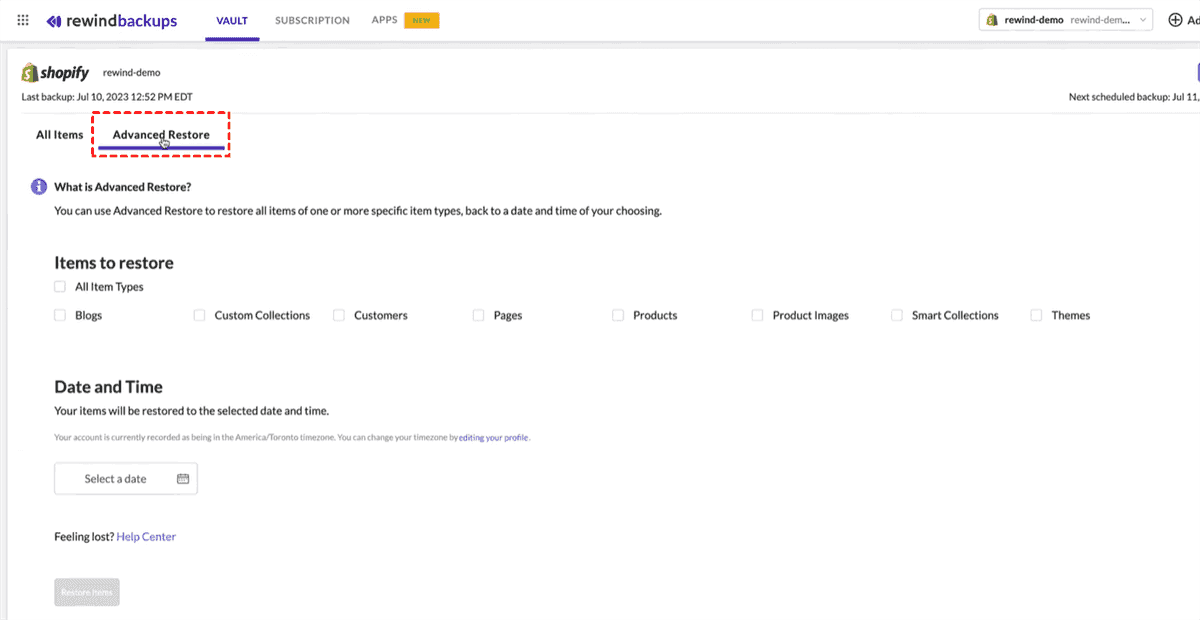
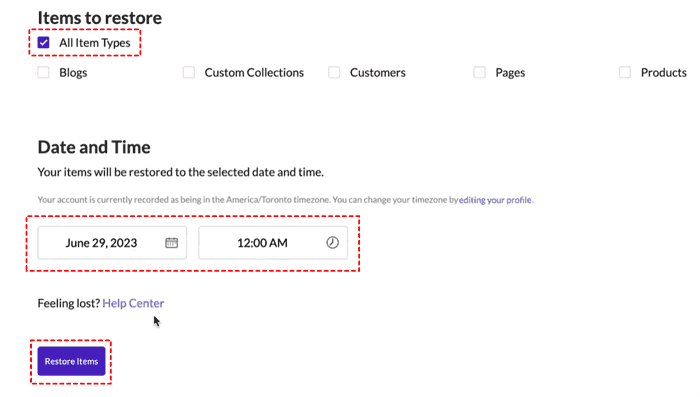
2. Select All Item Types in the Items to Restore, and a date you want to restore, and hit Restore Items.
3. Then hit Yes, Restore to confirm.
Best Practices for Ongoing Shopify Backup Website Maintenance
Set a Regular Backup Frequency Calendar
Decide on a frequency: daily for high-volume stores, weekly for smaller ones. Mark a calendar reminder to check your backup logs every month. A glance will confirm that no errors have crept in.
Test Your Shopify Backup Site Integrity Quarterly
Actually testing a restore. Once every three months, take your most recent Shopify site backup and restore it to a staging or test environment.
FAQs About Backup Shopify Site
Does Shopify automatically back up my store?
A: No. Shopify doesn’t offer one-click full backups. They guard against server failure, but not human error. You need a manual or third-party routine to backup shopify site yourself.
How often should I back up my Shopify store?
A: Daily for busy stores with frequent changes, weekly for smaller ones. Regular backup Shopify website tasks keep your data safe. Consistency matters more than anything.
Can I back up my Shopify store for free?
A: Partially. Manual CSV exports and theme downloads are free. But true automatic Shopify site backup with apps and images usually needs a paid tool like Rewind or MultCloud.
What is the best way to back up a Shopify store before a migration?
A: Combine CSV exports, theme downloads, an automated app for app data, and MultCloud for file cloning if you have FTP access. That covers all bases for a full Shopify backup site.
Will a backup save my Shopify blog posts and pages?
A: Manual CSV exports won’t. Paid apps like Rewind will. Always check feature lists when you research how to shopify backup website to ensure blog and page coverage.
How long does it take to restore a Shopify store from backup?
A: A single product CSV takes about five minutes. A full Shopify backup website restore (themes, apps, metafields) can take an hour or more. Test quarterly to know your actual timeline.
What is the difference between a Shopify export and a true backup?
A: An export is a limited snapshot (products, customers, orders). A true backup is a complete mirror of your store—themes, settings, blogs, app data. When you backup shopify site right, you capture everything.
Can I use MultCloud to back up my entire Shopify site automatically?
A: Yes, as long as your store files sit on FTP or a cloud folder. Pair a Shopify backup app with MultCloud to copy that folder elsewhere on a schedule. That gives you two independent Shopify backup site copies.
Backup Website from One Host to Another via MultCloud
You can't directly access an FTP server or database for a Shopify store, so you have to try the above solutions to perform a Shopify backup and restore. Besides, if you are trying to back up a website from one server to another server, like backing up a Drupal site, a WordPress site, etc. You can try the all-in-one multiple-cloud storage manager, MultCloud.
- Direct Server-to-Server Transfer
- Scheduled Automatic Backups
- Works While You're Offline
- Wide Platform Support (40+)
- Centralized Management Interface
So, why not give it a try now?

- Smart Share: Share cloud files via public, private, or source mode.
- One-key Move: Quick data transfer, sync, and backup among clouds.
- Email Archive: Protect emails to other clouds or local disks.
- Remote upload: Effectively save web files to clouds via URL.
- Save Webpage as Images: Save them as PNG or JPEG files
- Instagram Downloader: Download videos and photos from Instagram
- Safe: Full-time 256-bit AES and OAuth authorization protections.
- Easy: Access and manage all clouds in one place with one login.
- Extensive: 30+ clouds and on-premise services are supported.
MultCloud Supports Clouds
-
Google Drive
-
Google Workspace
-
OneDrive
-
OneDrive for Business
-
SharePoint
-
Dropbox
-
Dropbox Business
-
MEGA
-
Google Photos
-
iCloud Photos
-
FTP
-
box
-
box for Business
-
pCloud
-
Baidu
-
Flickr
-
HiDrive
-
Yandex
-
NAS
-
WebDAV
-
MediaFire
-
iCloud Drive
-
WEB.DE
-
Evernote
-
Amazon S3
-
Wasabi
-
ownCloud
-
MySQL
-
Egnyte
-
Putio
-
ADrive
-
SugarSync
-
Backblaze
-
CloudMe
-
MyDrive
-
Cubby


Stay Updated With Our
Latest Tips
Add us as a preferred source on Google to never miss helpful guides.
 Add as preferred source >>