How to Google Workspace to Another Account Online?
Free and seamlessly migrate your entire Google Workspace drive data to another different account directly online. No Downloads. No Uploads. No Sign Up. Just Cloud-to-Cloud.
Sign up for 40+ cloud transfers & 5GB free monthly.
Top Use Scenarios for Google Workspace to Google Workspace Migration
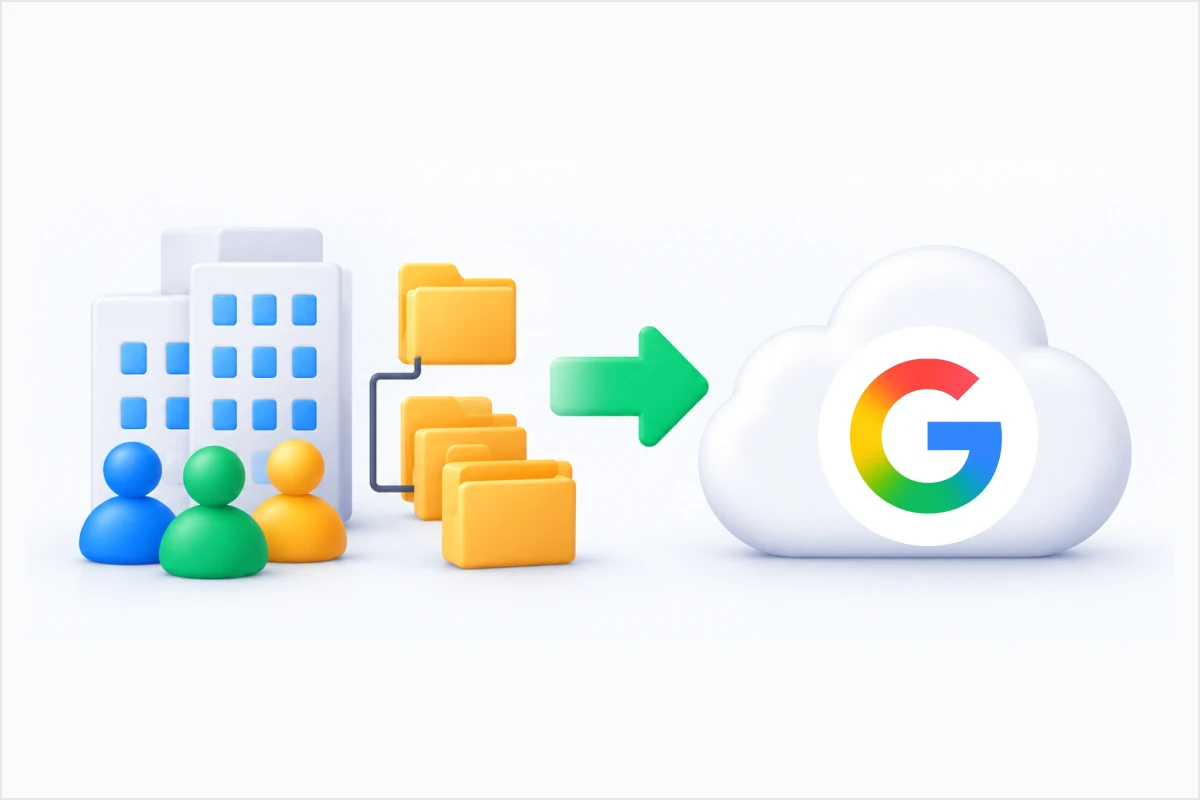
Drive-Only Transfer
Fast Handover for Projects & Departments
Migrate only Google Drive data — including files, folder hierarchies, and Shared Drive ownership — between accounts without affecting Gmail or Calendar. Ideal for project handovers, department restructures, and archiving senior staff files.
Google Drive;Shared Drives;Ownership
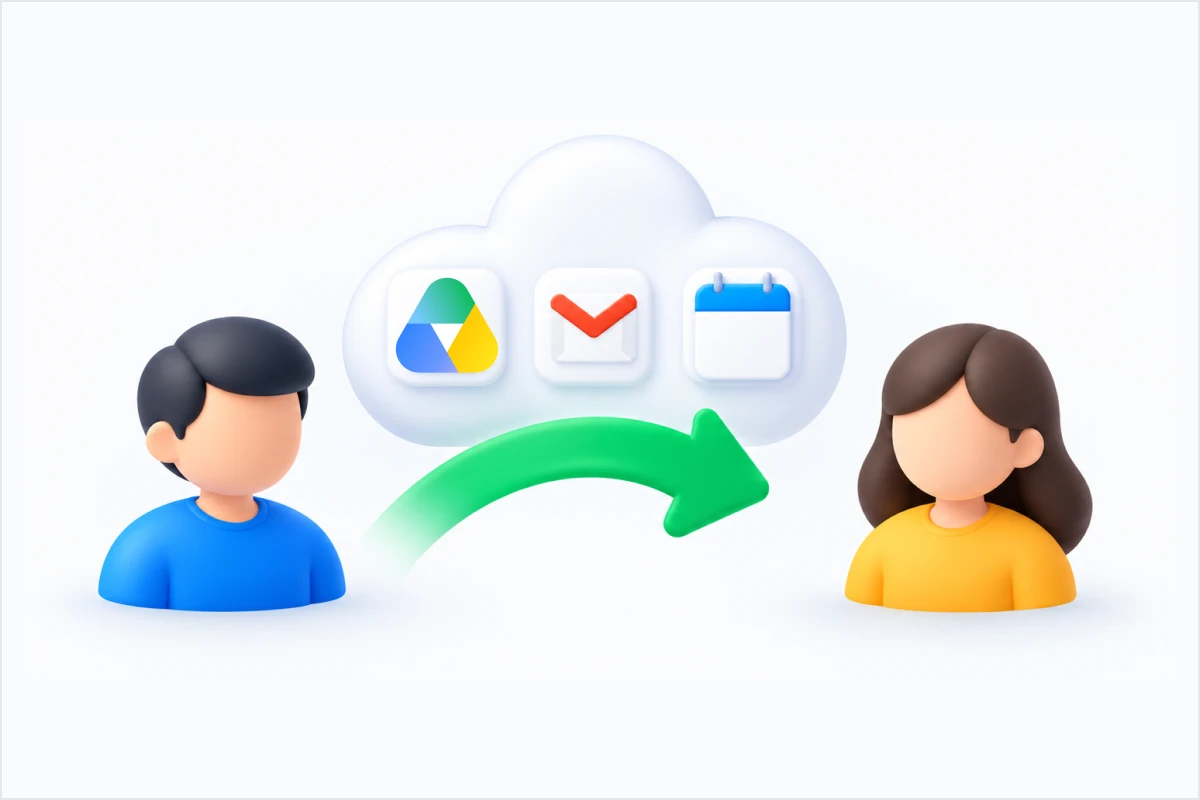
Same-Domain Offboarding
Transfer All Account Data Between Internal Employees
The IT admin transfers all of Employee A's Workspace data — Drive files, Gmail, and calendar events — to Employee B in a single operation, then suspends or deletes A's account to cut license costs and secure data.
Google Drive;Gmail;Calendar
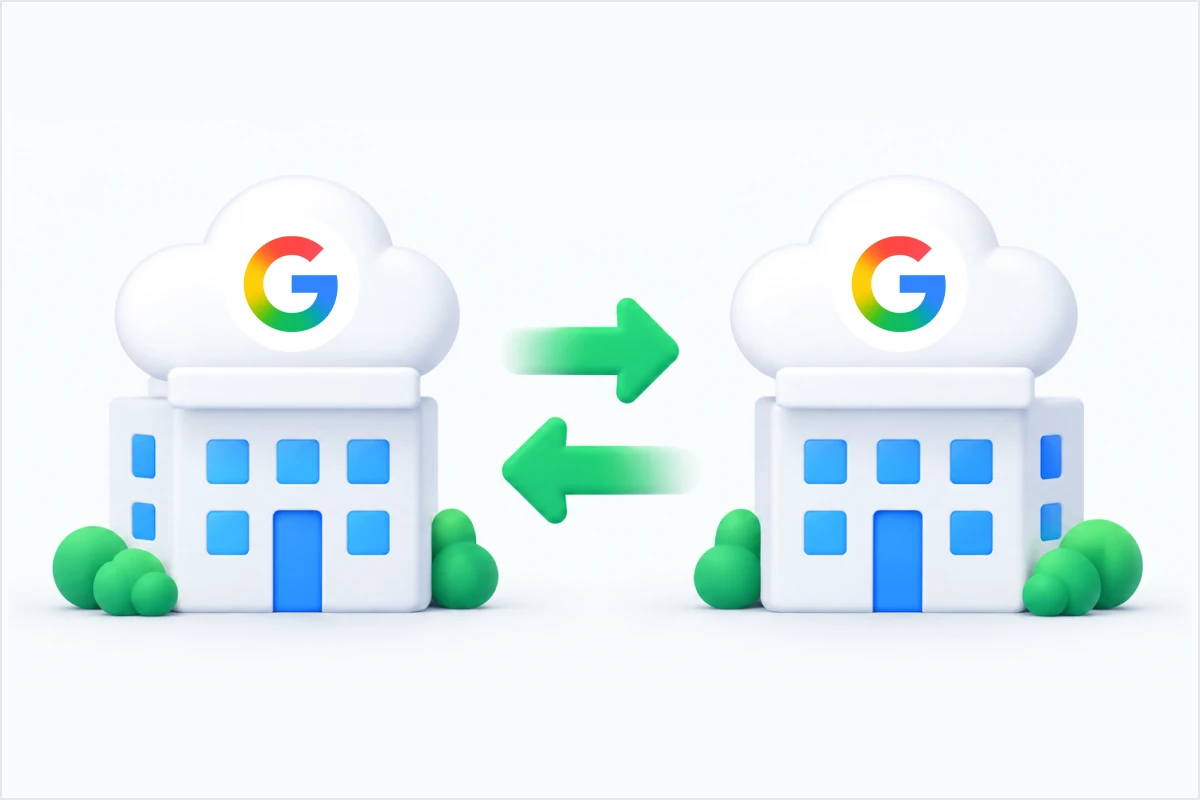
Cross-Domain & Cross-Account Migration
Move Data Between Different Companies or Cloud Providers
Moving files from companyA.com to companyB.com (such as during a corporate restructure, rebranding, or domain merger) or from an old Workspace account to a new one.
Full Drive;Owner change
MultCloud: 2 Ways to Transfer Google Workspace Data to Another Account [No Download]
No Sign Up Required
Try a quick transfer instantly — just authorize and go.
Only Cloud transfer
Only Google Workspace to Google Workspace
No backup or sync
No advanced options
1GBone-time
3 Simple Steps
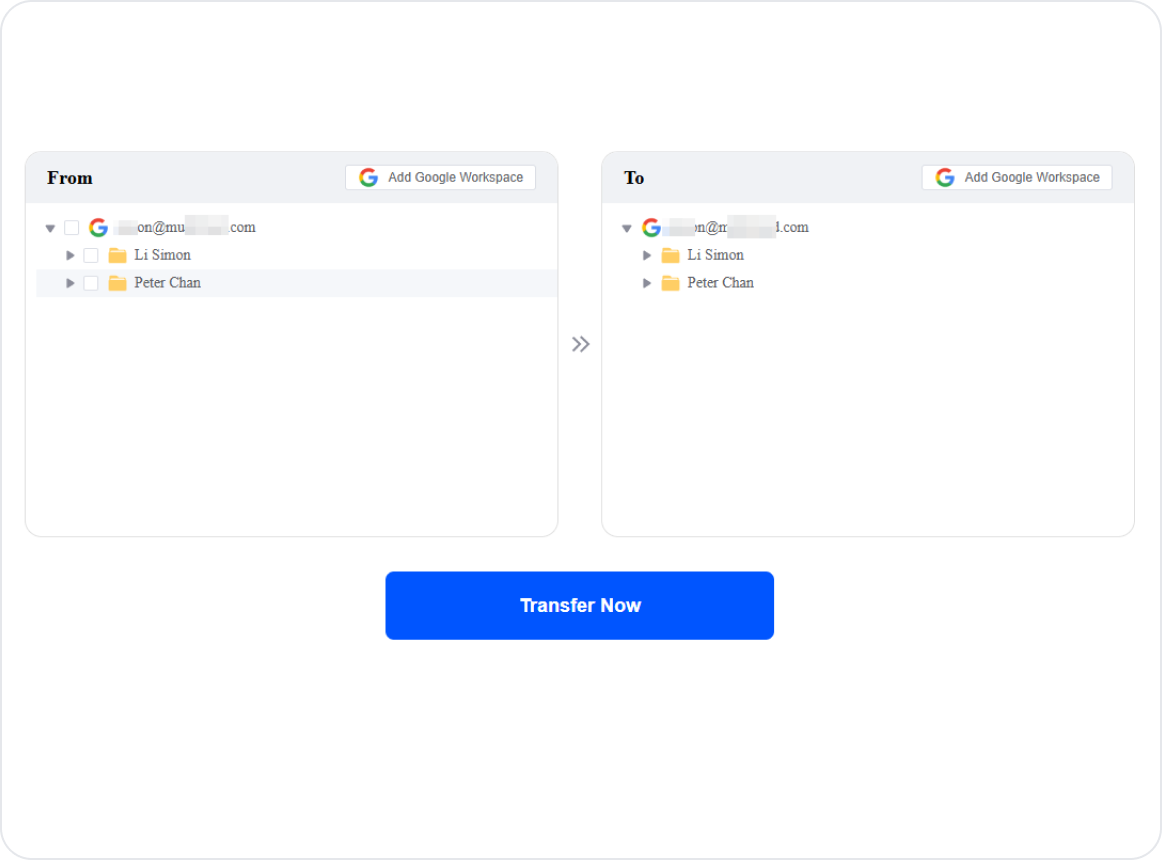
1OAuth login your Google Workspace accounts, no MultCloud account needed.
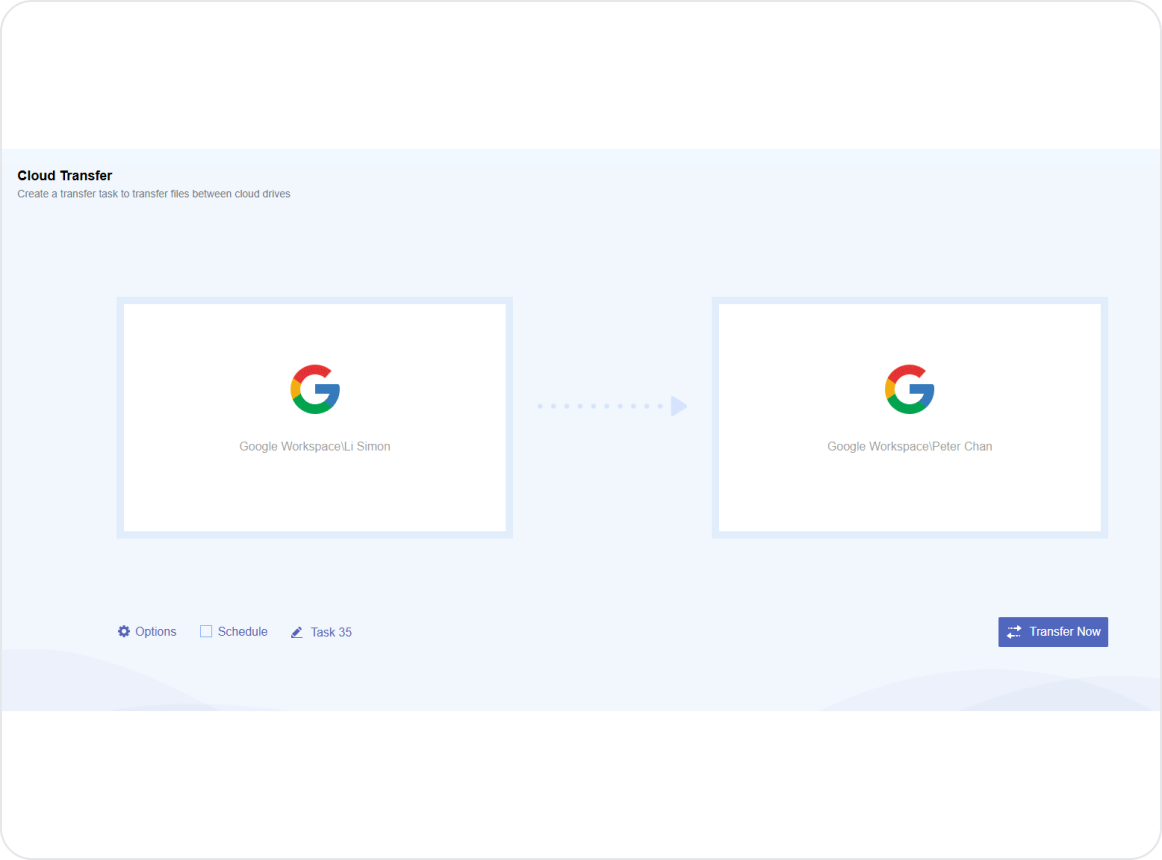
2Choose source files / folders and destination folder.
MultCloud: Key Features to Optimize Data Transfer Between Google Workspace Accounts
Unlock Full Potential (scheduled transfers, smart file filters, and more) with a Free Account.
Direct Cloud-to-Cloud Transfer
Your files move directly between Google Workspace accounts entirely on MultCloud's servers. Just connect both accounts and let the transfer run automatically without consuming local bandwidth.
Transfer "Shared with Me" Files
Bypass sharing permissions. Easily move "Shared with Me" assets directly into destination Google Drive paths.
Hands-Off Scheduling
Set migrations to run on a daily, weekly, or monthly cadence—perfect for off-peak execution or ongoing cross-domain backups.
Smart File Selection
Migrate only what matters. Filter transfer tasks by file extensions, specific files, or folders to streamline your Google Workspace migration.
Run in Background
No need to monitor progress bars. Start the process, power off your computer, and let our servers handle the rest.
No Local Storage Required
Move terabytes of corporate data without taking up a single megabyte of local storage or slowing down your office network.
Alternative Methods to Migrate Drive Data Between Google Workspace Accounts Without Downloading
Apart from downloading/re-uploading or using Drive for Desktop, you can migrate Google Workspace data in Drive without downloading or using local disk space via these three native methods.
Method 1. Google Admin Console Ownership Transfer (Same Domain)
Requires Super Admin access for the Google Workspace organization.
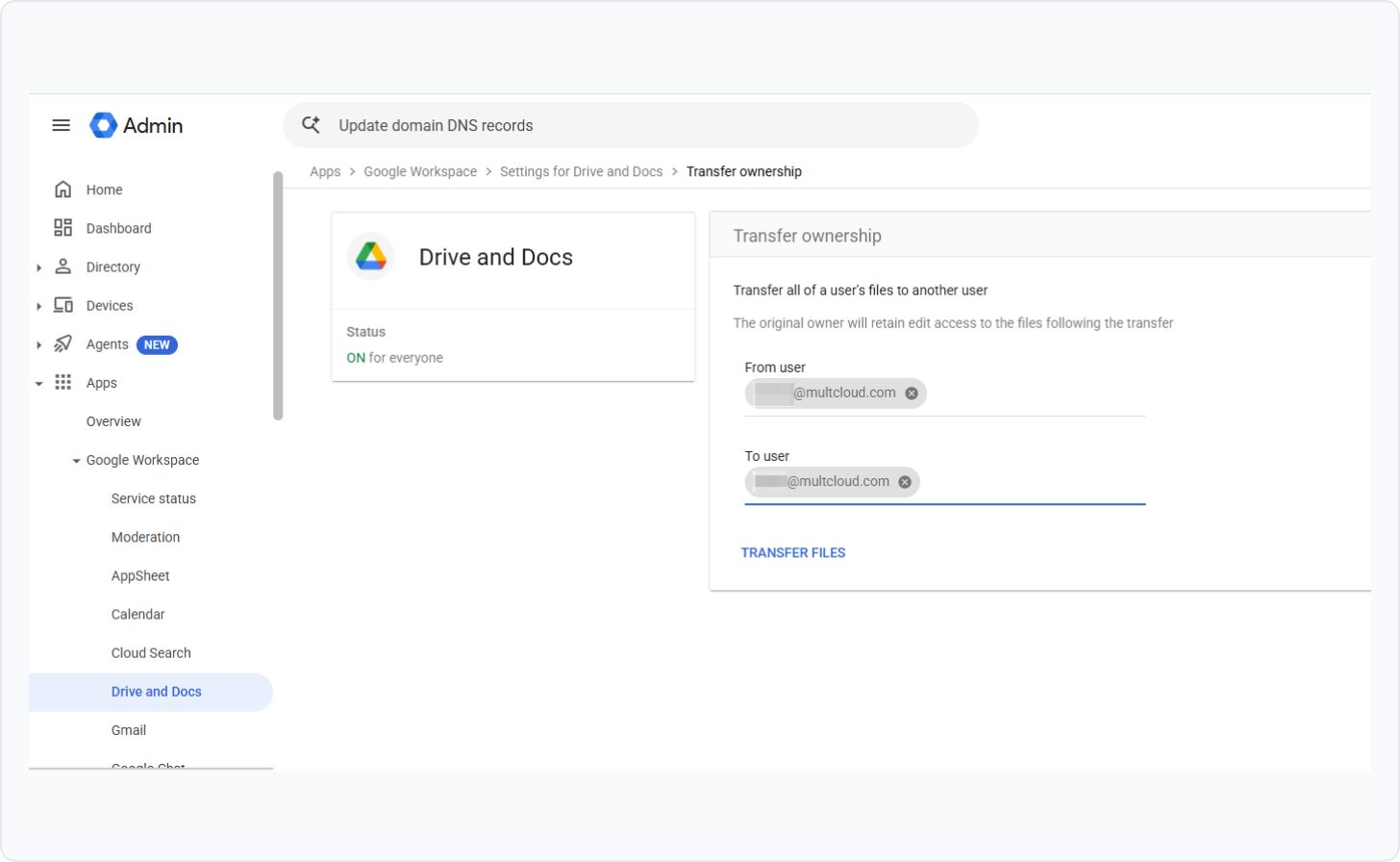
Step 1. Log in to the Google Admin Console. Go to “Apps” > “Google Workspace” > “Drive and Docs”.
Step 2. Click “Transfer ownership”. Enter the departing employee's email address in the From field and the replacement employee's email in the To field.
Step 3. Click “Transfer Files”. All files will be automatically grouped into a new folder within the target account's Drive.
Method 2. Shared Drive Routing (Zero Local Storage)
Suitable for moving files between team members without requiring Admin access.
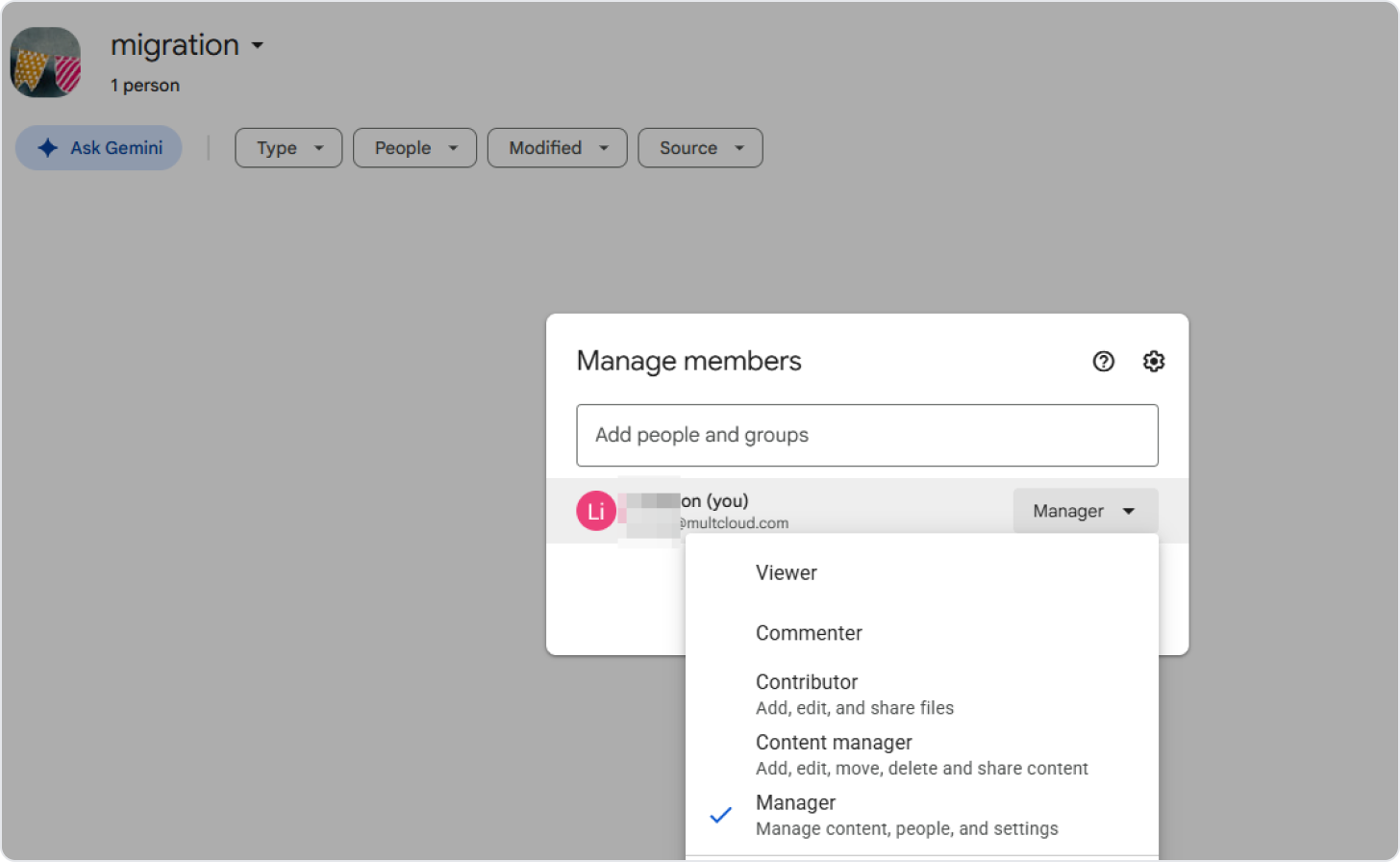
Step 1. Log in “Google Drive” using the Source Google Workspace Account, then click “Shared drives > New” in the left sidebar.
Step 2. Name the Shared Drive, click “Manage members”, and add the Target Account with Manager permissions.
Step 3. Move or drag the source files/folders into this new Shared Drive.
Step 4. Log into the Target Account, open the “Shared Drive”, and drag the files out into "My Drive".
Method 3. Shared Folder & "Make a Copy" (Small-Batch Migration)
Ideal for moving a small set of files quickly without Admin permissions.
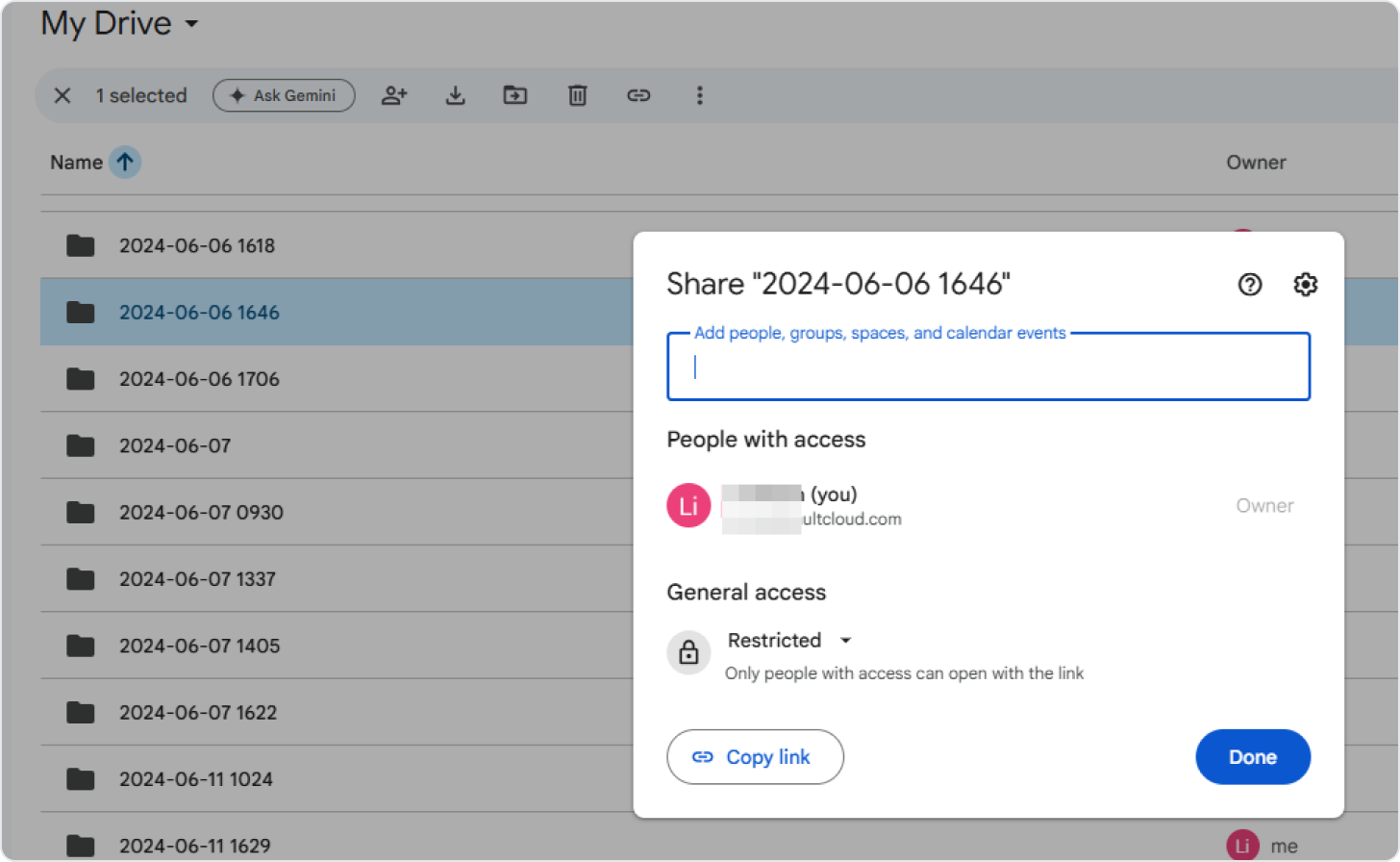
Step 1. In the Source Account, right-click the folder or files you want to transfer and click “Share”.
Step 2. Enter the Target Account email address and grant Editor access.
Step 3. Log into the Target Account and go to the Shared with me tab.
Step 4. Select the shared files (use Ctrl + A or Cmd + A for batch selection), right-click, and select Make a copy. (Note: The target account becomes the full owner of the new copies.)
Tip: Google Drive does not allow direct copying of entire shared folders; you must open the folder and select the contained files to Make a Copy.
Google Workspace File Migration Methods Compared
Feature
Admin Console Transfer
Shared Drive Transfer
Share & Make a Copy
No Local Downloads
Cross-Organization Transfer
Subject to organization policies
Requires sharing and copying permissions
Requires authorization on both sides
Required Access
Drive & Docs admin
Shared drive roles and move permissions
File access with copying allowed
Account authorization; admin for Team Transfer
Files & Folders
Files only
Scheduled Transfers
Main Limitation
Same organization only
Policy and role restrictions
Manual copying; recreate folders
Authorization and plan limits
How to Migrate Gmail from One Google Workspace to Another
Beyond files in Drive, a complete Google Workspace migration might also require moving emails. Below are the primary ways to transfer these additional services.
Google Admin Data Migration
An in-house, server-to-server tool for domain-wide administrative migrations. Best for: IT admins performing tenant-to-tenant Workspace migrations.
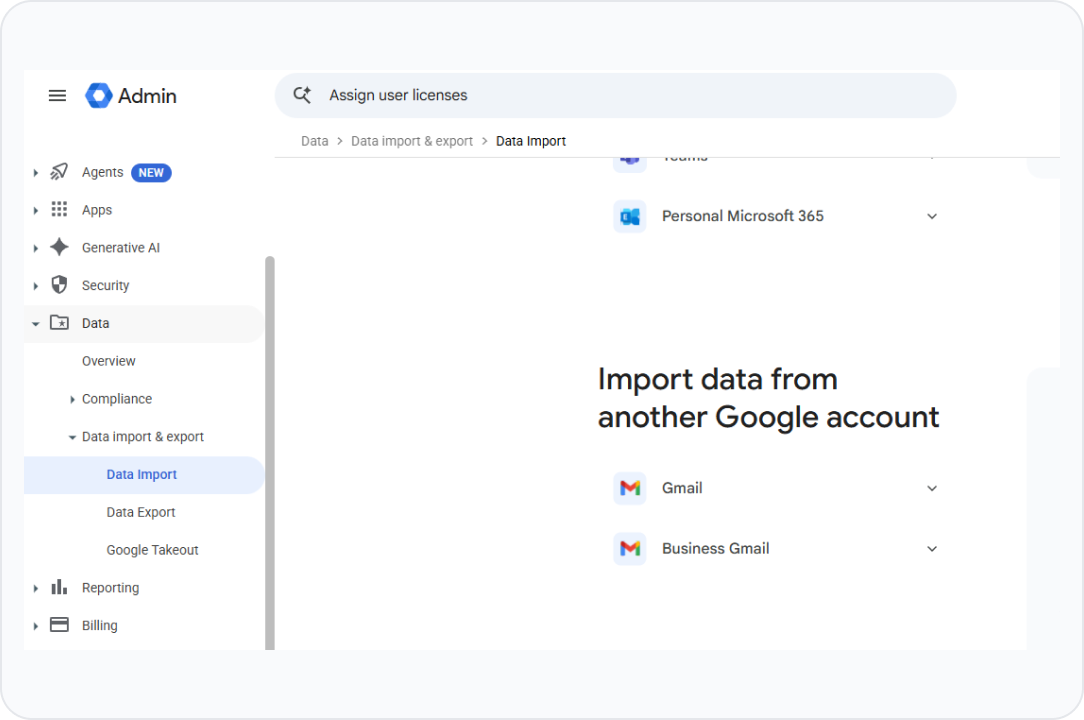
1Go to Google Admin Console > Data > Data import & export-> Data Import.
2Scroll down and choose “Import data from another Google account” -> Business Gmail.
3Connect to source Google Workspace account and require the connection.
4Click on “Start Import” to start the migration process.
Limitations:Requires Super Admin rights; supported data types depend on the source and destination
Method 2: Google Takeout
Google Takeout is suitable for manual exports and backups. Best for: Individual employees performing self-serve manual backups of their own data.
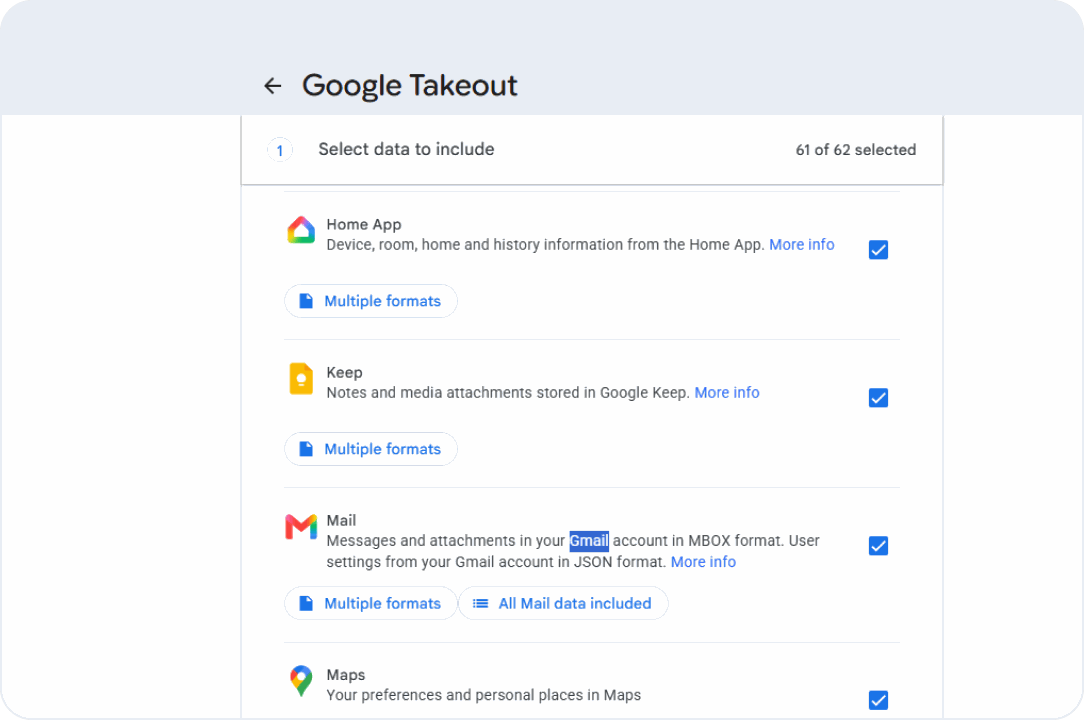
1Open Google Takeout. Select Gmail, Calendar, and Contacts.
2Download the exported archive: Gmail uses .mbox, Calendar uses .ics, and Contacts uses .vcf.
3Import the files into the destination service.
Limitations:Manual process; .mbox files require a compatible email client or migration tool.
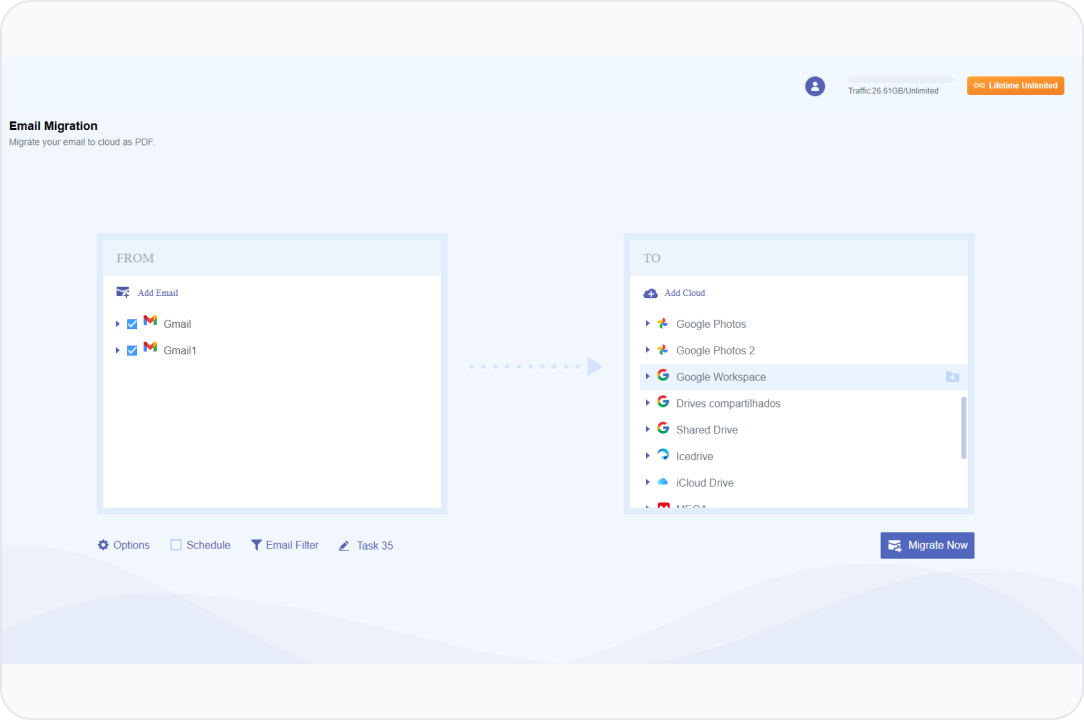
A direct cloud-to-cloud service that backs up and converts your Gmail emails into PDF format directly into your target cloud drive. Best for: Automated background migration without complex admin setups or manual downloads.
1Add your source Gmail account in MultCloud (Add Email / Add Cloud).
2Add your target destination account.
3Go to Email Migration, select folders, and click “Migrate Now”.
Limitations:Account authorization required; saved as PDF in Drive, not restored to Gmail Inbox.
How to Transfer Shared Drive from One Google Workspace to Another
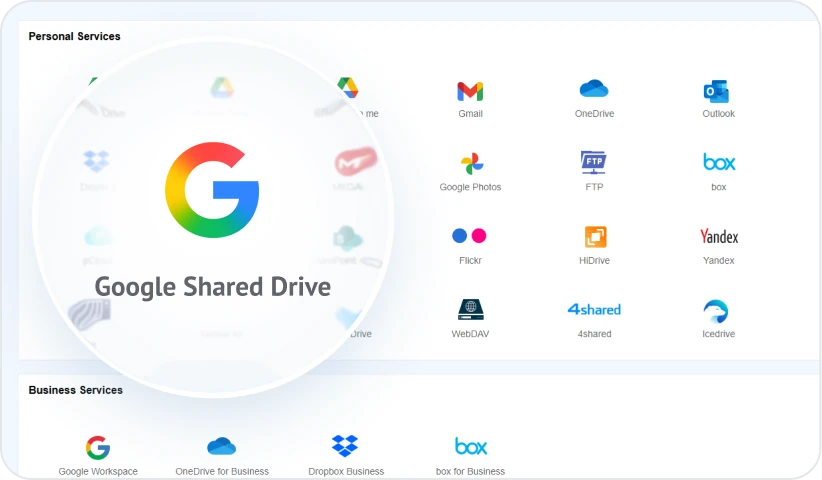
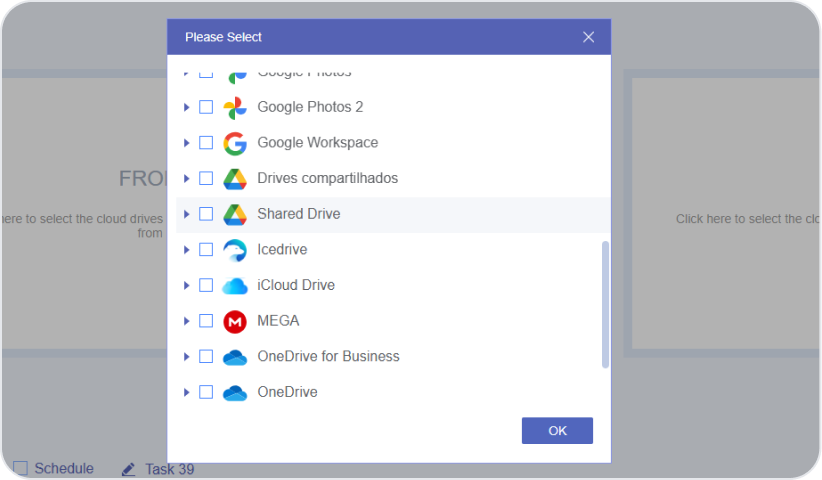
In MultCloud, Shared Drive can be added as a separate cloud connection. So add it from both organizations rather than the standard Workspace connection, which maps to My Drive.
1.Add Both Shared Drives
Add the source and destination Shared Drives as separate connections, and rename them to distinguish the two organizations.
2.Choose Source & Target
In “Cloud Transfer”, select the source Shared Drive, or specific files and folders, then choose a folder in the destination as the target.
3.Configure & Transfer
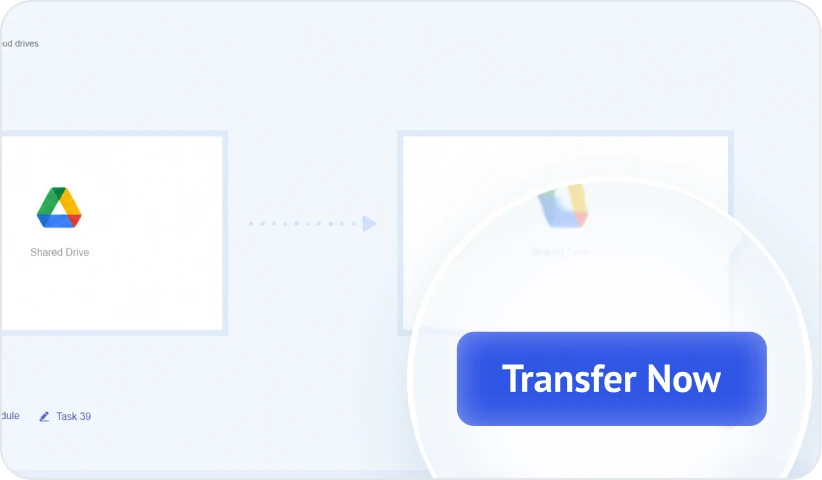
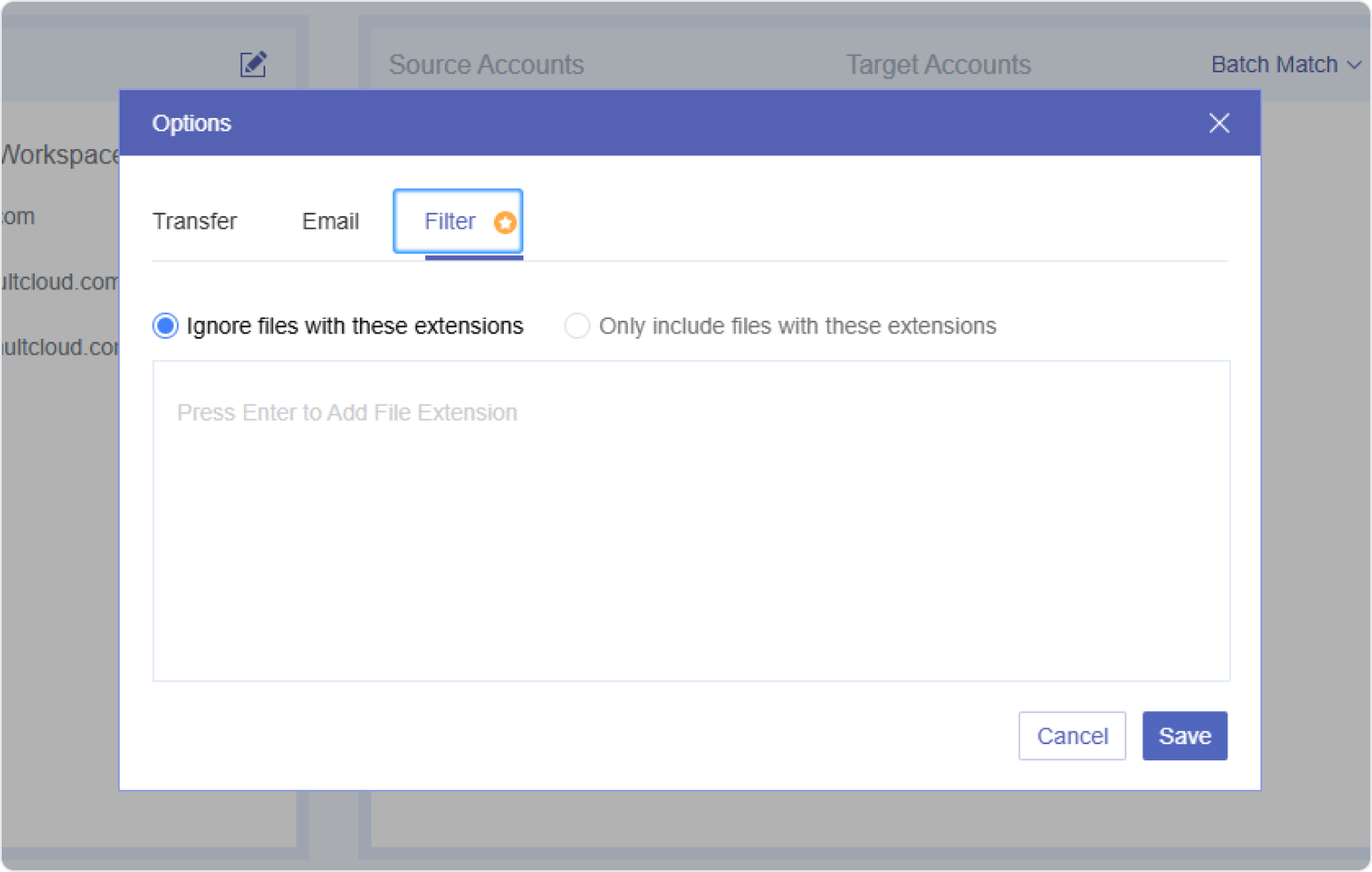
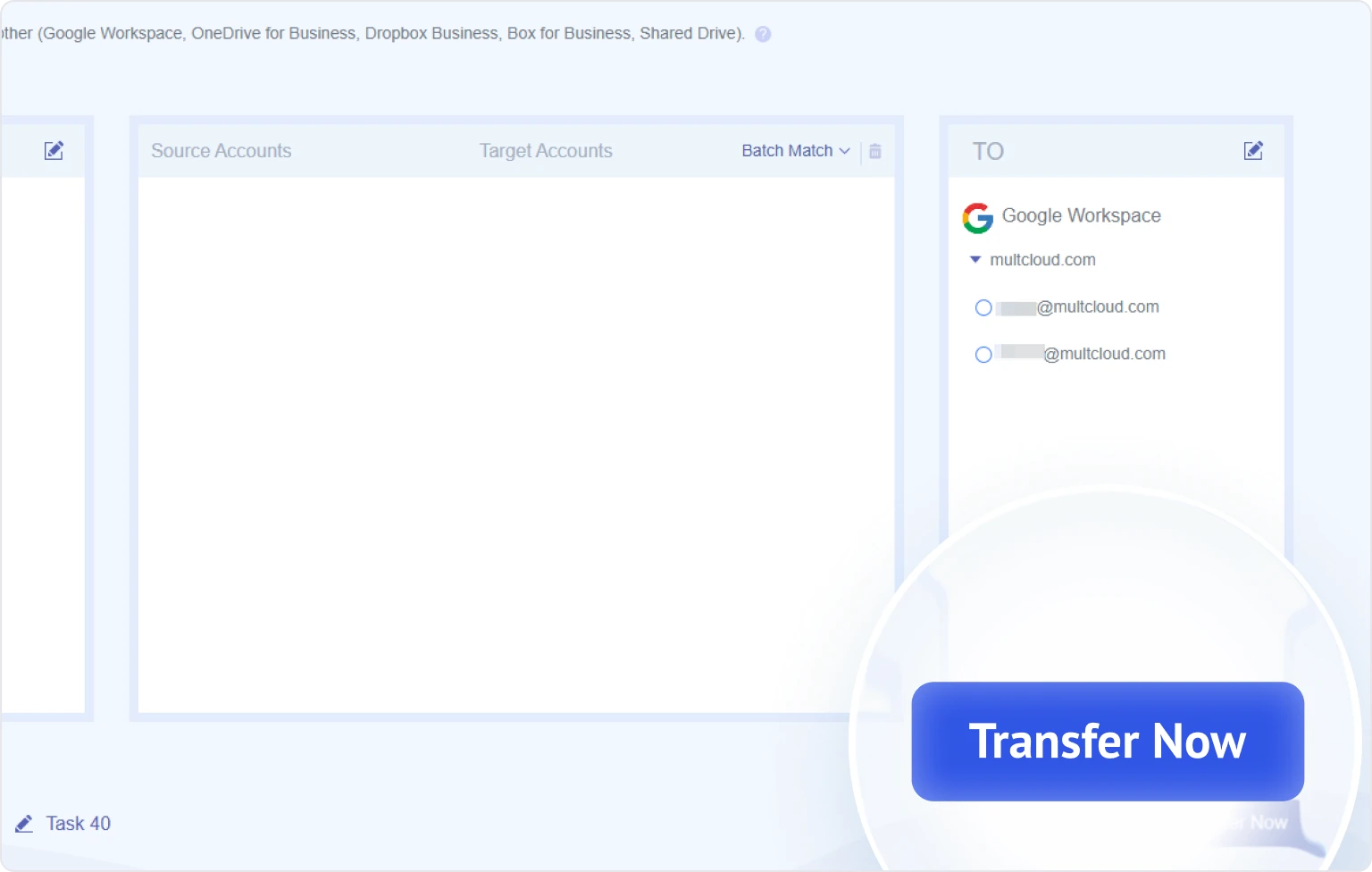
Set options like filters, duplicate handling, or schedules, then click Transfer Now to start the migration.
Enterprise Migration: Batch Transfer via Admin Accounts
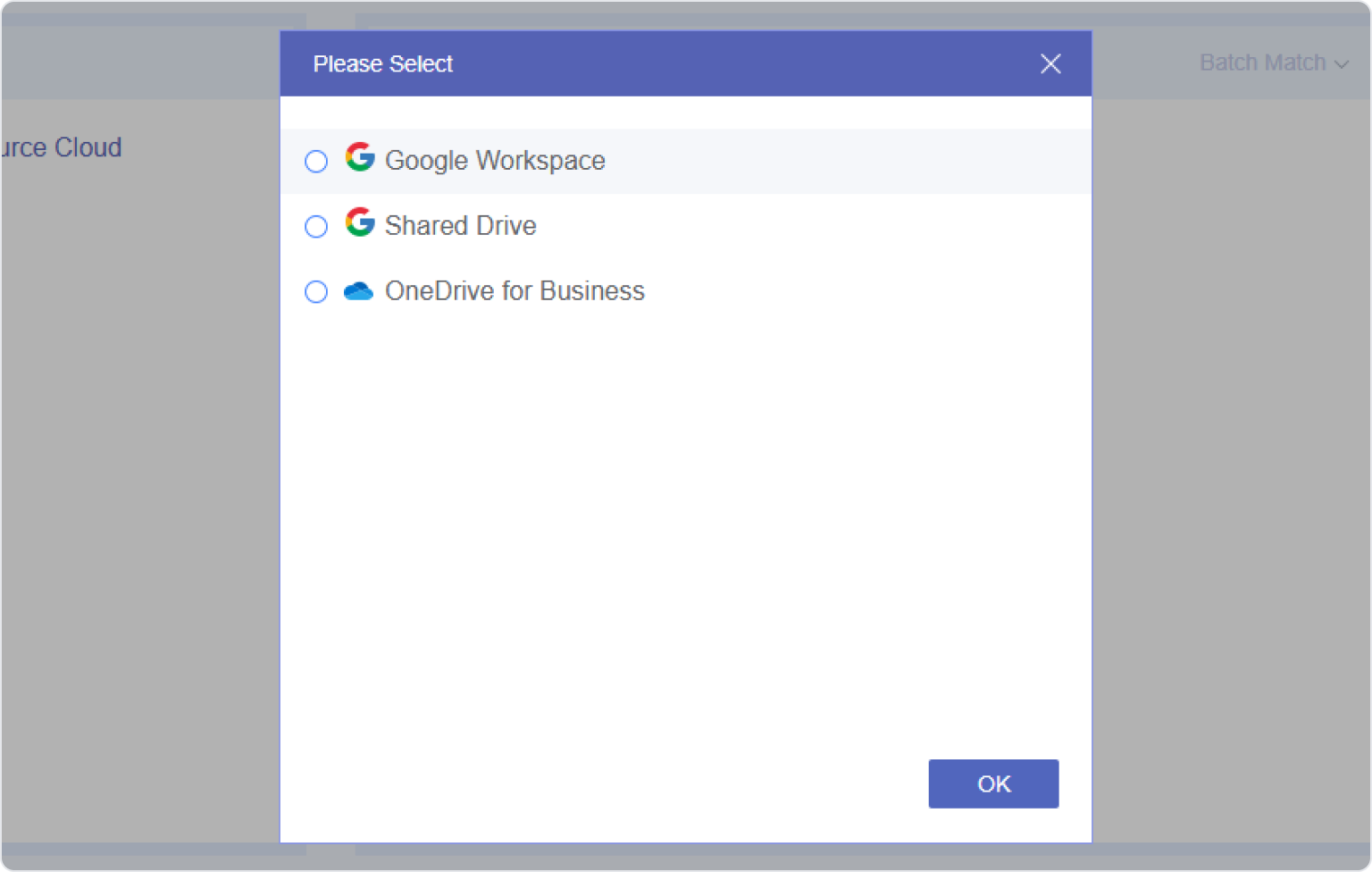
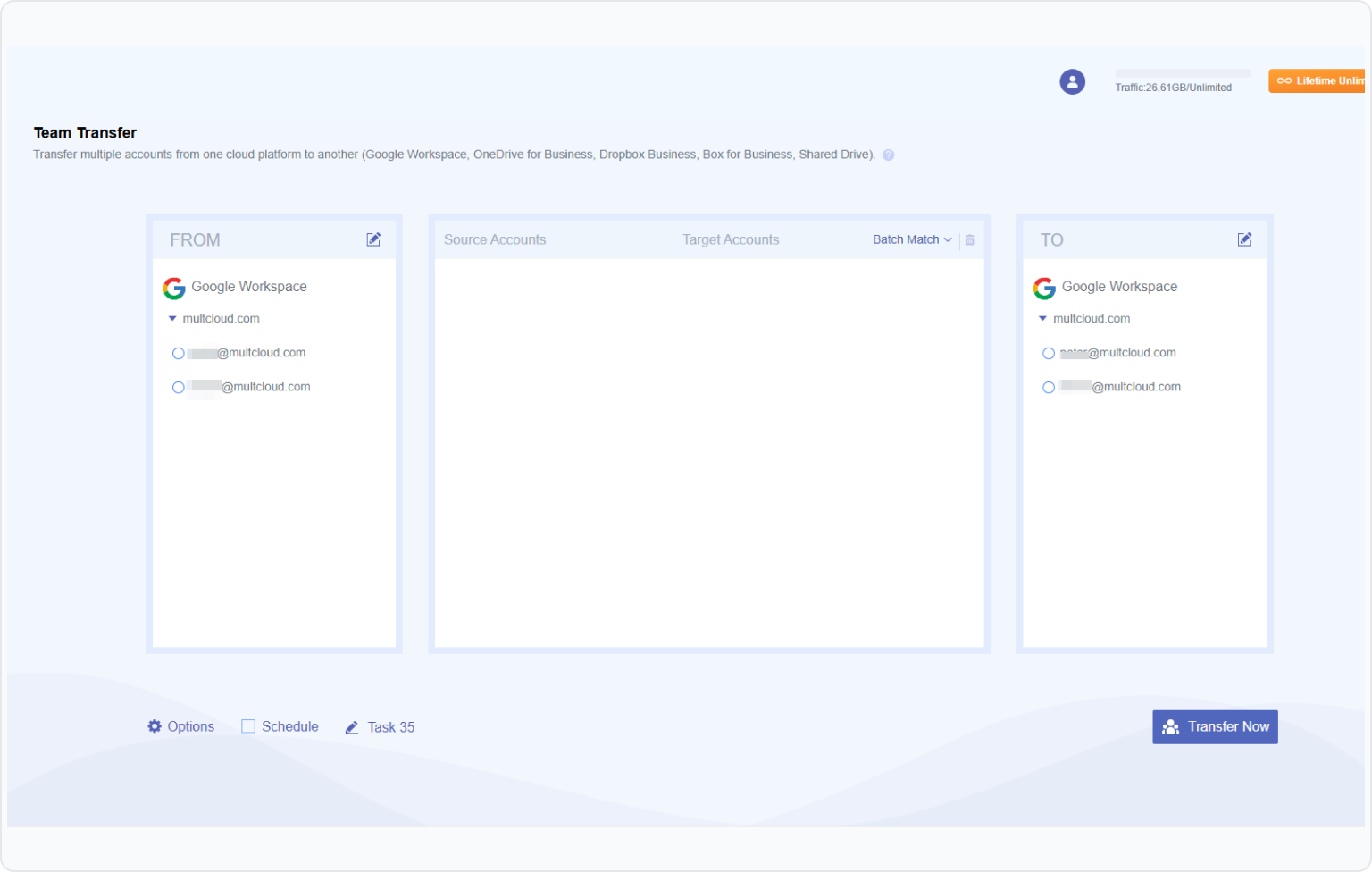
Migrating hundreds of accounts manually is slow and error-prone. MultCloud Team Transfer lets admins authorize domain credentials once and run bulk account-to-account migrations in parallel.
File filters
Auto-match user accounts
Batch execution
Duplicate handling
Daily, weekly or monthly schedule
Pro Tip:For accounts larger than 750 GB, use MultCloud's scheduled transfer feature to stagger data movements over multiple off-peak days.
Common Transfer Problems and Fixes
Duplicate files appear
Open “Options” and choose how MultCloud should handle existing files, such as skipping, overwriting, or renaming them.
Users lose access after migration
Review the destination Shared Drive’s membership and sharing settings. Folder-inherited permissions may not carry over when content is moved into a Shared Drive.
Authorization has expired
Remove and reconnect the affected Shared Drive, then restart the transfer task.
Permission denied
Confirm that the connected accounts can access both Shared Drives. For moving folders between Shared Drives, Google requires Manager access to both the source and destination.
The Shared Drive does not appear
Make sure you selected Shared Drive under Add Cloud. Adding Google Workspace alone connects only its My Drive data in MultCloud.
Files Cannot be Added to the Destination
Check the target Workspace’s storage capacity, sharing restrictions, and organizational policies.
How Permissions and Access Change Across Google Workspace Migration Methods
Item
Transfer Ownership / Move Files
Copy / Download & Re-upload
Ownership
Subject to organization and destination rules.
New files follow destination ownership rules.
Depends on destination and account mapping.
Access Permissions
Usually retained on ownership transfer; moving may change inherited access.
May require resharing; destination permissions may apply.
Depends on permission support and identity mapping.
File Links
Usually retained if original files remain.
New links; old links point to originals.
Check file creation and link-update behavior.
Comments & @Mentions
Verify access after account changes.
Preservation varies by copy method or format.
Check comments, user mapping, and notifications.
Shared Drive Roles
Moving files does not transfer membership.
Members and roles are not automatically copied.
Verify membership and role migration support.
Check More Cloud to Cloud Transfer Solutions
Transfer Dropbox to Google Drive
Move your files and shared folders directly from Dropbox to Google Drive with 100% automated cloud execution. Preserve complete directory structures effortlessly, no local downloads or bandwidth needed.
Seamlessly transfer folders and documents between separate Google accounts. Retain original file hierarchies and sharing permissions with automated, background cloud execution.
Move your files and cloud folders directly from OneDrive to Google Drive without downloading to your local device. Preserve original folder hierarchies with automated, background cloud transfers.
“I received 5GB of free transfer traffic when I signed up, which was a welcome bonus. Moving my photos and videos from Google Photos to another cloud was straightforward and went smoothly. In places where mobile data is expensive, a service like MultCloud can make cloud-to-cloud transfers much more practical.”
UsefulShare
TM
Tyler Mitchell
“Moving our data from one Google Workspace to another went smoothly, and we’re very pleased with the results. A few minor issues came up along the way, but the support team responded quickly and helped us resolve them.”
UsefulShare
J
James
“Great tool for moving our files from one Google Workspace to another! We had 90GB of data to transfer and could leave the task running while handling other work. The customer support team was also responsive and helpful throughout the process.”
UsefulShare
R
Richard
I changed email addresses and needed to moving one cloud data to another cloud and Multcloud site helped me do this. My daughter who is a schoolteacher uses your Multcloud all the time. She guided me through the steps and we were successful. Thank you Excellent and easy to use. I’ll leave similar 5 star on Google to recommend you to others.
UsefulShare
GG
Guillaume Guthrie
The straightforward experience.Doesn’t require much configuration, options menu is well organized and non confusing. Technically efficient. It doesnt lag, it copies well files, with its directory and subdirectory structure. All of the options and buttons are placed in order through the screen and accessible.
UsefulShare
MG
Mike G
The MultCloud product is really outstanding and really does do exactly what it says "on the tin"... I have been dreading migrating TBs of data from Dropbox Business to Google Workspace and MultCloud made it super easy and painless. It even enabled me to preserve file "created on" and "modified on" dates...AND - their support is second to none. Really outstanding. Thank you.
UsefulShare
FAQs About Transferring Google Workspace to Google Workspace
MultCloud’s Cloud Transfer and Team Transfer focus on cloud files and folders. Plan Gmail, contacts, and calendar migration separately. MultCloud’s Email Migration saves emails as PDFs in cloud storage; it does not recreate those emails in the destination Gmail inbox. MultCloud Email Migration guide
Yes. Administrators can connect the organizations and use “Team Transfer” to map source users to destination users in bulk. MultCloud’s organization-access setup requires a Google Workspace super administrator account and an administrator installation of its Marketplace app.
Yes. Use CSV mappings or manual matching to connect each old account to the correct new account. Auto-Match requires the same username and domain, so it should not be relied on when migrating between different domains.
Do not assume they will all carry over. Before migrating the entire organization, test representative documents and check destination access, existing links, comments, and revision history.
Source deletion is optional. Leave “Delete all source files after transfer is complete” unchecked in MultCloud if you want to retain the originals. Keep the source data until you have verified the destination files and confirmed that employees can access what they need.
There is no fixed timeline. Duration depends on the number of users, file count, data volume, permissions, service limits, and the migration method. Run a pilot with representative accounts to estimate transfer time, then allow additional time for verification and the final switch.
Wait until all required data has been verified, email delivery works correctly, and users can access their files, calendars, and shared resources. Check integrations and retention requirements too. Keep the source environment available for an agreed verification period before cancellation.
Free Transfer Google Workspace to Another Account with MultCloud Now!
The Go-to Choice for Cloud-to-Cloud Transfer, Sync or Back up Files Across Clouds.