Safely & Freely Transfer Files from Google Drive to OneDrive
How can I transfer files from Google Drive to OneDrive? Download & upload, share & rename, archive whole GD or directly move to OneDrive by reliable MultCloud.

02/06/2021 | 2 minutes read
How to Transfer Files from Google Drive to OneDrive?
Sync Google Drive to OneDrive isn’t an easy thing. There are all four solutions for you to choose from.
Files Transfer from Google Drive to OneDrive
Method 1. Download and upload
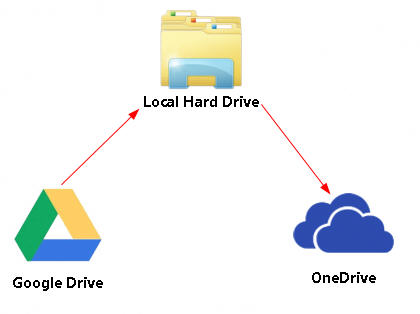
The traditional way is to download files from Google Drive to your local hard drive, then, upload them to OneDrive.
Method 2. Share certain files to OneDrive account
The “Share” feature of cloud drives enables you to share files from Google Drive to OneDrive. No matter you share target files one by one or in one time through a folder, you have to go “Shared with me” folder and copy target files out to another folder. Then, rename target files one by one to permanently possess them.
Method 3. Archive whole Google Drive to OneDrive
If yours is a G Suit account for education, you can directly archive all files in your GDrive to OneDrive.
-
1. Sign in your Google account and enter https://takeout.google.com/u/3/settings/takeout.
-
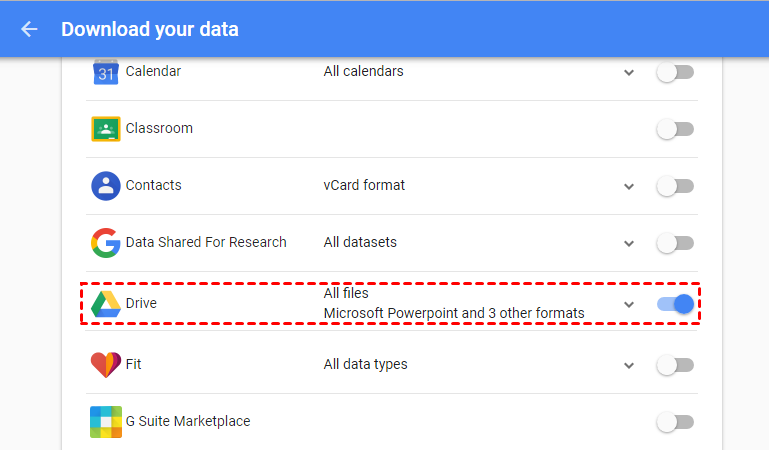
2. In “Download your data” screen, under select your data to include, make sure “Drive” is enabled. Then, click “NEXT”.
Download your Data Setting -
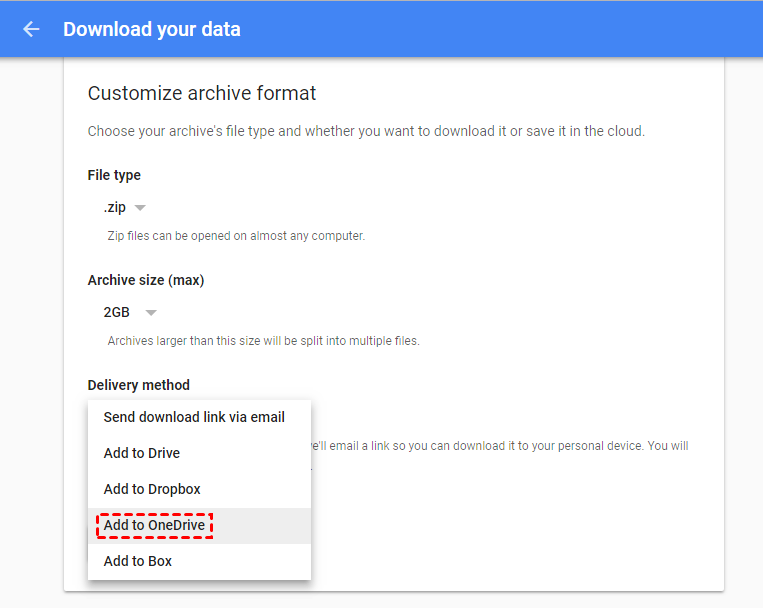
3. Under “Delivery method”, select “Add to OneDrive”.
Download your Data Setting -
4. Click “LINK ACCOUNT AND CREATE ARCHIVE” to connect your OneDrive account and export all Google Drive data to OneDrive.
However, all above three ways are a little bit complex and may take a lot of time because of the size of files and the network speed. You must rely local storage to finish the transferring from Google Drive to OneDrive. Is there any way that can import Google Drive to OneDrive directly?
Method 4. Directly migrate Google Drive to OneDrive with MultCloud
Fortunately, the free tool MultCloud can help you backup files from Google Drive to OneDrive directly. MultCloud can put multiple cloud drives into one free App for managing files and transferring files across clouds. It supports Google Drive, G Suite, OneDrive, OneDrive For Business, Dropbox, Dropbox Business, Box, Amazon S3, Amazon Cloud Drive, SugarSync, Alfresco, hubiC, Evernote, CloudMe, Cubby, MyDrive, WEB.DE, Yandex, HiDrive, MySQL, Flickr, MediaFire, ownCloud, ADrive, Baidu, MEGA, WebDAV, pCloud, Egnyte, Backblaze and FTP/SFTP. With MultCloud, you can easily manage multiple cloud drives, copy, migrate and transfer data flexibly. To mirror Google Drive to OneDrive, you can follow the steps below:
-
1. Create an account for getting a right to use MultCloud.
Sign Up -
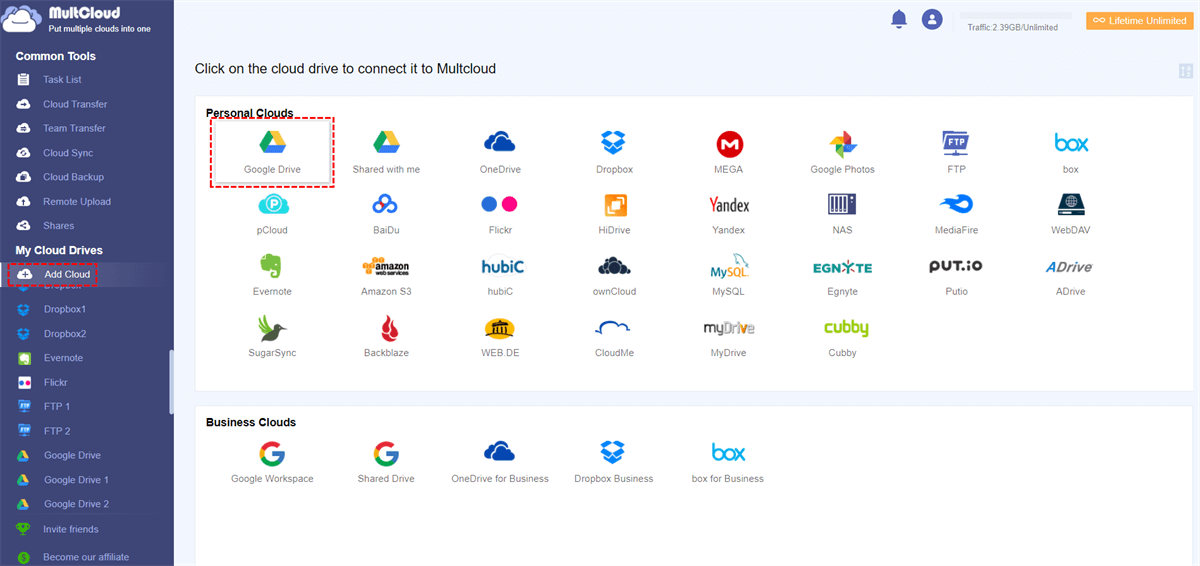
2.Add your Google Drive and OneDrive to your MultCloud by clicking Add Cloud Drives. Select them and follow the prompt to add them into MultCloud account one by one.
Add Google Drive -
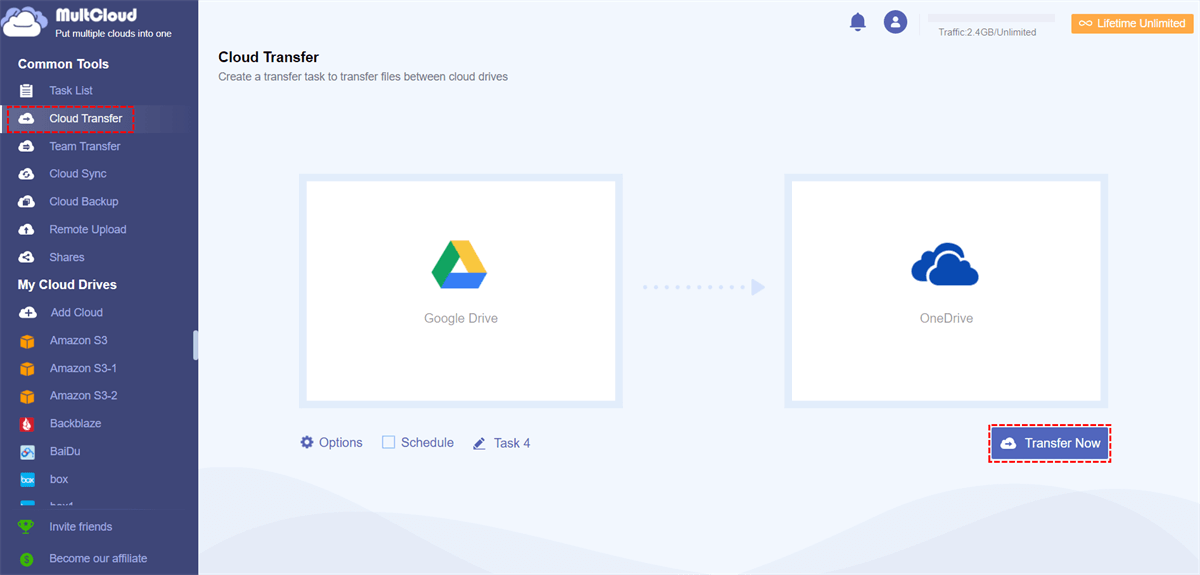
3. Your Google Drive and OneDrive will be listed at the left panel. To duplicate files from Google Drive to OneDrive, here you should go to Cloud Transfer tab, specify source and destination cloud respectively as GD and OneDrive. Finally, click “Transfer Now”.
Transfer Google Drive to OneDrive

MultCloud - Put Multiple Clouds into One
FREE App for Sync, Backup and Transfer Files between Cloud Storage.
100% Security Guarantee
Conclusion
The operation of imaging data from OneDrive to Google Drive is similar to above transfer files from Google Drive to OneDrive. Besides, MultCloud can do many other things for managing your cloud drives. You can also move files from Dropbox to Google Drive, or move files from Google Drive to Box, even combine OneDrive Dropbox Google Drive all together. It is worth to use if you have multiple cloud drives.
Update: Nowadays, you can sync files between OneDrive and Google Drive in MultCloud's Cloud Sync service.
MultCloud has released an externsion for Chrome to let you touch Google Drive easily.