Transfer data across clouds
The best and free tool to move files between cloud services
The best and free tool to move files between cloud services
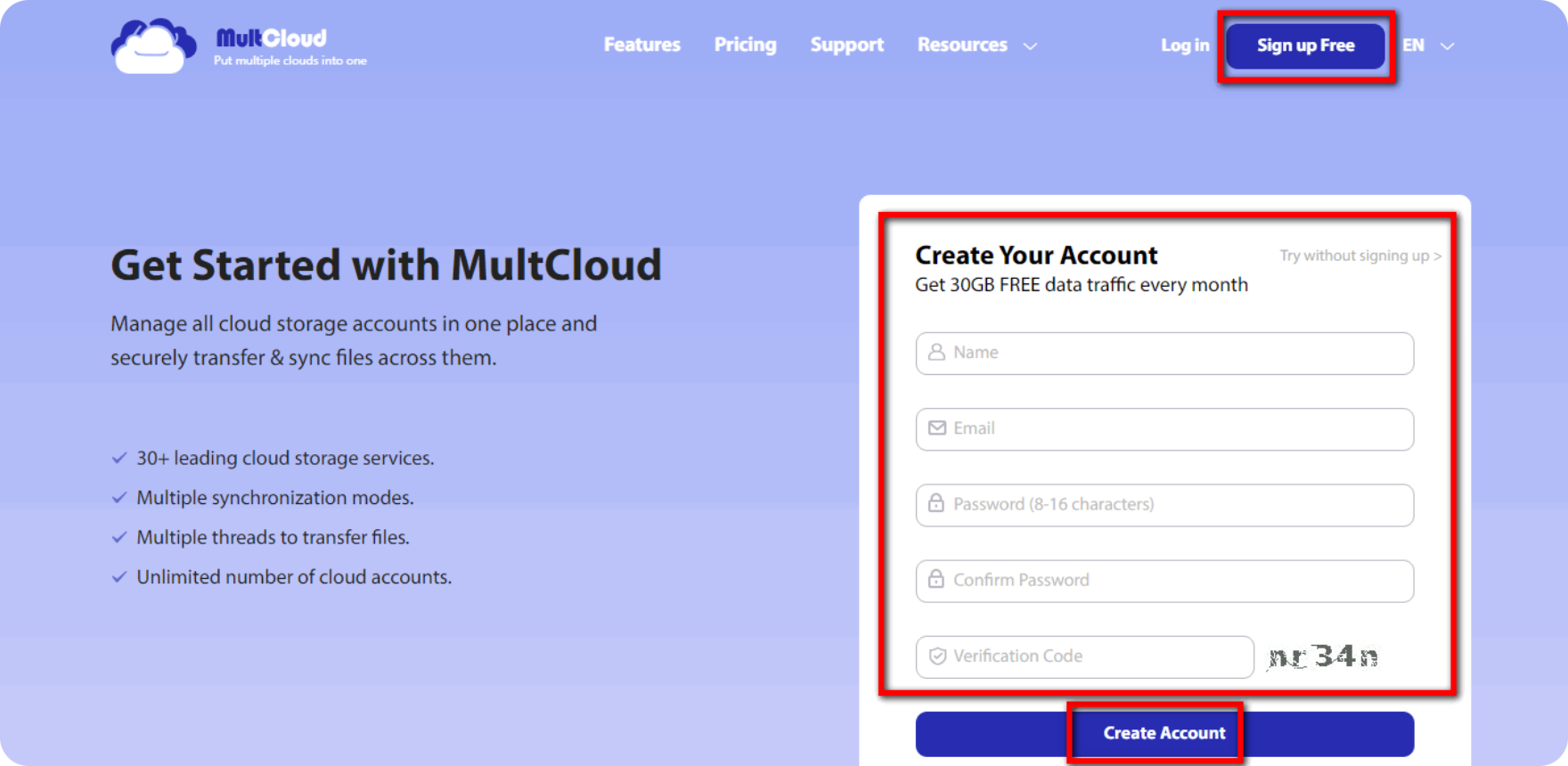
Use your preferred E-mail to create an account on MultCloud and confirm the registration message sent to your e-mail to log in.
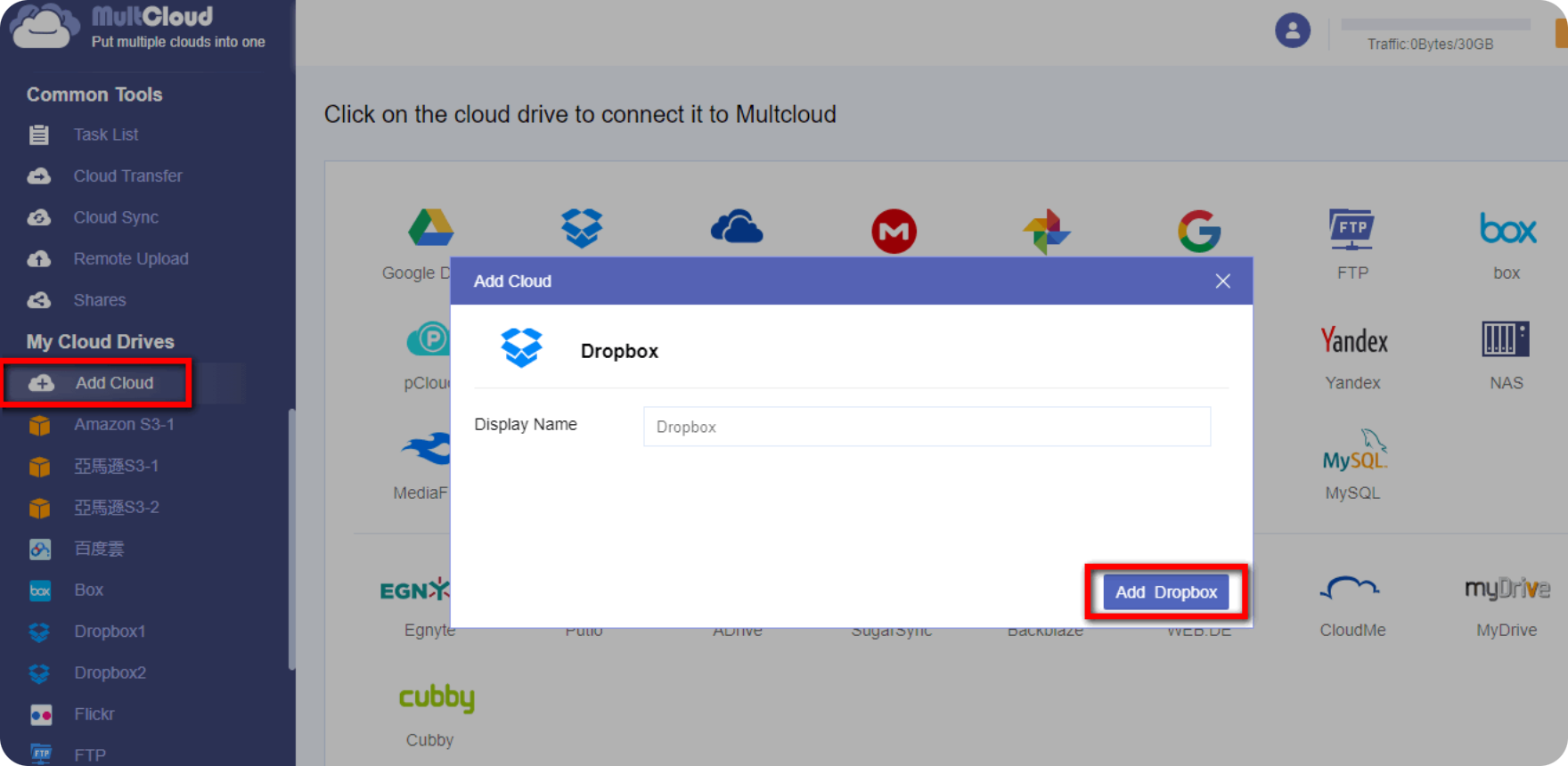
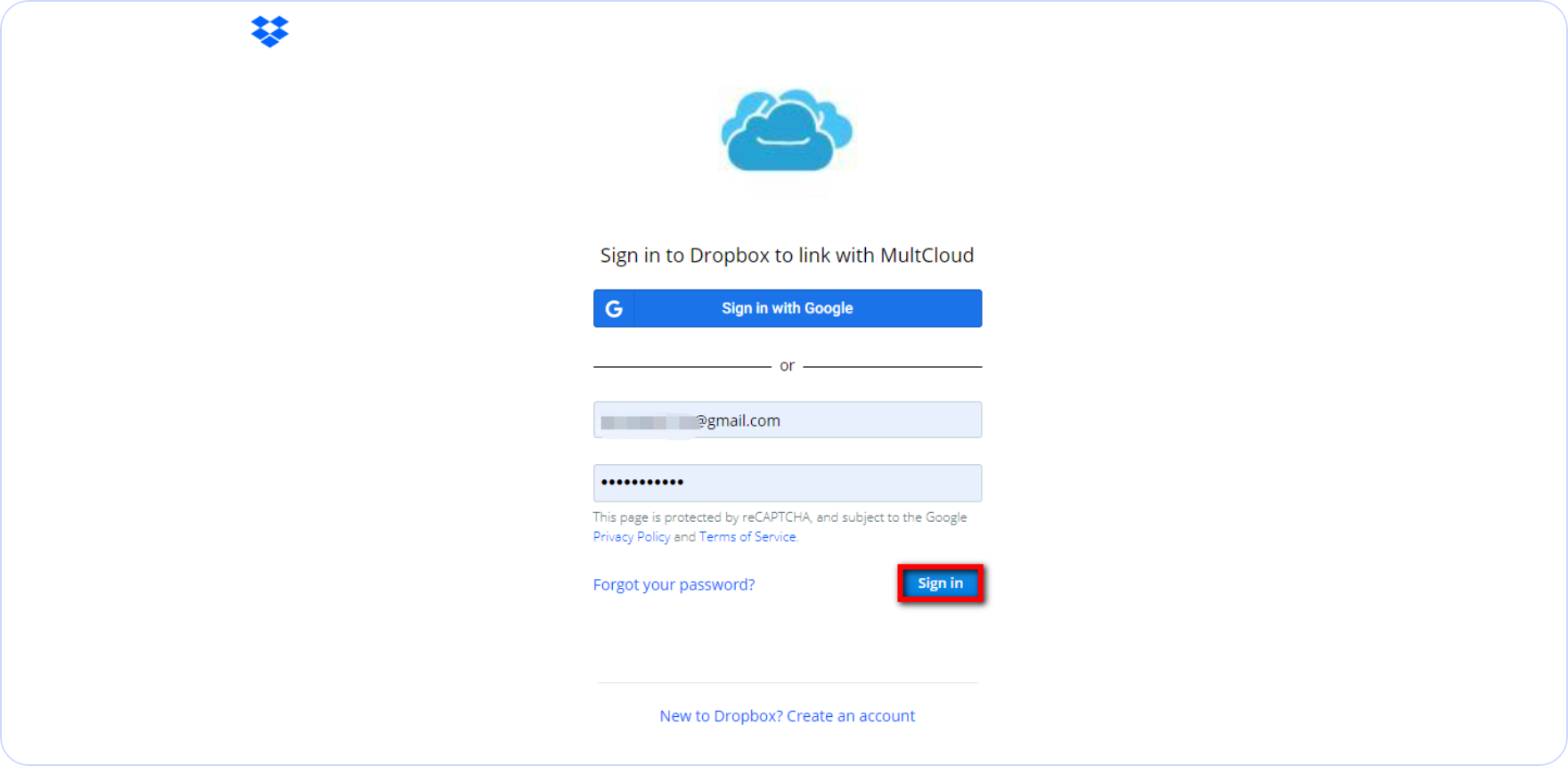
Click on “Add Cloud” and select the cloud storage service you wish to add. For instance, select Dropbox to add connector to MultCloud.
Click on “Sign in” to add your cloud storage service connector to MultCloud.
Tips: MultCloud will
NOT store users’ file permanently. When the transfer of data is complete, the data will be deleted
from MultCloud database.
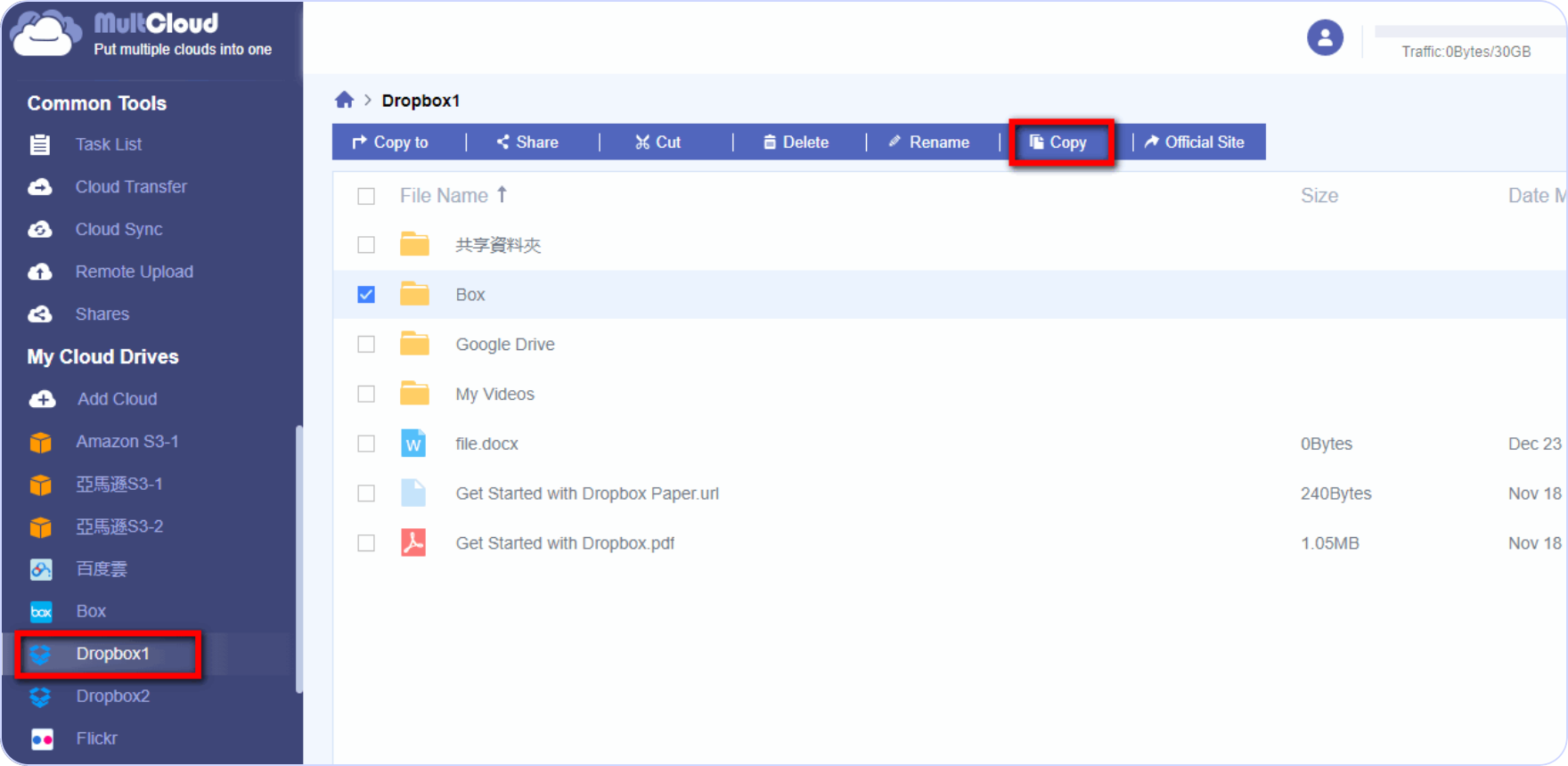
Click on “Dropbox” and you’ll see all the files on your Dropbox service. Click on the file you wish to transfer to open the context menu. In this tutorial, we click on “Copy”.
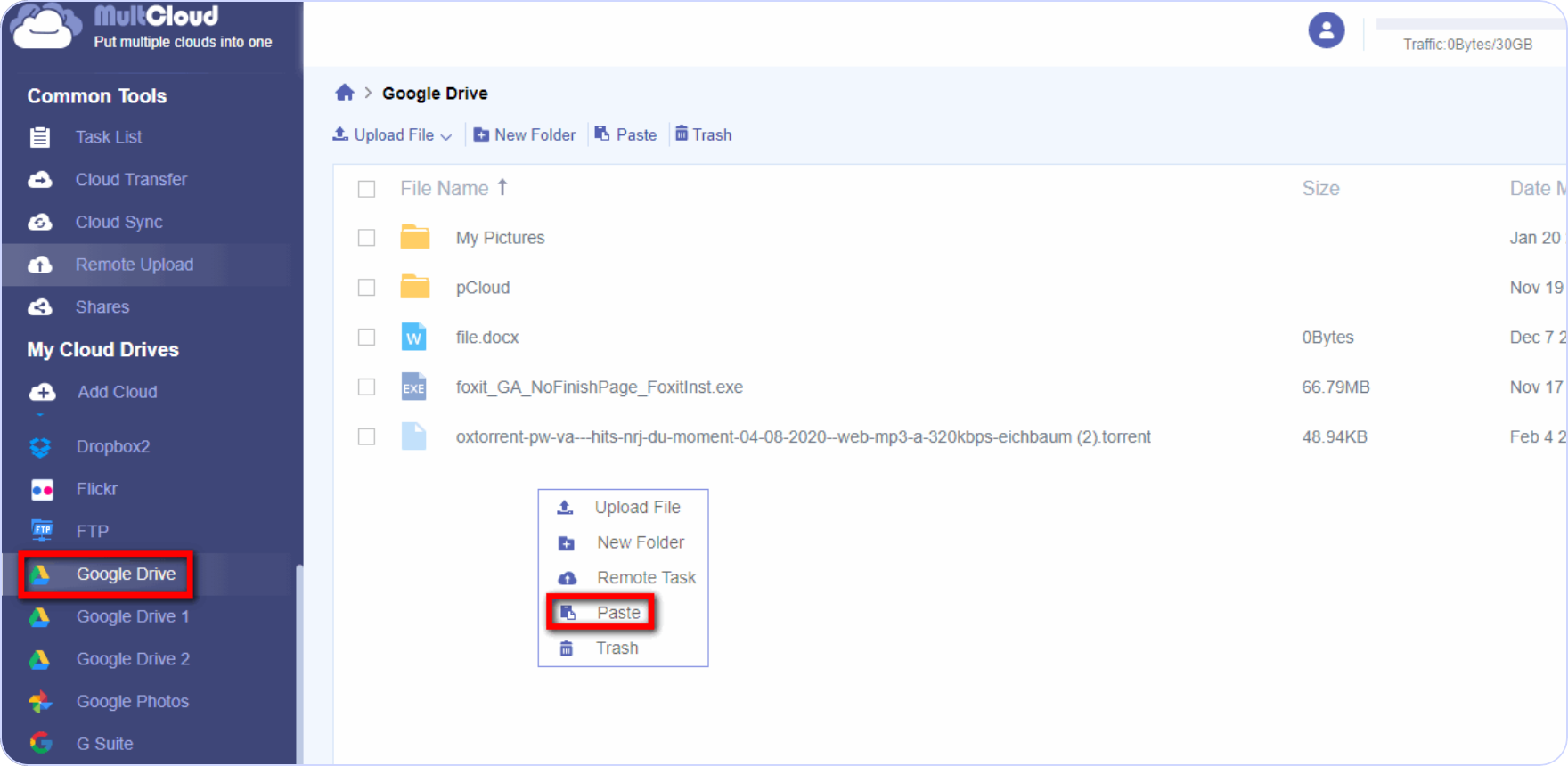
Click on “Google Drive” and right click anywhere in the blank space to open the context menu.Click on
“paste” and the file be transferred to Google Drive.
Tips: Once a transfer started, the transfer
process will be running in the background, it will still be transferring even when your device is
powered.
Transfer, sync and backup data between over 30 cloud services with MultCloud

Communication between MultCloud servers and cloud servers (Google Drive, OneDrive, Dropbox, box, etc) is always done over a secure 256-bit SSL channel.

MultCloud does not store your data permently. It might temporarily cache part of the content based on your operations, however, the cache will be removed from our server immediately once the operation is done.

MultCloud uses OAuth authorization protocol to connecting your cloud services. Therefore, MultCloud does not have access to your passwords for your cloud accounts.

Connect all your clouds with MultCloud for effortless file management and cloud transfer. Sign up today to get started!